












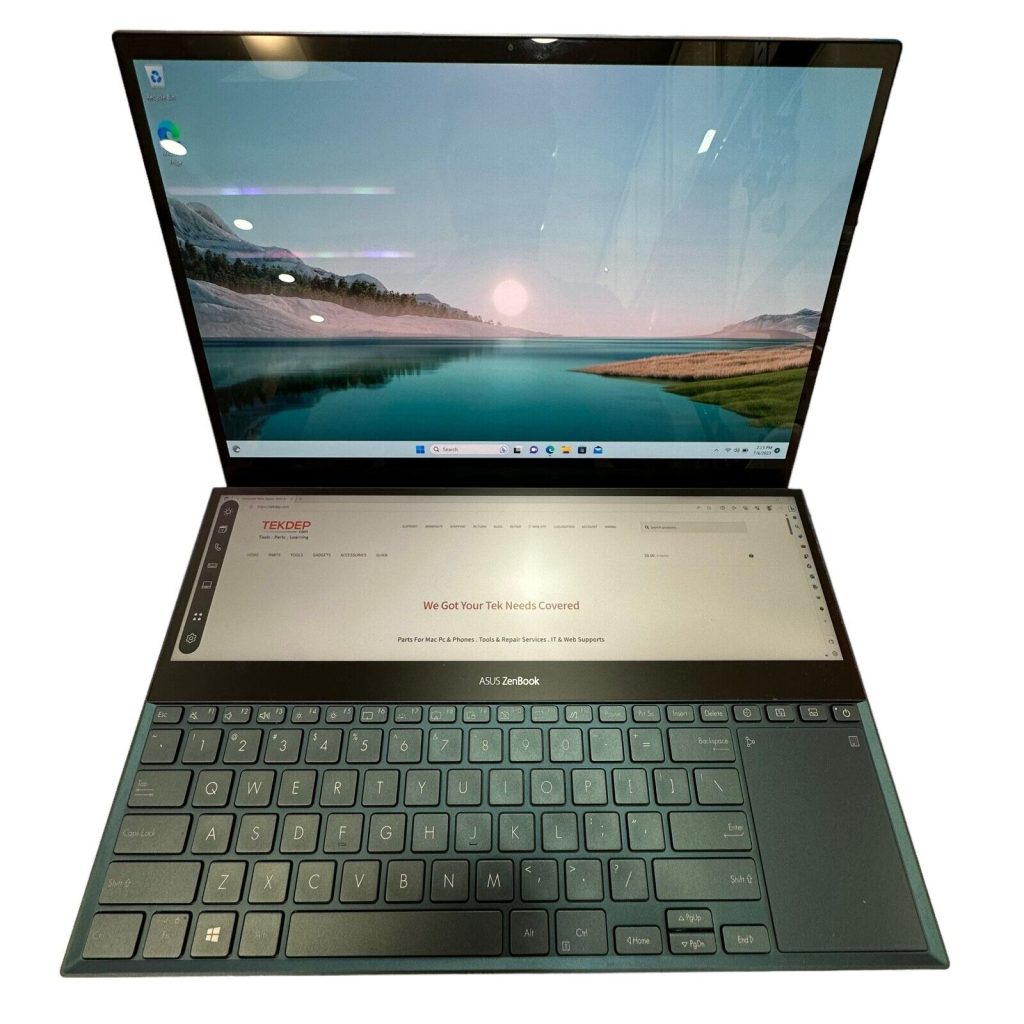



















Model: ASUS ProArt Studiobook 16 OLED (H7604J) | Level: Advanced | Tools: Precision screwdriver, plastic pry tool. This guide covers the H7604J motherboard replacement process.
Performing an H7604J motherboard replacement saves you multiple thousands of dollars compared to scrapping your specialized creator laptop. When ASUS tells you to buy a new machine, swapping the logic board with a tested replacement is the best fix.
This tutorial walks you through safely extracting the board, routing the unique ASUS Dial Slider cables, and clearing the CMOS on first boot. Let’s get started.
How to Complete an H7604J Motherboard Replacement (Quick Overview)
- Disconnect and remove the battery to fully discharge the unit.
- Extract the RAM, SSDs, and Wi-Fi chip so they can be transferred.
- Remove the logic board screws, paying attention to the directional arrows.
- Pry the board free from the back, moving slowly to avoid snagging cables.
- Seat the new logic board bottom-first to align the IO ports.
- Route the flex cables through the gap before screwing the board down.
- Plug the charger in and press power, waiting for the CMOS to clear and reset.
🛠️ Required Tools & Preparation for an H7604J Motherboard Replacement
An H7604J motherboard replacement requires specialized precision bits and a safe workspace. Power off and unplug the laptop before you begin.
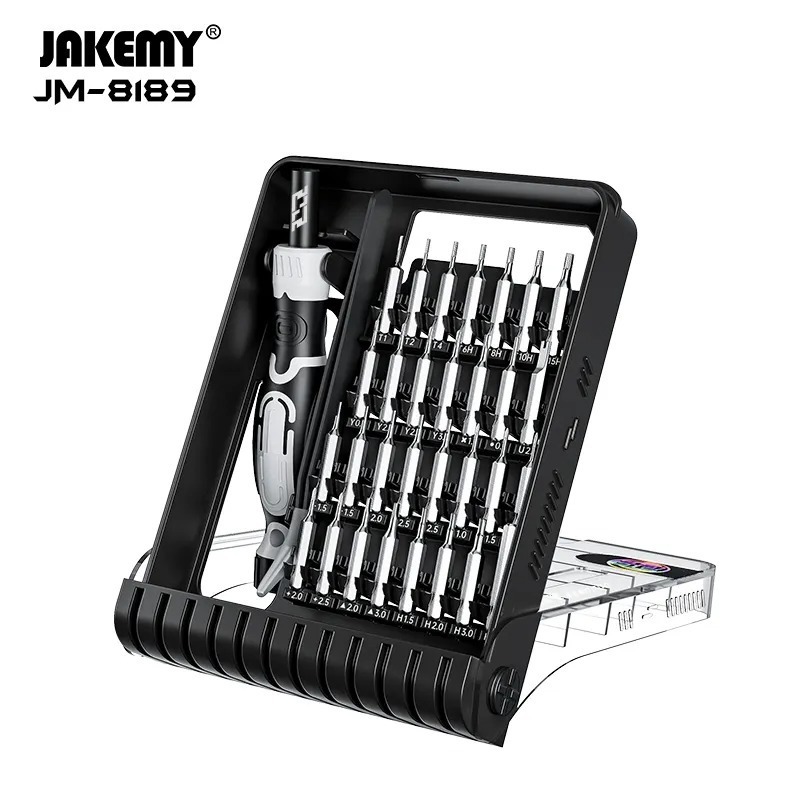
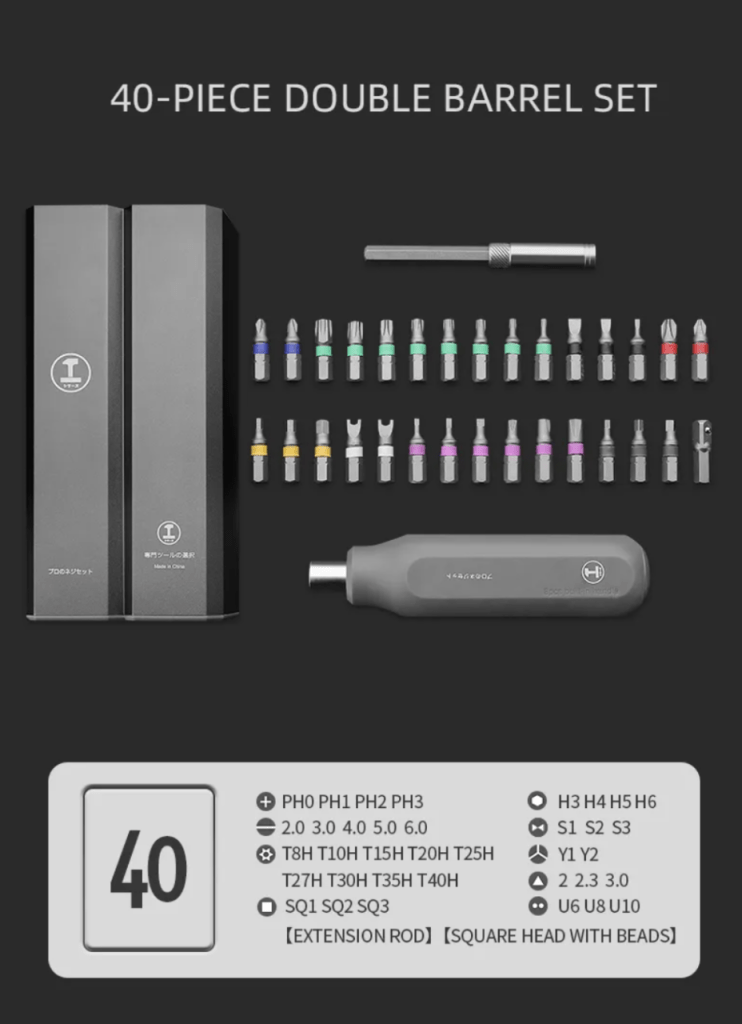
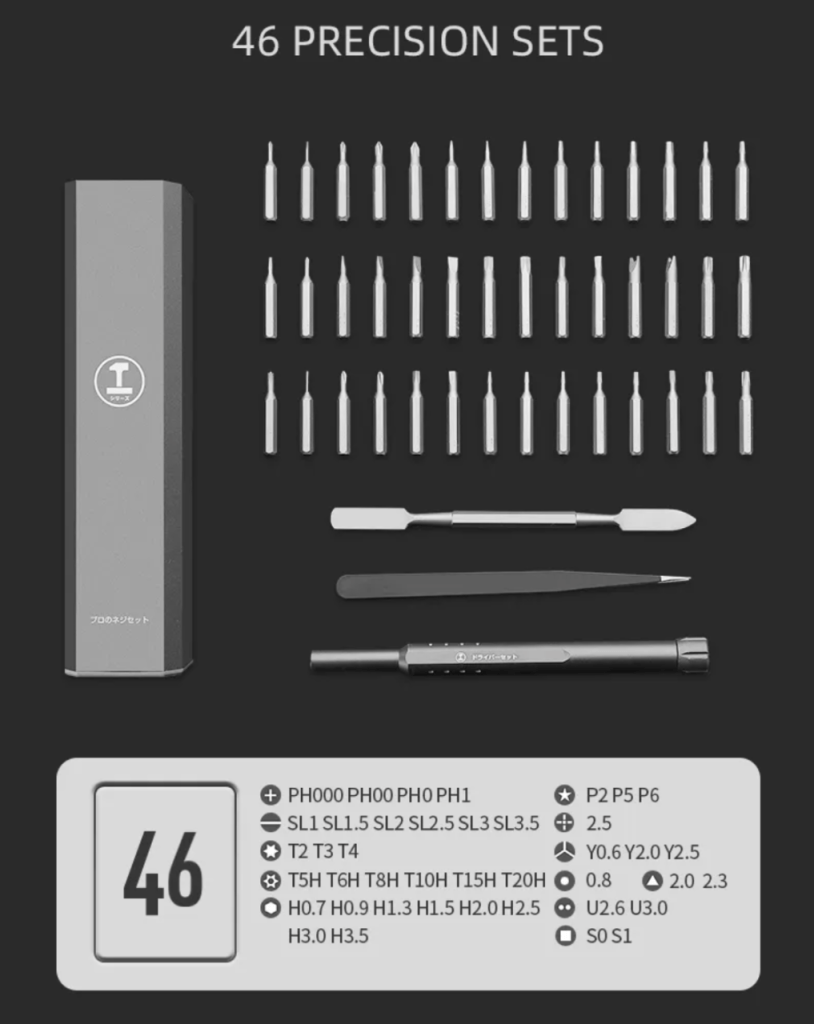
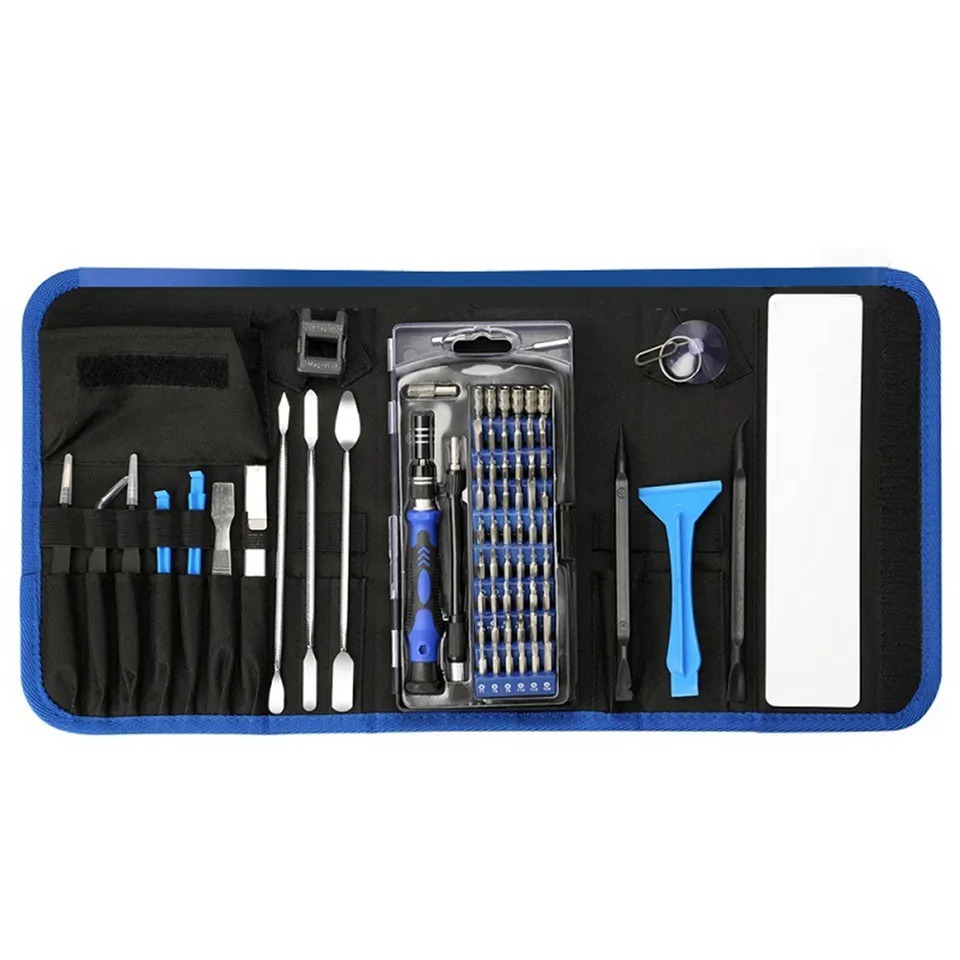
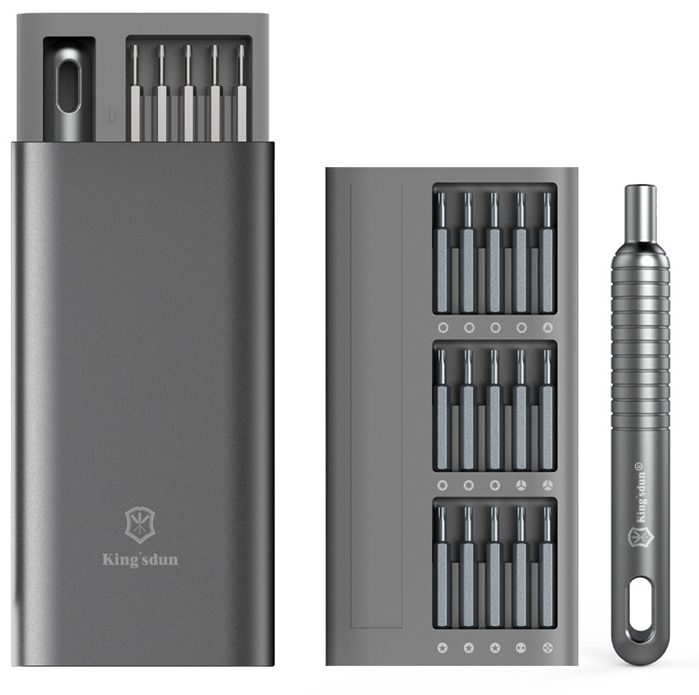
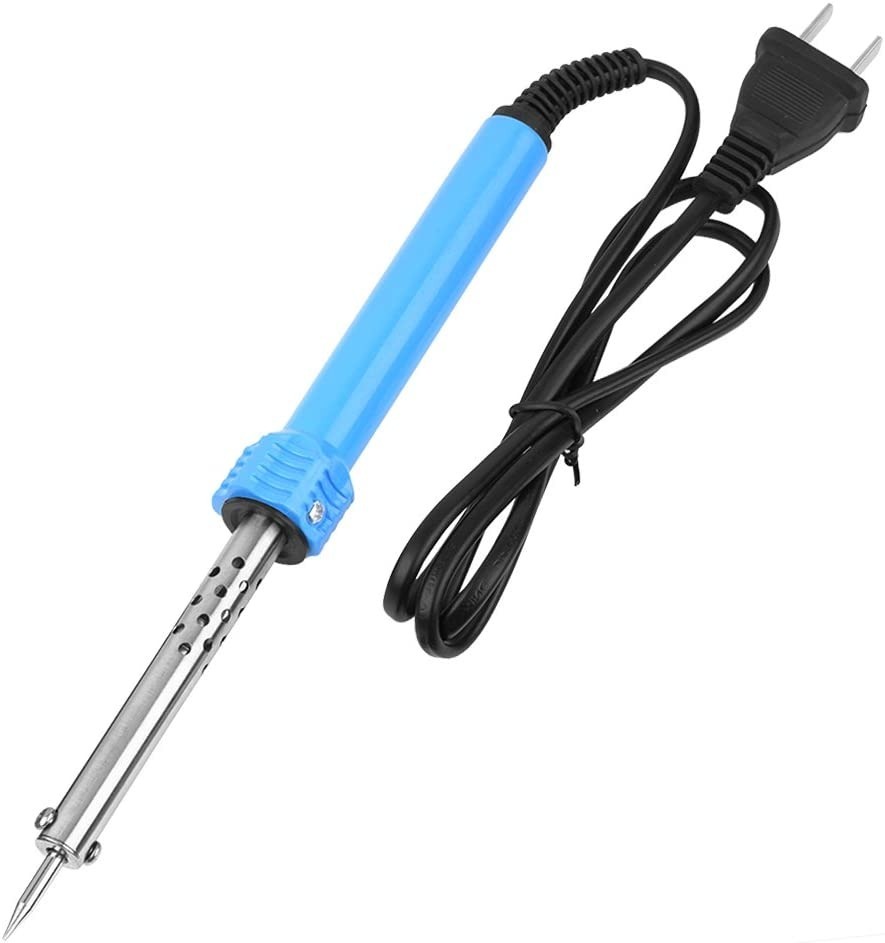
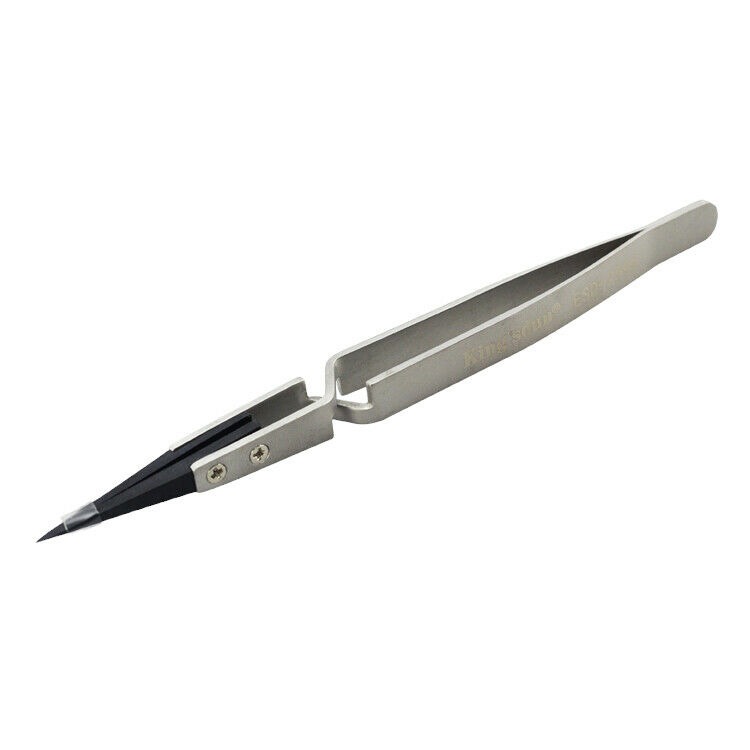
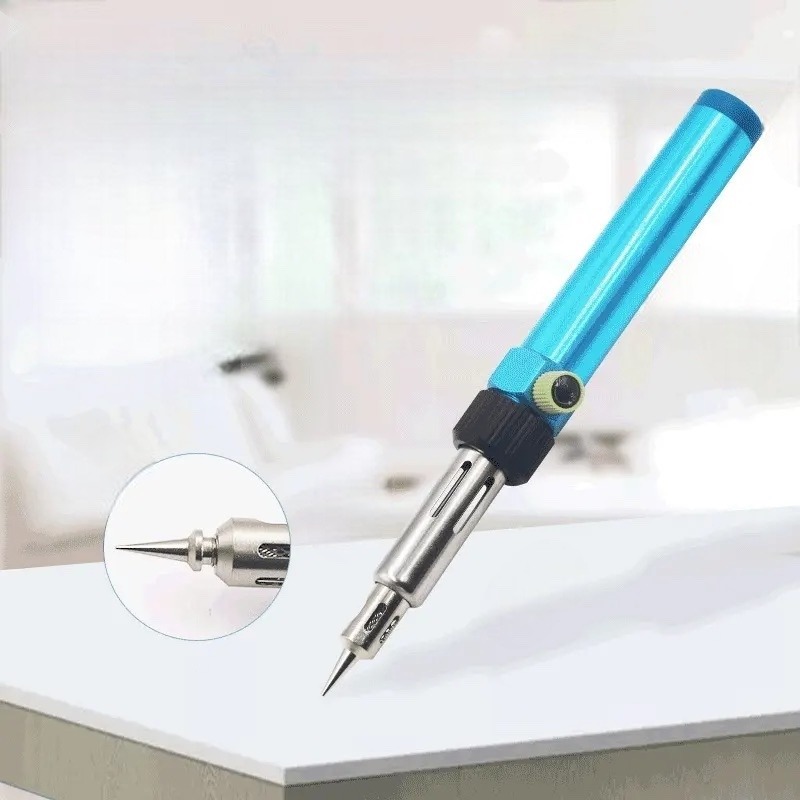
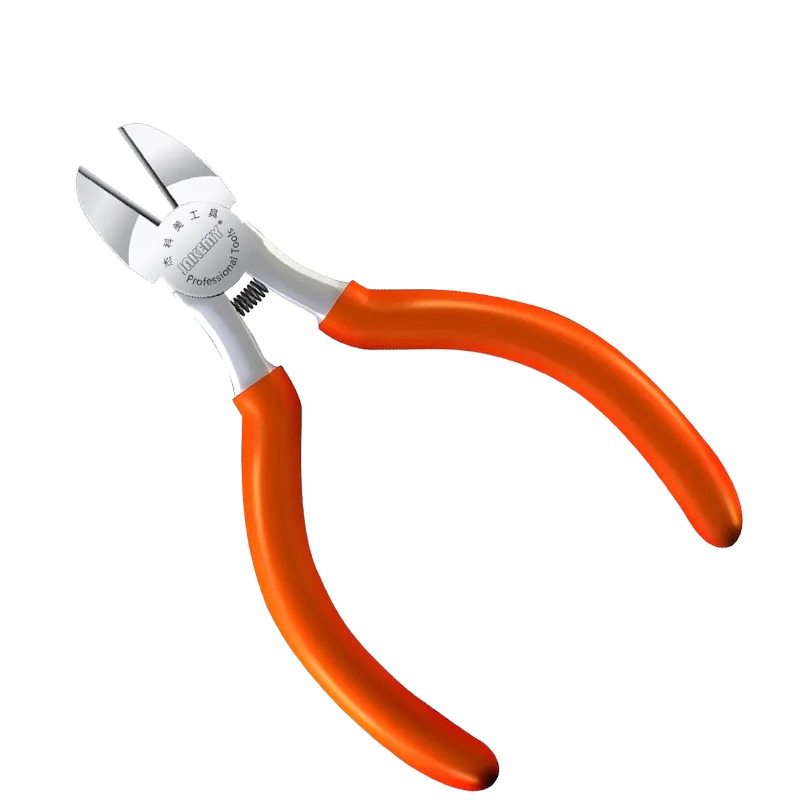
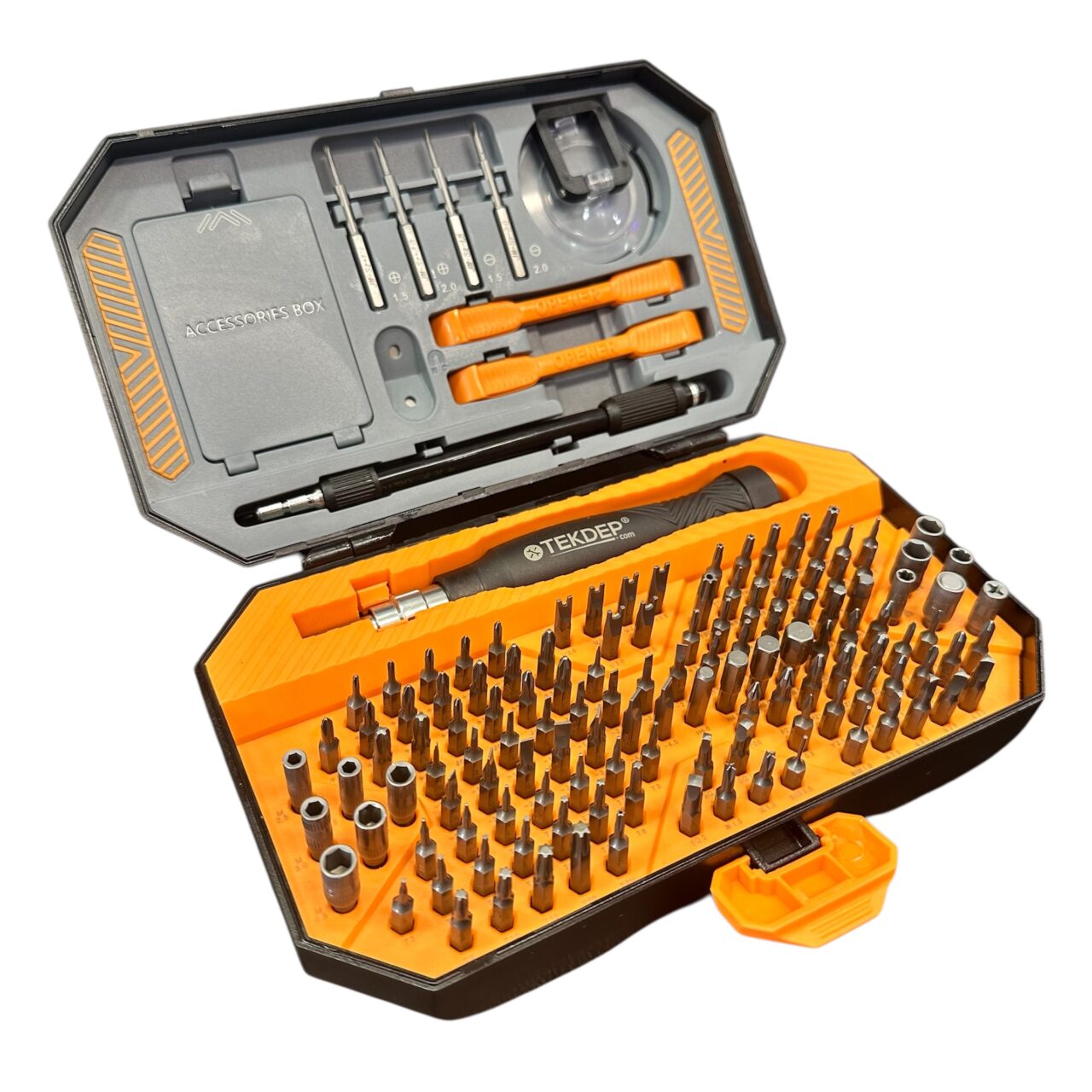
- Precision screwdriver: removes the chassis, peripheral, and motherboard screws.
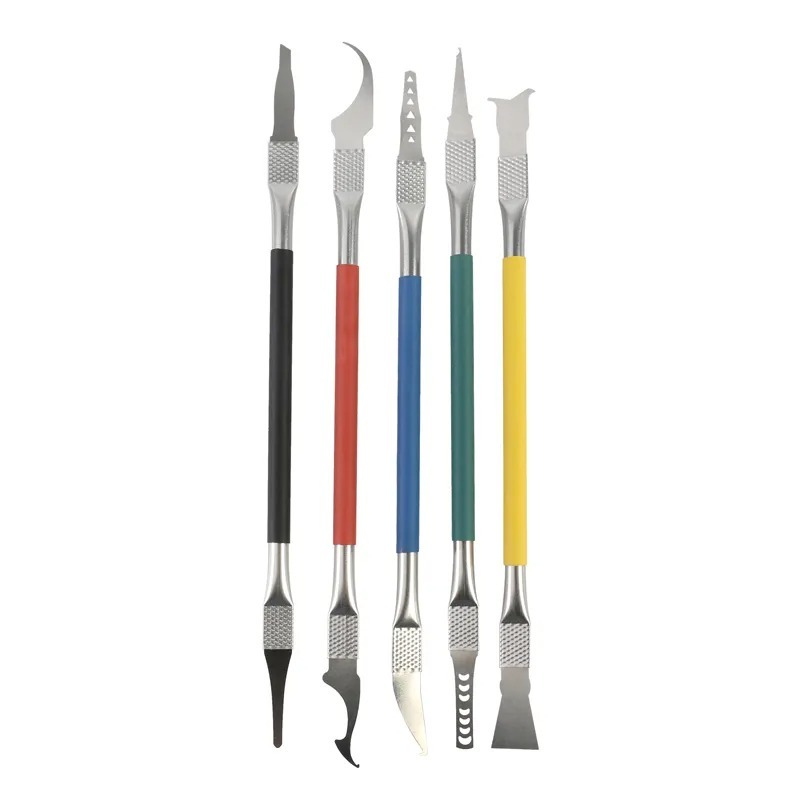
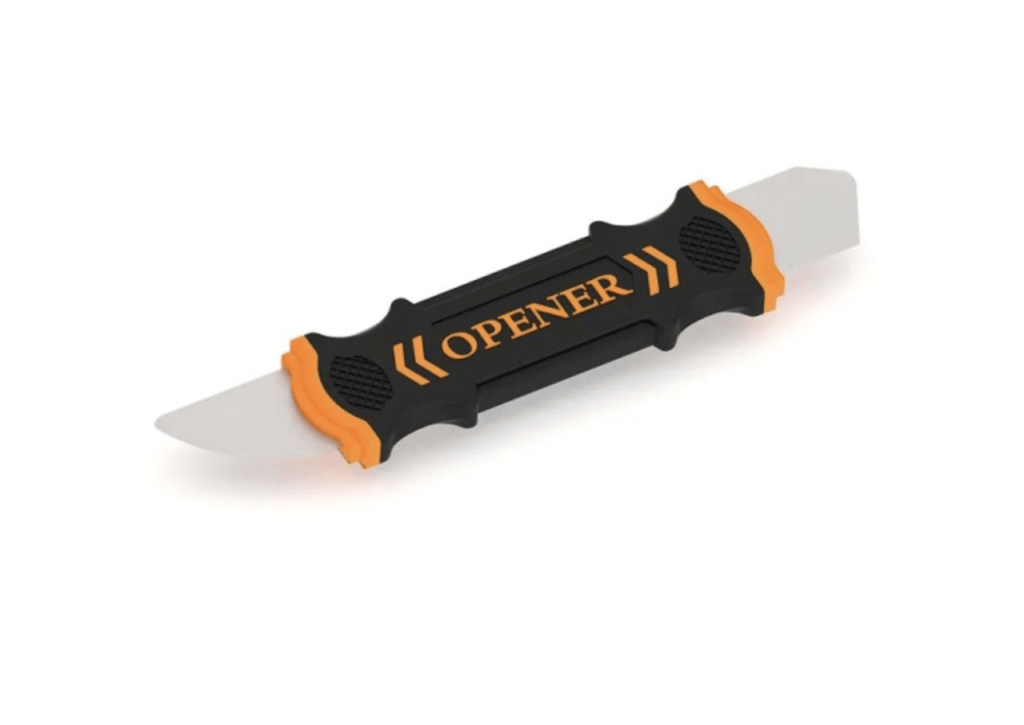
- Plastic pry tool: unclips the bottom cover and lifts the logic board without scratching traces.
Not sure which version you have? ASUS’s ProArt Studiobook 16 OLED (H7604) tech specs list the H7604JI and H7604JV models, so you can match yours.
⚠️ Before you start: Disconnect the battery before you touch any connector on the logic board. Work on an anti-static mat and keep each group of screws organized, as placing a long screw in a short standoff will permanently damage the new board.
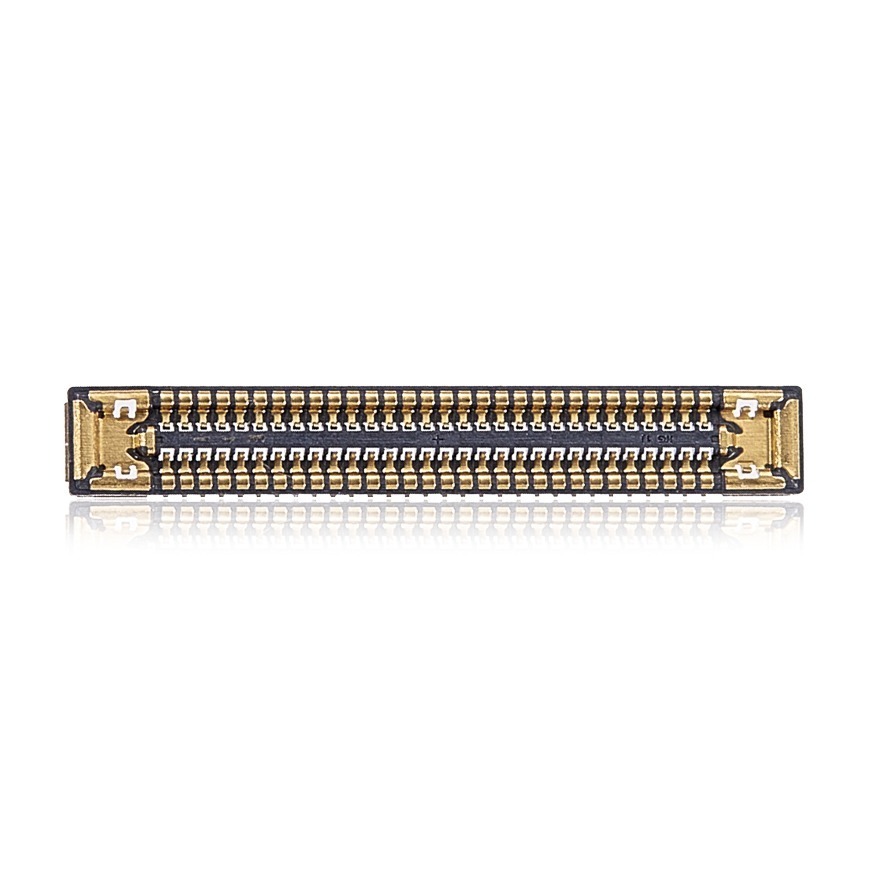
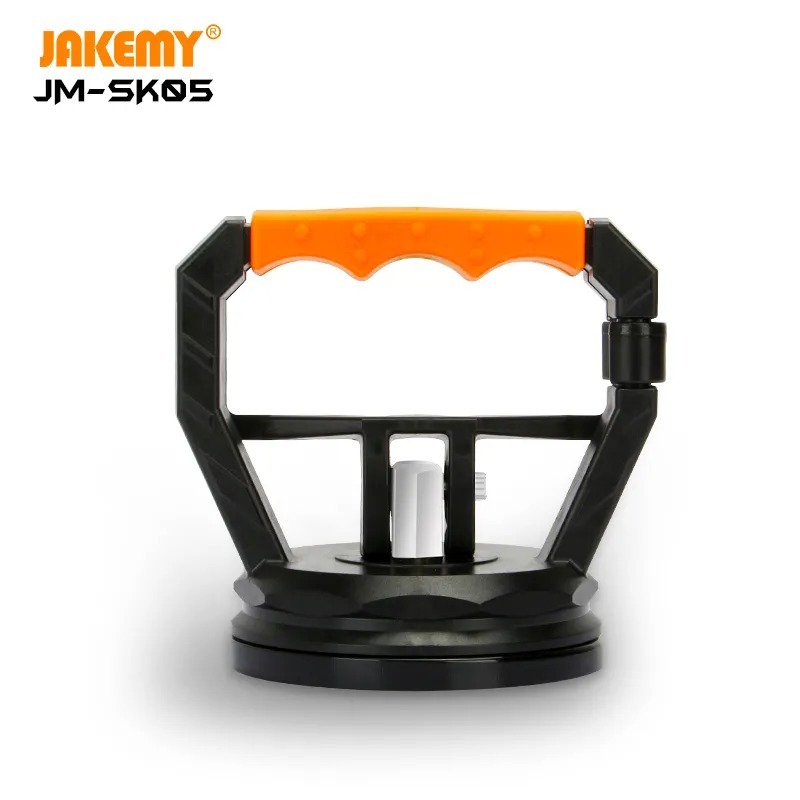
Get the Exact Tools Used by Our Techs:
You can also browse every part we stock for this model if you need to replace additional components.
Phase 1: Preparation & Component Removal Before the H7604J Motherboard Replacement
Before touching the motherboard itself, remove the battery and all the modular components.
Step 1: Disconnect and Discharge the Battery
- Unplug the battery connector from the logic board.
- After taking out the battery screws, lift the unit out of the chassis.
- Hold the power button down for ten seconds to fully discharge any remaining power in the laptop.

Step 2: Remove the Peripheral Components
You must transfer your existing storage, memory, and wireless cards over to the new board.
- Carefully remove the RAM modules, M.2 SSDs, and Wi-Fi card from their respective slots.
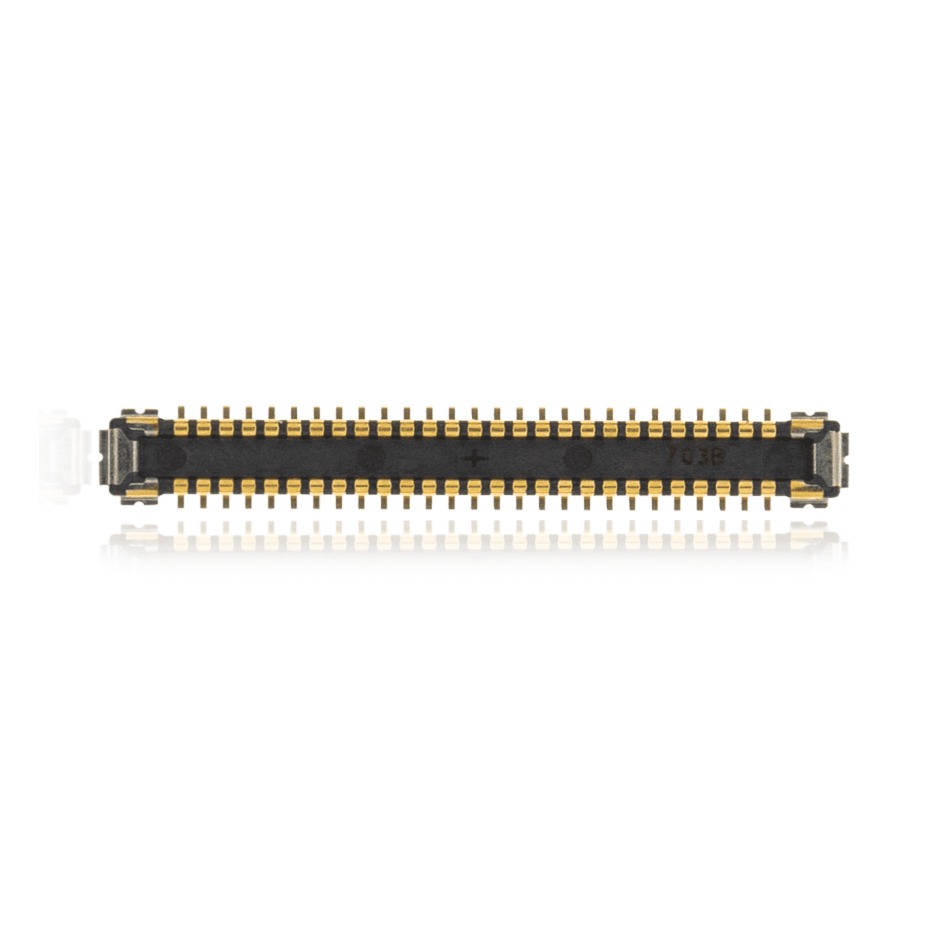
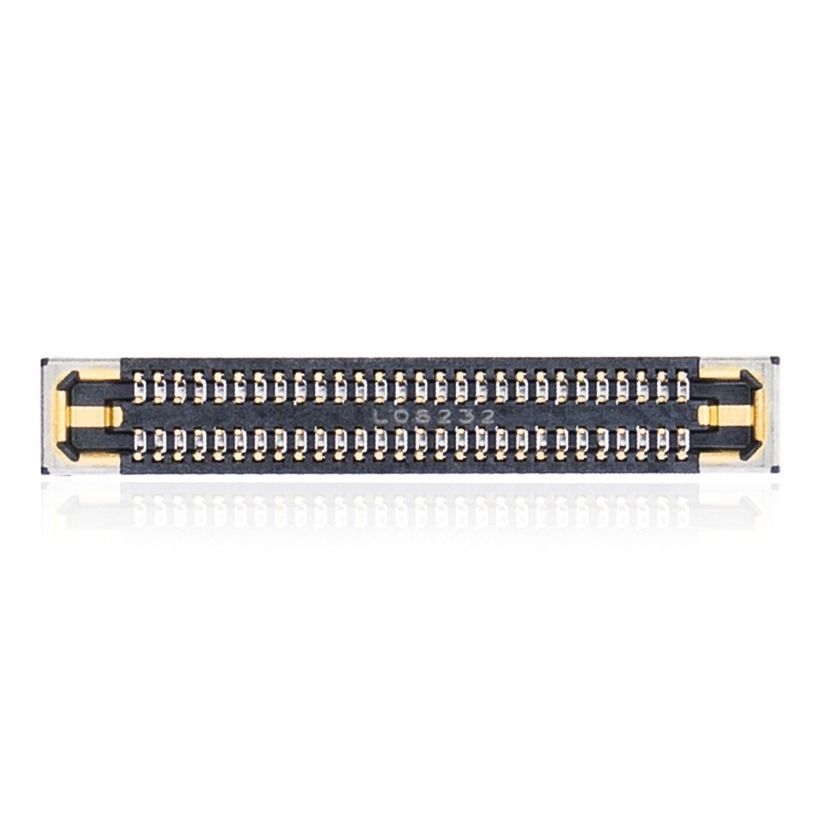
- Next, disconnect all smaller ribbon cables, including the ASUS Dial controller flex cable.
- Set all removed components safely aside on an anti-static surface.


Phase 2: Removing the Defective Motherboard (H7604J Motherboard Replacement)
With the board stripped of components, you can detach it from the chassis.
Step 1: Remove the Logic Board Screws
Keep track of every screw you remove, as their lengths vary. Using the wrong screw during reassembly will drill through the logic board.
- Look closely at the surface of the motherboard. ASUS prints small white arrows pointing directly to the logic board mounting screws.
- Remove the middle screw at the top, the side screws, and every screw marked with an arrow.
Crucial Note: Some motherboard points do not have an arrow because the backplate screws you removed earlier already hold them down.
Step 2: Pry the Board Free
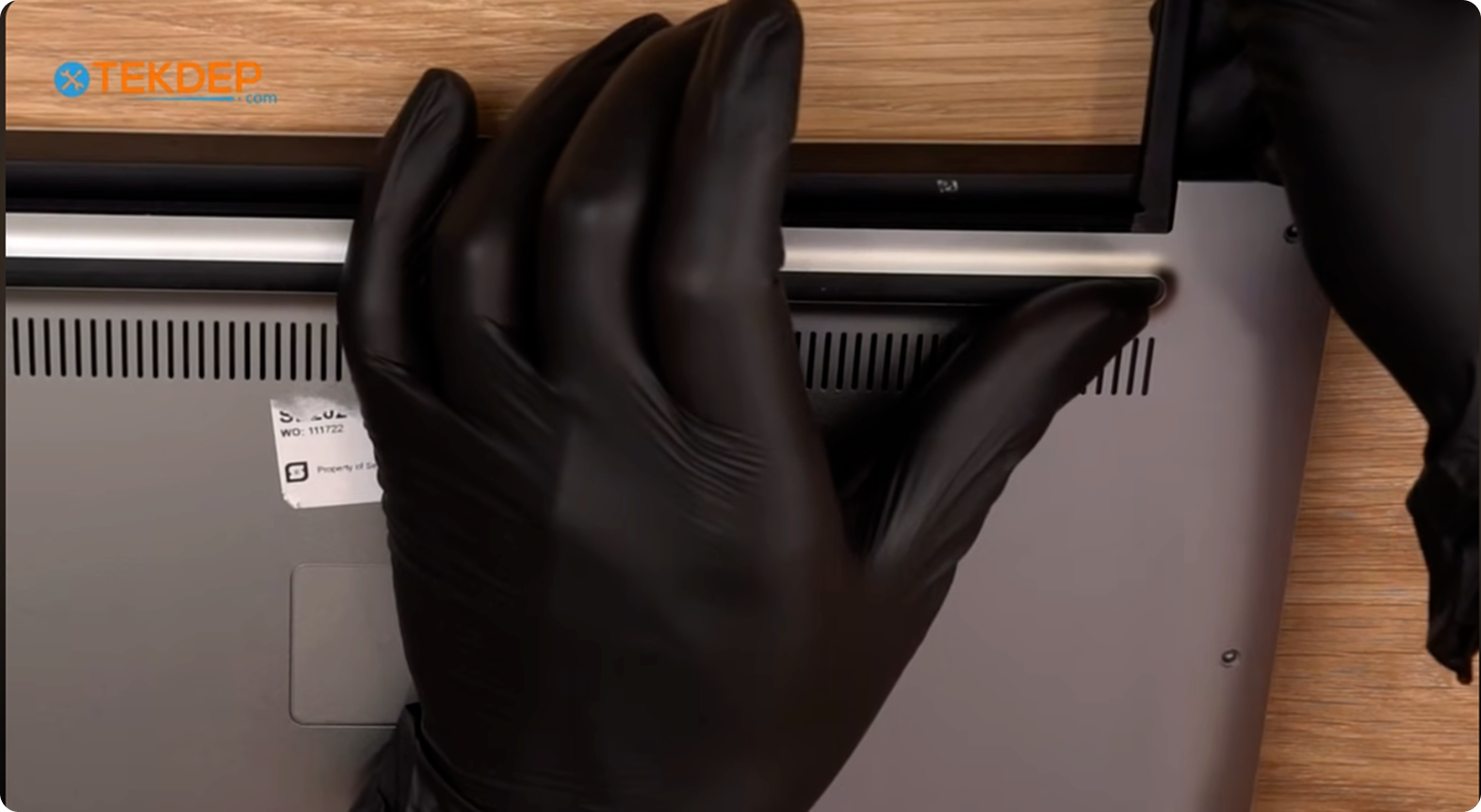
Take this step incredibly slowly. Even though you are replacing it, you do not want to tear any cables trapped underneath your existing logic board during the H7604J motherboard replacement.
- Grab your plastic pry tool and find an edge that feels loose.
- Next, apply a slight amount of upward pressure until the board unclips.
- Once free, grip the board with two hands and lift it out carefully.

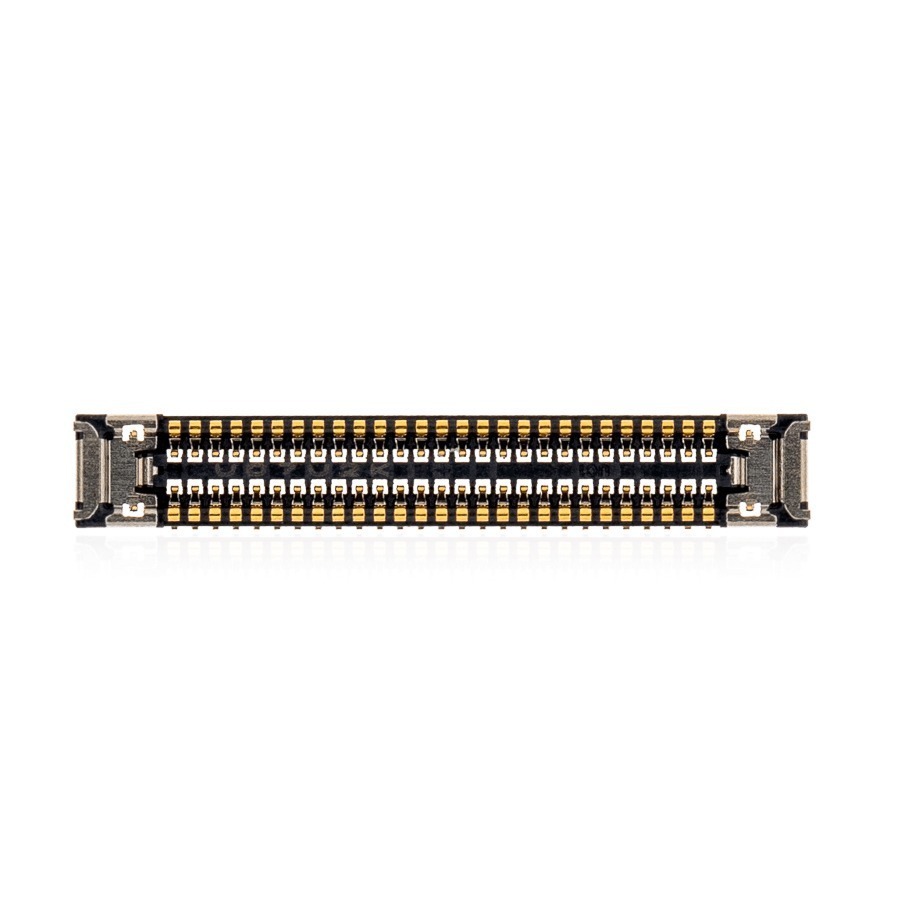
Get the replacement H7604J motherboard we installed:

Phase 3: Installing the New Motherboard & Reassembly (H7604J Motherboard Replacement)
The new, fully tested board must go in exactly the way the old one came out, with careful attention to the IO ports and delicate flex cables.
Step 1: Seat the New Motherboard
The IO ports along the edges must slide into their cutouts before the rest of the board can lay flat.
- Angle the board into the chassis bottom-first, aligning the IO ports with their exact spaces on the side of the casing.
- Lower the rest of the board down. The fit will be snug because it is proprietary to this specific model.
- If you feel resistance, stop. Take the board back out, go slow, and do not force it.

TekDep Expert Warning: Forcing a misaligned logic board into place will bend the delicate IO ports and crack the casing. Always seat the port side first.
Step 2: Route the Flex Cables
There are a couple of small flex cables at the bottom of the chassis, and the new board will trap them if you are not careful.
- Gently lift the logic board up a little bit.
- Pull the flex cables safely through the gaps to the top side of the board.
- Make sure no cable has a crease, and you are not applying too much pressure that could snap them.


Step 3: Securing Screws and Reconnecting Flex Cables
- Drive every mounting screw firmly back into its designated hole using the printed layout arrows.
- Slide your M.2 SSDs, RAM chips, and Wi-Fi card back into their respective sockets.
- Ensure the four bottom cables—including the speakers and sliding controller—are firmly locked into place.
Step 4: Reinstalling the Battery Module
- Slide the battery carefully back into its exact original position within the housing.
- Fasten all battery retention screws tightly to secure the block.
- Reconnect the battery power cable firmly into the motherboard socket as your final internal connection.
Turn over your computer and turn it back on. Because removing the battery resets the CMOS, this first boot will take much longer than usual. Plug the charger in, press the power button, and wait for it to boot into Windows to verify everything is working fine.
Congratulations! You have completed an H7604J motherboard replacement on your ASUS ProArt Studiobook 16 OLED.
Step 5: Performing the Post-Replacement Power Test (CMOS Reset)
Flip your laptop right-side up. Waiting slightly longer than usual for the system to post is normal, as disconnecting the battery completely clears the CMOS memory. Connect your charger, press the power button, and allow the machine to load into Windows so you can confirm everything is running properly.
🛑 Not Comfortable Handling Delicate Motherboard Components? If reading about hidden flex cables and fragile retention clips has you second-guessing your DIY skills, don’t worry. The TEKDEP experts are here to help.
We offer clean, professional, and affordable Mail-In repair services for the entire ASUS ProArt lineup.
Frequently Asked Questions
Is an H7604J motherboard replacement worth the cost?
Yes. When faced with a severely damaged or shorted logic board, repairing or replacing it with a tested part from TEKDEP costs a fraction of buying a brand-new creator laptop.
Why is my ASUS ProArt Studiobook 16 OLED taking so long to turn on after repair?
Disconnecting the battery clears the system’s CMOS memory. The very first time you boot up the machine after a board replacement, the system takes several minutes to reset and configure itself before posting.
What should I do if my motherboard feels stuck during removal?
Stop lifting immediately. Look over the board for any remaining screws, especially those without printed arrows that may have been hidden under shielding, or check for trapped flex cables that you missed.
🛑 IMPORTANT: SAFETY & LIABILITY DISCLAIMER TEKDEP®️ TEKDEP.com assumes no liability for property damage or injury incurred as a result of any information in this blog post or associated videos. Dealing with internal computer components, specifically Lithium-Ion batteries, carries inherent risks including fire, toxic gas exposure, and irreversible device failure. Any injury, damage, or loss from improper use of tools, mishandling of components, or misinterpretation of this information is the sole responsibility of the user.