
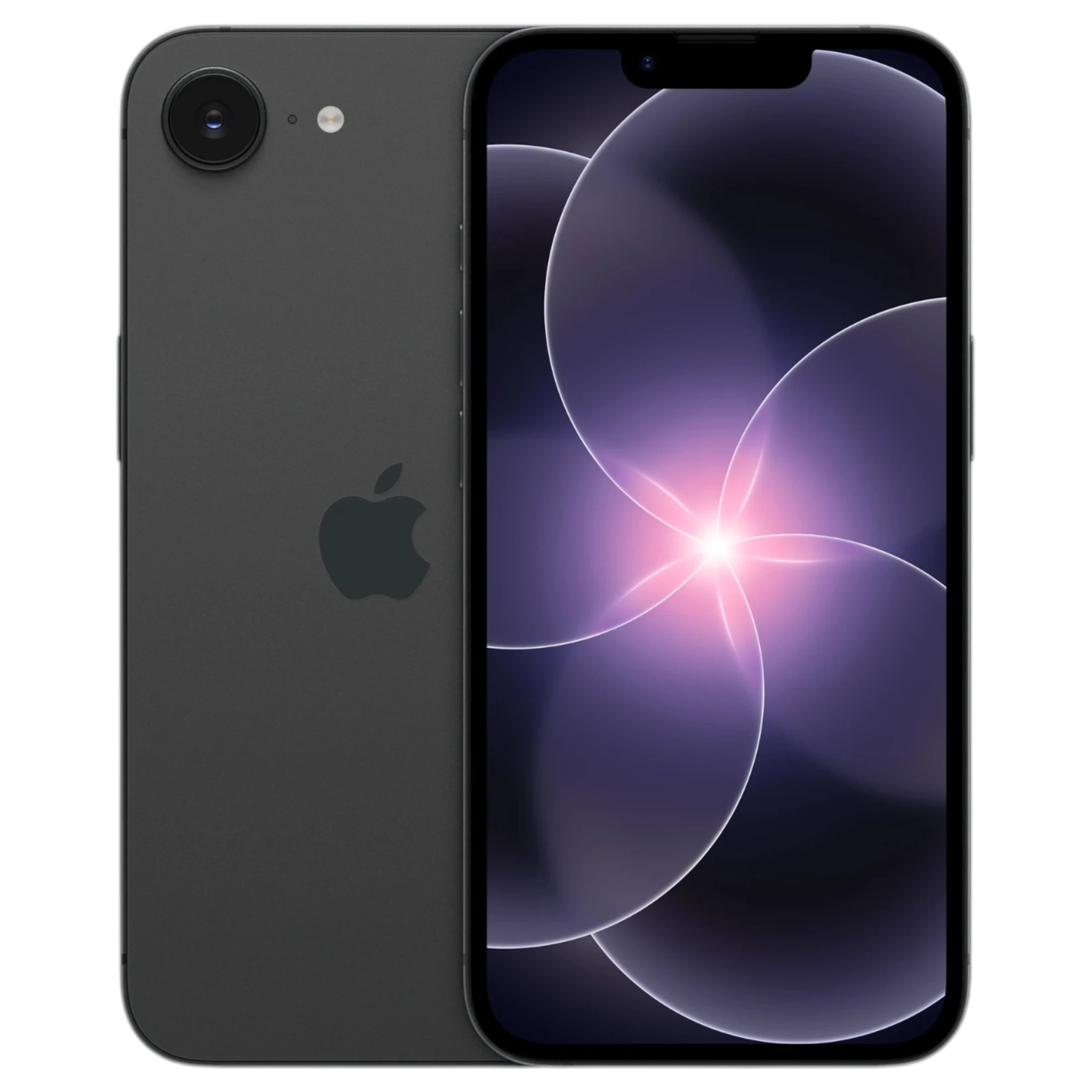
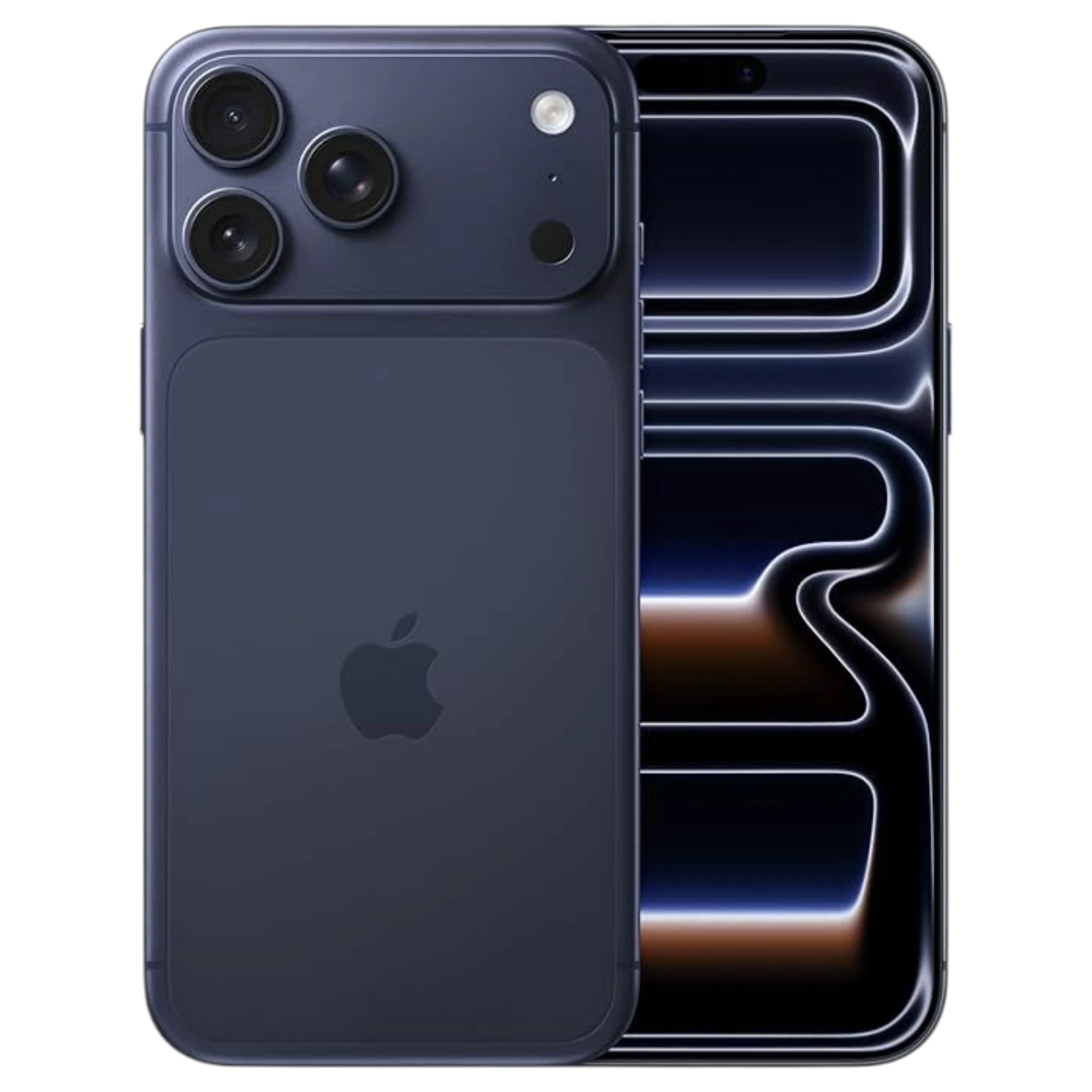
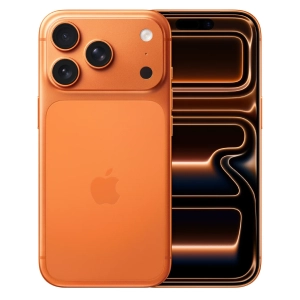
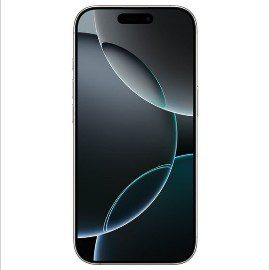
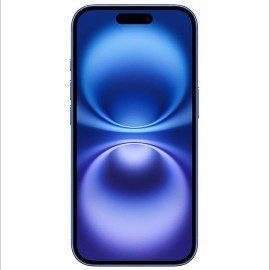
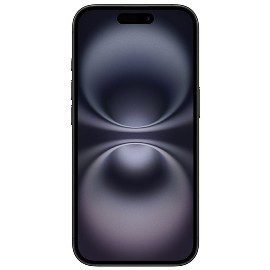
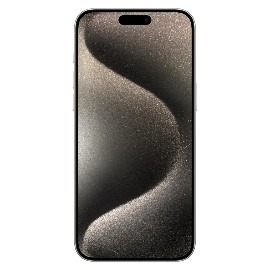


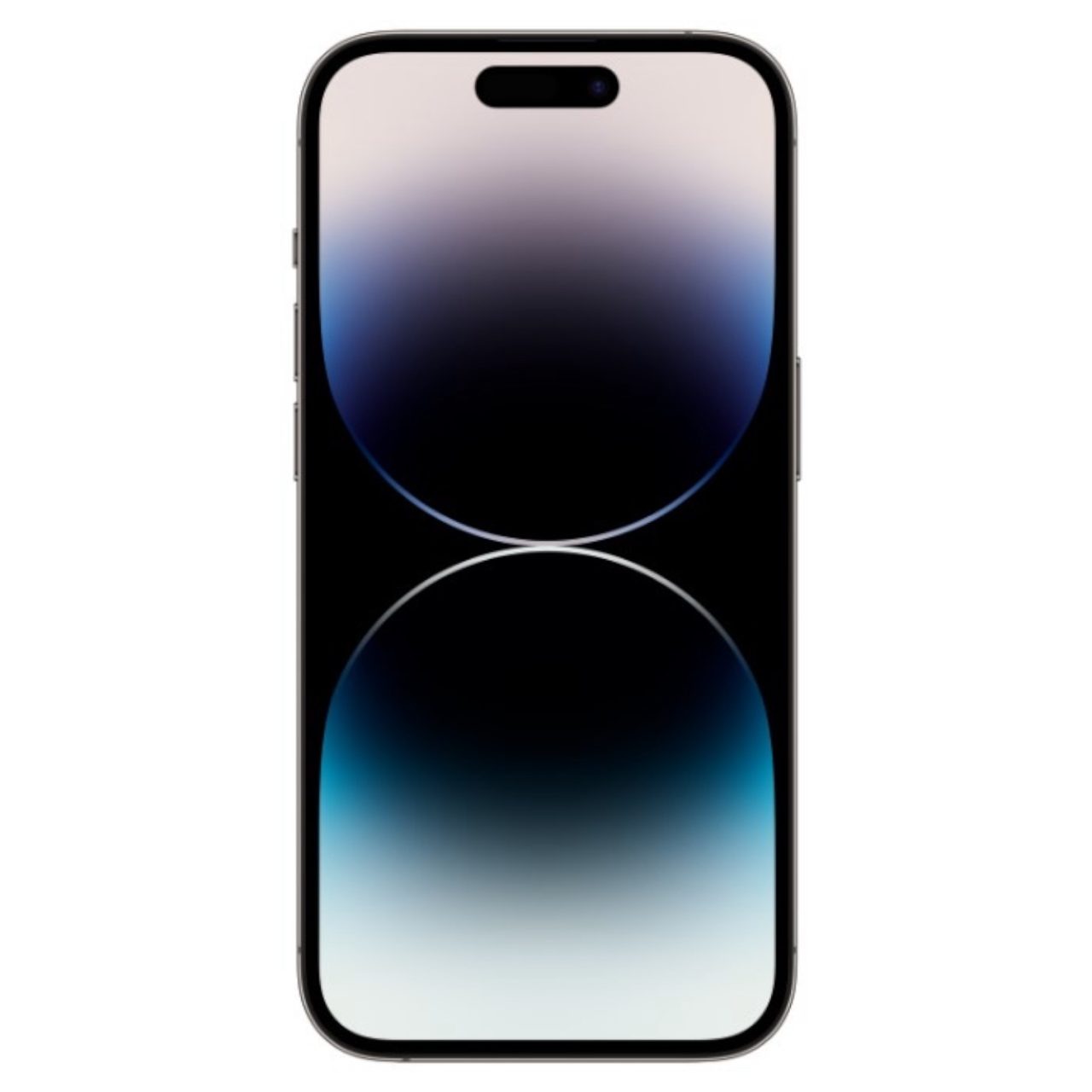
















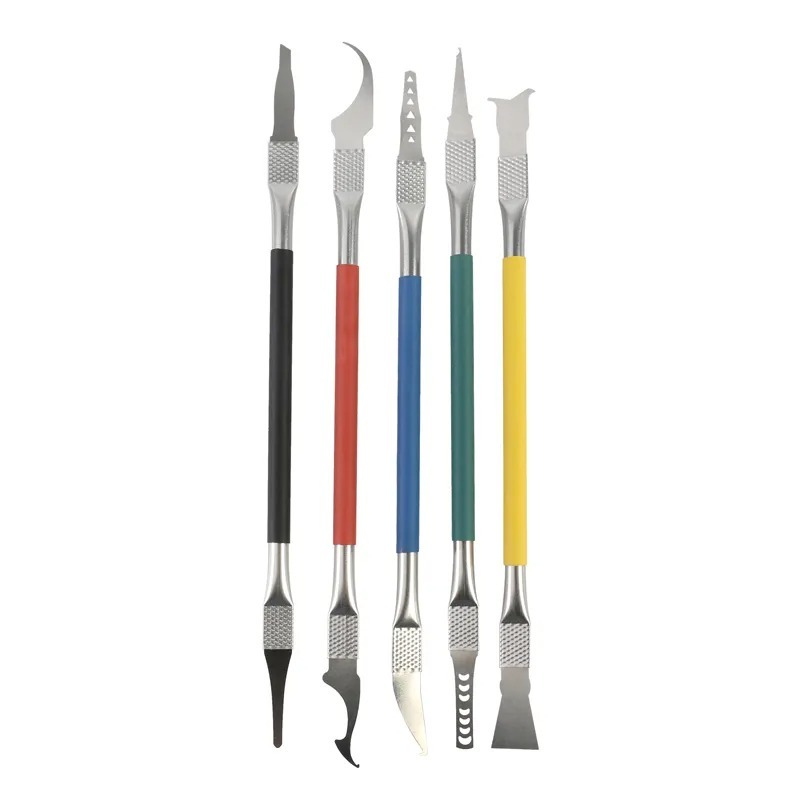
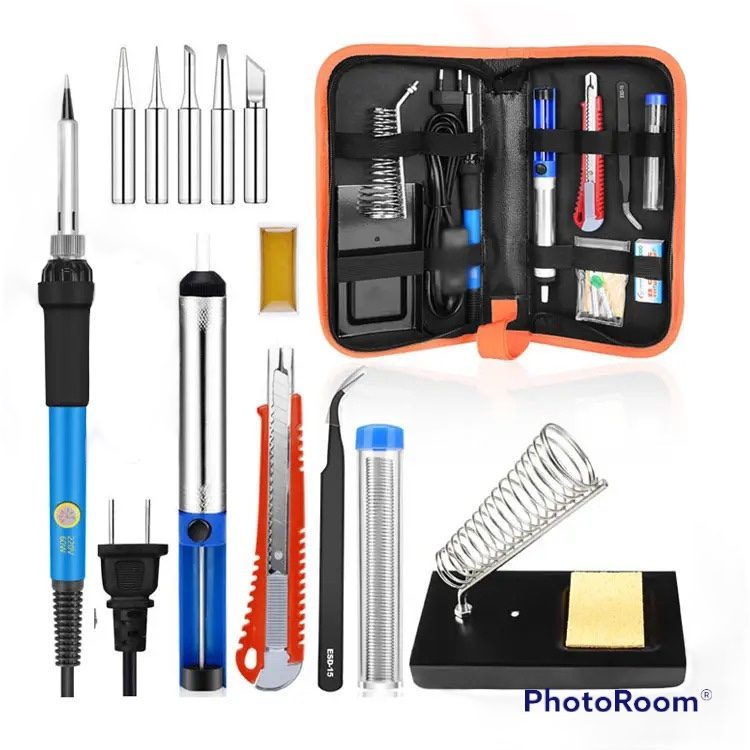

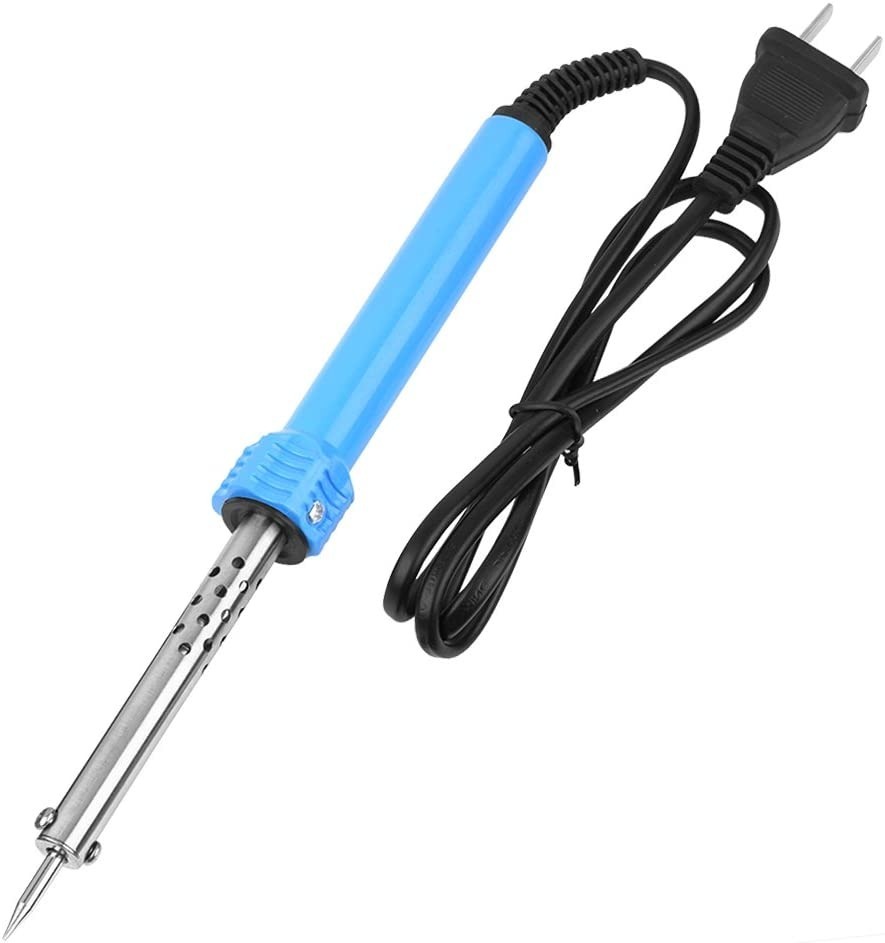
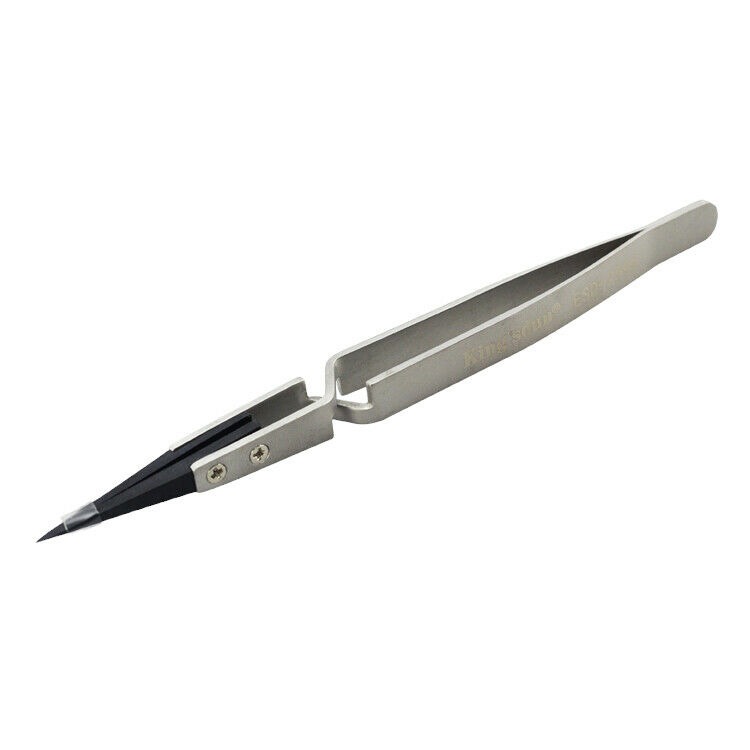



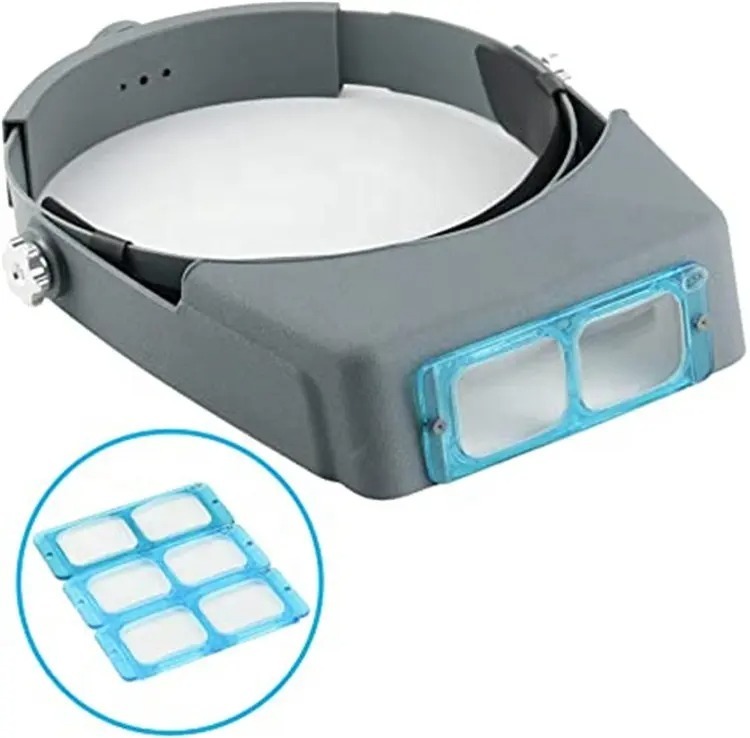

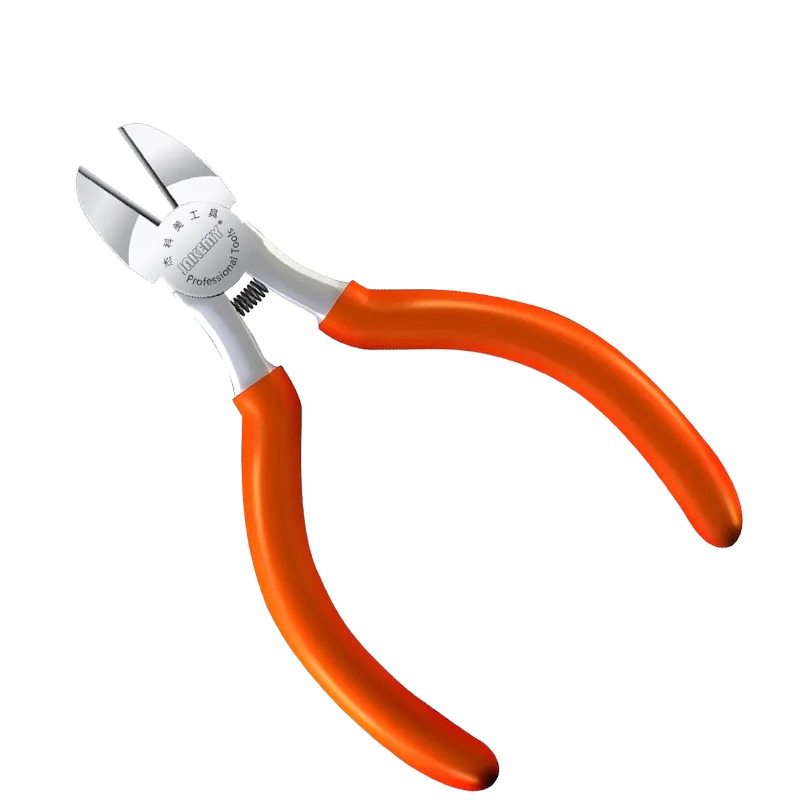

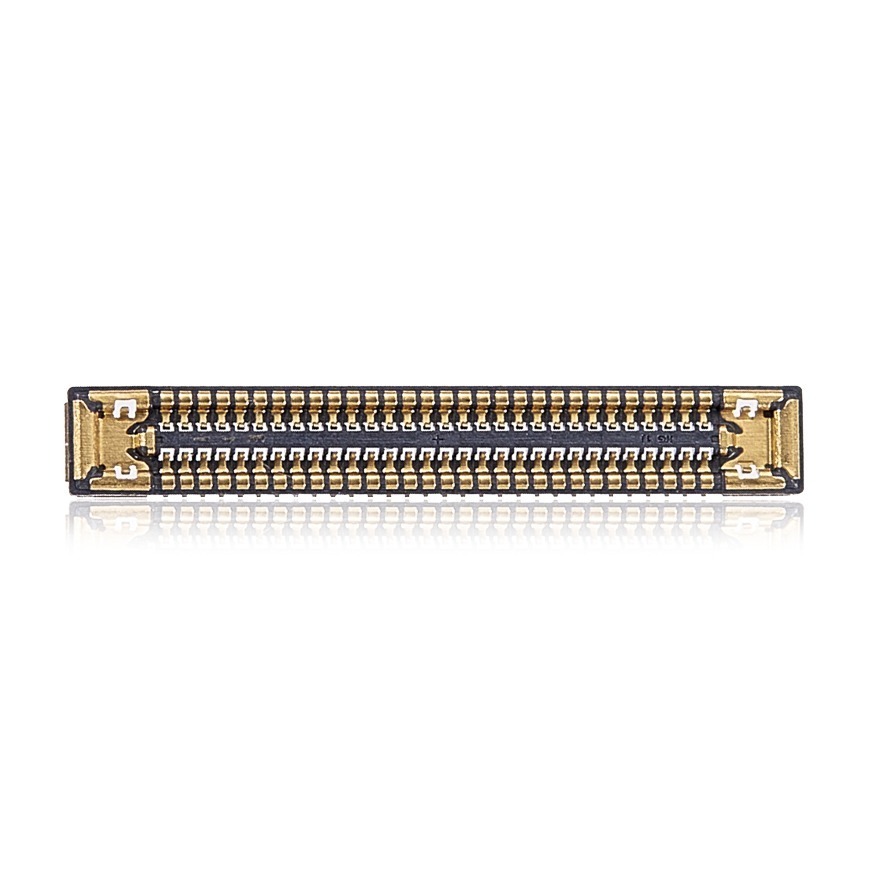

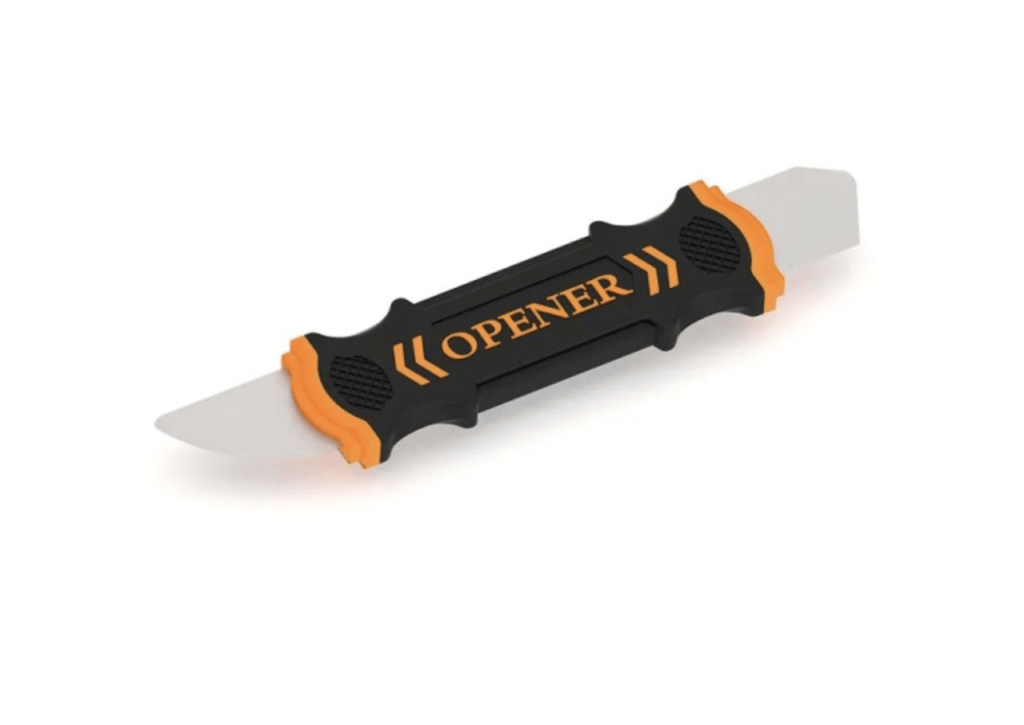





Model: iPhone 14 Pro Max (A2651) | Level: Intermediate | Tools: Pentalobe screwdriver, Triwing screwdriver, Phillips screwdriver, heating pad, plastic pry tool, precision tweezers, 99% isopropyl alcohol. This guide covers the essential tools and steps you’ll need for an iPhone 14 Pro Max screen replacement.
The (A2651) screen replacement is an intermediate repair that requires careful handling of the upper sensor assembly. Because Face ID is tied to this specific sensor, you must transfer it safely from the old display to the new one.
If your device has a cracked front glass, unresponsive touch, dead pixels, or a completely black OLED panel, a fresh screen fixes all of those symptoms.
Our lead TEKDEP technician walks you through safely lifting the display and transplanting the flex cables. Let’s get started.
How to Replace the iPhone 14 Pro Max Screen (Quick Overview)
- Remove the bottom screws and heat the edges to soften the waterproof adhesive.
- Pry open the display from the bottom up, keeping in mind the flex cables on the left side.
- Disconnect the battery terminal first to discharge the logic board safely.
- Disconnect the screen flex cables and set the broken display aside.
- Apply alcohol and heat to the old upper sensor to remove it without tearing.
- Install the sensor on the new OLED assembly and secure its bracket.
- Connect the new screen cables before the battery, seal the device, and test.
🛠️ Required Tools & Preparation
An iPhone 14 Pro Max screen swap requires specialized bits and precise heat application. Power the phone off before you start.
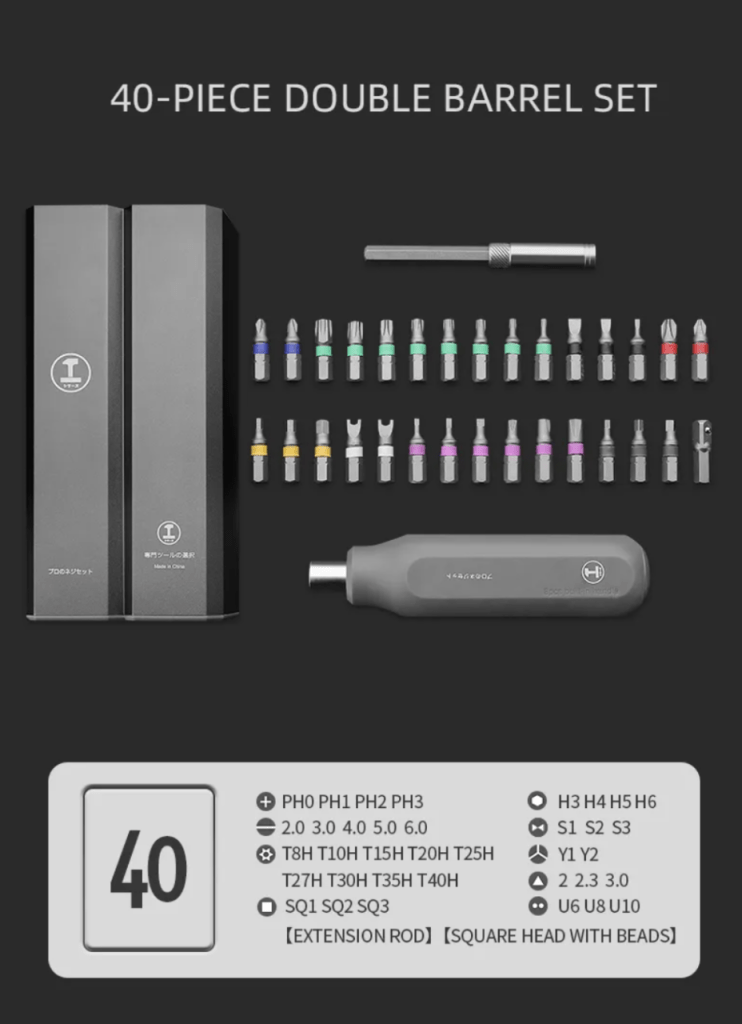
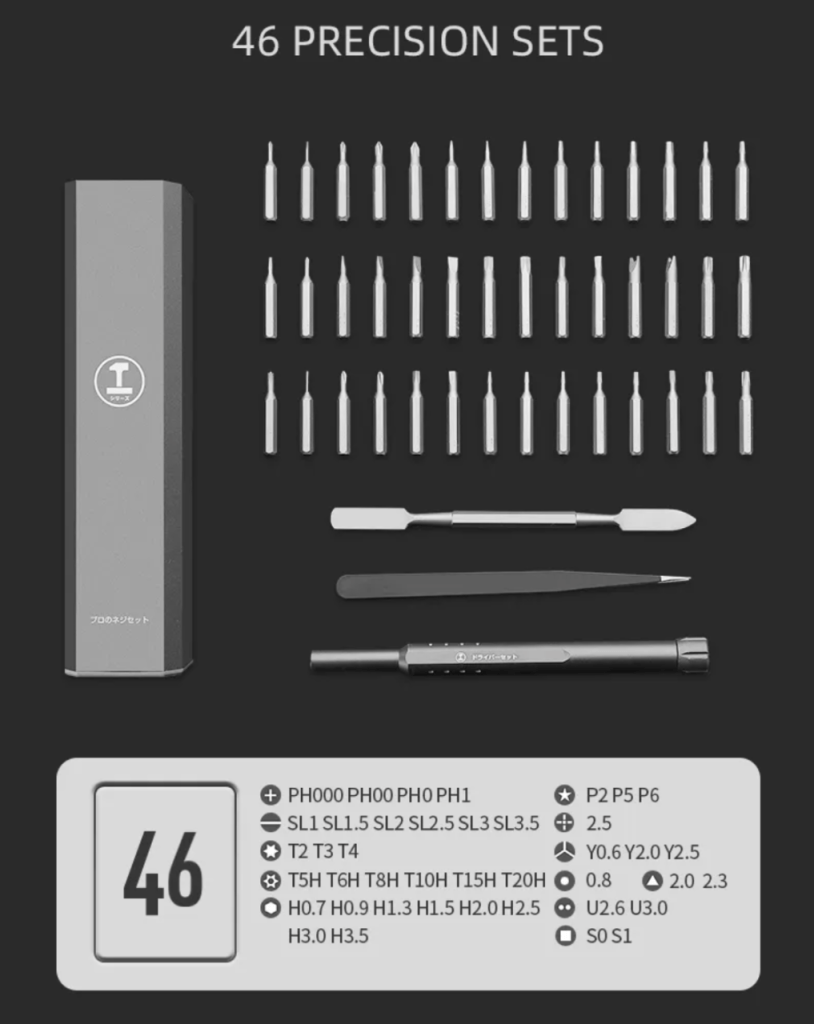
- Pentalobe, Triwing, and Phillips screwdrivers: to remove the external casing and internal brackets.
- Heating pad or heat gun: softens the strong waterproof adhesive holding the display.
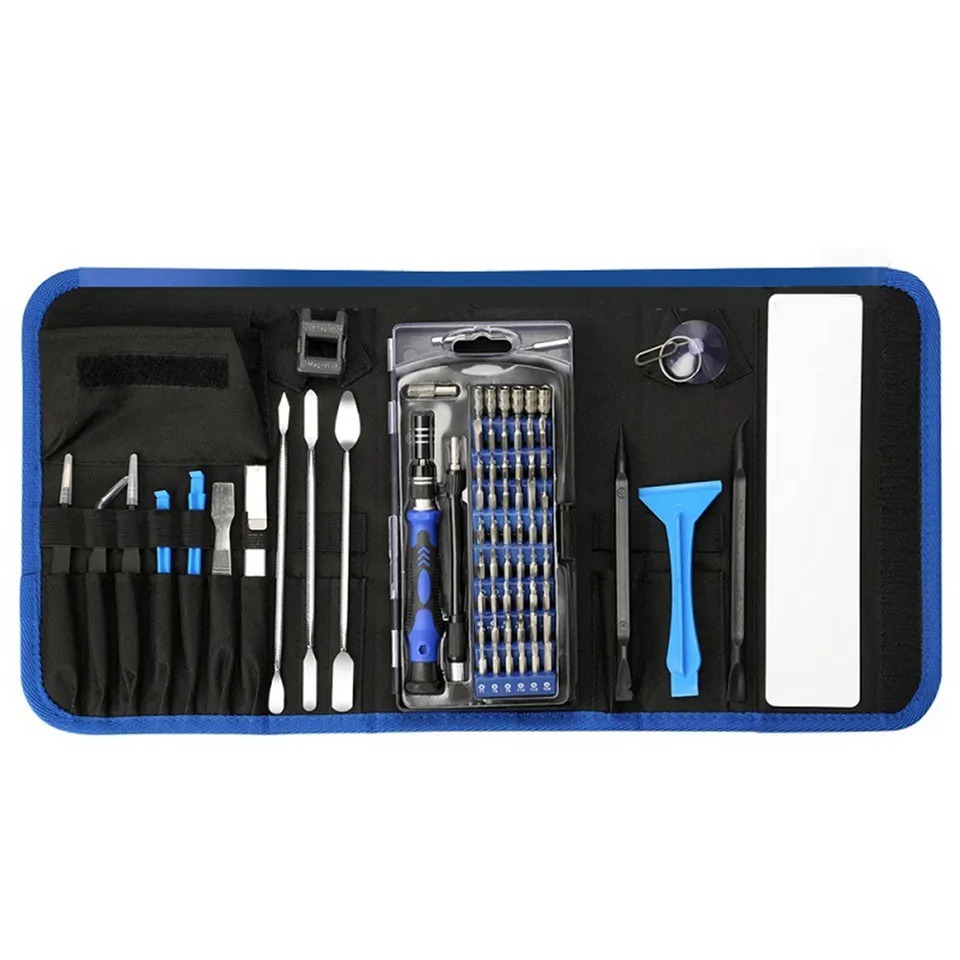
- Plastic pry tool and curved spudger: separates the glass safely without shorting the board.
- Precision tweezers and 99% isopropyl alcohol: to handle and loosen the fragile Face ID sensor.
⚠️ Before you start: Disconnect the battery before you touch any connector. Work on an anti-static mat and keep each group of screws together.
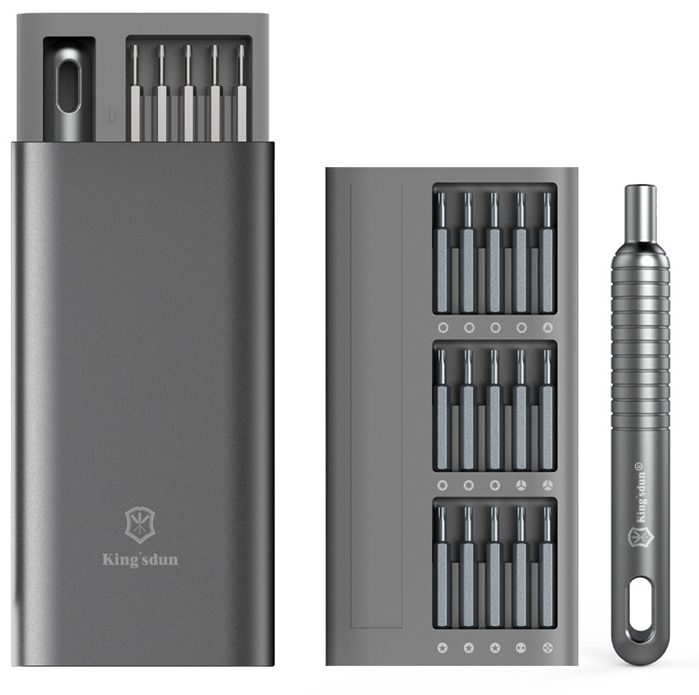
Get the Exact Tools Used by Our Techs:

Phase 1: Getting Inside (Pentalobe Screws & Adhesive)
The screen is secured by bottom screws, strong adhesive, and internal clips. We need heat to bypass the glue safely.
Step 1: Remove the Bottom Screws
Use your Pentalobe screwdriver to remove the screw at the bottom of the phone, turning counterclockwise. Set them aside safely.

Step 2: Soften the Adhesive
- Place the screen on a heating mat set to 75 to 85°C for at least 3 to 5 minutes.
- Alternatively, use a heat gun for one to two minutes around the edges to soften the glue.
Step 3: Pry Open the Display
Start prying from the bottom to create a gap, but remain mindful of the internal connections.
- Insert your plastic pry tool at the bottom opening once the adhesive is soft.
- Work your way up the sides to lift the glass free from the chassis.
TekDep Expert Warning: The placement of the screen flex cable is on the left side. Never force the display open completely to the right, or you will tear these critical cables.

Phase 2: Disconnecting Cables (Battery & Display)
During an iPhone 14 Pro Max screen replacement, we must kill the power before removing the broken glass.
Step 1: Remove the Retaining Bracket
- Use a Triwing screwdriver to remove the screws holding the single retaining bracket over the logic board.
- Lift the bracket away using your anti-static tweezers.

Step 2: Disconnect the Battery and Screen
Always disconnect the battery first to discharge everything on the board.
- Pop the battery terminal off the board using your fingertips or a plastic tool.
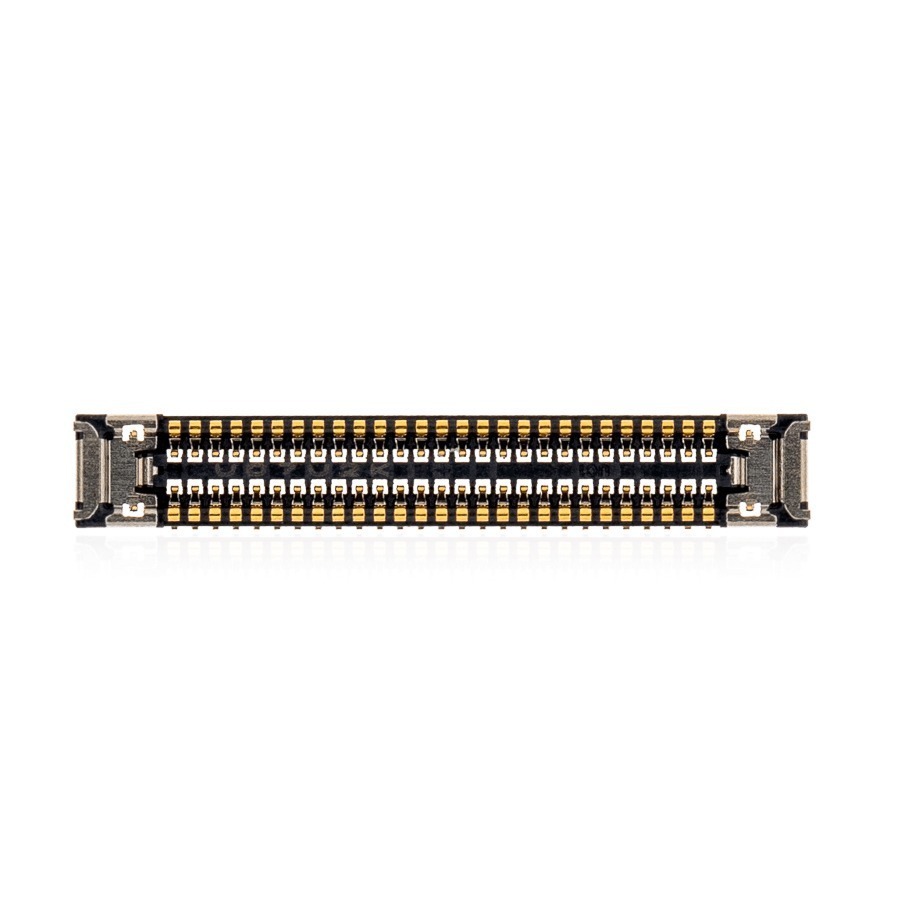
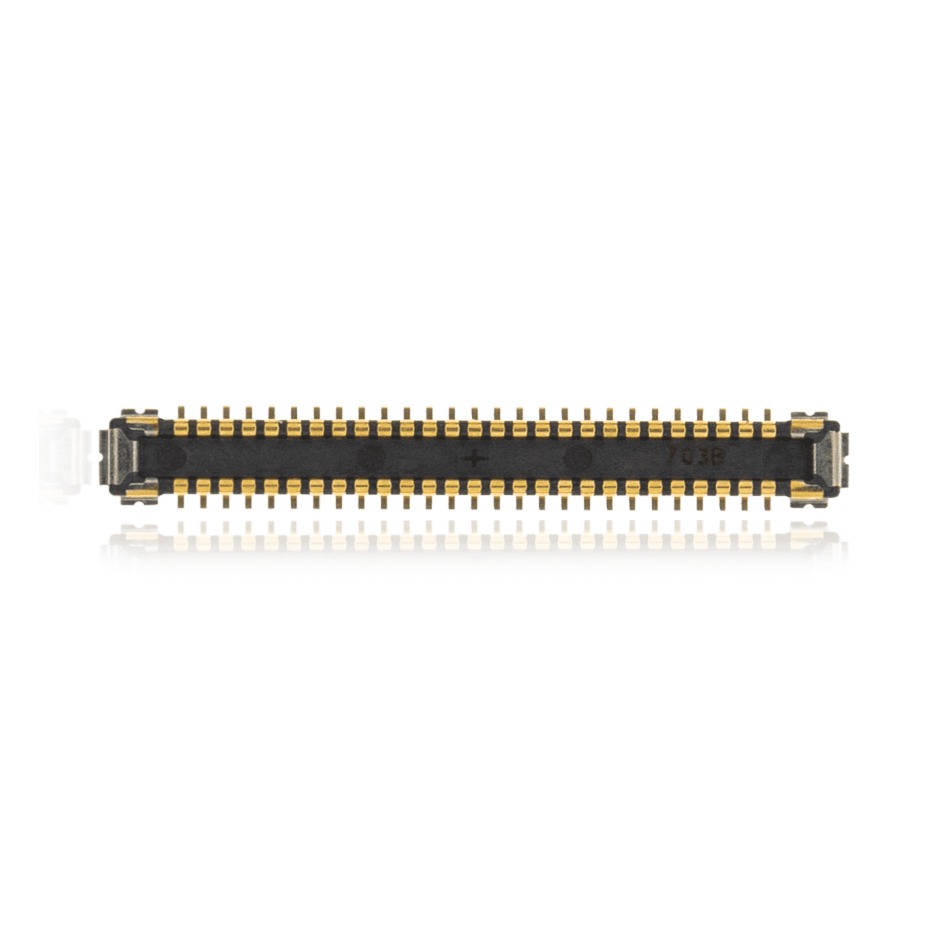
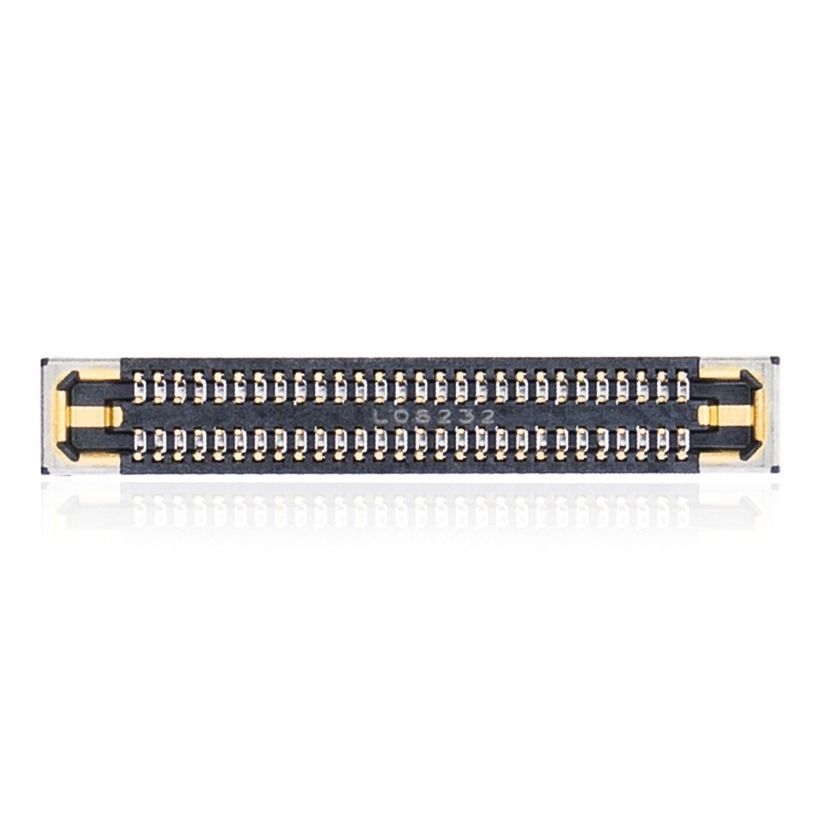
- Disconnect the upper and lower screen flex cables.
- Lift the broken screen completely away and set the phone chassis aside.

Phase 3: Transferring the Face ID Sensor Assembly
The upper sensor houses Face ID components tethered to your logic board. You must safely migrate this to the new screen.
Step 1: Remove the Upper Sensor from the Old Screen
This flex cable is fragile and held by strong adhesive. Rushing here destroys Face ID.
- Remove the two Phillips screws securing the sensor retaining bracket on the old screen.
- Use your heat gun to expedite softening the adhesive underneath.
- Apply a small amount of 99% isopropyl alcohol underneath the cable to loosen it.
- Pry the flex cable open carefully with a plastic tool. Set the old screen aside.

Step 2: Install It on the New Screen
- Grab the new OLED assembly and place the sensor in the exact same orientation.
- Position the retaining bracket over the sensor.
- Secure the assembly using the two Phillips screws.
Get the replacement iPhone 14 Pro Max screen we installed:


Phase 4: iPhone 14 Pro Max Screen Replacement Reassembly
The new display is prepared; all that is left is reconnecting and sealing the device.
Step 1: Reconnect the Flex Cables
The order you reconnect the cables determines if the logic board survives.
- Crucial Note: Connect the screen flex cables to the logic board first. Do not connect the battery yet.
- Snap the battery terminal connector onto the board only after the screen is plugged in.
- Place the main retaining bracket back and reinstall its Triwing screws.

Step 2: Close the Device
- Fold the display shut flush against the chassis, pressing the edges to engage the clips.
- Reinstall the two Pentalobe screws at the bottom, turning them clockwise to secure the display.
Step 3: Power Test
Press the power button to turn the phone on. Ensure the screen functions and follow online instructions to calibrate it if needed.
Congratulations! You have successfully replaced the screen on your iPhone 14 Pro Max.
🛑 Not Comfortable Handling the Face ID Sensor? If reading about fragile flex ribbons and heat-softened adhesive has you second-guessing your DIY skills, don’t worry. The TEKDEP experts are here to help.
We offer clean, professional, and affordable Mail-In repair services for the entire Apple iPhone lineup.
Frequently Asked Questions
Is an iPhone 14 Pro Max screen replacement hard to do at home?
It is an intermediate task. You need a heating pad to loosen the waterproof seal and patience to safely transplant the upper sensor assembly without tearing its thin flex cable.
Why do I need to transfer the old sensor to the new screen?
The upper sensor is cryptographically paired to your logic board for Face ID functionality. If you use a replacement sensor or damage the original one, Face ID will permanently fail.
Can I use a heat gun instead of a heating pad for the A2651?
Yes. While a heating mat preset to 85°C provides consistent heat, a standard heat gun works if you apply it evenly around the edges for one to two minutes.
What should I do if I accidentally tear the Face ID flex cable?
The upper sensor assembly is cryptographically paired to your specific logic board. If you tear the flex cable or damage the sensor during the transfer, Face ID will permanently fail. While the front camera and standard earpiece functions may still work, Face ID cannot be restored by a third-party replacement. If you are uncomfortable handling this fragile cable, we highly recommend utilizing our professional mail-in repair service instead.
🛑 IMPORTANT: SAFETY & LIABILITY DISCLAIMER: TEKDEP®️ TEKDEP.com assumes no liability for property damage or injury incurred as a result of any information in this blog post or associated videos. Dealing with internal computer components, specifically Lithium-Ion batteries, carries inherent risks including fire, toxic gas exposure, and irreversible device failure. Any injury, damage, or loss from improper use of tools, mishandling of components, or misinterpretation of this information is the sole responsibility of the user. Perform repairs at your own risk. If you are unsure of your capabilities, please utilize our professional Mail-In Repair Service.