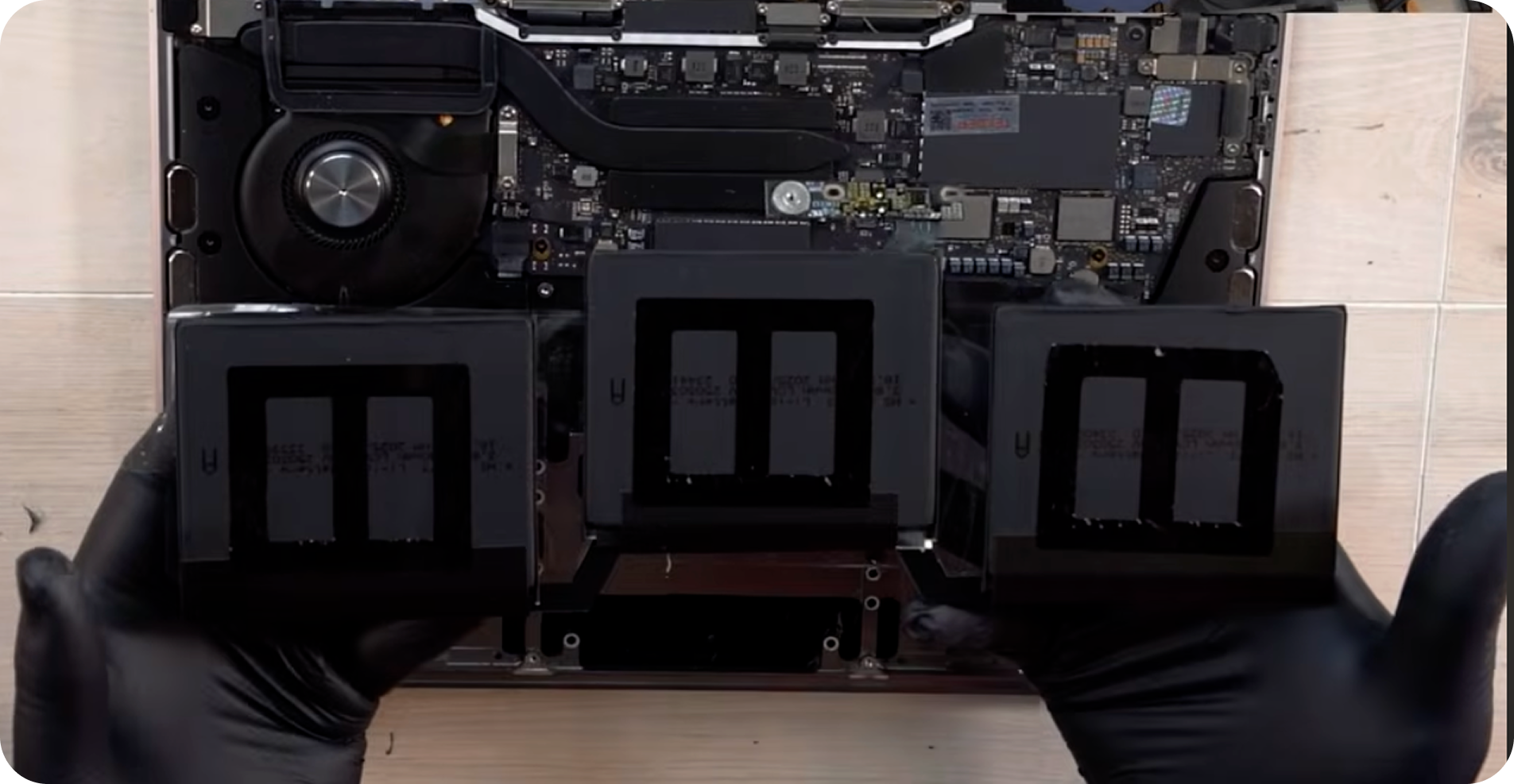























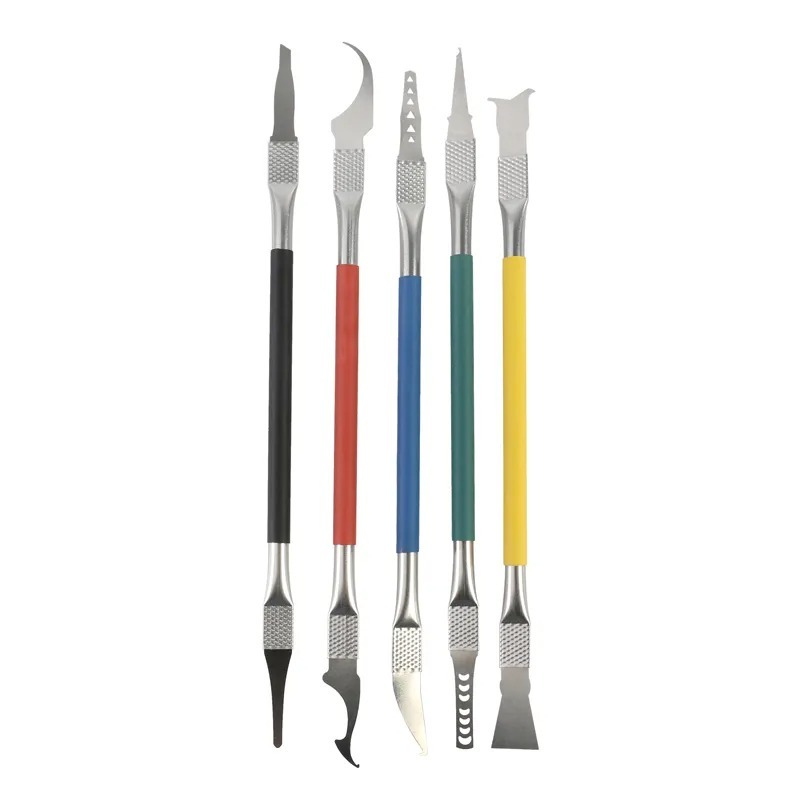
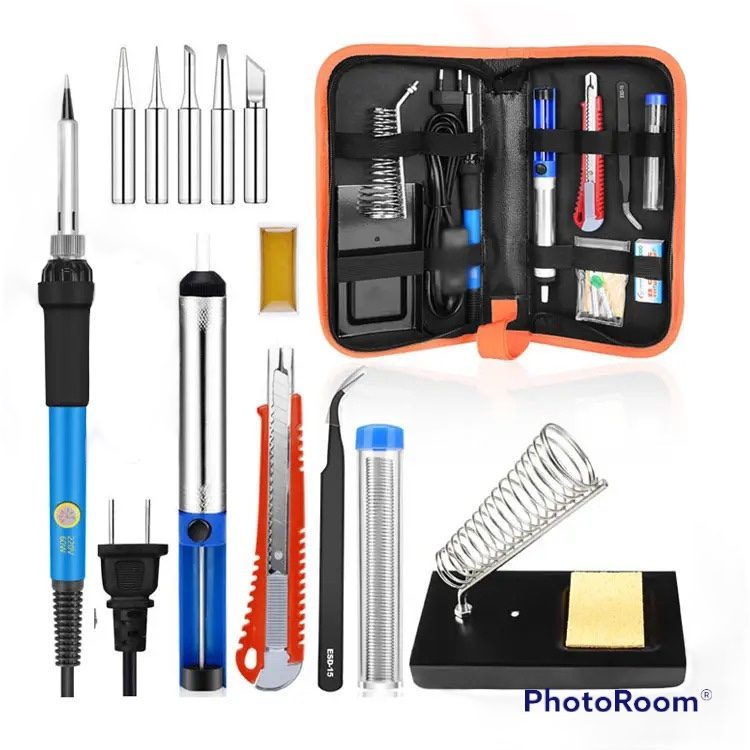

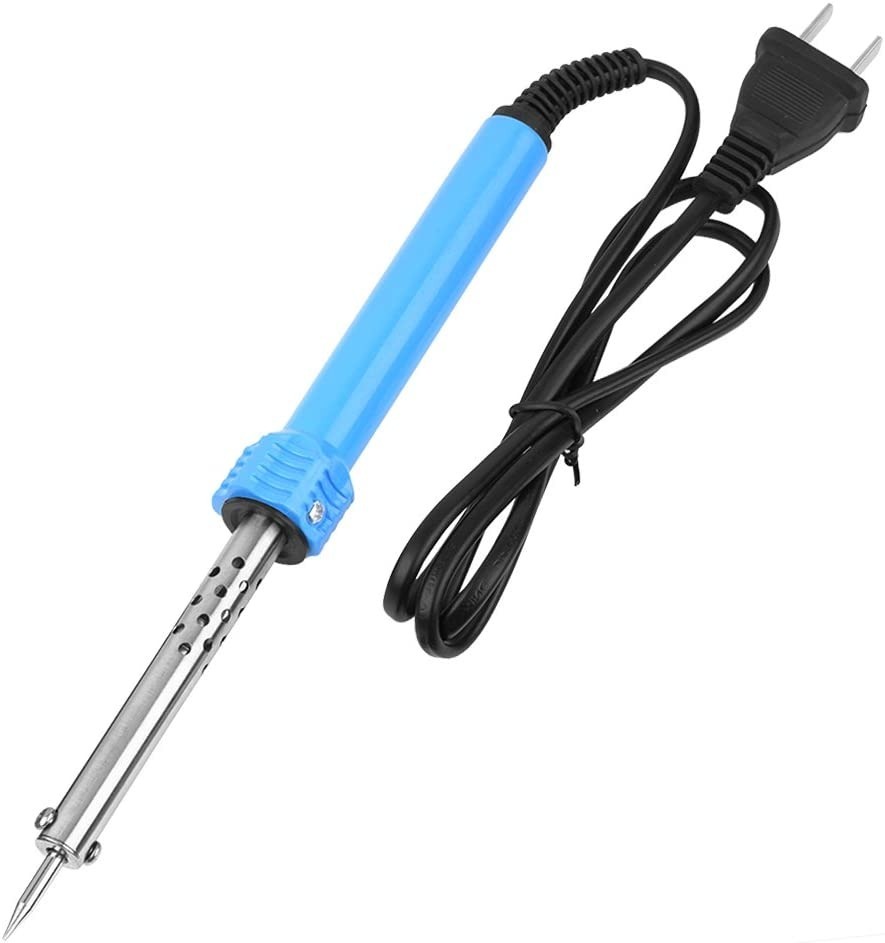
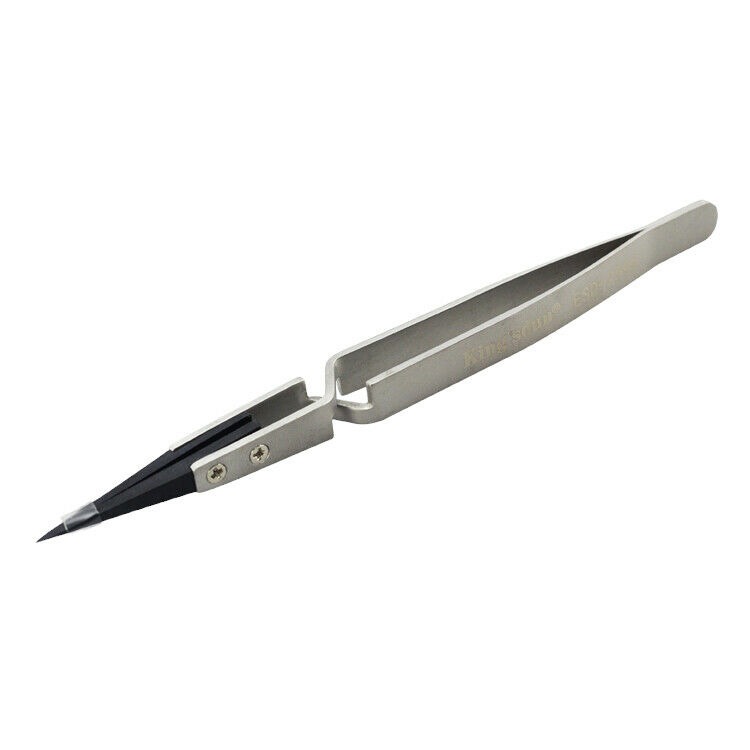











Model: 2020 MacBook Air M1 (A2337) | Level: Advanced | Tools: Pentalobe screwdriver, T3, T5 & T8 Torx screwdrivers, plastic spudger, suction cup. For detailed hardware specifications, furthermore, you can check the official Apple Support documentation. Overall, this guide covers everything you need for a MacBook Air M1 screen replacement.
A MacBook Air M1 screen replacement is an accessible DIY repair that restores your display when physical cracks or internal vertical lines obscure your view.
Additionally, installing a fresh assembly solves cracked Retina glass, flickering horizontal lines, black screens with active backlights, and physical impact damage across your panel.
Therefore, this tutorial walks you through each step of this teardown and installation in the video below.
How to Complete a MacBook Air M1 Screen Replacement (Quick Overview)
- Remove the bottom cover with a Pentalobe driver and suction cup.
- Disconnect the battery retention bar to cut power to the logic board.
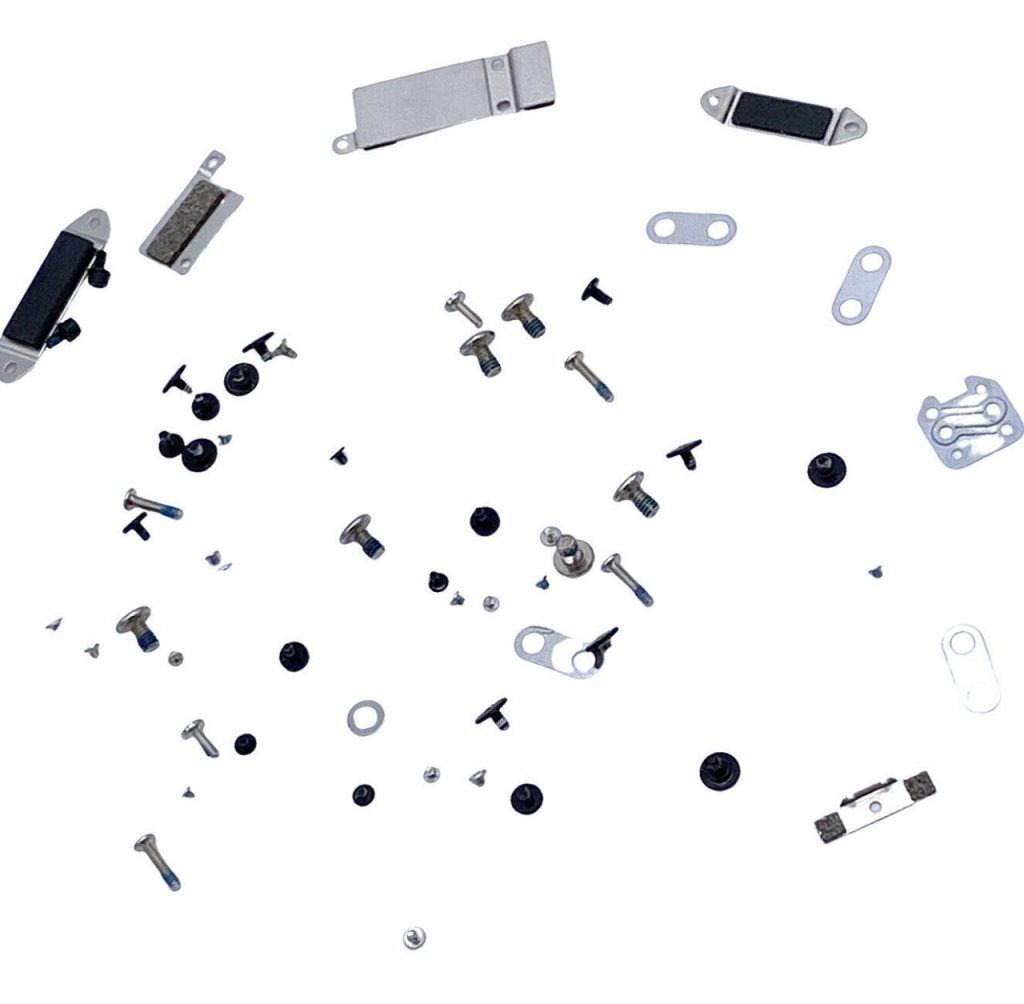
- Unfasten the hinge screws and brackets using T8, T5, and T3 Torx bits.
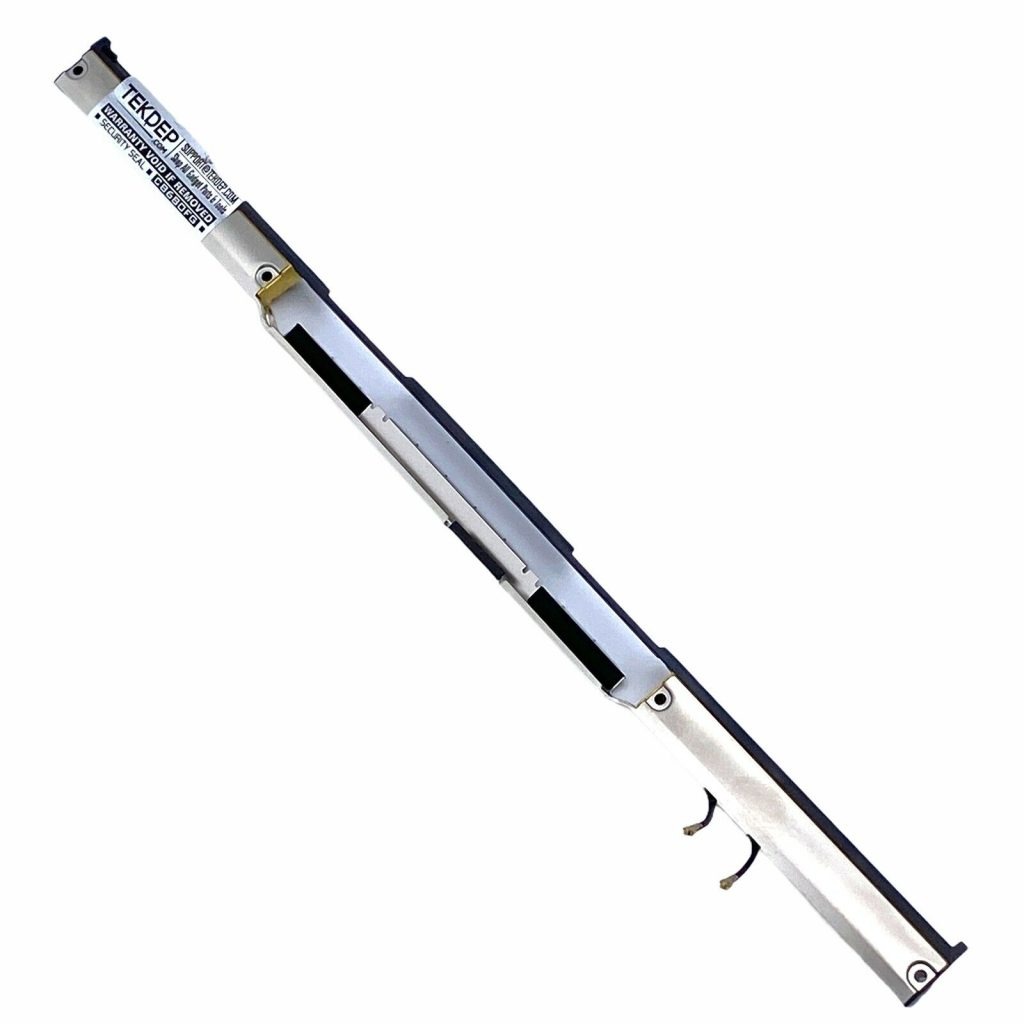
- Peel the glued Wi-Fi antenna bar away from the top case channel.
- Slide the main chassis off the opened display hinge mounts.
- Align the new screen assembly and secure the hinge fasteners.
- Route the display flex cable outside the reinstalled antenna module.
- Reconnect the battery and bottom panel, then plug in power to test.
🛠️ Required Tools & Preparation for a MacBook Air M1 Screen Replacement
A MacBook Air M1 screen swap requires precision Torx and Pentalobe screwdrivers to protect delicate internal chassis threads. Disconnect all external accessories and shut down macOS completely before starting.
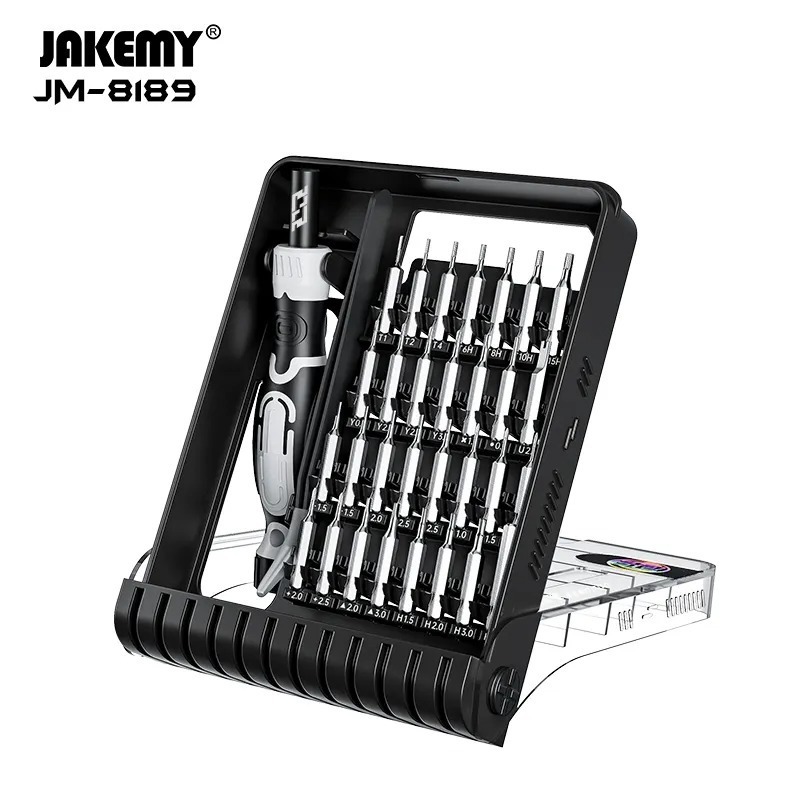
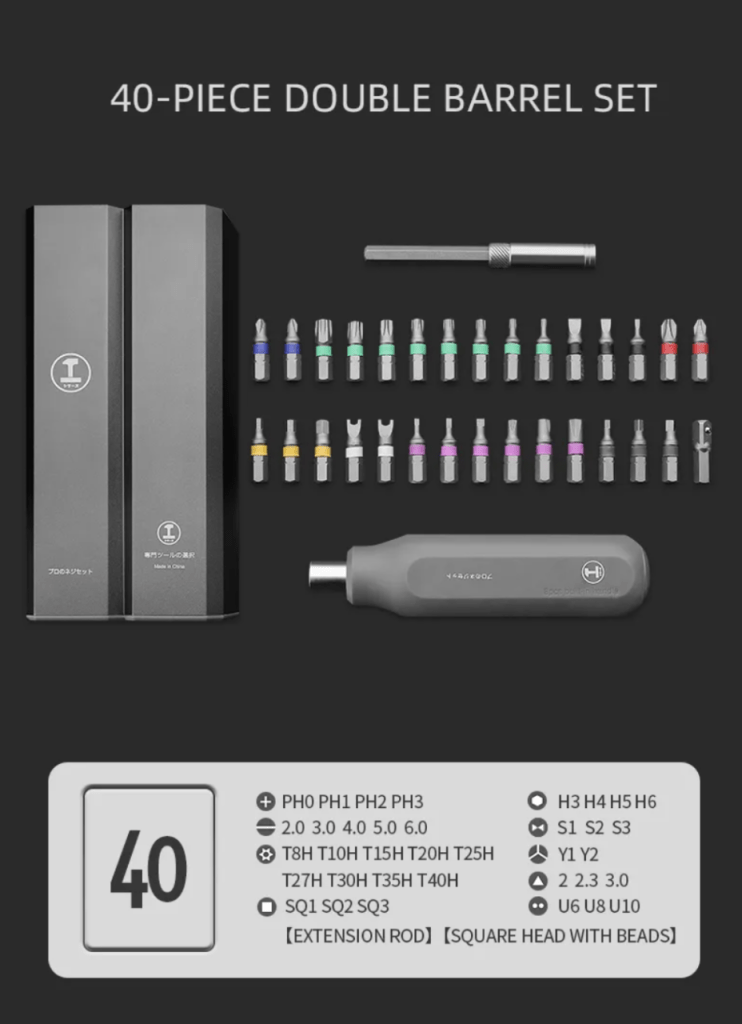
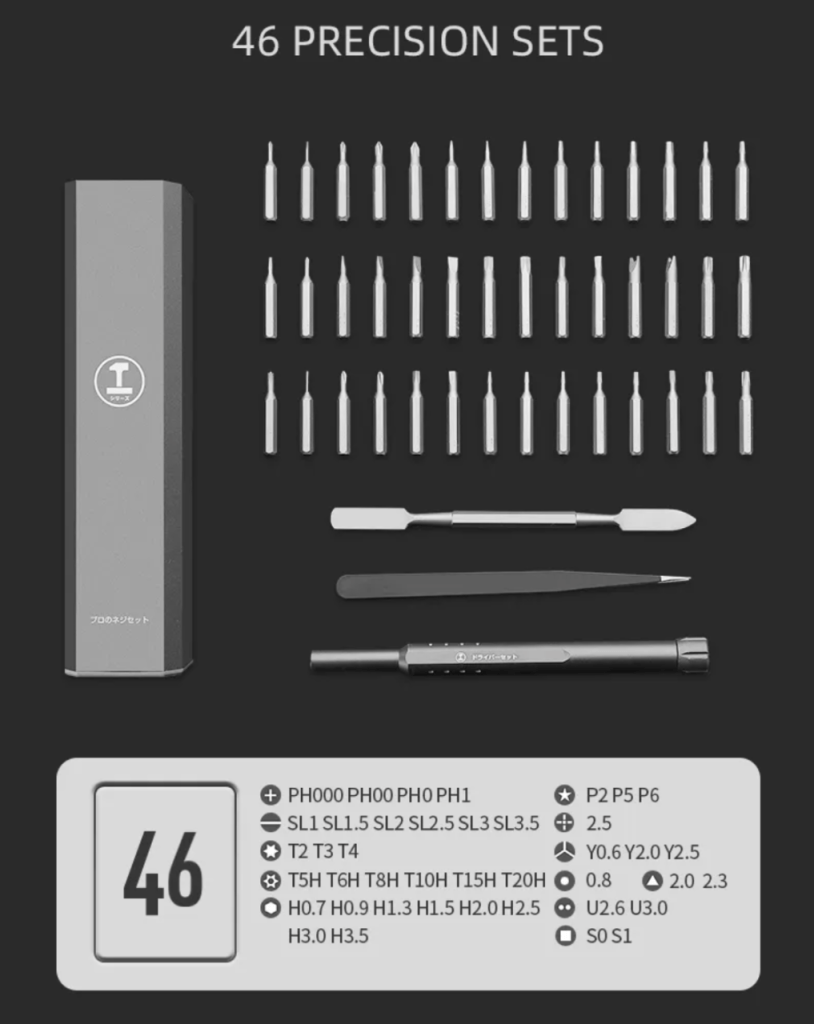
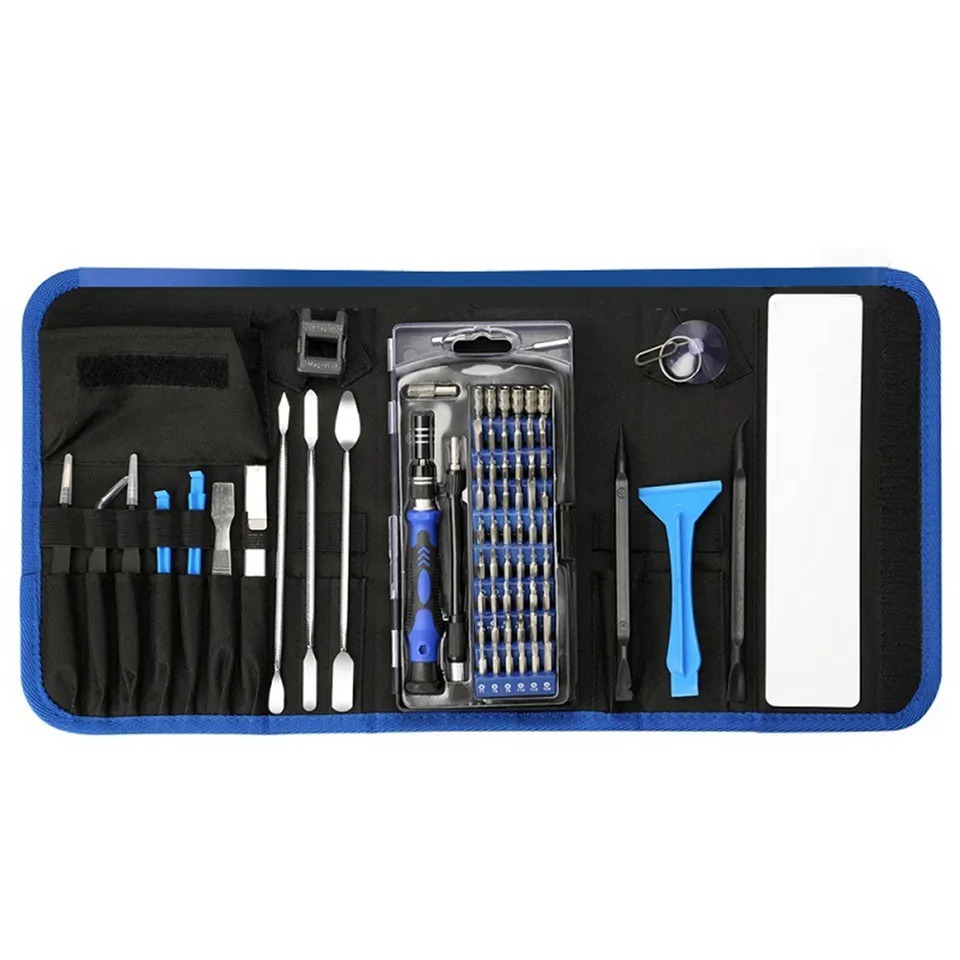
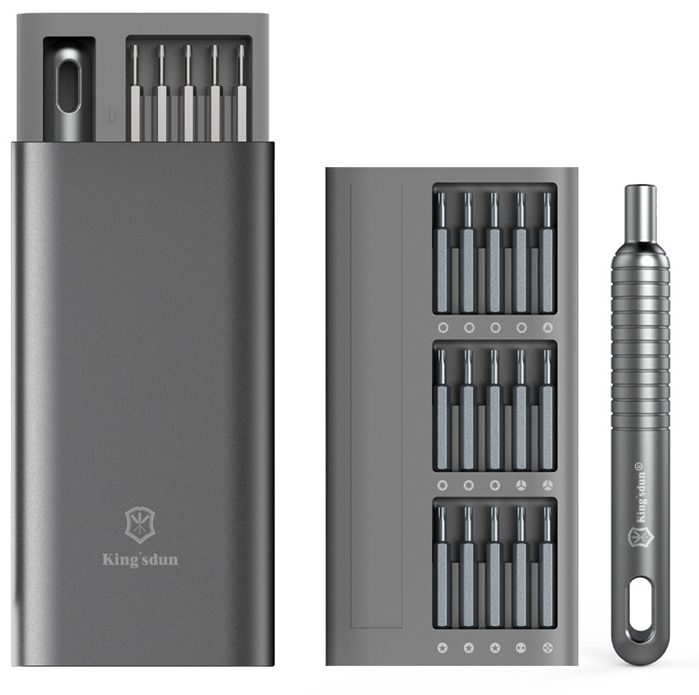
- Pentalobe screwdriver: extracts the ten external lower chassis screws.
- Suction cup tool: pulls the snug bottom case free from internal retaining clips.
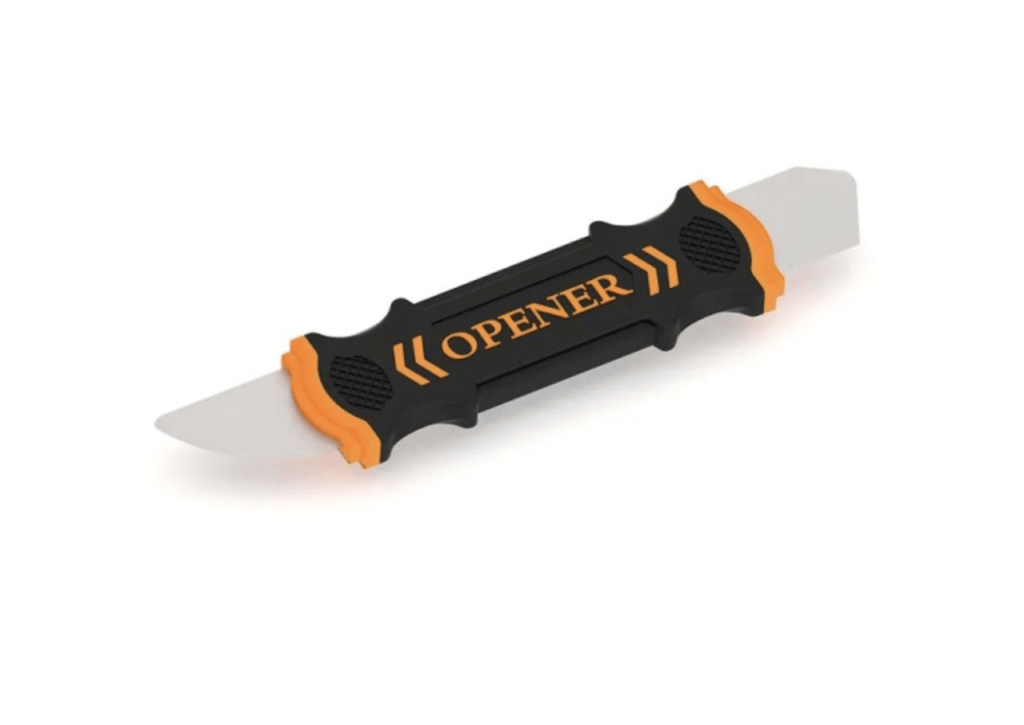
- Plastic spudger: unseats the battery clip and pops up delicate display ribbon connectors.
- T8 Torx screwdriver: removes the six heavy structural display hinge screws.
- T5 Torx screwdriver: unfastens the antenna vent module and the display flex bracket.
- T3 Torx screwdriver: removes the retaining bracket over the Wi-Fi antenna coaxial cables.
Get the Exact Tools Used by Our Techs:
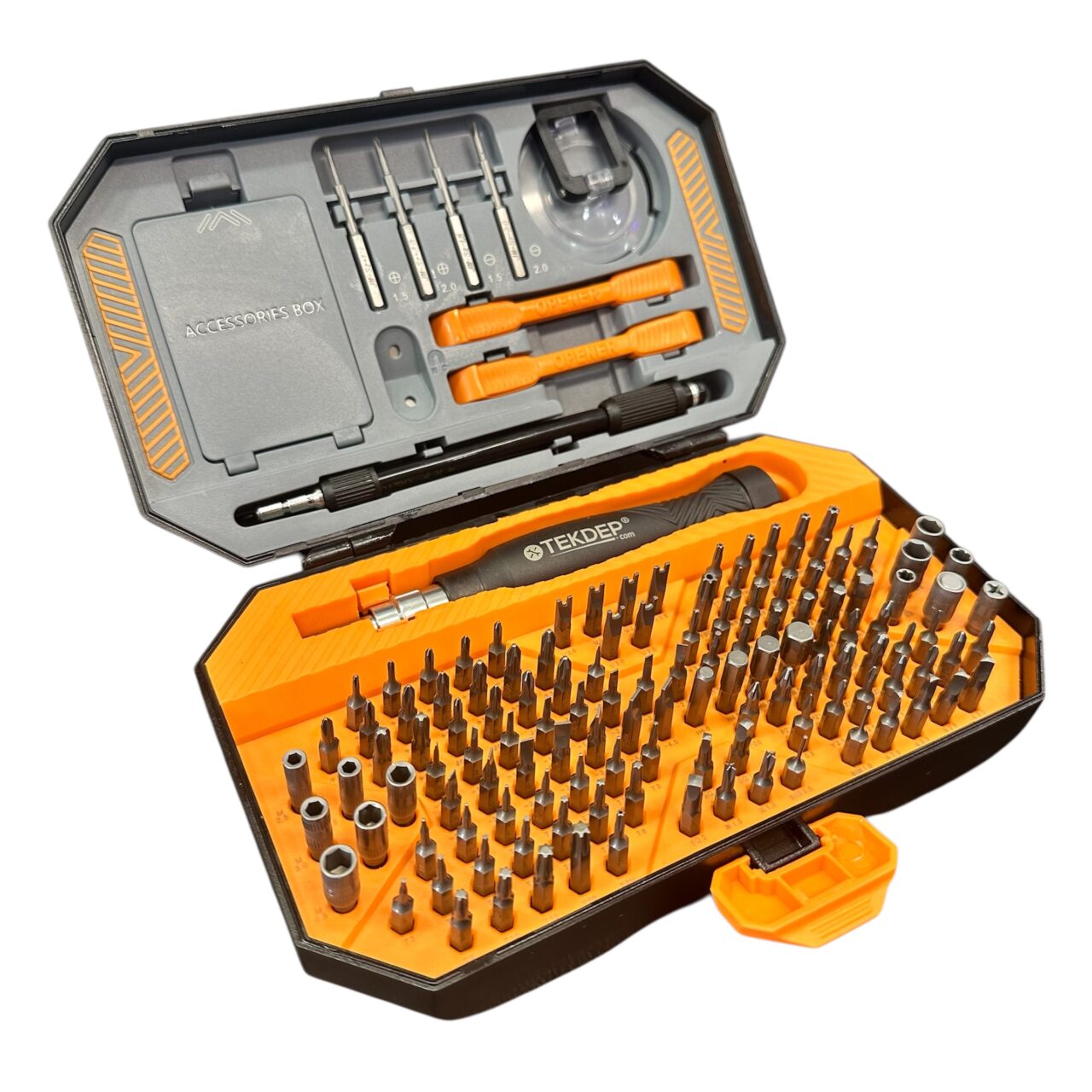
Explore every part we stock for this model if you need additional replacement components for your teardown.
⚠️ Before you start: Disconnect the battery before touching any logic board connector. Display flex cables carry live backlight voltage lines that will immediately blow the logic board backlight circuit if grounded while energized.
Phase 1: Disassembly & Battery Isolation for MacBook Air M1 Screen Replacement
Opening the chassis safely requires mapping screw lengths and, furthermore, neutralizing battery power before touching internal hardware. Meanwhile, keep track of every fastener carefully.
Step 1: Remove the Bottom Case
The lower aluminum plate consequently uses specific screw lengths that must return to their original locations during reassembly.
- Turn the laptop over on a clean work mat.
- Extract the ten pentalobe screws around the case perimeter, noting that the two longest screws occupy the rear hinge corners.
- Affix a suction cup near the front edge and pull upward firmly to release the internal snapping clips.
- Lift the bottom case away and set it aside safely.


Step 2: Disconnect the Battery
Cutting system power furthermore prevents accidental short circuits or board damage while uncoupling delicate screen data lines.
- Locate the battery flex connector resting just below the logic board edge.
- Pull the small metal retention bar down toward yourself to clear the locking clip.
- Use that same metal bar to pull the connector straight back away from the board.
- Position the disconnected cable securely so it cannot spring back into contact with the socket.
TekDep Expert Warning: Never skip disconnecting the battery before unseating display data lines. Even when powered down, standby voltage can destroy the backlight driver chip upon tool contact.

Phase 2: Removing the Wi-Fi Module & Damaged Display During MacBook Air M1 Screen Replacement
Removing the broken screen involves clearing brackets, unplugging antenna coaxial lines, and freeing the adhered vent housing.
Step 1: Unfasten Hinge Screws and Internal Brackets
Additionally, working from the outer corners inward keeps tension evenly distributed across the chassis mounts.
- Use a T8 Torx screwdriver to remove the three screws securing each display hinge, totaling six T8 screws.
- Switch to a T5 Torx screwdriver to take out the four silver screws holding the Wi-Fi antenna vent module.
- Remove the two black T5 screws securing the central LCD bungee flex bracket.
- Pry the display data connector upward with a plastic spudger to disconnect it cleanly.
- Use a T3 Torx screwdriver to remove the one screw on the antenna bracket and disconnect both coaxial cables.
Step 2: Unseat the Antenna Bar and Separate the Screen
The plastic antenna vent module uses adhesive along the top case channel that must be loosened gently.
- Confirm the LCD bungee cable is loose and free-floating so it cannot snag.
- Insert a plastic pry tool under either end of the black antenna bar to pry against the adhesive.
- Open the display lid slightly so hinge movement helps release stubborn module glue.
- Hold the hinge mounts firmly when closing them to prevent bending the aluminum top case.
- Open the unit past ninety degrees, lift the antenna bar clear, and slide the top case away from the screen hinges.

TekDep Expert Warning: Always grip both hinge mounts by hand when pivoting them without the chassis secured. Letting hinges snap shut under spring tension will bend the aluminum casing.

Phase 3: Installing the New Retina Display Assembly (MacBook Air M1 Screen Replacement)
Mounting the new panel requires setting hinge geometry and feeding delicate ribbons through the antenna housing.
Step 1: Mount and Anchor the Replacement Display
Securing the hinges loosely first prevents the assembly from shifting off the bench during screw installation.
- Unbox your replacement display assembly and open both metal hinge brackets outward.
- Lay the screen flat on your bench and guide the top case into place over the hinge blocks.
- Pivot the chassis gently to pop both hinges squarely into their recessed alignment channels.
- Hold the hinges and close the laptop carefully to access the fastener sockets.
- Thread in one or two T8 screws per side immediately to anchor the screen securely to the frame.
- Install the remaining T8 screws until all six hinge fasteners are snug.
Step 2: Reinstall Antenna Module and Data Lines
Correct flex cable orientation ensures that data ribbons avoid pinch points under internal covers.
- Feed the display bungee cable through the cutout on the Wi-Fi antenna vent module.
- Crucial Note: Keep the display connector positioned on the outside of the antenna bar, never trapped underneath.
- Fasten the four long silver T5 screws into the antenna bar, working from the outer ends inward.
- Align and press the display data connector squarely into its socket until it clicks.
- Reinstall the central display cable bracket using the two black T5 screws.
- Reconnect both Wi-Fi antenna cables, set the retention bracket in place, and secure the one T3 screw.
Get the replacement MacBook Air M1 screen assembly we installed:

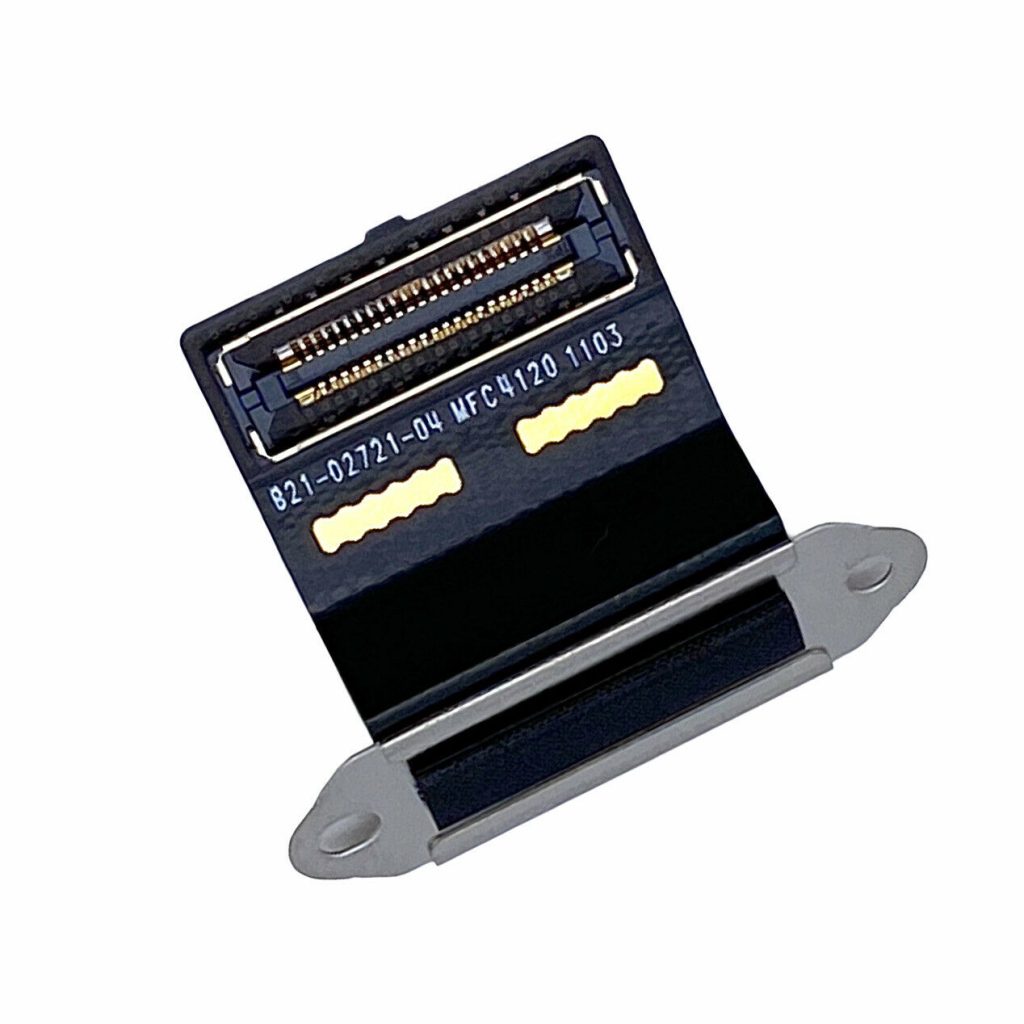
TekDep Tip: Double-check that the display bungee connector rests completely outside the antenna housing before tightening any T5 screws. Trapping the flex cable underneath will puncture the ribbon traces.

Phase 4: Battery Reconnection, Reassembly & Testing (MacBook Air M1 Screen Replacement)
The repair concludes by restoring battery continuity, securing the lower case, and verifying display output.
Step 1: Reconnect the Battery and Close the Chassis
Locking down the battery connection ensures reliable power flow before sealing internal components.
- Align the battery connector with the board socket and push it home firmly.
- Slide the metal retention bar forward and snap it down over the locking clip.
- Place the aluminum bottom case over the chassis and press the center to engage the snapping clips.
- Install the two longest pentalobe screws into the top corners near the display hinges.
- Thread and tighten the remaining eight pentalobe screws evenly around the perimeter.

Step 2: Power Test
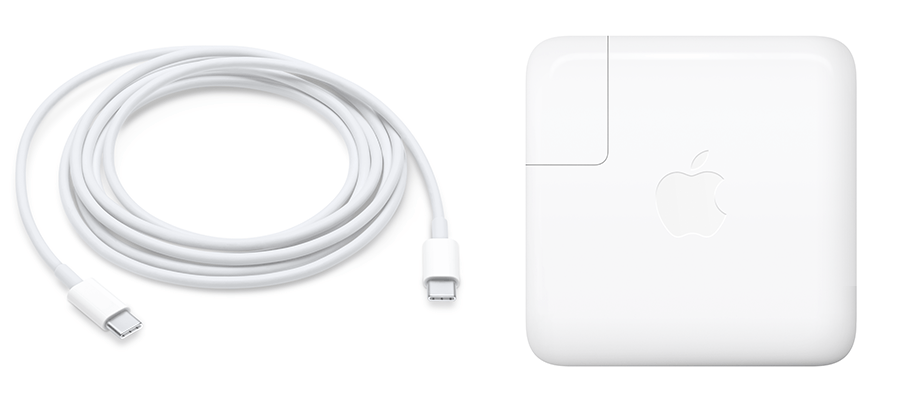
Flip the MacBook over, connect the USB-C charger, and open the display lid. Confirm the Apple logo appears cleanly without lines, backlight bleed, or distortion.
Congratulations! You have completed the screen replacement on your MacBook Air M1.
🛑 Not Comfortable Handling Fragile Screen Cables? If reading about glued antenna bars and delicate display flex connections has you second-guessing your DIY skills, don’t worry. The TEKDEP experts are here to help.
We offer clean, professional, and affordable Mail-In repair services for the entire Apple MacBook lineup.
Frequently Asked Questions
Is a MacBook Air M1 screen replacement difficult to do at home?
It is classified as an advanced repair because of the delicate flex ribbons and adhered antenna housing. However, replacing the entire display assembly avoids separating raw glass from the aluminum lid. Taking your time around the hinge screws makes the job manageable for patient technicians.
Why must the battery be unplugged before disconnecting the screen?
Even when shut down, the logic board keeps active power running to the display circuit. Touching metal tools to the display connector while the battery remains plugged in will short out the backlight circuit and permanently ruin display output.
Do all bottom case screws on the A2337 share the same length?
No, they differ. The two screws located at the top rear corners near the display hinges are significantly longer than the other eight perimeter screws. Installing a long screw into a shallow side socket will puncture the internal chassis.
🛑 IMPORTANT: SAFETY & LIABILITY DISCLAIMER TEKDEP®️ TEKDEP.com assumes no liability for property damage or injury incurred as a result of any information in this blog post or associated videos. Dealing with internal computer components, specifically Lithium-Ion batteries, carries inherent risks including fire, toxic gas exposure, and irreversible device failure. Any injury, damage, or loss from improper use of tools, mishandling of components, or misinterpretation of this information is the sole responsibility of the user.