














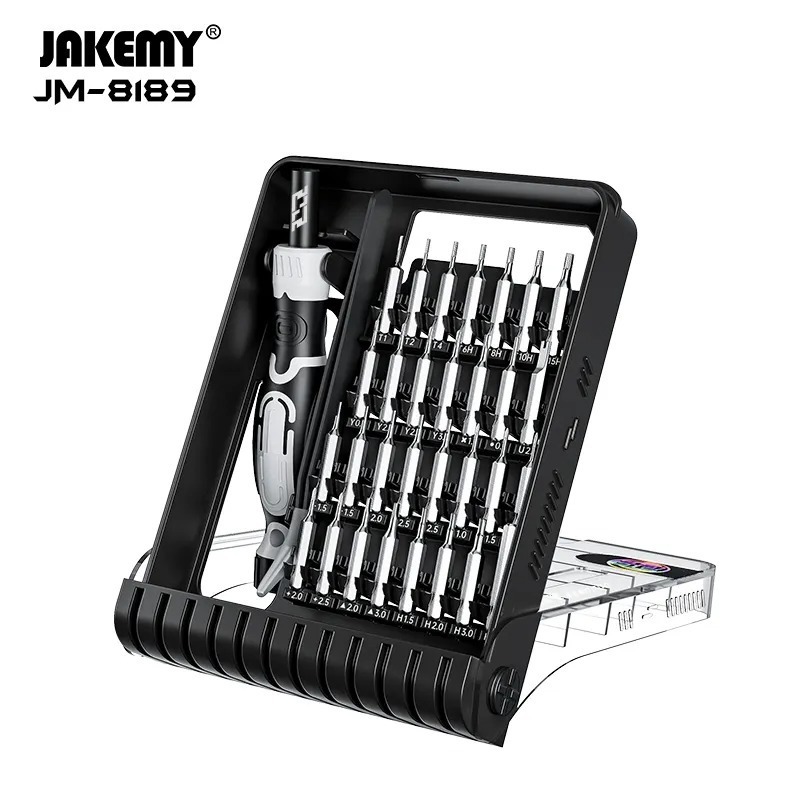
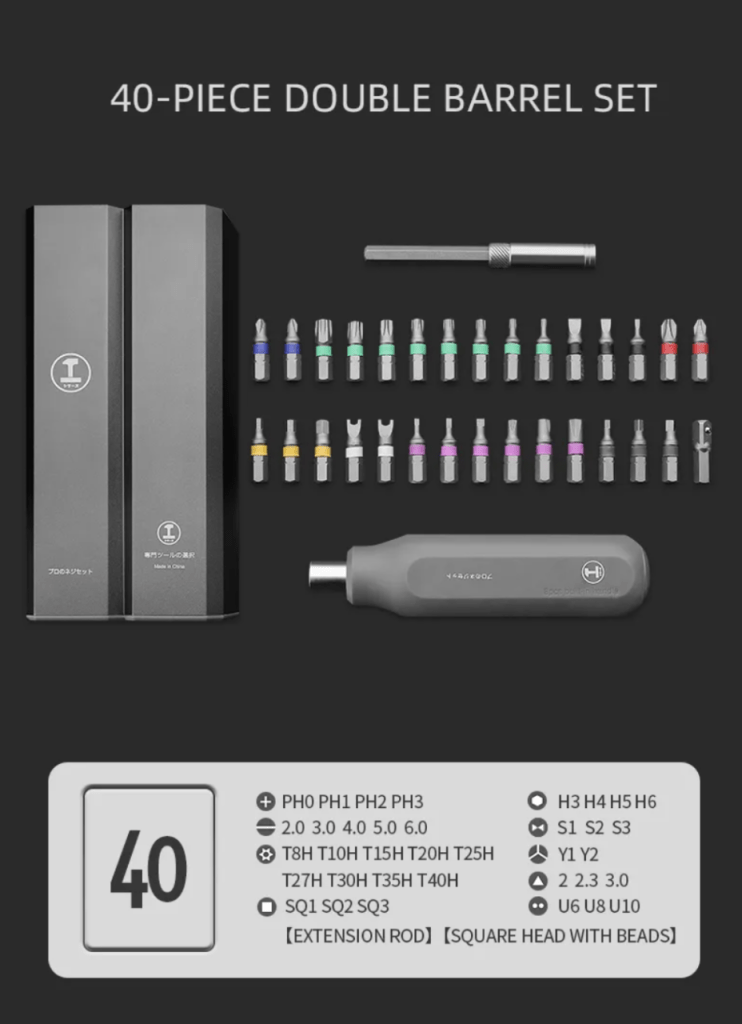
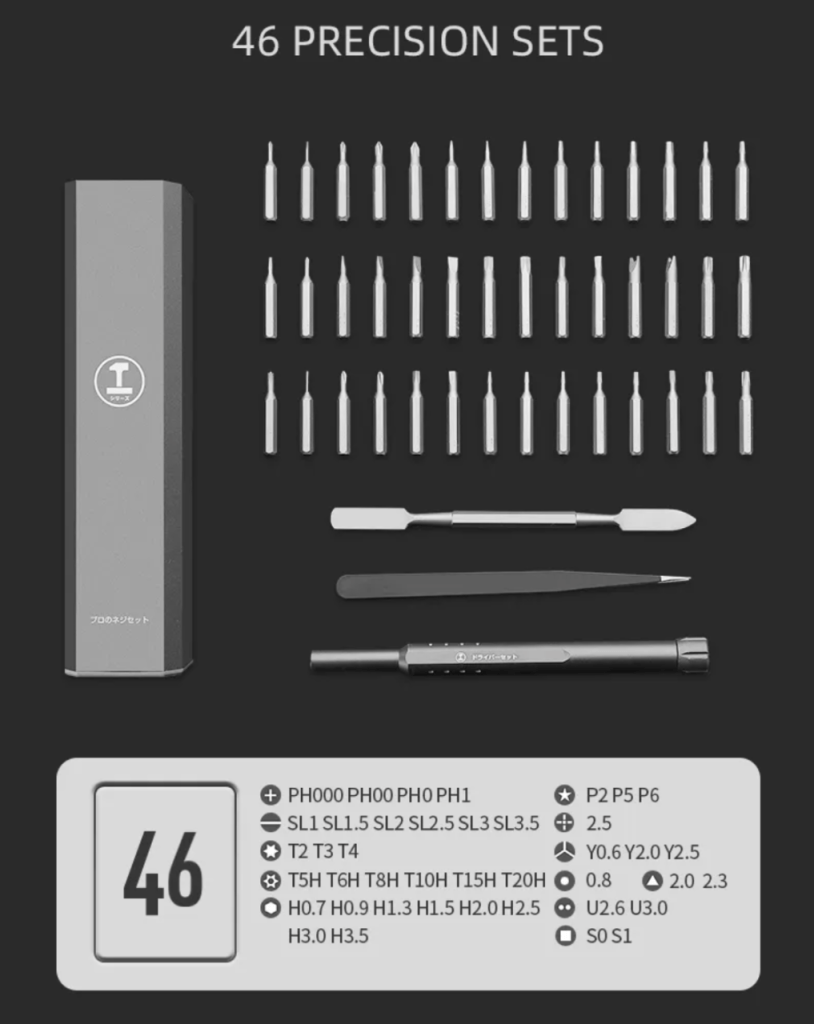
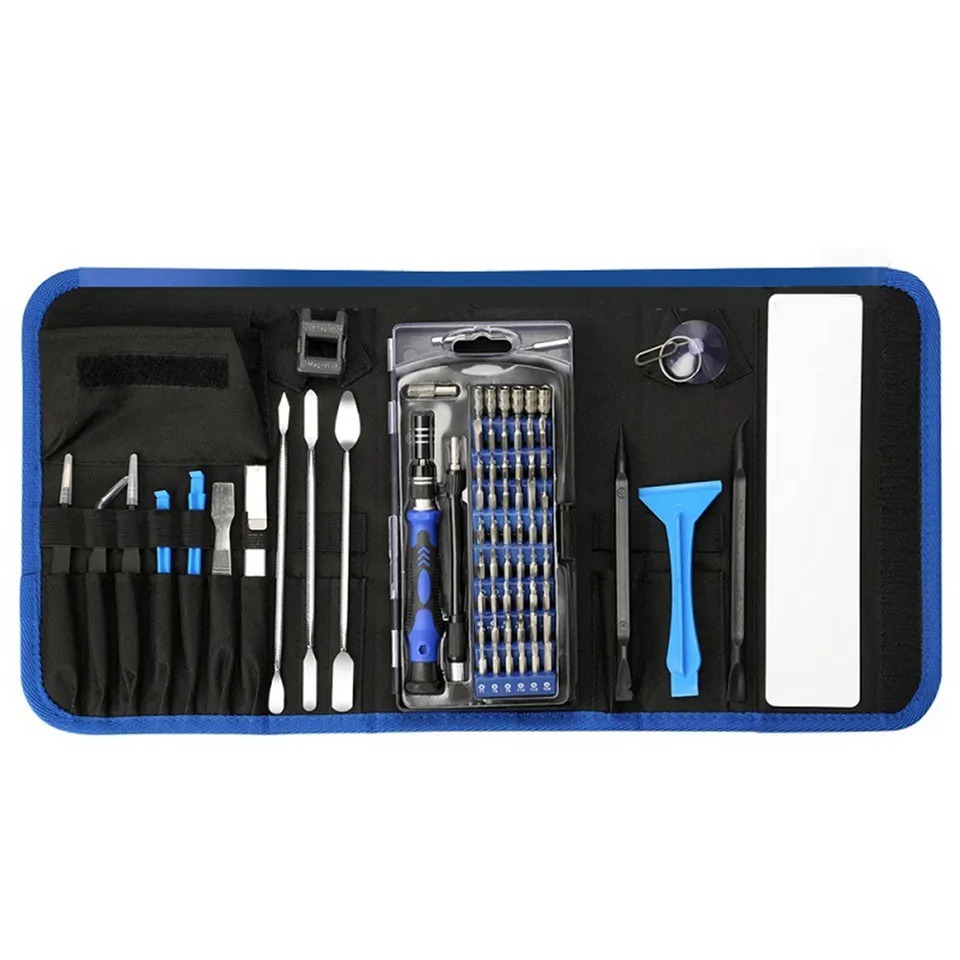
















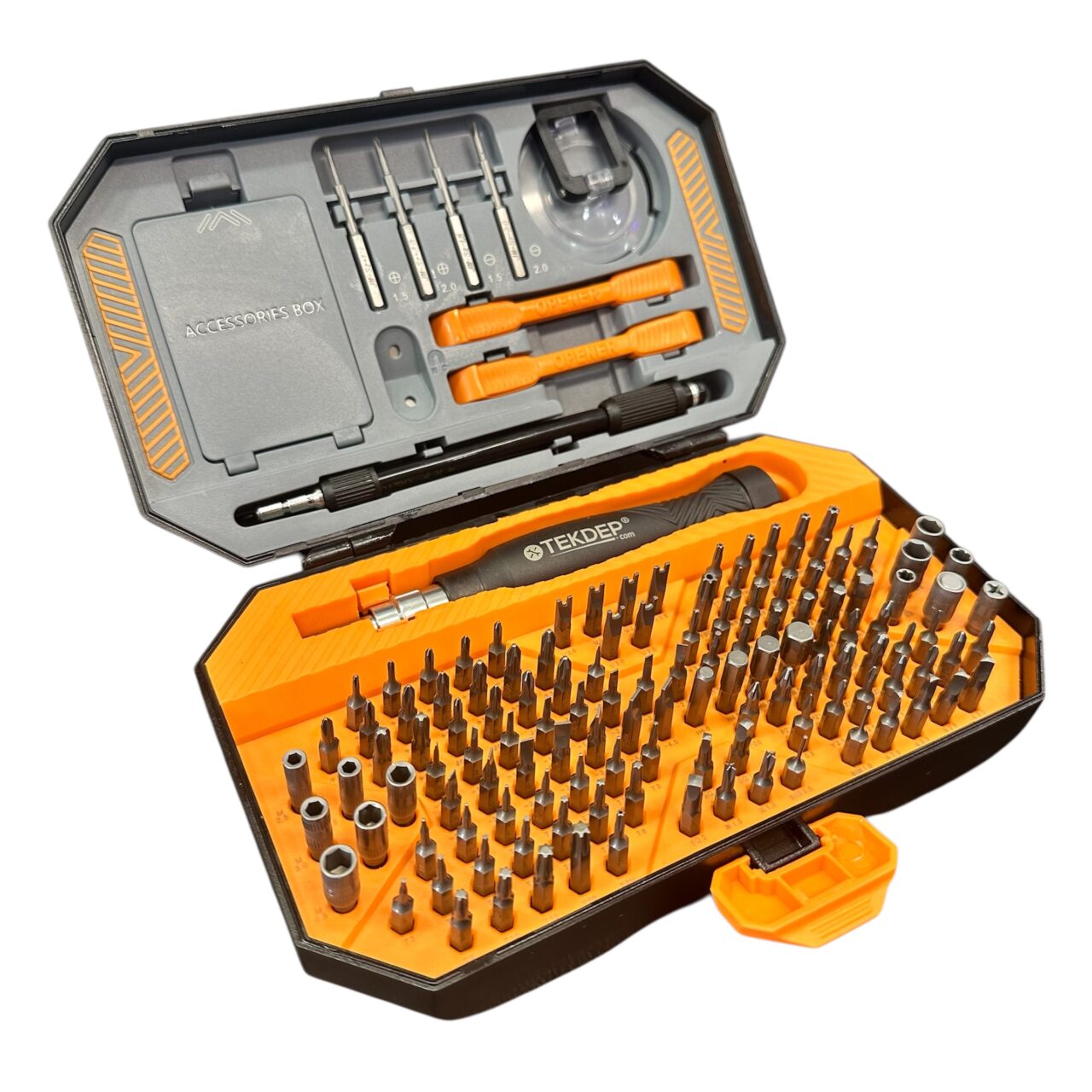
Model: Dell Inspiron 14 5410 | Level: Intermediate | Tools: Phillips screwdriver, plastic pry tool, precision tweezers
A Dell Inspiron 14 5410 LCD back cover replacement is the fix when your hinges rip completely out of the plastic casing. Many shops misquote this as a display replacement, but you only need to swap the back plate.
If your laptop is showing a separated screen bezel, a floppy hinge, or cracked plastics behind the monitor, a fresh back cover secures everything again.
Our lead technician Nicholas walks you through the whole repair in the video below. Let’s get started.
How to Complete the Dell Inspiron 14 LCD Back Cover Replacement (Quick Overview)
- Remove the bottom plate screws and pry the panel off.
- Disconnect the battery and press the power button to discharge static.
- Disconnect the display cable and unscrew the hinges from the logic board.
- Roll out the LCD adhesive tape carefully with tweezers to free the screen.
- Transfer the hinges to the new back cover.
- Apply new double-sided adhesive and seat the LCD panel.
- Reattach the display assembly to the main laptop body.
- Reconnect the battery and bottom plate, then power on.
🛠️ Required Tools & Preparation
A Dell Inspiron 14 5410 LCD back cover swap needs only a few standard tools. Power the laptop off and unplug it before you start.
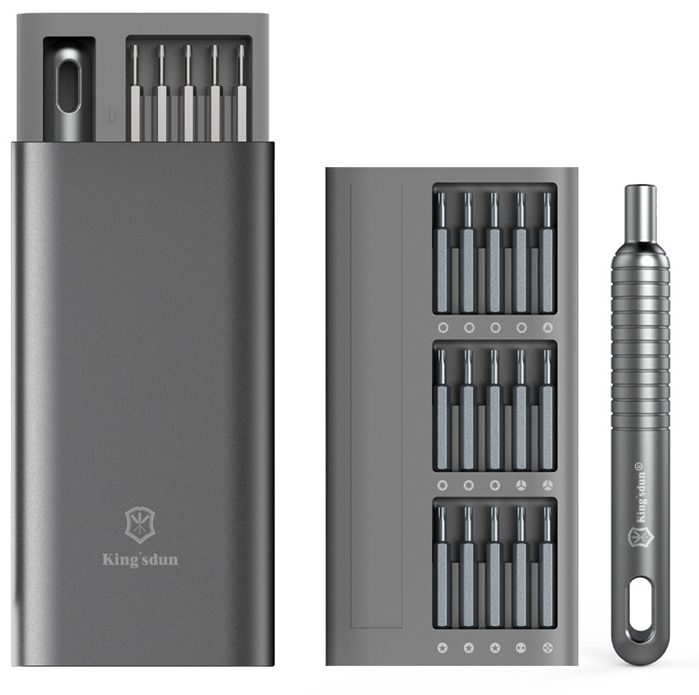
- Phillips screwdriver: you will need a small bit for the bottom plate and a slightly larger one for the hinges.
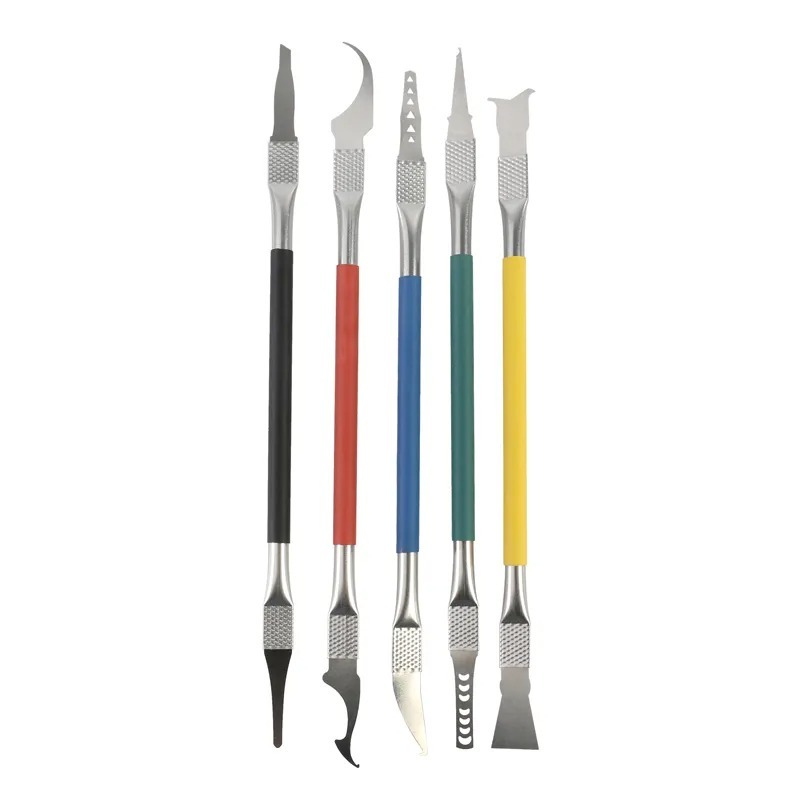
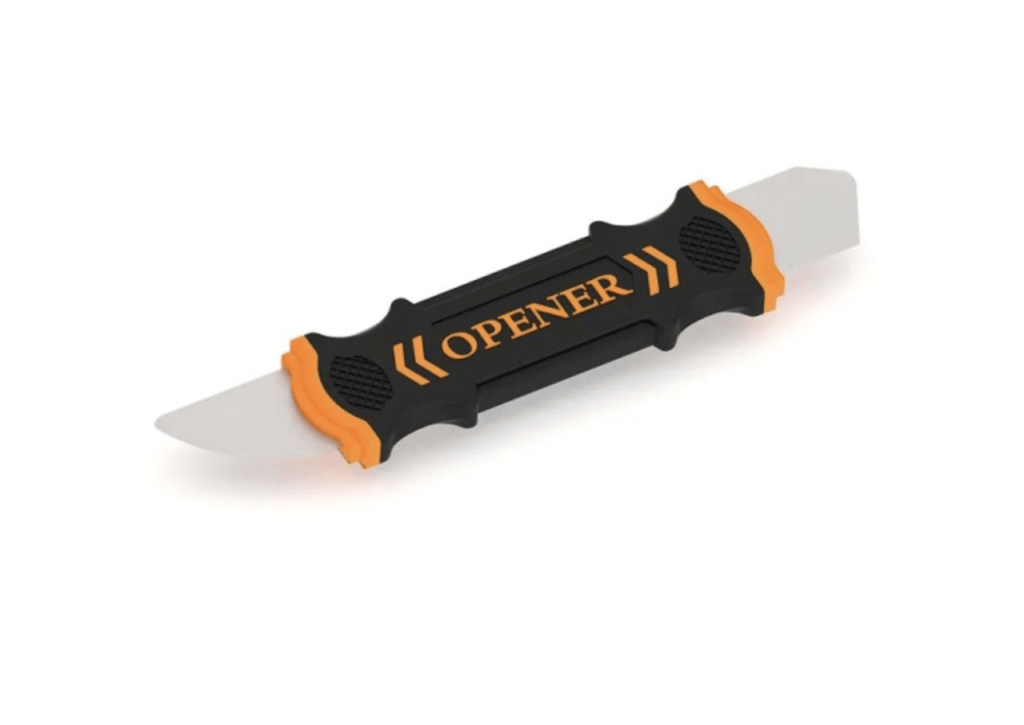
- Plastic pry tool: unclips the bottom plate without scratching the metal.
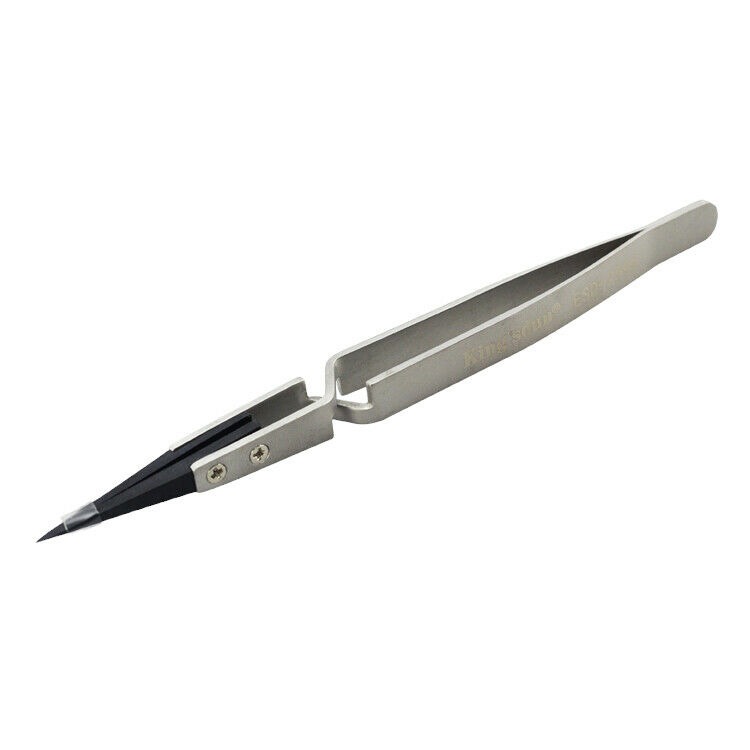
- Precision tweezers: essential for gripping and rolling the stretch-release adhesive under the LCD.
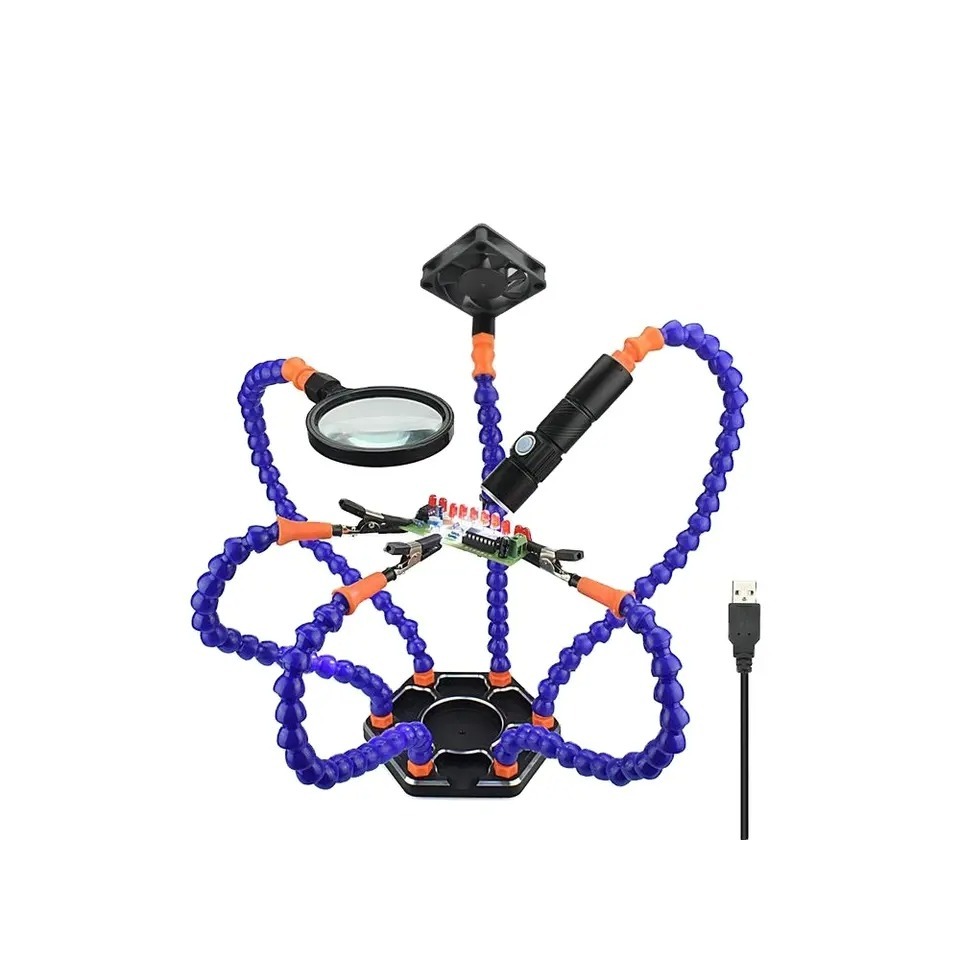
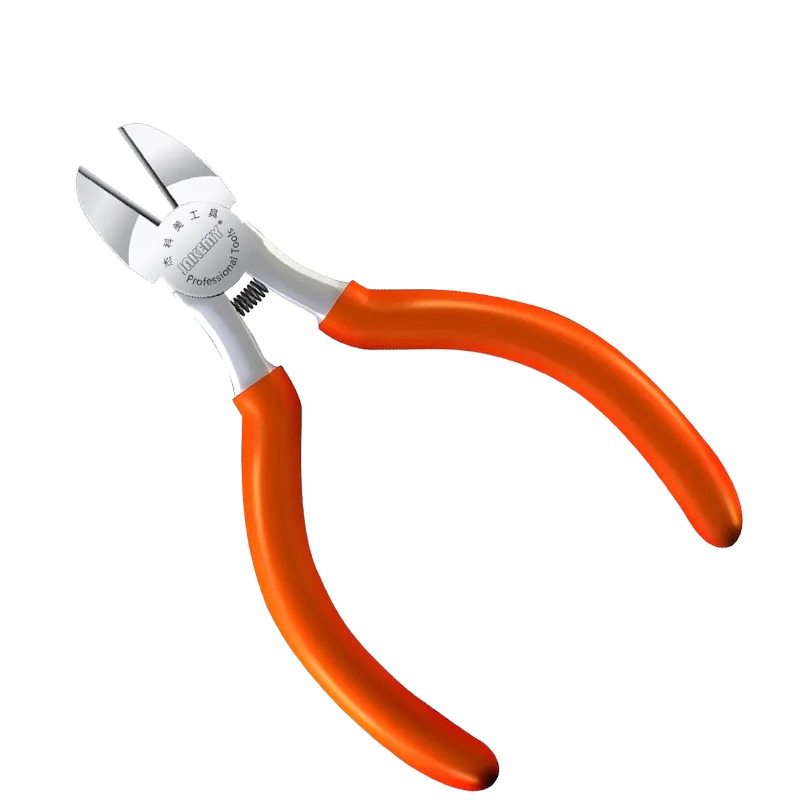
Get the Exact Tools Used by Our Techs:
⚠️ Before you start: Disconnect the battery before you touch any connector. Work on an anti-static mat and keep each group of screws together. LCD panels are extremely fragile and will crack if bent.
Phase 1: Getting Inside & Safety
The Inspiron 14 opens from the bottom. You must disconnect the battery before unplugging the display cable to prevent short circuits.
Step 1: Remove the Bottom Plate
Dell uses captive screws at the top that help push the plate off the chassis.
- Use your small Phillips screwdriver to loosen the three top screws. They will click but will not come out entirely.
- Unscrew and completely remove the four lower screws.
- Take your plastic pry tool, insert it where the top screws popped the gap, and gently work around the outer edges until the plate lifts off.
Step 2: Disconnect the Battery
Always clear static electricity from the logic board before touching other components.
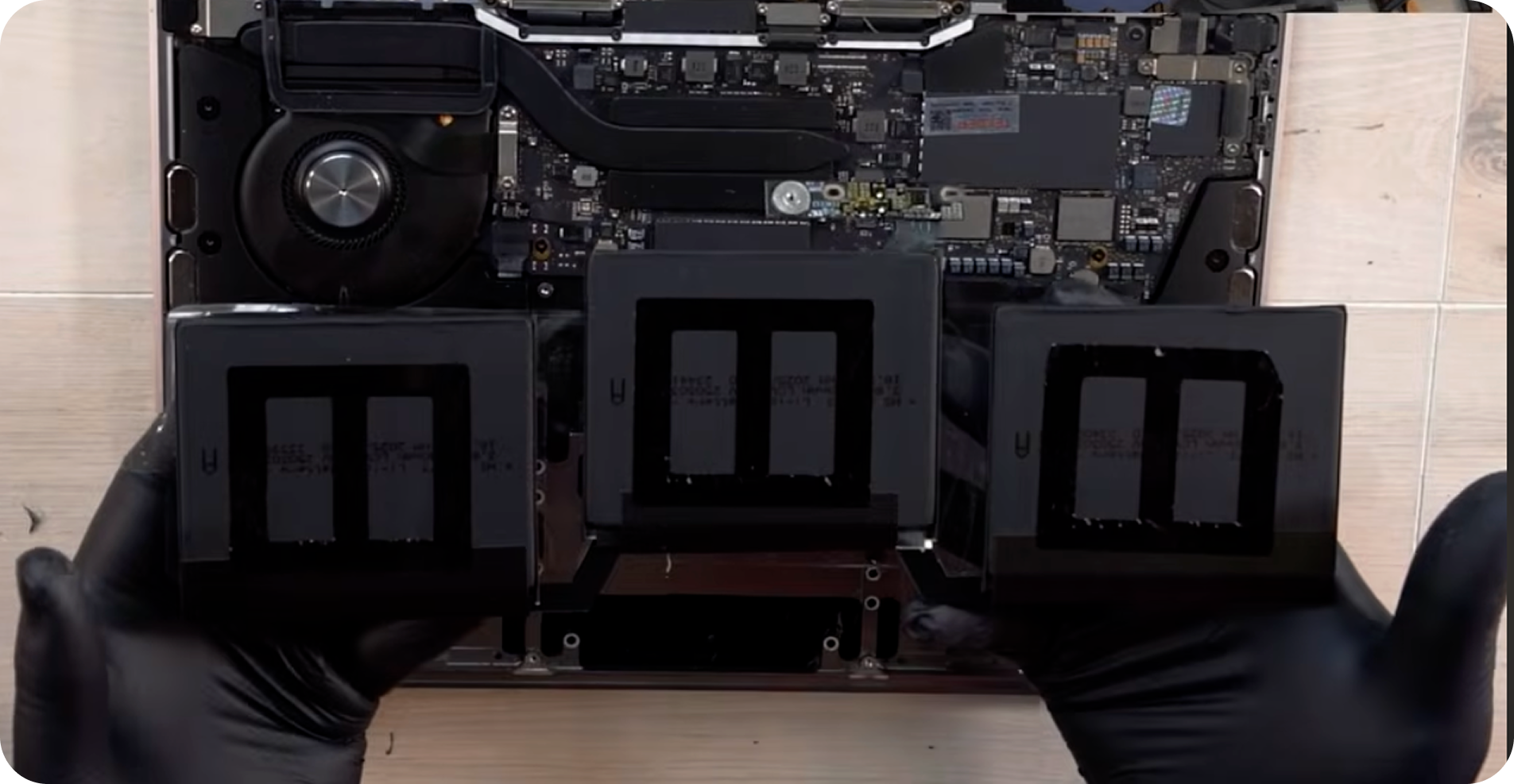
- Slide your pry tool underneath the battery connector edge and gently wiggle it out of the socket.
- Open the laptop lid slightly and hold the power button down for 10 seconds to fully discharge the board.

Phase 2: Removing the Broken Display Assembly
The hinges are located above the logic board, so you do not need to remove the Logic board to pull the screen assembly off.
Step 1: Unplug the Display Cable
- Locate the display cable connection at the top of the logic board.
- Use your pry tool to flip up the small locking hatch at the bottom of the connector.
- Pull the connection out gently.

Step 2: Unscrew the Hinges
Switch to a slightly larger Phillips bit to avoid stripping these tight fasteners.
- Unscrew the Phillips screws holding the right and left hinges to the chassis.
- If a hinge is still attached to the broken backplate, hold the hinge base, bend it up slightly, and slide the top case away.

Step 3: Remove the LCD Adhesive Tape
The LCD is held onto the backplate by two long strips of stretch-release adhesive. If you are also installing a new screen like we did in our HP Victus 15 LCD screen replacement guide, this is where the old one comes out.
- Grab the tip of the adhesive tab at the bottom with your tweezers.
- Roll the tweezers so the adhesive wraps around them. Pull a tad, wrap it some more, and go slow.
- Repeat this process for both the left and right strips until they slide all the way out.
TekDep Expert Warning: These adhesive strips are known for snapping. Wrapping them around tweezers gives you leverage and keeps the tension even. Never pry against the LCD glass if a strip breaks.
Step 4: Remove the LCD Panel
- Remove the four small Phillips screws holding the bottom of the display brackets. Crucial Note: If your bit binds, size up to prevent stripping the screw heads.
- Gently lift the fragile LCD display up and guide the display cable out from underneath the hinge cover. Place the screen somewhere safe.

Phase 3: Transferring Parts to the New Cover
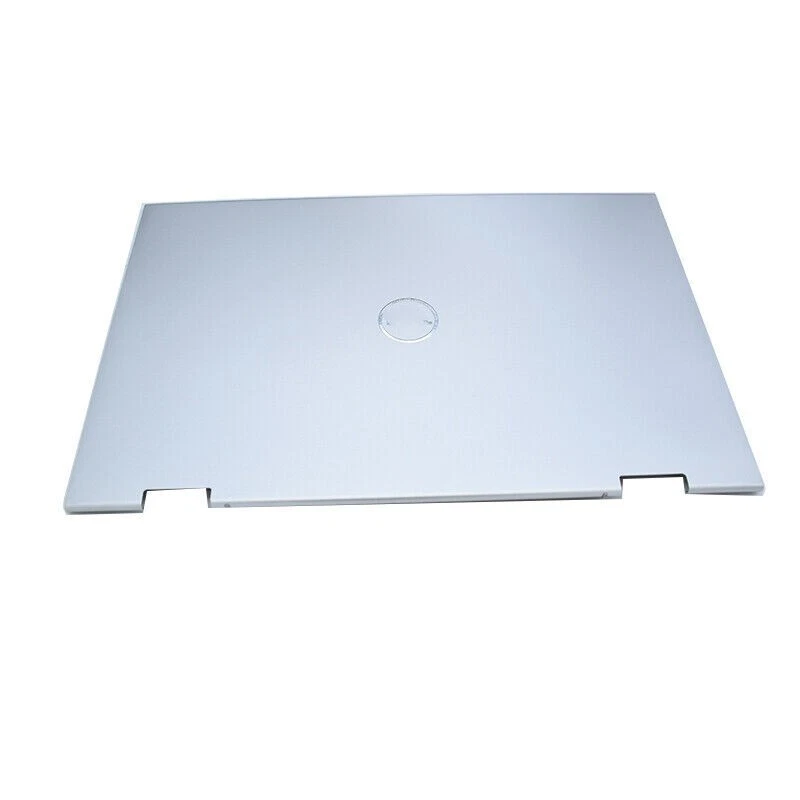
Your new Dell Inspiron 14 LCD back cover arrives bare, so you must transfer the hinges over before reinstalling the screen.
Step 1: Transfer the Hinges
- Unscrew the broad-head screw and the two regular screws holding the ripped hinge to the broken plastic shards.
- Center the hinge on the new back cover and screw it back in.
- Repeat for the other hinge, securing it with the smaller screws.
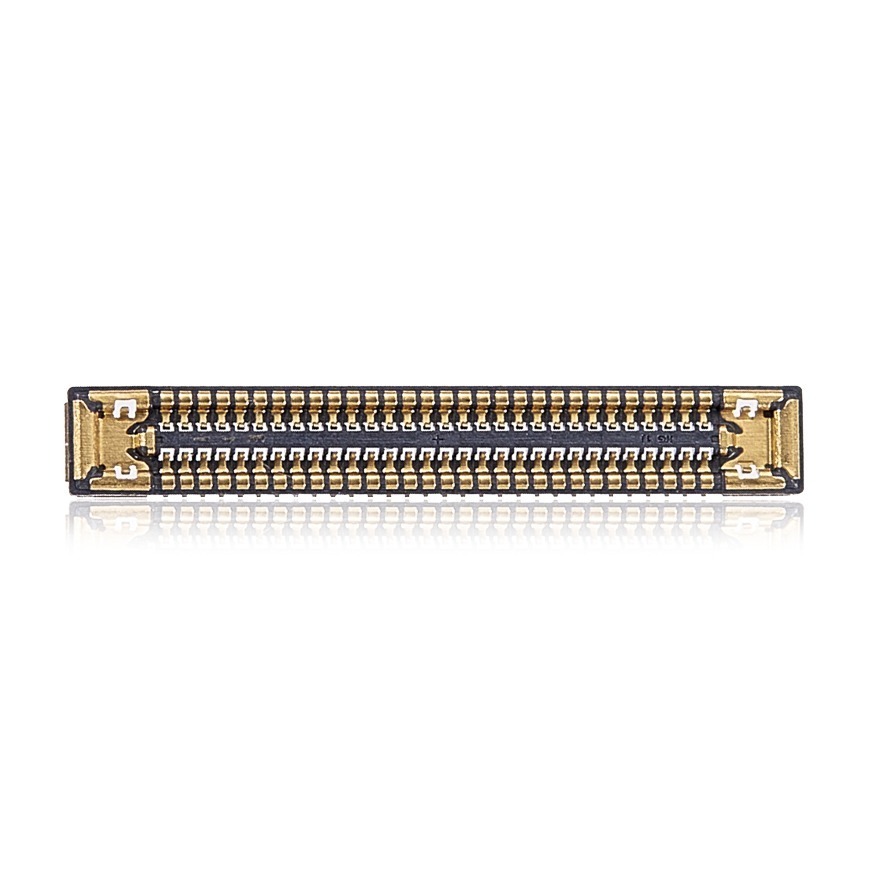
Get the replacement Dell Inspiron parts we installed:
Step 2: Apply New Double-Sided Tape
You can buy pre-cut LCD strips or use an electronics tape coil. Proper adhesion prevents backlight bleed.
- Run the double-sided tape from the very top of the black bar down to the bottom on both the left and right sides.
- Leave a little overlap at the top so you can grab the backing with your tweezers and peel it off.

Step 3: Seat the LCD Panel
- Ensure the webcam privacy slider is seated in the top bezel track.
- Lower the LCD slowly, making sure it lines up within the hinges at the bottom.
- Route the display cable back through the hinge opening and press the panel down gently.
- Reinstall the four broad-head screws into the bottom brackets.

Step 4: Reinstall the Bezel
- Slide the plastic bezel under the bottom hinge cover first to hook its securing lips.
- Gently press it into place around the entire perimeter until it sits flush without any bulges.

Phase 4: Reassembly & Testing
With the screen assembly rebuilt, it is time to bolt it back to the laptop.
1st Step: Attach the Display Assembly
- Place the display face-down on your bench and slide the main top case underneath it.
- Bend the hinges backwards to align them with the Logic board screw holes, slowly lowering the top case into place.
- Retighten the Phillips screws into the hinges on the top-left, top-right, and bottom edges.
2nd Step: Reconnect the Cables
- Push the display cable straight into its logic board socket and flip the locking bar down to secure it.
- Press the battery connector firmly back into its socket. Push it all the way in to ensure the computer receives power.

3rd Step: Reinstall the Bottom Plate
- Lay the bottom backplate on the chassis and press down along the sides to engage the clips.
- Tighten the three captive top screws, then reinstall the four lower screws.
4th Step: Power Test
Open the laptop and press the power button. If everything is seated correctly, you will see the Dell logo and boot into Windows.

Congratulations! You have completed the Dell Inspiron 14 LCD back cover replacement.
🛑 Not Comfortable Handling Delicate LCD Adhesive? If reading about broken hinges and fragile screen pulls has you second-guessing your DIY skills, don’t worry. The TEKDEP experts are here to help.
We offer clean, professional, and affordable Mail-In repair services for the entire Dell Inspiron lineup.
Frequently Asked Questions
Do I need a new screen if my Dell Inspiron 14 hinges break?
Not usually. The hinges rip the screw mounts out of the plastic back shell, leaving the LCD completely fine. A Dell Inspiron 14 LCD back cover replacement saves the expensive monitor and restores the physical structure.
How do you safely remove the LCD adhesive tape?
Grab the ends of the double-sided tape at the bottom of the screen with precision tweezers. Twist the tweezers slowly to roll the tape around the tips, which pulls it out horizontally without snapping it beneath the glass.
Does this laptop have Wi-Fi antennas in the back cover?
No, the Dell Inspiron 14 5410 does not route antenna cables through the back plate of the display. This makes the replacement process simpler, as you only need to manage the main display flex cable.
What should I do if the LCD stretch-release adhesive snaps while pulling?
If the adhesive tape snaps, never attempt to pry against the fragile LCD glass with a metal tool. Instead, apply a few drops of high-concentration isopropyl alcohol (90% or higher) behind the panel to soften the remaining adhesive, and gently slice through it using a thin plastic card or guitar pick.
🛑 IMPORTANT: SAFETY & LIABILITY DISCLAIMER TEKDEP®️ TEKDEP.com assumes no liability for property damage or injury incurred as a result of any information in this blog post or associated videos. Dealing with internal computer components, specifically Lithium-Ion batteries, carries natural risks including fire, toxic gas exposure, and permanent device failure. Any injury, damage, or loss from improper use of tools, mishandling of components, or misinterpretation of this information is the sole responsibility of the user. Perform repairs at your own risk. If you are unsure of your capabilities, please utilize our professional Mail-In Repair Service.