






















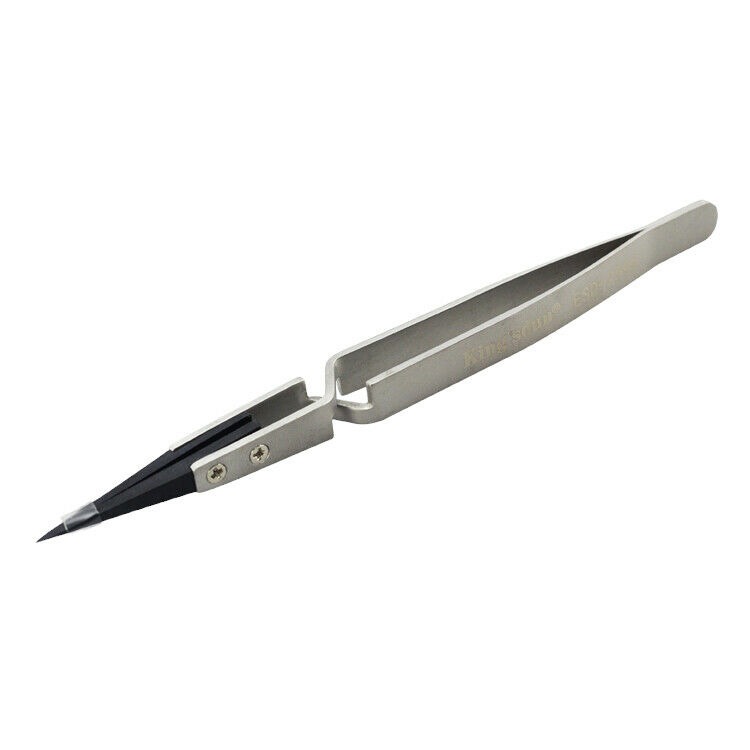











Model: iPad Pro 11-inch (M4) | Level: Advanced | Tools: Heating mat, 0.1 mm screen disassembler, isopropyl alcohol, plastic spudger, Phillips screwdriver. If you’re attempting an iPad M4 screen replacement, for official hardware specifications, check Apple’s iPad Pro 11-inch (M4) tech specs.
An iPad M4 screen replacement on the iPad Pro 11 requires extreme precision because Apple routed delicate sensor cables along the right bezel of the ultra-thin 5.3mm chassis. Slicing too deep with your pry blade can permanently sever the Face ID assembly.
If your tablet suffers from shattered front glass, an unresponsive touch digitizer, or black ink-bleed spots on the Tandem OLED panel, replacing the assembly restores full clarity.
This tutorial walks you through every step in the video below, including rear camera and LiDAR sensor extraction. Let’s get started.
How to Do an iPad Pro 11 M4 Screen Replacement (Quick Overview)
- Preheat the tablet on a heating mat to soften perimeter adhesive.
- Slice the perimeter glue with a 0.1 mm blade and isopropyl alcohol.
- Unscrew the single bracket screw and detach the Face ID cable.
- Disconnect the battery terminal first before touching display cables.
- Remove the five bracket screws and unplug the four display lines.
- Unscrew the rear camera bracket and clear the hidden speaker hook.
- Peel the thermal tape and lift the camera and LiDAR module free.
- Connect the new panel and run a bench power test before sealing.
🛠️ Required Tools & Preparation
An iPad Pro 11 M4 screen swap requires specialized thin opening tools and controlled heat; power off the device completely before beginning.
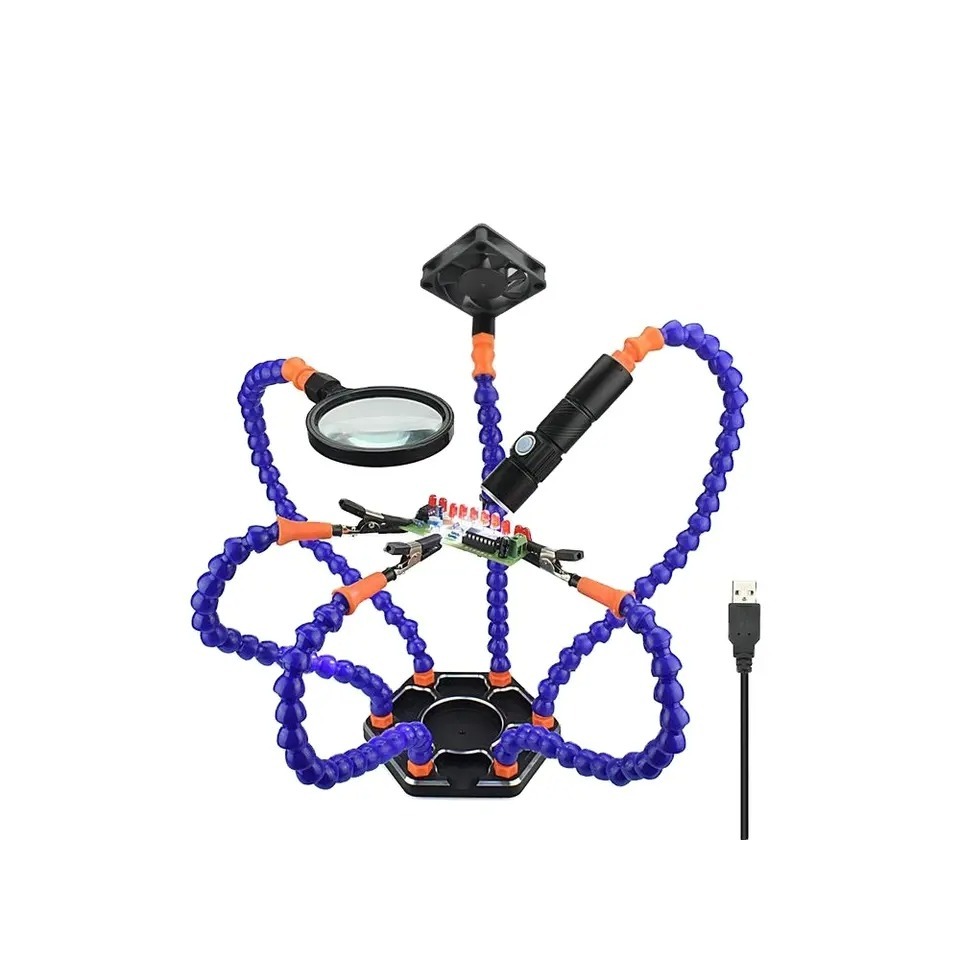
- Heating mat: warms the chassis to 80°C–85°C (176°F–185°F) to loosen industrial screen adhesive.
- 0.1 mm screen disassembler: ultra-thin spring steel sheet designed to cut perimeter glue without cracking OLED glass.
- 99% isopropyl alcohol & dropper: softens resistant glue instantly without shorting motherboard traces.
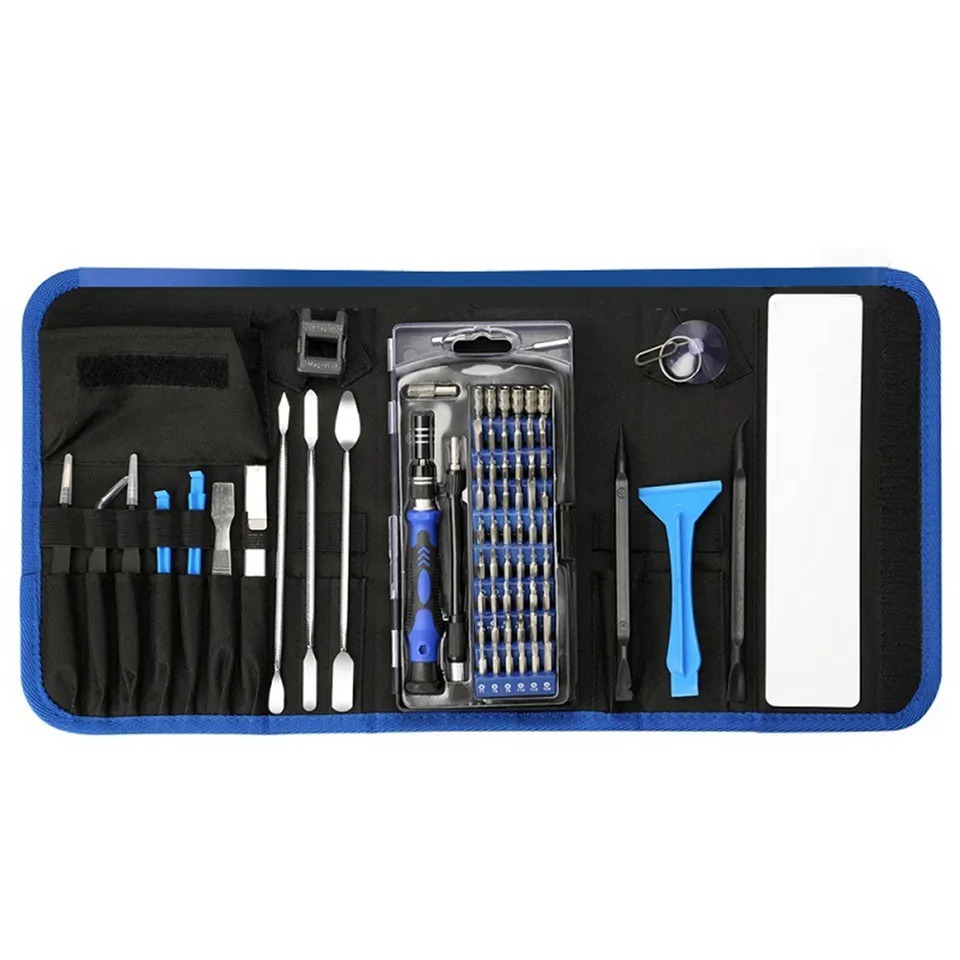
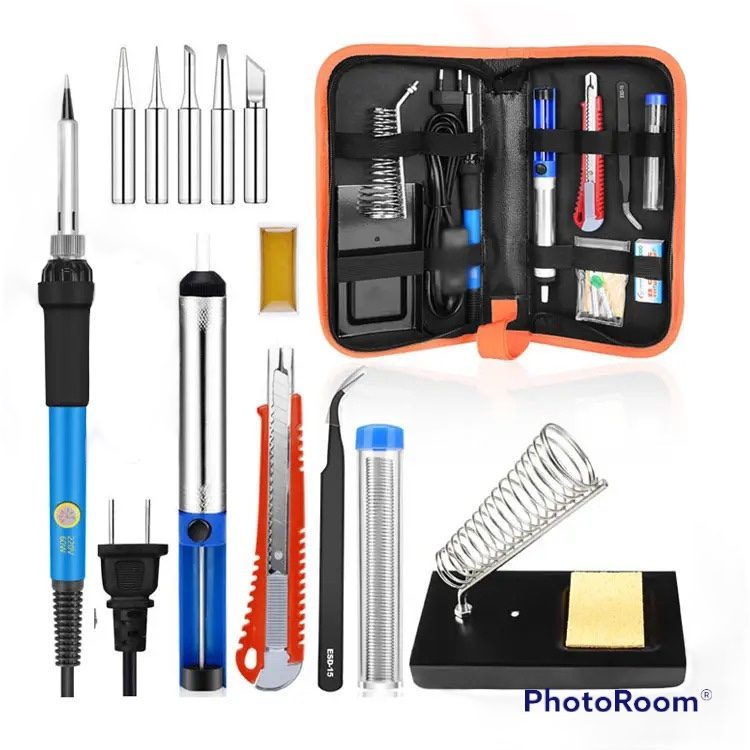
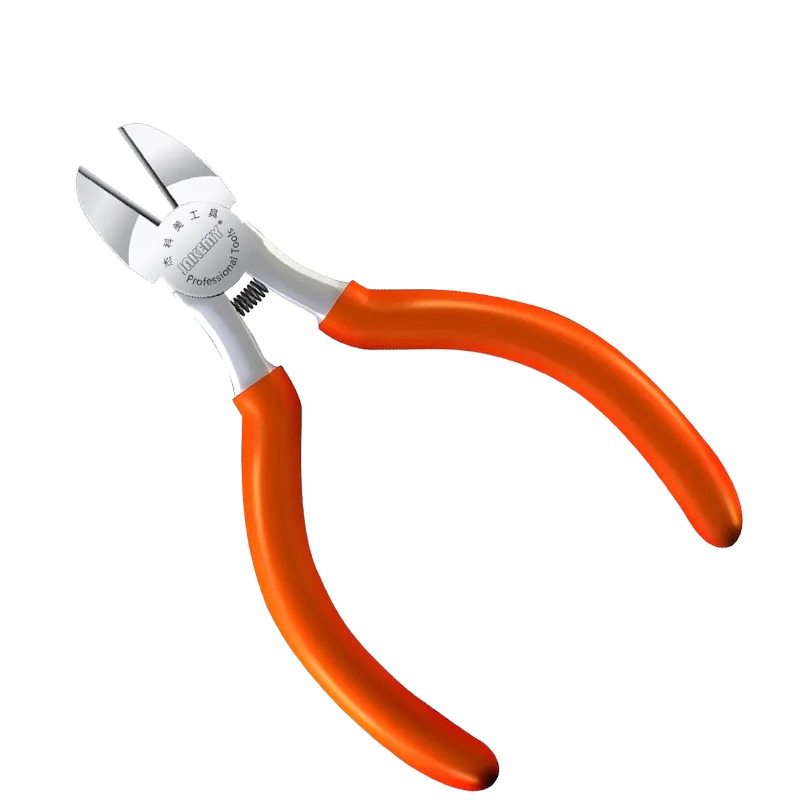
- Anti-static gloves & plastic spudger: prevent electrostatic discharge and safely disconnect delicate motherboard sockets.
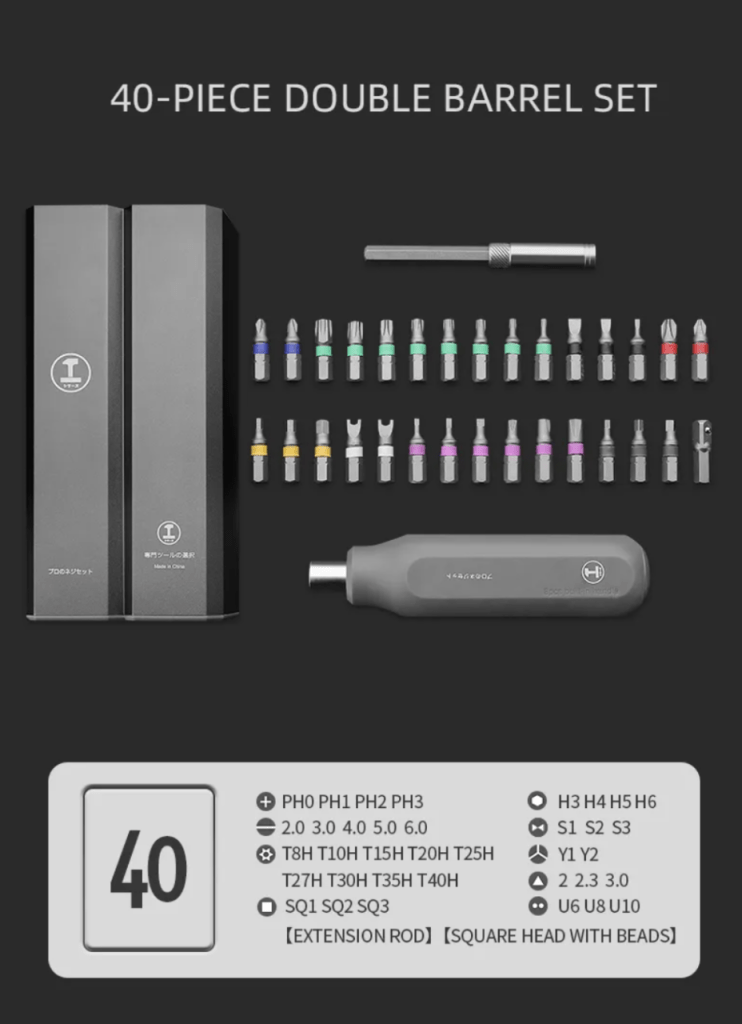
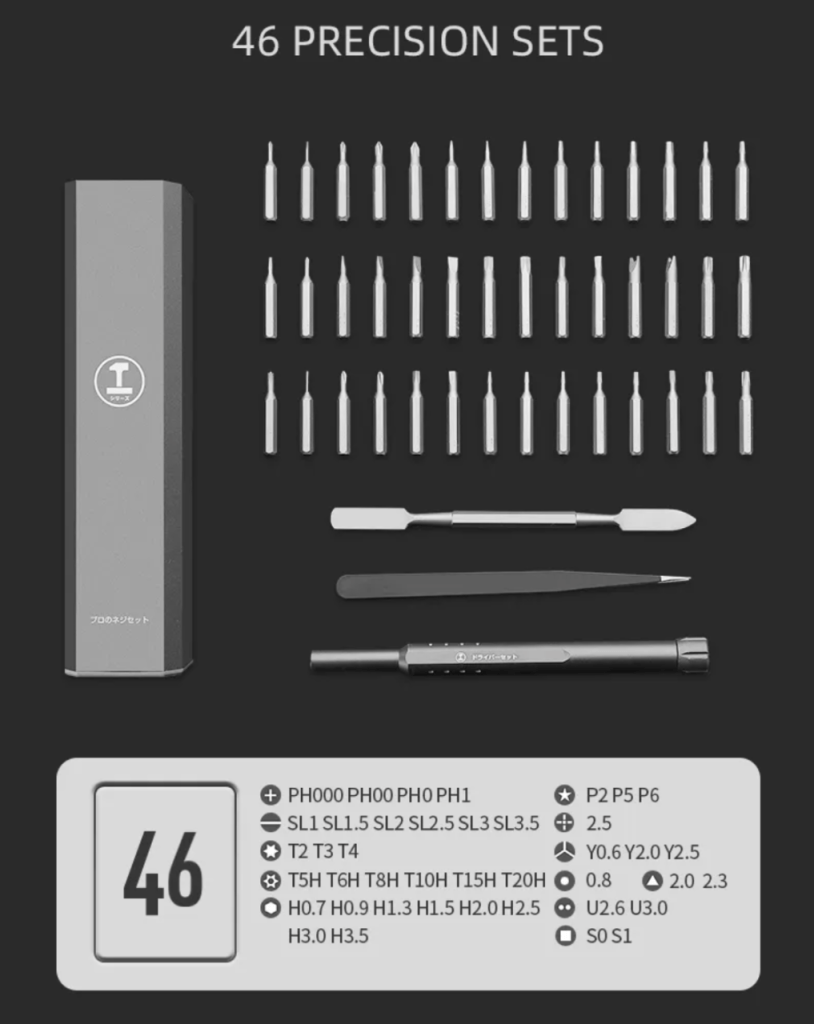
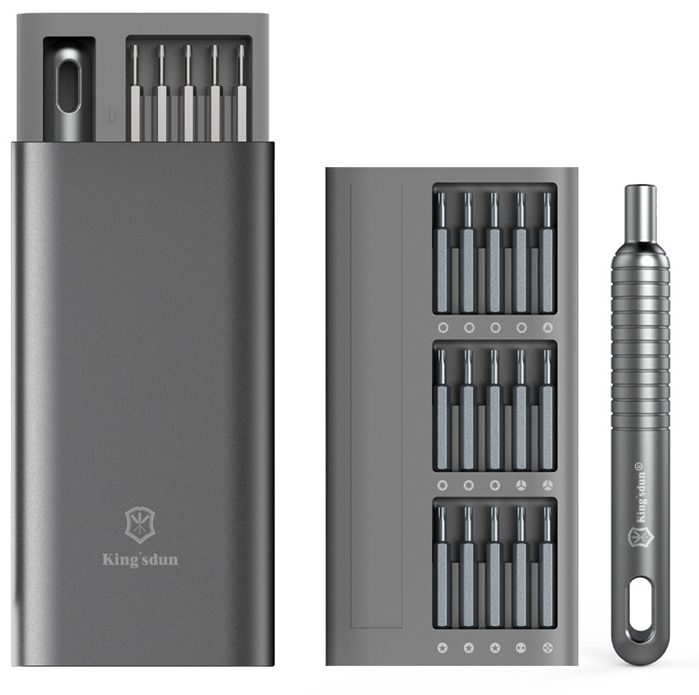
- Phillips precision screwdriver: removes all internal sensor, display, and camera bracket screws.
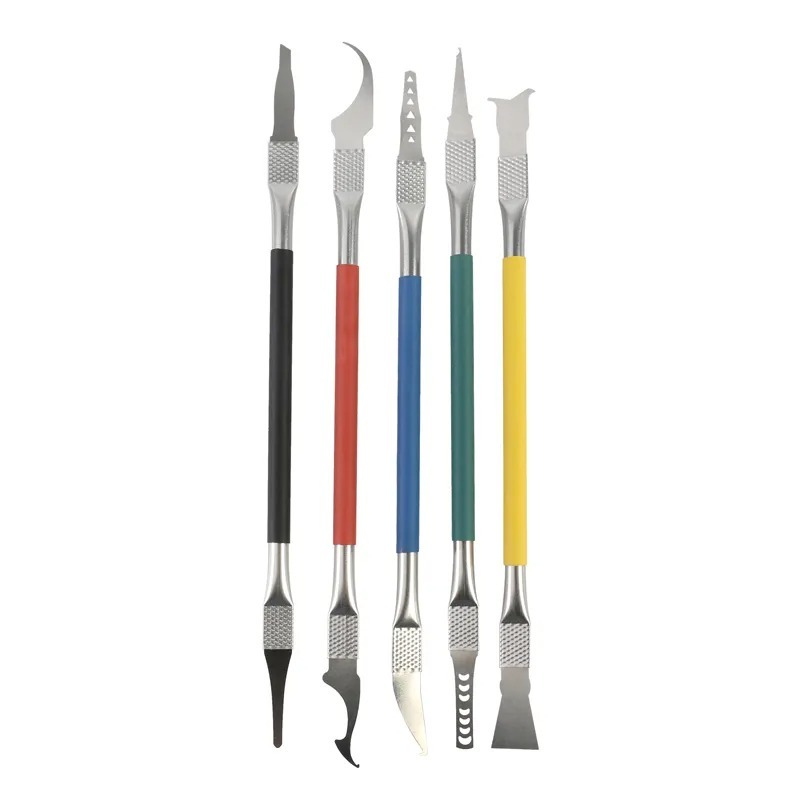
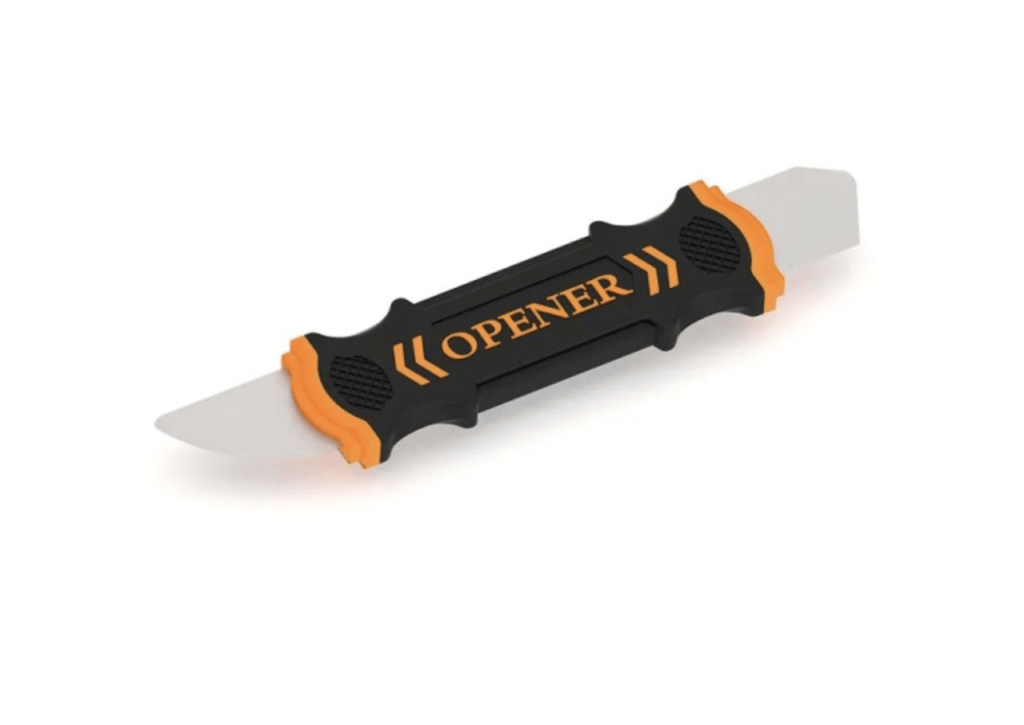
- Metallic double-sided pry tool: unseats the strongly glued LiDAR sensor and camera body cleanly.
Get the Exact Tools Used by Our Techs:

Explore our full selection of replacement parts to source professional adhesives, tools, and hardware components.
⚠️ Before you start: Always disconnect the battery connector before unplugging or attaching display flex cables. Working on live board connectors can instantly blow delicate backlight filters and destroy logic board components. Keep track of all bracket screws by size.
Phase 1: Opening the Chassis for iPad M4 Screen Replacement
Loosening Apple’s factory adhesive requires consistent surface heating and strict blade depth control.
Step 1: Soften the Perimeter Adhesive
Preheat the entire iPad face down on a professional heating pad to loosen perimeter adhesive bonds safely.
- Set your commercial heating mat between 80°C and 85°C (176°F to 185°F).
- Place the iPad face down on the heated surface for 5 to 7 minutes until the outer frame is hot to the touch.
Step 2: Slice the Screen Adhesive
Insert a flexible pry blade along the outer seam while avoiding delicate sensor cabling.
- Work the tip of your 0.1 mm screen disassembler into the thin gap between the display border and the aluminum frame.
- Apply small drops of 99% isopropyl alcohol directly along the blade using a precision dropper whenever resistance occurs.
- Keep your blade depth under 2 mm along the right edge in portrait orientation to avoid tearing the Face ID and proximity sensor cables.
- Slide along the perimeter until the screen frees from the frame, clearing away loosened adhesive threads as you go.
TekDep Expert Warning: The Face ID and proximity flex cable sits along the upper-right edge in portrait mode, while four display cables line the lower charging port area. Slicing blindly through either zone will instantly tear these cables.

Phase 2: Disconnecting Cables During Your iPad M4 Display Replacement
Safely isolating board power is critical before disconnecting any display or ambient sensor cables.
Step 1: Remove the Proximity Sensor Bracket
Hinge the screen open carefully from the left side to prevent straining the right-hand sensor cable.
- Tilt the loose screen toward the right edge where the upper flex cable tethers to the motherboard.
- Remove the single Phillips screw counterclockwise from the proximity sensor retaining bracket.
- Lift away the retaining bracket and use a plastic pry tool to gently detach the sensor flex connector.
Step 2: Disconnect the Battery and Screen Flex Cables
Always isolate the battery terminal before unplugging the four main screen flex cables.
- Tilt the display assembly forward to access the lower shielding bracket situated near the USB-C charging port.
- Remove the five Phillips screws securing the lower metal retaining bracket to the motherboard.
- Lift the metal shield off and set it aside in a magnetic parts tray.
- Disconnect the battery terminal connector first with your plastic spudger to cut all board power.
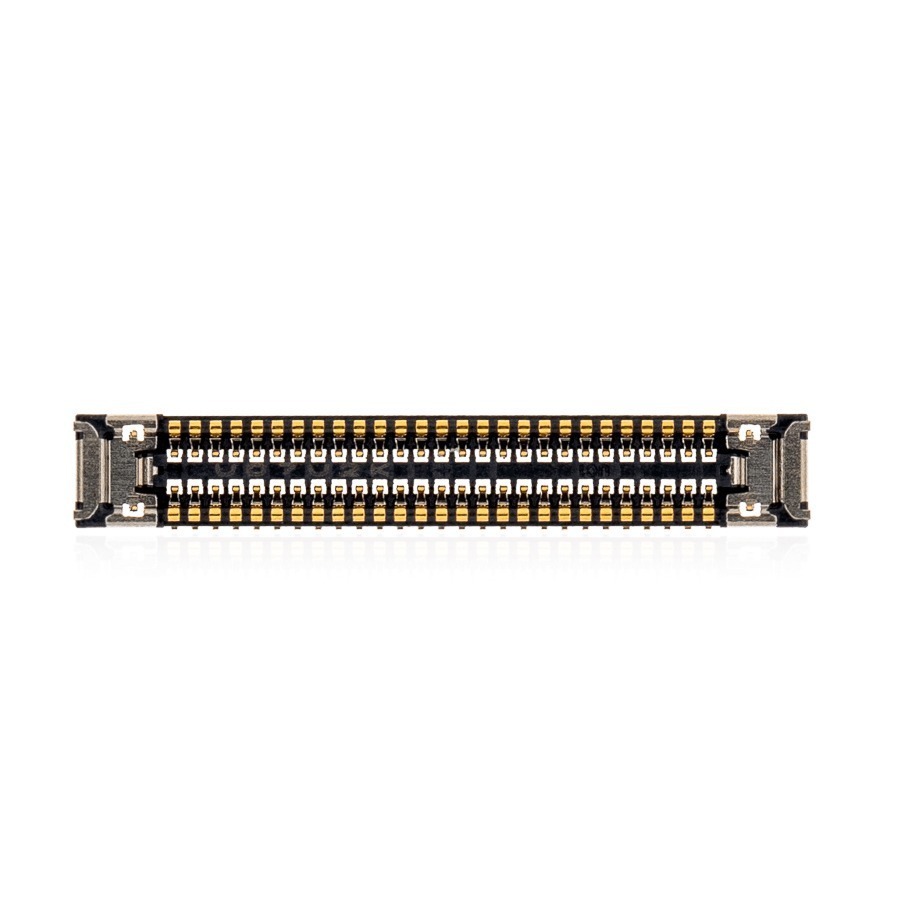
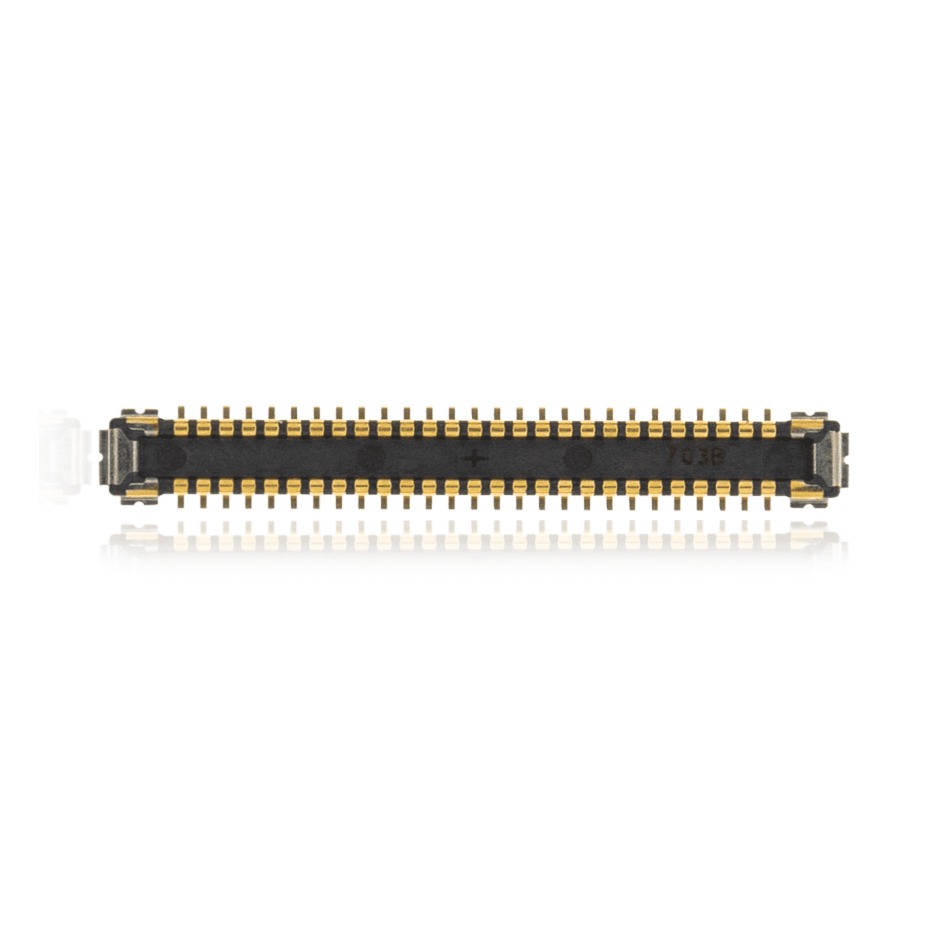
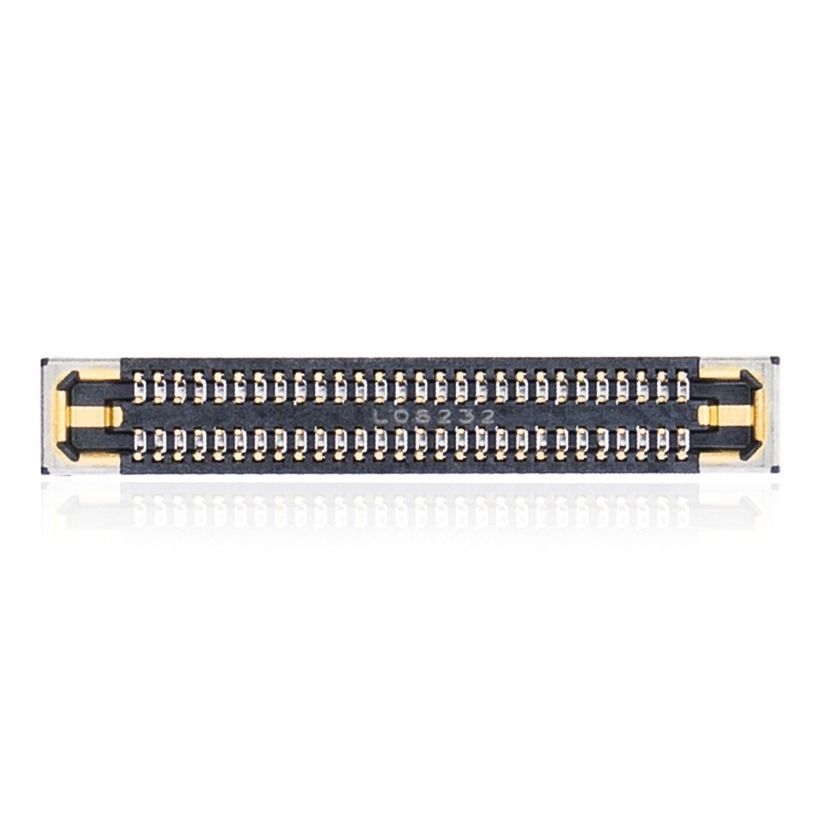
- Disconnect the four screen flex cables individually from their sockets and lift the broken panel completely away.


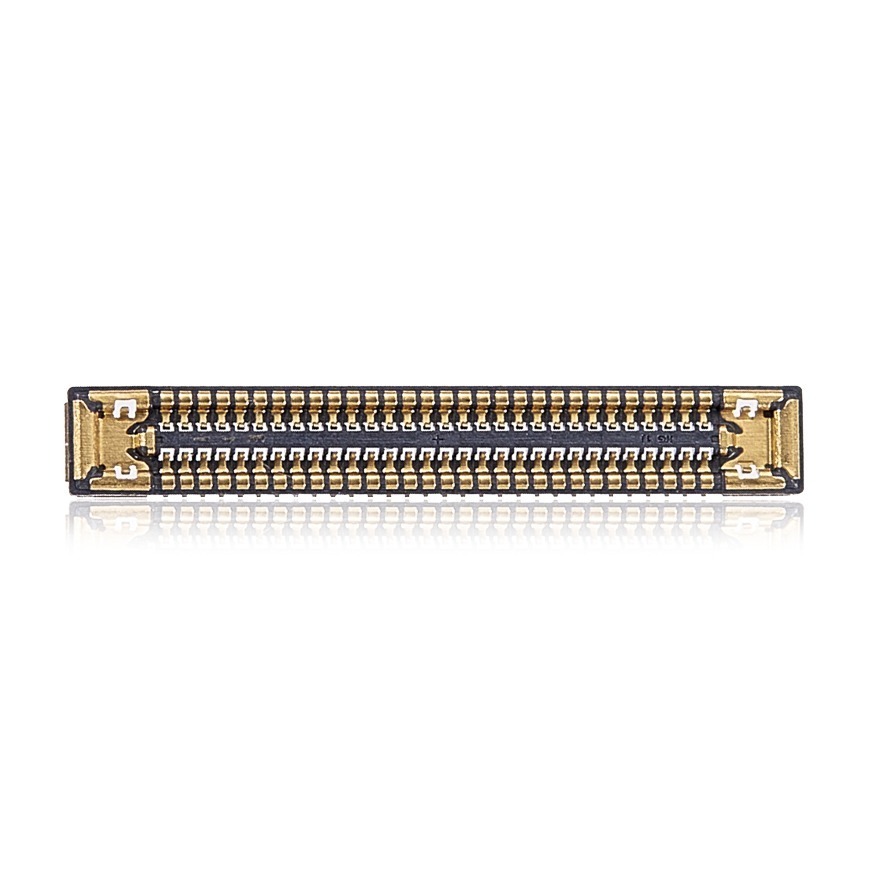
Get the replacement iPad Pro 11 M4 screen we installed:
Phase 3: Extracting the Rear Camera & LiDAR Sensor
If you are addressing blurred photos or faulty depth mapping, extract the upper modular camera hardware next.
Step 1: Remove the Camera Retaining Bracket
The protective camera bracket is fastened by multiple screws and a subtle chassis locking tab.
- Remove the three Phillips screws vertically aligned along the inner bracket edge.
- Remove the remaining four Phillips screws securing the perimeter of the bracket and the LiDAR corner.
- Locate the small locking tab hooked beneath the corner speaker body.
- Gently lift the bracket upward and slide the tab out from underneath the speaker before taking it off.
Step 2: Unseat the Rear Camera and LiDAR Sensor
Peel the protective thermal sticker before prying either sensor out of its machined recess.
- Disconnect the rear camera flex cable connector from the motherboard with your plastic spudger.
- Peel back the small black heatsink tape that fastens the camera housing to the frame.
- Pry gently underneath the side of the rear camera module to lift it free from the rear enclosure.
- Disconnect the separate LiDAR flex connector from the main logic board.
- Slide your metallic double-sided prying tool beneath the LiDAR sensor body to release its adhesive base.


TekDep Tip: Never touch the camera lenses or inner optical filters with bare fingers. Keep replacement sensors in dust-free packaging until the moment they are seated into the frame.

Phase 4: Reassembly & Testing
Reinstall internal components in reverse order, verifying every hardware function before laying permanent adhesive.
Step 1: Reinstall the Modules and Reconnect Cables
Seat the camera hardware first, then reattach the display cables in proper sequence.
- Press the replacement LiDAR sensor and camera module firmly into their chassis slots and reconnect both flex cables.
- Slide the retaining bracket hook under the speaker lip and secure all seven Phillips screws firmly.
- Align the display and attach the four screen flex cables to their motherboard sockets.
- Reconnect the battery terminal connector to restore electrical power to the logic board.
- Fasten the lower shield with its five Phillips screws, then secure the proximity flex cable and its single Phillips screw.

Step 2: iPad M4 Screen Replacement Function Test
Installing a new screen on the iPad Pro 11 M4 requires a comprehensive function test before applying perimeter tape. Turn on the iPad Pro, confirm digitizer touch across all zones, and verify both Face ID and camera autofocus.
Congratulations! You have completed the iPad Pro 11 M4 screen replacement on your device.
🛑 Not Comfortable Slicing Glued OLED Glass? If reading about delicate Face ID flex cables and hidden speaker brackets has you second-guessing your DIY skills, don’t worry. The TEKDEP experts are here to help.
We offer clean, professional, and affordable Mail-In repair services for the entire Apple iPad lineup.
For more detailed tablet teardowns and hardware tips, browse our practical guides on The TEKDEP Tech Blog.
Frequently Asked Questions
How difficult is an iPad Pro 11 M4 screen replacement?
It is an advanced repair due to the ultra-thin 5.3mm profile and fragile flex lines. Slicing too deeply along the right edge can permanently destroy Face ID hardware, so steady heat and patience are essential.
Where are the most fragile cables located on the iPad Pro 11 M4?
Along the right bezel in portrait orientation and across the bottom edge near the USB-C port. The right bezel houses the Face ID and ambient proximity sensor cable, while four main display cables sit along the bottom.
Why must the battery be disconnected before the display cables?
To prevent instant short circuits across delicate logic board circuits. Modern iPad OLED screens carry high backlight voltages that can easily blow surface filters if metal tools bridge live pins during cable removal.
What kind of adhesive is needed to reseal the M4 iPad screen?
Use pre-cut factory-style adhesive tape or high-strength electronics acrylic tape. Standard liquid glue can leak into speaker cavities or cameras, while thick foam tape prevents the screen from seating completely flush.
🛑 IMPORTANT: SAFETY & LIABILITY DISCLAIMER: TEKDEP®️ TEKDEP.com assumes no liability for property damage or injury incurred as a result of any information in this blog post or associated videos. Dealing with internal computer components, specifically Lithium-Ion batteries, carries inherent risks including fire, toxic gas exposure, and irreversible device failure. Any injury, damage, or loss from improper use of tools, mishandling of components, or misinterpretation of this information is the sole responsibility of the user.