




































Time: 45-60 Mins | Difficulty: Moderate
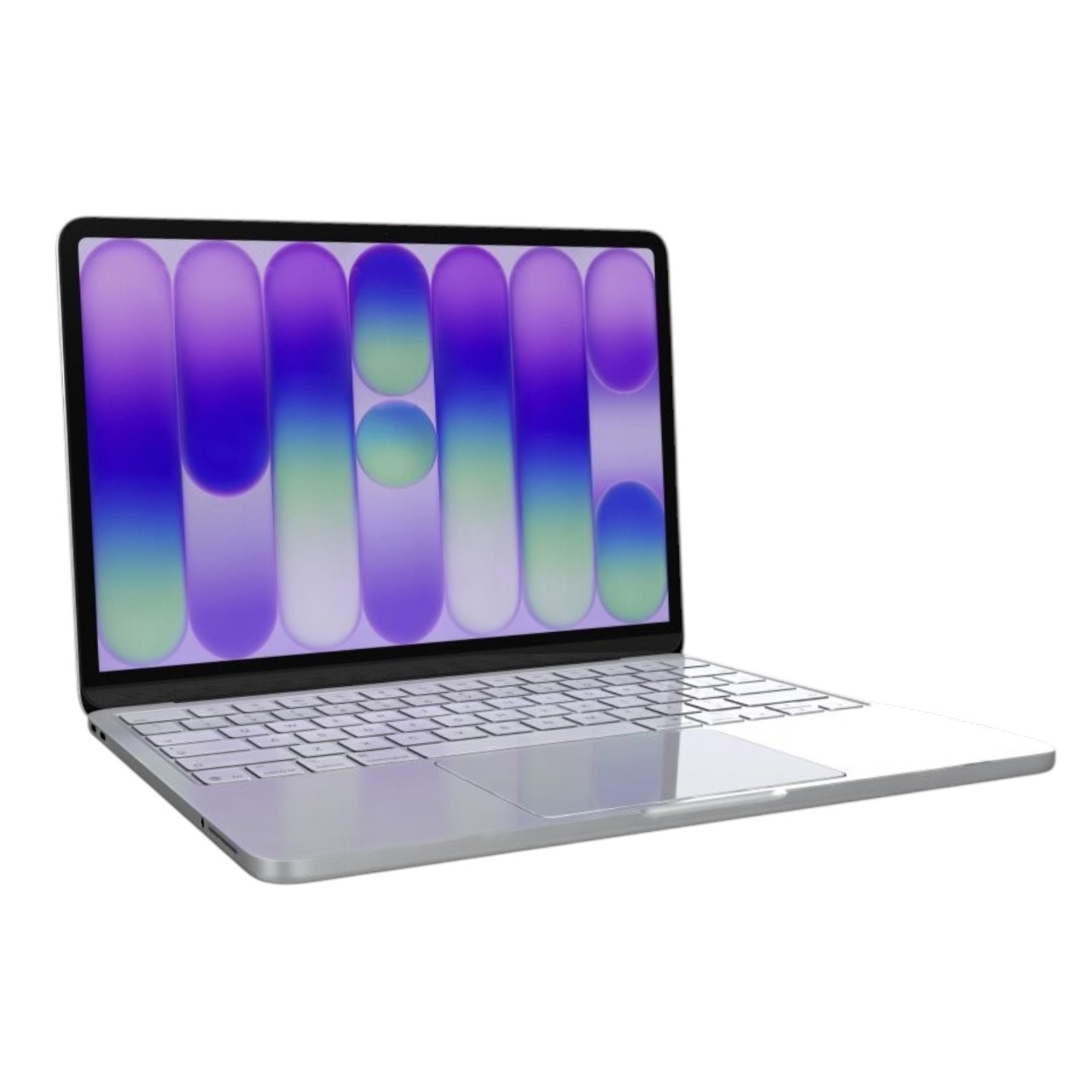
Is your 2025 MacBook Air M4 (Model A3240) showing vertical lines, a cracked glass panel, or the dreaded “black screen of death”? You are not alone. While the M4 chip brings unprecedented performance and the new A3240 chassis is a marvel of engineering, the display remains the most fragile component of the laptop.
If you are looking at a repair quote from the official store, you might be shocked. The MacBook Air M4 price is premium, and out-of-warranty repair costs can feel like buying a used MacBook Air M1 all over again.
But there is a better way. In this comprehensive, step-by-step guide, we will teach you how to replace the LCD display assembly on your MacBook Air M4 A3240 yourself. We will cover everything from the specific MacBook Air M4 specs relevant to this repair, to the precise tools (PL05, T03, T05) you need to get the job done safely.
⚠️ Professional Note: This guide is specific to the Model A3240 (2025 Release). While it shares design DNA with the M2 and M3, internal cable routing for the M4 is unique. Do not follow M2 guides for this device.
🛑 Before You Begin: Diagnostics & Preparation
Before we start unscrewing components, let’s confirm the issue. Many users ask, “Are MacBooks touch screen?” The answer is no, but the panels are incredibly sensitive. A small hairline crack in the LCD layer can disable the entire backlight or cause “glitching” artifacts that look like a GPU failure.
Is Your Screen Actually Broken?
- External Monitor Test: Connect your MacBook Air M4 to an external display. If the external image is perfect but the laptop screen is black or distorted, your Logic Board is likely fine, and you need a screen replacement.
- Flashlight Test: Shine a bright light on the black screen. If you can faintly see the desktop, your backlight circuit or display cable might be the issue—replacing the display assembly usually fixes this.
The Right Tools for the Job
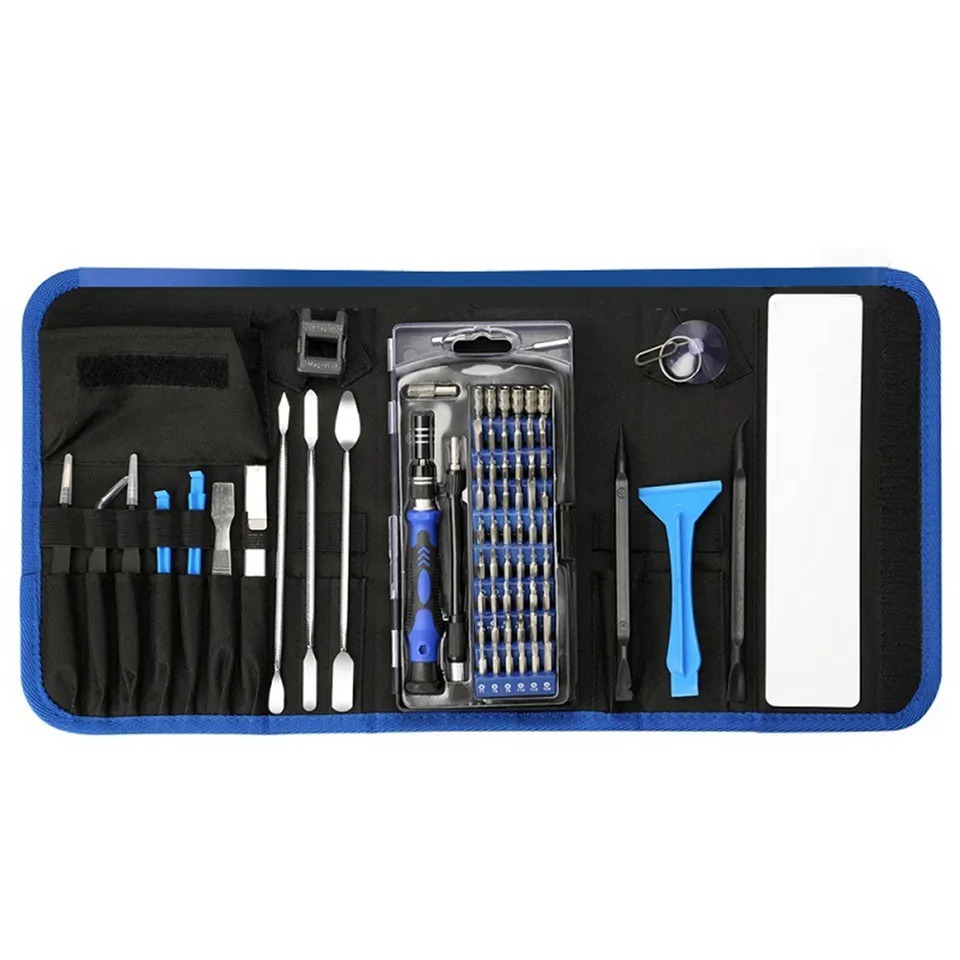
Apple uses proprietary screws to prevent tampering. Using standard hardware store screwdrivers will strip the heads, turning a $200 repair into a $1,500 disaster.
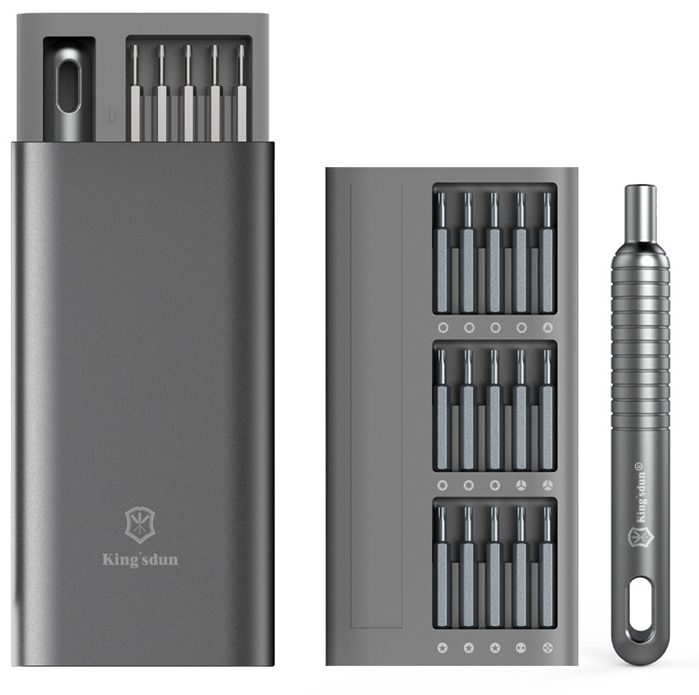
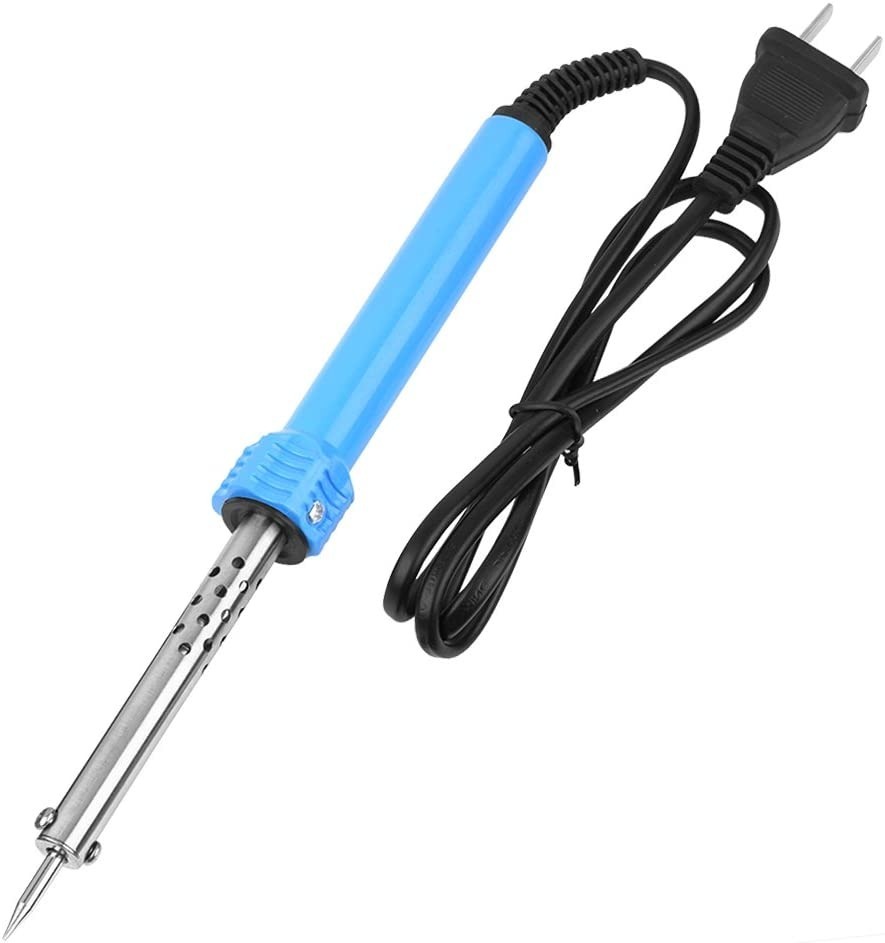
You Will Need:
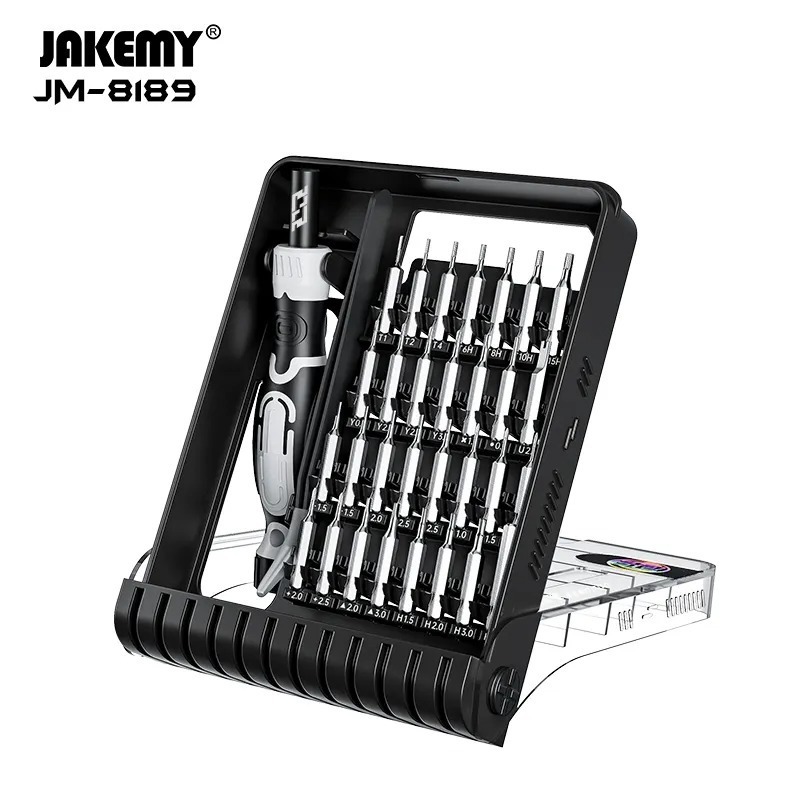
- PL05 (Pentalobe) Screwdriver: Essential for the bottom case.
- T03 (Torx) Screwdriver: The workhorse for this repair (covers, brackets, antennas).
- T05 (Torx) Screwdriver: For speaker modules and logic board stabilizers.
- T07/T08 (Torx) Screwdriver: For the high-torque display hinges.
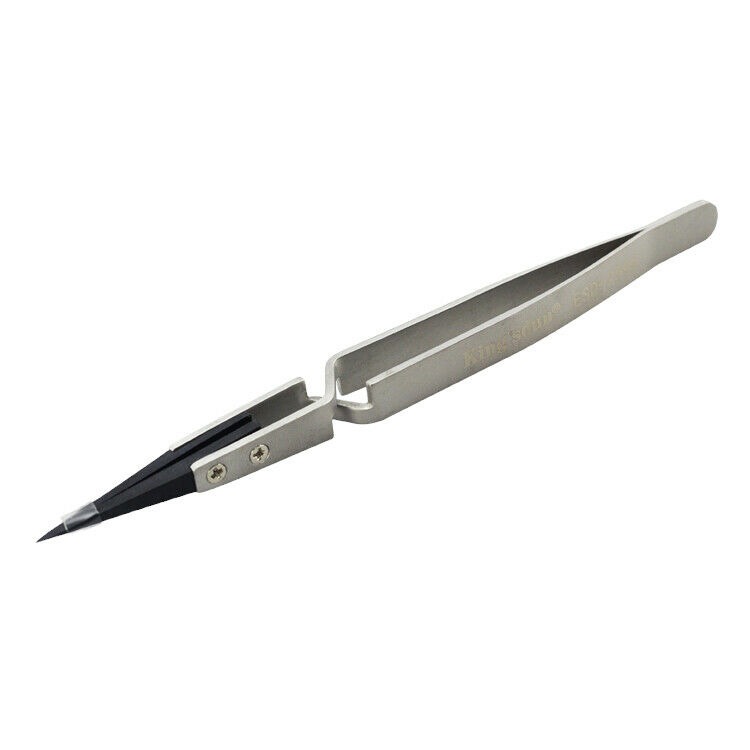
- ESD Safe Tweezers: For handling tiny screws and adhesive strips.
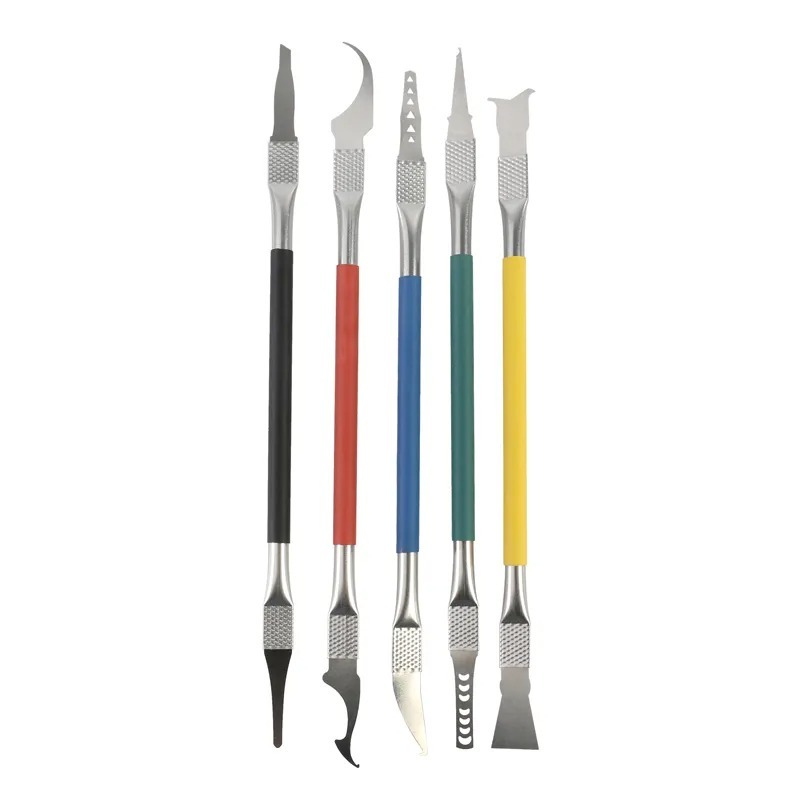
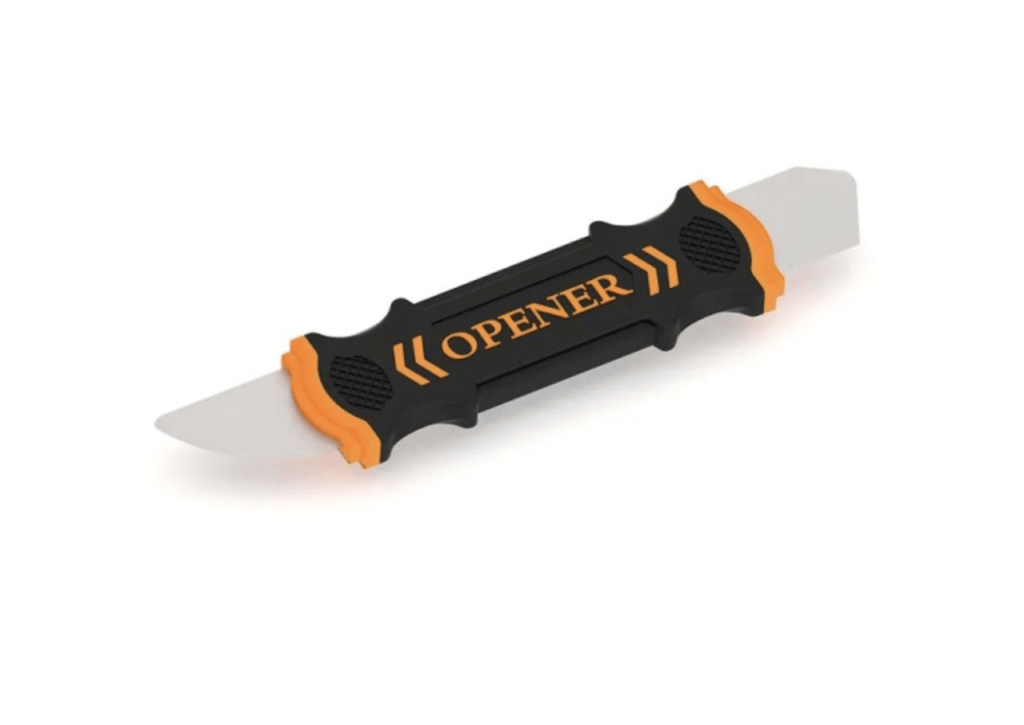
- Nylon Spudger/Pry Tool: To disconnect the battery safely.
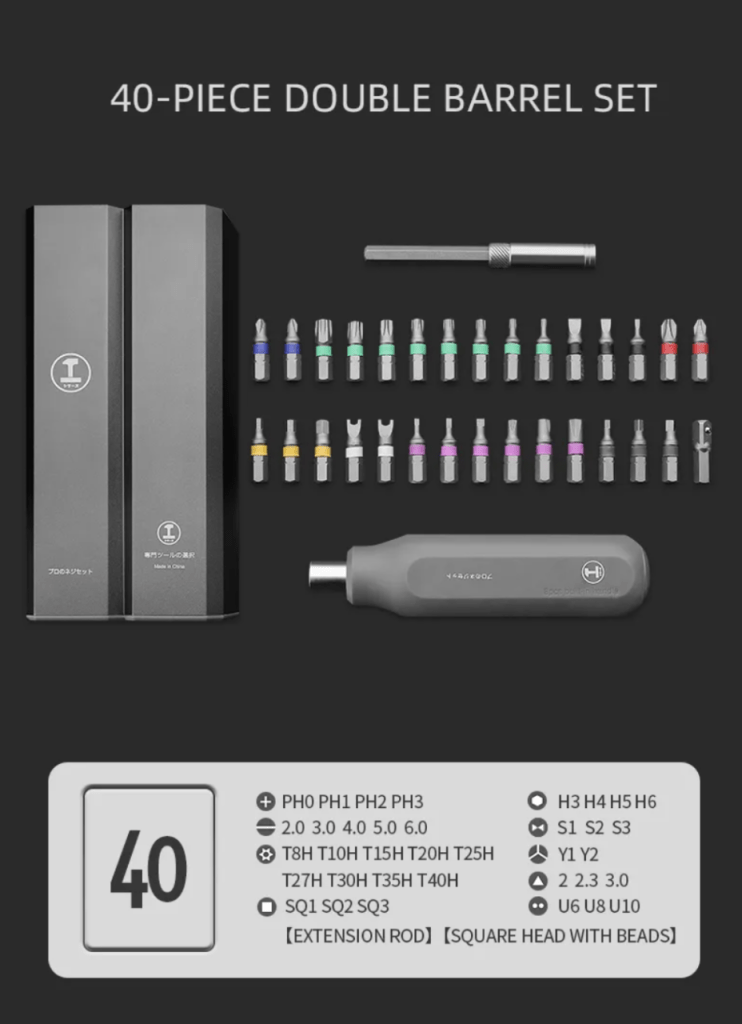
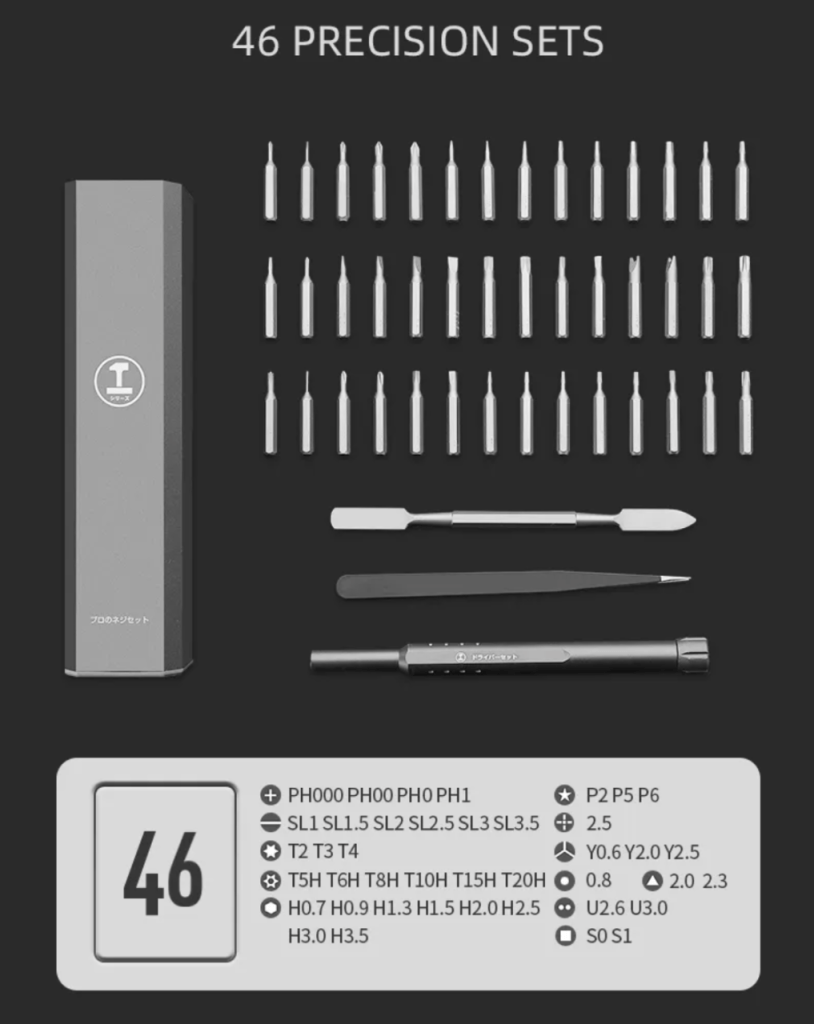
🛒 GET THE TOOLS: Don’t risk it. Grab the official TEKDEP Precision Screwdriver Kit used in our video.
The Replacement Part
You need the Original A3240 LCD Display Assembly.
- Buy Here:
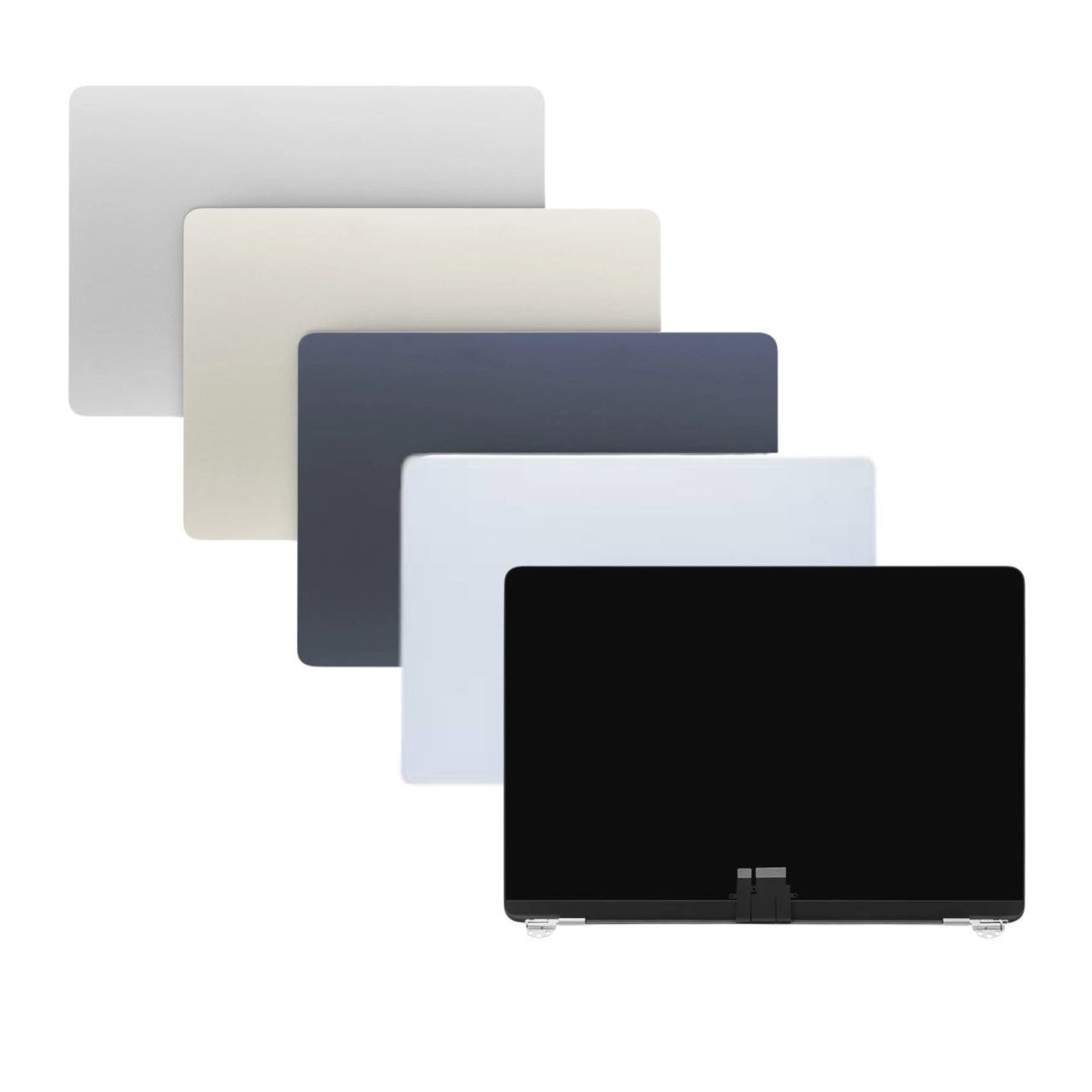
A3240 LCD Screen Full Assembly for 2025 Apple 13″ MacBook Air M4
Replacement LCD screen for the A3240 2025 13″ MacBook Air. Used to fix display issues such as cracks, flickering, or image distortion.
- Note: Our displays retain True Tone capability and include the Facetime camera assembly.
Phase 1: Accessing the Internals
The journey begins by removing the armor. The A3240 features a screw-light design compared to older Macs, relying heavily on internal clips.
Step 1: Remove the Bottom Pentalobe Screws
Flip your MacBook over. You will see four screws—one at each corner. This is a departure from the 10-screw layout of the 2017 era.
- Action: Use your PL05 driver to remove the 4 screws.
- Organization: Place these in the “Step 1” section of your magnetic mat.

Step 2: Unlocking the Retention Clips
Removing the screws does not release the plate. Apple utilizes a “snap-lock” mechanism near the hinge and the center.
- Action: Insert your pry tool into the gap between the screen hinge and the bottom case.
- Technique: Pull the tool upward gently to create a gap, then slide it down the side edges. You are listening for a “pop” sound.
- The Slide: Once the clips are popped (one near the top, two at the bottom, one left), pull the entire aluminum back plate downward (towards you, away from the hinge). It should slide out of its locking rail.

Phase 2: Power Isolation (Critical Safety Step)
WARNING: The M4 chip and logic board are live even when the computer is “off.” A dropped screw on the board now could short a capacitor, killing the device instantly.
Step 3: Disconnecting the Battery
- Locate the battery connector. On the A3240, it is covered by a metal bracket on the right-center of the board.
- Tool: Use the T03 screwdriver to remove the securing screw.
- Disconnect: Use the Plastic Spudger (NOT metal tweezers) to lift the battery connector straight up.
- Isolate: Bend the flexible cable back slightly or place a piece of electrical tape over the socket to prevent accidental reconnection.


Always disconnect the battery before touching any other component to prevent Logic Board short circuits.
Phase 3: Clearing the Path (Speakers & Antennas)
To remove the display, we must remove the components that sit “on top” of the display cables. This involves the antenna bar (Wi-Fi/Bluetooth) and the sound system.
Step 4: Removing Cable Covers
The M4 Logic Board is covered in cosmetic and protective shields.
- Antenna/Hinge Covers: Use the T03 driver to remove the black plastic covers on the far left and right hinges.
- Display Flex Covers: Move to the center. There is a specific cover protecting the main LCD data cables. Remove the three T03 screws holding it down.
- Organization: These screws are different lengths. Keep them separate.

Step 5: Removing the Speakers
The speakers act as a physical barrier to the hinge screws.
- Switch Tools: Use the T05 screwdriver for the speaker housings.
- Disconnect: Gently pry up the audio headers on the logic board.
- Remove: Unscrew the T05 fasteners. Lift the speakers out.
- Note: The left and right speakers are not identical. Mark them if necessary.


The speakers must be removed to access the underlying antenna cables and hinge mechanism.
Phase 4: Detaching the Broken Display
This is the most delicate part of the operation. We are separating the display assembly from the top case (keyboard area).
Step 6: The Sleep Sensor & Display Cables
The MacBook Air M4 specs include a Hall Effect sensor (Sleep Sensor) that tells the laptop when the lid is closed. This is a tiny, fragile flex cable on the left hinge.
- Sleep Sensor: Use your tweezers to gently peel the sleep sensor flex cable off the chassis. It is held down by mild adhesive. Do not tear this.
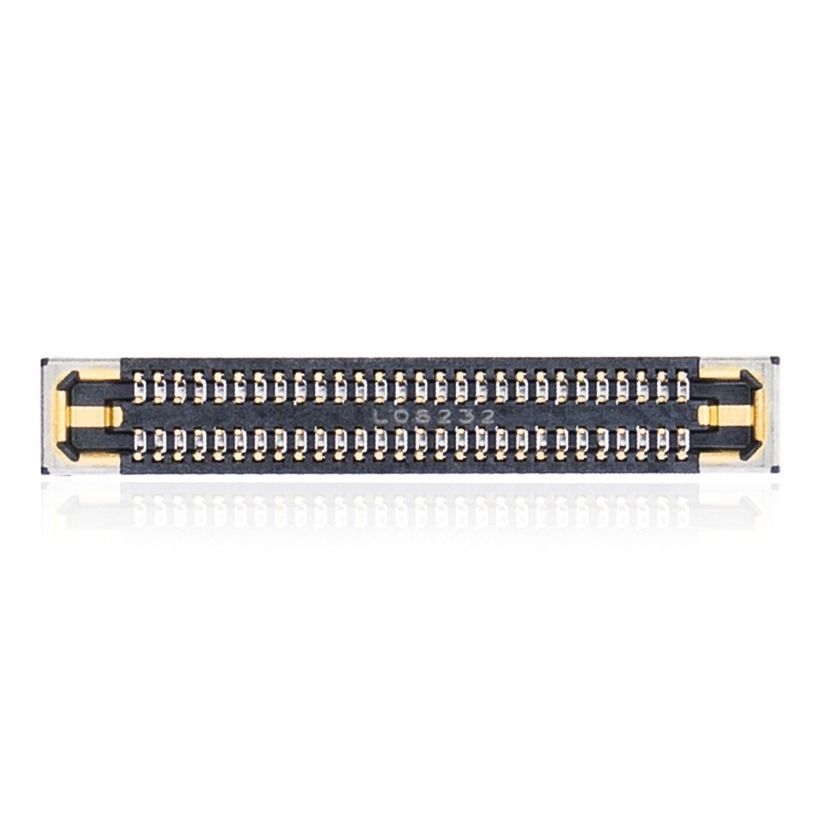
- Display Flex: In the center, disconnect the two main data cables. These carry the video signal and webcam data.


The sleep sensor (left) is glued down. Peel it gently to avoid damaging the sleep/wake functionality.
Step 7: Unscrewing the Hinges
- Tool: Switch to the T07 or T08 driver (depending on manufacturing batch).
- Action: Remove the six hinge screws (three on the left, three on the right).
- Support: The display is now loose. Ensure the MacBook is lying flat on a stable surface.

Step 8: The Separation
- Open the MacBook lid to just past 90 degrees.
- Hold the palm rest area down with one hand.
- With the other hand, grasp the top of the display and gently slide it away from the keyboard. The hinges should slide out of their slots.


Slide the display straight back. Do not twist, as you might snag the antenna cables.
💾 Intermission: Data Recovery
Did your screen break because of a drop or water damage?
Sometimes, a new screen isn’t enough. If you install the new panel and get no power, your Logic Board might be damaged. Don’t panic—your data is likely still safe. TEKDEP specializes in MacBook Data Recovery. We can extract your photos, documents, and projects directly from the encrypted NAND storage on the M4 chip.
- Learn More: TEKDEP Data Recovery Services
Phase 5: Installation & Alignment
Now, we install the Refurbished A3240 LCD Display.
Step 9: Mounting the New Display
- Prep: Ensure the hinges on the new display are set to the “open” (90-degree) position.
- Slide In: Carefully guide the hinge brackets into the chassis slots.
- Cable Watch: Crucial! Make sure the antenna cables, display flex cables, and that delicate sleep sensor are not trapped under the hinges. Pull them through their respective gaps before seating the hinges.

Step 10: The Alignment Trick
Before tightening the screws, we need to ensure the lid closes perfectly.
- Install the T07 hinge screws loosely (about 50% tight).
- Gently close the laptop lid.
- Feel the Edges: Run your finger along the side of the laptop where the lid meets the bottom case. It should be perfectly flush.
- Adjust: If the lid sticks out or sits too far in, nudge the display into alignment.
- Tighten: Once perfectly aligned, open the lid carefully and tighten all six hinge screws firmly.

Phase 6: Reassembly
We are on the home stretch. We will now reverse the disassembly steps.
Step 11: Reconnecting Cables
- Sleep Sensor: Press the connector in, then gently press the cable onto the chassis adhesive so it sits flat.
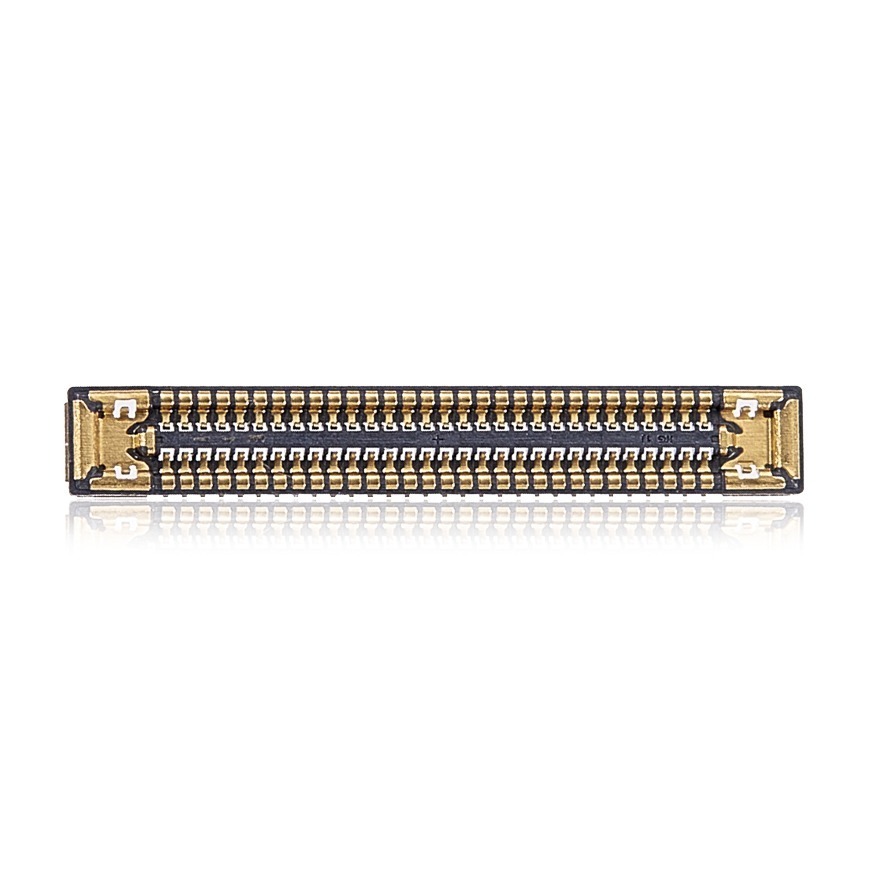
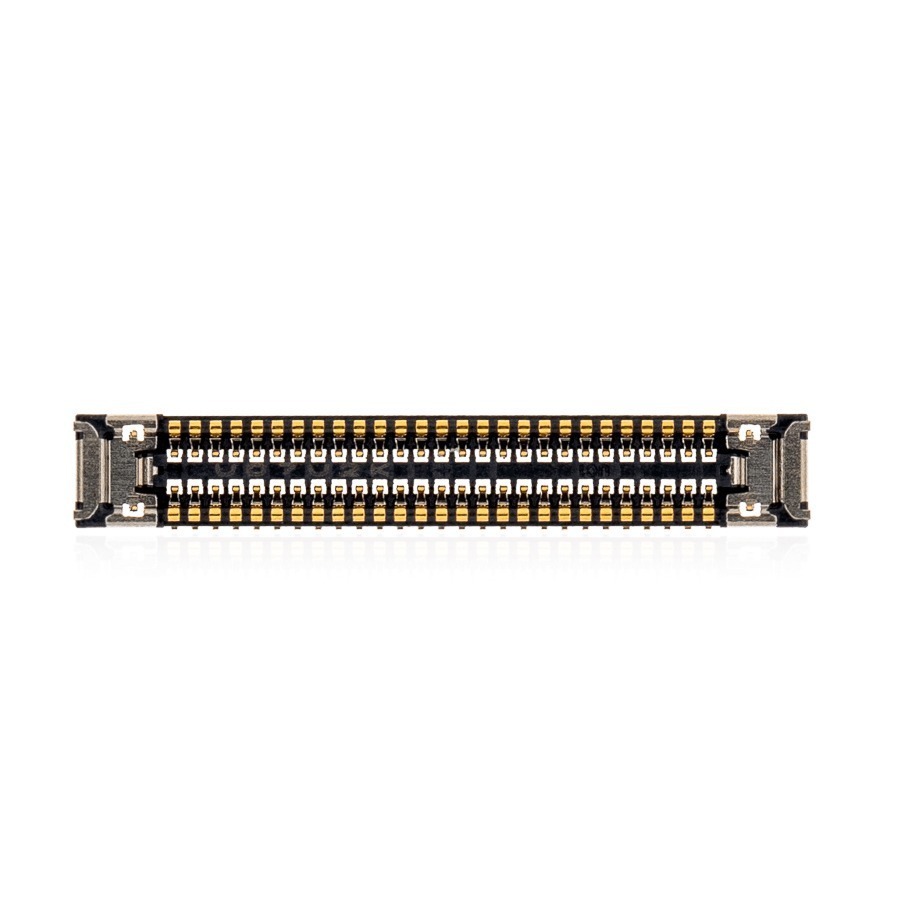
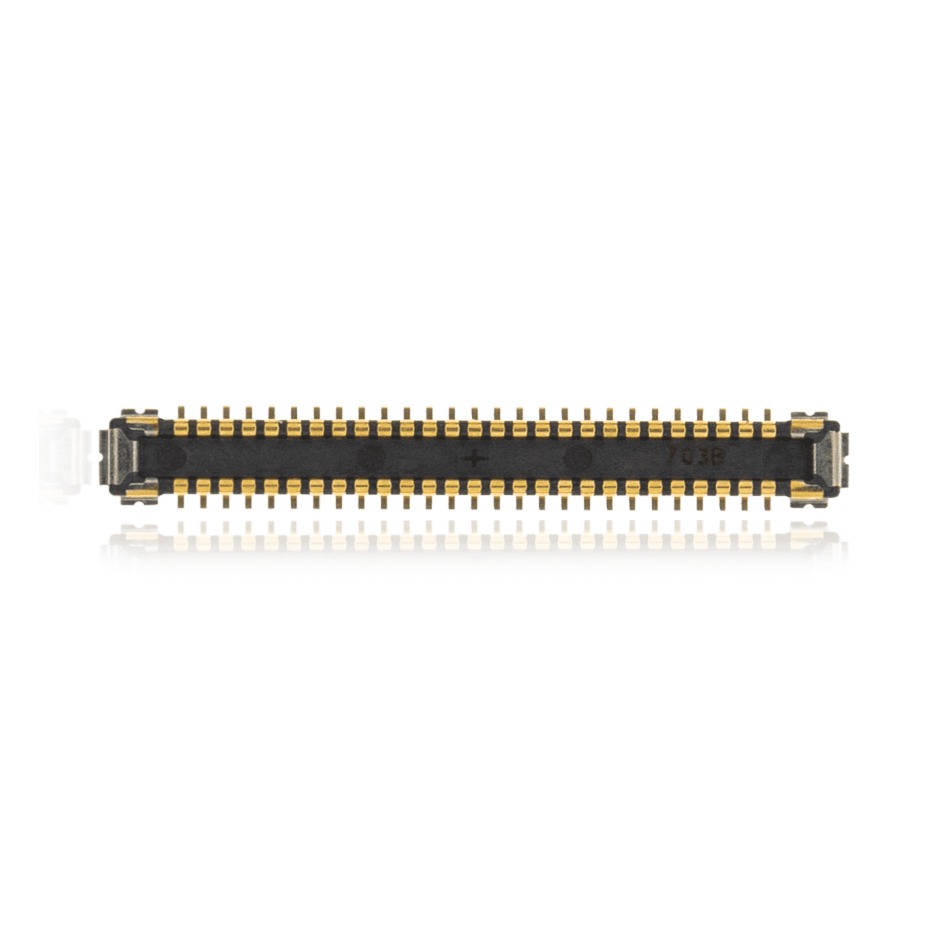
- Display Cables: Snap the two main connectors onto the Logic Board. Reinstall the metal retaining bracket with its three T03 screws.


Step 12: Speakers & Antennas
- Place the speakers back. Connect their audio headers.
- Install the T05 speaker screws.
- Reinstall the hinge covers.
- Tip: The cover with the small rubber stoppers usually goes on the left side.

Step 13: Reconnect Battery
- Check for any loose screws inside the case.
- Press the battery connector firmly onto the board.
- Reinstall the metal battery cover and its T03 screw.

Phase 7: Testing & Closing
Step 14: The “Smoke Test”
Before putting the bottom case back on, let’s test.
- Connect your USB-C charger (the Mac often needs this to wake from service mode).
- Press the power button.
- Check:
- Apple Logo? (Success!)
- Brightness control works?
- Camera works?
- Wi-Fi connects? (Verifies antenna integrity).
Step 15: Closing the Case
- Align the back plate.
- Push Forward: Slide the plate towards the hinge to engage the locking rails.
- Snap: Press the center and sides until you hear the clips click.
- Screw: Install the four PL05 Pentalobe screws.

Frequently Asked Questions (FAQ)
Does replacing the screen affect the M4 Chip performance?
No. The display is an output device. Your MacBook Air M4 specs (RAM, CPU speed) remain exactly the same. However, using a non-original screen can affect True Tone and auto-brightness efficiency.
Are MacBooks touch screen? Can I upgrade to one?
No, the A3240 does not support touch input, and you cannot install a touch digitizer. The connector pinout on the M4 logic board does not support it.
Can I just replace the glass and not the LCD?
Technically yes, but we strongly advise against it. The LCD is laminated to the glass. Separating them requires liquid nitrogen or specialized heated wire machines. It is much safer and reliable to replace the full assembly.
How much does this repair save me?
A typical Apple Store repair can cost upwards of $600-$800 for this model. By buying theA3240 Screen from TEKDEP and doing it yourself, you can save significant money—often 50% or more.
Conclusion & Resources

You have now successfully navigated the repair of one of Apple’s most advanced laptops. By taking the time to understand the A3240 architecture and using the correct tools, you’ve extended the life of your device and kept e-waste out of the landfill.
Need Help? If you got stuck or stripped a screw, don’t force it.
- Mail-In Service: Let us finish the repair for you.
- Screw Sets: Get replacement M4 screw sets here.
Follow TEKDEP for more teardowns:
Disclaimer: Repairing your own device may void your Apple warranty. TEKDEP is not responsible for damages caused by improper repair techniques. Proceed with caution.



