



























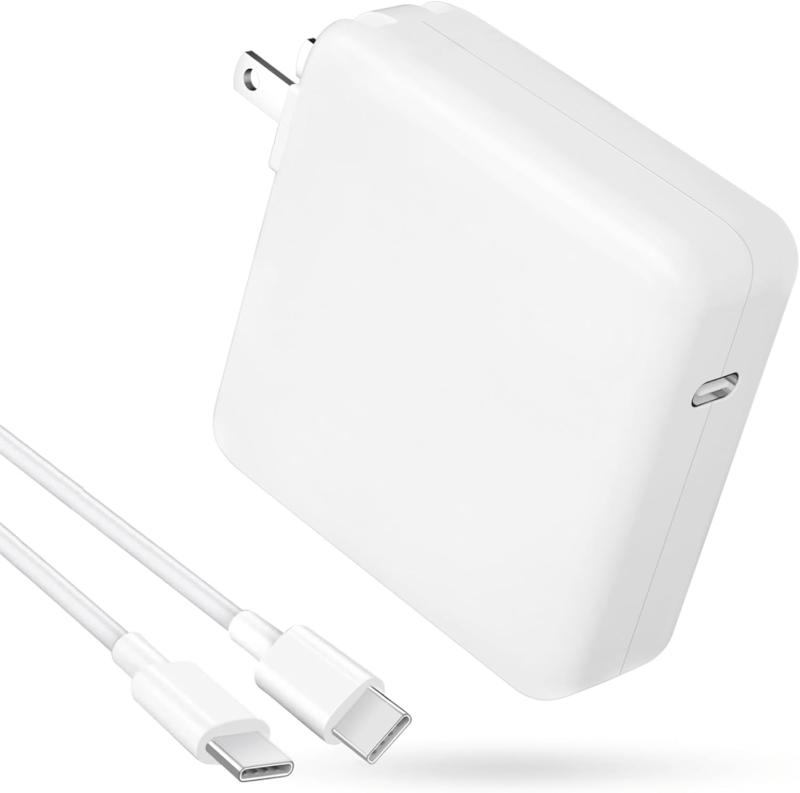
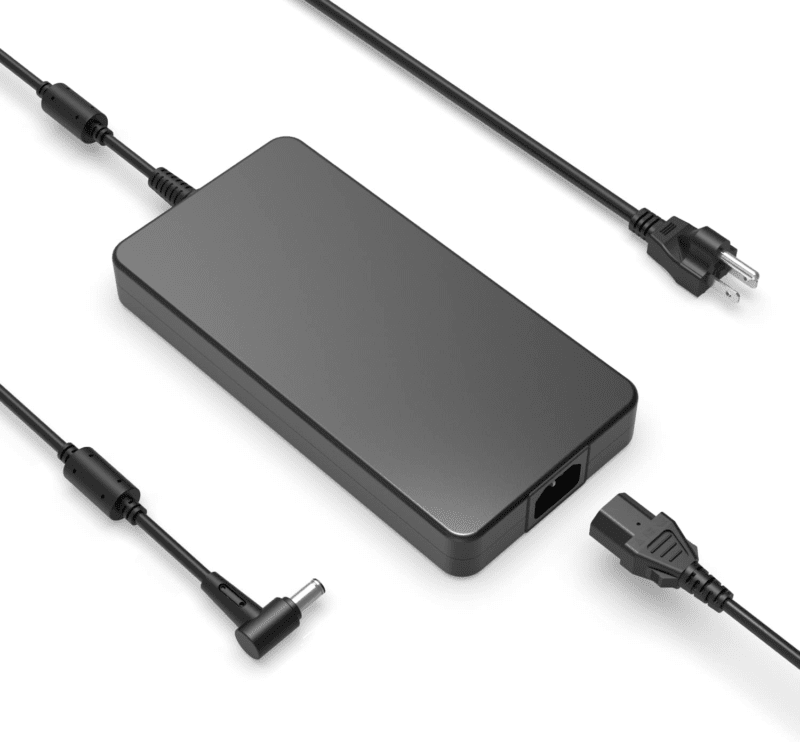




Device Model: Razer Blade 18 (2023)
Model Number: RZ09-0484
Difficulty Level: Easy / Medium
Estimated Time: 45 – 90 Minutes
Inside the Beast
The Razer Blade 18 (RZ09-0484) represents the pinnacle of mobile computing power. Marketed as a true “desktop replacement,” this 18-inch behemoth packs 13th Gen Intel Core i9 processors, NVIDIA GeForce RTX 40-Series graphics, and a stunning 240Hz QHD+ display. However, with great power comes great complexity. Unlike standard business laptops or ultrabooks, the Razer Blade 18 is a dense ecosystem of high-performance components, elaborate cooling solutions, and tightly integrated circuitry.
Whether you are a technician looking to perform a logic board repair, a gamer aiming to maximize your rig with a RAM or SSD upgrade, or a DIY enthusiast troubleshooting a battery issue, understanding the internal layout of this machine is critical.
In this extensive guide, we will move beyond a simple unboxing. We are performing a surgical-level teardown and analysis of the RZ09-0484. We will explore the massive vapor chamber cooling system, identify the upgradable slots that give this machine its longevity, and demonstrate exactly how to safely strip the chassis down to its core components.
⚠️ Professional Disclaimer: The procedures outlined in this guide involve handling sensitive electronic components. ESD (Electrostatic Discharge) and physical damage are real risks. If you are not confident in your ability to perform these repairs, we strongly recommend utilizing TEKDEP’s Worldwide Mail-In Repair Service. Our certified technicians have the tools and expertise to handle your Razer Blade 18 with the care it deserves.

Phase 1: Preparation, Tools, and Safety Protocols
Before driving a single screw, you must prepare your workspace. Gaming laptops like the Razer Blade 18 utilize specific screw heads and delicate connectors that can be easily stripped or severed if the wrong tools are used.
1.1 The Essential Toolkit
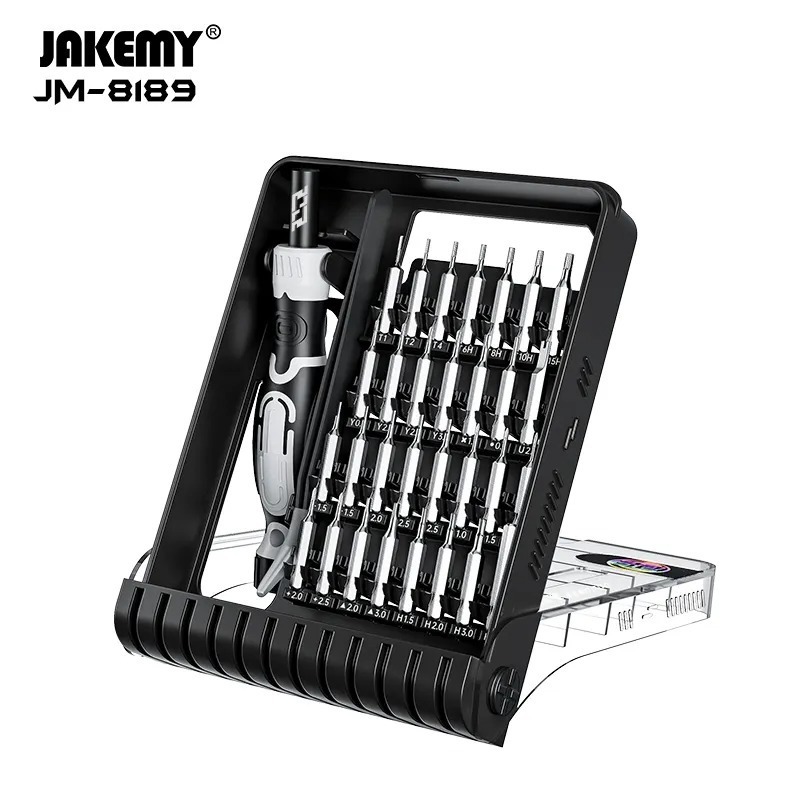
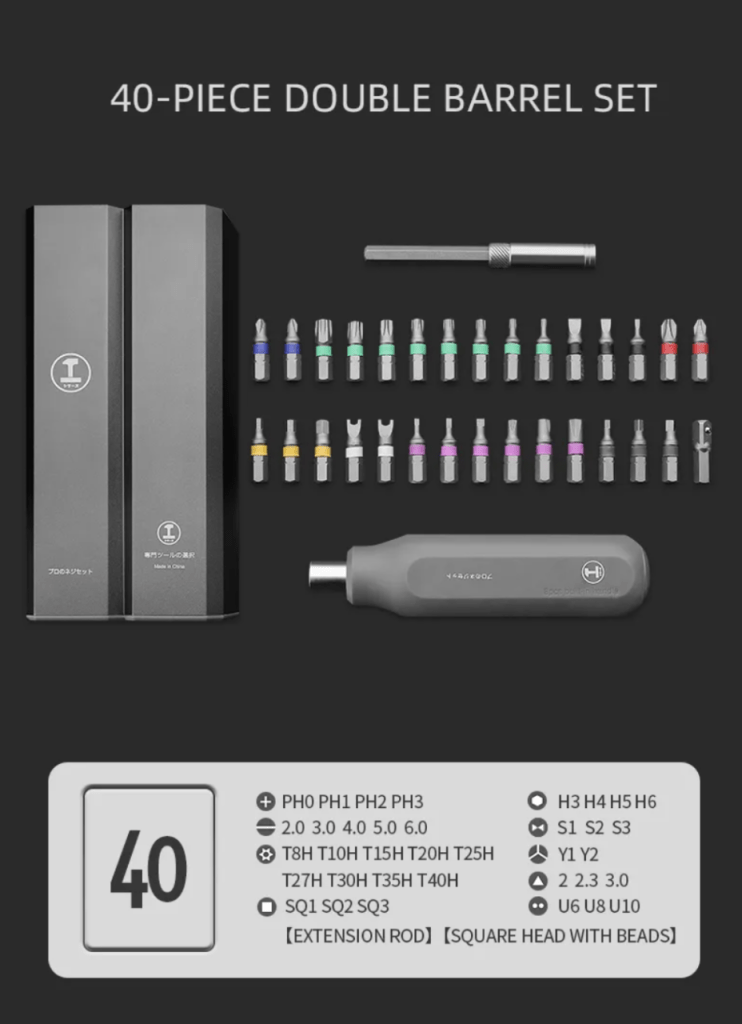
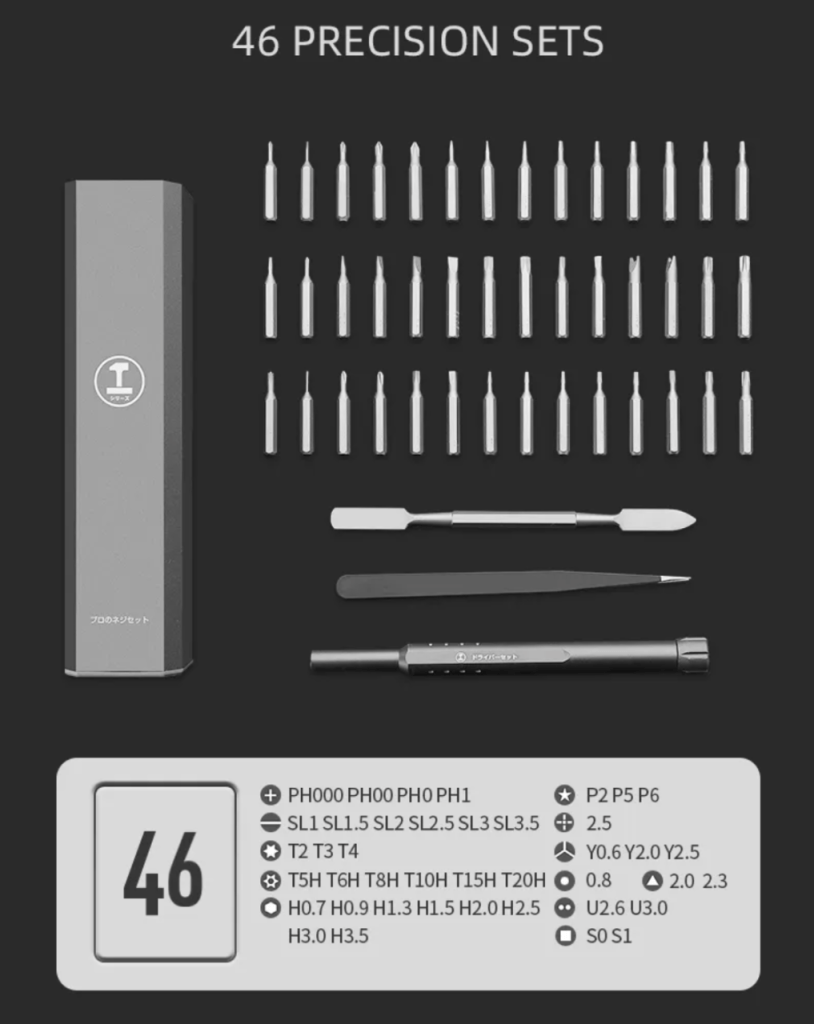
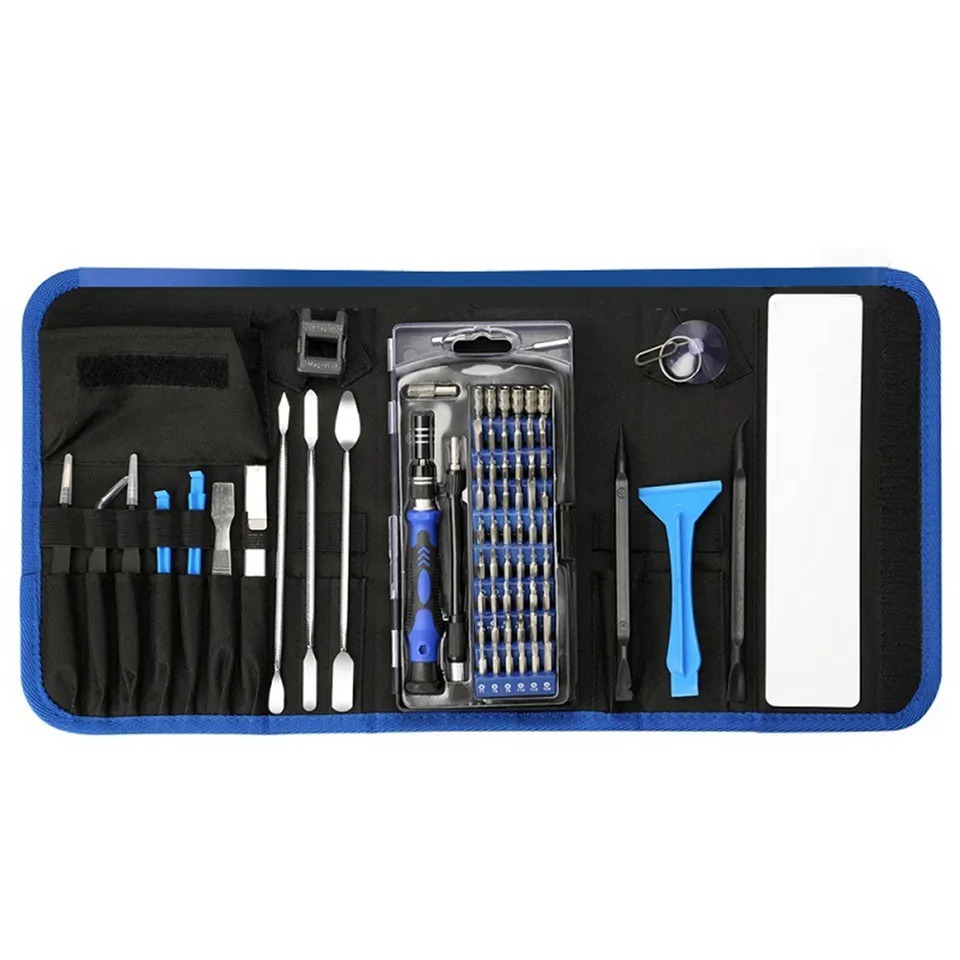
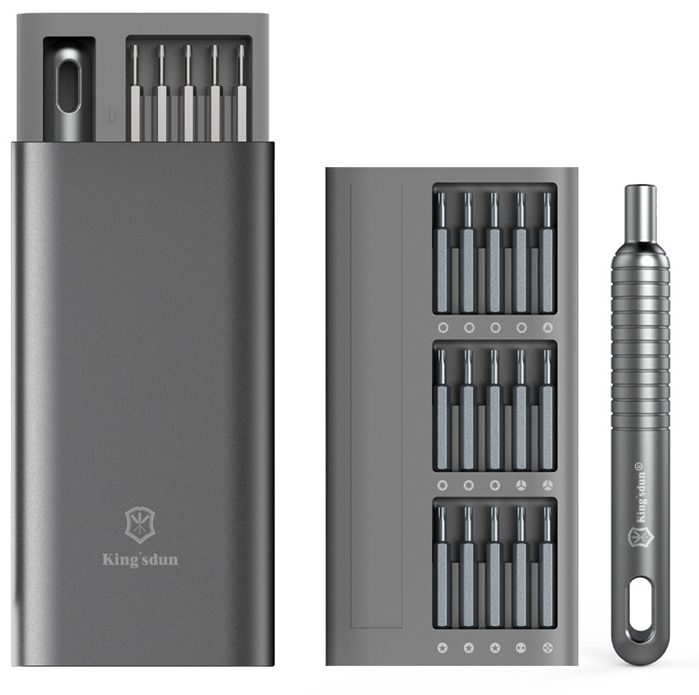
To follow this guide effectively, you will need the following precision tools. Do not attempt this repair with standard household screwdrivers.
- Torx T5 Screwdriver: Essential for the exterior bottom plate screws. This is a standard for Razer laptops.
- Phillips Head Screwdriver (PH00 / PH0): Used for almost all internal components, including the battery, fans, and motherboard.
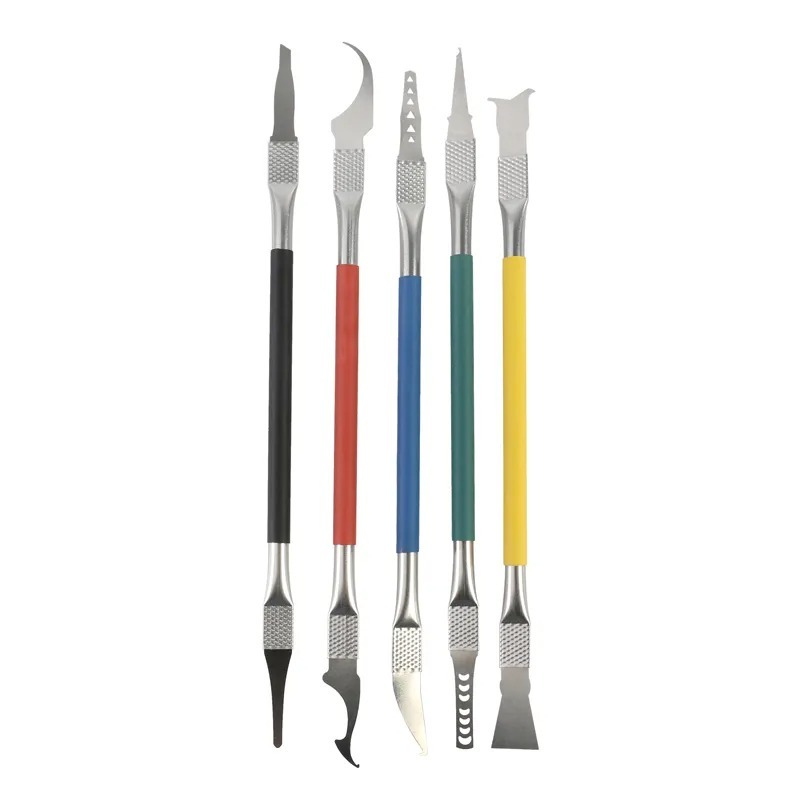
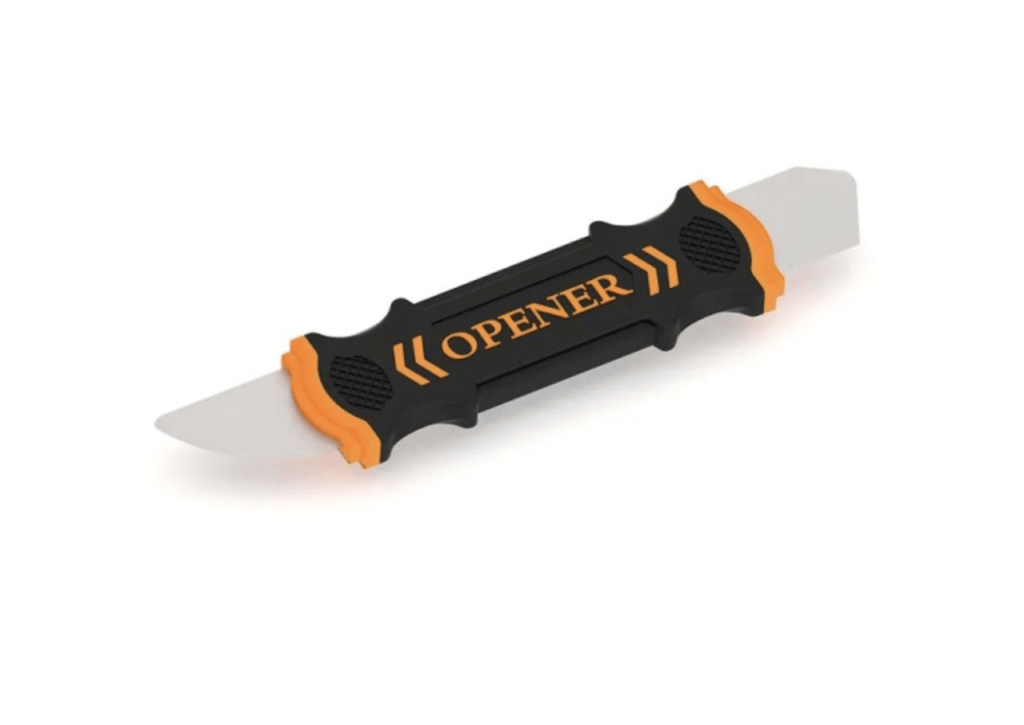
- Plastic Pry Tools / Spudgers: Non-conductive tools are mandatory for disconnecting battery cables and antenna wires without causing a short circuit.
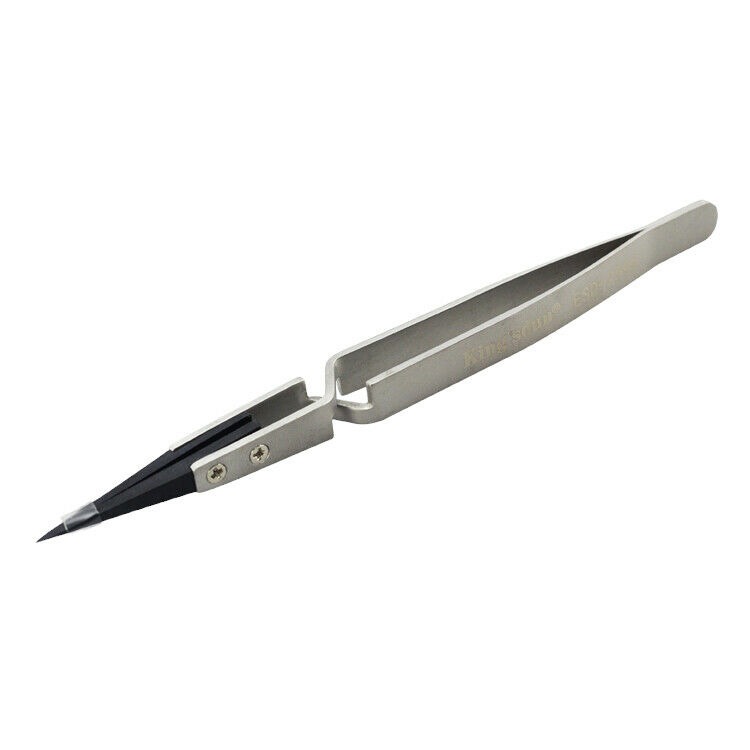
- Tweezers: Helpful for handling small screws and routing delicate Wi-Fi antenna cables.
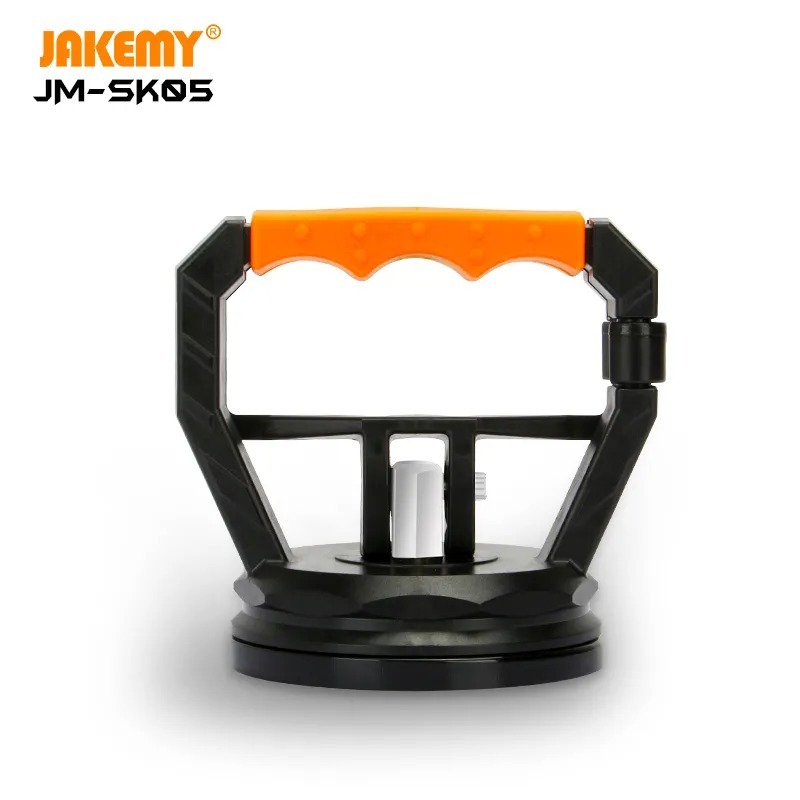
- Suction Cup: Useful for handling the back panel or display assembly if necessary.
- Magnetic Mat: To organize the dozens of screws you will remove. Note: The screws in the Razer Blade 18 vary in length and diameter; mixing them up can puncture the motherboard upon reassembly.
1.2 ESD Safety
Electrostatic discharge can kill a logic board instantly.
- Work on a non-conductive surface (rubber mat or wood).
- Wear an ESD wrist strap grounded to the chassis or a verified ground point.
- Discharge your body’s static electricity before touching internal components.
Phase 2: Opening the Chassis (Back Plate Removal)
Accessing the internals of the Razer Blade 18 RZ09-0484 begins with the bottom cover. Unlike some manufacturers that use hidden screws under rubber feet, Razer keeps the design clean and accessible, but precision is key.
Step 2.1: Locating the Screws
Flip the laptop over onto a soft cloth to protect the aluminum lid. You will see a series of perimeter screws.

- Tool: T5 Torx Screwdriver.
- Action: Systematically remove the screws surrounding the outer edge of the bottom plate.
- Observation: Keep these screws organized. While they often look identical, Razer sometimes uses slightly different lengths for the hinge area versus the front lip.
Step 2.2: Lifting the Plate
Once the screws are removed, the plate does not simply fall off. It is held in place by precision-machined clips.
- Technique: Use a plastic pry tool to gently separate the front edge (where the trackpad is located) first. You may hear a “pop” as the clips release.
- Removal: Lift the plate away gently. Set it aside in a safe area to avoid scratching the anodized finish.
What You See Inside: Upon removing the plate, you are greeted by a density of technology that separates this from a standard 16GB RAM Windows 11 business laptop.
- The Cooling Solution: A massive, black vapor chamber heat sink dominates the center, flanked by two large high-RPM fans.
- The Battery: A large, multi-cell battery occupies the lower third of the chassis.
- Expansion Slots: Visible covers for RAM and SSDs indicate this machine is built for upgradability.
Phase 3: Power Isolation (Battery Removal)
Critical Step: Never, under any circumstances, touch the motherboard, RAM, or display cables while the battery is connected. Even when powered off, the logic board retains “flea power” that can cause a short circuit if a metal tool touches the wrong component.
Step 3.1: Disconnecting the Battery

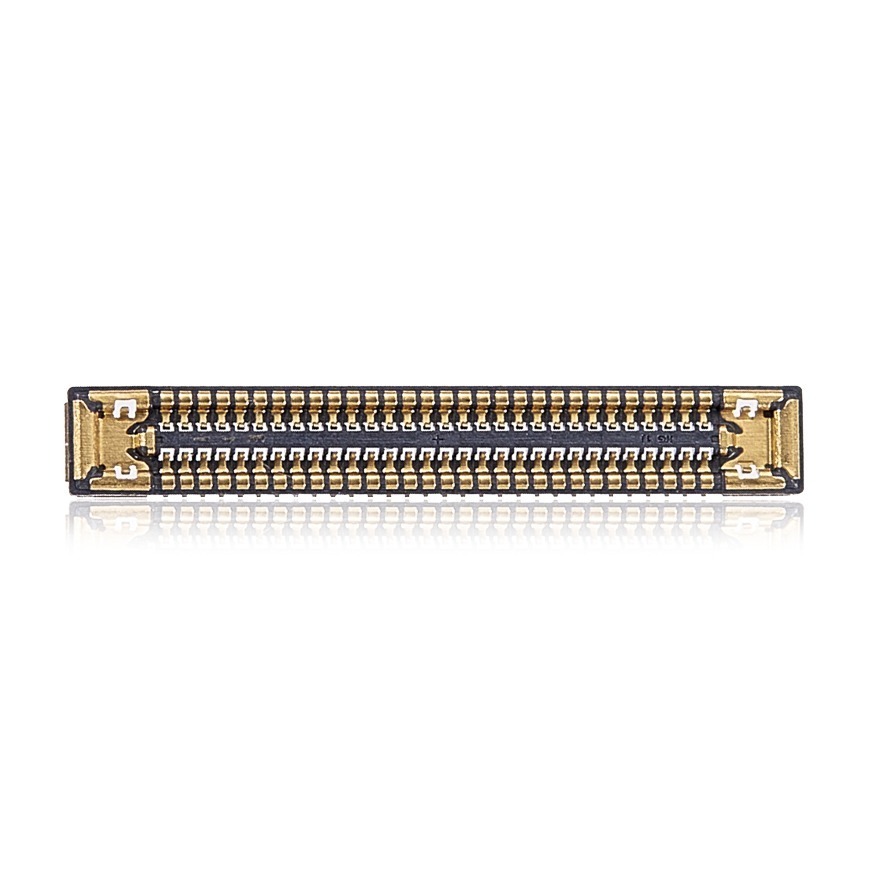
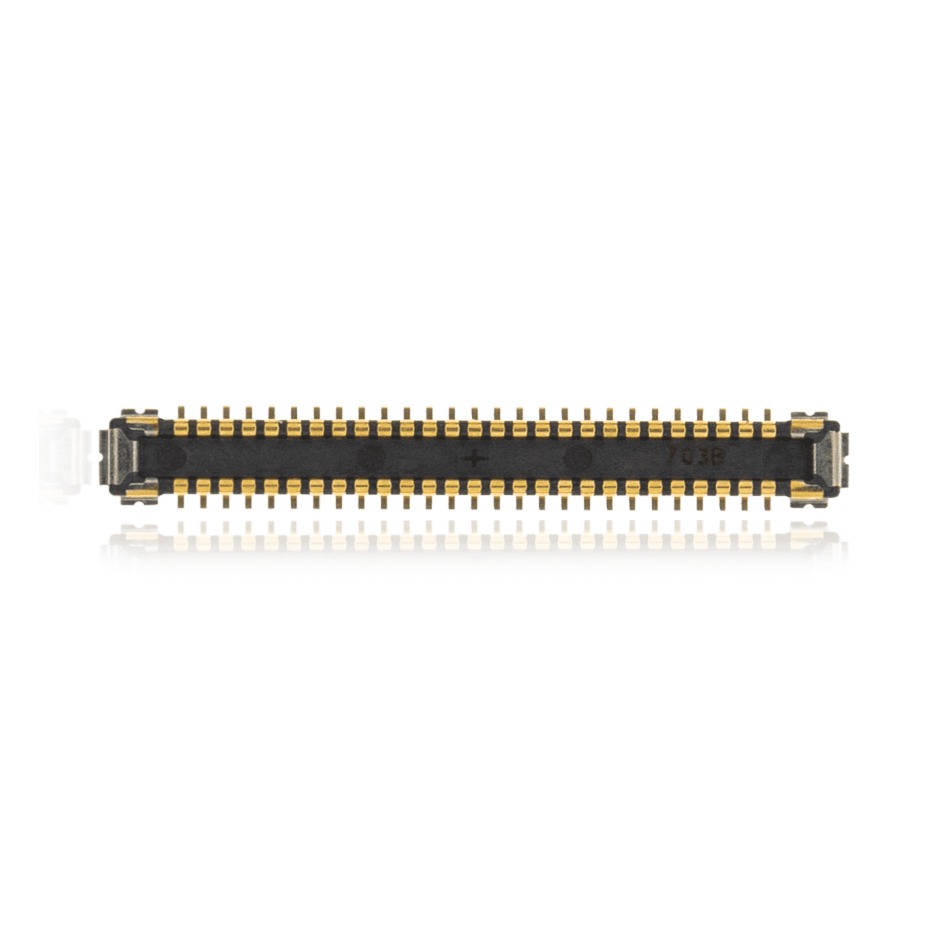
- Locate the Connector: The battery cable is a wide, multi-wire connector located just above the battery, plugging into the motherboard.
- The Disconnect: Unlike simpler laptops, this connector is often tight. Use a flat plastic spudger to gently shimmy the connector out of its socket. Do not pull by the wires.
- Safety Check: Verify the connector is completely free from the socket.
Step 3.2: Discharging Residual Power
- Action: Open the laptop lid and press and hold the power button for 10-15 seconds.
- Why? This drains the capacitors on the logic board, ensuring the machine is completely electrically dead and safe to work on.
Step 3.3: Removing the Physical Battery

If you are performing a battery replacement due to swelling or poor charge retention:
- Remove the Screws: Using your Phillips driver, remove the screws around the perimeter of the battery.
- Hidden Screw: Note: There is often a screw hidden under the fan connector or cabling near the corners. Check carefully.
- Extraction: Lift the battery vertically out of the chassis.

Phase 4: The Audio System (Speaker Removal)
The Razer Blade 18 features an impressive spatial audio system. Removing the speakers is often necessary to access the motherboard screws beneath them.

Step 4.1: Left Speaker Removal
- Disconnect: Follow the twisted cable from the speaker driver to the motherboard. Unplug the white JST connector.
- Unscrew: Locate the three Phillips screws securing the speaker module to the chassis corners.
- Remove: Lift the speaker unit out. You will notice it uses rubber dampers to prevent vibration—ensure these stay attached to the speaker.

Step 4.2: Right Speaker Removal
- Repeat: Follow the same procedure for the right side.
- Cable Routing: Pay attention to how the Wi-Fi antenna cables are often routed through channels in the speaker housing. You must untuck these cables before pulling the speaker out.

Phase 5: The Thermal Management System (Fans & Cooling)
Cooling is the lifeline of a gaming laptop. The Razer Blade 18 uses a vapor chamber system, but for this teardown, we are focusing on the active cooling fans, which are separate serviceable parts.

Step 5.1: The Right Fan (CPU/GPU Side)
- Cable Management: The display cable and Wi-Fi antennas are often routed over or around the fans.
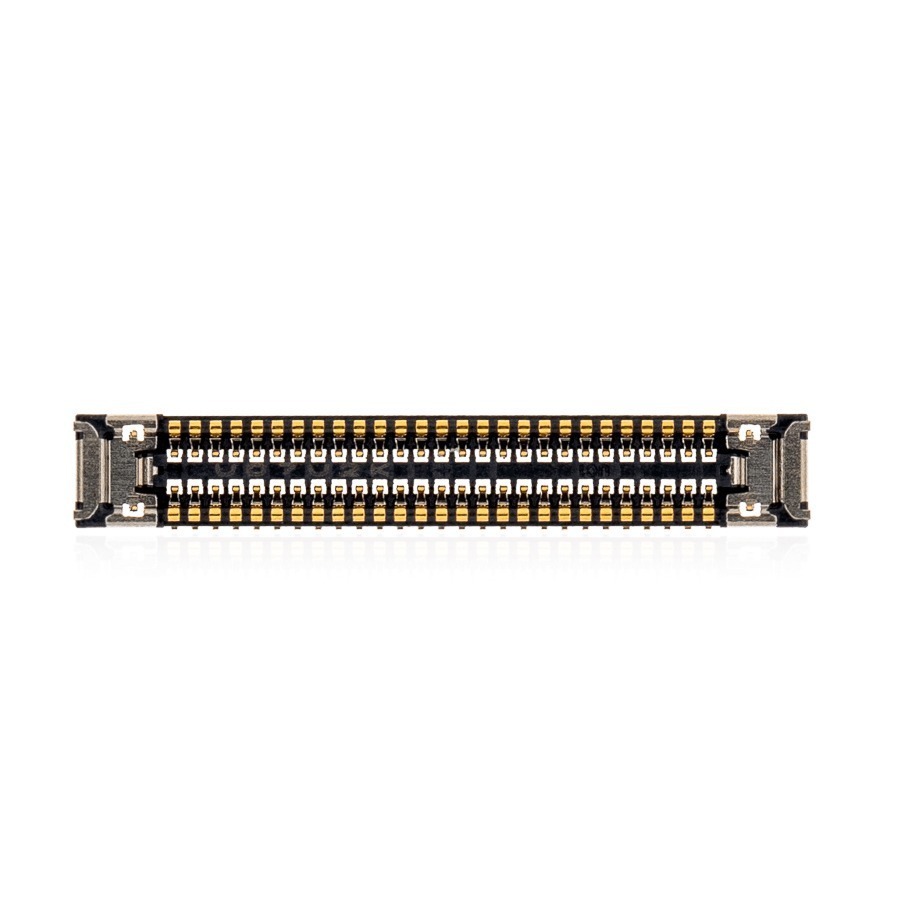
- Action: Gently unclip the display cable (the large rectangular connector) by pulling the tab upwards, then un-route it from the fan’s guides.
- Fan Connector: Unplug the small fan power connector from the motherboard.
- Screws: Remove the two Phillips screws securing the fan to the vapor chamber assembly.
- Extraction: Lift the fan out.
- Tip: If you are just cleaning the laptop, use compressed air here to blow dust out of the heatsink fins without removing the entire heatsink.

Step 5.2: The Left Fan
- Antennas: The Wi-Fi antenna cables (black and white wires) are routed along this fan. Carefully unclip them from the fan housing guides.
- Disconnect & Unscrew: Unplug the fan connector and remove the retaining screws.
- Remove: Lift the fan out.

Phase 6: Performance Upgrades (RAM & SSD)
This is the phase most relevant to users looking to boost their machine’s performance. The Razer Blade 18 RZ09-0484 is highly upgradable compared to modern MacBooks or ultrabooks.
Step 6.1: RAM Upgrade (Memory)
The Razer Blade 18 uses DDR5 SO-DIMM memory. Upgrading this can significantly improve multitasking and rendering performance.

- Location: In the center of the board, often covered by a black mylar sheet or heat shield.
- Removal:
- Locate the metal retention clips on the left and right side of the RAM stick.
- Using your thumbs, gently push the clips outward (away from the RAM stick).
- The RAM stick will “pop” up to a 45-degree angle.
- Pull the stick straight out of the slot.
- Installation: Insert the new stick at a 45-degree angle, ensuring the notch aligns with the slot key. Push down until the side clips click into place.
Step 6.2: SSD Upgrade (Storage)
One of the key features of the 18-inch chassis is the inclusion of a secondary NVMe M.2 slot.
- Location: To the left or right of the battery area (depending on orientation).
- Removal:
- Unscrew the single Phillips head screw holding the SSD down.
- The drive will lift slightly.
- Pull it gently out of the M.2 socket.
- Thermal Pads: When installing a new high-speed NVMe drive (like a Samsung 990 Pro or WD Black), ensure you apply a thermal pad if one isn’t pre-installed. These drives get hot, and thermal throttling will reduce your gaming performance.

Phase 7: Connectivity (Wi-Fi & Network Card)
If you are experiencing dropped connections or slow download speeds, replacing the Wi-Fi card is a viable repair.

- Location: Usually tucked near the SSD slots or under the fan cabling.
- The Antennas: This is the most delicate part. The coaxial antenna connectors are tiny.
- Removal: Use a plastic tool to gently “pop” the gold connectors vertically off the card. Do not bend them.
- The Card: Remove the single screw and slide the card out.
- Installation: Snap the antennas back on before screwing the card down to allow for easier alignment.

Phase 8: The Core (Logic Board Removal)
Removing the motherboard (or logic board) is a major operation. It is required if you are replacing a dead board or performing a deep cleaning of the vapor chamber thermal paste.
Step 8.1: Disconnect Everything

Before you can lift the board, you must disconnect every peripheral attached to it. Walk around the perimeter of the board and unplug:
- Keyboard ribbon cable (fragile latch).
- Trackpad ribbon cable.
- Backlight ribbon cable.
- Side I/O daughterboard ribbons (if applicable).
- Display cable (if not already done).
Step 8.2: Screw Removal
- Mapping: The logic board is held in by multiple screws, some of which may be marked with a white triangle indicator on the PCB.
- Action: Systematically remove all screws. Check the center of the board near the CPU bracket—sometimes there are screws hiding between components.

Step 8.3: Extraction

- Lift: Gently lift from the edge near the fans.
- Check: If the board offers resistance, stop. You likely missed a screw or a connector. Do not force it, or you may crack the PCB traces.
- Removal: Lift the logic board free from the chassis.

🛑 Pause & Check: Is This Getting Too Complicated?
You have just reached the most critical stage of the disassembly. The Razer Blade 18 (RZ09-0484) is a high-performance machine with delicate connectors and expensive components. One slip of a screwdriver or a static shock to the logic board can turn a simple repair into a complete loss.
Don’t risk your $3,000+ gaming rig. If you are uncomfortable proceeding, let the certified experts at TEKDEP handle it for you.
🚀 Fast & Safe Options Available Now:
- 🛠️ Start Your Mail-In Repair Service
- We fix broken screens, dead logic boards, and power issues daily. Free diagnostic quotes included.
- 💾 Need Your Files Back?
- If your laptop is dead but your data is critical, check out our Data Recovery Services.
- ⚙️ Just Need the Parts?
- Shop guaranteed original Razer Blade 18 components, from fans to batteries.
Phase 9: The Visual Experience (Display Assembly Removal)
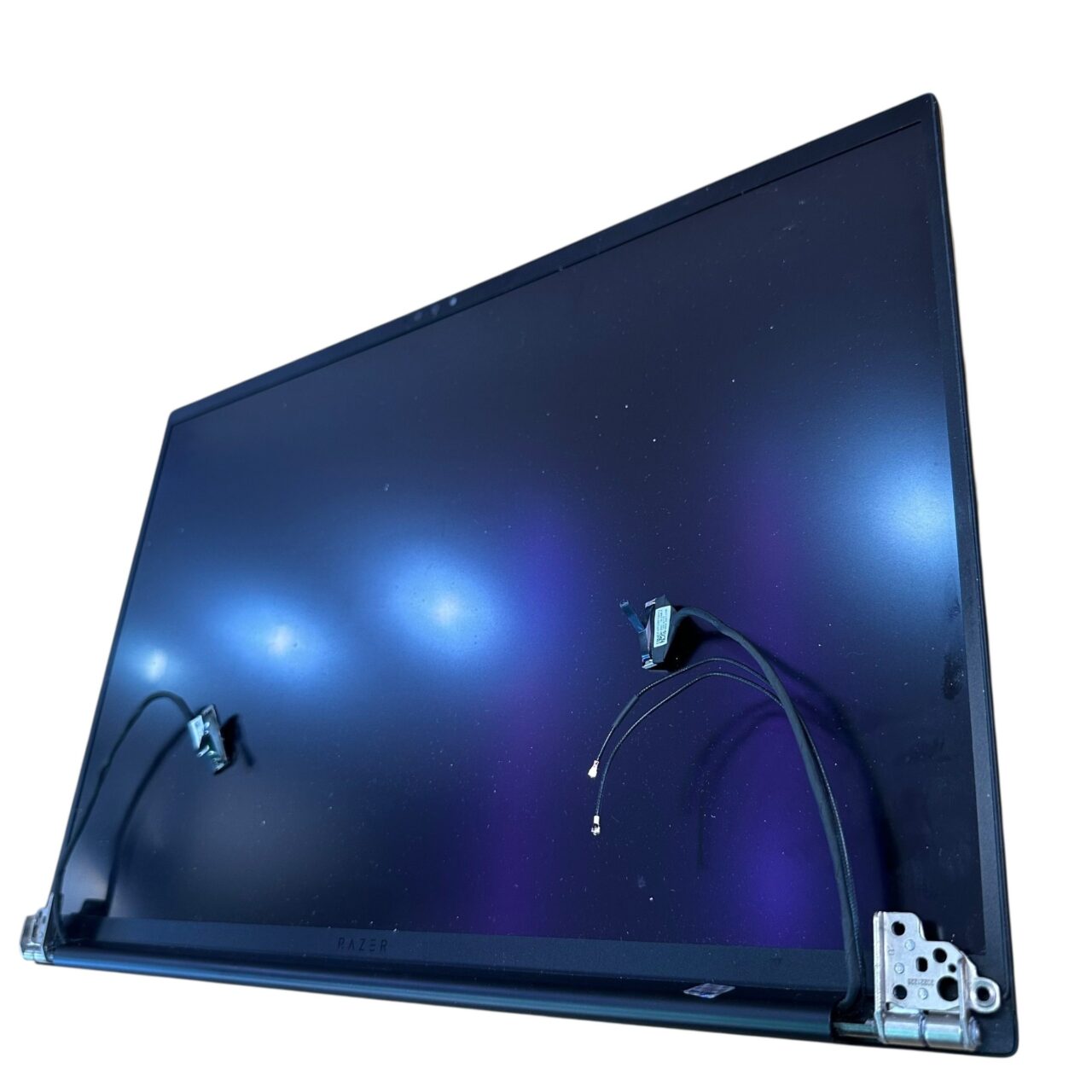
Sometimes, you don’t need to remove the logic board to replace a broken screen. You can detach the entire “Top Assembly” (screen) from the “Bottom Assembly” (keyboard/computer).
Step 9.1: Hinge Screws

- With the back plate off and cables disconnected (specifically the display and antenna cables), locate the hinges at the top corners.
- Action: Remove the three heavy-duty screws securing the left and right hinges to the chassis.
Step 9.2: Separation


With hinges unscrewed, the entire display assembly slides up and off the main chassis.
- Open the Laptop: Carefully open the laptop lid.
- Slide Out: With the screws removed, the entire display assembly can be slid upwards, separating it from the palm rest.
- Repair Note: Replacing just the LCD panel inside the metal lid is extremely difficult due to adhesives. It is standard industry practice to replace the entire LCD Display Assembly as one unit to ensure factory-level alignment and bezel integrity.
Phase 10: Input Devices (Trackpad Removal)
The Razer Blade 18 features a massive glass precision trackpad. If it cracks or stops clicking, it can be replaced independently of the keyboard.
Step 10.1: Access

- Image Description: A view of the empty battery compartment, revealing the underside of the large glass trackpad and its metal mounting bracket.
- Alt Text: Razer Blade 18 trackpad location under the battery compartment.
- Title: Razer-Blade-18-Trackpad-Location.jpg
- Caption: The trackpad is accessible only after the battery has been fully removed.
- The trackpad is located under the battery area. With the battery removed, you have clear access.
Step 10.2: Flex Cables

- There is a ribbon cable bridging the trackpad to the motherboard. Disconnect it at both ends.
- Tape: Razer often uses Kapton tape or conductive tape to secure these cables. Peel it back gently; do not rip it, as you will need to reapply it for proper grounding.
Step 10.3: Bracket Removal

- Remove the small Phillips screws around the metal perimeter bracket holding the glass touchpad in place.
- Push: Gently push the trackpad down (away from the inside) to pop it out of the chassis.

Phase 11: Reassembly & Best Practices

Reassembling the Razer Blade 18 is the reverse of disassembly, but with specific caveats.
- Thermal Paste: If you removed the heatsink, you must clean the old paste with isopropyl alcohol and apply new, high-performance thermal compound (like Arctic MX-6 or liquid metal if you are experienced).
- Cable Routing: Ensure Wi-Fi antennas are routed exactly as they were. If they are pinched by a screw or the battery, you will have terrible signal reception.
- The “Click”: When inserting RAM or connectors, ensure you feel the tactile “click.” A loose cable can cause the laptop to fail POST (Power On Self Test).
- Screw Lengths: Do not put a long screw in a short hole. This creates “screw bumps” on the palm rest, permanently damaging the cosmetic finish of your $3,000 laptop.

Repair or Replace?
The Razer Blade 18 (RZ09-0484) is a masterpiece of engineering, but it is also a complex machine. While modules like RAM and SSDs are user-friendly upgrades, deep repairs like logic board swaps or screen replacements require a steady hand and patience.
If you have followed this guide and successfully upgraded your machine—congratulations! You have extended the life of your device significantly.
🛑 When to Call the Pros
If you stripped a screw, ripped a connector, or if the laptop simply won’t turn on after your attempt, stop immediately. Continuing to poke around a live board can cause irreversible damage.
TEKDEP offers professional, insured repair services:
- Logic Board Repair: We fix short circuits, liquid damage, and blown components.
- Connector Replacement: Ripped the battery connector? We can solder a new one.
- Data Recovery: If your SSD is dead, our forensic tools can often recover your critical files.
Frequently Asked Questions (FAQ)
Can I upgrade the Graphics Card (GPU) on the Razer Blade 18?
No. Like almost all modern laptops, the NVIDIA GeForce RTX 4070/4080/4090 is soldered directly to the logic board. It cannot be removed or upgraded. To get better graphics, you must replace the entire logic board.
My Razer Blade 18 battery is swelling. Is it dangerous?
Yes. A swollen lithium-ion battery is a fire hazard. Stop using the laptop immediately, discharge it if possible, and remove the battery following Phase 3 of this guide. Do not puncture the battery.
What is the maximum RAM capacity for the RZ09-0484?
The Razer Blade 18 supports up to 64GB of DDR5-5600MHz RAM (2x 32GB sticks). Some users have reported success with 96GB kits, but 64GB is the officially supported stable maximum.
Does opening my Razer Blade void the warranty?
Generally, opening the device to upgrade RAM or Storage does not void the warranty in the US (under the Magnuson-Moss Warranty Act), provided you do not damage anything during the process. However, stripping screws or breaking connectors will void coverage for those parts.
What specific screwdriver size do I need for the Razer Blade 18 back panel?
You must use a Torx T5 screwdriver for the bottom plate screws. Standard Phillips head drivers will strip these screws, making future repairs impossible. For the internal components (battery, fans, SSD), you will need a standard Phillips head (PH0 or PH00) driver.
Can I replace just the keyboard on the Razer Blade 18 without replacing the whole top case?
It is technically possible but highly discouraged. The keyboard is riveted into the top case assembly. Replacing it individually requires drilling out rivets and is extremely labor-intensive. Most professional repair shops, including TEKDEP, recommend replacing the entire Top Case Assembly (which includes the keyboard and trackpad housing) for a factory-quality finish.
My Razer Blade 18 won’t turn on after I reassembled it. What did I miss?
This is a common issue often caused by “flea power” or a loose connector. First, ensure you pressed the power button for 10 seconds while the battery was disconnected to fully discharge the board. Second, re-seat the RAM sticks—they require a firm push until they “click”. Finally, check the small ribbon cables (like the keyboard or trackpad flex) to ensure they are fully inserted and locked.
Does the Razer Blade 18 (RZ09-0484) have an extra SSD slot?
Yes, this model features a secondary NVMe M.2 slot located next to the primary drive. This allows you to add terabytes of storage without needing to clone or remove your original boot drive.
Why is there a hidden screw when removing the Razer Blade 18 battery?
Razer design often places a screw underneath the fan connector cabling or near the top-left corner of the battery. If the battery isn’t lifting out easily, do not force it—check for this hidden screw under the cables to avoid cracking the battery housing.
Disclaimer & Liability Warning TEKDEP® and its affiliates assume no liability for property damage, personal injury, or data loss incurred as a result of the information contained in this guide. All repairs and upgrades are performed at your own risk. If you are unsure about any step of the process, please contact a professional technician or utilize our Mail-In Repair Service.
For more guides, teardowns, and high-quality replacement parts, visit TEKDEP.com.



