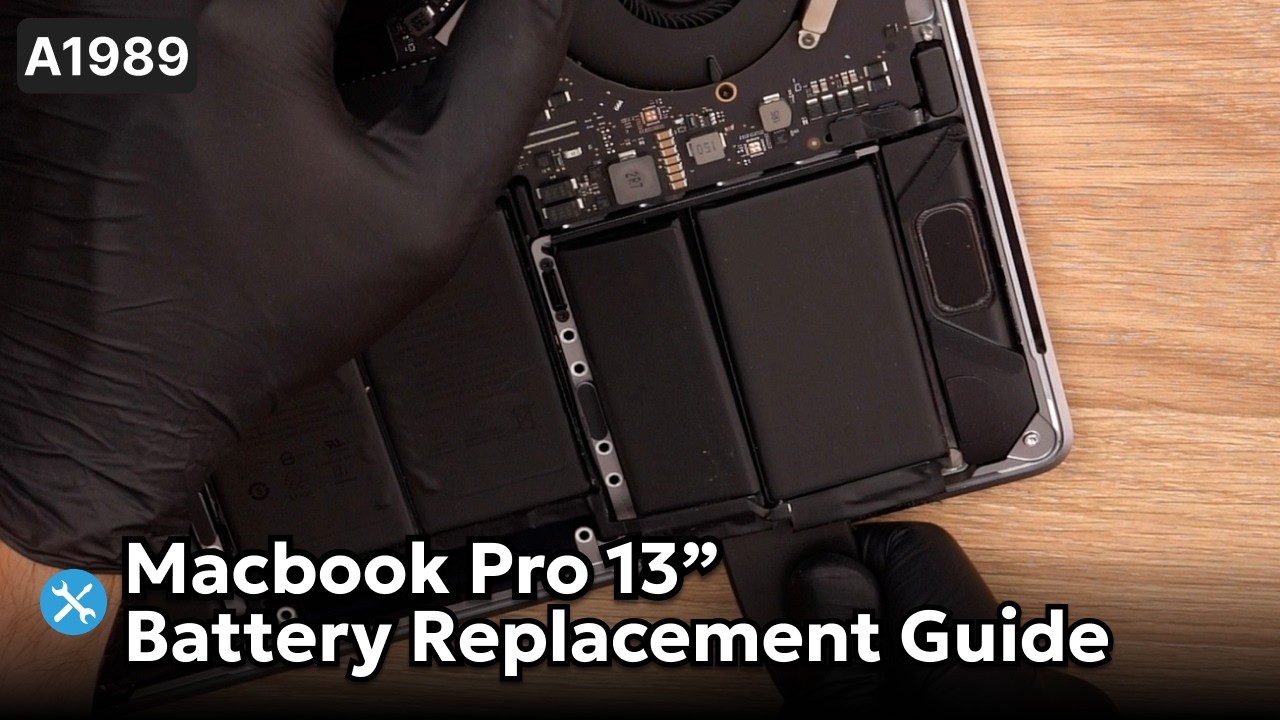
































13″ Apple MacBook Pro Late 2013 Full Disassembly Teardown A1502
OVERVIEW:
In this tutorial, we’ll walk you through the full disassembly process of the 13-inch Late 2013 MacBook Pro Retina. This detailed teardown includes every step you’ll need to follow to safely remove internal components such as the battery, logic board, fan, SSD, and display assembly. Whether you’re replacing a part or just doing a deep clean, this guide covers it all using only the tools and methods shown in the video. We also provide a breakdown of each component removal to help ensure you don’t miss a step. Follow this guide closely to avoid any damage during the repair process.
See the official Apple specs for this model
REPAIR TIME & SKILL LEVEL:
This repair is estimated to take about 1.5 to 2 HOURS to complete and is of INTERMEDIATE difficulty, requiring careful disconnection of flex cables, screws of varying sizes, and delicate handling of internal components.

STEPS:
Tools You Need
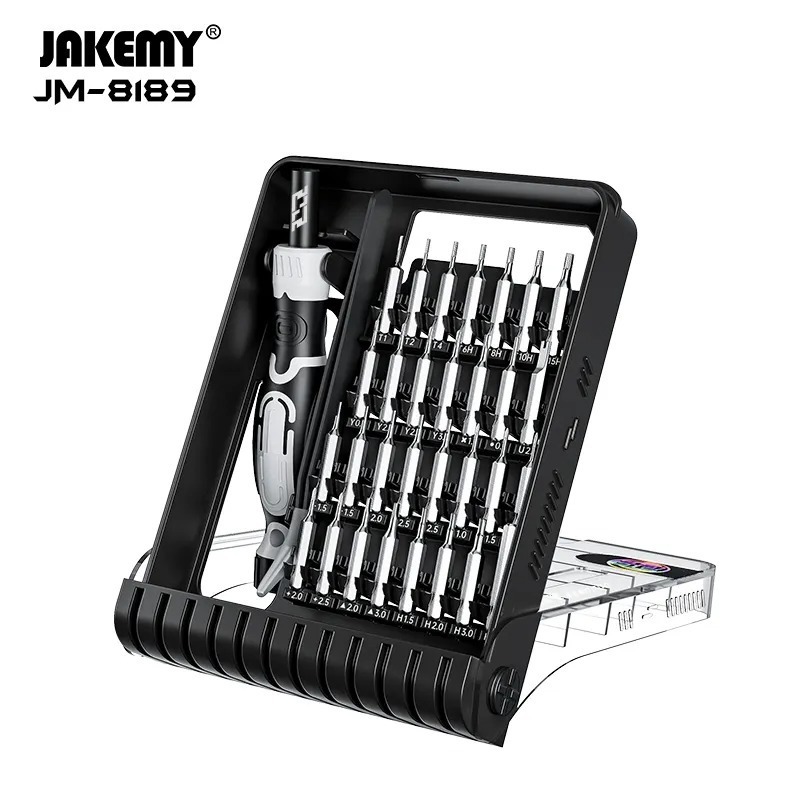
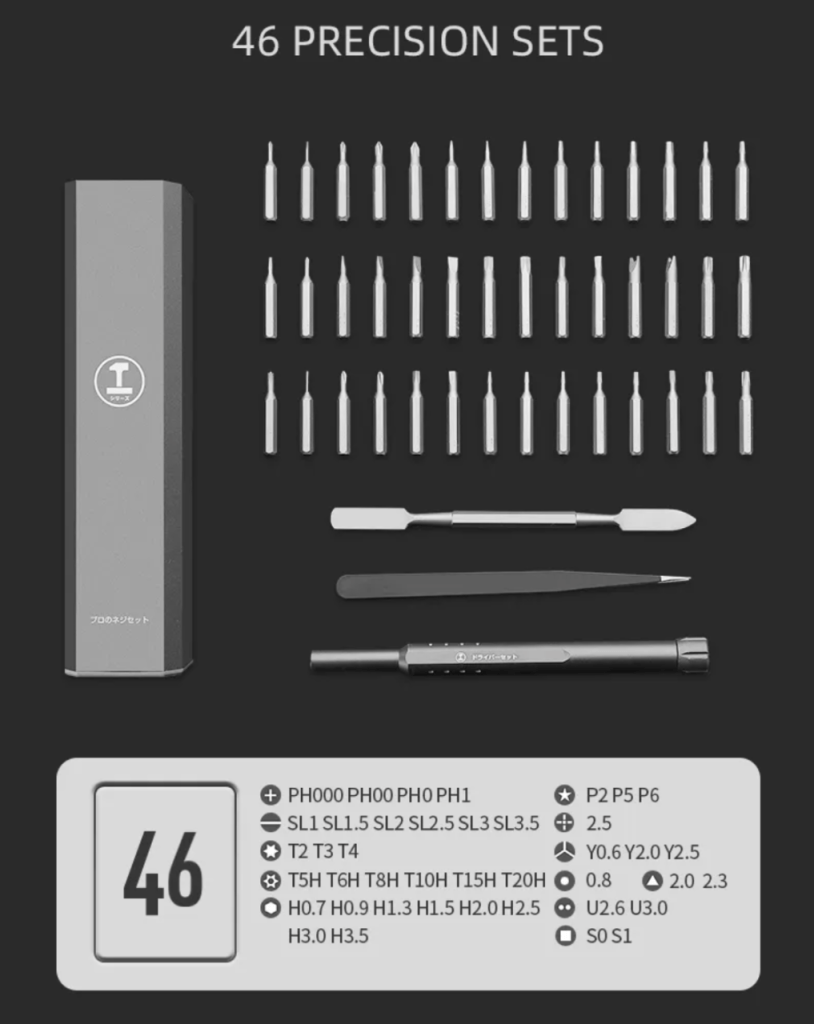
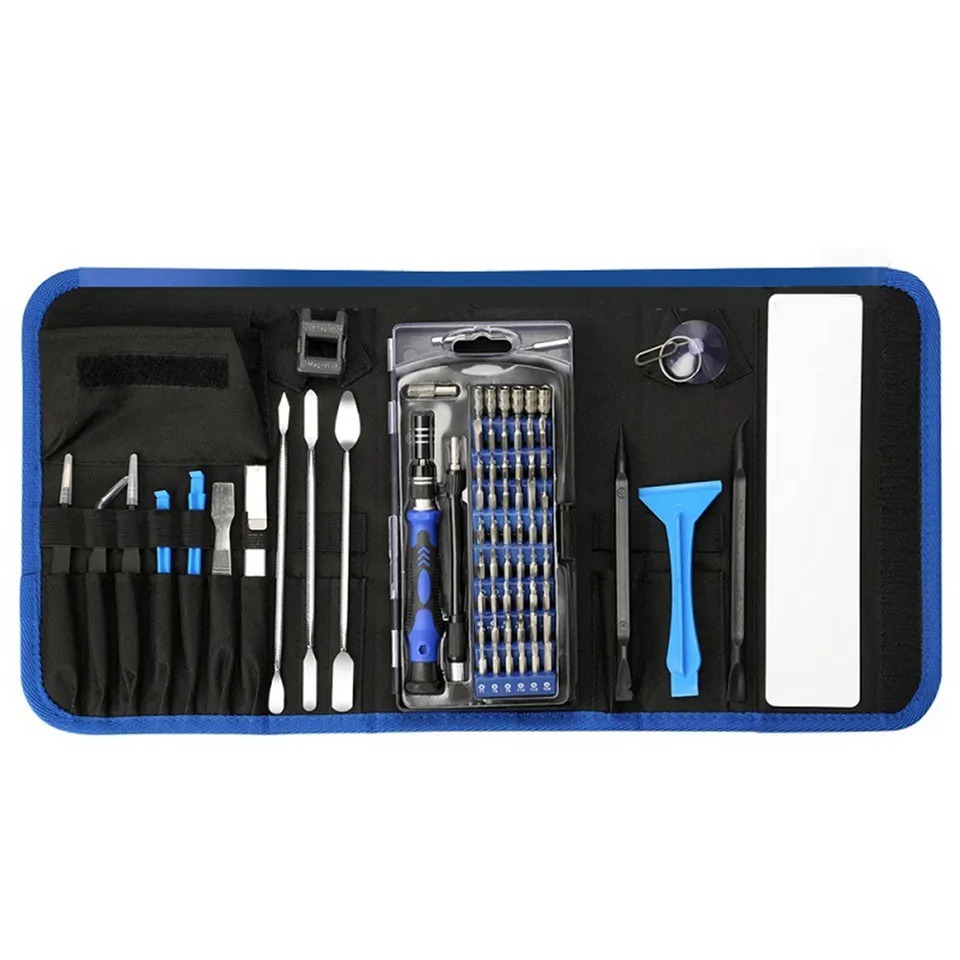
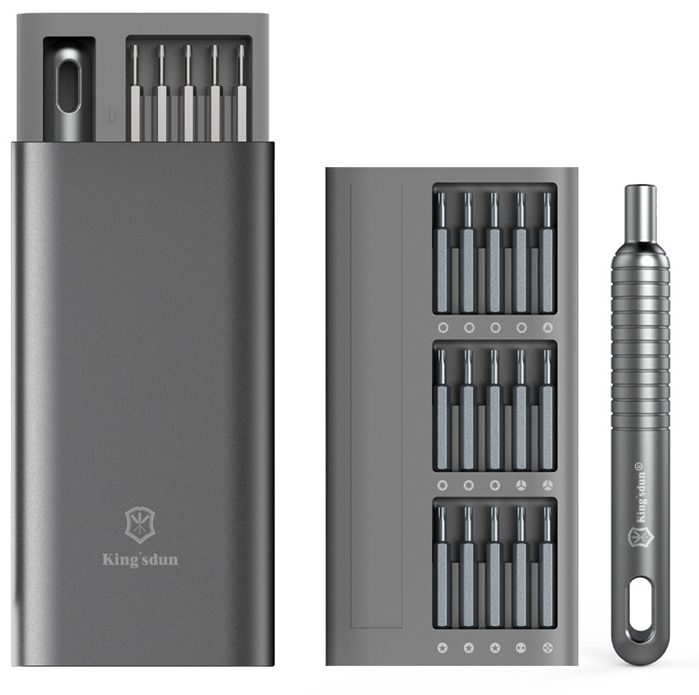
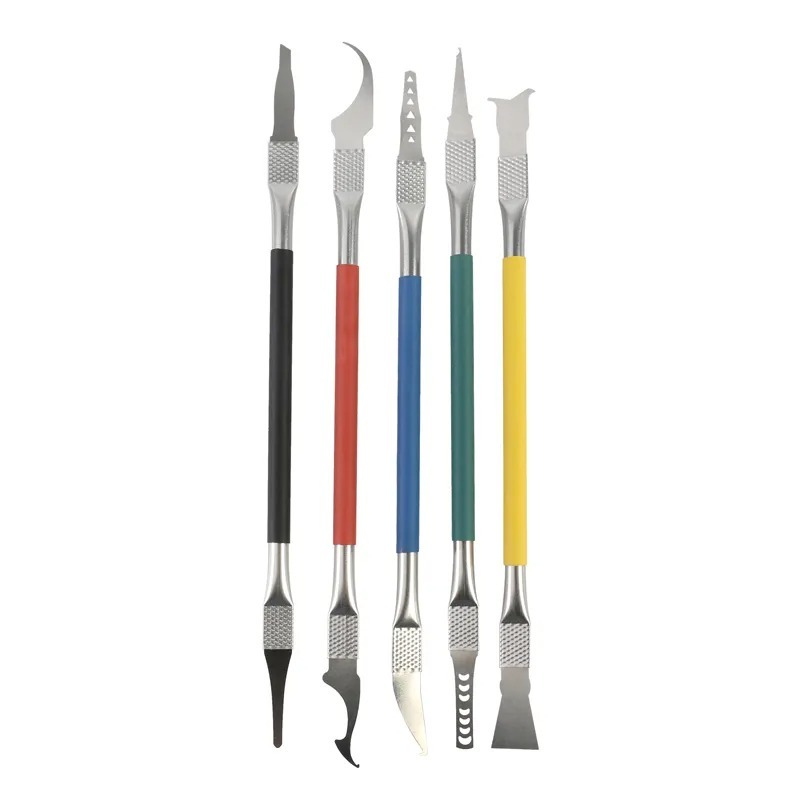
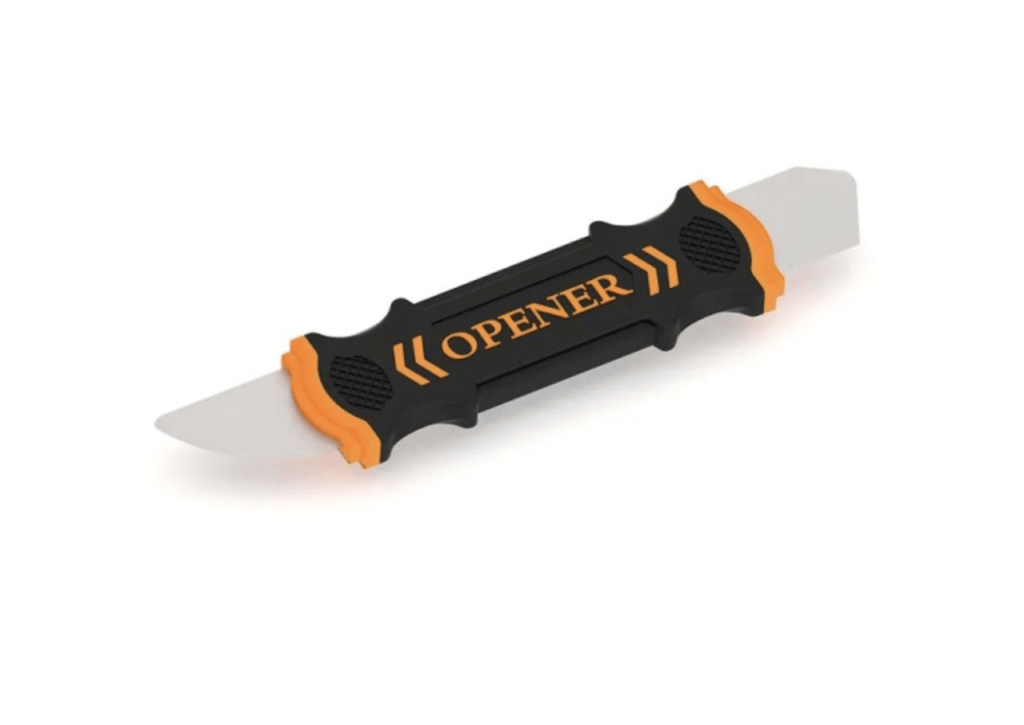
For this repair, you will need a P5 pentalobe screwdriver to remove the bottom case, a T5 Torx screwdriver for most internal screws, a T8 Torx screwdriver for larger internal screws, a small Phillips screwdriver for heat sink removal, and optionally, a classic spudger to safely disconnect fragile cables and connectors.
-
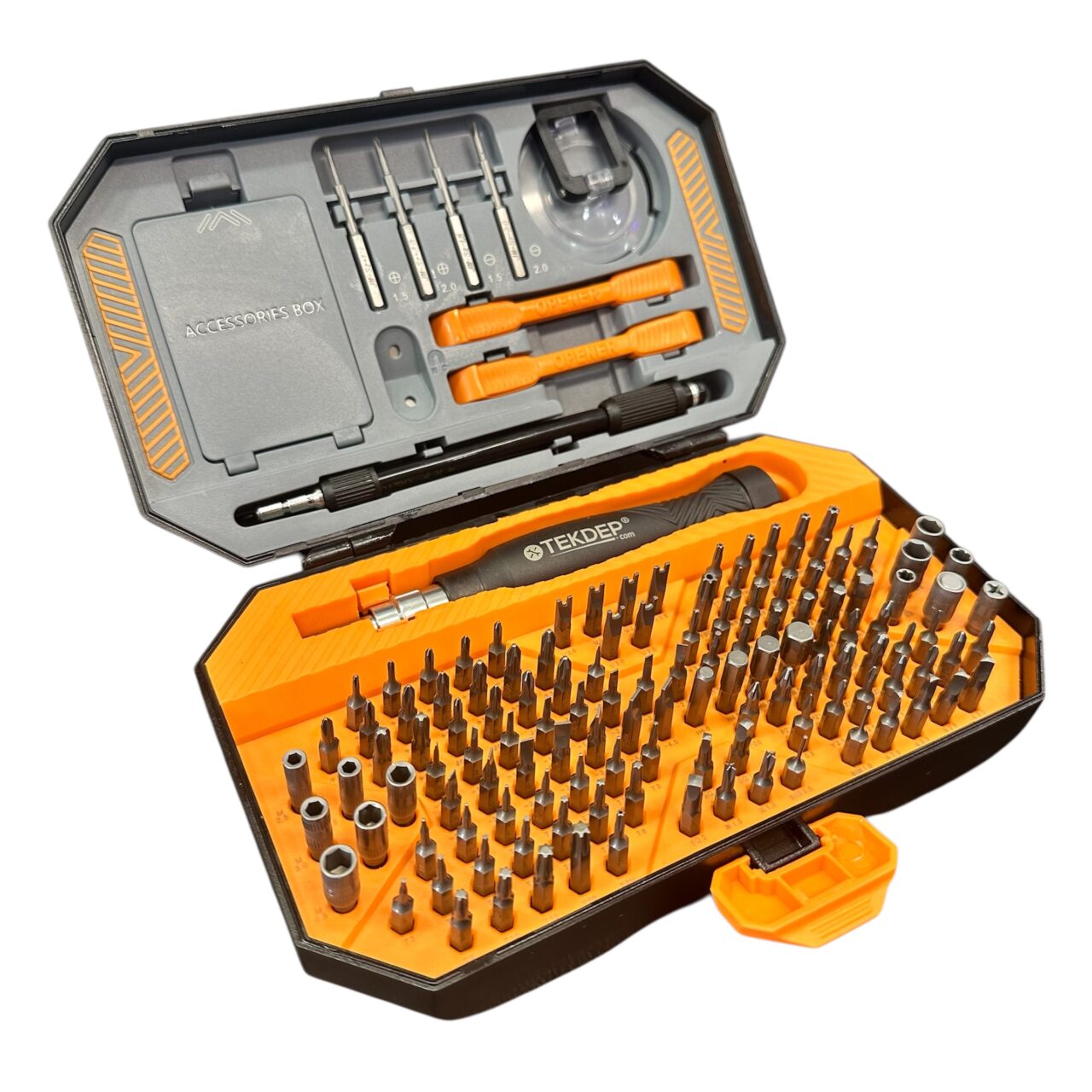
TEKDEP Professional Tool Set 145-in-1 For Electronics, iPhone, Laptop, PC Repairs
-24% $45.00Was:$59.00 -
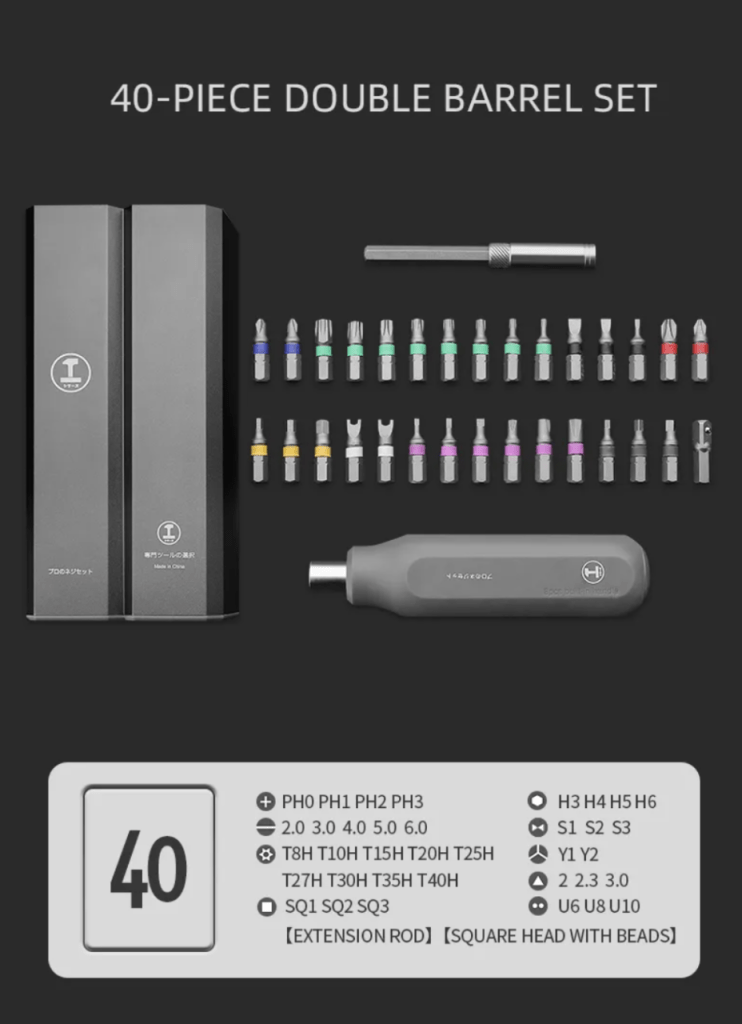
40 in 1 Steel Bit Double Barrel Precision Magnetic Screwdriver Tool Set with Case for Phone PC Electronics
$44.99 -
9 in 1 Disassemble Multi Opening Repair Tools Kit Metal Pry Bar
-30% $33.66Was:$48.00 -

2X Suction Cup Repair Opening Tool For Phone Computer Tablet Heavy Duty Screen
$19.99 -
6 in 1 Steel Bit Precision Magnetic Screwdriver Tool Set with Case for Phone PC Electronics
-26% $23.66Was:$32.00
Remove the Bottom Case
- Use a P5 pentalobe screwdriver to remove all screws from the back cover.
- Carefully lift the bottom case off the MacBook chassis.
- Note: Some screws differ in size, especially toward the back — keep them organized for reassembly.


-
A1502 Bottom Case for 2013-2015 Apple MacBook Pro 13 Retina
Price range: $29.00 through $76.66 -
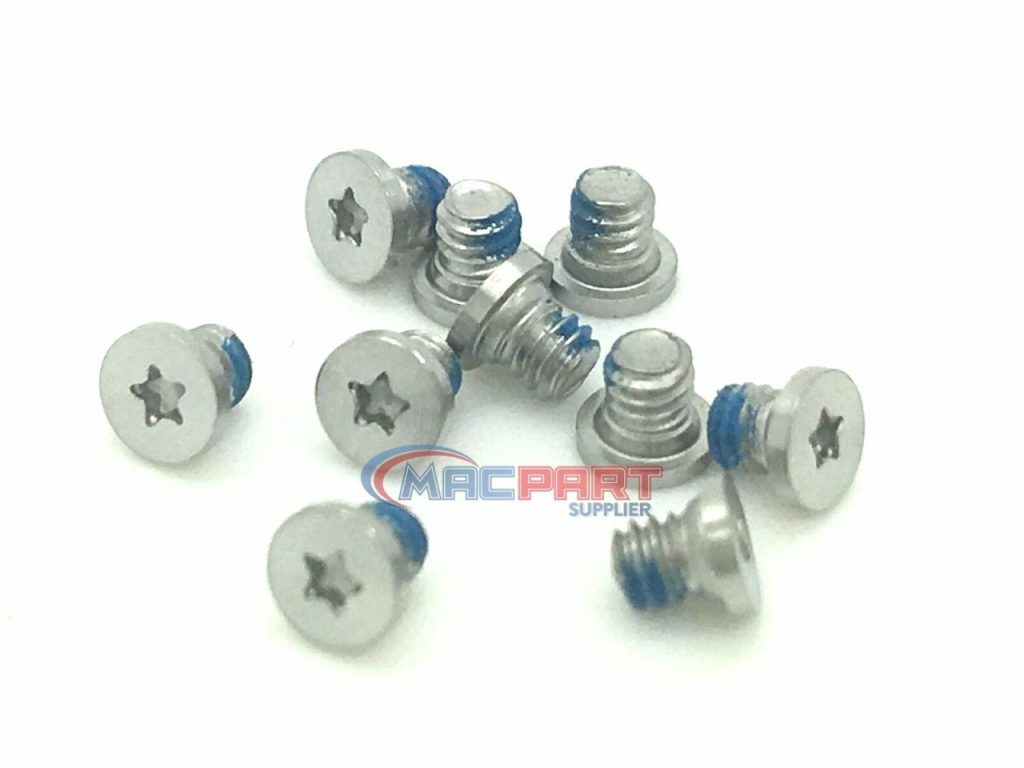
A1425 A1502 A1398 Original Bottom Case Screw Set for MacBook Pro 13″ Retina
-32% $6.77Was:$10.00

Disconnect the Battery
- Locate the battery connector and carefully disconnect it to prevent short-circuits.
- This step ensures safety throughout the repair.

-
A1502 Top Case Battery 661-8154 – 2013-2014 MacBook Pro 13″
Price range: $114.99 through $131.99

Disconnect Keyboard and Trackpad Flex Cables
- Unlock the keyboard connector and gently remove the keyboard flex cable.
- Unlock the trackpad connector and remove the trackpad flex cable.

Disconnect the Speaker and Microphone
- Disconnect the speaker cable.
- Unlock the microphone connector and gently remove its flex cable.

Disconnect MagSafe and Display Cable
- Remove the MagSafe cable from the board.
- Unlock the mechanism for the display cable and disconnect it carefully — this cable is fragile.

Disconnect Backlight and Antenna Cables
- Unplug the keyboard backlight flex cable.
- Remove the three antenna cables from the Wi-Fi card — be gentle around these delicate wires.

Remove Fan Gasket and iSight Camera Cable
- Lift the fan gasket away.
- Use a plastic tool to push out the display iSight cable from its housing — do not pull directly on the cable.

Disconnect Fan
- Unlock the fan connector mechanism and unplug the fan flex cable.

Remove I/O Board Brackets
- Use a T5 screwdriver to remove four screws holding two brackets that secure the I/O board to the logic board.

Disconnect and Remove the I/O Cable
- Unplug the I/O cable from both the logic board and I/O board.

Remove Right Speaker and I/O Board Cable
- Disconnect the right speaker cable.
- Remove the I/O board cable from the logic board.

Remove Wi-Fi Card
- Remove the T5 screw holding the Wi-Fi card to the I/O board.
- Gently pull and slide out the Wi-Fi card.

-
A1398 A1502 Original Wifi Wireless Bluetooth Airport Card 661-8143 for 2013-2014 MacBook Pro
-46% $10.77Was:$20.00

Remove SSD
- Remove the T5 screw securing the SSD storage to the logic board.
- Carefully lift and slide the SSD out.


Remove MagSafe Power Board
- Remove two T5 screws from the MagSafe power board and take it out.

Remove CPU Fan and Heat Sink
- Remove three T5 screws from the CPU fan.
- Use a Phillips screwdriver to remove the one Phillips screw at the tip of the heat sink.

Remove Logic Board
- Unscrew the five T5 screws securing the logic board.
- Gently lift the board from the heat sink side and pull it out.

-
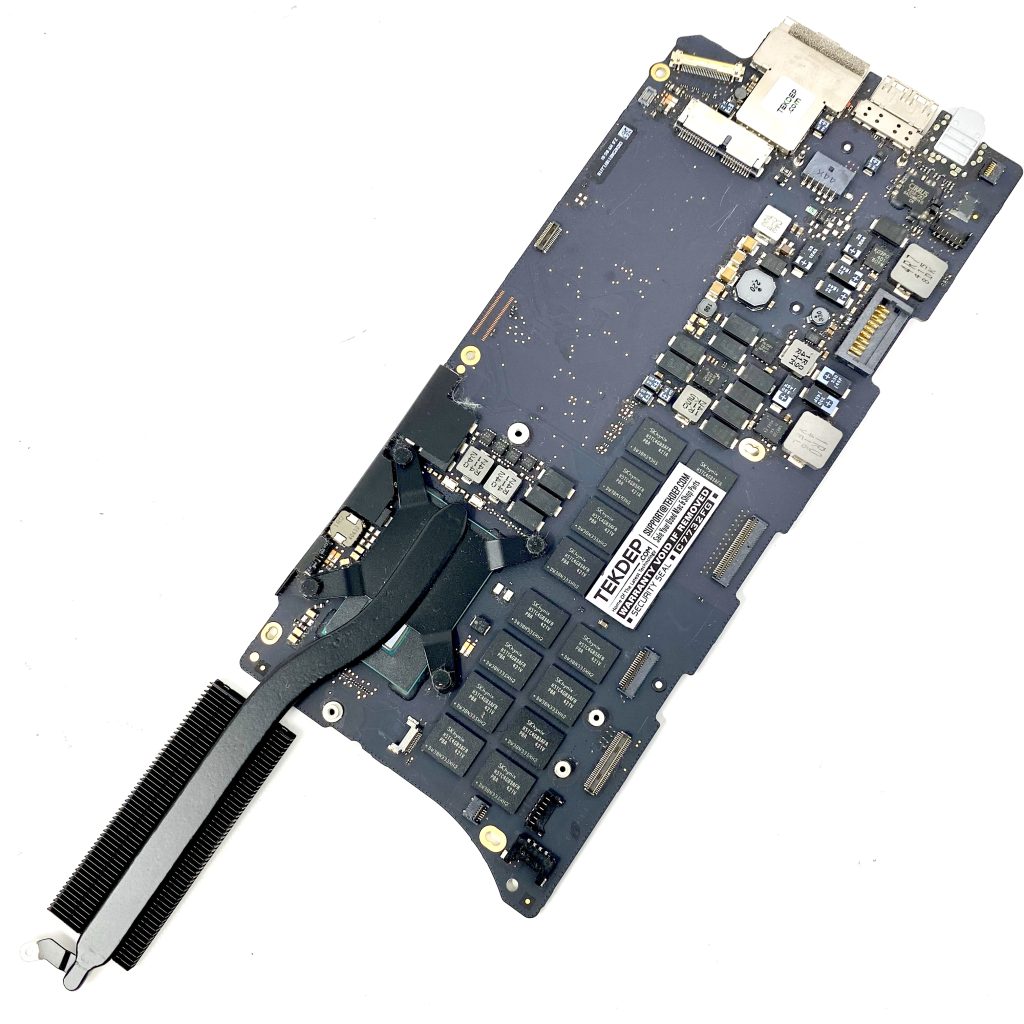
A1502 Original Logic Board 2.8Ghz i7 661-8146 for 2013 MacBook Pro 13″ Retina
Price range: $147.00 through $279.99
Remove the Fan
- Detach the fan once the logic board is removed.

Remove I/O Board
- Remove the top T8 screw and the bottom T5 screw from the I/O board.
- Gently lift and remove the board from the chassis.

Remove Both Speakers
- Remove three T5 screws from each speaker.
- Lift both speakers out of the case.

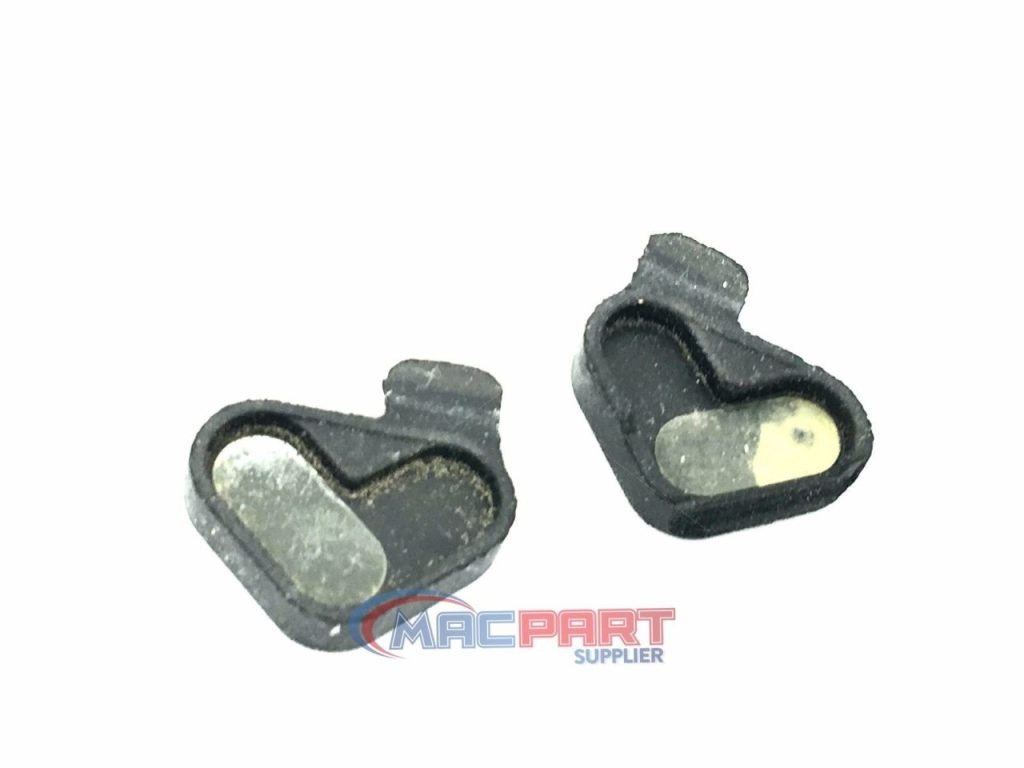
Remove Hinge Covers
- Use a T8 screwdriver to remove three T8 screws from each side of the LCD hinges.
- Then use a T5 screwdriver to remove one screw per hinge cover and lift them off.

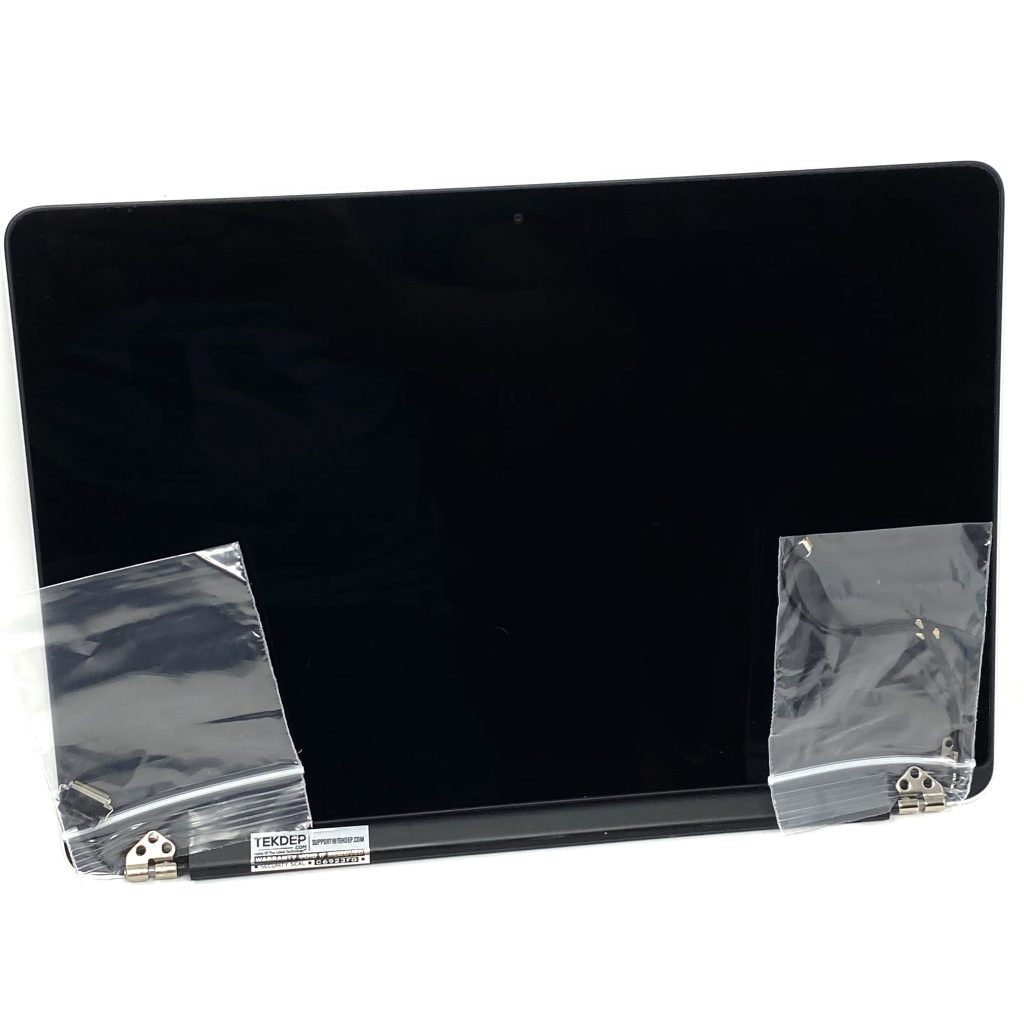
Remove the Display Assembly
- Slightly open the MacBook like you normally would.
- As you lift, the LCD separates from the chassis — remove it completely.

-
A1502 Original LCD Display Assembly 661-8153 for 2013-2014 MacBook Pro 13″
Price range: $175.66 through $178.66
CONCLUSION:
Disassembling the 13-inch Late 2013 MacBook Pro Retina takes precision and patience. With the right tools and methodical steps, you can safely access and replace internal components like the SSD, fan, and logic board. Always keep your screws and flex cables organized for reassembly. If at any point you’re unsure, re-watch the relevant video section. With care and attention to detail, this process can be a rewarding repair experience. Take your time, and enjoy learning more about your device.


VIDEO TUTORIAL:
Looking for a more in-depth tutorial? Check out our complete teardown video for a detailed step-by-step walkthrough.
MAIL-IN REPAIR SERVICE:
We offer professional screen replacement services. If you’re unsure about doing this repair yourself, send your device to our expert technicians for fast and reliable repair.
SHOP PARTS:

Late 2013 MacBook Pro A1502
Find Every Apple Mac Parts for Your 13″ MacBook Pro Retina! Logic Board, LCD, ssd, Keyboard, Battery and more Plus ( Fast Shipping + 60 Days Warranty
SHOP TOOLS:
Using precision tools ensures a safe and efficient repair. Always use the right tools to prevent damage to delicate components. Quality tools can make all the difference in the repair process.

REPAIR TOOLS
Discover an extensive range of tools, including screwdrivers, tweezers, pry tools, and more, essential for all your repair and maintenance needs.
HAVE QUESTIONS?
We’re here to help! Contact us:
- Phone: 818-456-4479
- Email: [email protected]