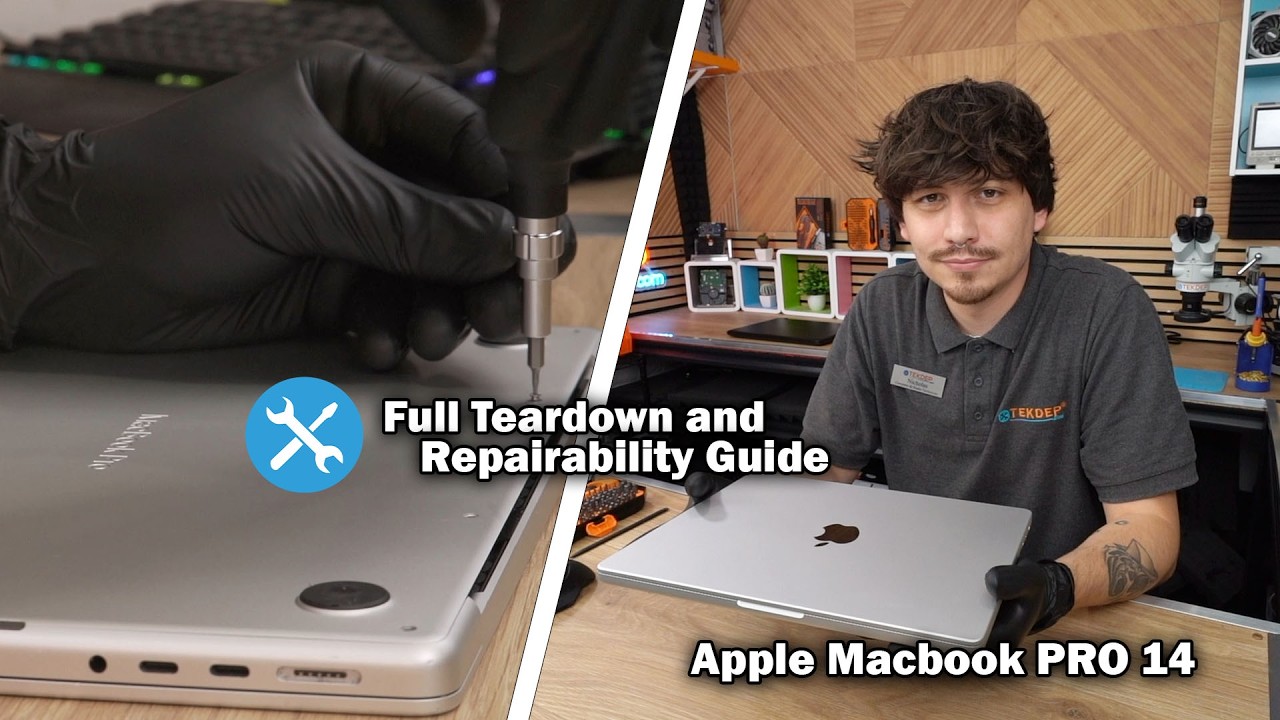

























MacBook Pro 13″ A1989 Top Case Replacement Guide (Keyboard Language Swap)
OVERVIEW:
In this repair guide, we walk through the complete process of replacing the keyboard on a 13-inch MacBook Pro A1989 (2018 model). This specific MacBook was mailed in with a non-functional German QWERTZ keyboard, and the customer opted to switch to a US QWERTY layout. The entire top case with battery is replaced, requiring a full teardown and transfer of internal components. The steps below will guide you through safely disassembling and reassembling the MacBook.
See official Apple specs for this model
REPAIR TIME & SKILL LEVEL:
This repair is estimated to take about 3-4 HOURS to complete and is of ADVANCED difficulty, requiring expert handling of delicate components and full logic board and display assembly removal.

STEPS:
Tools You Need
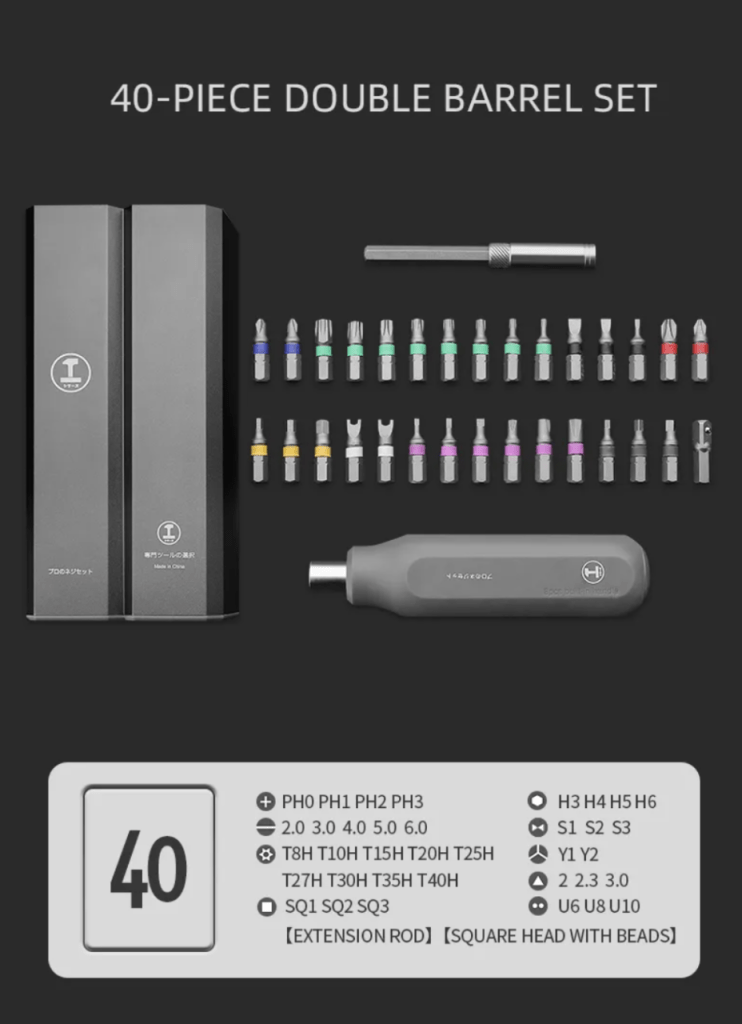
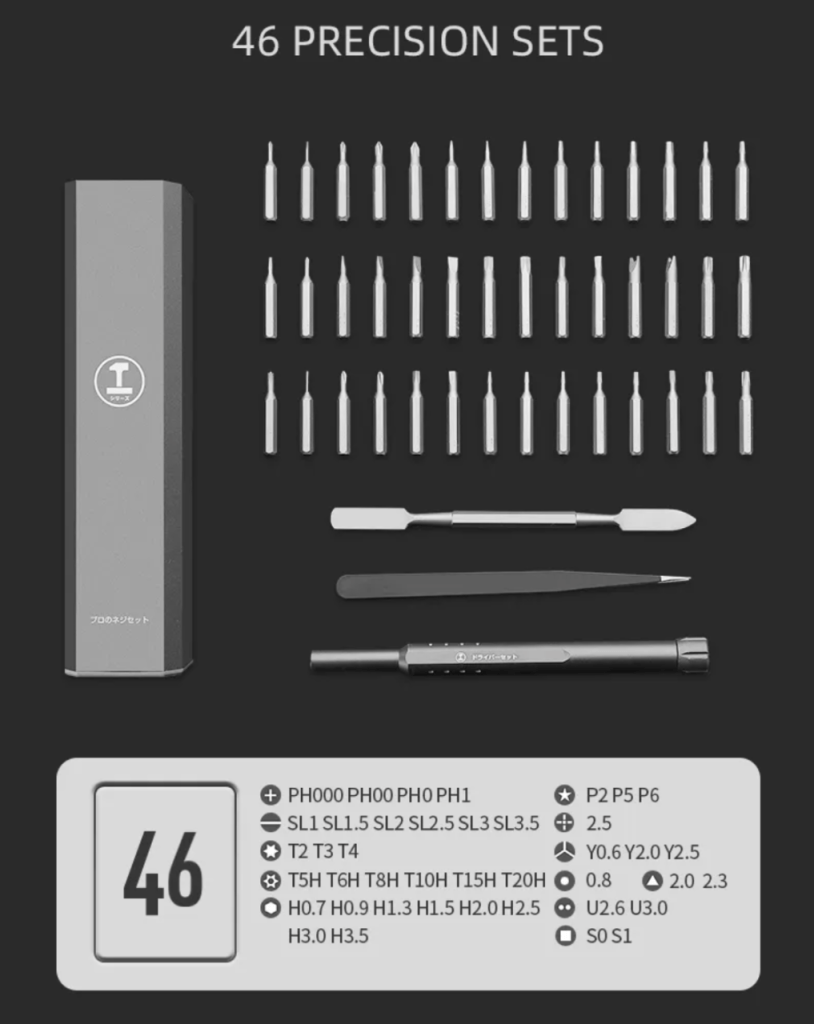
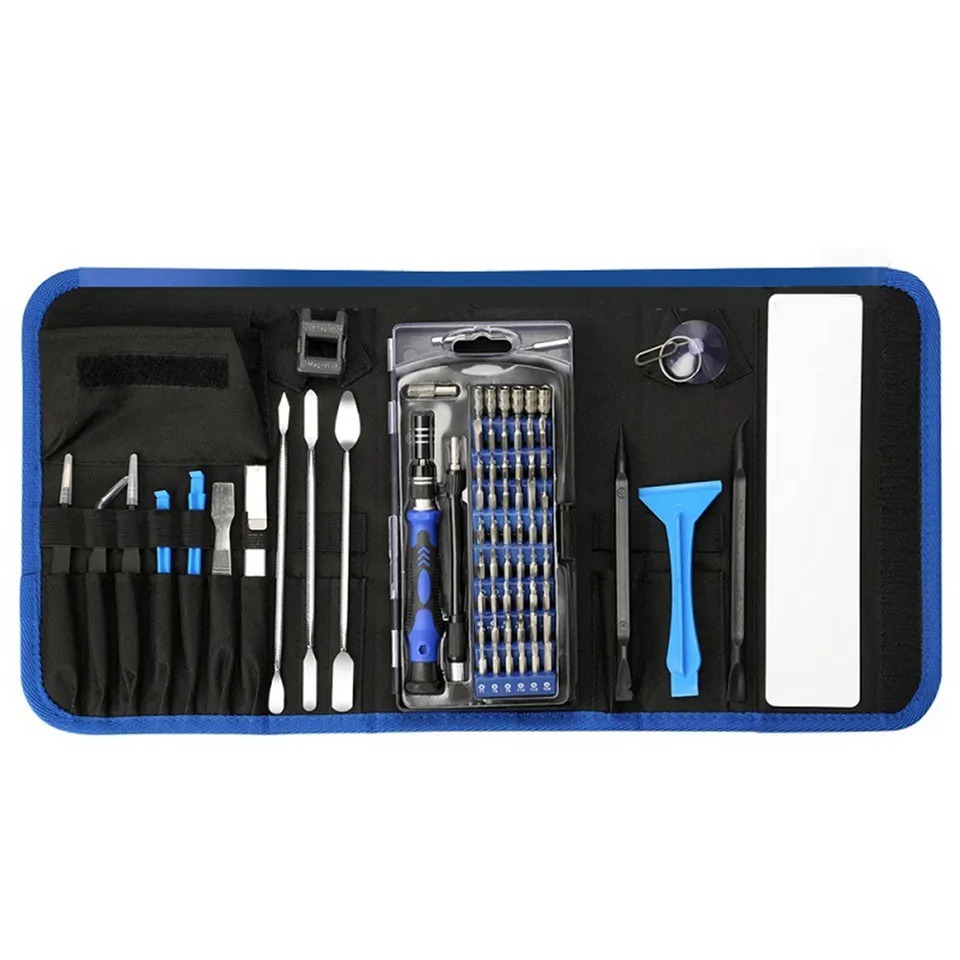
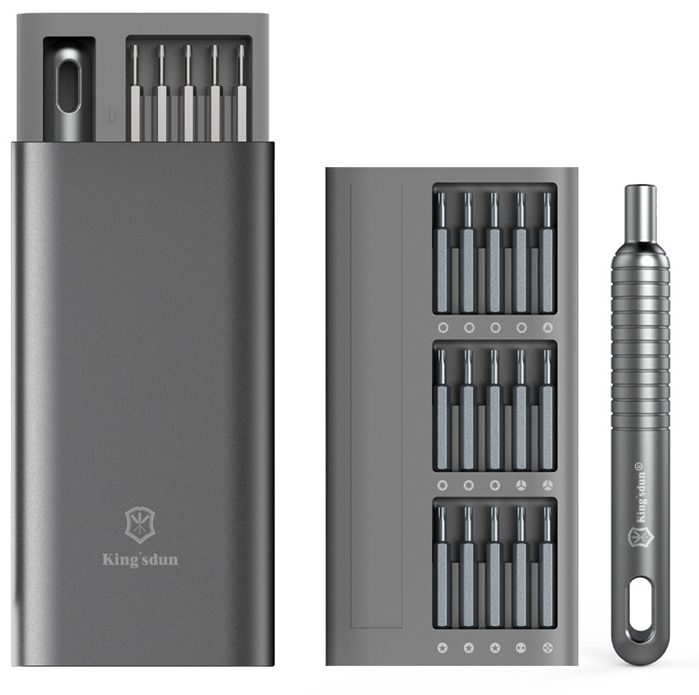
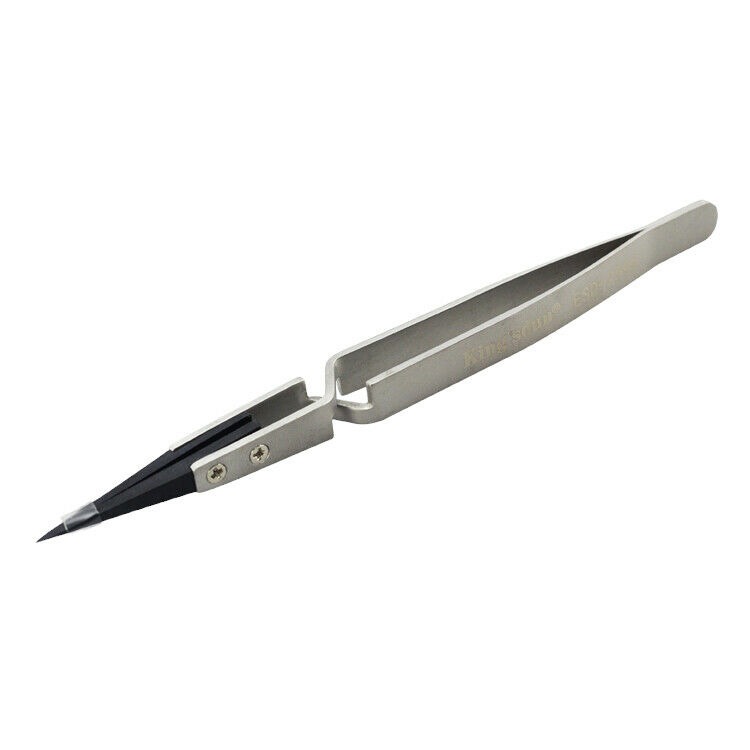
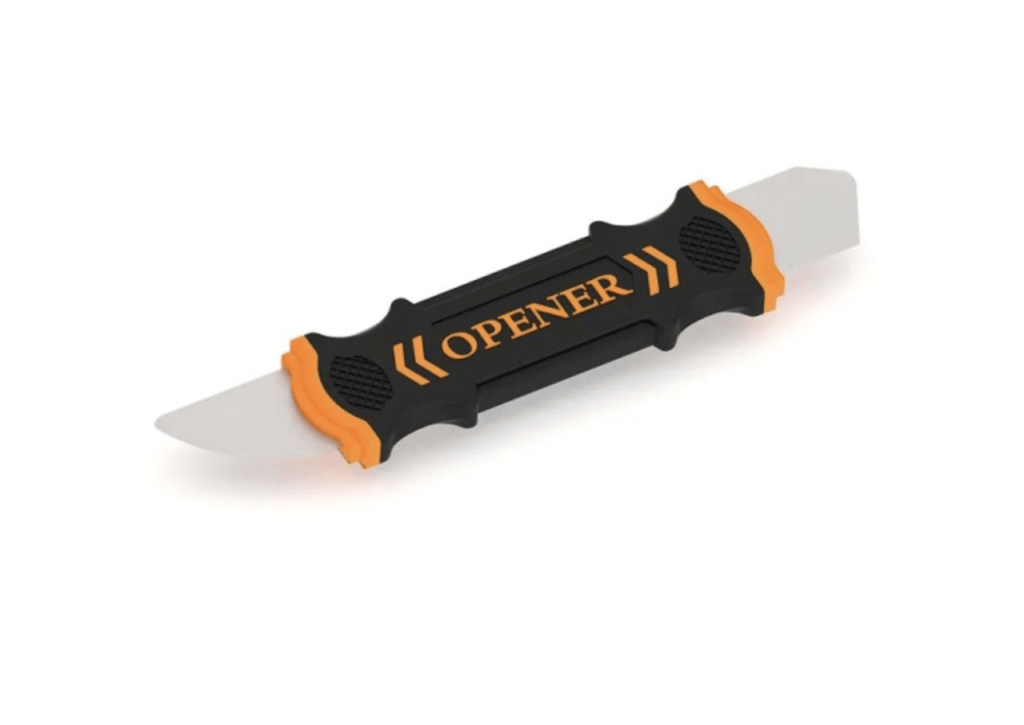
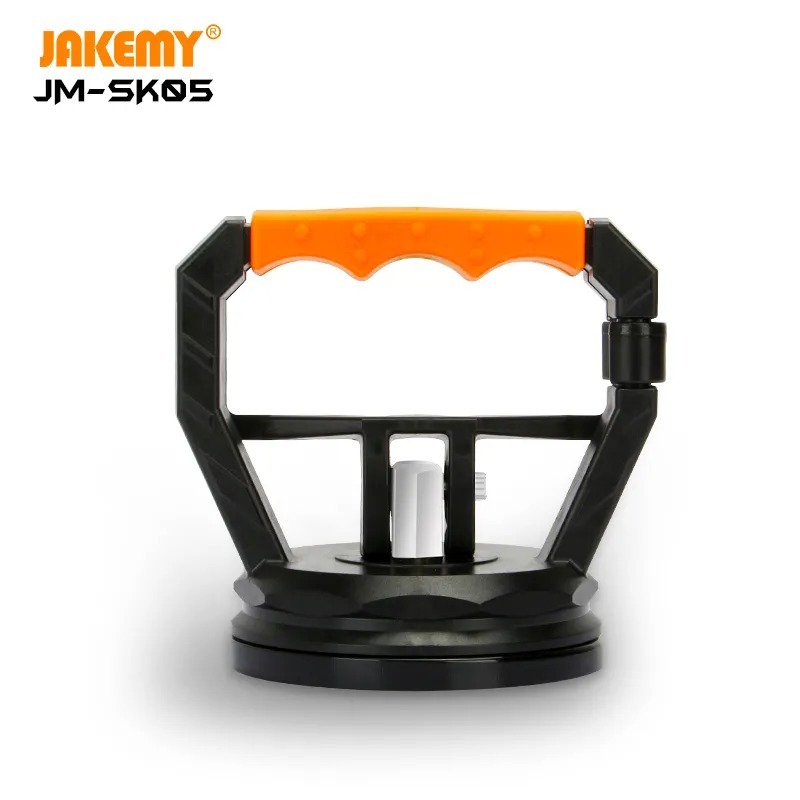
For this repair, you will need a suction cup for lifting the bottom cover, a Pentalobe screwdriver to remove exterior screws, T3 and T5 Torx screwdrivers, a Phillips screwdriver (P1), a plastic spudger for disconnecting internal cables, and tweezers for precision work.
-
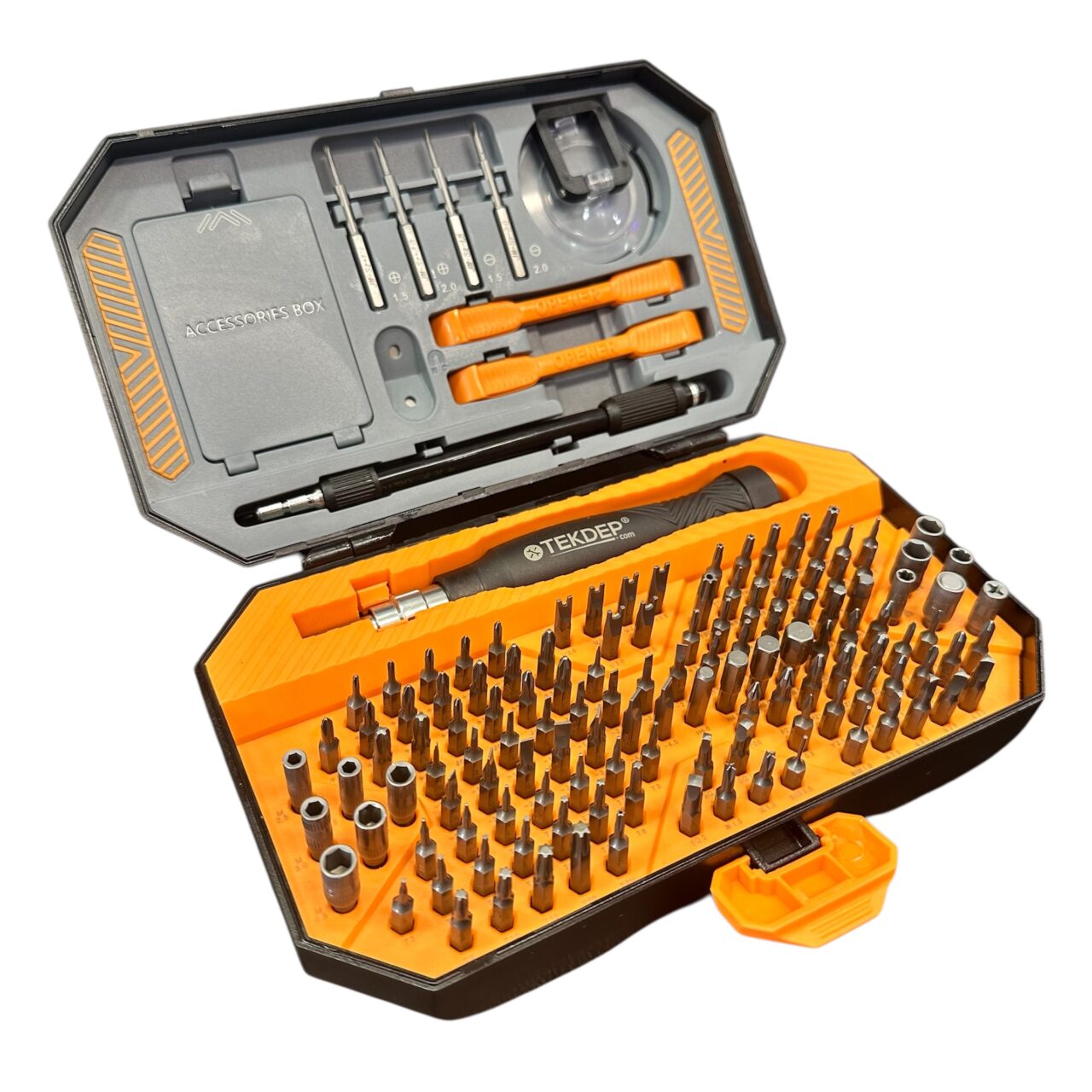
TEKDEP Professional Tool Set 145-in-1 For Electronics, iPhone, Laptop, PC Repairs
-24% $45.00Was:$59.00 -

26 in 1 Aluminum Case Screwdriver Set with 24 Bits
$39.99 -
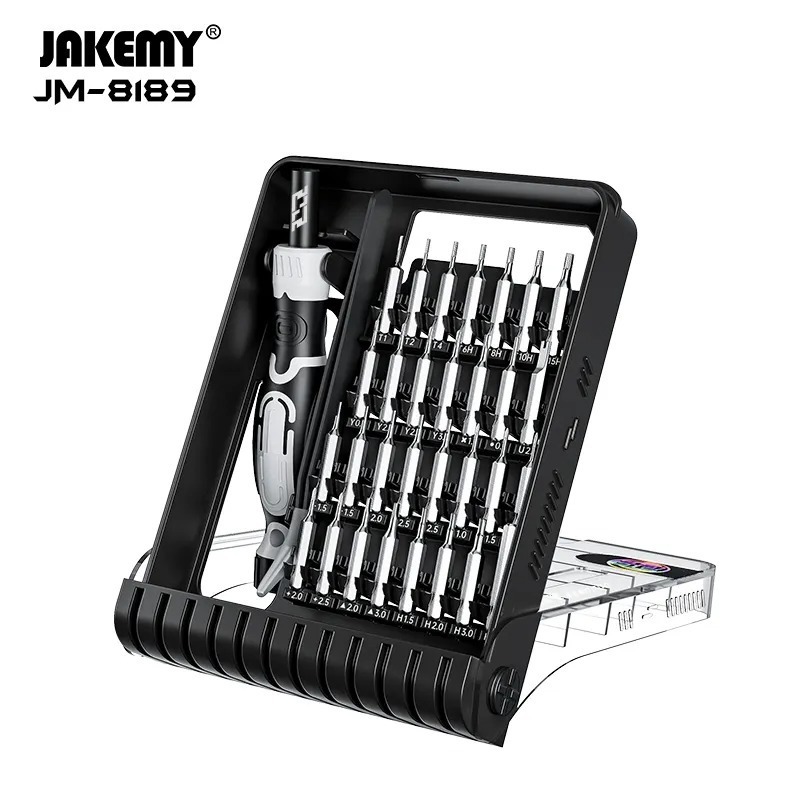
32 in 1 Steel Bit Precision Pocket Screwdriver Tool Set with Case
$25.99 -

2X Suction Cup Repair Opening Tool For Phone Computer Tablet Heavy Duty Screen
$19.99 -
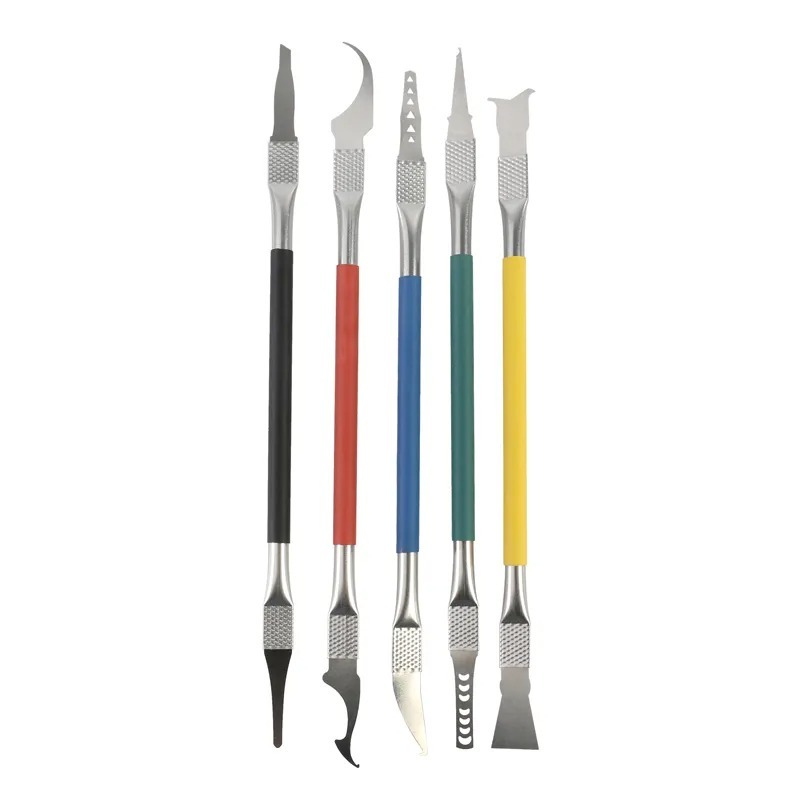
9 in 1 Disassemble Multi Opening Repair Tools Kit Metal Pry Bar
-30% $33.66Was:$48.00
Remove Bottom Cover
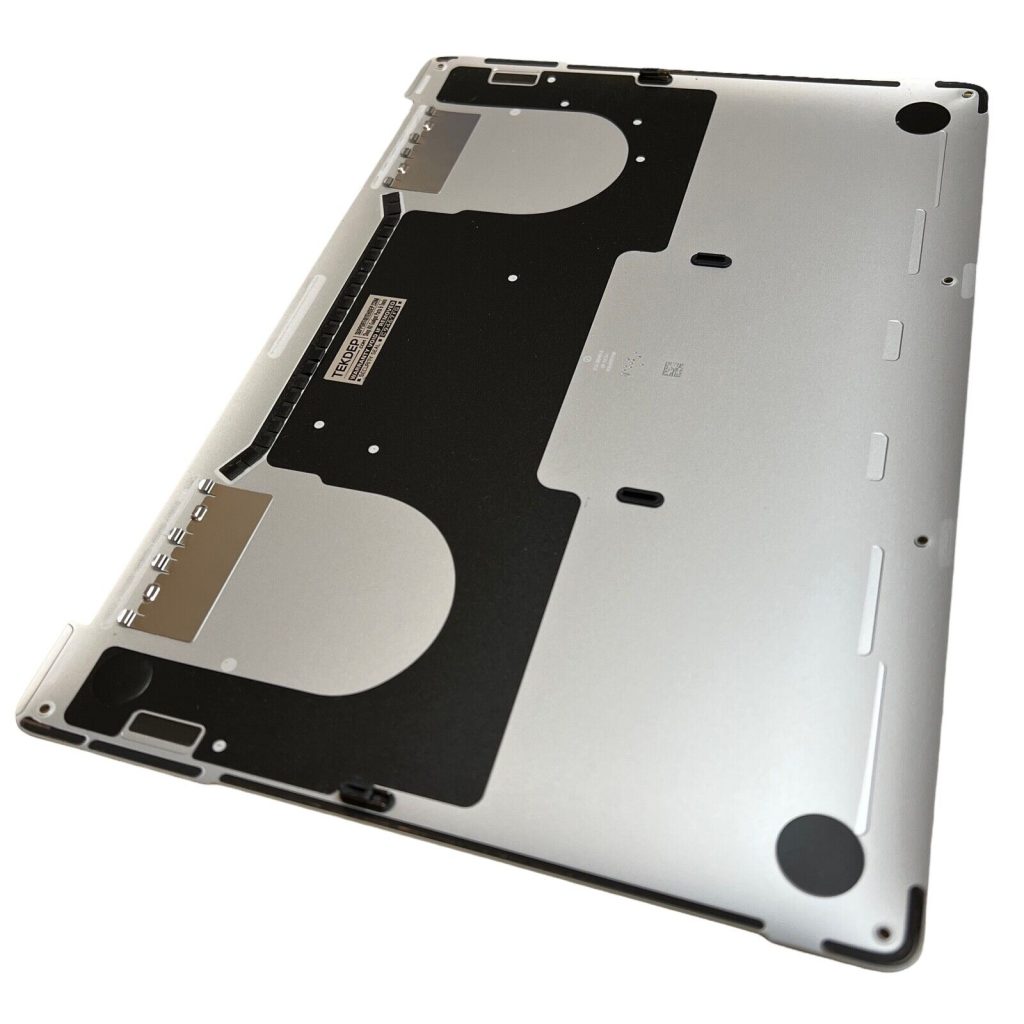
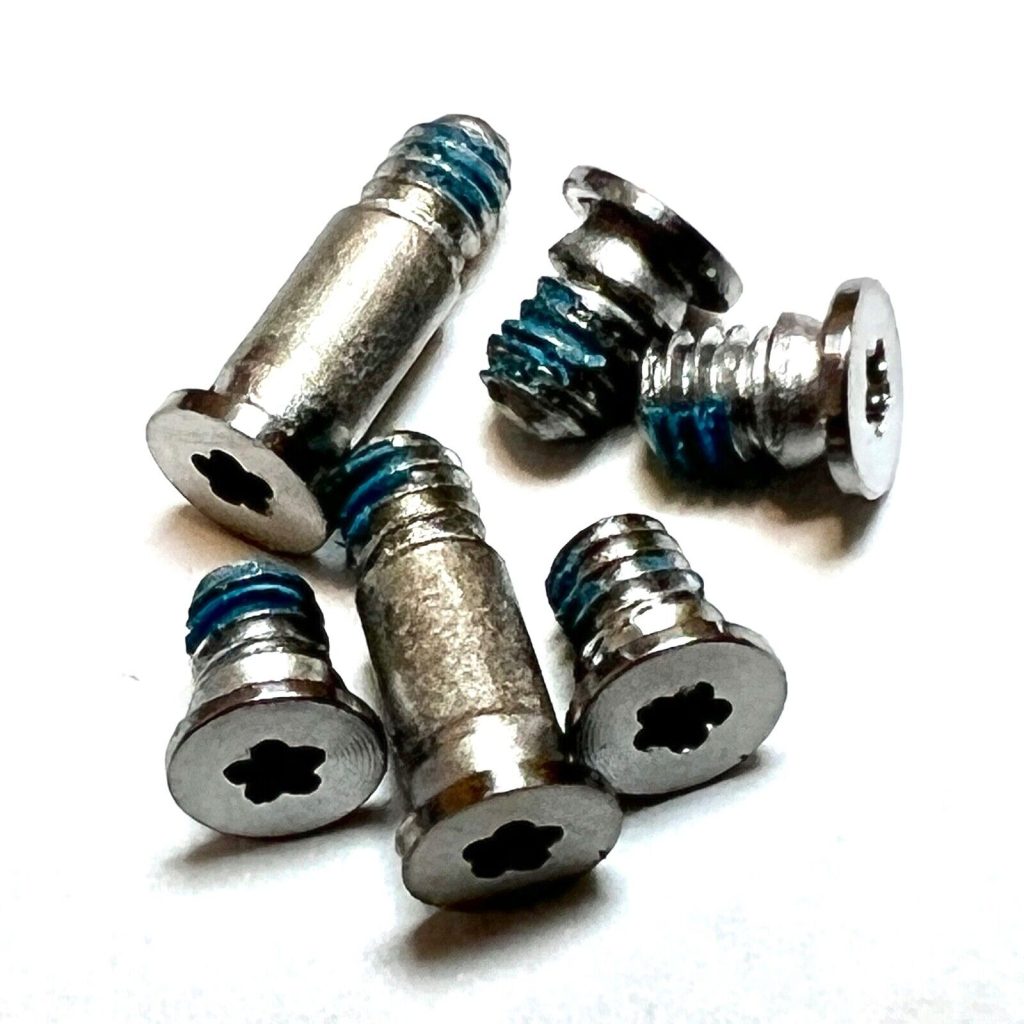
- Use a Pentalobe screwdriver to remove six screws from the bottom cover.
- Note that the two screws in the top corners are longer than the other four.
- Use a suction cup to lift the bottom cover and pull it toward you to detach it.

Disconnect the Battery
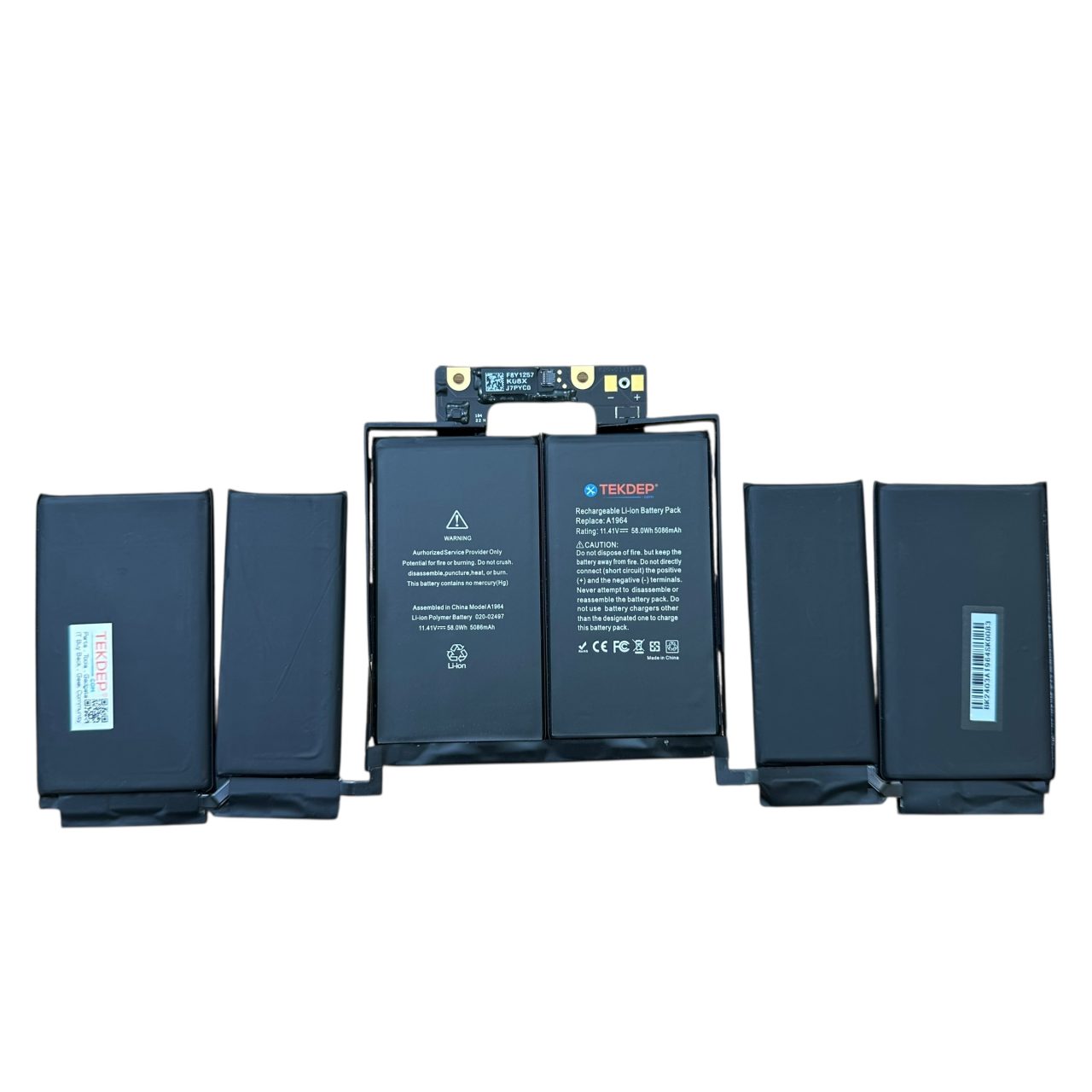
- Locate the daughterboard cable and disconnect it.
- Use a T5 screwdriver to remove the pancake screw securing the battery connection.
- Ensure the battery is safely disconnected before proceeding.


Remove LCD and Wi-Fi Assembly Screws
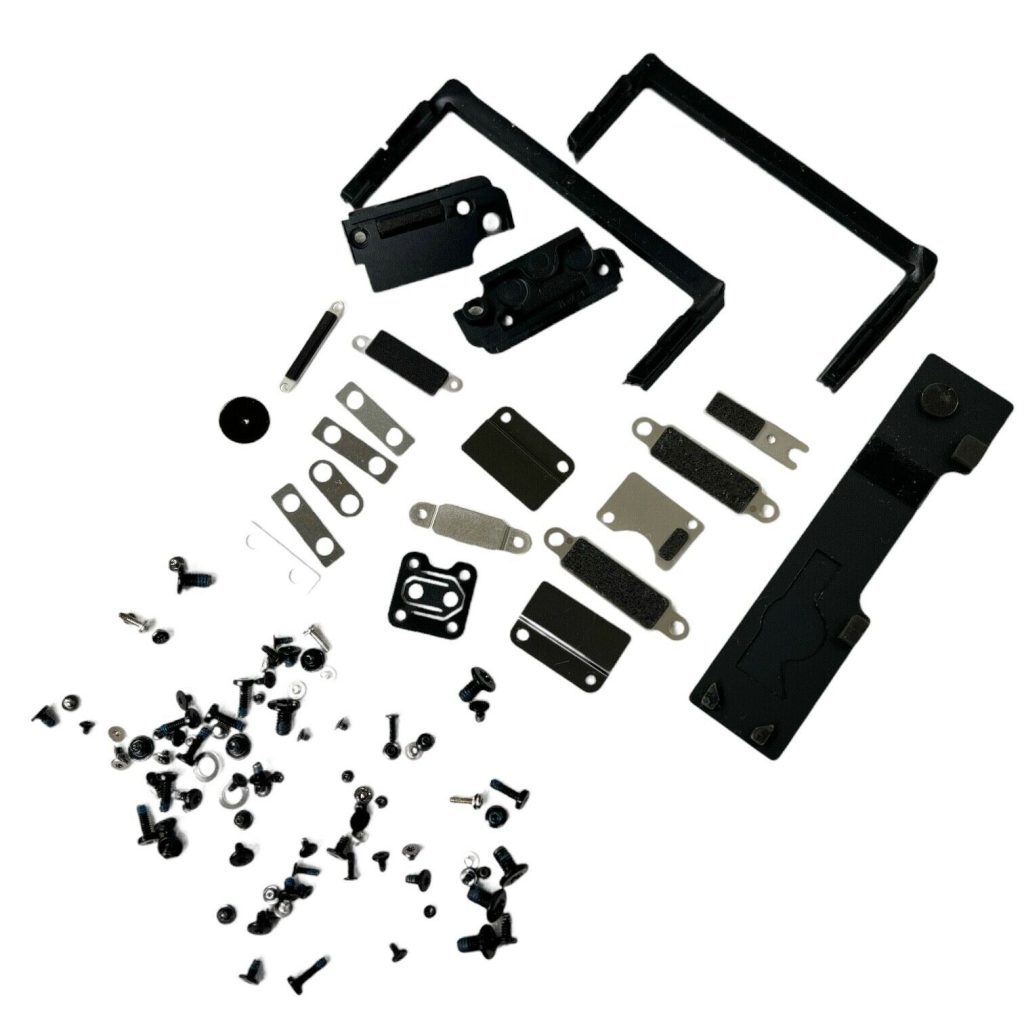
- Remove four T5 screws from the top holding the LCD and Wi-Fi vent assembly.
- Switch to a T3 screwdriver and remove four screws from each hinge cover.
- Remove four more T3 screws (two on each side) that secure the LCD assembly.

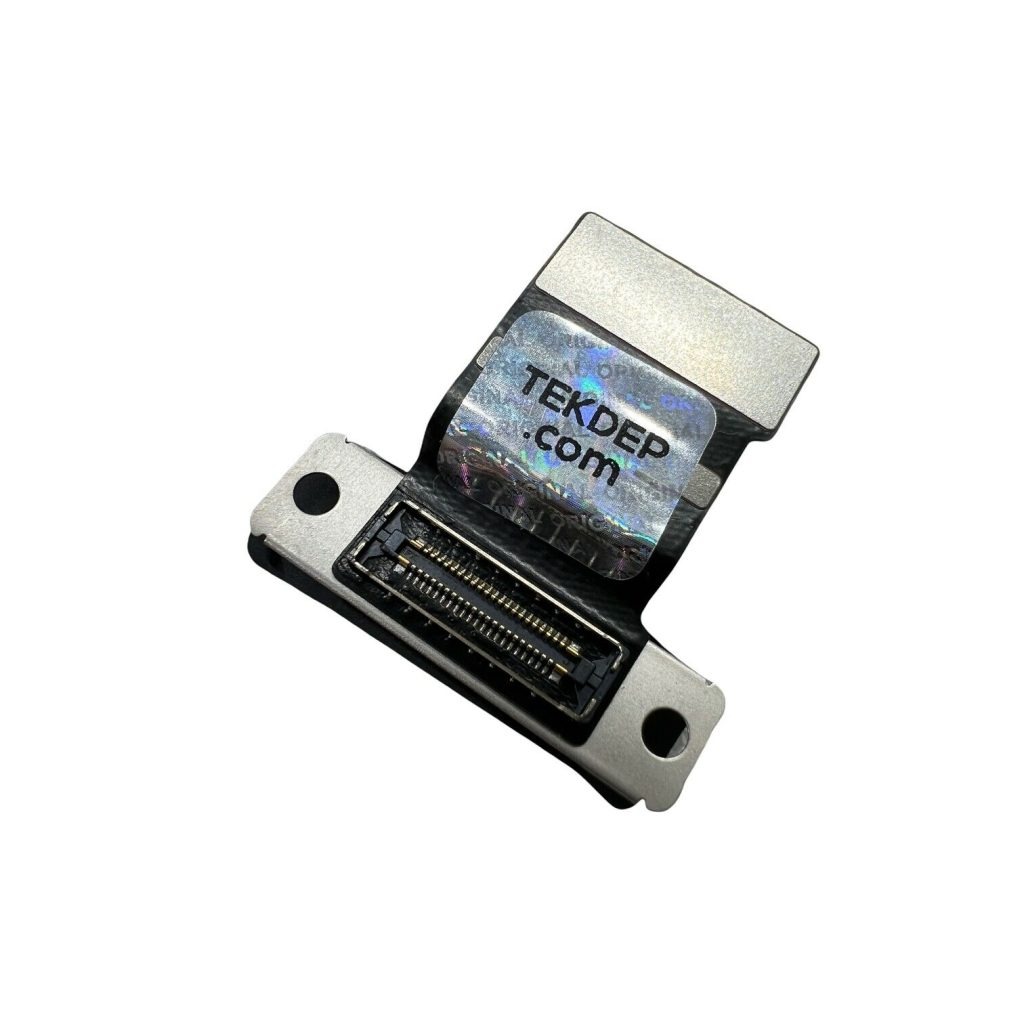
Disconnect LCD Cables
- Remove the display connection cable using the T3 driver.
- Also remove the retention bracket located below the main display cable.

-
A1989 Original LCD LED Video Display Flex Cable 923-05384 for 2018-2019 MacBook Pro 13″
-21% $20.66Was:$26.00
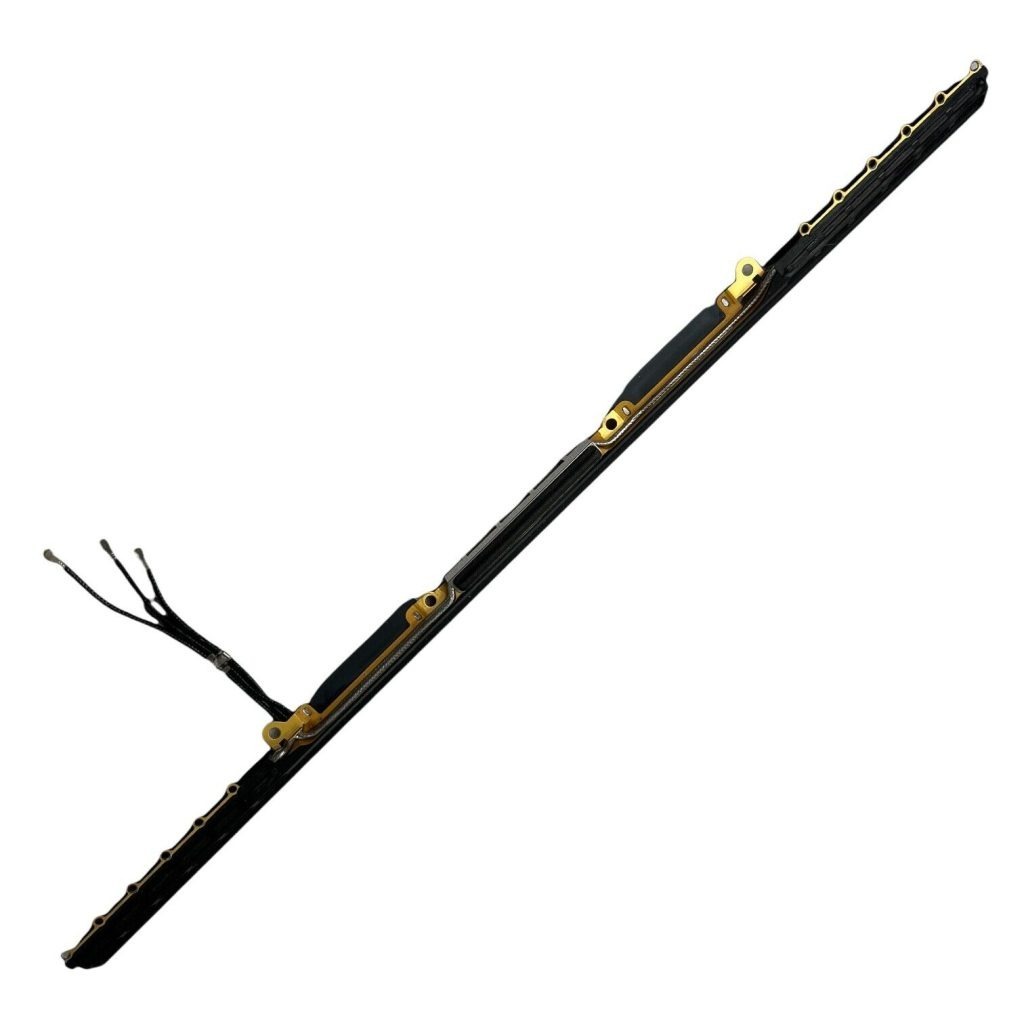
Detach Wi-Fi Vent Module
- Using a P1 screwdriver, remove all screws securing the Wi-Fi vent module to the top case.

Disconnect Internal Cables
- Use a plastic spudger to disconnect all visible cables around the logic board.
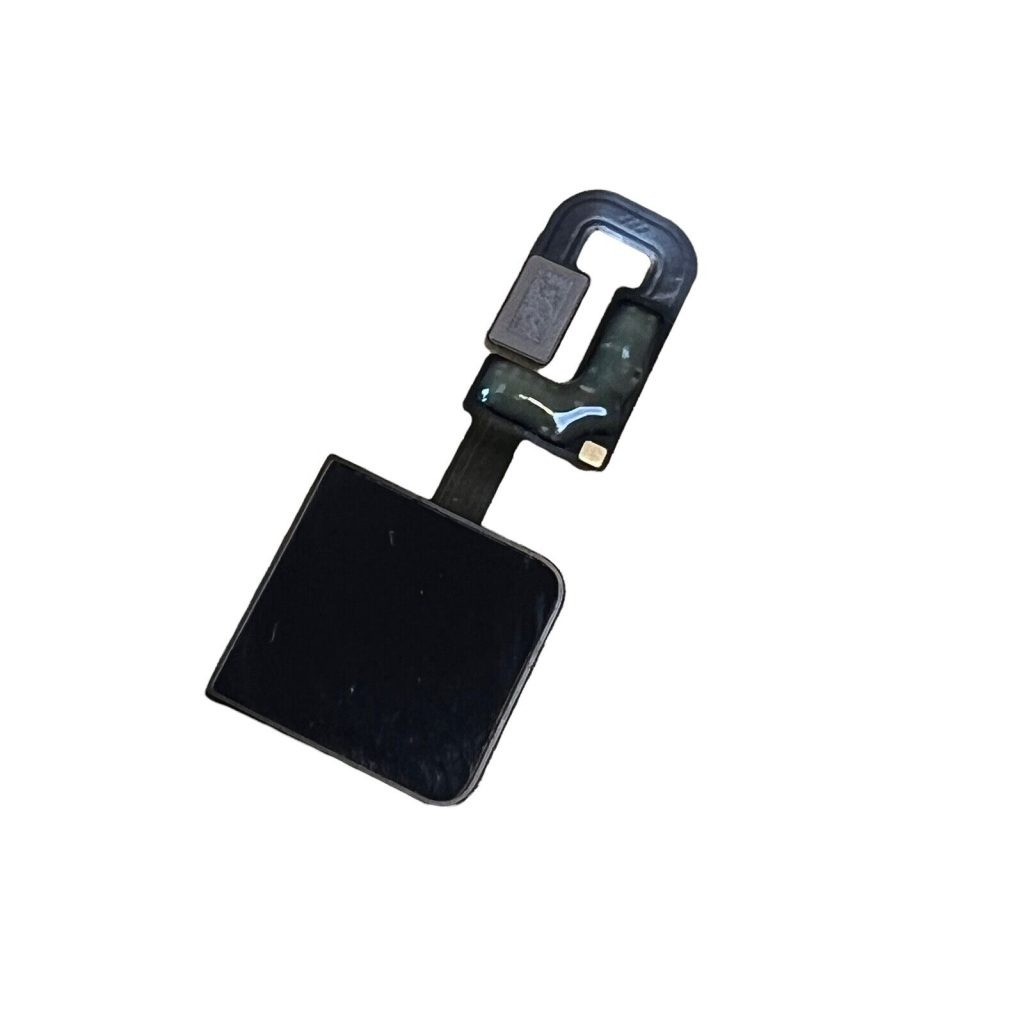
- Ensure to unplug the Wi-Fi antenna cables and the touch ID cable under the headphone jack.

-
A1989 Original Touch ID Board 661-10376 for 2018-2019 MacBook Pro 13″
-11% $43.66Was:$49.01
Double Check All Connections
- Go counter-clockwise to ensure all connections are unplugged: touch ID, headphone jack, USB-C ports, both speakers, keyboard, trackpad, battery flex cable, antenna cables, fan cable, microphone array, LCD sensor, and LCD cable.

Remove Logic Board Screws
- Use a T5 screwdriver to remove screws securing the logic board.
- Do not forget the hidden screw near the Wi-Fi vent module.

Remove Trackpad Screws
- Remove eight T5 screws securing the trackpad on both sides.
- Remove two additional T5 screws on the bottom.

Remove Components
- Start with the headphone jack, then remove the Wi-Fi vent module.
- Carefully lift out the logic board and set it aside.


Remove Fans and Type-C Ports
- Use a T3 screwdriver to remove screws securing the cooling fans.
- Switch to T5 and remove two screws for each Type-C port.

-
A1989 Aftermarket Cooling Fan Left and Right for Apple MacBook Pro 13-inch (2018-2019)
-12% $42.99Was:$49.01 -
A1989 Aftermarket USB-C Board for 2018-2019 MacBook Pro 13″
-14% $30.99Was:$36.01


Remove Touch ID Sensor
- Remove four outer silver T3 screws and two inner black T3 screws.
- Carefully remove the bracket and touch ID assembly.

-
A1989 Original Touch ID Board 661-10376 for 2018-2019 MacBook Pro 13″
-11% $43.66Was:$49.01
Remove Trackpad
- Open the unit slightly and fish the trackpad cable through the slot.
- Lift the trackpad out with the cable attached.

-
A1989 Original Trackpad Silver 821-01701-A for 2018-2019 MacBook Pro 13″
-63% $15.77Was:$43.00

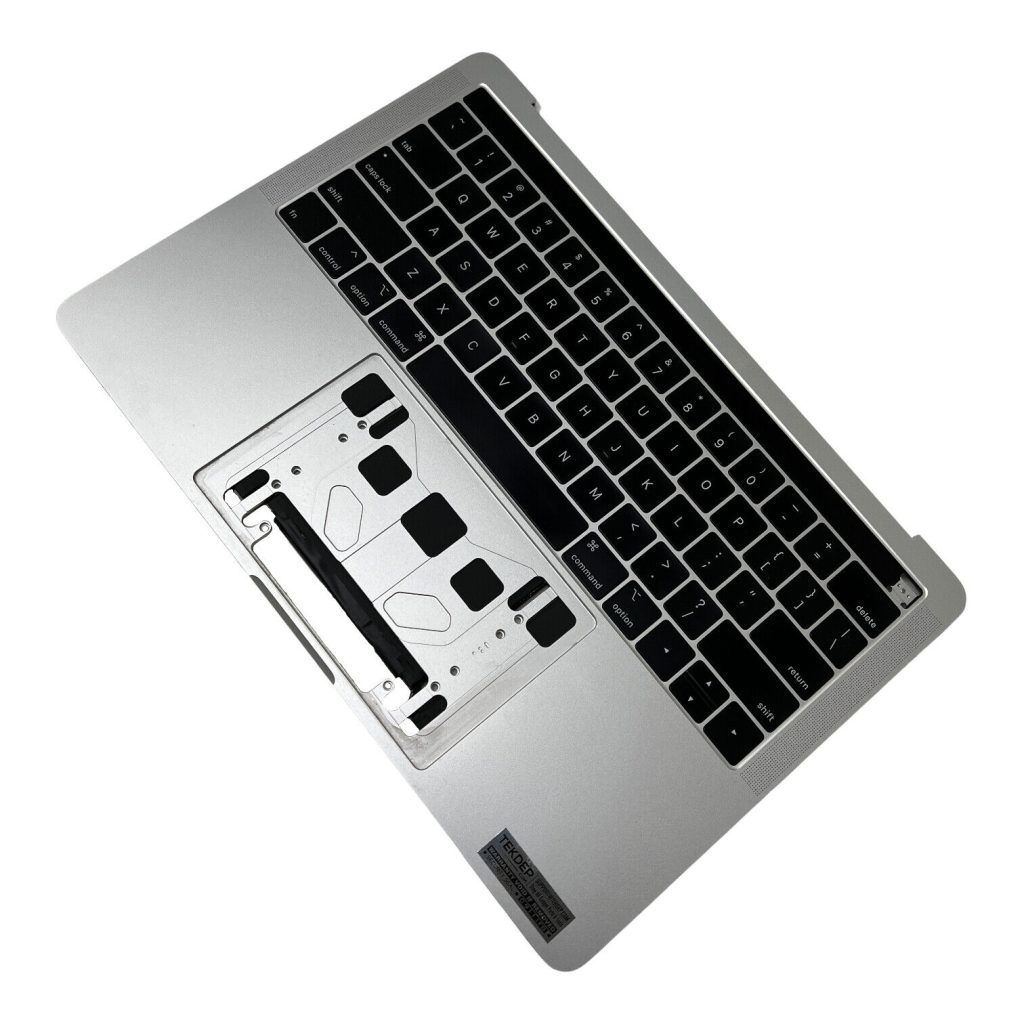
Remove Old Top Case
- Open the MacBook fully and lift out the damaged top case.
- The keyboard is visibly worn, confirming the need for replacement.

Install Cooling Fans
- Place the cooling fans and ensure flex cables are fully seated.
- Close the retention bar and tape it down securely.

Install Type-C Ports
- Secure both Type-C ports using their respective T5 screws.

Install Touch ID Sensor
- Align the black side of the bracket facing up and screw in using T3 screws.
- Check the tactile feel of the button to ensure proper installation.

Reinstall Headphone Jack
- Reinstall the headphone jack using T3 screws.


Install Trackpad
- Feed the trackpad cable through the opening.
- Line up the bottom holes and install the two shortest T5 screws first.
- Finish tightening the rest to secure the trackpad.

Reinstall Logic Board
- Carefully place the logic board back, ensuring all cables remain visible.
- Align and secure using T5 screws.

Install Bottom Cover
- Align and click the bottom cover into place.
- Use Pentalobe screws to secure it, remembering to place the long screws at the top.

Test the Device
- Flip the unit over and attempt to power it on.
- If battery is low, connect to power and confirm macOS boots properly.

CONCLUSION:
Replacing the keyboard on a MacBook Pro A1989 requires a full teardown of the internal components and careful reassembly. By following each step methodically and using the right tools, you can successfully replace the top case and keyboard. Be sure to double-check all connections during reassembly to avoid post-repair issues. This guide provides the full roadmap from start to finish.


VIDEO TUTORIAL:
Looking for a more in-depth tutorial? Check out our complete teardown video for a detailed step-by-step walkthrough.
MAIL-IN REPAIR SERVICE:
We offer professional keyboard replacement services. If you’re unsure about doing this repair yourself, send your device to our expert technicians for fast and reliable repair.
SHOP PARTS:

2019 MacBook Pro A1989
Parts & Tools for 2019 13″ (Touch Bar) – MV962LL/A – MacBookPro15,2 – A1989 – 3358
SHOP TOOLS:
Using precision tools ensures a safe and efficient repair. Always use the right tools to prevent damage to delicate components. Investing in quality tools leads to more successful and safer repairs.

REPAIR TOOLS
Discover an extensive range of tools, including screwdrivers, tweezers, pry tools, and more, essential for all your repair and maintenance needs.
HAVE QUESTIONS?
We’re here to help! Contact us:
- Phone: 818-456-4479
- Email: support@tekdep.com