

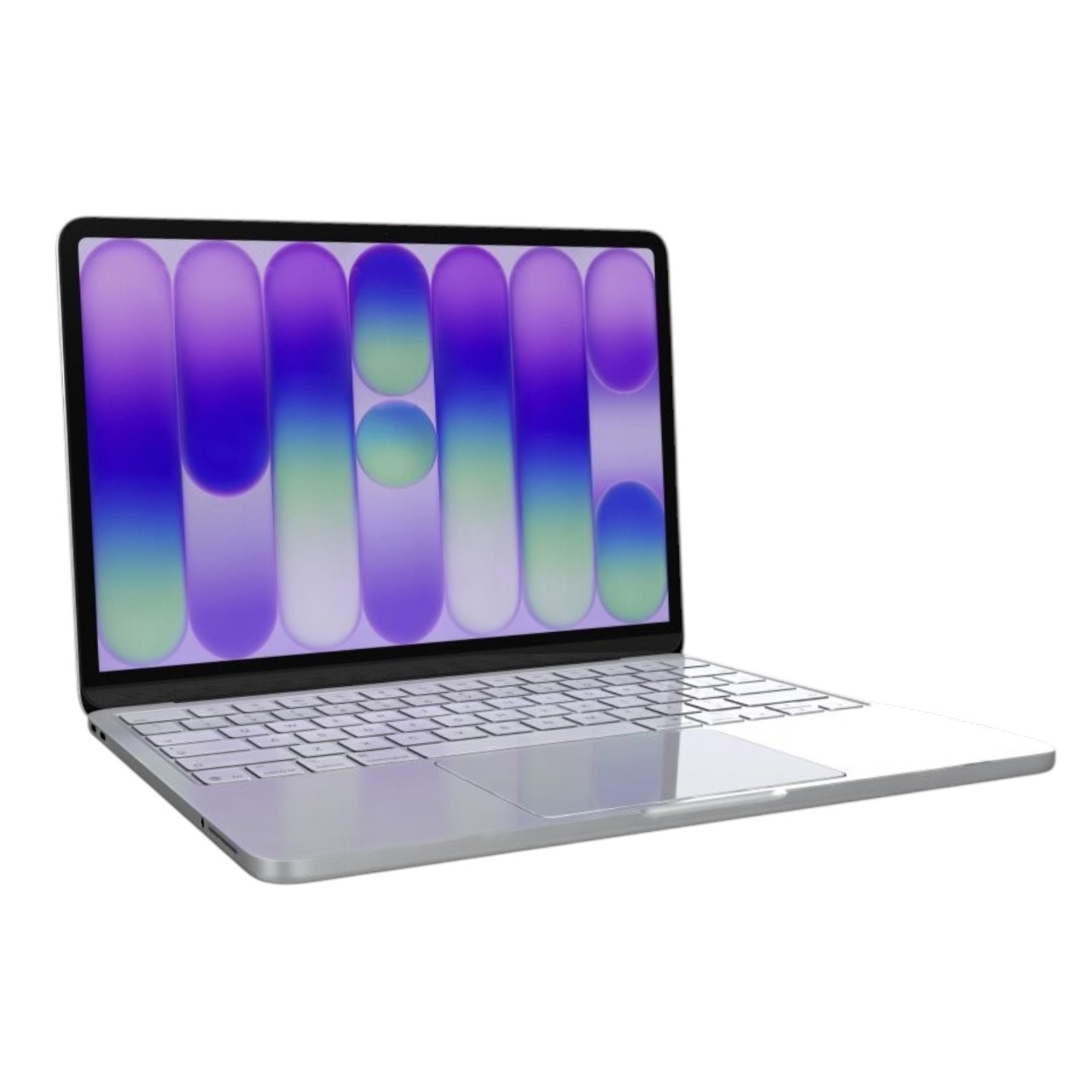


























15″ MacBook Air M2 Midnight Blue A2941 (2023) Full Teardown & Disassembly Repair Guide
OVERVIEW:
In this detailed teardown, we explore the internal components of the MacBook Air 15-inch (2023) M2 Model A2941 in Midnight Blue. This guide provides a comprehensive step-by-step disassembly process, highlighting the tools required and the intricacies involved. Whether you’re a technician or an enthusiast, this walkthrough aims to assist you in understanding the device’s architecture and the procedures to safely dismantle it. Please ensure you have the necessary tools and take appropriate precautions to prevent damage during the teardown. Let’s delve into the disassembly process.
See the official Apple specs for this model
REPAIR TIME & SKILL LEVEL:
This repair is estimated to take about 3–4 HOURS to complete and is of ADVANCED difficulty, requiring expert-level disassembly skills, including handling glued components, delicate flex cables, and multiple screw types.

STEPS:
Tools You Need
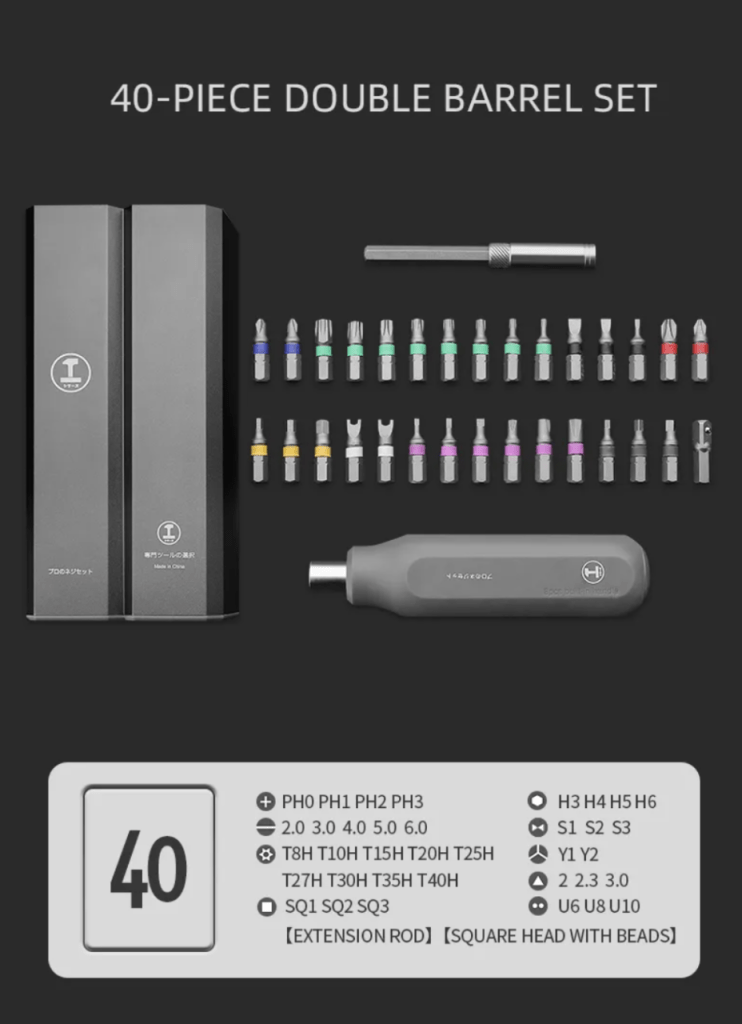
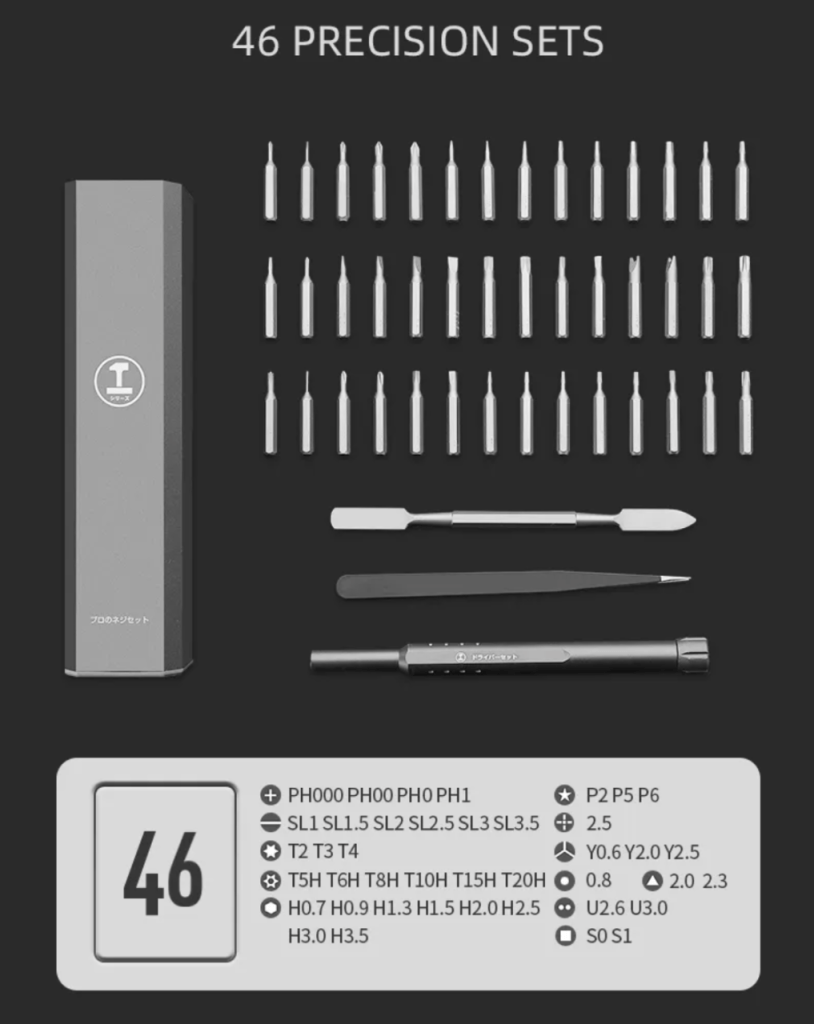
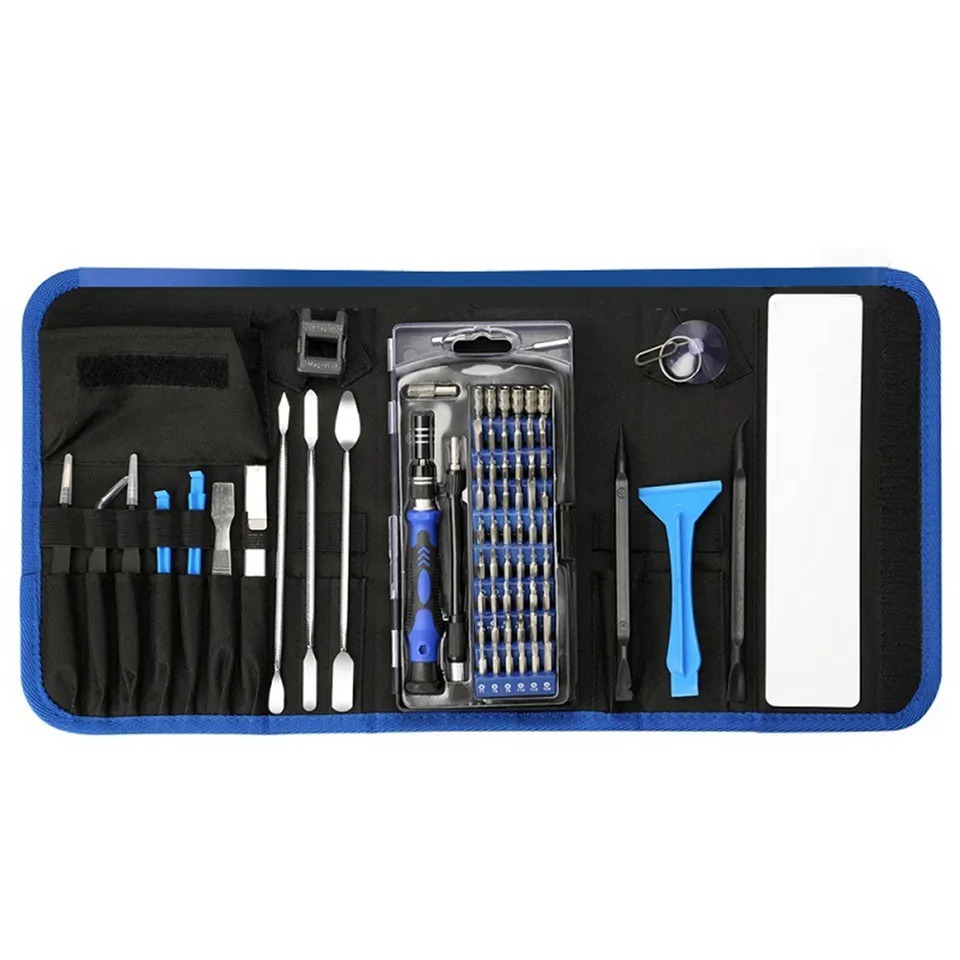
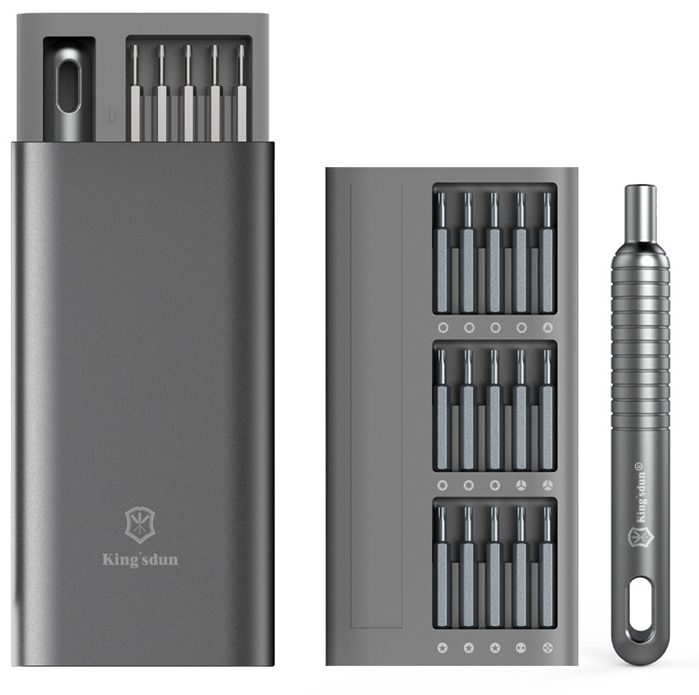
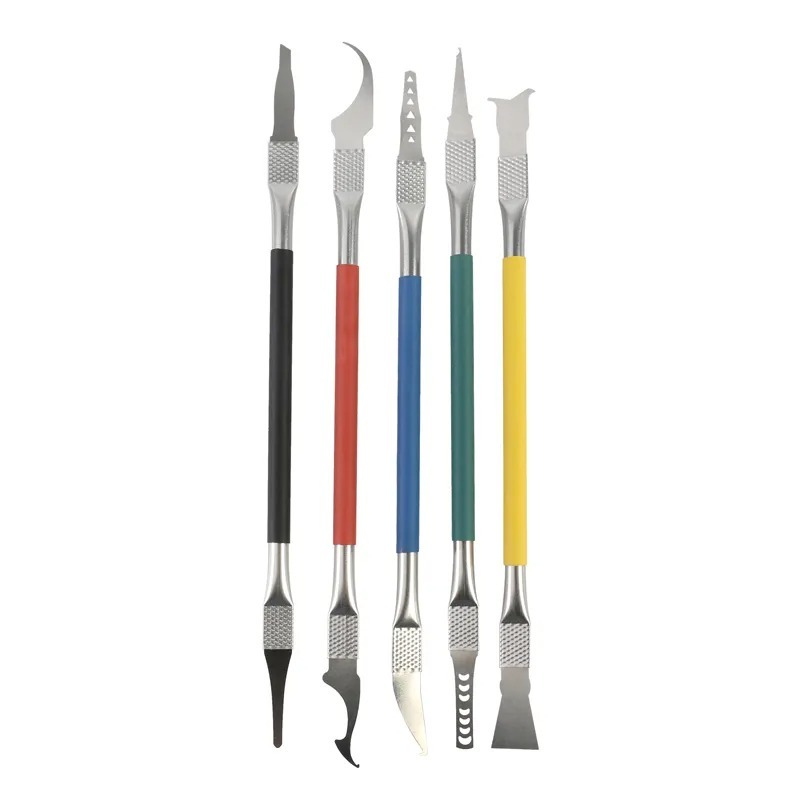
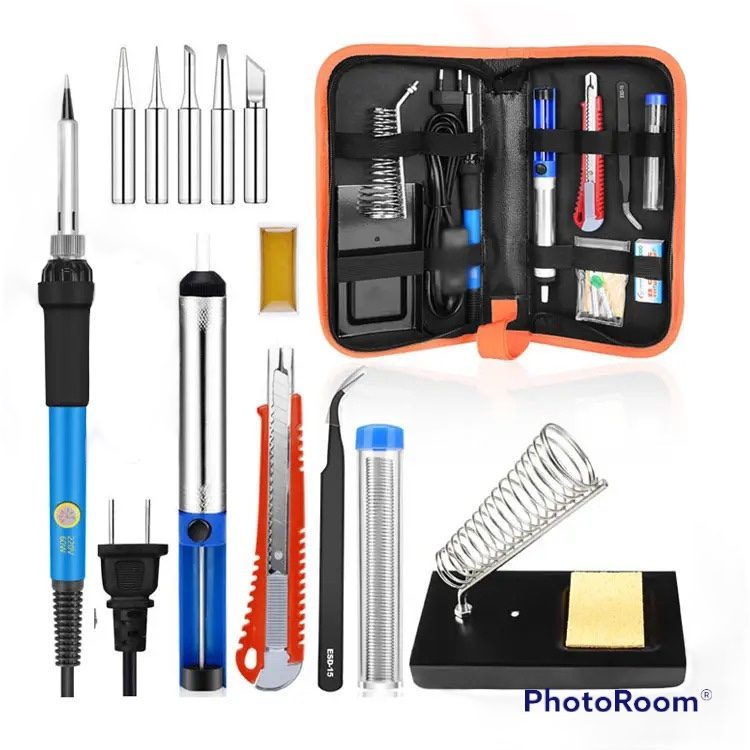
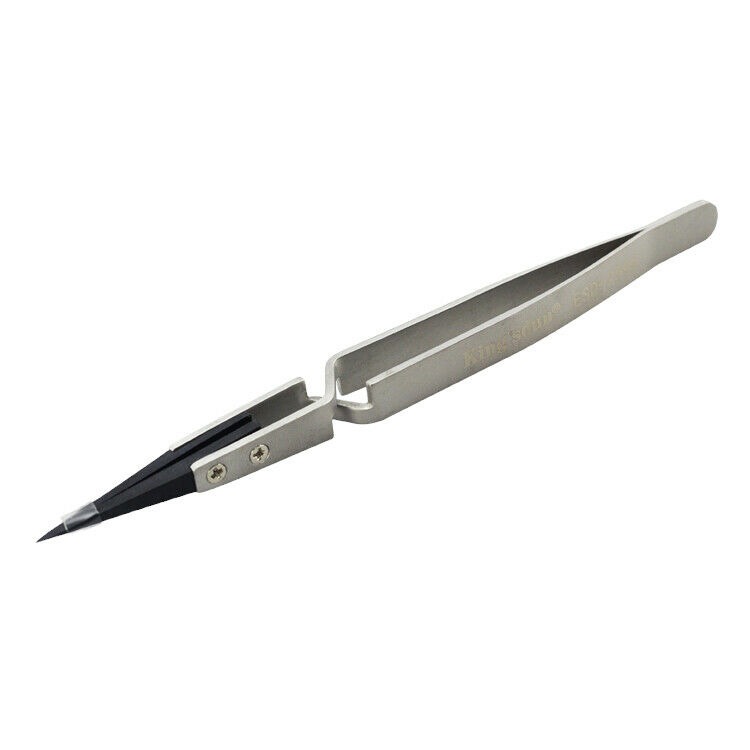
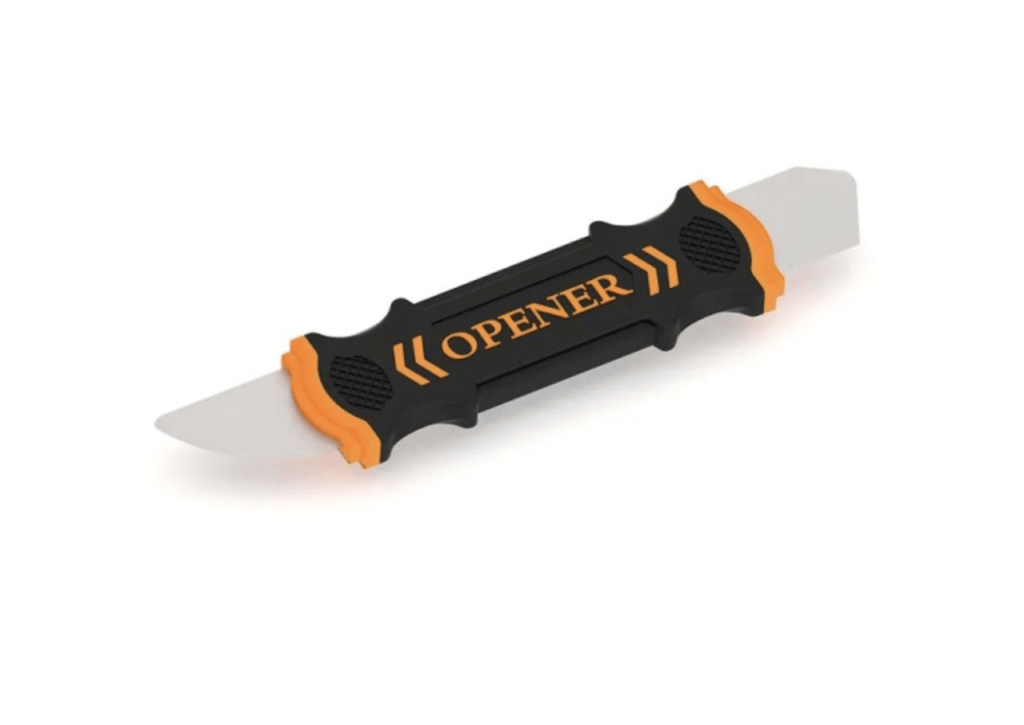
For this repair, you will need a suction cup, a T3 Torx screwdriver, a T5 Torx screwdriver, a T8 Torx screwdriver, a plastic spudger, tweezers, and a magnet for screw removal.
-
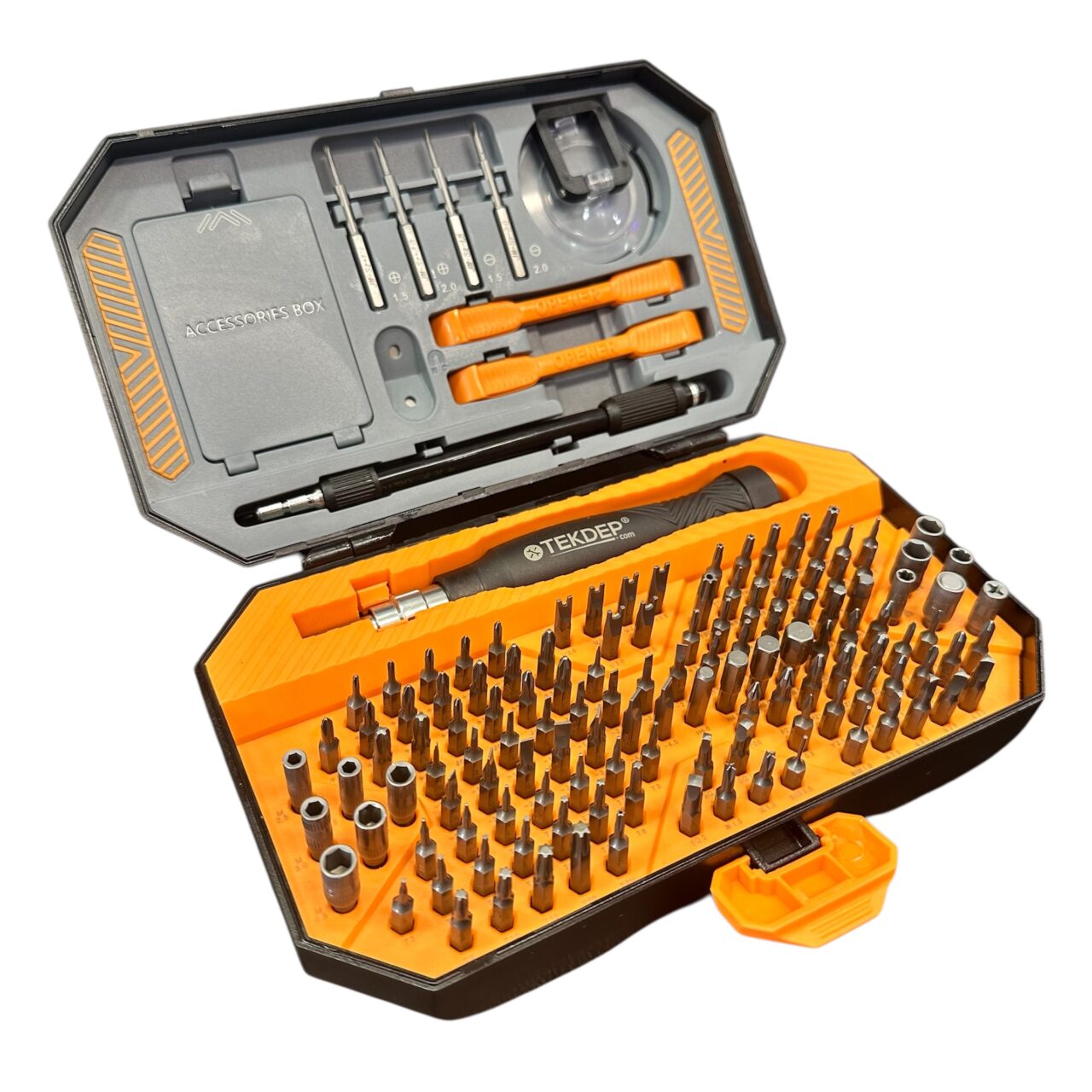
TEKDEP Professional Tool Set 145-in-1 For Electronics, iPhone, Laptop, PC Repairs
-24% $45.00Was:$59.00 -

122 in 1 Tool Kit Bit Screwdriver Set
$59.99 -
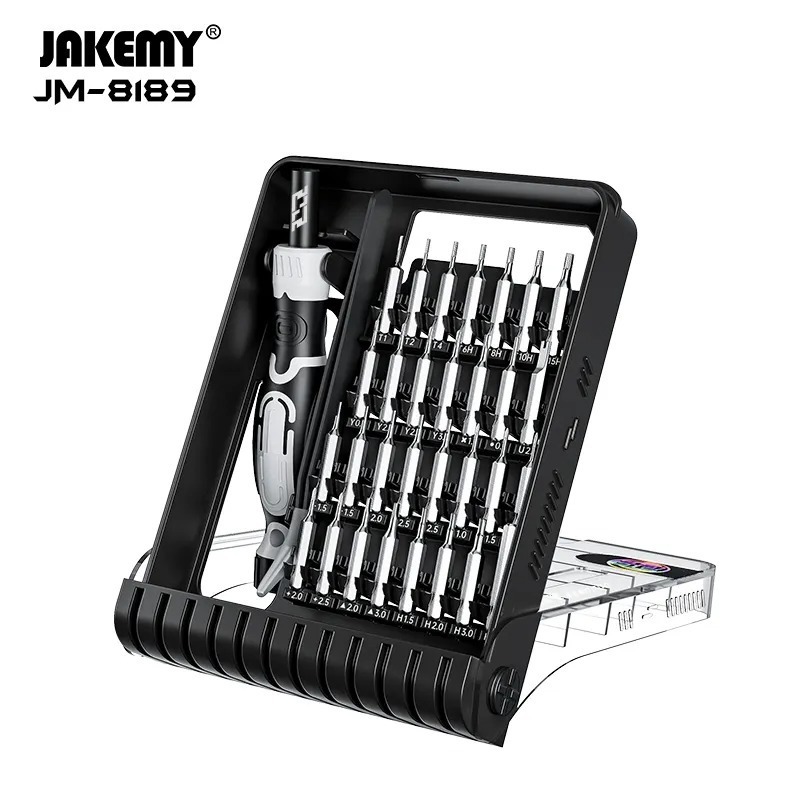
32 in 1 Steel Bit Precision Pocket Screwdriver Tool Set with Case
$25.99 -

2X Suction Cup Repair Opening Tool For Phone Computer Tablet Heavy Duty Screen
$19.99 -
6 in 1 Steel Bit Precision Magnetic Screwdriver Tool Set with Case for Phone PC Electronics
-26% $23.66Was:$32.00
Remove the Bottom Case
- Unfasten the four pentalobe screws along the perimeter of the unit.
- Use a suction cup near the trackpad to lift the bottom case, releasing the strong retention system.
- Slide the case towards the trackpad to disengage the four retention points near the LCD and hinges.

-
MacBook Air 15-Inch M2 2023 Space Gray Bottom Case A+ A2941
-50% $28.77Was:$57.00 -
MacBook Air 15-Inch M2 2023 Space Gray Bottom Case Screws set of 4 A2941
-61% $13.77Was:$35.00


Disconnect the Trackpad Flex Cable
- Lift the tape covering the screws on both sides of the retention bar.
- Use a T3 screwdriver to unfasten the screws and remove the retention bar.
- Safely unplug and move the long trackpad cable out of the way.

Disconnect the Battery Connector
- Repeat the same process as the trackpad cable to unplug the battery connector from the main board.

Prepare the Main Board for Removal
- Use a T3 screwdriver to remove the screws holding the unit in place.
- Switch to a T5 screwdriver to remove additional screws; a magnet may be required to extract them.
- Unfasten and remove screws and retention bars securing various connectors to the main board.

Disconnect Ribbon Cables and Wi-Fi Antennas
- Use a pry tool to disconnect and lift the ribbon cables away from their connection points.
- Carefully disconnect the Wi-Fi antennas using tweezers, taking care not to damage them.

Remove MagSafe 3 and Type-C Connectors
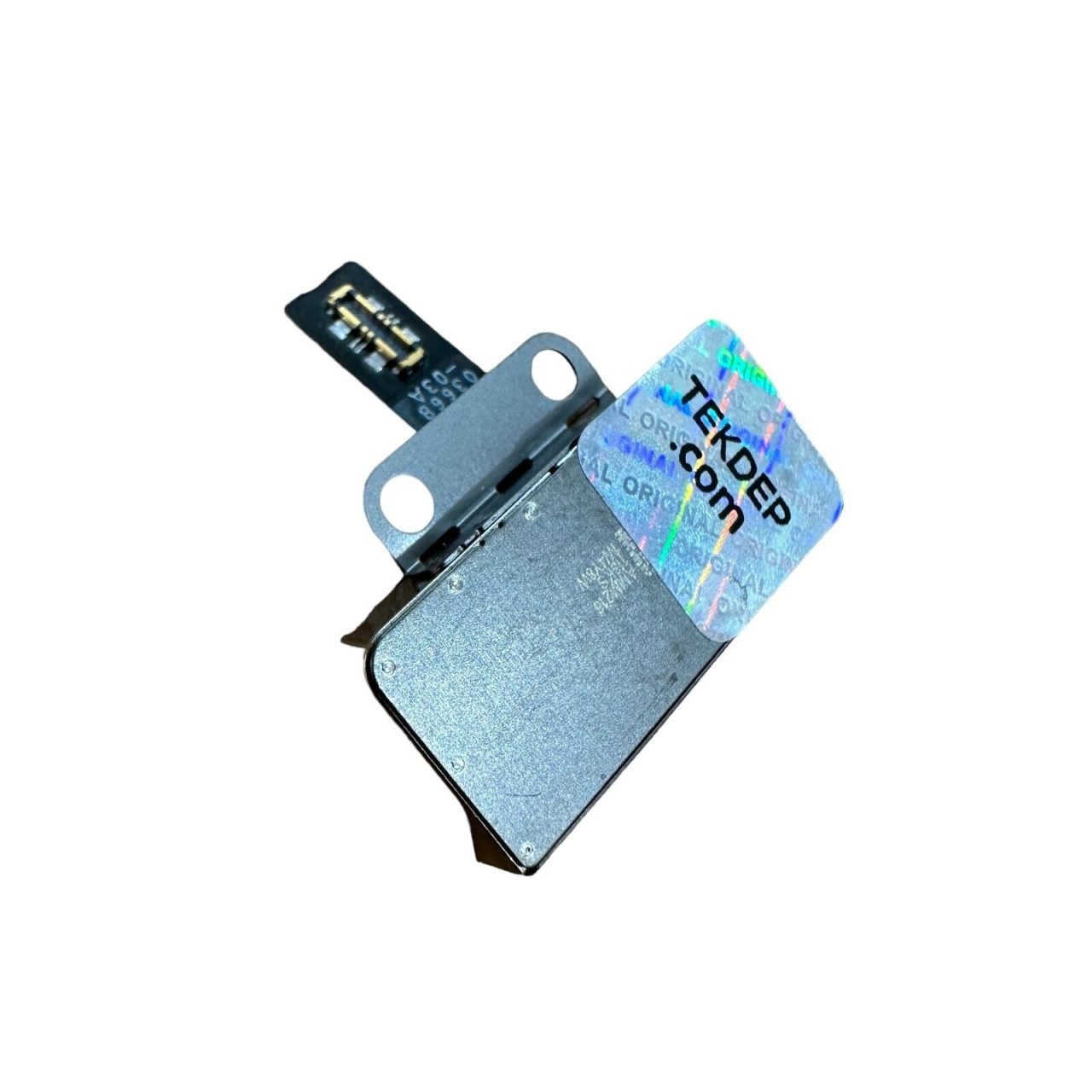
- The MagSafe 3 connector is held in by two T5 screws.
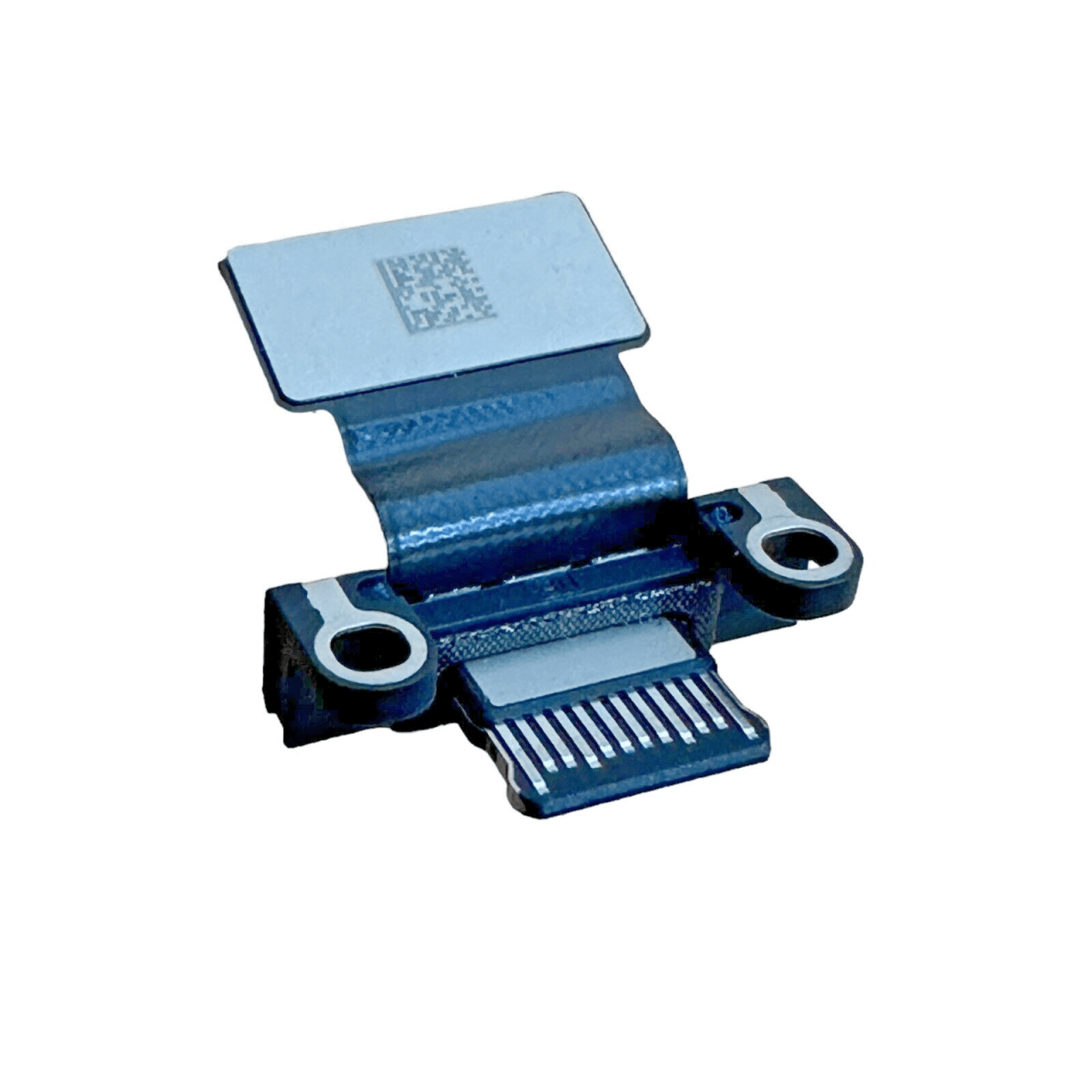
- Each Type-C connector is secured with two T3 screws.

-
OEM 15 Inch Apple MacBook Air 2023 M2 Space Gray MagSafe 3 Connector Board A2941
-44% $16.77Was:$30.00 -
OEM 15 Inch Apple MacBook Air 2023 M2 Space Gray USB Type-C Connector A2941
-15% $39.99Was:$47.00
Remove AUX Port and Bottom Case Retention Screws
- The 3.5mm AUX port is held in by two T3 screws.
- Remove the four bottom case retention screws at the top of the unit, which hold the Wi-Fi assembly.

Remove Hinge Covers and Additional Screws
- Unfasten two T3 screws on each side to remove the hinge covers.
- Pull the hinge covers away from the LCD towards the trackpad and lift them up.
- Under the hinge covers, remove two additional T5 screws holding in both sets of speakers.


Remove Hinge Screws and LCD Connection Points
- Using a T8 Torx head, unfasten the four hinge screws on both sides of the unit.
- At the middle top of the unit, remove all four black and silver screws with a T3 screwdriver to disconnect the LCD.

Remove Speakers and Wi-Fi Assembly
- Gently lift the speakers out of the unit, ensuring all wires and screws are disconnected.
- Repeat the same steps to remove the Wi-Fi assembly at the top of the unit.

Disconnect Daughter Board Connector
- On the left-hand side of the main board, remove a T3 screw and the panel covering the daughter board connector.
- Disconnect the daughter board connector from the main board.

Remove Additional Screws and Disconnect AUX Board Ribbon Cable
- After removing the speakers, locate and remove two T5 screws holding in the motherboard.
- Peel away the cover on the LCD connector to expose two more T3 screws; remove them and unfasten the retention bar.
- Unplug the three connections found below.
- Lift up the tape cover on the left-hand side of the main board to reveal another connection point.
- Unfasten the T3 screw, dislodge the cover, and disconnect the AUX board ribbon cable from the main board.

Remove Main Board and Free Cables
- The main board is now held in only by glue under the ribbon cables on the right side.
- Use a pry tool to carefully lift the cables off the case and out of the port slots.
- Free the sensor cable glued down to the case below the bottom Type-C connector.

Remove AUX Board and Disconnect Daughter Board Connections
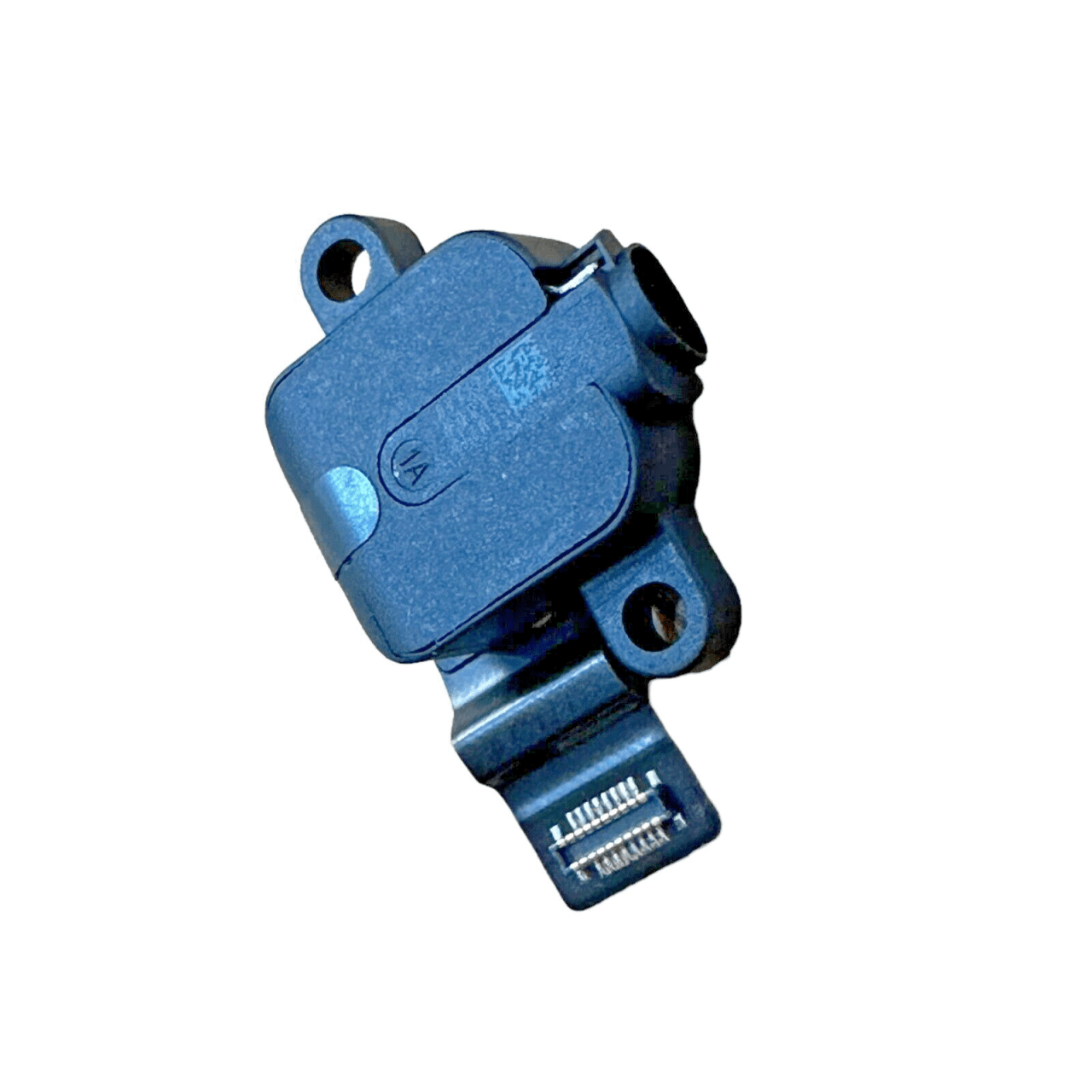
- The AUX board is glued into the top case; carefully dislodge it.
- Disconnect all connections to the daughter board: battery cable, keyboard backlighting, and Touch ID sensor (held in with a T3 screw and retention bar).

-
Original AUX Port Board for 15″ MacBook Air M2 A2941 2023 Space Gray
-23% $37.66Was:$49.01
Remove Daughter Board and Touch ID Sensor
- Unfasten a T5 screw to remove the daughter board and break the glue loose underneath.
- Use a T3 screwdriver to remove the remaining four screws holding the Touch ID sensor in place.

Remove Trackpad
- Remove 18 T5 screws holding the trackpad in place, including the center two on both sides covered by tape.
- Lift the top case up and untangle the cable to remove the trackpad.
- Lift up on the retention bar and gently pull the trackpad flex cable out; note the small amount of glue holding it in place.


Separate the Top Case and LCD
- Open the unit until the hinges are free from the bottom case.
- Lift the top case out and away from the LCD.

-
MacBook Air 15-Inch M2 Space Gray LCD Assembly 2023 Model A2941
-20% $476.99Was:$597.00

Remove Touch ID Sensor
- Carefully remove the Touch ID sensor from the top case, taking care not to damage the brittle flex cable.

CONCLUSION:
This comprehensive teardown of the MacBook Air 15-inch (2023) M2 Model A2941 reveals the intricate design and assembly of Apple’s latest laptop. While the process is complex and requires advanced technical skills, understanding each component’s placement and connection is crucial for effective repairs or part replacements. Always proceed with caution and ensure you’re equipped with the appropriate tools and knowledge before attempting such a teardown. For those less experienced, seeking professional assistance is recommended to avoid potential damage. Stay tuned for more detailed guides and insights into the latest tech devices.


VIDEO TUTORIAL:
Looking for a more in-depth tutorial? Check out our complete teardown video for a detailed step-by-step walkthrough.
MAIL-IN REPAIR SERVICE:
We offer professional screen replacement services. If you’re unsure about doing this repair yourself, send your device to our expert technicians for fast and reliable repair.
SHOP PARTS:

2023 M2 MacBook Air 15" A2941
SHOP TOOLS:
Using precision tools ensures a safe and efficient repair. Always use the right tools to prevent damage to delicate components. Investing in quality tools can make the repair process smoother and more successful.

REPAIR TOOLS
Discover an extensive range of tools, including screwdrivers, tweezers, pry tools, and more, essential for all your repair and maintenance needs.
HAVE QUESTIONS?
We’re here to help! Contact us:
- Phone: 818-456-4479
- Email: [email protected]



