


































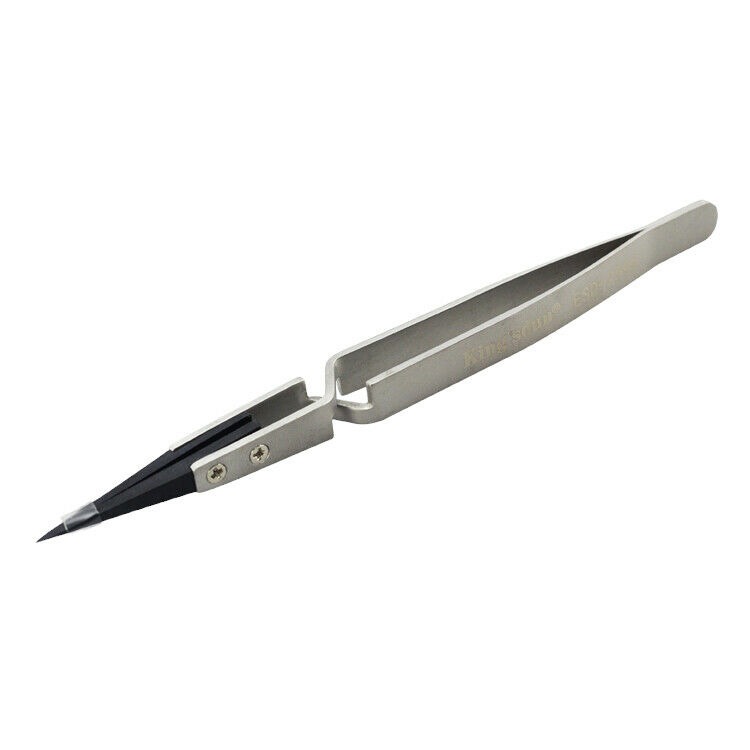







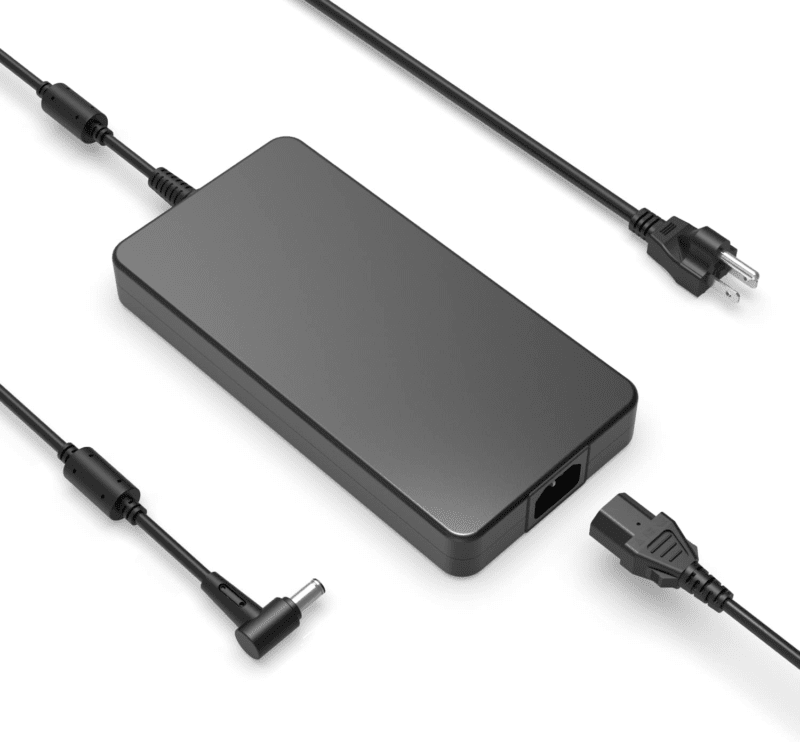
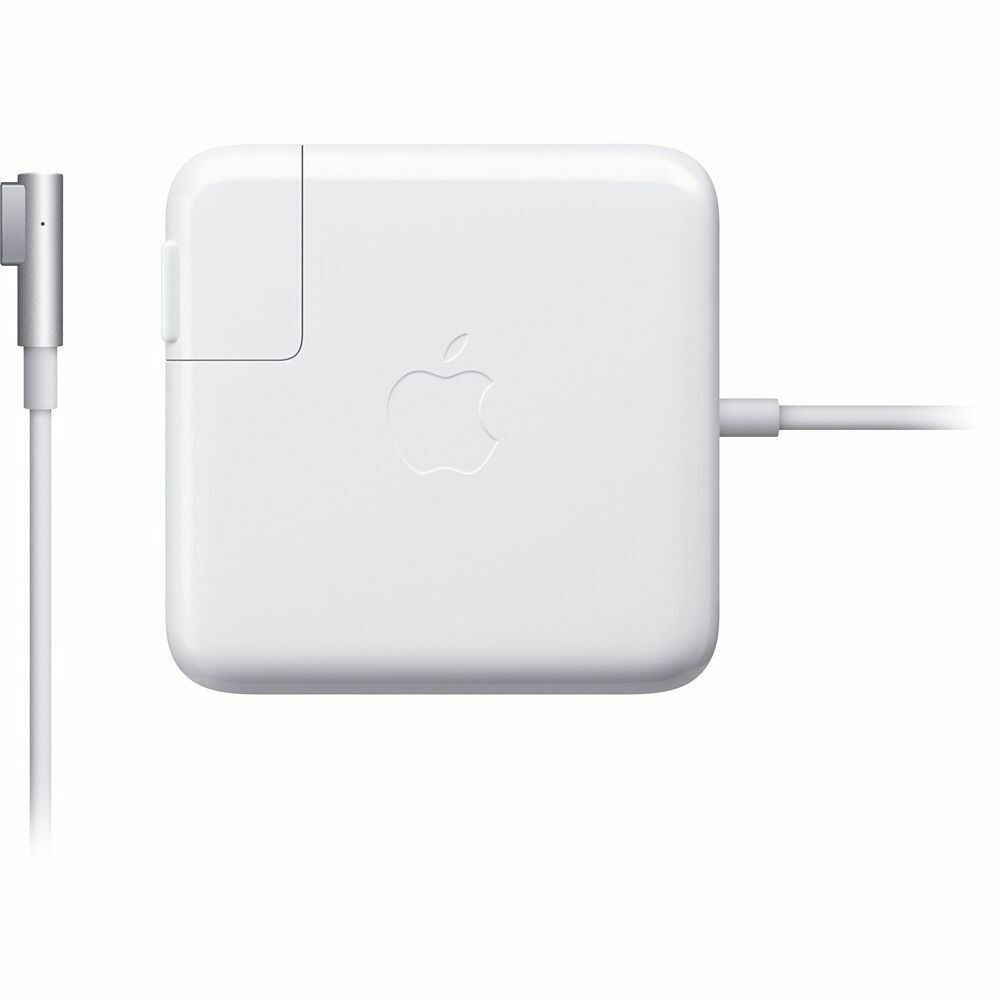
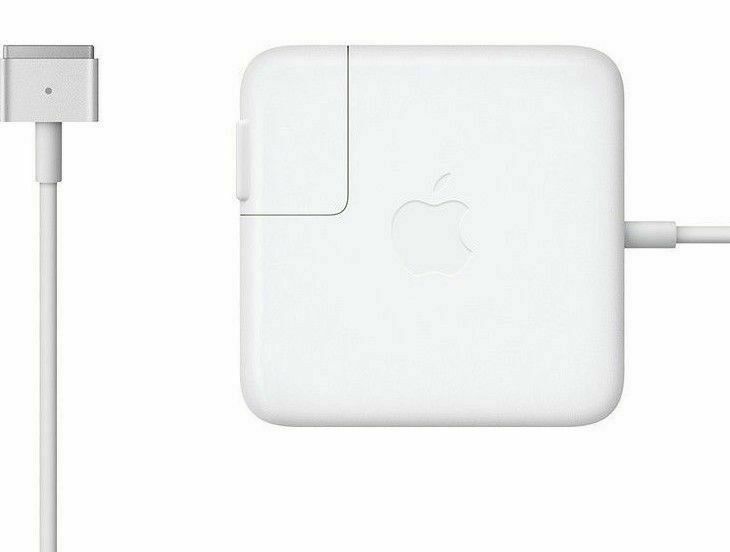
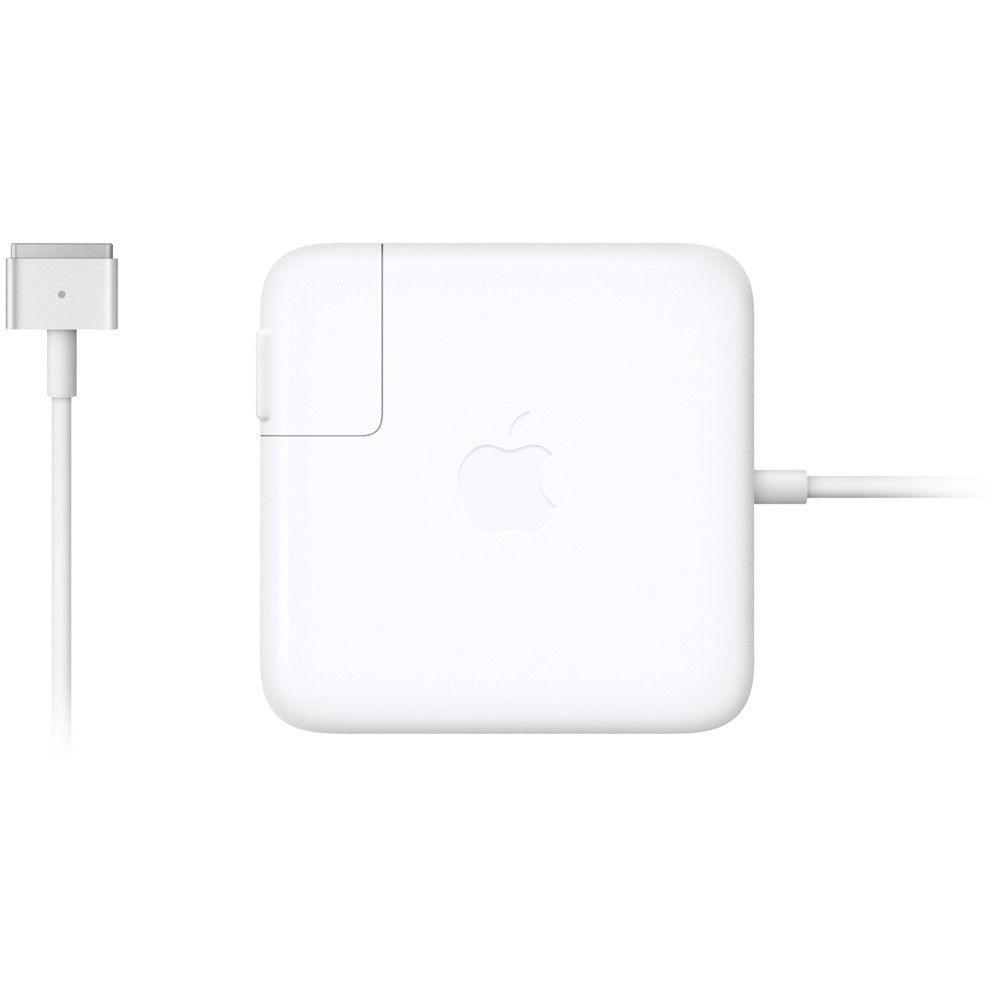


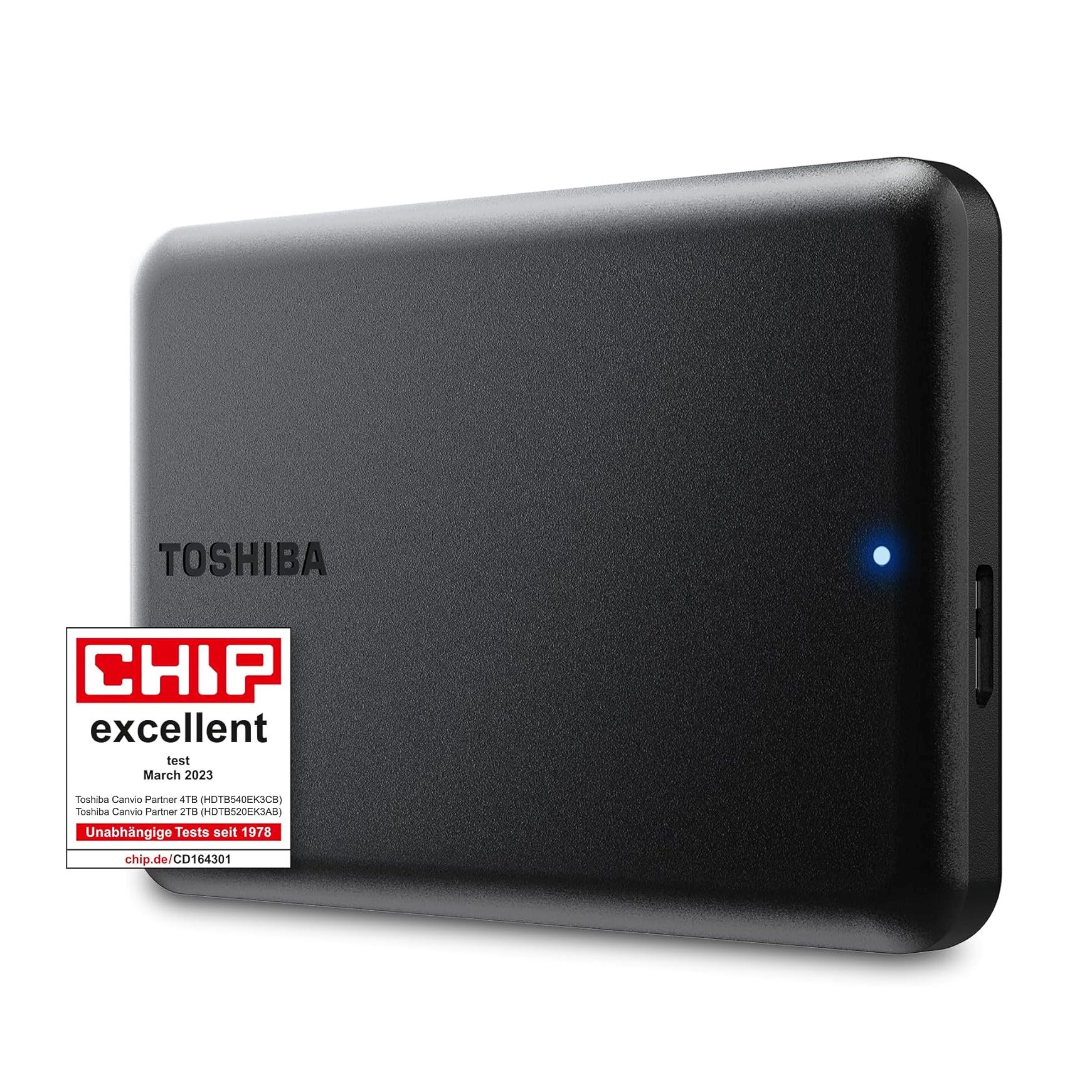

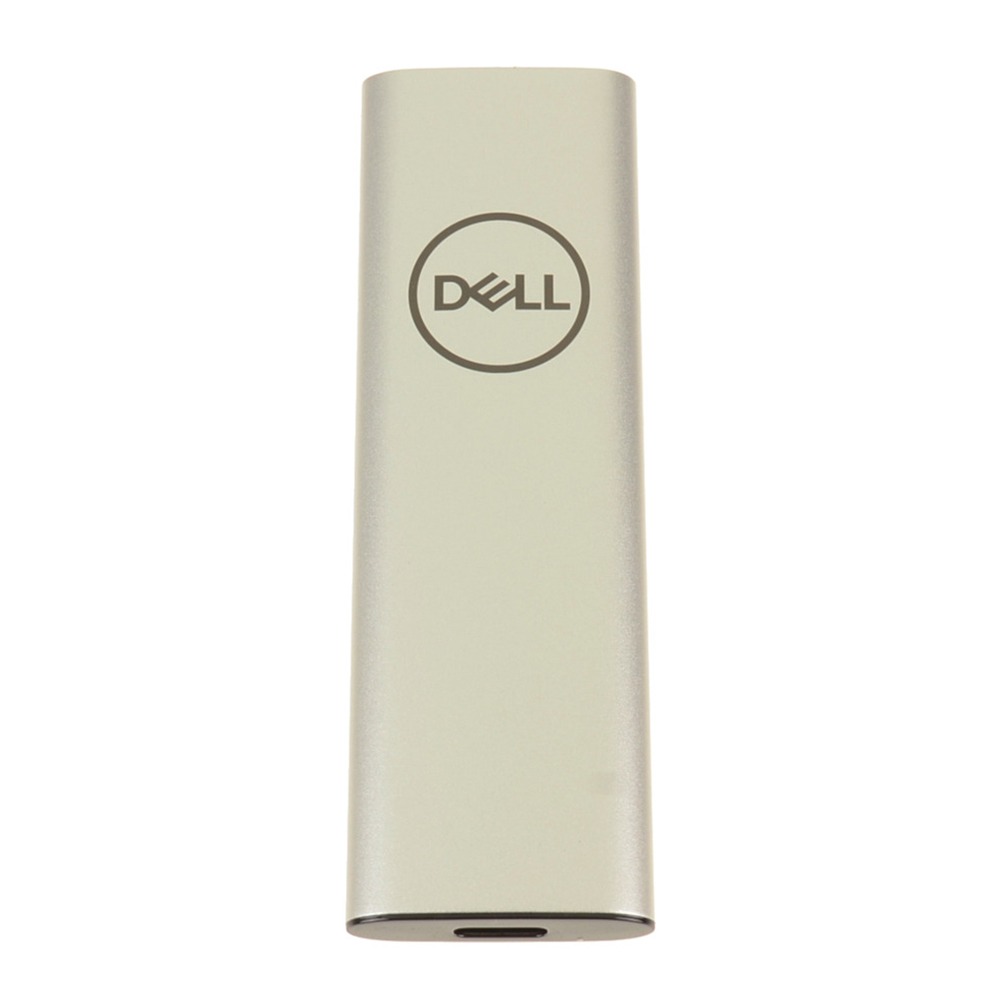



Model: 2020 MacBook Pro 13-inch (A2289) | Level: Intermediate | Tools: Precision screwdriver set, plastic pry tool, wide metal pry bar, suction cup, 90%+ isopropyl alcohol. This guide will walk you through an A2289 battery replacement step by step.
An A2289 battery replacement requires temporarily removing the trackpad so you can soften factory adhesive without exposing sensitive electronics to pooling solvent. Unlike older unibody chassis, you do not need to pull the entire logic board to swap out the power pack
If your 13-inch MacBook Pro is losing charge rapidly, shutting down at random percentage drops, or warning you with a “Service Recommended” status, installing fresh cells restores all-day battery life.
Not sure your battery needs replacing? Apple’s guide to the Service Recommended battery status explains what the warning means and how to check your battery health.
This tutorial walks you through the entire disassembly, adhesive prying technique, and reassembly procedure. Let’s get started.
How to Complete an A2289 Battery Replacement (Quick Overview)
- First, remove the six lowercase screws and release the internal side latches with a suction cup.
- Next, disconnect the battery flex cables, remove the pancake screw, and discharge residual power.
- Then, unthread the trackpad perimeter screws and safely filter the flex cable through the frame.
- Afterward, drizzle isopropyl alcohol around the battery cells to soften the stubborn adhesive tape.
- Subsequently, work the wide pry tool back and forth to separate each cell from the metal housing.
- After that, line up the new battery assembly and secure the mounting screws before peeling the adhesive liner.
- Finally, reinstall the trackpad, restore battery connections, snap the bottom cover on, and run a power test.
🛠️ Required Tools & Preparation for an A2289 Battery Replacement
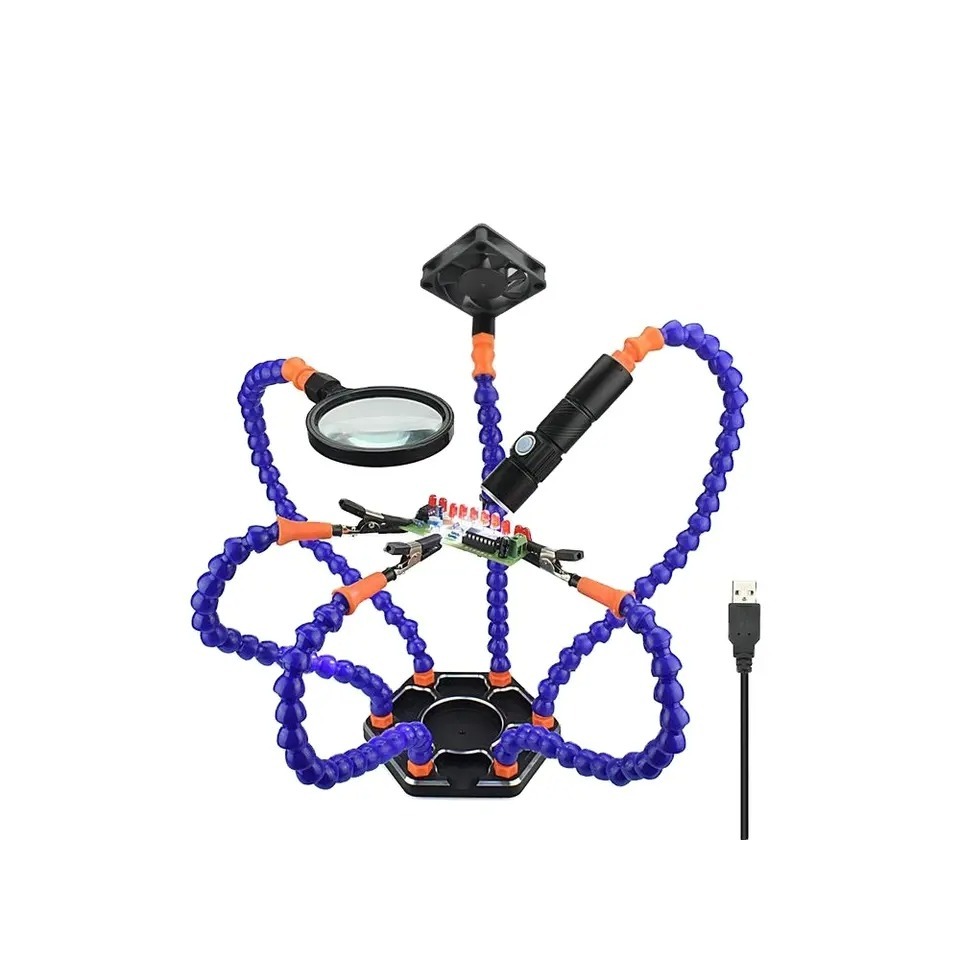
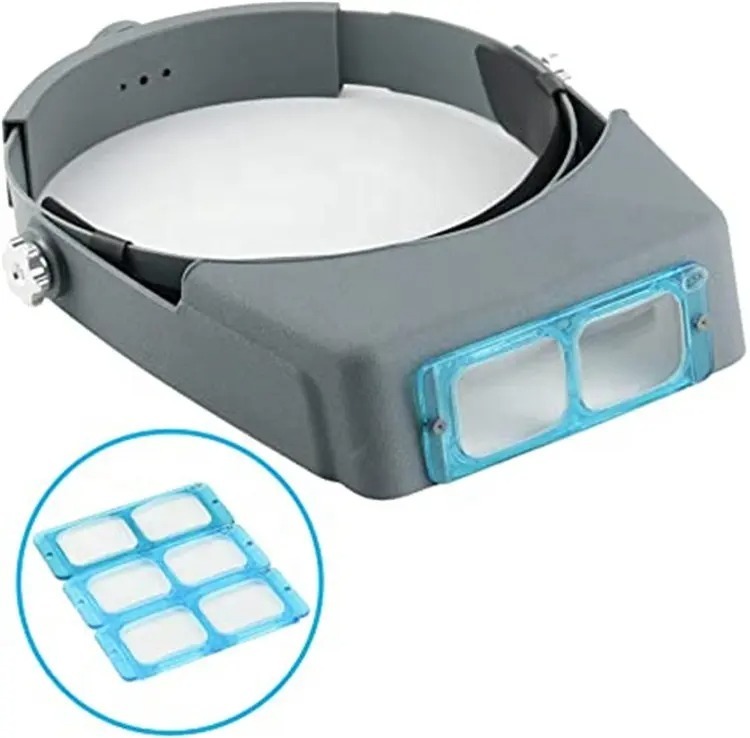
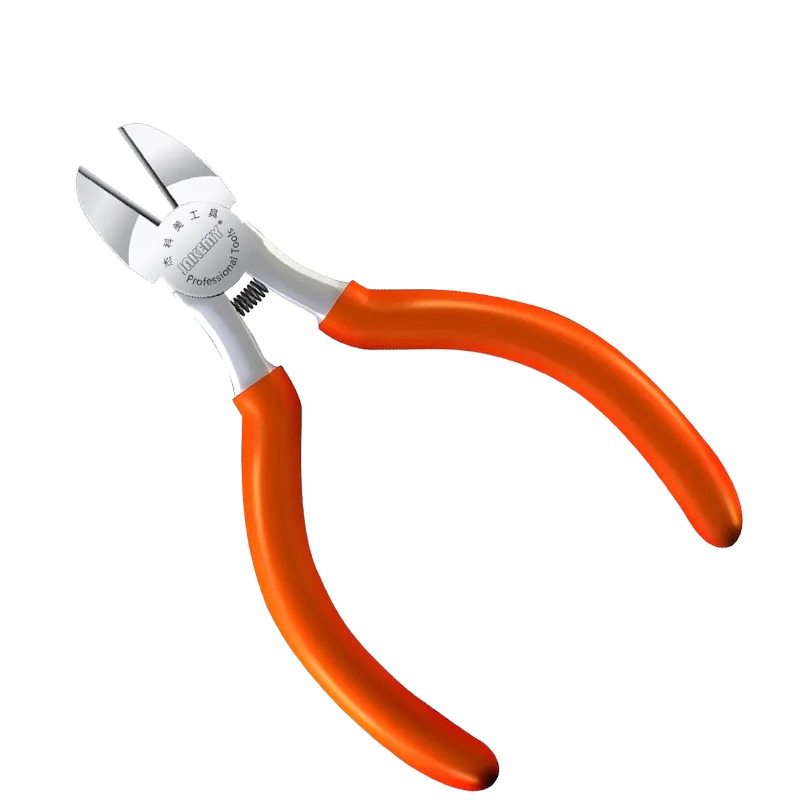
An A2289 battery replacement requires precision drivers, safe prying implements, and high-purity solvent; therefore, power down the laptop completely before unfastening the case.
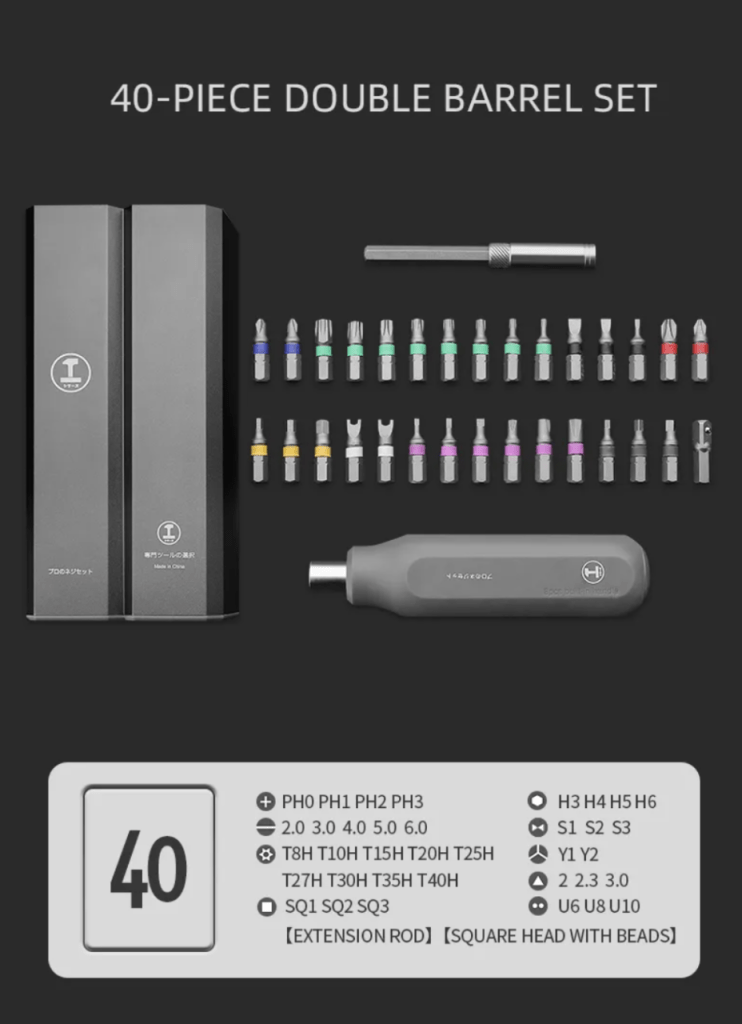
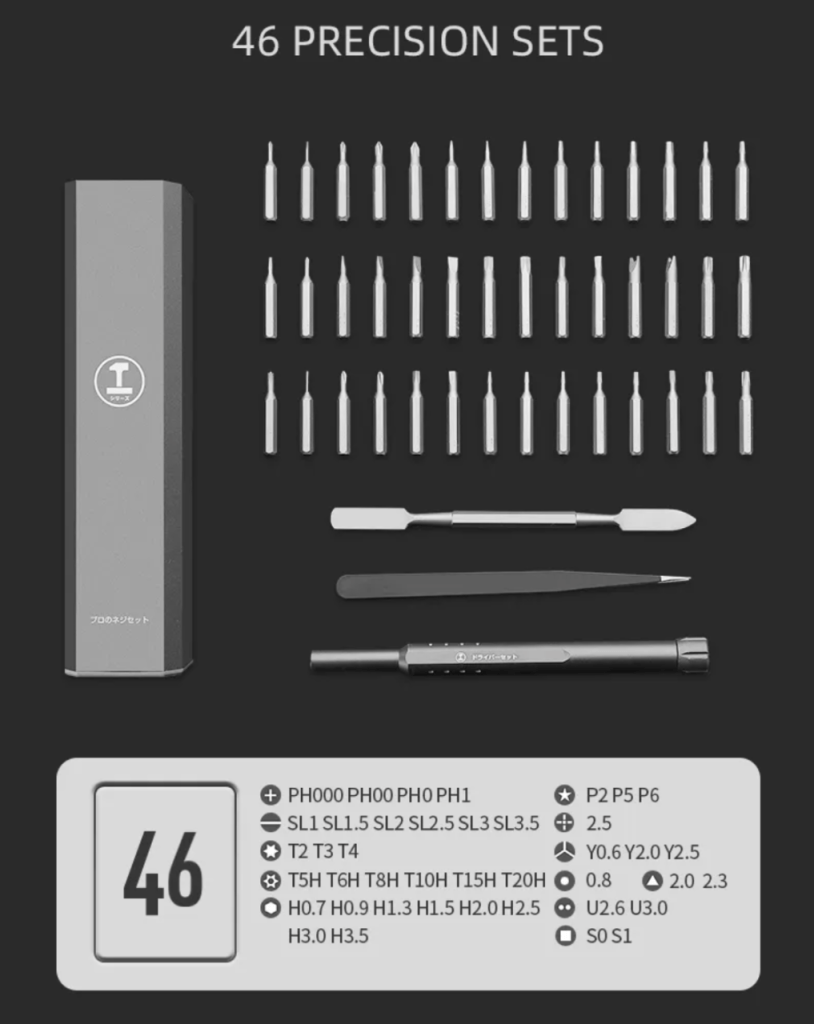
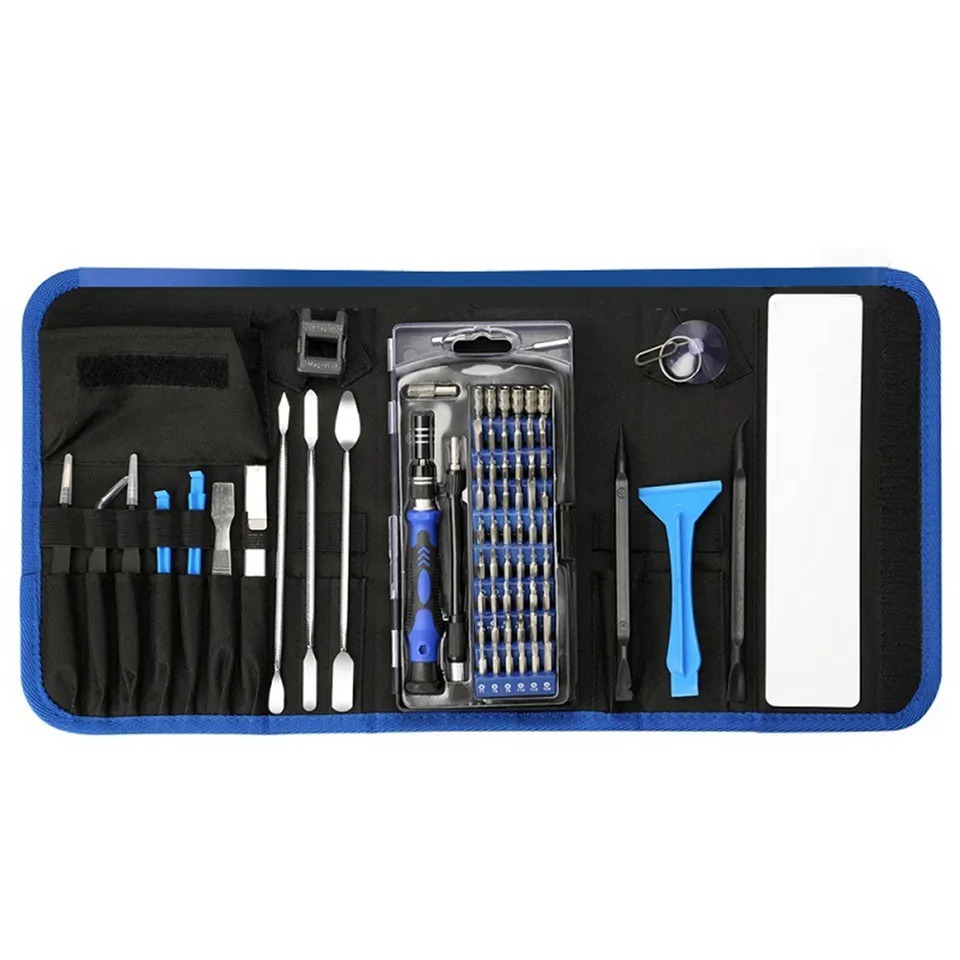
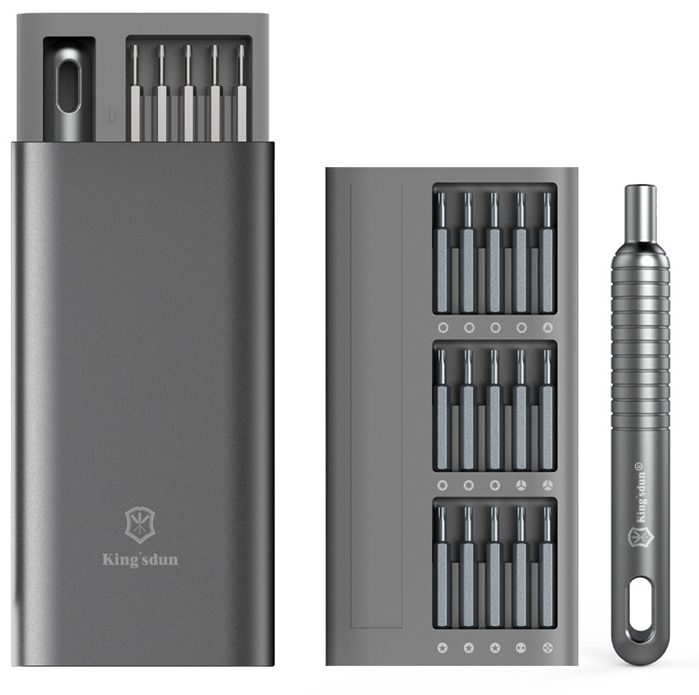
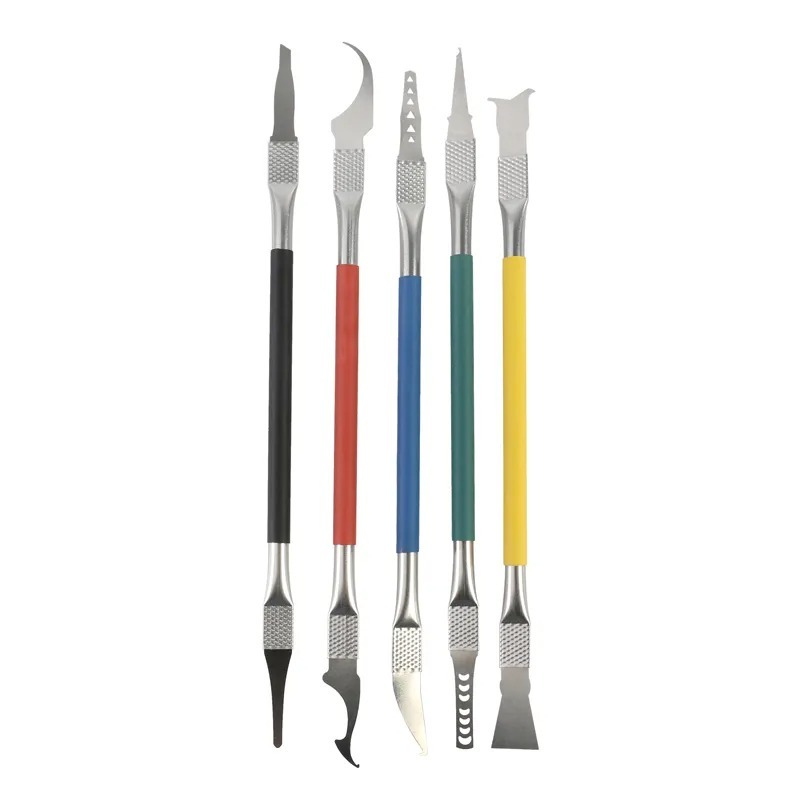
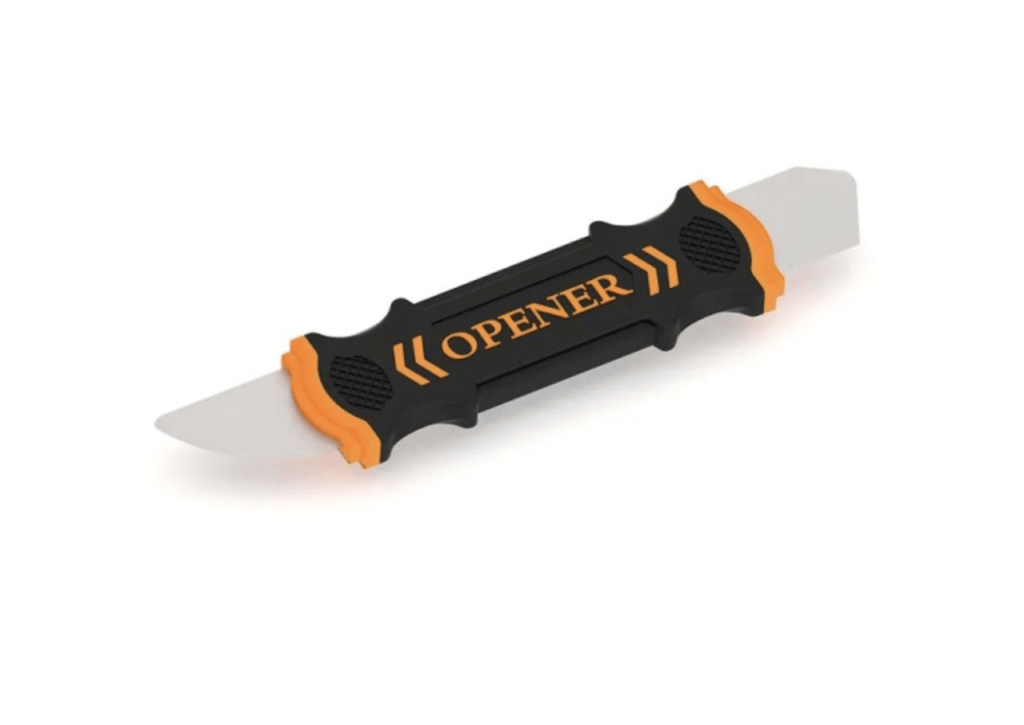
- Suction cup and plastic pry tool: pops the side locking clips and separates the lower cover without gouging aluminum.
- Precision screwdrivers: remove the six lower case screws, trackpad mount screws, and battery securing fasteners.
- Torx driver (pancake screw): detaches the central battery power terminal from the logic board.
- Wide metal pry bar: slides flat beneath the glued battery cells to apply smooth, controlled leverage.
- 90%+ Isopropyl alcohol (IPA): weakens the heavy factory adhesive holding the battery pack in place.
- Lint-free paper towel: absorbs excess solvent and wipes away residual adhesive crumbs.
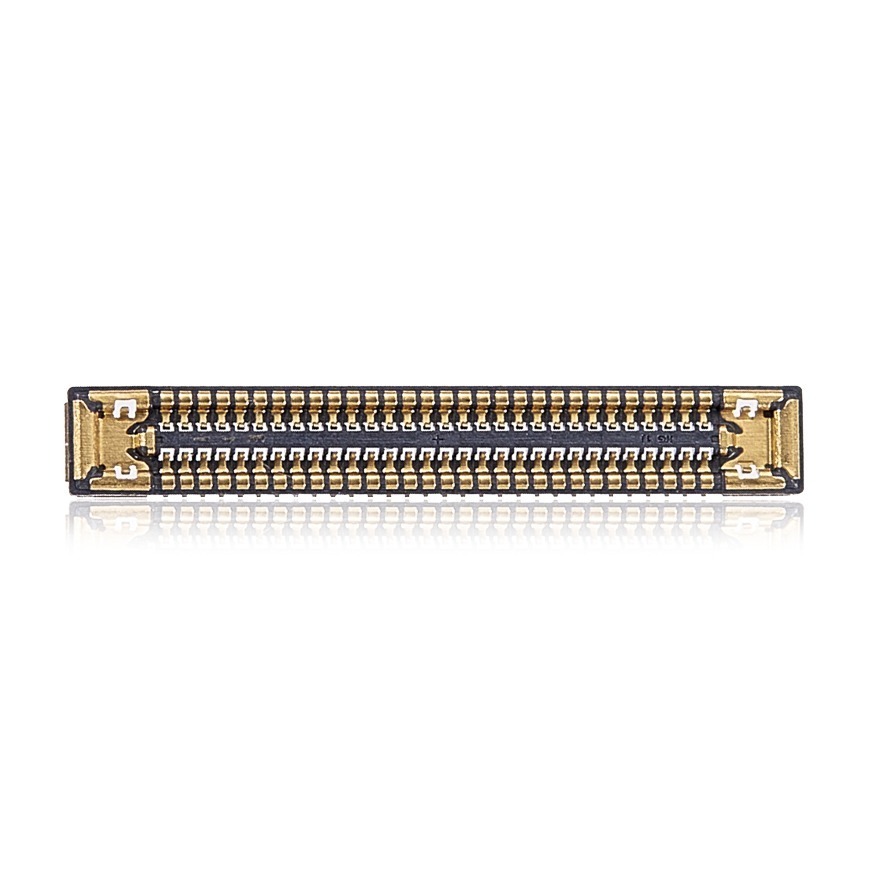
Find every part we stock for this model on our TEKDEP online store, or browse the Tekdep Tech Blog for additional workshop walkthroughs.
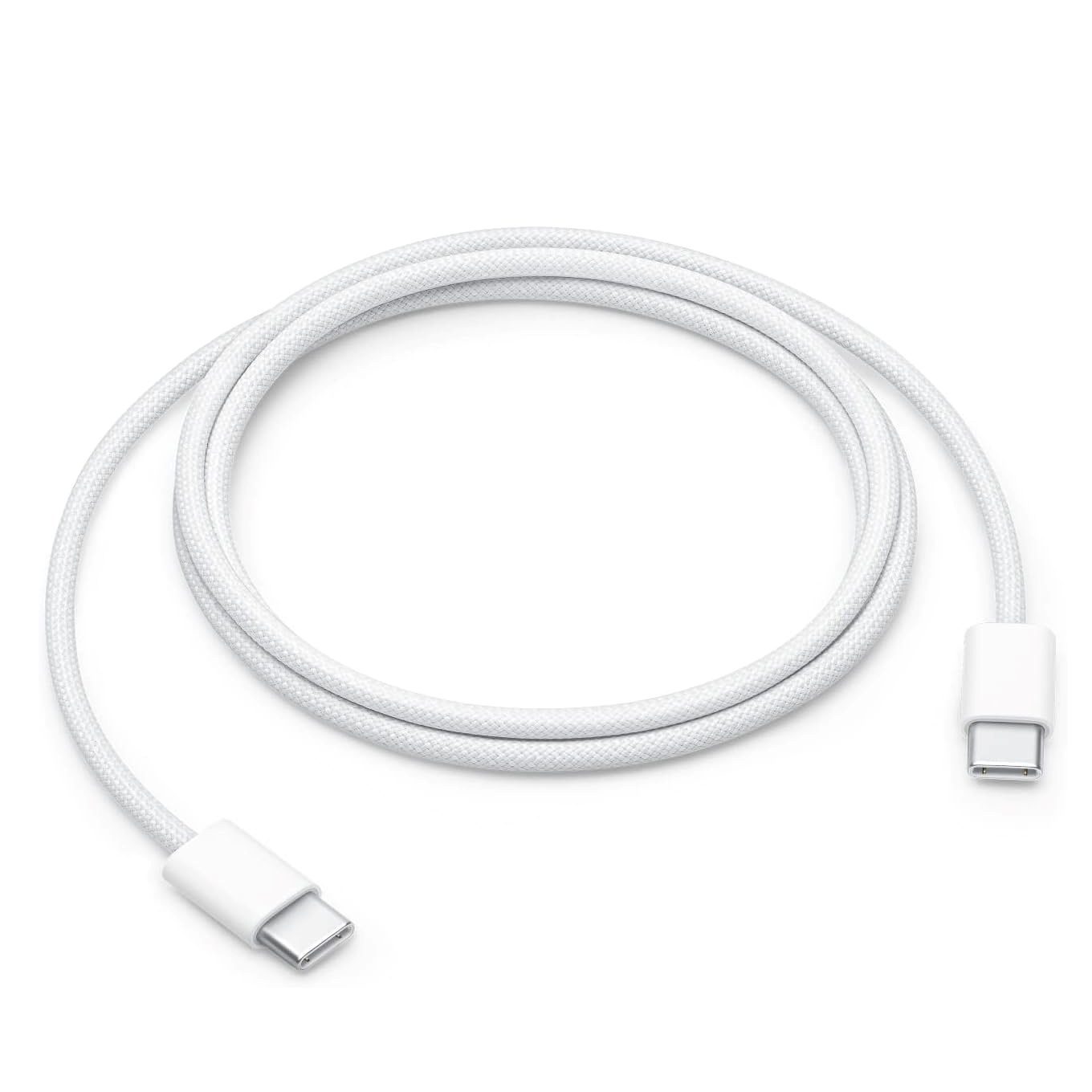
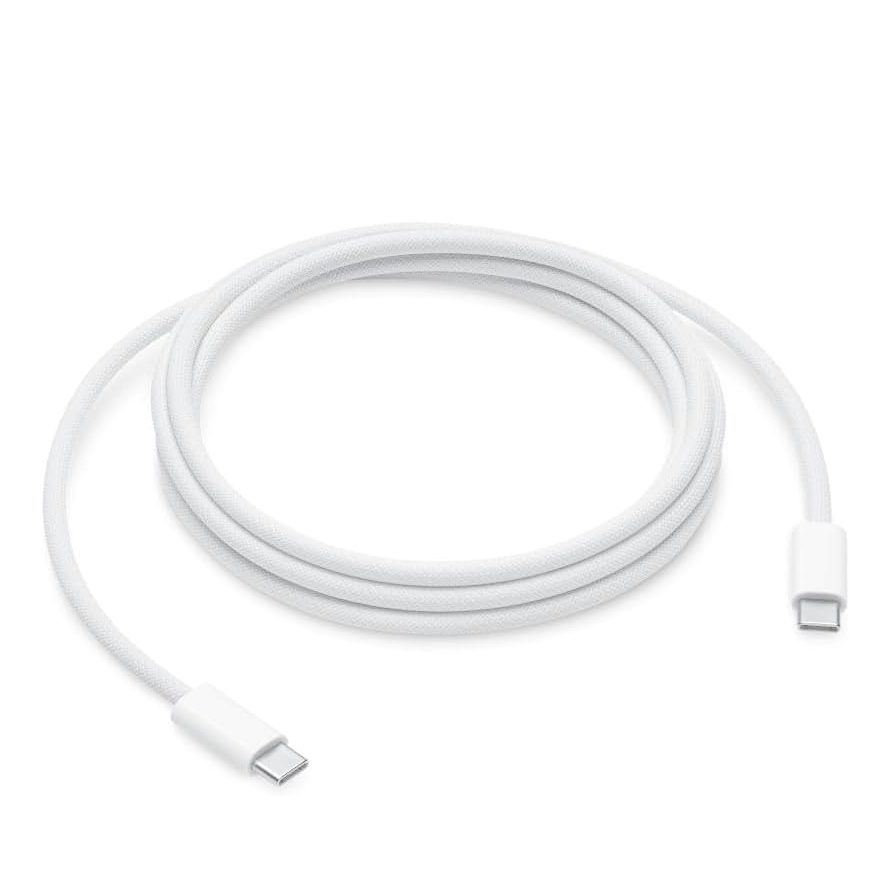
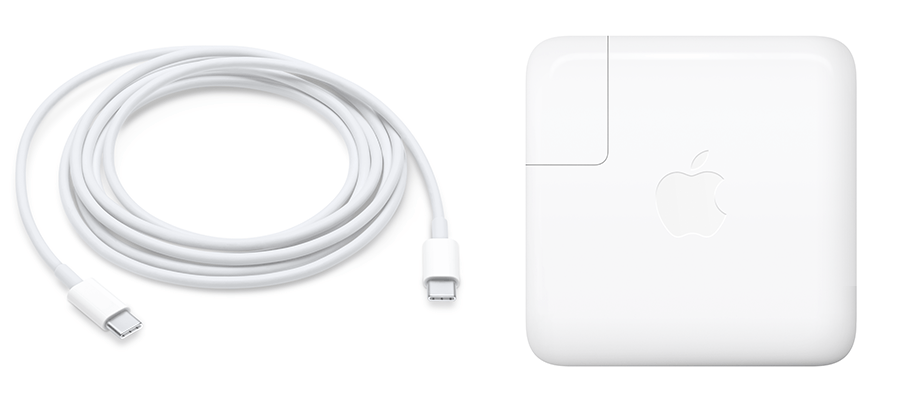
Get the Exact Tools Used by Our Techs:

⚠️ Before you start: Disconnect the battery terminal and hold the power button to drain residual charge before touching internal flex cables. Keep isopropyl alcohol strictly isolated to the battery well and away from the logic board and display connections.
Phase 1: Opening the Case for Your A2289 Battery Replacement
Because the battery sits under the lower aluminum cover, you must pop that cover and isolate the logic board from electrical power first.
Step 1: Remove the Bottom Cover for the A2289 Battery Replacement
Because perimeter fasteners and internal retaining clips secure the lower housing, it needs gentle, even leverage to release.
- First, back out the six screws securing the perimeter of the lower aluminum case.
- Next, place a suction cup near the front edge of the panel and pull upward to create a slight working seam.
- Then, slide your plastic pry tool toward both side edges to pop the two internal locking latches free.
- Finally, grip the top of the chassis with one hand, push the bottom plate toward the rear exhaust vents, and remove it.
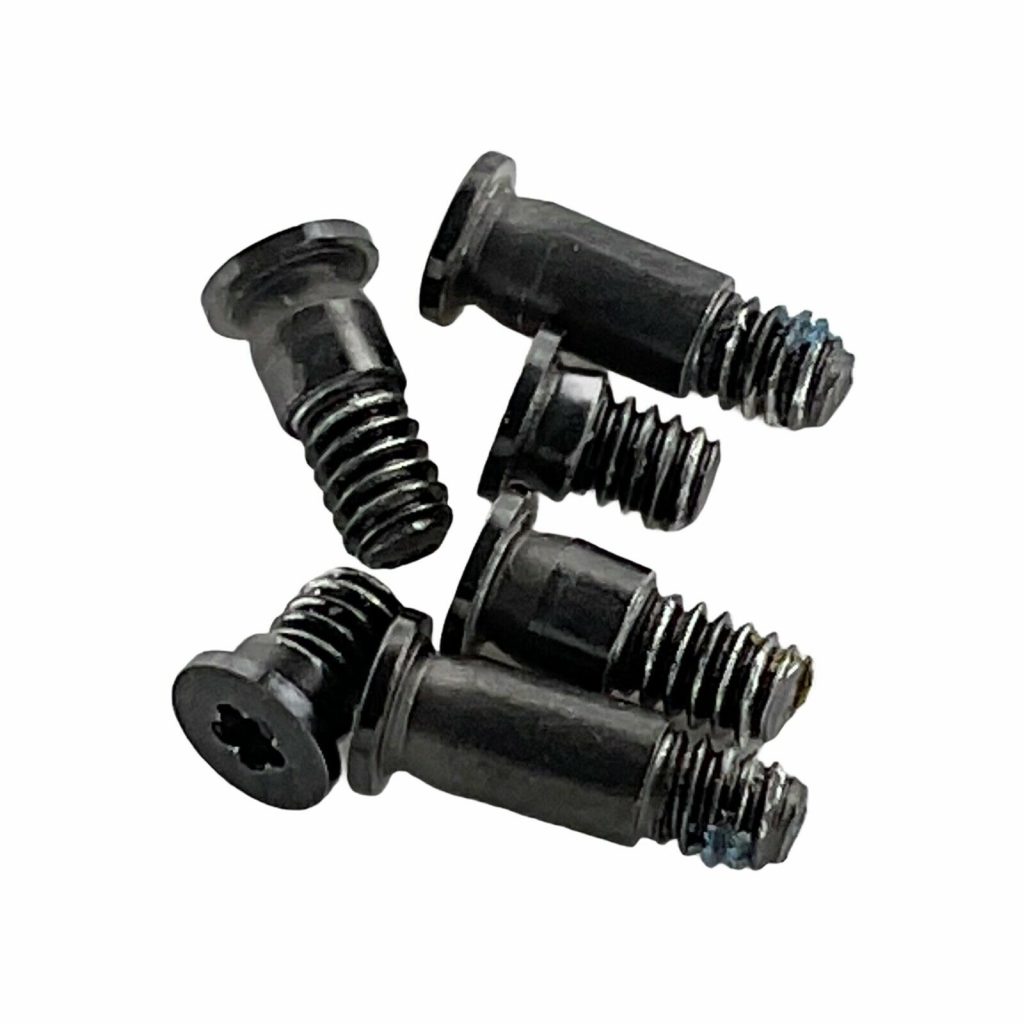
Step 2: Disconnect the Battery Terminal and Drain Power
Cutting power immediately prevents dangerous short circuits while you handle screwdrivers and metal tools across the motherboard.
- First, peel back the small protective cover strip over the battery board if your unit retains one.
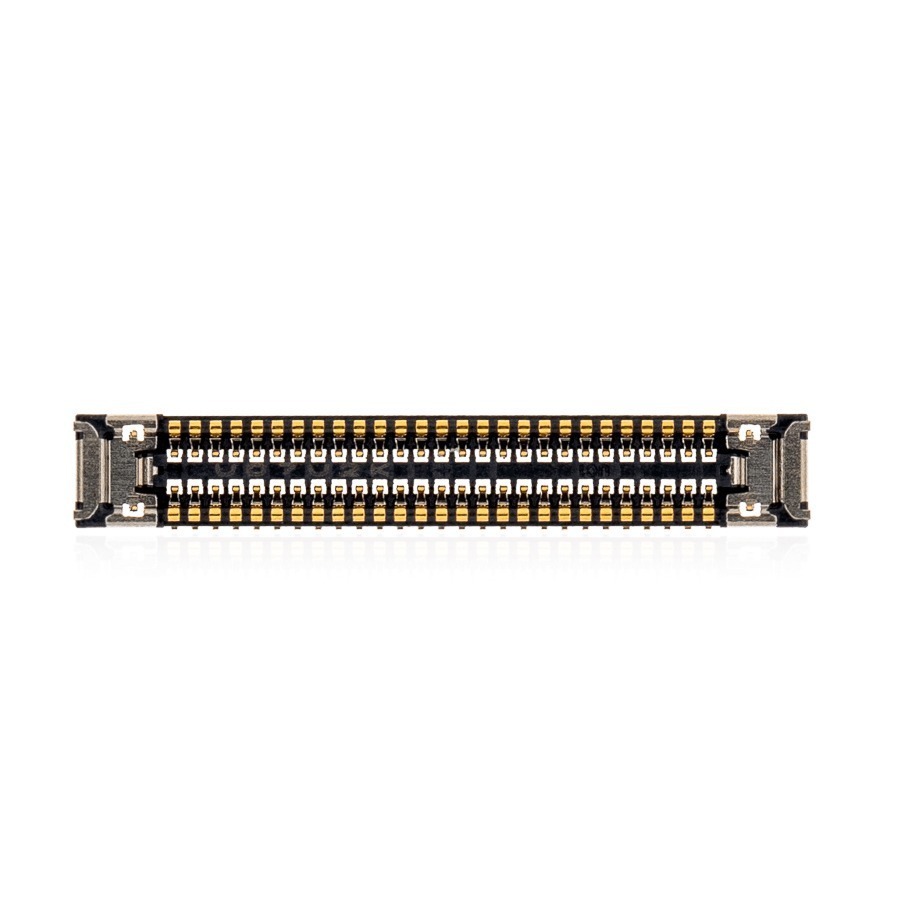
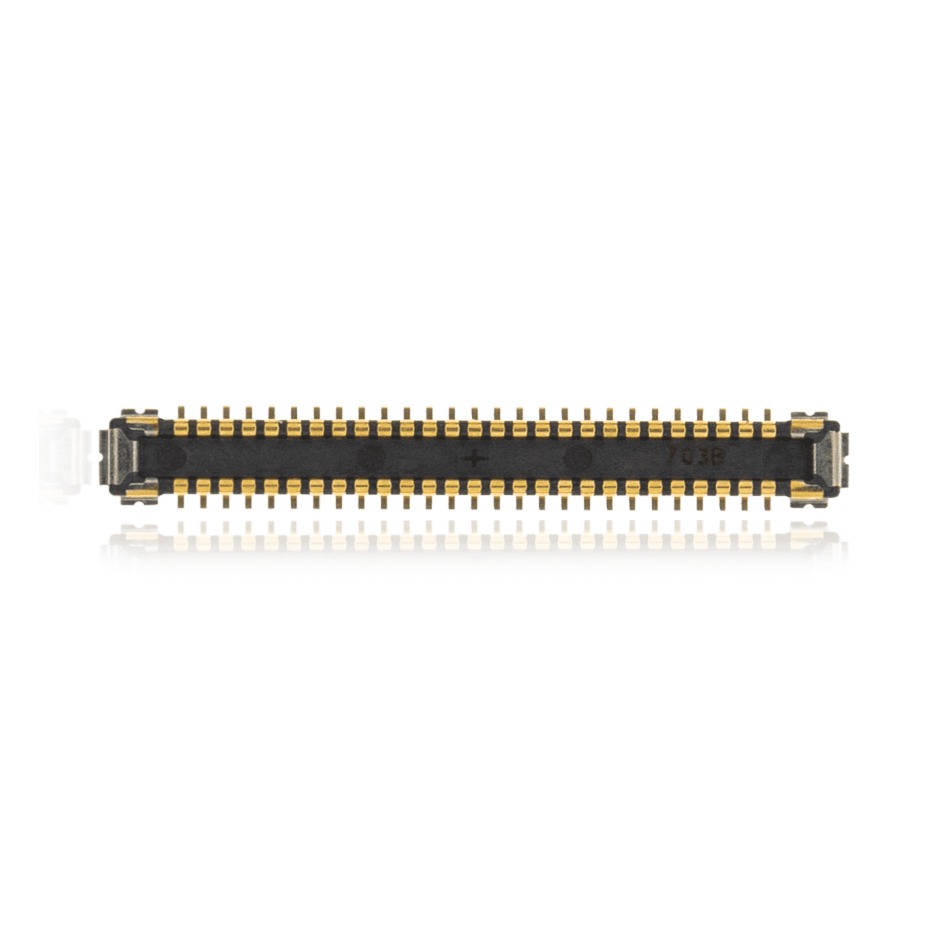
- Next, disconnect the two battery flex cables securing the interface to the logic board.
- Then, remove the single large pancake screw connecting the battery power terminal directly to the motherboard.
- Finally, press and hold the laptop power button for 10 seconds to completely discharge all latent electricity from the circuits.

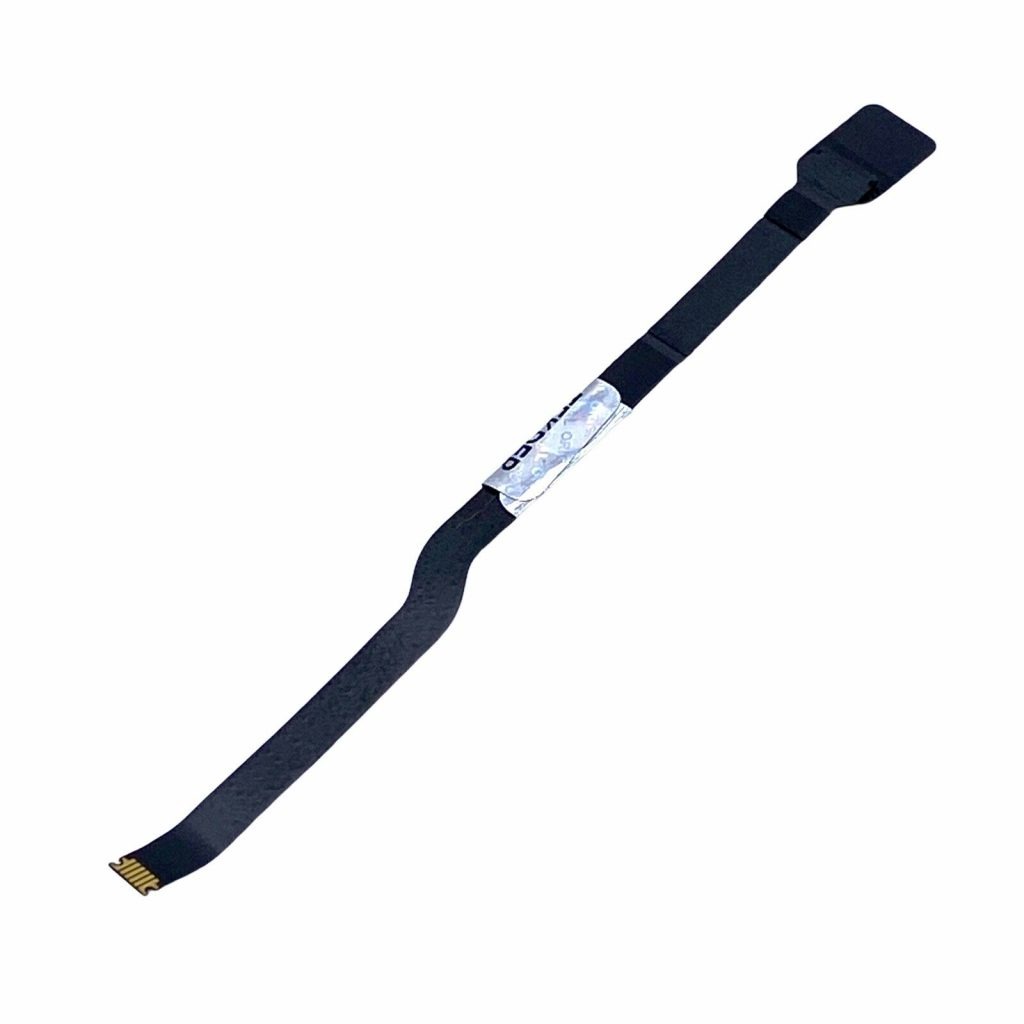
TekDep Expert Warning: Never skip holding the power button. Lingering capacitive charge on the logic board can short sensitive display and trackpad power rails the moment a metal tool slips.

Phase 2: Removing the Trackpad for Safe Access (A2289 Battery Replacement)
Because removing the trackpad creates an open cavity underneath the battery, adhesive solvent cannot pool near delicate electronics.
Step 1: Disconnect the Trackpad Flex Cable
The trackpad data cable runs across the middle of the battery bay, and you will reuse it during reassembly.
- First, locate the trackpad flex cable running straight down the center of the battery compartment.
- Then, carefully peel the cable away from the chassis without creasing or over-bending its delicate internal traces.
Step 2: Unfasten and Remove the Trackpad
Removing the trackpad ensures you will not damage its underlying circuitry while prying against the battery cells.
- First, remove the perimeter screws outlining the metal trackpad mounting frame.
- Next, slightly lift open the laptop display to provide hand clearance underneath the palm rest area.
- Finally, safely filter the ribbon cable through the chassis cutout and lift the trackpad unit out of the housing.
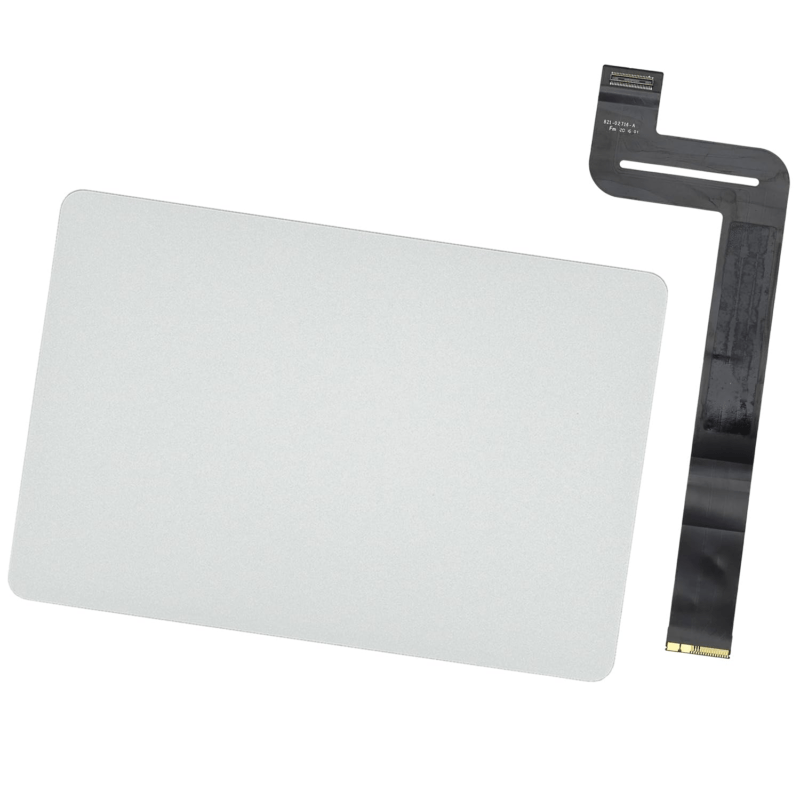
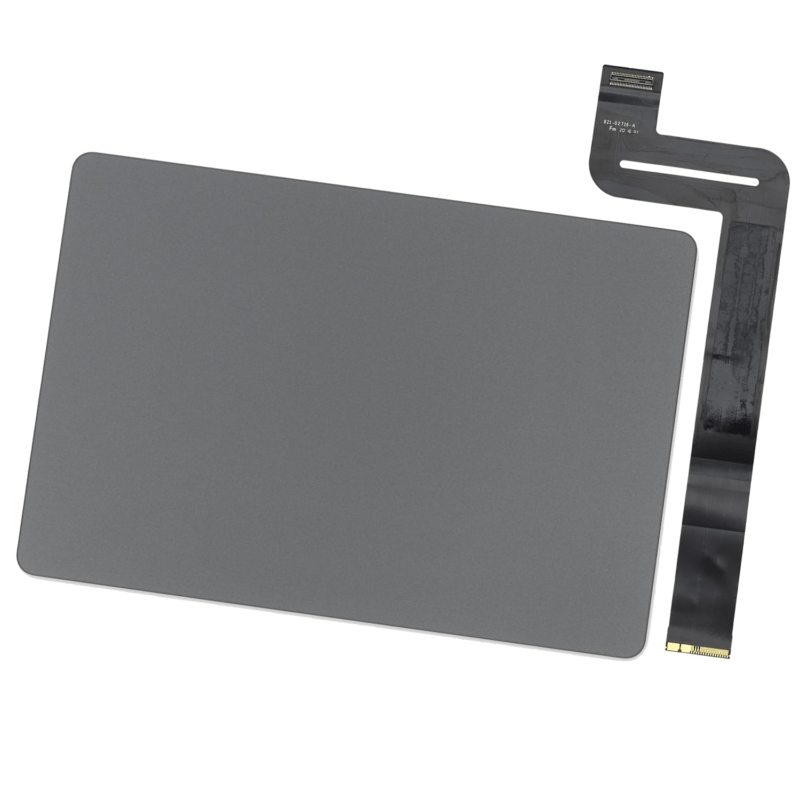
TekDep Tip: Keep the tiny protective shims seated around the mounting holes. Dropping or misplacing these spacers causes the trackpad to sit unevenly or click stiffly after reassembly.

Phase 3: Loosening Adhesive & Removing the Battery (A2289 Battery Replacement)
Because Apple bonds the lithium-ion cells directly into the palm rest enclosure with heavy industrial adhesive tape, you must soften that glue before lifting anything.
Step 1: Soften the Adhesive With Isopropyl Alcohol
Applying high-purity solvent breaks down the stubborn adhesive bond without requiring dangerous mechanical bending force during an A2289 battery replacement.
- First, drizzle a few drops of isopropyl alcohol around the perimeter gaps of both outer battery cells.
- Next, allow the fluid to soak for two to three minutes so it penetrates and softens the underlying glue.
- Then, apply a small amount along the seams of the middle cell, keeping the fluid away from the top logic board edge.
Step 2: Pry and Lift the Battery Cells in the A2289 Battery Replacement
Work across each battery cell with steady, flat leverage to avoid creasing the delicate lithium pouches.
- First, insert the wide metal pry bar flat underneath the outer battery cell.
- Next, saw back and forth in a smooth right-to-left motion while applying gentle forward pressure until the glue releases.
- Then, slide the tool underneath the center cell and pry slowly once the adhesive has loosened sufficiently.
- Afterward, remove the two battery screws securing the center bracket to the chassis.
- Finally, lift the entire old battery pack out of the laptop enclosure.
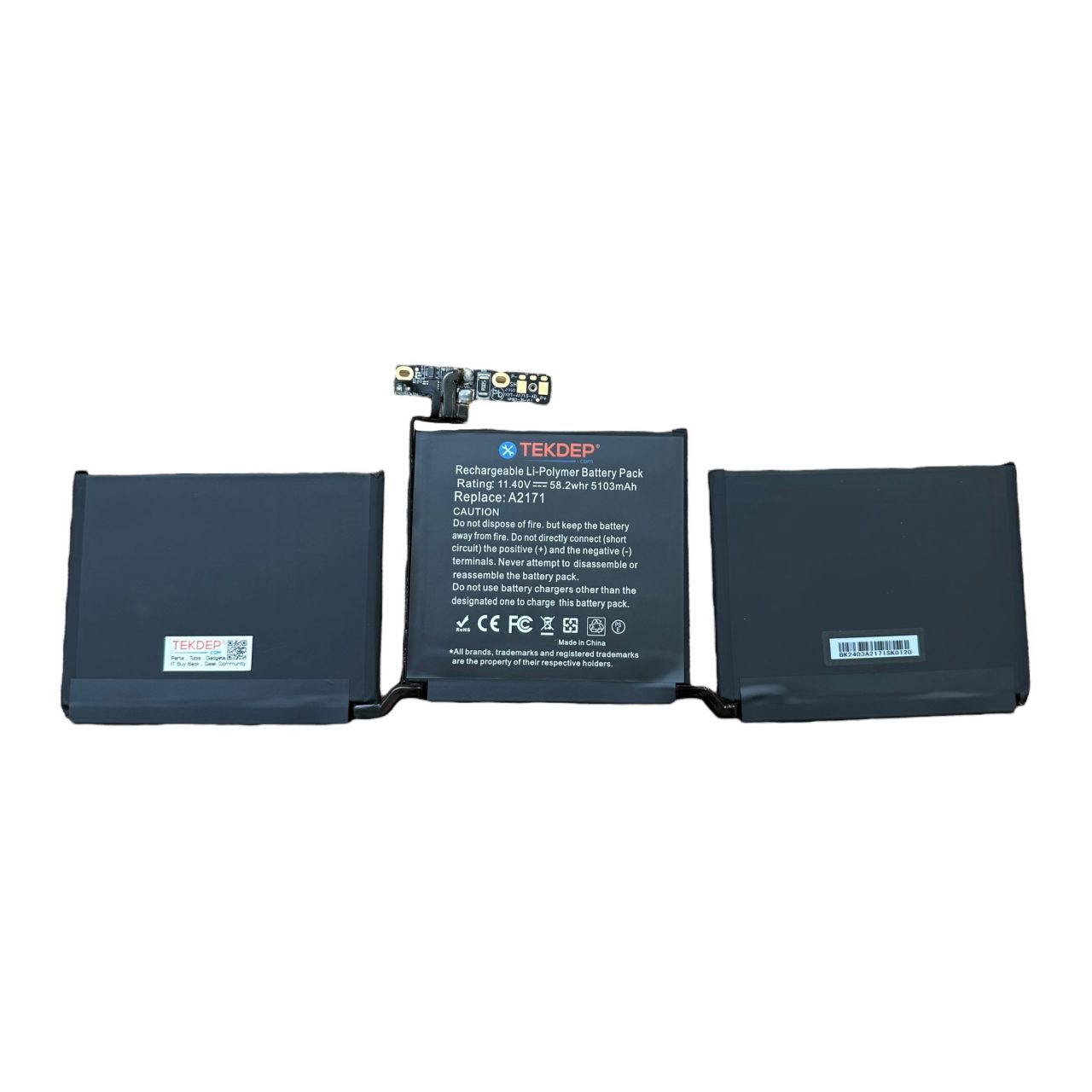
TekDep Expert Warning: Never use sharp corners or pry aggressively against the center of a cell. Puncturing a lithium-ion battery pouch exposes volatile chemistry that can smoke or catch fire.
Step 3: Clean the Aluminum Recess
Because new adhesive requires bare metal to create a solid, permanent bond, clean the battery recess thoroughly.
- First, use a clean paper towel to blot up any pooled isopropyl alcohol remaining in the well.
- Next, scrape off the old black adhesive tape remnants from the metal casing using your plastic pry tool.
- Finally, sweep out loose adhesive crumbs until the entire surface is smooth and completely dry.

Get the replacement A2289 battery we installed:
👉 Battery for MacBook Pro 13 2020 A2289 (Apple part number A2171)
Phase 4: Installing the New Battery, Reassembly & Testing (A2289 Battery Replacement)
Reinstalling the hardware in reverse sequence ensures correct screw alignment and a clean finish.
Step 1: Align and Seat the Replacement Battery
Positioning is crucial because threading the bracket screws first ensures the battery board lines up perfectly with the motherboard socket.
- First, peel the protective backing film from the adhesive strips beneath the new battery assembly.
- Next, lower the battery into place and install the two battery screws loosely into the center bracket to lock alignment.
- Then, peel off the top clear plastic protective cover sheet.
- Finally, tighten the two bracket screws and press down firmly across each battery cell to activate the adhesive bond.
Step 2: Reinstall the Trackpad and Reconnect Power
Because rethreading the trackpad hardware requires careful screw organization, keep each screw group separate to prevent jamming the haptic feedback mechanism.
- First, open the display slightly, guide the trackpad flex cable through the frame opening, and set the trackpad into place.
- Next, fasten the mounting bracket screws, remembering that the two bottom screws are shorter than the longer perimeter screws.
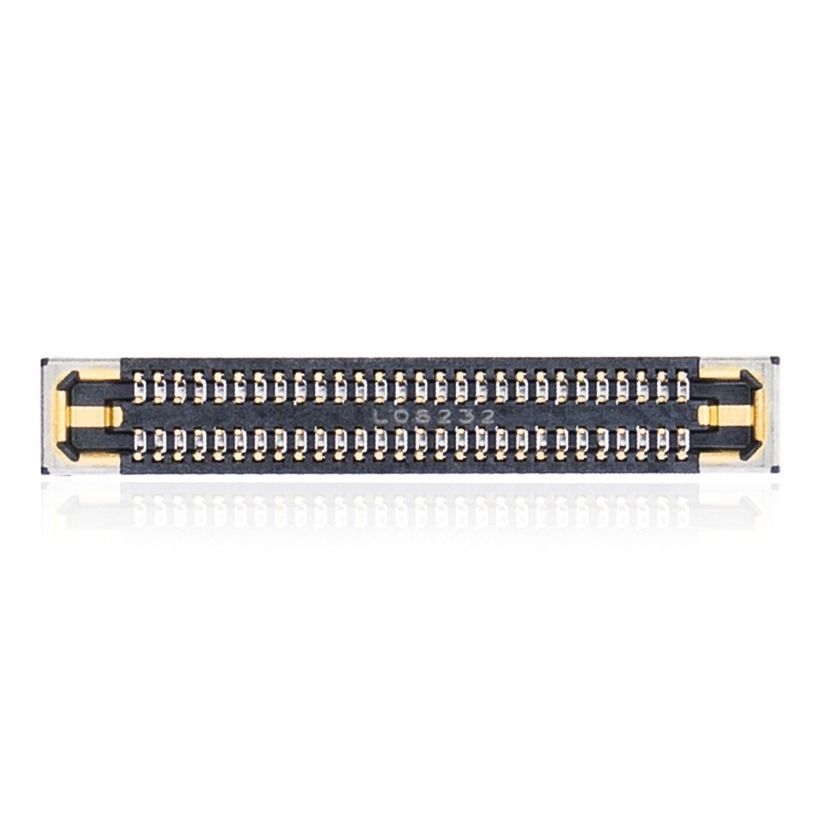
- Then, reconnect the trackpad flex cable and replace its protective metal cover bracket.
- Afterward, reinstall the pancake screw connecting the main battery terminal to the motherboard.
- Finally, reconnect the two battery flex cables and ensure both locking hinges snap securely flat.
Step 3: Close the Housing and Power Test After Your A2289 Battery Replacement
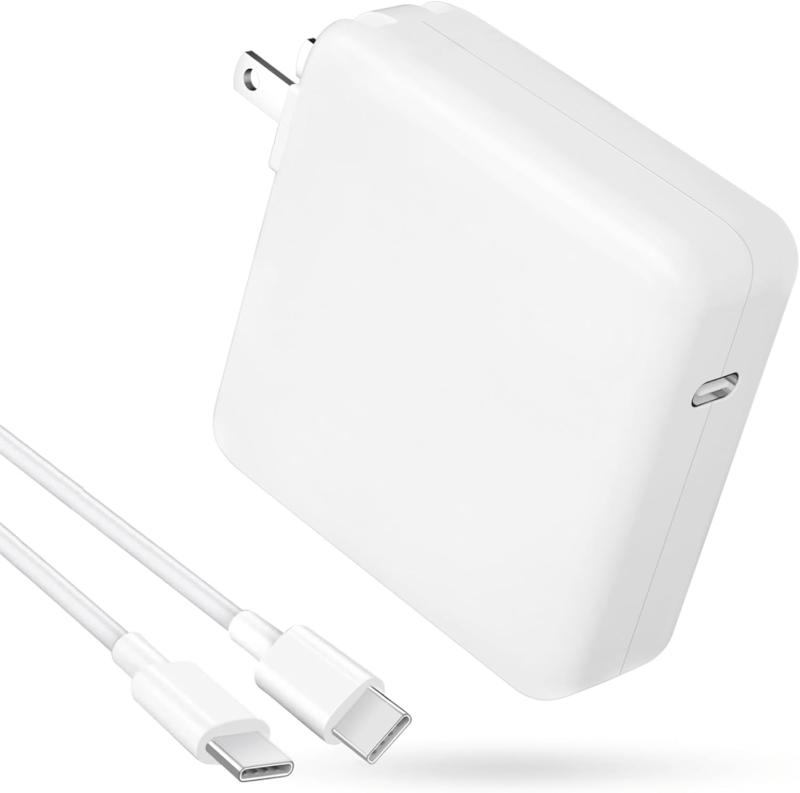
First, place the bottom plate flush against the chassis, press down firmly until the two center locking tabs click, and reinstall the six screws around the perimeter. Finally, plug in your USB-C power charger, press the power button, and confirm macOS boots normally with active battery charging.
Congratulations! You have completed an A2289 battery replacement on your MacBook Pro 13-inch.leted an A2289 battery replacement on your MacBook Pro 13-inch.
🛑 Not Comfortable Handling Battery Adhesive? If reading about prying glued battery cells and delicate trackpad cables has you second-guessing your DIY skills, don’t worry. The TEKDEP experts are here to help.
We offer clean, professional, and affordable Mail-In repair services for the entire MacBook Pro lineup.
Frequently Asked Questions
Is it necessary to remove the trackpad for an A2289 battery replacement?
Yes, removing the trackpad is strongly recommended by our technicians. Taking out the trackpad leaves a wide opening underneath the battery well, protecting its sensitive control electronics and fragile ribbon cable from accidental tool slips or pooled isopropyl alcohol.
Why does the MacBook Pro require high-percentage isopropyl alcohol?
Apple bonds these battery cells using heavy double-sided adhesive tape that does not feature pull-tabs. Applying 90%+ isopropyl alcohol breaks down the adhesive binder chemically in two to three minutes, allowing the cells to lift out smoothly without dangerous prying force.
What should I do if my A2289 does not power on immediately after the repair?
New replacement batteries arrive in a dormant shipping mode and require external power to wake up. Connect your official USB-C charger, wait 30 seconds for the charging circuit to initialize, and verify that the pancake screw and both flex cable hinges are fully seated.
🛑 IMPORTANT: SAFETY & LIABILITY DISCLAIMER: TEKDEP®️ TEKDEP.com assumes no liability for property damage or injury incurred as a result of any information in this blog post or associated videos. Dealing with internal computer components, specifically Lithium-Ion batteries, carries inherent risks including fire, toxic gas exposure, and irreversible device failure. Any injury, damage, or loss from improper use of tools, mishandling of components, or misinterpretation of this information is the sole responsibility of the user