






























Repair At-A-Glance
- Difficulty: 🔴 Expert (Requires glass removal & adhesive resealing)
- Time Required: 1 – 2 Hours
- Model Identifier: iMac19,2 (A2116 / EMC 3195)
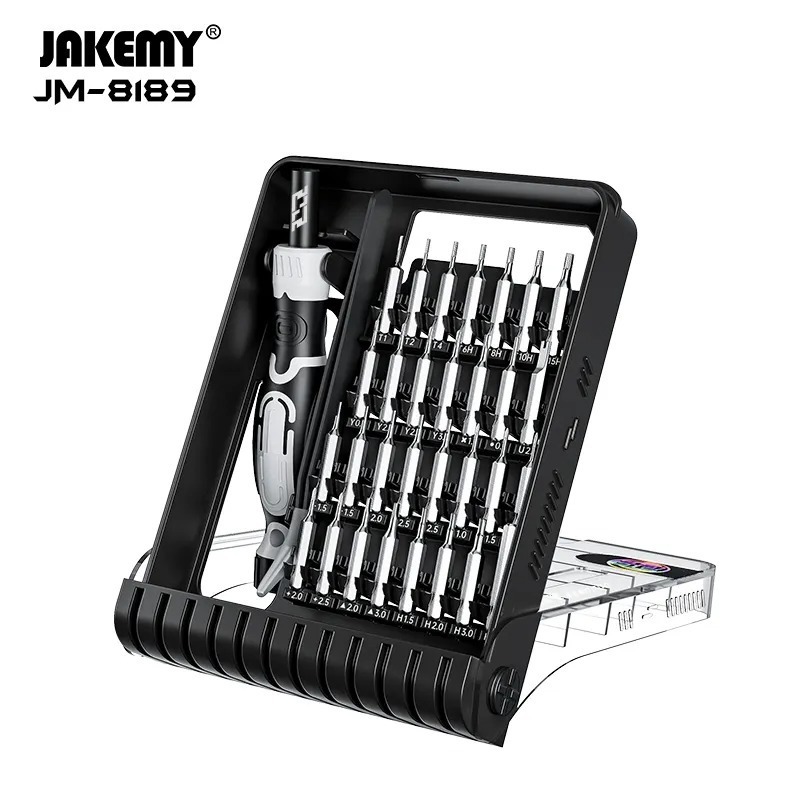
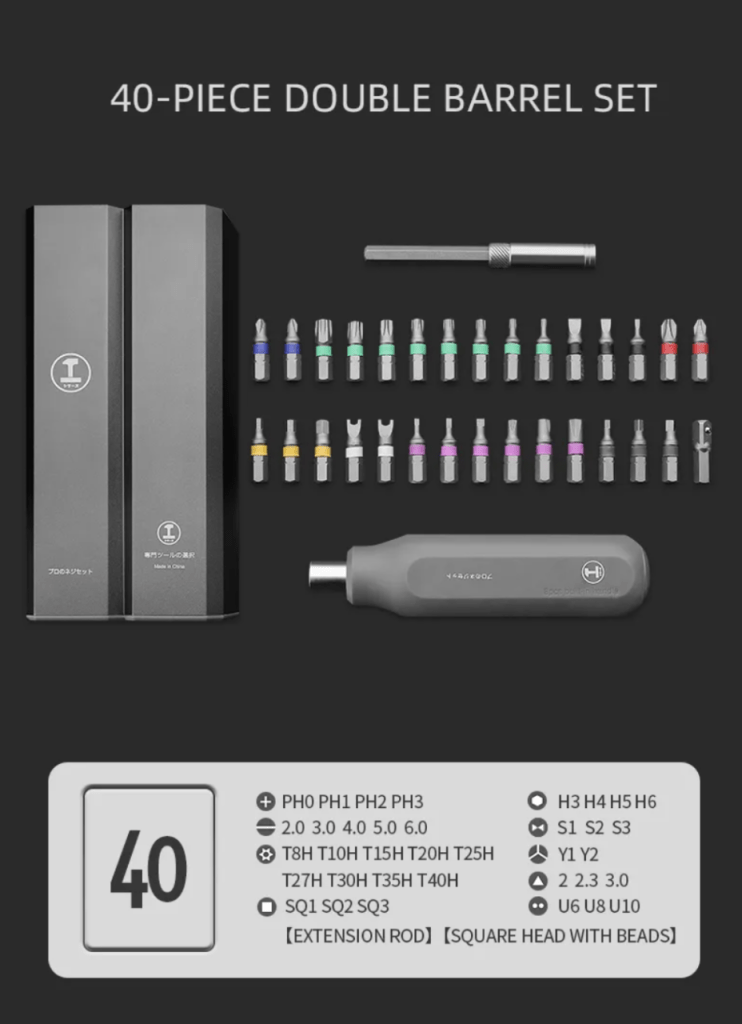
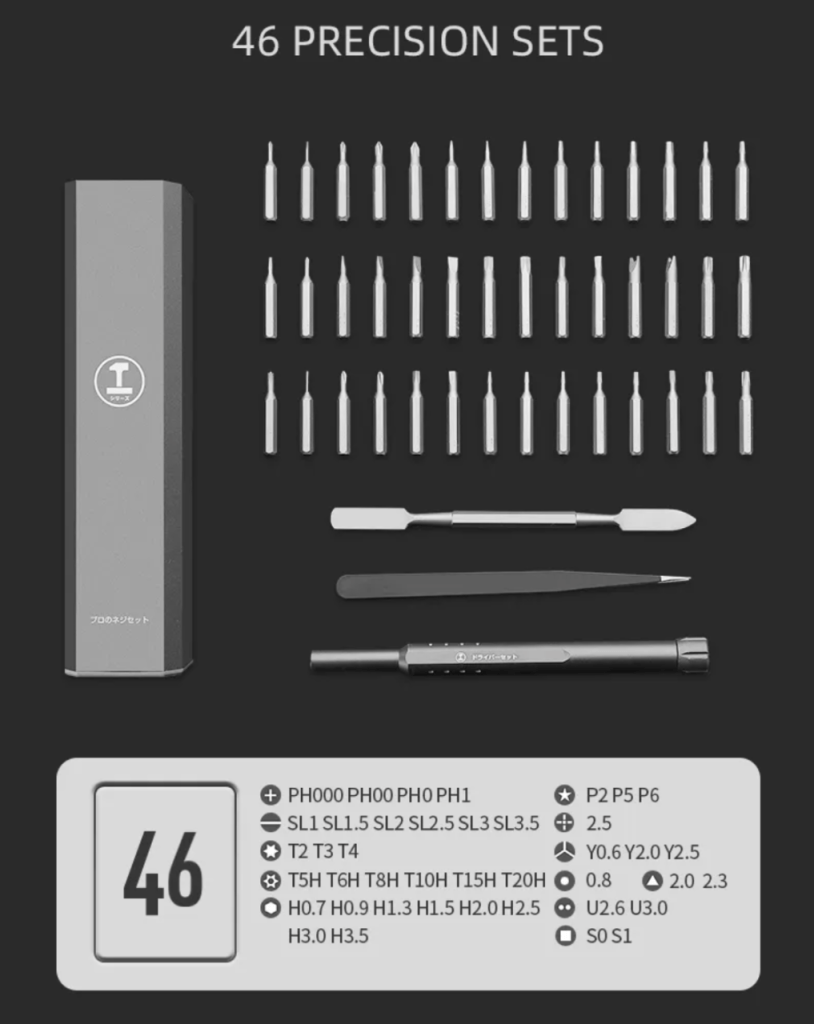
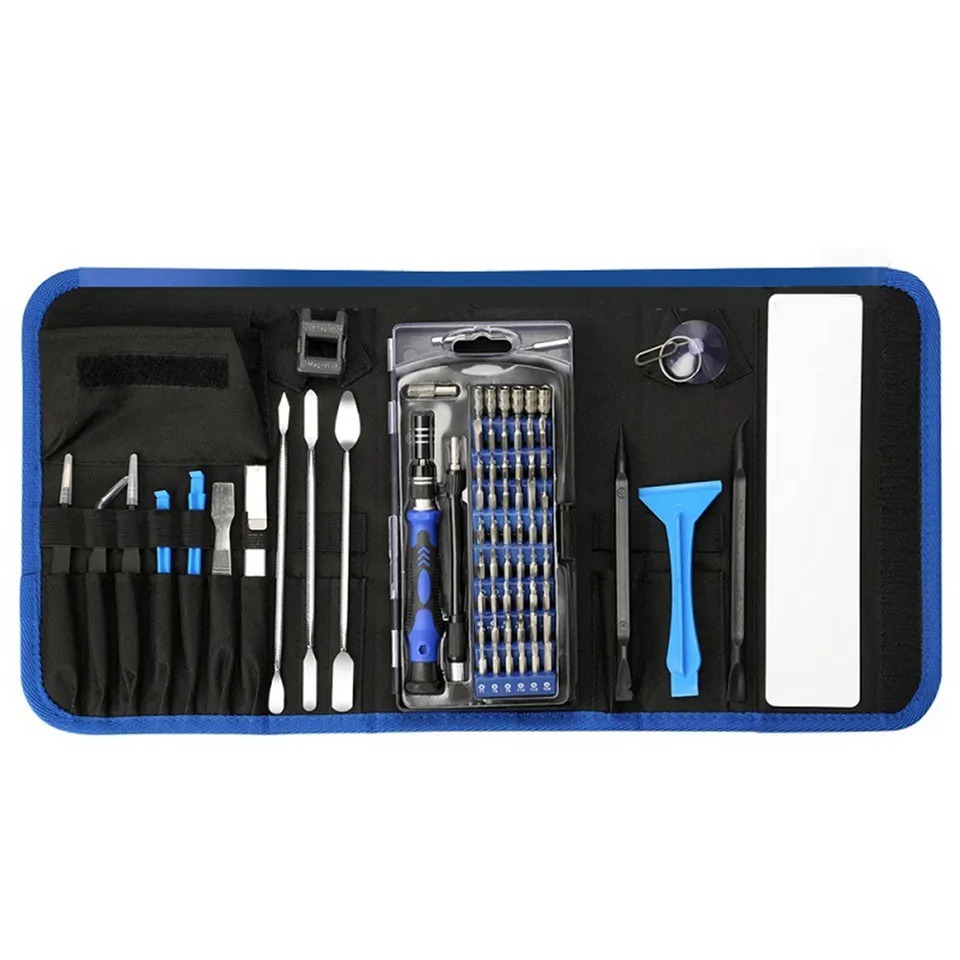
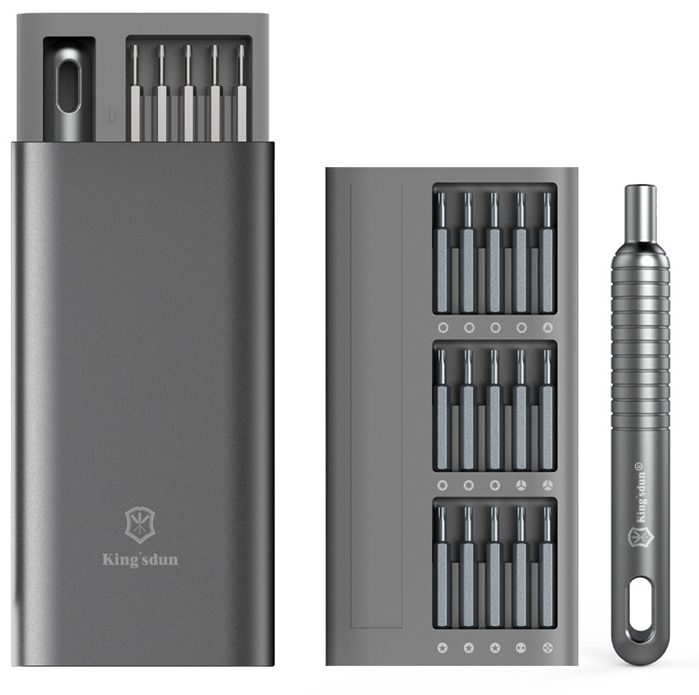
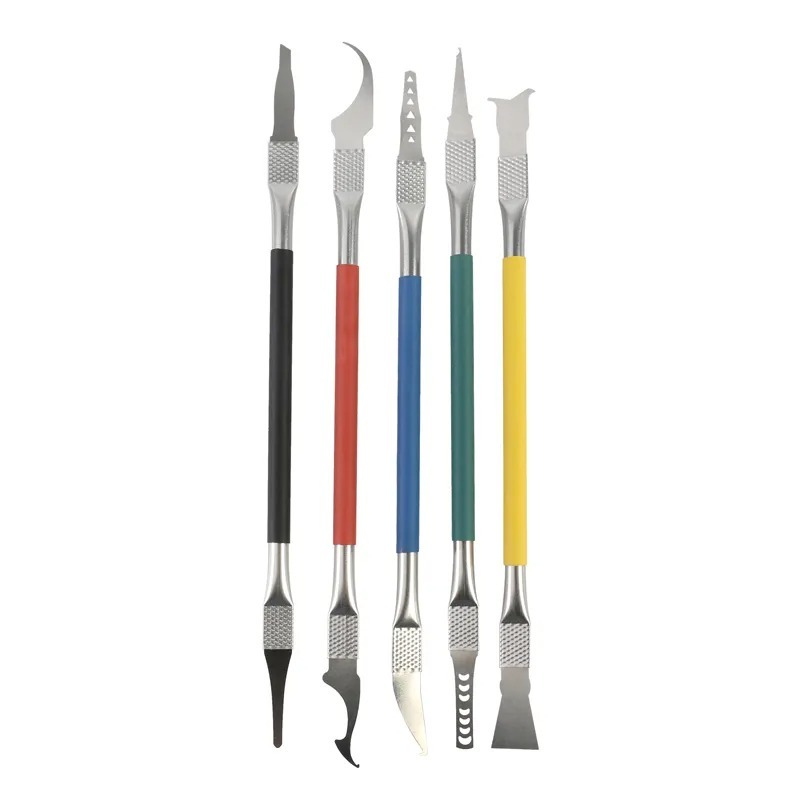
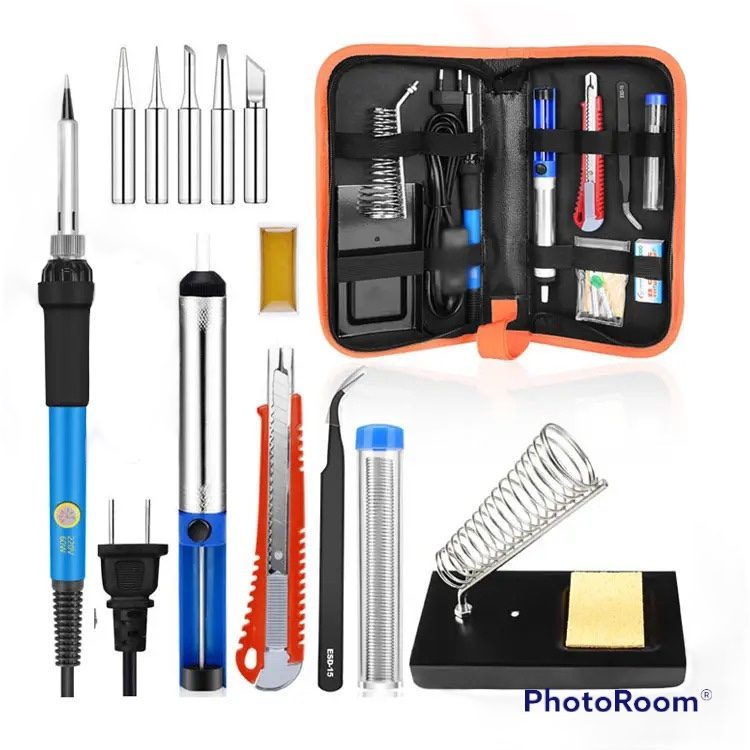
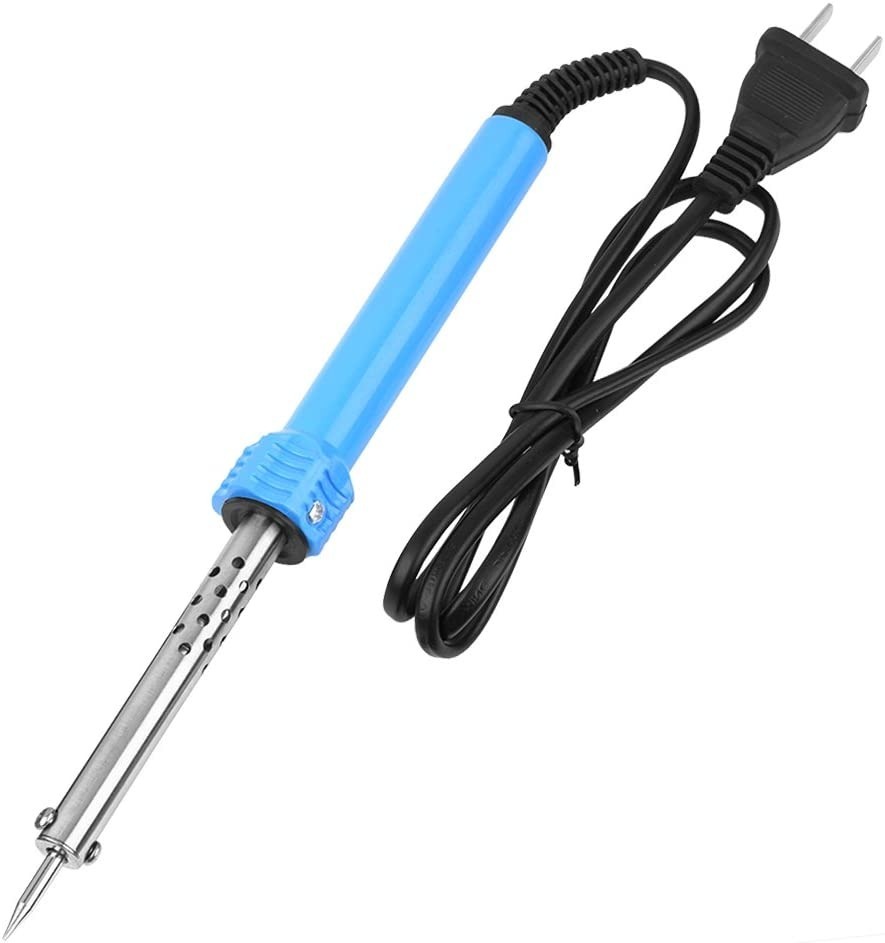
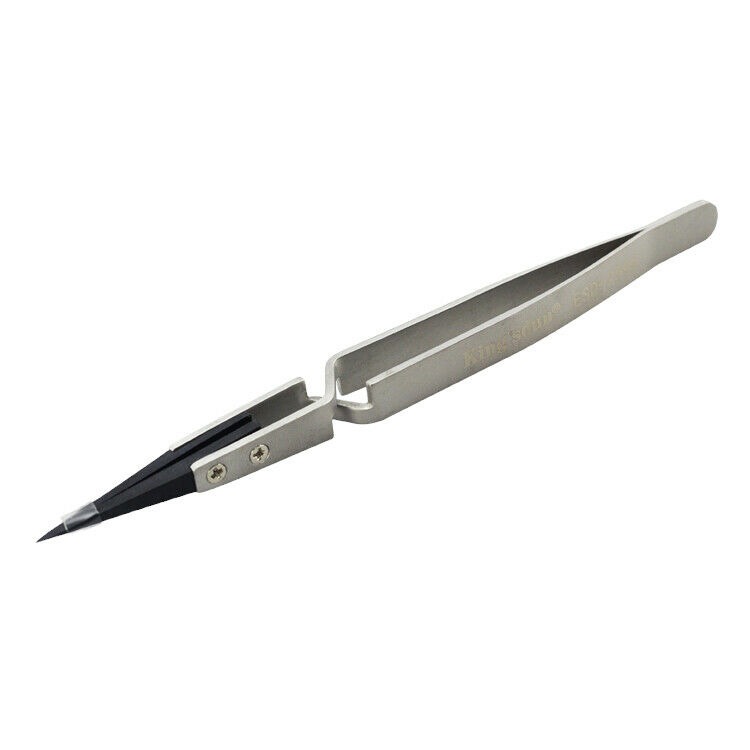
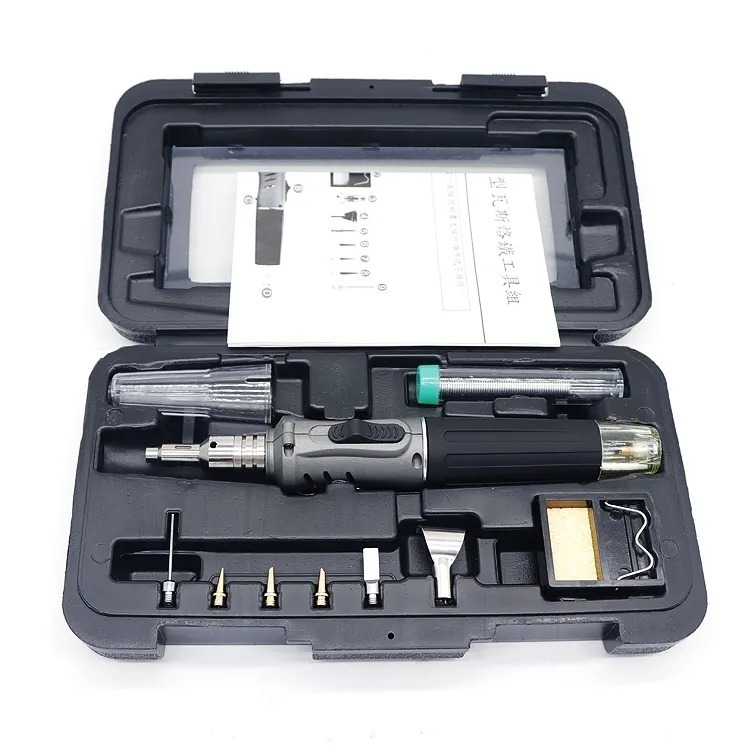
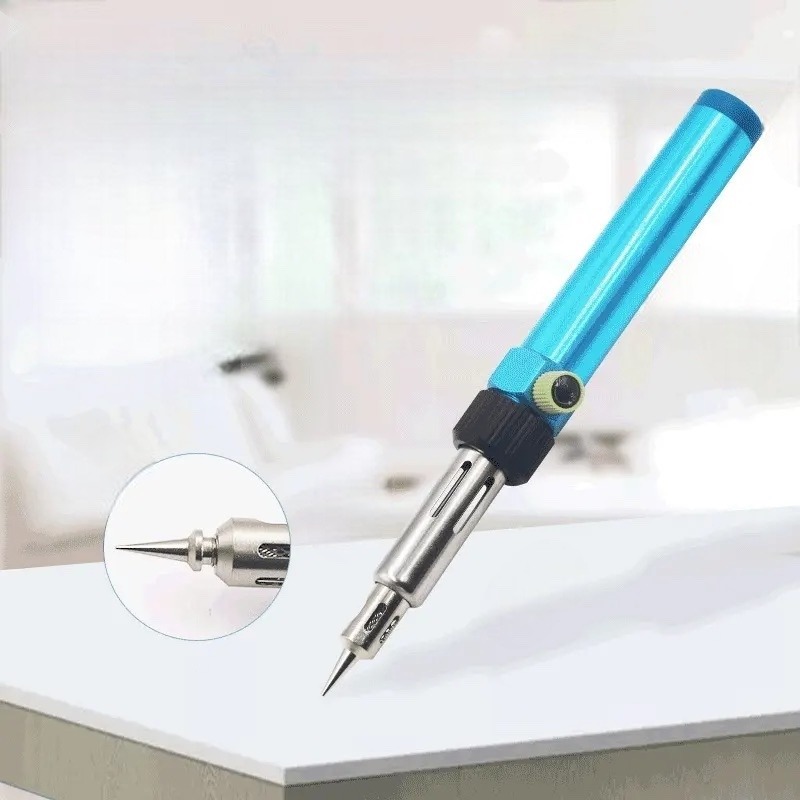
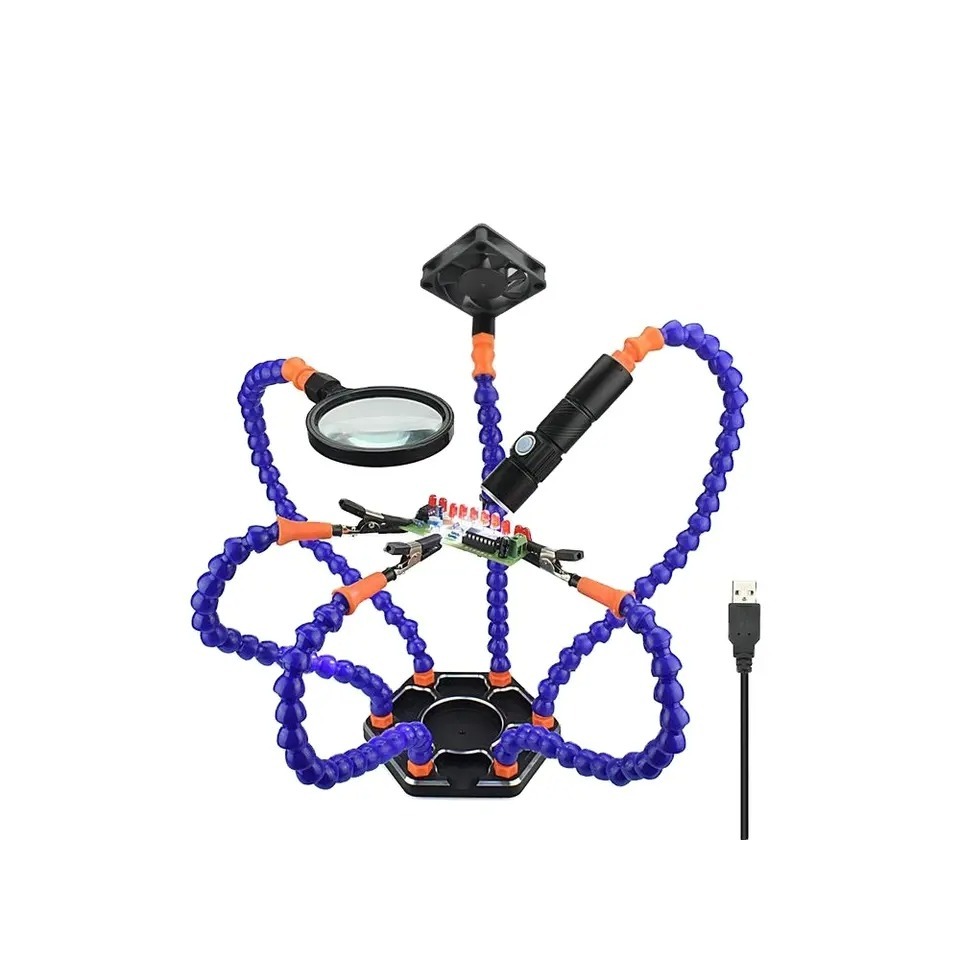
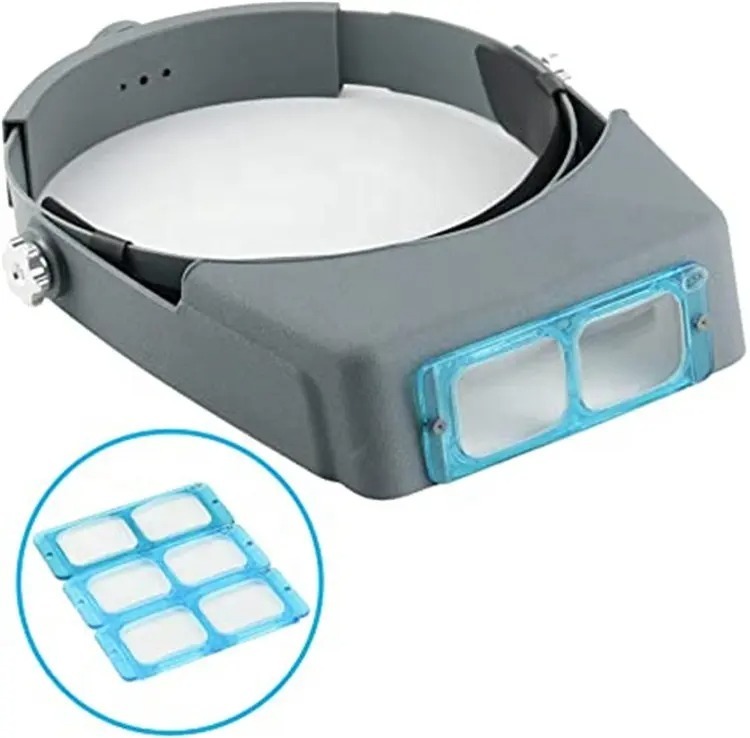
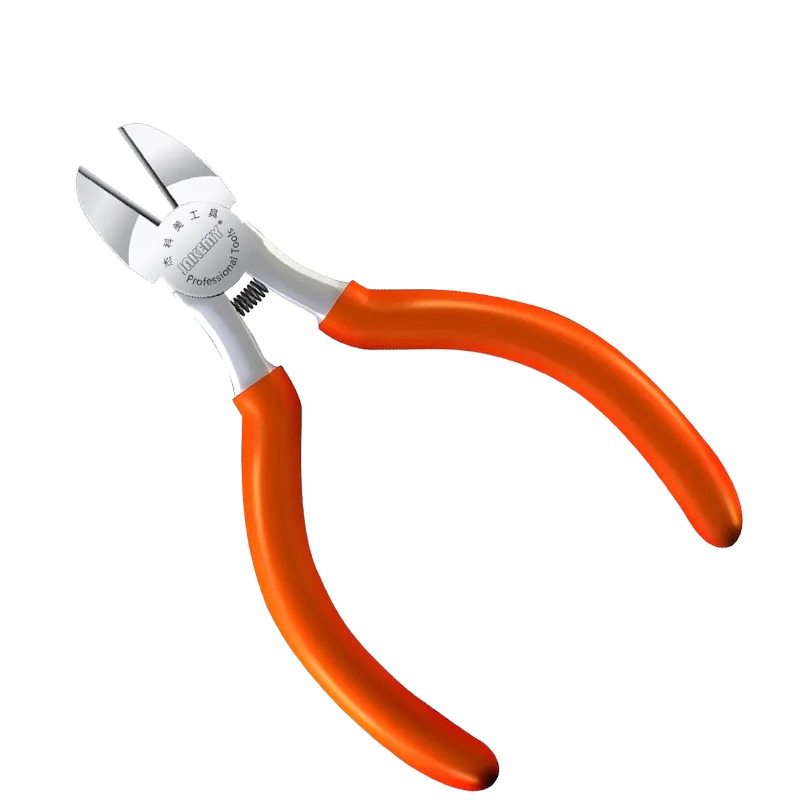
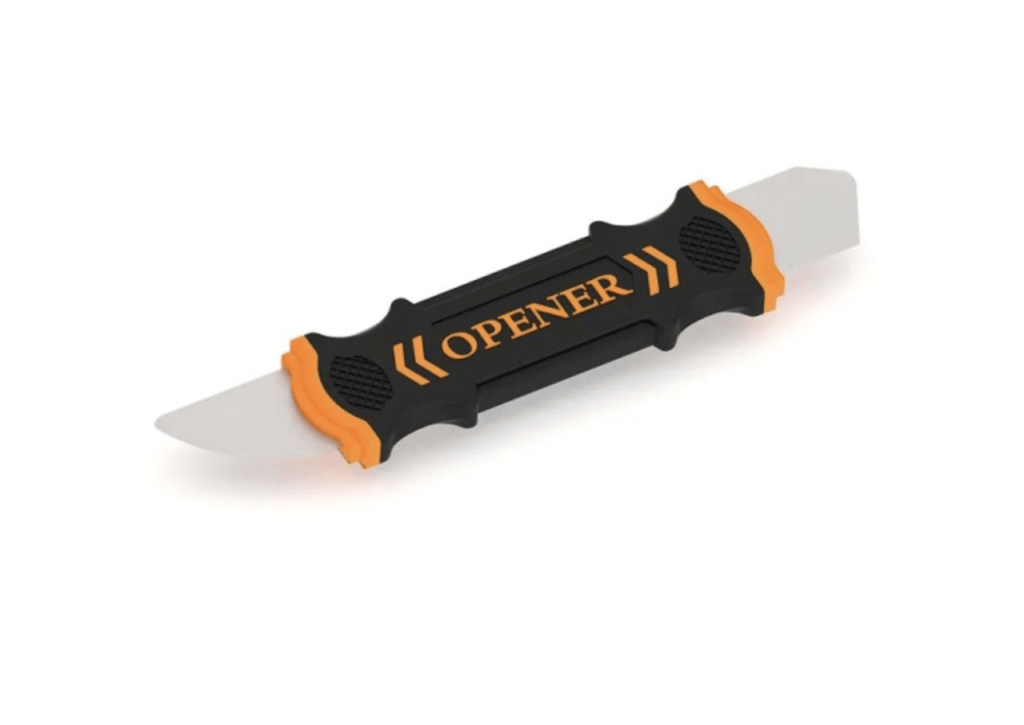
- Key Tools Required:
Inside the A2116 (EMC 3195)
The 2019 21.5-inch iMac (Model A2116) represents the refinement of the “slim-edge” tapered design Apple introduced nearly a decade ago. While it looks identical to its predecessors on the outside, the internal architecture of the EMC 3195 offers significant performance upgrades—and specific repair challenges—that technicians must understand before cracking the seal.
Unlike the MacBook lineup, where thermal throttling is a common adversary, the A2116 chassis provides superior airflow, allowing the Intel processors inside to run at higher sustained clock speeds. However, this performance comes at a cost: accessibility. Apple has fused the glass directly to the LCD (Retina 4K), and the entire assembly is glued to the aluminum chassis.
In this TekDep Lab Report, we are conducting a complete, forensic-level teardown. We will not just show you how to open it; we will guide you through the safe extraction of the Power Supply Unit (PSU), the SATA Hard Drive (a common failure point), the cooling system, and the Logic Board itself. Most importantly, we will cover the often-ignored art of resealing the display to factory standards.
⚠️ Lab Warning: This repair involves exposing the internal Power Supply Unit. Capacitors within the PSU can retain a dangerous electrical charge even after the device is unplugged. Proceed with caution and ensure you are using insulated tools.
Phase 1: The Breach (Display Removal)
The most daunting part of any modern iMac repair is the first step: “How to open the iMac.” Unlike the magnetic glass of the 2011 era, the A2116 uses a strong, proprietary foam adhesive. If you rush this step, you risk cracking the 4K panel, which is the most expensive component of the machine.
Step 1.1: Breaking the Adhesive Seal
We begin by using a Flexible Pry Tool (specifically designed for screen separation). Do not use a heat gun unless absolutely necessary, as excessive heat can damage the LCD layers or cause “yellowing” in the corners.


Insert the tool only 3/8ths of an inch to avoid hitting internal cables.
- Insertion Point: Start on the vertical sides (Left or Right), roughly 3 inches from the bottom chin.
- The Motion: Insert the wheel or blade of the pry tool between the glass and the aluminum casing. Do not push deep—you only need to penetrate about 3/8ths of an inch to cut the foam.
- The Path: Glide the tool up the side, across the top, and down the other side.
- TekDep Pro-Tip: Do not slice across the bottom chin yet. The bottom edge does not use the same foam adhesive; it uses plastic retaining clips and a different adhesive strip that acts as a hinge. Cutting blindly across the bottom will sever the display data cables.
Step 1.2: The Suction Lift
Once the top and sides are sliced, the display is technically free from the chassis but held by the residual tackiness of the glue.

- Attach a Heavy Duty Suction Cup to the upper corner of the glass.
- Gently pull outward. If you feel strong resistance, use the pry tool to “saw” through the remaining adhesive strands.
- Tilt the screen forward about 15 degrees. Stop immediately. Do not pull the screen off yet. There are two delicate cables tethering the screen to the Logic Board.
Step 1.3: Disconnecting the Umbilicals
Peering into the gap between the screen and the chassis, you will see two connections:

- Display Power Cable: A proprietary connector that requires you to lift a small metal locking bar before pulling the cable out.
- eDP (Embedded DisplayPort) Data Cable: This carries the 4K video signal. It has a pull-tab and a locking latch. Flip the latch, then pull the cable straight back toward the logic board (away from the screen).
With the cables free, you can now tilt the screen down further, peel off the adhesive strips at the bottom chin, and lift the entire display assembly away from the unit. Place it face-down on a soft, static-free surface.

Phase 2: Internal Layout & Acoustics
With the “hood” open, we get our first look at the A2116 architecture. The internal layout is dominated by the large black Power Supply Unit (top center), the Hard Drive (left), and the Cooling Fan (center).

Step 2.1: The Dust Catcher
Before accessing the primary components, we must remove the “Chin Plate” or dust catcher assembly located at the bottom center.

- Remove the Phillips head screws securing the plate.
- Note that one screw is often hidden behind residual adhesive tape in the dead center. You may need to scrape the glue away to find it.
- Gently wiggle the plastic housing out. This component directs airflow from the bottom vents up toward the fan.
Step 2.2: Speaker Extraction
The A2116 features a surprisingly robust stereo sound system. However, the speakers block access to the Logic Board screws.

- Left Speaker: Held in by T5 Torx screws. The cable routes behind the fan. Unplug the connector from the logic board and lift the module out.
- Right Speaker: This is trickier. The right speaker sits partially under the Logic Board. While you can unscrew it now, you cannot fully remove it until the Logic Board is lifted. For now, unscrew the T5 fasteners and disconnect the cable.

Phase 3: The Cooling System
The thermal management of the 2019 iMac is superior to the MacBook Pro largely due to the sheer size of the centrifugal fan.
Step 3.1: Fan Removal

- Locate the three T5 Torx screws mounting the fan to the chassis.
- Disconnect the fan power header from the logic board.
- Lift the fan straight up.
- Inspection Point: This is the perfect time to clean the fan blades. Dust buildup here is the #1 cause of overheating in older iMacs. Compressed air is usually sufficient, but a brush may be needed for caked-on dust.

Phase 4: Storage & Power (The Upgrade Zone)
This section covers the most common reason for opening an iMac: “iMac Hard Drive Replacement” and “SSD for iMac” upgrades. The 2019 model often shipped with a slow 5400RPM mechanical Hard Drive (HDD), which creates a massive bottleneck for modern macOS versions.
Step 4.1: Removing the SATA Hard Drive


- The HDD is located on the left side (viewed from the front).
- Remove the four Torx screws securing the HDD brackets to the chassis.
- Lift the drive slightly and disconnect the SATA / Power combo cable.
- Upgrade Opportunity: If your customer complains of a “slow Mac” or the “beach ball of death,” this is the culprit. Swapping this mechanical drive for a 2.5-inch SATA SSD will instantly triple the system’s speed. You can find high-quality SSD upgrade kits in the TekDep Store.

Step 4.2: The Power Supply Unit (PSU)


WARNING: The exposed PSU is high voltage. Handle by the edges only.
- Disconnect the AC Power Inlet cable.
- Remove the two retaining screws holding the PSU to the chassis.
- The Trick: The PSU is connected to the Logic Board by a heavy-duty cable with a locking mechanism behind the board. You must depress the latch on the connector blindly or slide the PSU down gently to access it.
- Once disconnected, slide the PSU out. Inspect the capacitors for any signs of bulging or leaking, which is a common cause of “iMac won’t turn on” issues.

⚠️ Tech Insight: Data Safety & “Point of No Return”
Before we proceed to the Logic Board—the most complex part of this teardown—let’s pause to address a common concern: Your Data.
Unlike the newer M1/M2 iMacs where storage is soldered directly to the chip, the 2019 A2116 stores your data on the removable SATA drive you just saw in Step 4.1.
- Good News: If your iMac logic board is dead (no power), your data is likely 100% safe on that drive. You can simply remove it and use a USB adapter to retrieve your files.
- The Risk: The next steps involve delicate ribbon cables. If you damage the Logic Board connectors during removal, the machine may not boot again.
Feeling overwhelmed? If you have successfully removed the hard drive to save your data but are nervous about fixing the rest of the machine, you don’t have to risk it.
► Secure Mail-In Repair Service: You can send the disassembled unit to us. Our lab technicians can finish the repair, reinstall the screen properly, and ship it back to you ready to run.
Phase 5: The Logic Board (The Brain)
Removing the Logic Board (Motherboard) is the final and most complex stage of the disassembly. It requires patience as there are multiple delicate ribbon cables (Flex Cables) that must be disconnected first.

Step 5.1: Disconnecting Peripherals

Before removing any board screws, disconnect the following:
- Camera Cable: Top center.
- Microphone Cable: Near the webcam connector.
- Headphone Jack Cable: Bottom left.
- Power Button Cable: Located on the far left rear (often taped to the chassis).
- WiFi/Bluetooth Antennas: These use coaxial connectors. Use a plastic spudger to pop them off gently. Do not crush the metal rings.

Step 5.2: Logic Board Extraction

- Remove the remaining Torx screws securing the board to the rear housing. Note that the heatsink remains attached to the CPU/GPU on the board; they come out as one unit.
- The “Chin” Maneuver: The board is tucked under the top lip of the chassis and over the bottom screw posts. You must lift the bottom edge of the board, pull it slightly forward, and then slide it down to clear the ports (USB-C, USB-A, Ethernet) from the back of the case.
- Once the board is free, you can finally remove the Right Speaker which was trapped underneath.

Phase 6: The Art of Reassembly & Resealing
Many technicians can take a computer apart; few can put it back together so it looks untouched. This is especially true for the “Resealing iMac Screen” process. If done poorly, the screen will fall off (literally) or stick out, ruining the aesthetic.
Step 6.1: Cleaning the Chassis

Before applying new tape, you must remove 100% of the old foam adhesive.
- Use a plastic scraper or your thumb to roll the old foam off the aluminum rim.
- Use Isopropyl Alcohol (99%) to clean the metal frame. It must be perfectly free of oil and dust, or the new strips will not bond.
Step 6.2: Cleaning the Display
Repeat the cleaning process on the glass side of the display assembly. Be extremely careful near the exposed LCD components at the bottom of the screen. Liquid damage here is irreversible.
Step 6.3: Applying VHB Strips
We use VHB (Very High Bond) adhesive strips, specifically cut for the A2116.

- Apply the strips to the chassis first, not the screen.
- Leave the protective backing film on the front side of the tape for now.
- Ensure the strips for the bottom chin (the hinge strips) are placed perfectly, as they bear the weight of the glass.
Step 6.4: The Connection
- Place the display on the bottom chin, supporting it with one hand.
- Reconnect the eDP Data Cable (lock the latch!) and the Display Power Cable.
- Perform a “Dry Fit.” Tilt the screen up and check if it powers on. Always test before you glue.
Step 6.5: The Seal

- Once confirmed working, peel the backing film off the adhesive strips on the chassis.
- Slowly tilt the screen up.
- Alignment Check: Before the glass touches the tape, ensure the corners are perfectly aligned with the aluminum frame. You only get one shot at this.
- Press the screen firmly against the frame. Run your fingers around the perimeter, applying pressure for at least 30 seconds to activate the pressure-sensitive adhesive.
Step 6.6: Curing

Use Painter’s Tape to secure the screen to the body (Top, Left, Right, Bottom). Leave this tape on for 24 hours. This ensures the bond sets correctly and gravity doesn’t pull the screen away before the glue cures.
Repair vs. Replace?
The iMac 2019 A2116 is a robust machine. With a 4K screen and desktop-class cooling, it is well worth repairing. The most common failures we see—failed Hard Drives and clogged fans—are cheap to fix but labor-intensive to access.
By following this guide, you have saved hundreds of dollars in labor costs and potentially extended the life of this machine by another 5+ years.
However, we understand that the risk of cracking the screen is high.
Is this repair too advanced? If you reached the “Display Removal” section and felt uncomfortable, do not risk it. The cost of a replacement 4K screen is significant.
►Start Your Mail-In Repair Here – Let the certified technicians at the TekDep Lab handle the risk. We have the clean rooms and specialized jigs to do this perfectly.
Need Parts? We stock the original OEM parts used in this teardown. Do not settle for cheap knockoffs that will fry your Logic Board.
Frequently Asked Questions (FAQ)
Can I upgrade the RAM on the A2116 iMac?
Technically, yes, but it is not user-accessible. The RAM slots are on the back of the Logic Board. You must perform this entire teardown to reach them. It is not like the 27-inch models which have a rear door.
My iMac is slow. Will a new Hard Drive fix it?
If you replace the mechanical HDD with a SATA SSD, yes. The speed difference is night and day. We highly recommend this upgrade while the machine is open.
Do I really need to wait 24 hours after taping the screen?
Yes. The VHB adhesive needs time to cure. If you remove the tape too early, the constant pull of gravity on the heavy glass can cause the screen to detach and fall forward.
How do I know if my A2116 Power Supply is bad?
Common symptoms of a failing Power Supply Unit (PSU) include the iMac refusing to turn on at all (no chime, no fan spin), randomly shutting down under load, or a visible spark/smoke smell from the back vent. If your iMac is “dead silent” when you press the power button, the PSU is the first suspect. ► Buy A2116 Replacement Power Supply
Can I upgrade the CPU (Processor) on the 2019 iMac 4K?
Unlike modern Apple Silicon Macs, the Intel Core i3, i5, or i7 processor in the A2116 is actually socketed (LGA 1151), not soldered. This means you can technically upgrade the CPU. However, it requires completely removing the Logic Board and heatsink, making it an advanced repair. If you are already doing the teardown, it might be worth considering.
My iMac fan is running loudly constantly. Do I need to replace it?
Not necessarily. First, try cleaning the dust. As shown in our teardown, the “Dust Catcher” at the bottom inlet often gets clogged. If cleaning doesn’t fix the noise—or if you hear a grinding/clicking sound—the fan bearing is likely worn out and the fan unit needs replacement. ► Shop A2116 Cooling Fans
Can I use a heat gun to remove the screen instead of the pry tool?
We strongly advise against it. While heat can soften the adhesive, the 2019 iMac display is very sensitive. Excessive heat can damage the LCD layers, causing “yellow spots” or delamination in the corners. The Mechanical Pry Tool is safer because it cuts the foam without cooking the panel.
If my Logic Board dies, can I still recover my data?
Yes, usually. Since the A2116 uses a separate SATA Hard Drive or SSD (and not soldered storage like the M1 models), you can simply remove the drive and plug it into another computer using a USB-to-SATA adapter to access your files.
Do I need to buy the expensive VHB adhesive strips? Can’t I just use double-sided tape?
Do not use standard tape. The iMac display is heavy and hangs vertically. Standard tape will eventually fail due to gravity and heat from the computer, causing your expensive 4K screen to fall off and shatter. The OEM-grade VHB (Very High Bond) foam strips are designed to withstand the thermal cycles of the iMac.
Can I remove the iMac stand to mount it on a wall (VESA Mount)?
The A2116 stand is not user-removable from the outside like the larger 27-inch Pro models. To convert this model to VESA, you typically need to disassemble the unit to access the hinge mechanism internally, or use a “clamp-style” VESA adapter that attaches to the existing stand.
Disclaimer: This guide is for educational purposes. TEKDEP assumes no liability for property damage or injury. High voltage components are present inside the iMac. Perform repairs at your own risk.



