





























Category: MacBook Repair Guides | Model: A3240 (2025 MacBook Air M4) | Level: Advanced
The 2025 MacBook Air (Model A3240) has arrived, bringing with it the raw power of Apple’s M4 silicon. While the exterior retains the sleek, fanless industrial design that users love, the interior tells a different story of engineering density and modular complexity.
At TekDep, we don’t just admire the specs; we dismantle them. In this complete teardown, we are taking the A3240 apart screw by screw to show you exactly how this machine is put together—and more importantly, how to repair it when things go wrong.

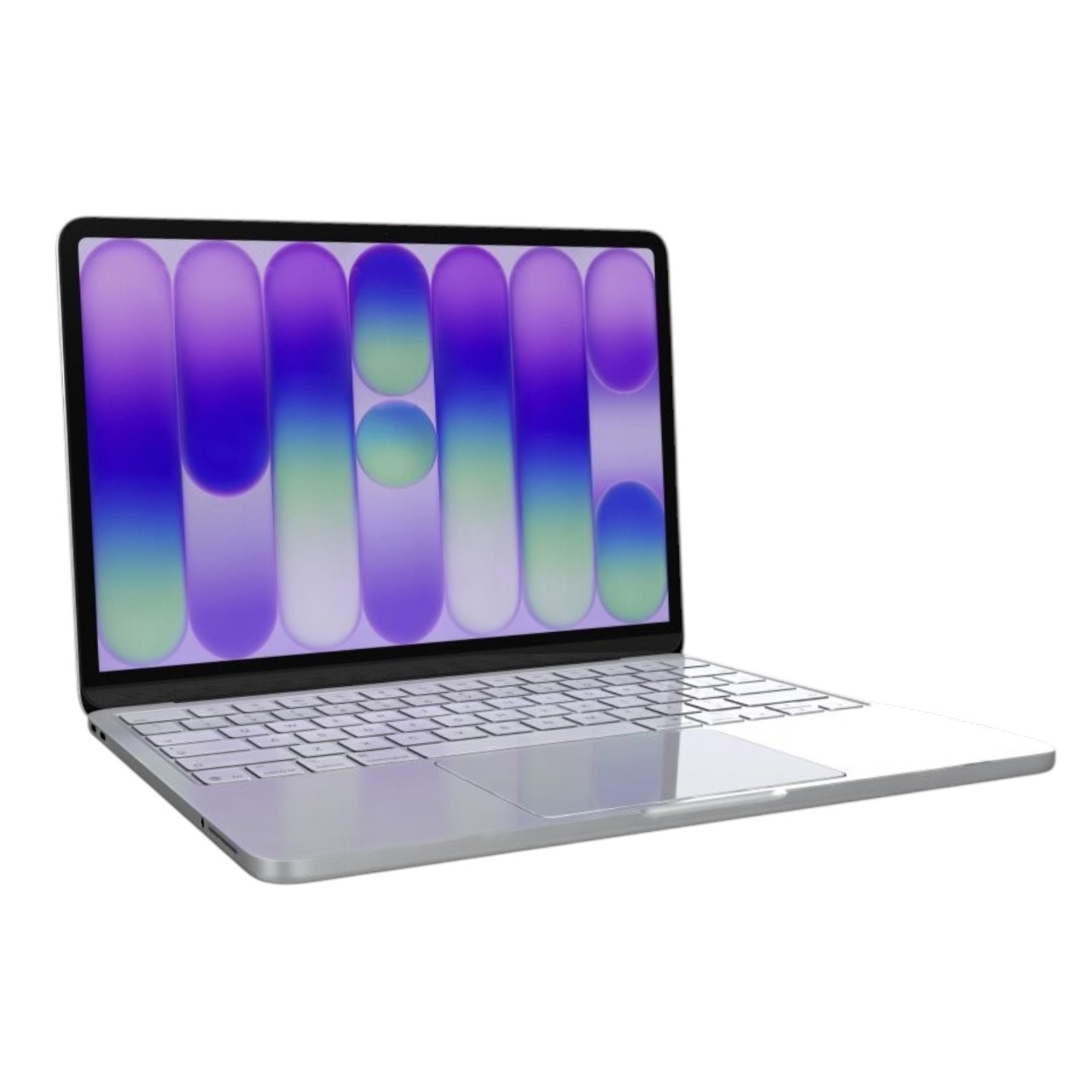
- Title: A3240 MacBook Air M4 Teardown Guide
- Alt Text: 2025 MacBook Air M4 Model A3240 sitting closed on a repair mat next to precision tools.
- Caption: The A3240 M4 MacBook Air: A masterpiece of efficiency, but a challenge for repairability.
The M4 Architecture: A Look Under the Hood
Before we crack the seal, it’s vital to understand what we are dealing with. The M4 chip in the A3240 isn’t just a speed bump; it’s a structural change. With a 10-core CPU and 10-core GPU packed into a chassis without active cooling, thermal management is handled entirely by the logic board’s heatsink design and the chassis itself.
For repair technicians, this means the logic board is denser, the connectors are more fragile, and the tolerance for error is lower than ever. Whether you are swapping a cracked screen or replacing a faulty USB-C port, you are navigating a minefield of serialized parts and precision-engineered ribbon cables.
TekDep Expert Insight: “The A3240 is an engineering marvel, but it’s also a ‘Right to Repair’ battleground. Components like the Touch ID sensor are paired to the logic board, meaning you can’t just swap them out without understanding the serialization consequences. We’ll cover exactly how to handle this in Phase 4.”
⚠️ Critical Safety: Read Before You Start
STOP AND READ: This is an advanced repair. The information provided below is for educational purposes.
1. Lithium-Polymer Battery Danger: The A3240 houses a dense Lithium-Polymer (LiPo) battery. These batteries are soft-shelled and extremely volatile if punctured. A slip with a screwdriver or pry tool can puncture a cell, causing an immediate thermal runaway event (fire).
- Never use metal tools to pry against the battery.
- Always have a bucket of sand or a fire safety blanket nearby.
- Discharge the battery below 25% before starting to reduce the potential chemical energy.
2. Electrostatic Discharge (ESD): The M4 logic board is highly sensitive to static electricity. A single static shock can fry a microscopic component on the board, rendering the entire machine dead.
- Wear an ESD wrist strap grounded to the chassis or a dedicated ground point.
- Work on an ESD-safe mat.
🛠️ Tools & Preparation
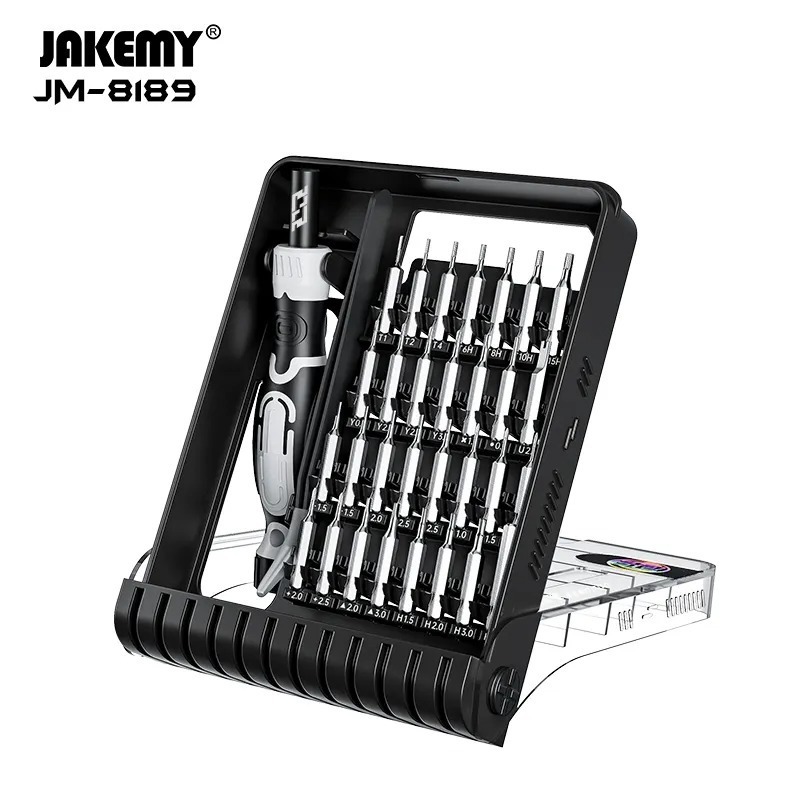
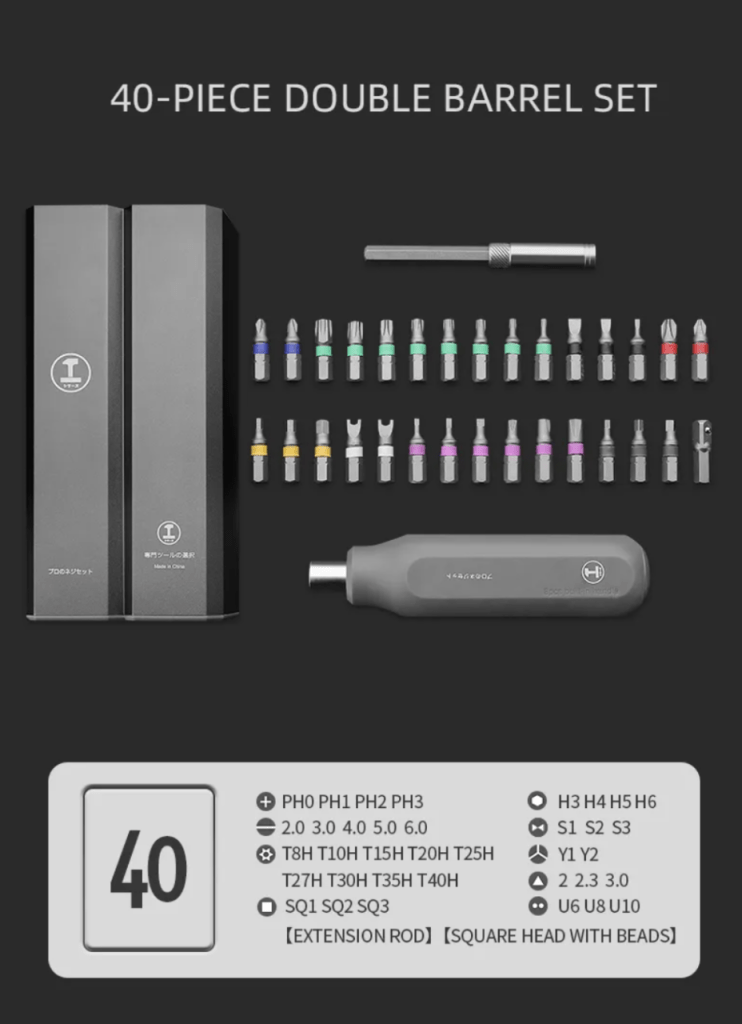
You cannot perform this repair with a standard kitchen drawer toolkit. Apple uses proprietary screw heads to secure the A3240. Stripping a screw head on the logic board can turn a 20-minute repair into a 3-hour nightmare.
Here is the exact loadout used in our video:
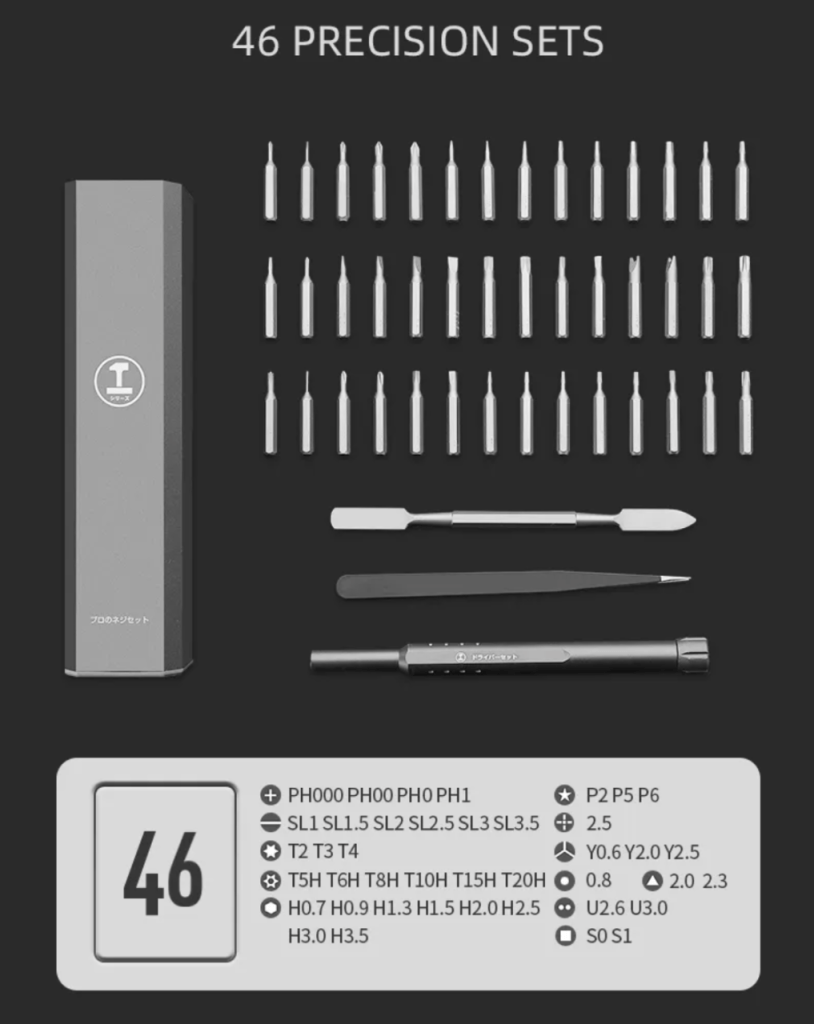
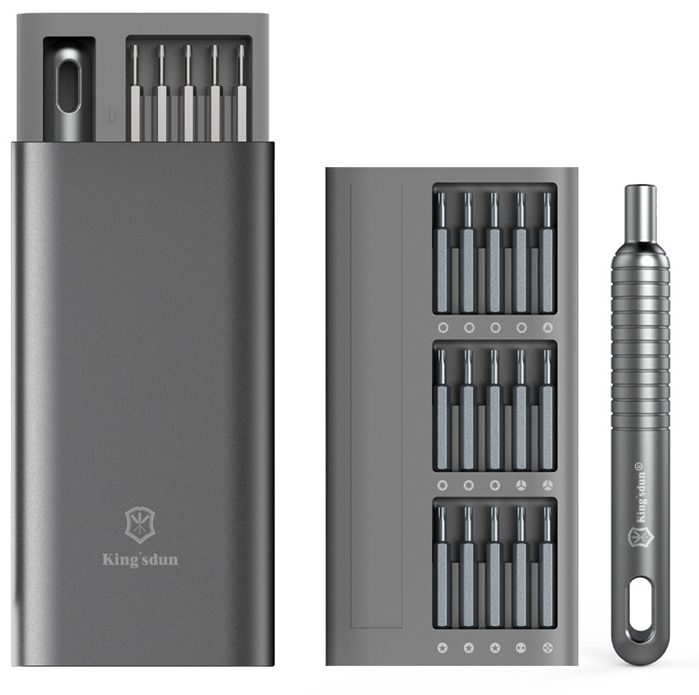
- Pentalobe P5 (PL05) Screwdriver: exclusively for the bottom case screws. This 5-point star pattern is Apple’s first line of defense against unwanted entry.
- Torx T3 Screwdriver: The workhorse of this repair. Used for the smallest internal components, including cable cowlings and antenna covers.
- Torx T5 Screwdriver: Used for structural components like the hinges, trackpad assembly, and larger board screws.
- Torx T7 Screwdriver: A larger bit required specifically for the heavy-duty display hinge screws.
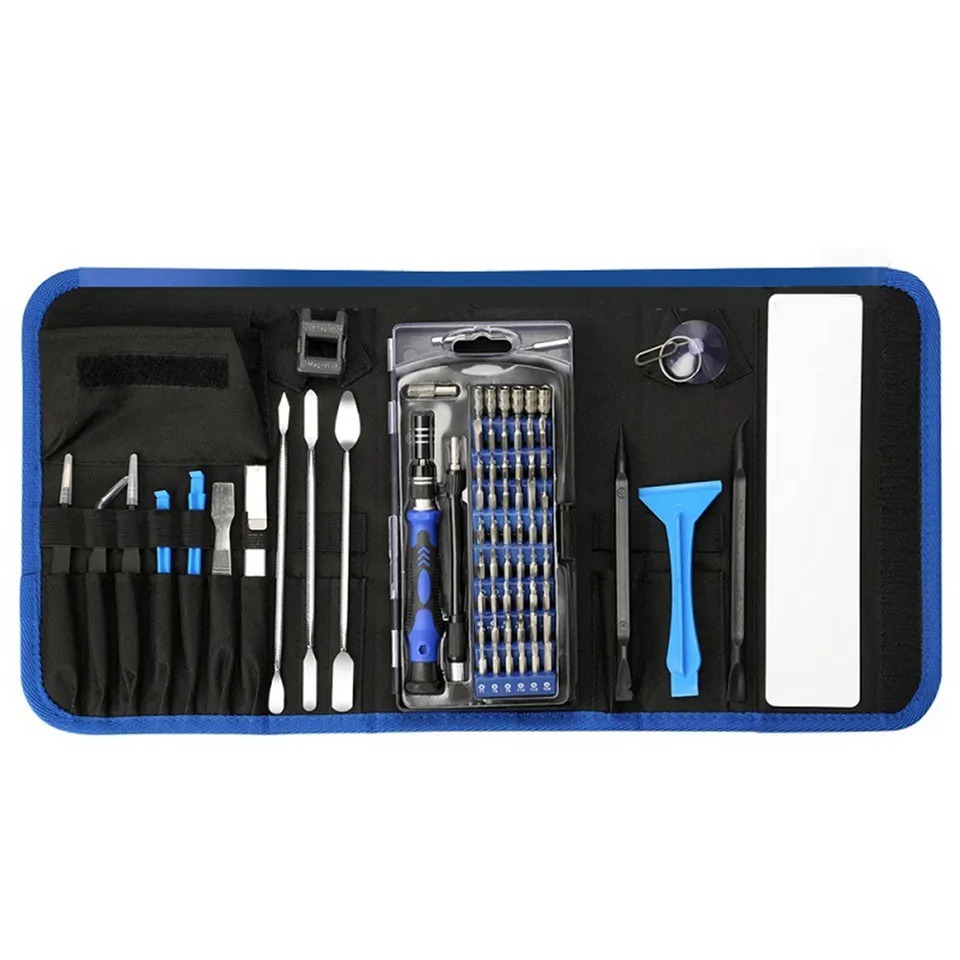
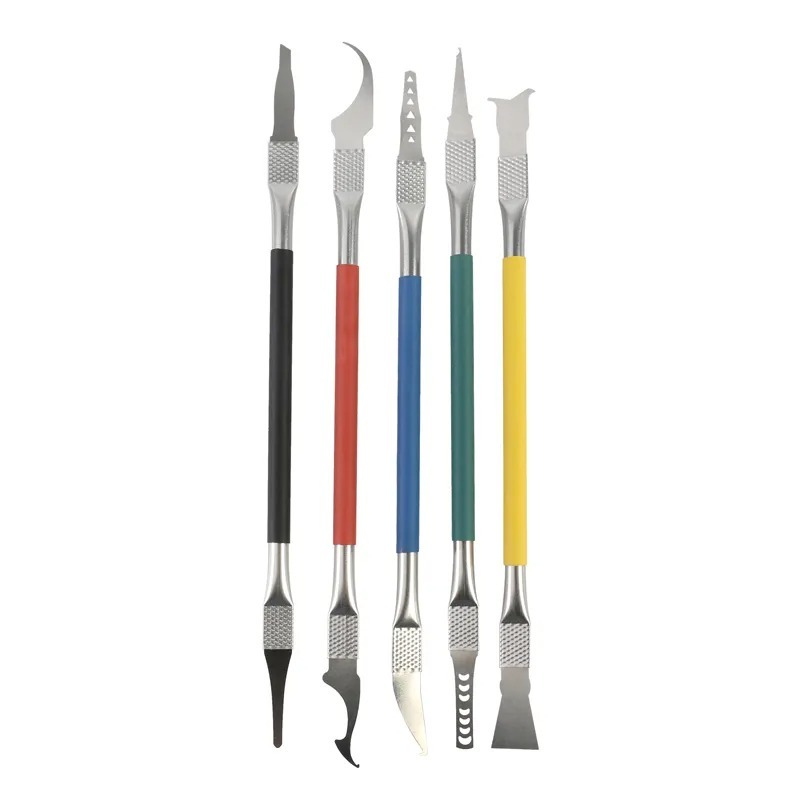
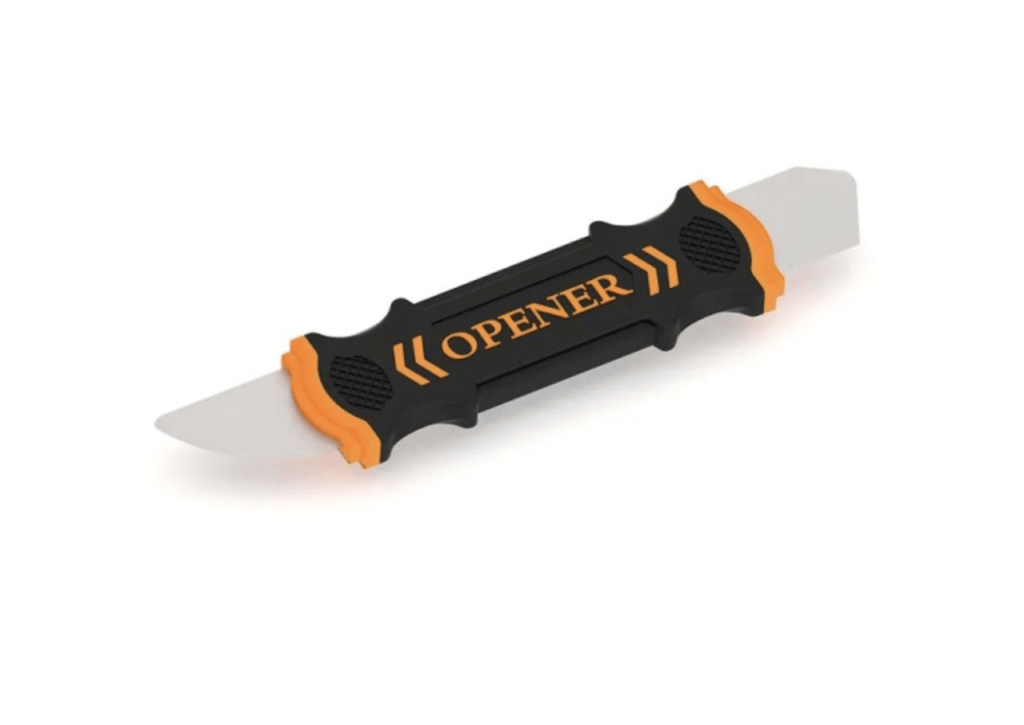
- Nylon Spudger / Pry Tool: Essential for disconnecting sensitive “Lego-style” snap connectors without shorting pins.
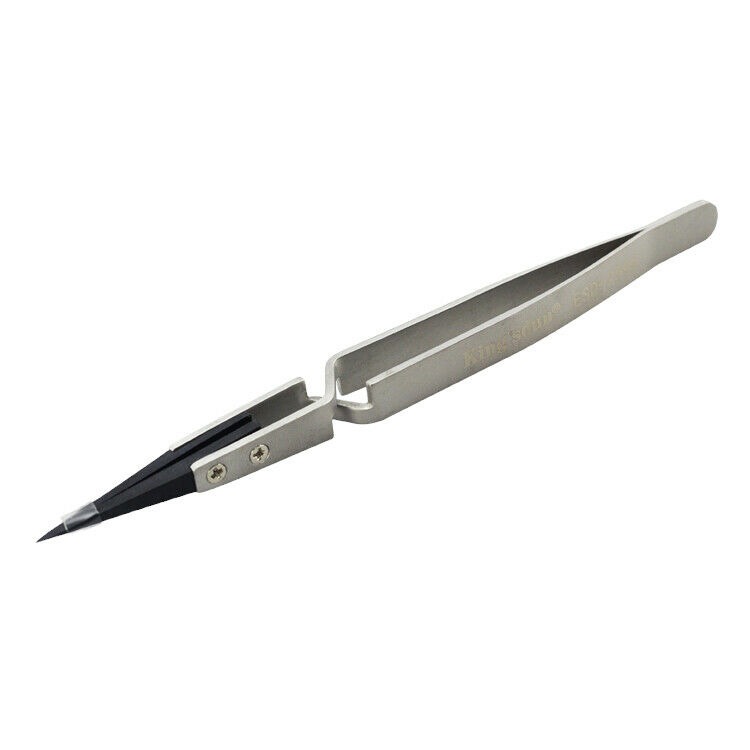
- Tweezers (ESD Safe): For handling small screws and peeling back adhesive tapes.
-

140 in 1 Steel Bit Precision Magnetic Screwdriver Tool Set with Case for Phone PC Electronics
-
9 in 1 Disassemble Multi Opening Repair Tools Kit Metal Pry Bar
-
6 in 1 Steel Bit Precision Magnetic Screwdriver Tool Set with Case for Phone PC Electronics
-

2X Suction Cup Repair Opening Tool For Phone Computer Tablet Heavy Duty Screen
Phase 1: Breaking the Seal (Backplate & Battery)
The journey into the A3240 begins at the bottom. The MacBook Air’s tapered design is iconic, but it hides a specific latching mechanism that can catch first-timers off guard.
Step 1: Removing the Pentalobe Screws
Flip your MacBook Air over. You will see four screws located near the rubber feet. These are Pentalobe P5 (PL05) screws.
- Use your PL05 driver to remove all four.
TEKDEPTip:
Keep these organized. While they look identical, mixing screws from different sections later on is a recipe for disaster.

Step 2: Releasing the Clips
Once the screws are out, the backplate doesn’t just fall off. It is secured by four internal clips—two on the left, two on the right—and two sliding mechanisms near the hinge.
- Lift: Take your pry tool and insert it into the gap between the display hinge and the bottom case on the far right corner.
- Pop: Gently lift until you hear a distinct click. This is the corner clip releasing. Repeat on the left side.
- Slide: Once the corners are free, you pull the entire plate down towards you (away from the hinge) to disengage the sliding hooks.

Warning: Do not pull the plate straight up! You will bend the aluminum hooks, preventing the case from closing flush ever again.
Step 3: Disconnecting the Battery (Crucial Step)
With the internals exposed, you are now looking at a live board. The very first thing you must do—before touching anything else—is cut the power.
- Locate the battery connector cover. It is secured by a T3 screw.
- Remove the screw and the metal cover.
- Use your nylon spudger (not a metal tool!) to gently pry the battery connector straight up.


This is the most important step. Disconnecting the battery prevents accidental short circuits while you work.
Phase 2: Input Devices (Trackpad Removal)
The trackpad on the M4 Air is large, responsive, and surprisingly serviceable. However, it is trapped under a delicate flex cable that snakes its way to the logic board.
Step 1: The Trackpad Flex Cable
The trackpad cable connects the trackpad to the logic board. It is held down by a T3 screw at the connector.
- Remove the T3 screw.
- Peel back the cable gently. It is adhered to the battery housing, so use your pry tool to slice through the adhesive slowly.


Step 2: The Trackpad Assembly
The trackpad itself is secured by a series of T5 screws.
- Outer Screws: Locate the sets of two T5 screws on the outer edges.
- Inner Screws: Remove the remaining T5 screws near the center.
Once the screws are out, you can open the MacBook screen slightly. The trackpad will drop out from the bottom.


Pay attention to the metal shims!
TekDep Expert Insight:
“Pay attention to the little metal shims (washers) on the trackpad screw holes. When you pull the trackpad out, these often fall on the floor. You absolutely need them for the new trackpad to sit flush and click correctly. Don’t lose them!”
🛠️ Need a replacement Trackpad? Don’t let a jumpy cursor slow you down. Get the exact part used in this video.

🛑 Feeling Overwhelmed? Let Us Handle It.
Teardowns like this look fun on video, but when you are staring at 30 different screws and a $1,200 delicate logic board, the pressure is real.
If you don’t feel comfortable risking your device, TekDep offers a Worldwide Mail-In Repair Service.
- Expert Technicians: We do this every day.
- Data Recovery: Spilled water? We specialize in board-level data recovery.
- Warranty: All our repairs come with a guarantee.
Phase 3: The Upper Assembly (Speakers, Hinges & Display)
Now we move to the upper region of the device. This area is dense with cables for the display, Wi-Fi antennas, and the upgraded sound system.
Step 1: Removing the Covers (The “Cover Hunt”)
Apple hides the structural screws under cosmetic and functional covers. You will need your T3 screwdriver for this entire sequence. Remove the following in order:
- Right Speaker Cover
- Antenna Cover
- Display Cable Cover (Note: There is often a “secret” hidden screw here—watch out for it!)
- Left Speaker Cover
- Sleep Sensor Cover (Far left)

Step 2: Antenna & Hinge Covers
With the top covers off, you can access the hinge mechanisms.
- Remove the T3 screws securing the antenna bars.
- Use your pry tool to pop off the black plastic hinge covers on the far left and right. Underneath these, you will find the structural T5 screws.


These covers hide the structural hinge screws. Use a pry tool to pop them off gently.


Step 3: Detaching the Display
This is the heavy lifting. The display assembly is heavy, and if it slips, it can crack the screen or damage the logic board.
- Disconnect Cables: Unplug the display flex cables and the Wi-Fi antenna cables from the board.
- Remove Hinge Screws: Switch to your T7 screwdriver. These are the largest screws in the system. Remove them from both the left and right hinges.
- The “90-Degree” Trick: Open the MacBook to just past a 90-degree angle. This aligns the hinges with the chassis slots, allowing you to slide the display unit straight out.


Open the lid slightly past 90 degrees to slide the display free without scratching the aluminum.
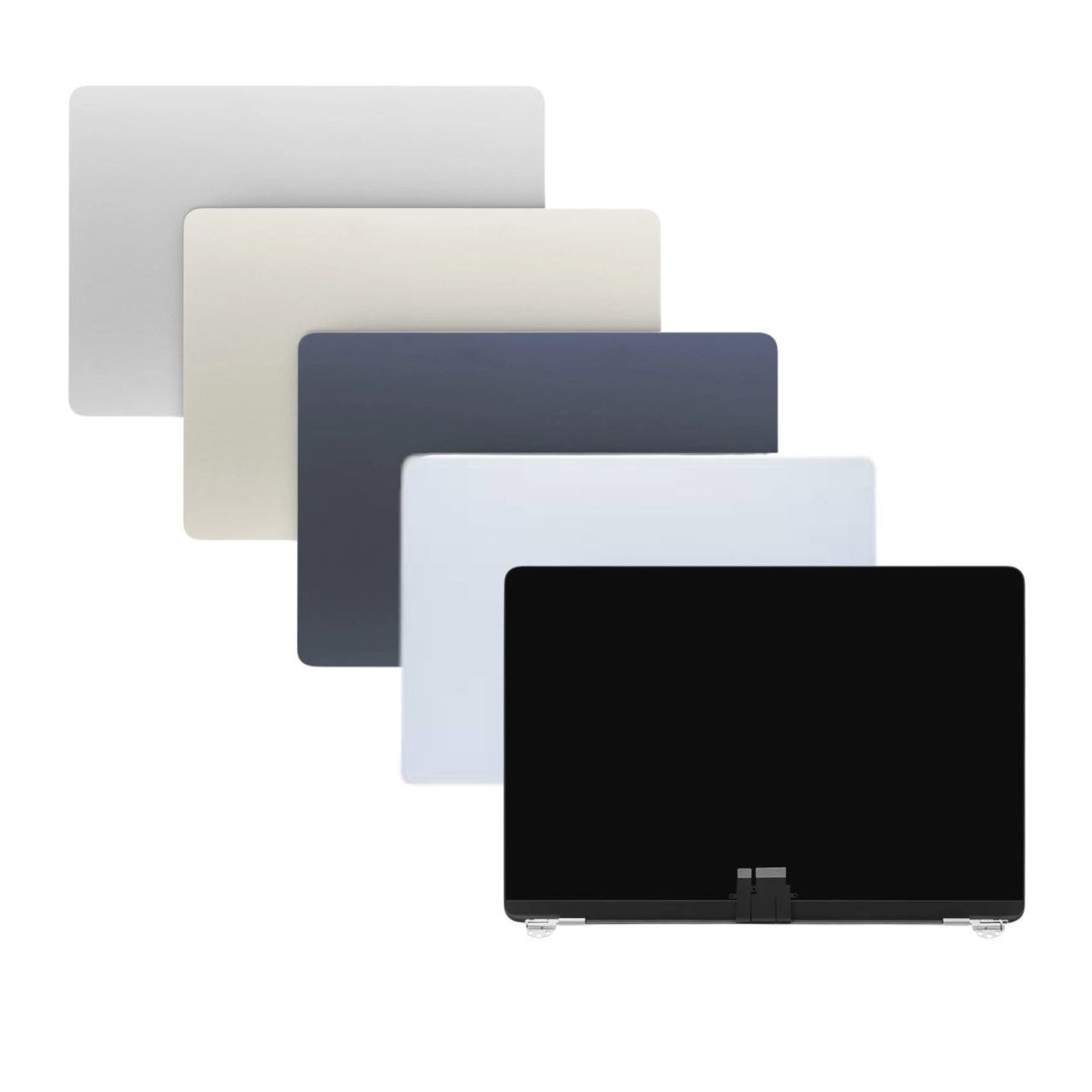
🛠️ Broken Screen? The M4 display is beautiful, but fragile. If yours is cracked or has dead pixels, we stock the full OEM assembly.
Phase 4: The Brain (Logic Board & Touch ID)
We are now down to the core: the M4 Logic Board.
Step 1: Disconnecting Peripherals
Before the board can move, it must be untethered. Locate and disconnect these cables:
- Keyboard Connector: A wide ribbon cable.
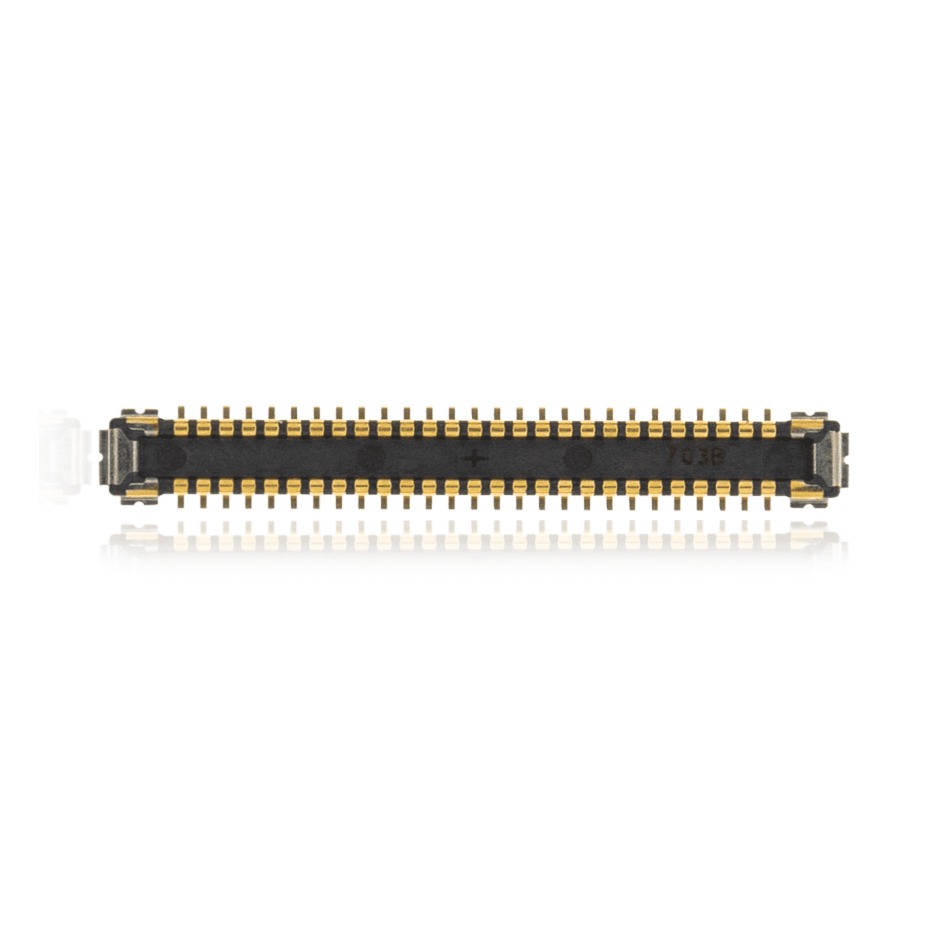
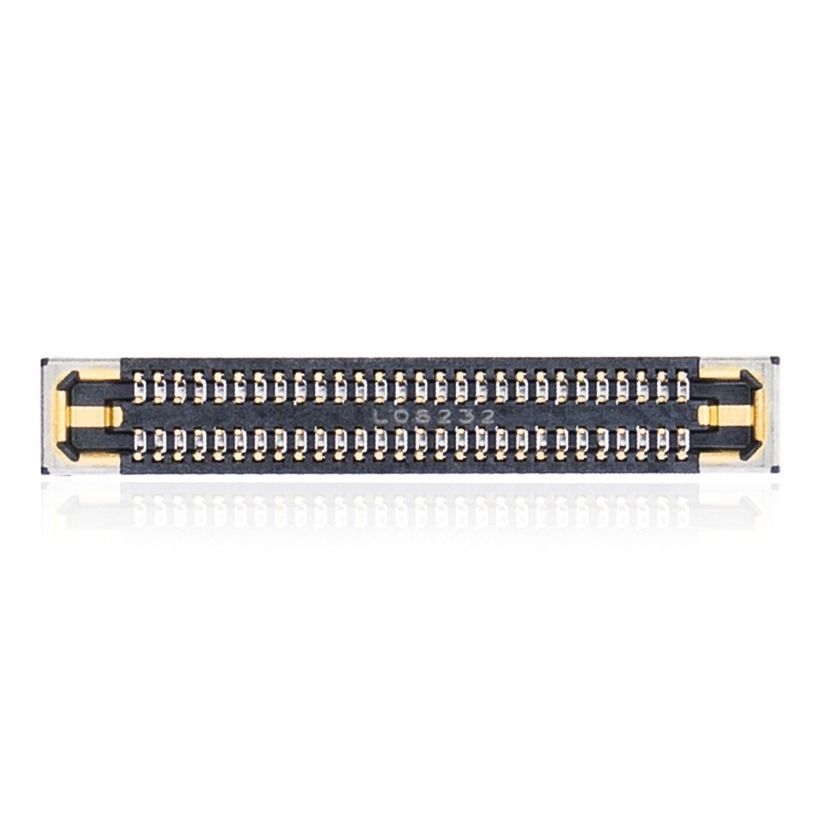
- USB-C Connectors: Two cables on the left side.
- Audio/AUX Cable: A small flex cable near the headphone jack.
- MagSafe DC-In Cable: The power connector.

Step 2: Logic Board Screws
The board is held in by a mix of T3 and T5 screws.
- Left Side: Two T3 screws.
- Middle: Three T5 screws.
- Right Side: Three T3 screws.
CRITICAL NOTE: Do NOT remove the screws located directly on the M4 chip heatsink/shielding. These hold the cooling assembly to the chip itself. You want to remove the board with the heatsink attached.
Once all screws are out, lift the board gently from the left side, checking for any snagged cables, and pull it free.

Step 3: Touch ID Sensor (Serialization Alert!)
If you are replacing the logic board, you must transfer your original Touch ID button to the new board. Apple pairs the Touch ID sensor to the M4 chip.
- If you swap the board but keep your old button: Touch ID will work (usually).
- If you use a new button with your old board: Touch ID will fail.


Vital Step: This sensor is paired to your logic board. You must transfer it if you are replacing the board.
Removal:
- Remove the six T3 screws holding the Touch ID retention plate.
- Carefully pry up the adhesive holding the flex cable.
- Slide the button out of the chassis.
🛠️ Need a replacement Logic Board? If liquid damage has fried your board, this is the core replacement you need (M4 / 16GB / 256GB). 👉 Shop A3240 OEM Logic Board

Phase 5: The Modular Ports (Audio, USB-C, MagSafe)
Finally, we are left with the modular components attached to the Top Case. These are the parts that suffer the most “wear and tear” from daily plugging and unplugging.

1. AUX / Audio Module
Held in by T5 screws on the left side. This module contains the 3.5mm headphone jack.
2. USB-C Ports
The dual USB-C / Thunderbolt ports are modular! This is great news. If a port becomes loose or stops charging, you don’t need a new motherboard.
- Remove the T5 screws securing the brackets.
- Slide the module out.
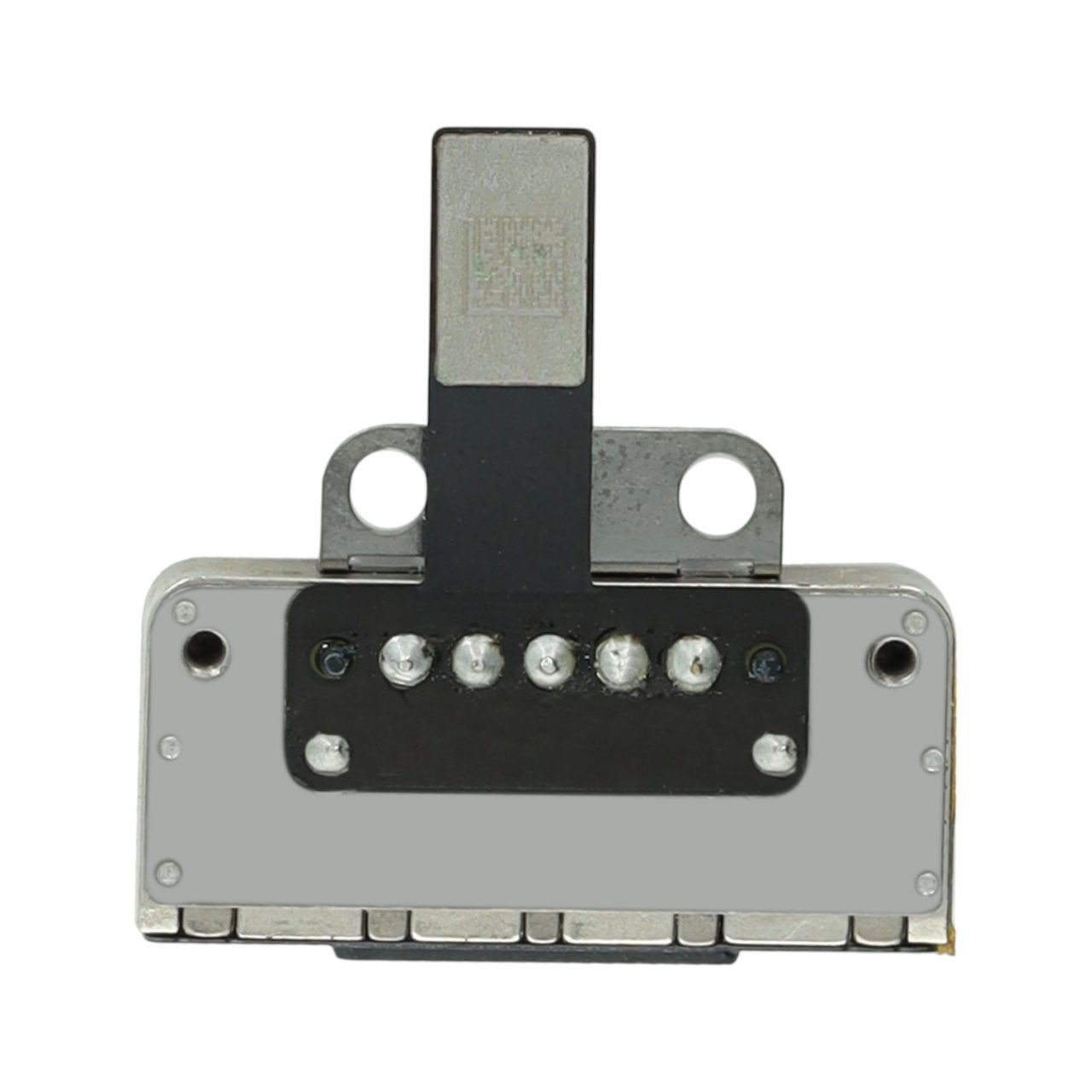
⚡ Fix Your Charging Ports:
- USB-C Module
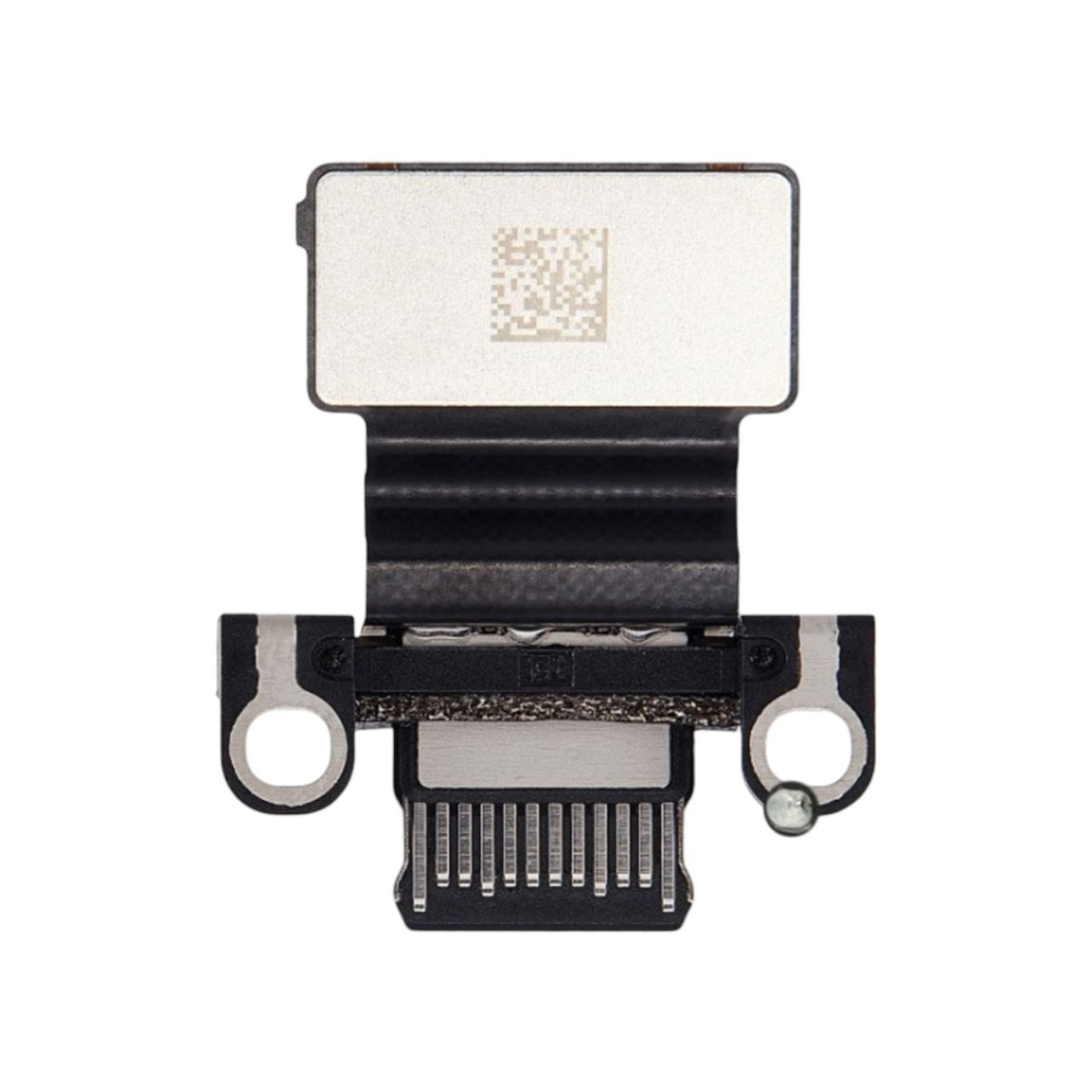
- MagSafe Board
Reassembly & Final Thoughts
You have now successfully stripped the A3240 MacBook Air down to its bare aluminum chassis—the Top Case.
If you are following this guide to replace a keyboard, you have two options:
- The Hard Way: Spend 2 hours ripping out 50+ tiny rivets to replace just the keyboard (we will have a separate video for this!).
- The Smart Way: Replace the entire Top Case Assembly. This gives you a fresh battery, a fresh keyboard, and a scratch-free palm rest in one go.

🏆 The “Smart Fix” Recommendation: Instead of spending hours replacing just the keyboard, swap the entire Top Case Assembly. You get a fresh battery, a new keyboard, and a scratch-free palm rest in one easy install. 👉 Shop A3240 Top Case Assembly (Keyboard + Battery)

Reassembly Tip: Follow this guide in exact reverse order. The trickiest part will be reconnecting the antenna cables—they require a firm “snap” to seat correctly. If they aren’t seated, your Wi-Fi range will drop to zero.
Recommended Resources
- 📺 Watch the Full Video:
- 📺 Display Replacement Guide: Watch Here
- 📺 Logic Board Guide: Watch Here
Have questions? Drop a comment on the video or contact our support team. We are here to help you get your tech back online.
Frequently Asked Questions
- Is the RAM or SSD upgradeable on the A3240 MacBook Air M4?
No. The M4 chip uses a System-on-Chip (SoC) architecture, meaning the CPU, GPU, RAM, and SSD storage are soldered directly to the logic board. To upgrade specs, you must replace the entire logic board. - Will FaceID or Touch ID work if I replace the Logic Board?
Touch ID is serialized (paired) to the specific logic board. If you replace the board, you must transfer your original Touch ID button to the new board for it to work. If you lose the button, you will lose Touch ID functionality forever. - Is the battery difficult to replace on the A3240?
The battery is adhered to the top case. While it can be removed with solvent and prying, it is risky and time-consuming. We recommend replacing the “Top Case Assembly” (which includes the battery and keyboard) for a safer, faster repair. - Can I replace the USB-C ports without replacing the motherboard?
Yes! The A3240 features modular USB-C/Thunderbolt ports. They are on a separate daughterboard connected by a flex cable, making them easy and cheap to replace if they become loose or stop charging. - What happens if I strip the Pentalobe (PL5) screws on the bottom?
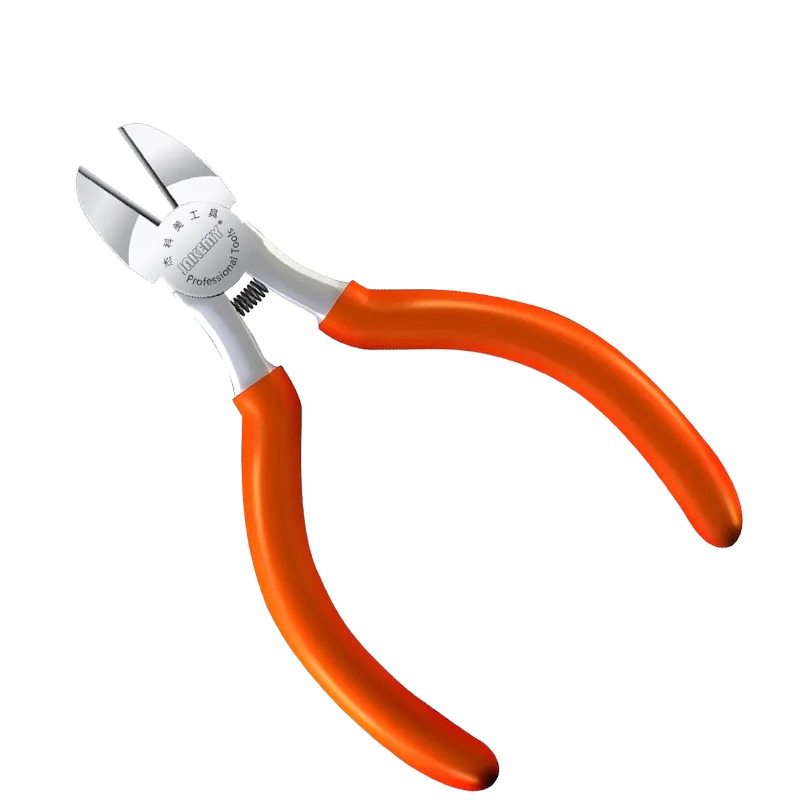
These screws are extremely soft. If stripped, you may need to use a precision Dremel or a screw extraction plier. To avoid this, apply firm downward pressure and ensure your PL5 driver is high-quality and not worn out. - Does the A3240 have a fan I need to clean?
No. The MacBook Air M4 is a fanless design. It relies entirely on a passive heatsink and the aluminum chassis for cooling. This is great for maintenance as there is no fan to clog with dust. - Why do I need to remove the antenna bar to change the screen?
The Wi-Fi antenna bar sits directly on top of the display hinge screws. You physically cannot access the T7 hinge screws to remove the screen without first removing the antenna cowling. - Will replacing the screen cause me to lose True Tone?
On newer Macs, True Tone is often calibrated to the original screen. Swapping the display usually works fine for image output, but the “True Tone” color correction feature may be disabled unless you have Apple’s proprietary calibration software. - What are the metal shims under the trackpad for?
These are calibration spacers. They ensure the trackpad sits at the perfect height relative to the palm rest for the “click” mechanism to work. If you lose them, your trackpad may feel “stuck” or loose. - Is this repair waterproof after reassembly?
No. The MacBook Air is not waterproof to begin with. However, breaking the factory adhesive seals on the screen and chassis reduces whatever minor splash resistance it originally had. Keep liquids away!
🛑 IMPORTANT: SAFETY & LIABILITY DISCLAIMER
TEKDEP.com assumes no liability for property damage or injury incurred as a result of any information in this blog post or associated videos. Dealing with internal computer components, specifically Lithium-Ion batteries, carries inherent risks including fire, electric shock, and device failure.
Any injury, damage, or loss from improper use of tools, mishandling of components, or misinterpretation of this information is the sole responsibility of the user. If you are unsure about your ability to perform these repairs safely, please utilize our professional Mail-In Repair Service.



