



























Estimated Repair Time: 45–60 Minutes
Difficulty: Moderate to Advanced
If you are reading this, you are likely facing the dreaded “dead MacBook” scenario. You press the power button on your 2025 MacBook Air M4 (Model A3240), and nothing happens. No chime, no fan spin, no display. Or perhaps you’ve suffered liquid damage that has shorted the primary power rails of the Apple M4 processor.
While the new M4 architecture brings incredible efficiency and speed, logic board failures can still happen. The good news? The A3240 chassis is repairable if you have the patience and the right guide.
In this comprehensive tutorial, we will walk you through the A3240 logic board replacement process step-by-step. We will cover everything from the specific PL05 and T03 screwdrivers you need, to the critical safety steps for handling the delicate Touch ID sensor.
⚠️ Professional Note: This repair involves handling sensitive electronic components. If you do not feel comfortable working with micro-electronics, we strongly recommend using our Mail-In Repair Service. We specialize in M-Series chip recovery and board-level repairs.
Part 1: Diagnostics & Preparation
Do You Really Need a Logic Board Replacement?
Before we start tearing down your A3240, let’s confirm the diagnosis. A logic board replacement is a “nuclear option”—it replaces the brain of the computer. You should consider this repair if:
- No Power / Dead Unit: The device draws 0 amps or irregular amperage from the USB-C charger.
- Liquid Damage: You spilled water, coffee, or soda, and the corrosion has damaged multiple components.
- Kernel Panics: The device crashes constantly due to CPU/GPU errors inherent to the M4 chip.
- Drive Failure: On M-series Macs, the SSD is soldered to the board. If the drive fails, the whole board often needs replacing (or professional microsoldering).
Tools Required for the A3240
You cannot perform this repair with standard household tools. Apple uses proprietary screw profiles. Attempting to use the wrong driver will strip the heads and leave you with a permanently broken device.
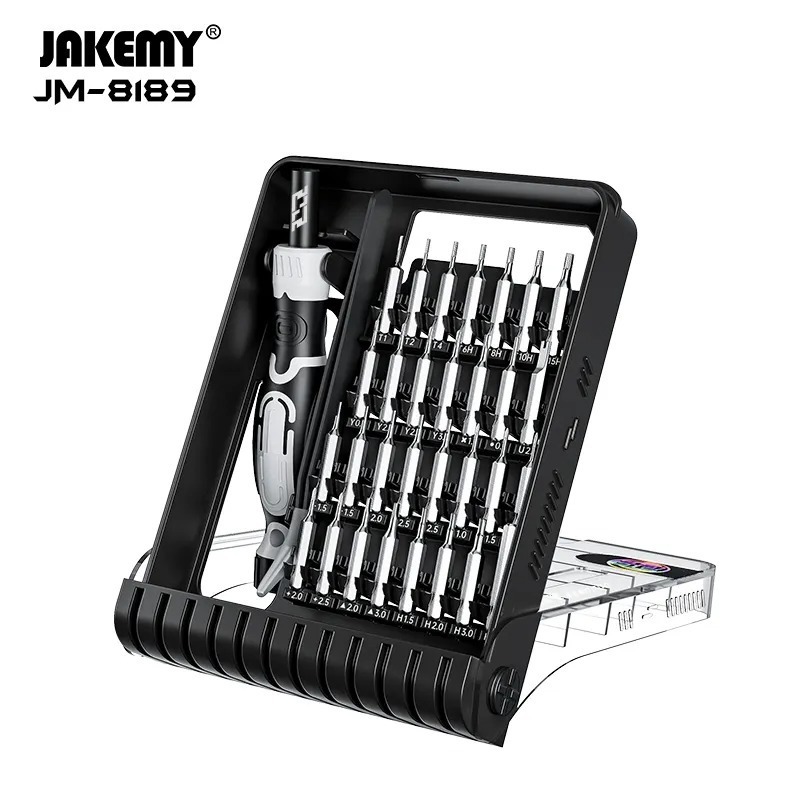
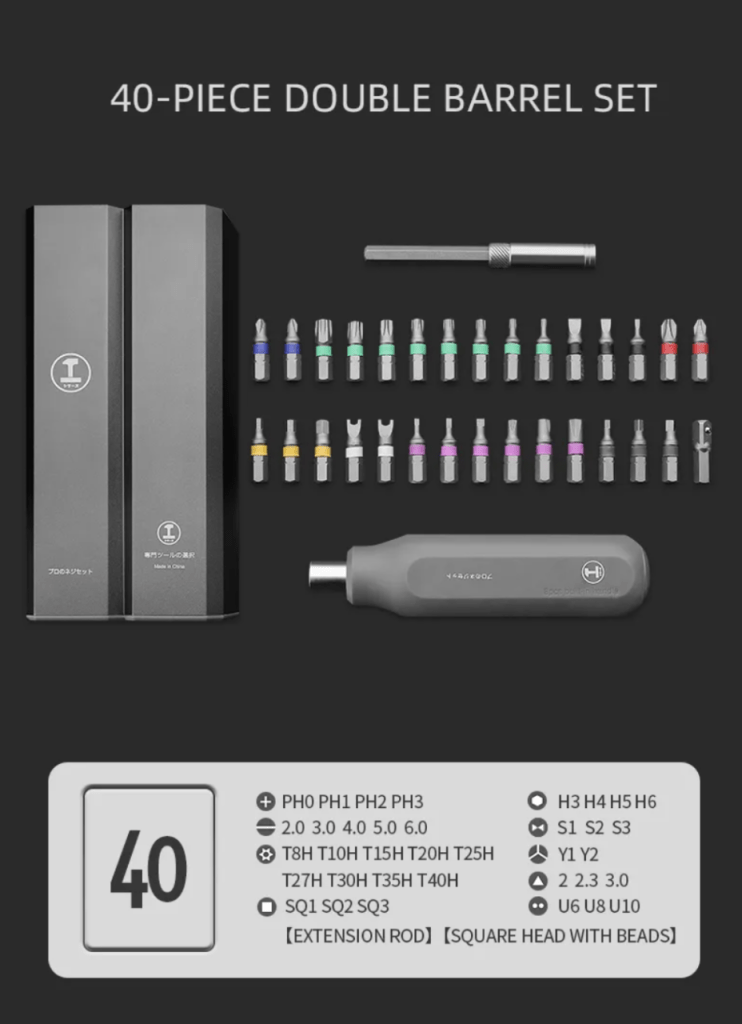
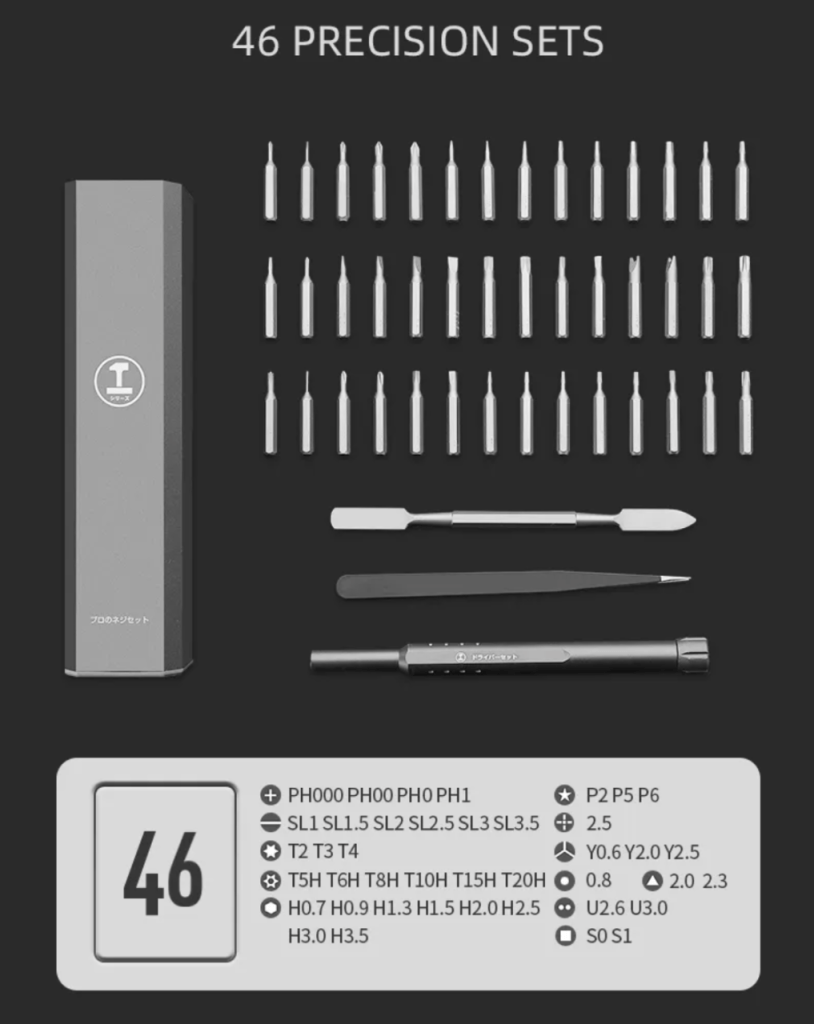
Must-Have Tool Kit:
- PL05 (Pentalobe) Screwdriver: For the external backplate.
- T03 (Torx) Screwdriver: For the majority of internal connectors, battery cowl, and trackpad.
- T05 (Torx) Screwdriver: For the logic board standoff screws and heat sink mounts.
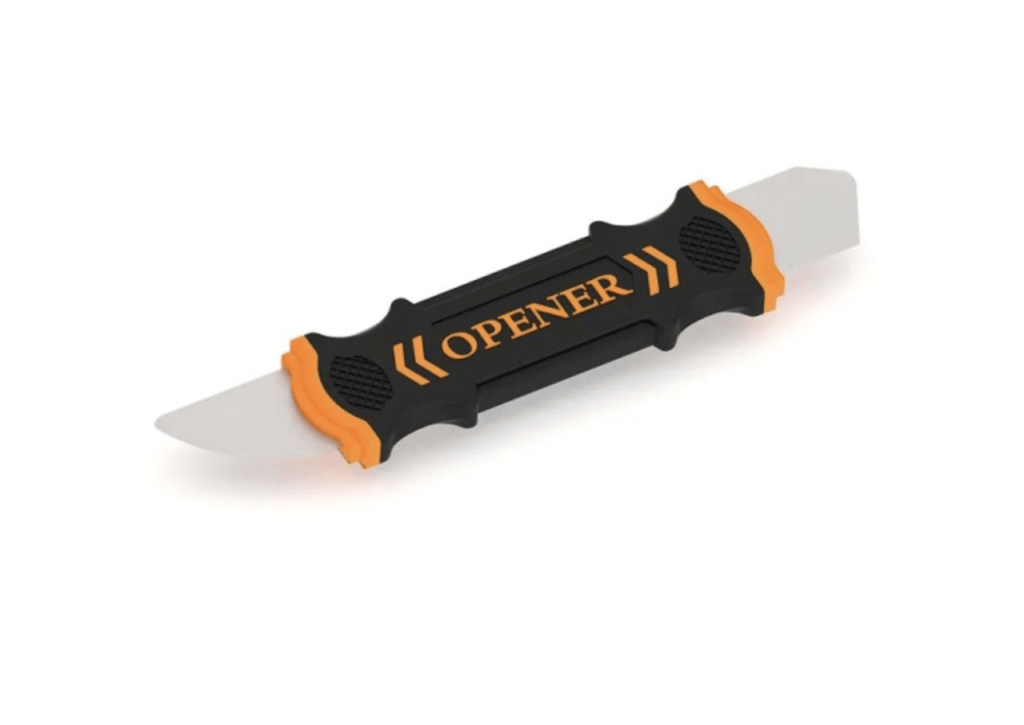
- ESD Safe Pry Tool (Spudger): To safely disconnect battery and display cables without shorting pins.
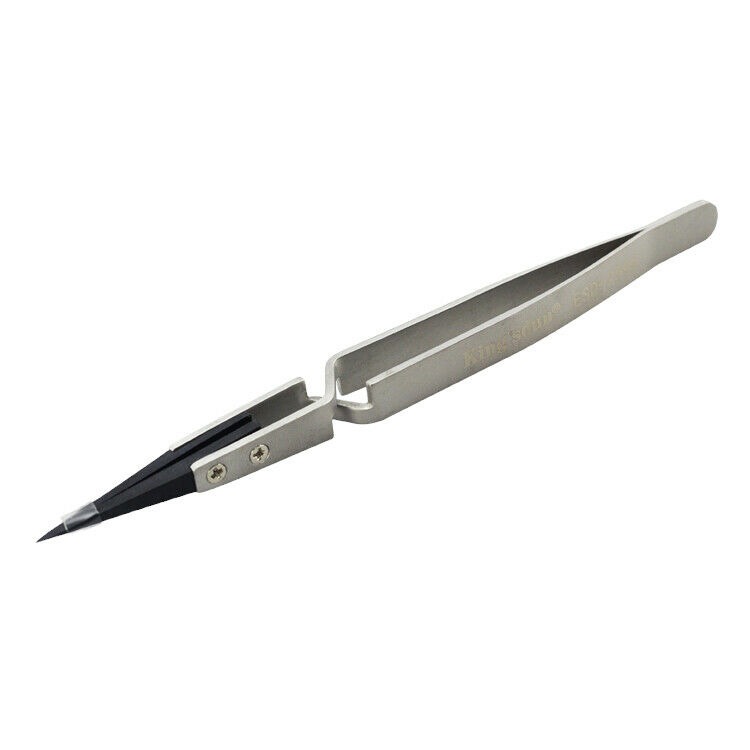
- Tweezers: For handling small antenna covers and screws.
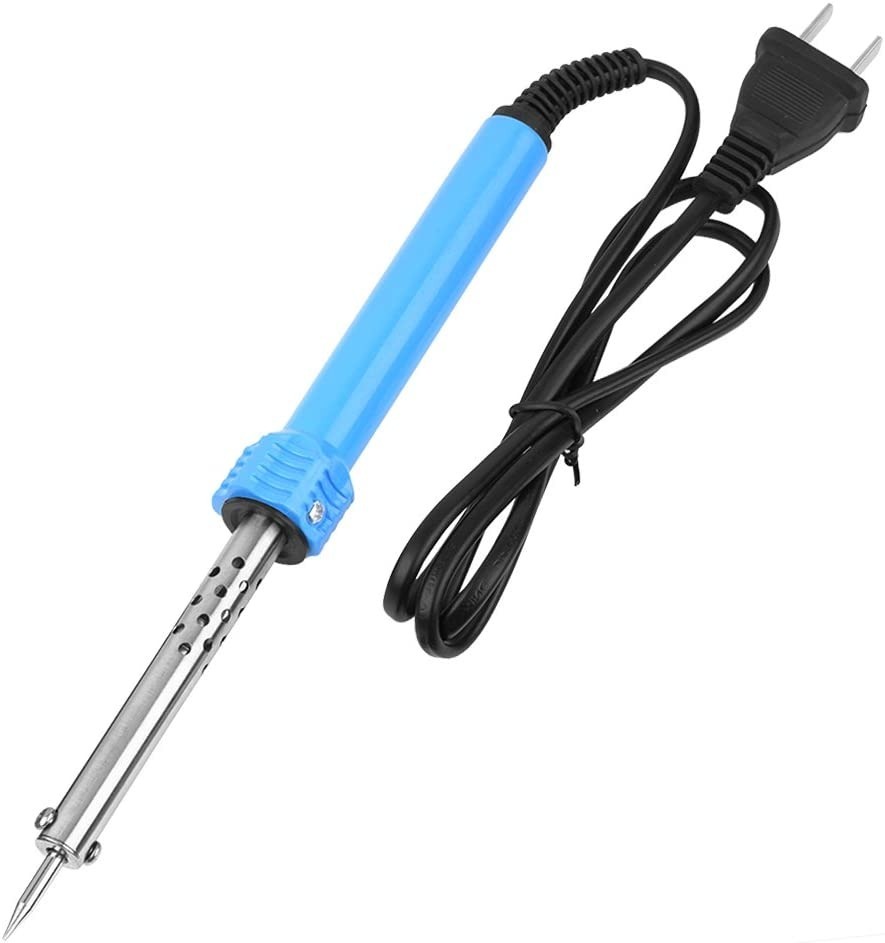
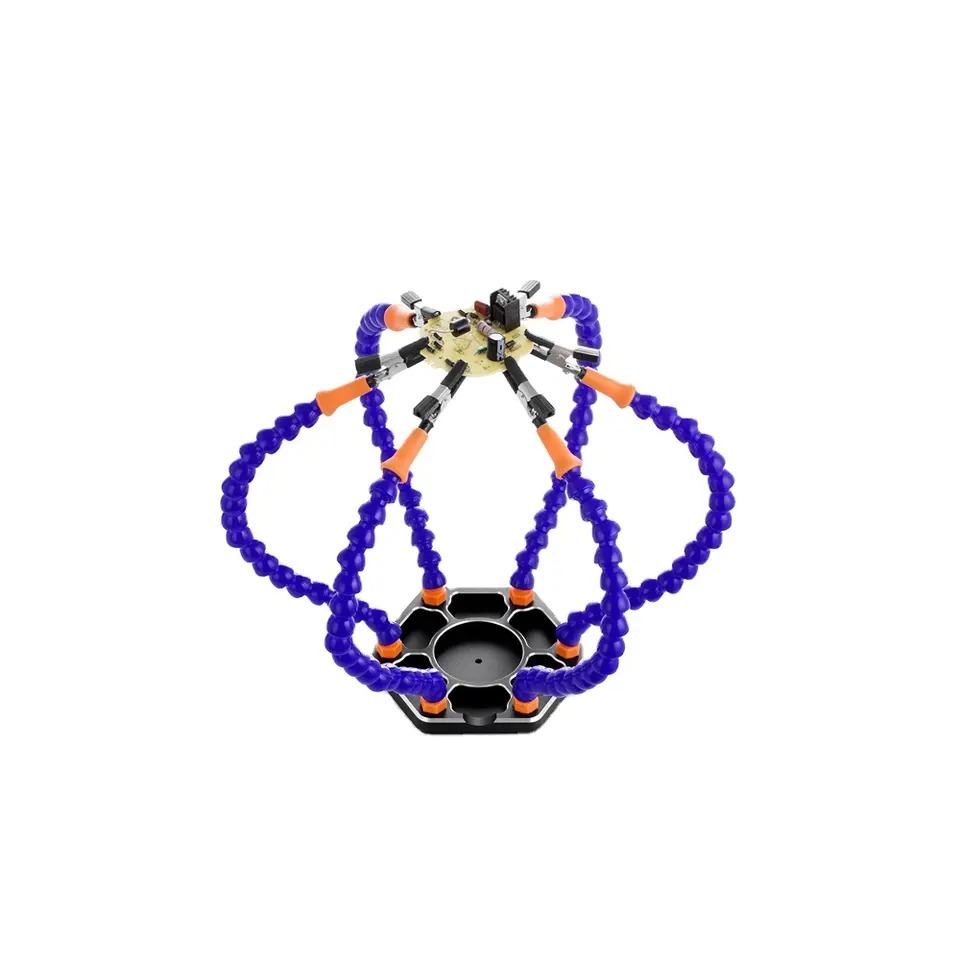
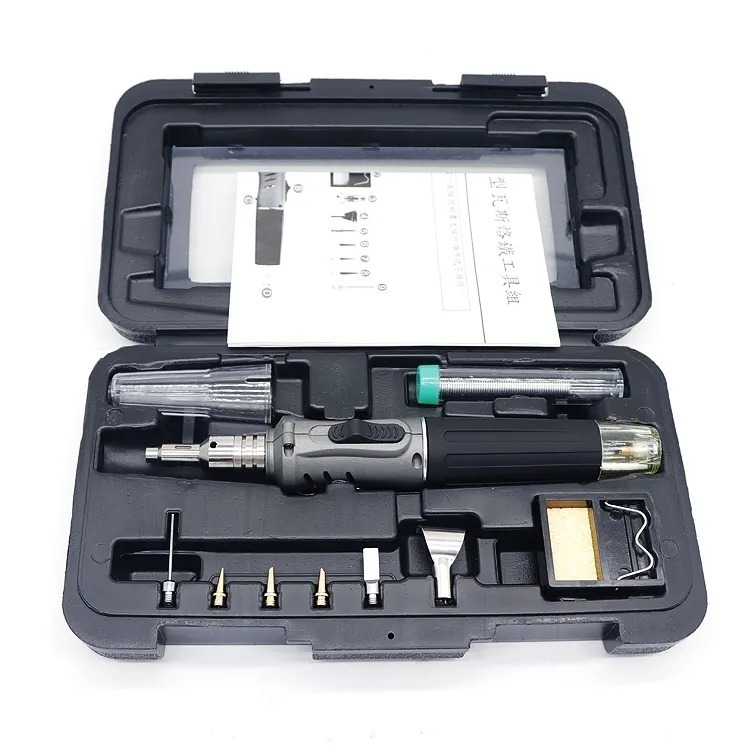
-
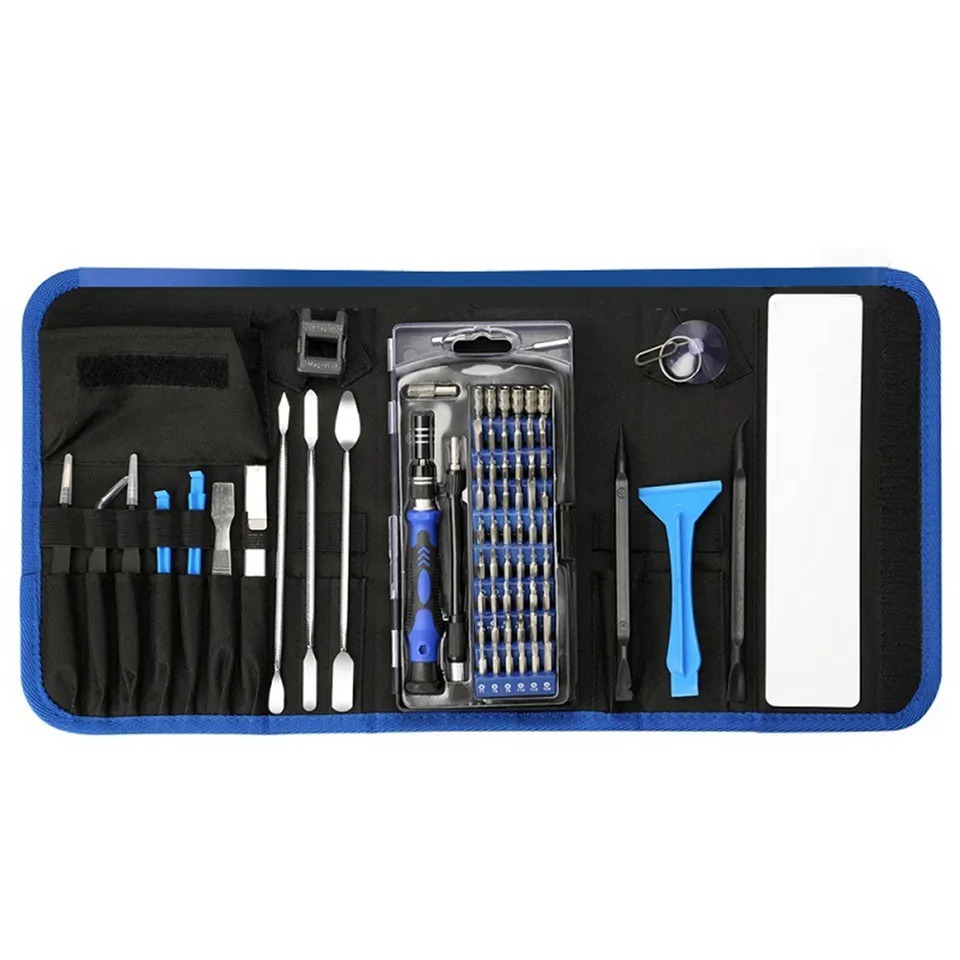
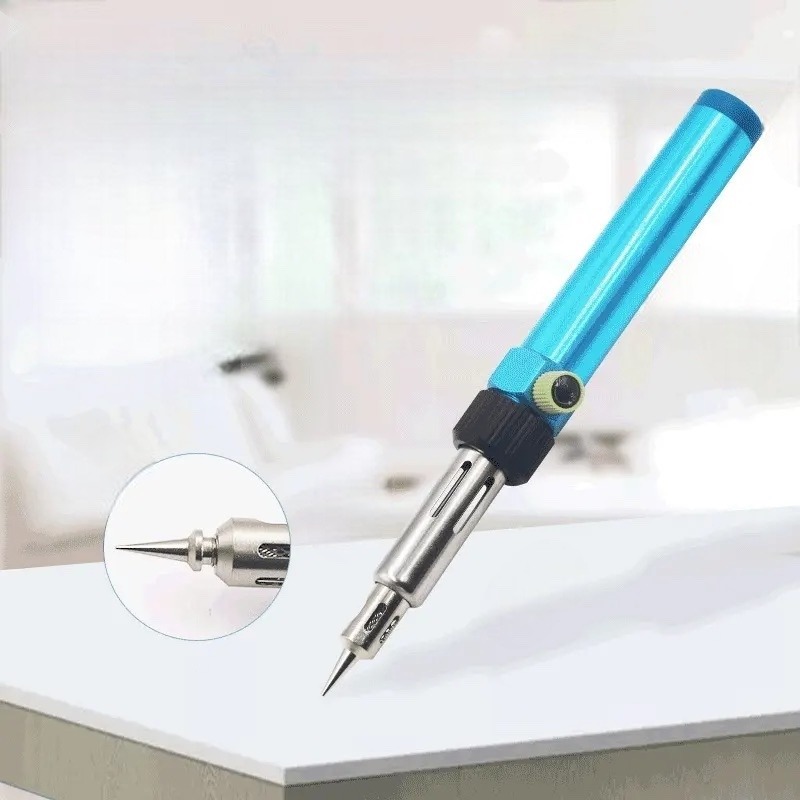
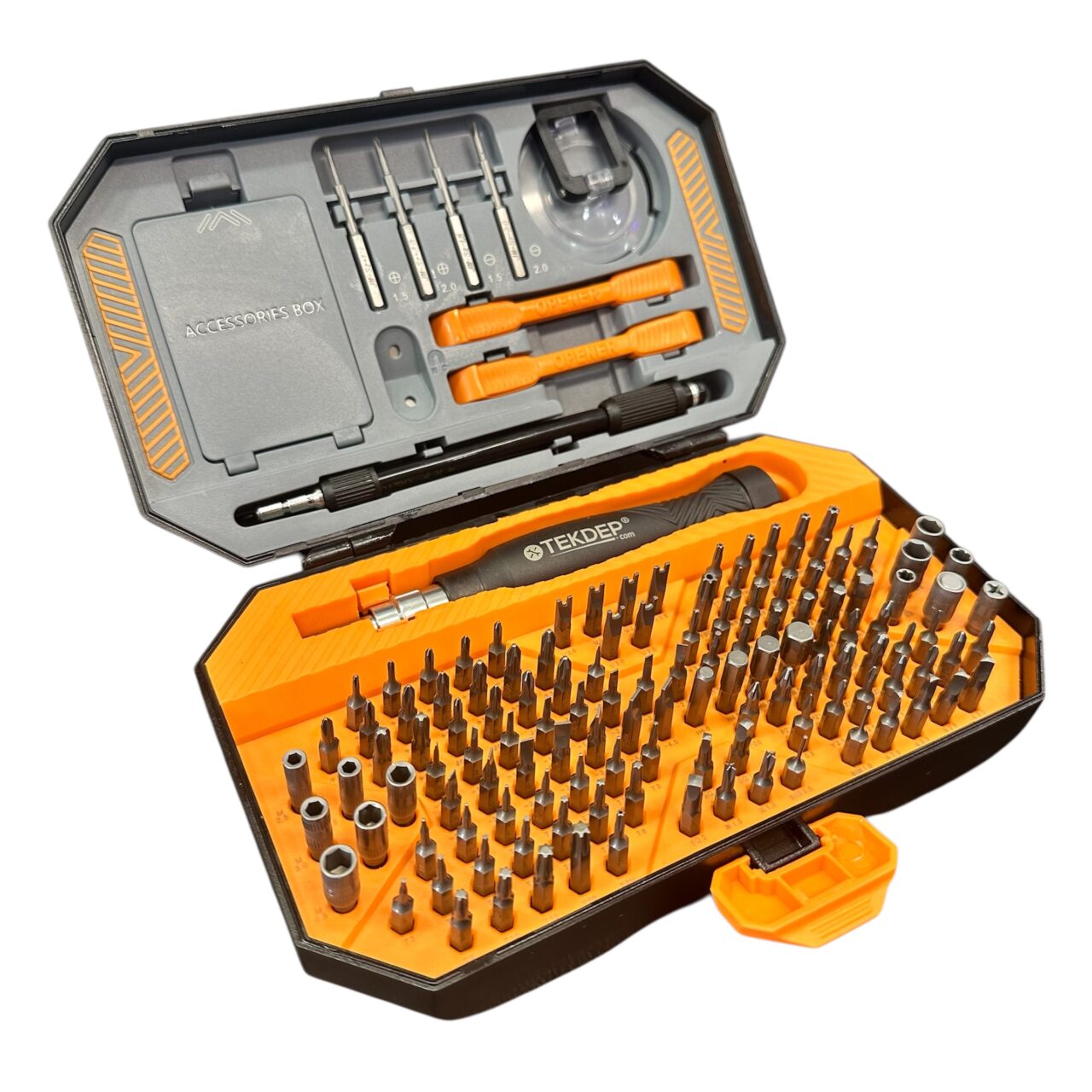
TEKDEP Professional Tool Set 145-in-1 For Electronics, iPhone, Laptop, PC Repairs
-24% $45.00Was:$59.00 -
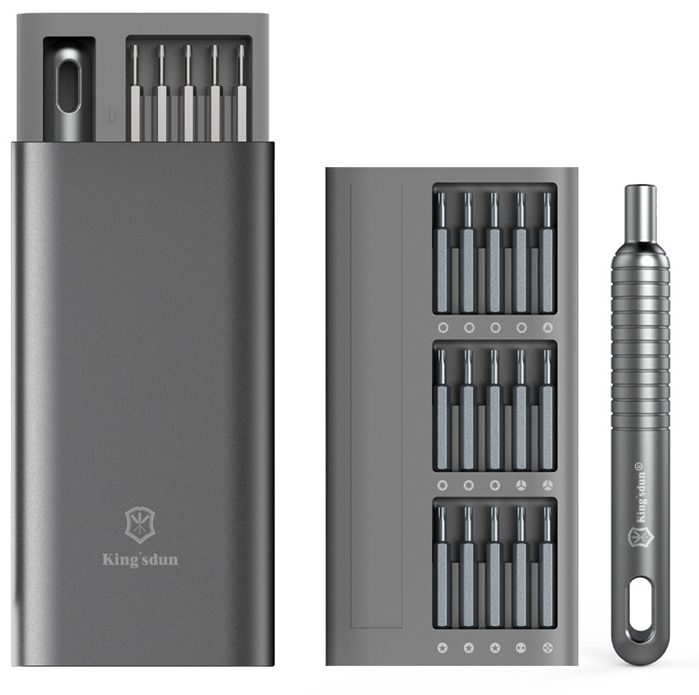
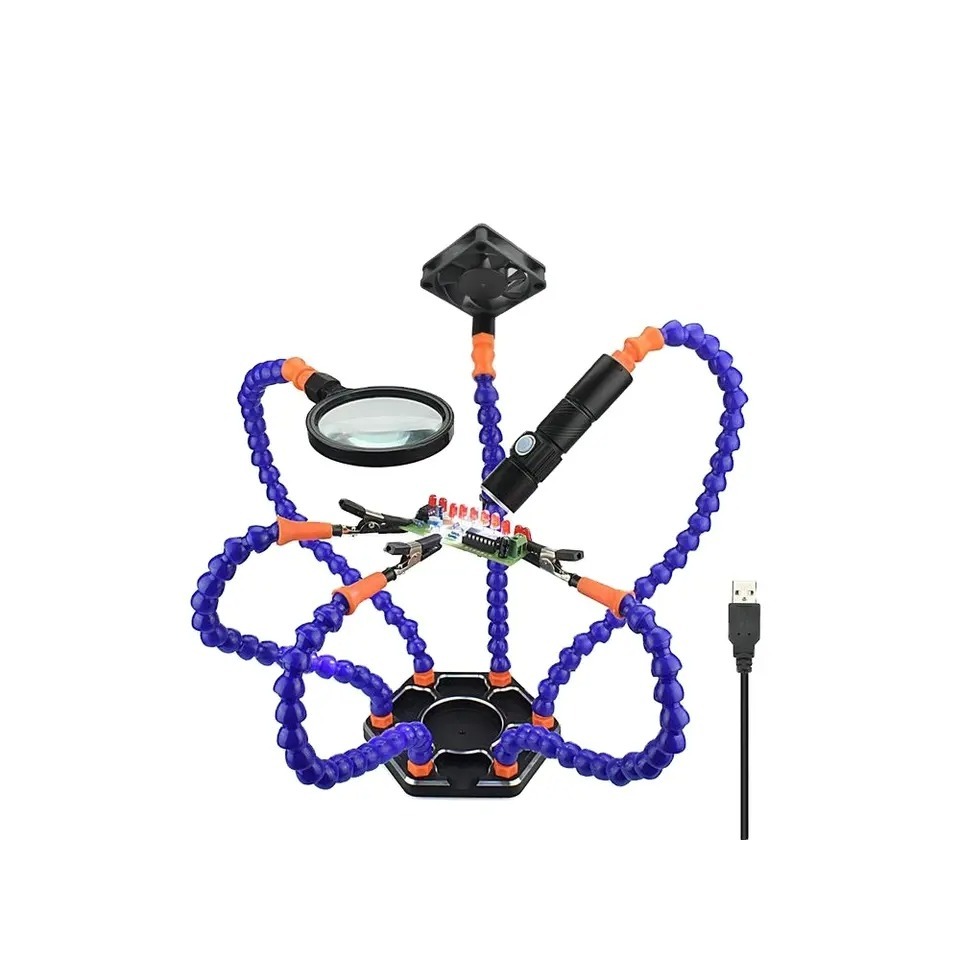
6 in 1 Steel Bit Precision Magnetic Screwdriver Tool Set with Case for Phone PC Electronics
-26% $23.66Was:$32.00 -
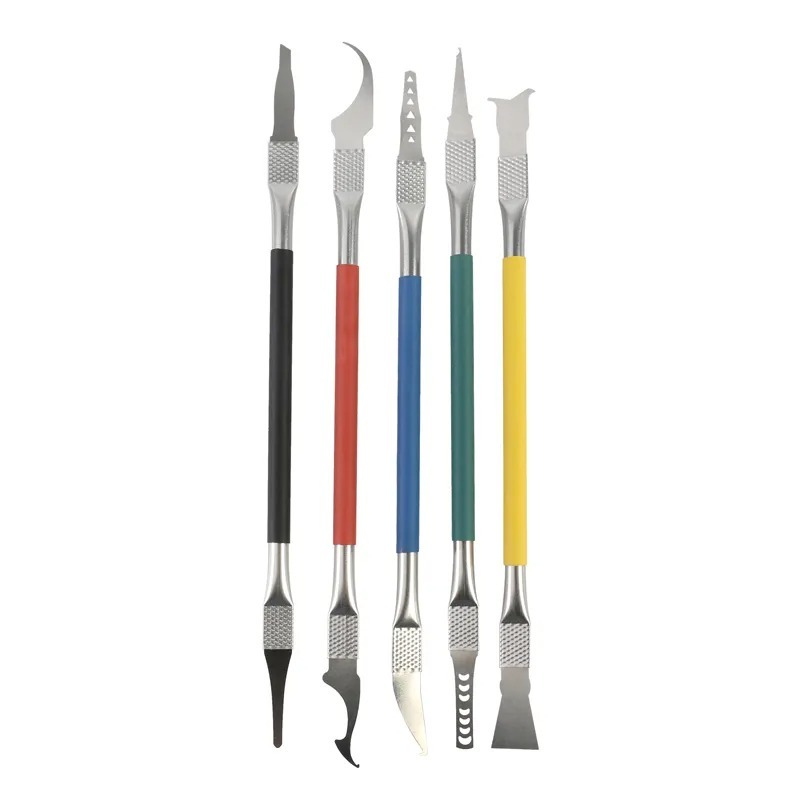
9 in 1 Disassemble Multi Opening Repair Tools Kit Metal Pry Bar
-30% $33.66Was:$48.00 -
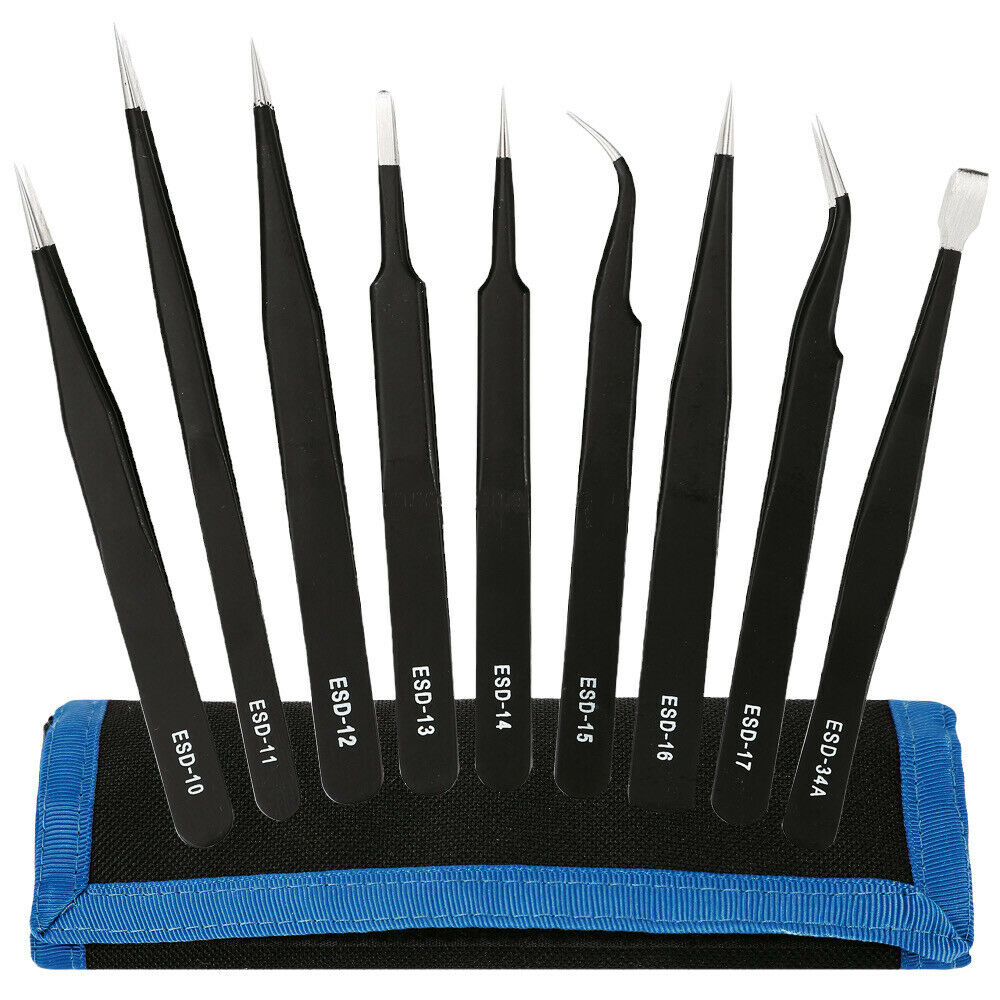
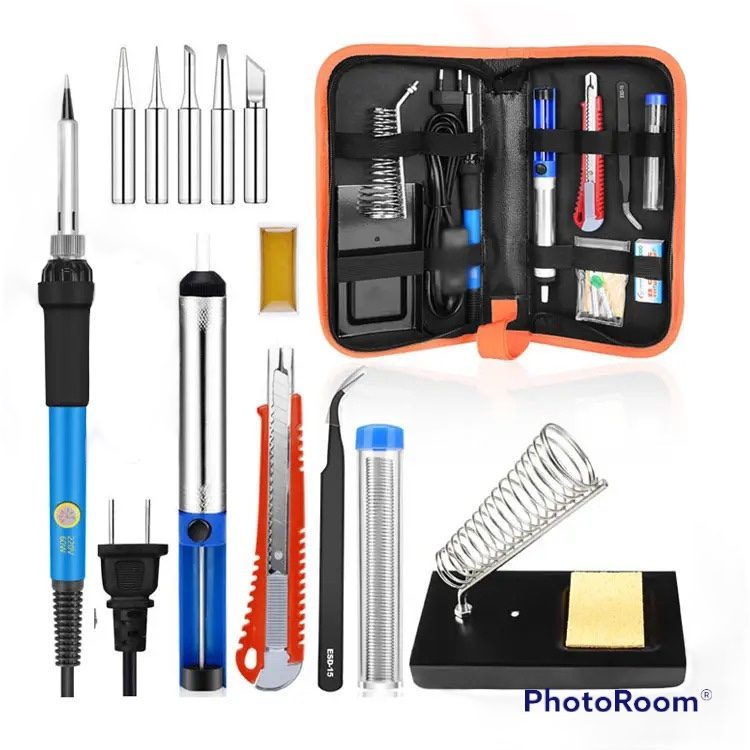
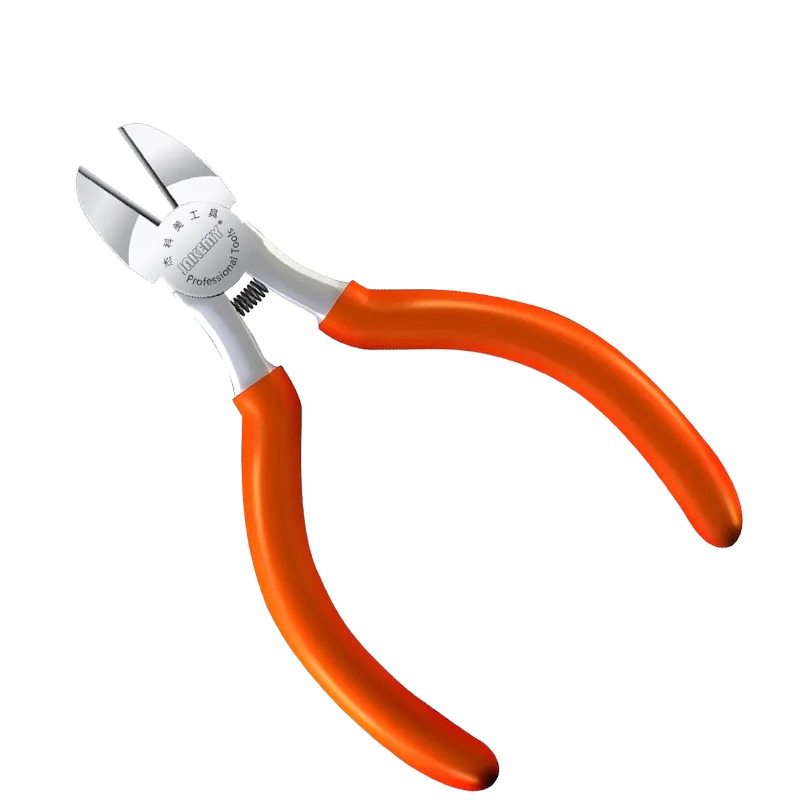
Kingsdun ESD-9 9pcs Anti-static Stainless Steel Tweezers Set for Electronic Phone Repair Tools
$32.99
Part 2: Safety First (Critical Step)
The Danger of Residual Power
Even when your MacBook is “off,” the lithium-polymer battery holds a significant charge. The A3240 logic board is always “live” as long as the battery is connected. Dropping a screw onto the board or touching a component with a metal tool while the battery is connected can cause a catastrophic short circuit, instantly killing the M4 GPU or power management ICs.
Rule #1: The battery is the first thing you disconnect after opening the case, and the last thing you reconnect before closing it.
Part 3: Step-by-Step Logic Board Replacement
Step 1: Backplate Removal
Time: 00:41 Tool: PL05 Pentalobe
The 2025 MacBook Air maintains the sleek, fanless design of its predecessors. To access the internals, flip the device over.
- Locate the four Pentalobe screws securing the bottom case.
- Use your PL05 screwdriver to remove them. Keep these screws organized; while they look similar, mixing them up can strip the threads.
- Unclipping the Case: This is where many beginners get stuck. The case is held by internal clips, not just screws.
- Lift the back right corner slightly with your fingernail to create a gap.
- Insert your pry tool into the gap.
- Slide the tool down the side to pop the hidden retention clips (one on each side, two at the bottom).
- Pull the backplate firmly towards you (away from the hinge) to disengage the sliding lock mechanism.


Use a plastic pry tool to release the internal clips without scratching the A3240 aluminum body.
Step 2: Battery Disconnection (The Most Important Step)
Time: 01:47 Tool: T03 Torx
Now that the board is exposed, you are looking at the massive battery cells and the compact A3240 logic board located in the upper center.
- Locate the battery connector on the right side of the board. It is covered by a metal cowling.
- Remove the protecting screws using your T03 screwdriver.
- The Disconnect: Use your plastic spudger to gently lift the battery connector straight up.
- Pro Tip: Do not use metal tweezers here. If you touch the positive and ground pins simultaneously, you will spark the connector.
- Once disconnected, bend the cable slightly back so it cannot accidentally touch the socket while you work.


Disconnecting the battery is the critical first step to prevent shorting the M4 chip.
Step 3: Trackpad Connector Removal
Time: 02:04 Tool: Plastic Spudger
The trackpad cable runs directly over the battery. It must be removed to clear the path for the logic board removal.
- Locate the ZIF (Zero Insertion Force) connector on the logic board.
- Peel Back the Tape: There is often a small piece of protective tape covering the locking arm. Peel this back carefully.
- Unlock the Flap: Flip the small locking flap up.
- Slide the cable out.
- Remove the Cable: The cable is lightly adhered to the battery. Gently peel it off and set it aside.
- Warning: Do not crease this cable. A damaged trackpad cable can cause cursor drift or click failure after reassembly.


Step 4: Disconnecting Peripherals (Antennas & Speakers)
Time: 02:38 Tool: T03 Torx & Spudger
The M4 logic board is the central hub for everything. We need to disconnect the “limbs” before we can remove the “brain.”
Working from Right to Left, disconnect the following:
- Right Speaker Connector: Lift straight up.
- Wi-Fi/Bluetooth Antennas: These are coaxial cables. They are very fragile. Use the tip of your spudger to pop them off their circular sockets. Do not pull by the wire itself; pull by the metal head.
- Left Speaker Connector: Located on the far left.
- Keyboard Connector: A wide ribbon cable. Lift the locking flap before pulling.
- Sleep Sensor / Audio Board: This connector is often hidden under a small piece of black tape.
Hidden Screws: There is a bracket hidden under electrical tape near the top right.
- Use tweezers to peel back the tape.
- Remove the four screws securing this retention plate.
- This plate often grounds the display cables, so ensure it is kept safe.


Map of all peripheral connections that must be removed before the logic board is free.
Step 5: Display Cable & Hinge Removal
Time: 05:01 Tool: T05 / T03 Torx
The display cables are routed through the hinge covers.
- Remove the screws securing the hinge covers (plastic guards at the top corners).
- Remove the speaker modules on both sides. The speakers often sit on top of the logic board corners, physically blocking removal.
- Once the speakers are out, you will see the large display flex cables.
- Gently disconnect them. These carry high-bandwidth video data to the Liquid Retina display; damage here results in vertical lines or a black screen.


Step 6: Removing the Logic Board
Time: 04:26 – 05:28 Tool: T05 & T03 Torx
With all cables disconnected, only the standoff screws hold the board to the chassis.
- Identify the Screws: The board is held by a mix of T05 and T03 screws.
- T05: Usually the larger standoff screws.
- T03: Smaller retention screws near the ports.
- Systematically remove them. We recommend drawing a map on a piece of paper or using a magnetic mat to place the screws in the exact pattern they came out.
- Why? Putting a long screw into a short hole can pierce the logic board traces, permanently destroying the new board.
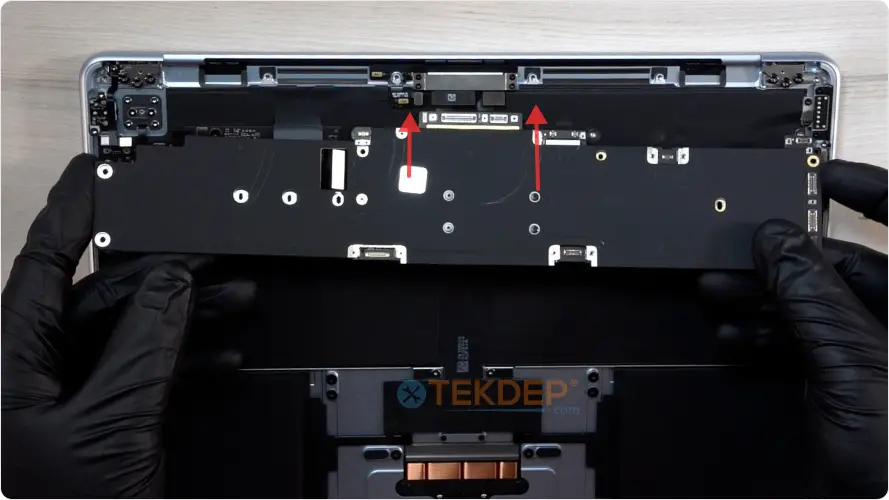
- The Lift: Grip the logic board by the heat sink edges (the metal center). Gently lift.
- Check for Snags: If the board resists, stop. Do not force it. You likely missed a small cable (often the microphone or an antenna wire) that is still connected.
- Pull the board gently away from the USB-C ports to slide it out of the chassis.

Part 4: The Critical Transfer (Touch ID)
Time: 05:58 Tool: T03 Torx
Crucial Information: On modern Apple Silicon Macs (M1, M2, M3, and now M4), the Touch ID sensor is paired to the logic board for security reasons. However, the sensor button itself is often physically part of the keyboard case assembly.
If you bought a replacement logic board from TEKDEP, it acts as a fresh unit. You need to transfer your existing Touch ID sensor (button) mechanics or install the new one provided with your board assembly if applicable.
- On the old logic board (or the chassis depending on the assembly type), locate the Touch ID sensor button in the top right corner.
- Remove the T03 screws holding the sensor bracket.
- Carefully unstick the adhesive. The sensor ribbon cable is extremely thin.
- Transfer: Move this sensor assembly to your new setup. If your new logic board requires the specific sensor it came with to function (due to Secure Enclave pairing), ensure you are using the matched pair.


Note: If you mix and match unmatched sensors, the power button will work, but fingerprint recognition will fail.
Part 5: Installing the New Logic Board
Step 1: Placement and Cable Management
Time: 08:04
Installing the new board is harder than removing it because of the cables.
- The “Dive”: Insert the USB-C port side of the board first into the chassis holes.
- Cable Watch: As you lower the board, ensure no cables are trapped underneath.
- Common culprits: The antenna cables and the small microphone flex often get stuck under the heat sink.
- Use your spudger to hook them out before screwing the board down.
Step 2: Securing the Board
Time: 09:42 Tool: T05 & T03 Torx
- Once the board is seated flat, begin reinstalling the screws.
- Torque Check: Do not overtighten. The PCB is comprised of multiple layers of fiberglass and copper. Crushing it with too much torque can sever internal traces. Hand-tight is sufficient.
- Reinstall the T05 standoffs and T03 screws in their original locations.

Step 3: Reconnecting Peripherals
Time: 08:44
Reverse the disconnection steps:
- Speakers & Hinges: Install the speakers first, then the hinge covers.
- Antennas: Snap the coaxial cables back on. You should feel a satisfying tactile “click.”
- Display Cable: Seat firmly.
- Keyboard & Audio: Reconnect the ZIF connectors.
- Touch ID: Reconnect the sensor cable to the daughterboard.


Firmly seat all flex cables. Loose connections are the #1 cause of “No Power” after repair.
Part 6: Finalizing the Repair
The Trackpad & Battery
Time: 11:45
- Trackpad: Reinstall the trackpad ribbon cable. Ensure it passes over the battery smoothly without twisting.
- Battery Connection (The Final Step):
- Inspect the board one last time. Are all screws present? Are all tools removed from the chassis?
- Align the battery connector.
- Press straight down.
- Reinstall the metal cowl and the T03 screws.
Reinstalling the Backplate
Time: 12:20
- Align the backplate with the chassis.
- The Slide: You must engage the sliding mechanism. Place the cover slightly lower than the top edge, then push firmly toward the hinge to lock the sliding clips.
- Press down on the sides to snap the side clips in.
- Install the four PL05 Pentalobe screws.


Part 7: Testing & Troubleshooting
Time: 12:57
Press the power button.
- Fan Check: Even though the Air is fanless, listen for any electrical whirring or arcing (bad signs).
- Display: Look for the Apple logo.


Troubleshooting Common Issues:
Problem: The computer shows a plug icon but won’t turn on. Solution: The battery might be completely drained, or the battery connector is not seated fully. Re-seat the battery connector.
Problem: No Wi-Fi networks found. Solution: The antenna coaxial cables (Step 4) are likely loose or damaged. You will need to open the device and check the circular connections.
Problem: Trackpad clicks but cursor doesn’t move. Solution: The trackpad ZIF connector (Step 3) is misaligned. Ensure the cable is fully inserted before locking the flap.
Frequently Asked Questions (FAQs)
Can I upgrade the RAM or SSD on the A3240 Logic Board?
No. On the MacBook Air M4 (Model A3240), the Unified Memory (RAM) and NAND Storage (SSD) are soldered directly to the logic board. To “upgrade” these components, you must replace the entire logic board with a variant that has higher specifications (e.g., swapping an 8GB/256GB board for a 16GB/512GB board).
Will Face ID or Touch ID work after replacing the logic board?
Touch ID is paired to the Secure Enclave on the M4 chip. If you replace the logic board, you must either:
- Transfer your original Touch ID sensor to the new board (if the new board is “unlocked”).
- Use the specific Touch ID sensor that came with your replacement board. If you use a mismatched sensor, the button will function as a power switch, but fingerprint recognition will fail. The A3240 does not have Face ID.
Why does my MacBook Air M4 take so long to boot after this repair?
This is normal behavior. When the battery is disconnected, the M4 chip’s power management system resets. The first boot can take up to 60 seconds as the system performs “memory training” and verifies hardware integrity. Do not panic; plug in the USB-C charger and wait.
I replaced the board, but now I get an “Error 4013” or “Exclamation Mark” on the screen.
This typically indicates a firmware mismatch or a DFU (Device Firmware Update) mode issue. The new logic board might be on a different macOS version than the rest of your hardware expects. You may need to use Apple Configurator 2 and a second Mac to “Revive” or “Restore” the firmware on the new board.
Is the A3240 logic board interchangeable with the M2 or M3 Air models?
No. While the external chassis looks identical to the previous generation (A2681/A3113), the internal screw layout, antenna connectors, and battery pin configuration of the A3240 (M4) are unique. You cannot fit an M3 board into an M4 chassis or vice versa.
Do I need thermal paste for this repair?
Generally, no. The MacBook Air A3240 is fanless and uses a thermal tape/pad system to transfer heat to the metal shield. However, if your replacement board does not come with pre-applied thermal pads, you should transfer the thermal pads from your old board or apply new ones to ensure the M4 chip does not throttle under load.
My trackpad feels “dead” (doesn’t click) after reassembly.
The MacBook Air trackpad is “solid-state”—it doesn’t physically click; it uses haptic feedback. If it feels dead, it usually means it has no power. Check the trackpad flex cable (Step 3). It is likely loose or installed upside down.
Why Choose OEM Parts for Your A3240?
The MacBook Air M4 is a precision machine. Using cheap, salvaged, or counterfeit logic boards often leads to:
- Incompatibility: Non-OEM boards may not support the latest macOS updates.
- Mismatched Components: Touch ID failures due to mismatched Secure Enclave data.
- Thermal Issues: Poor quality heat sinks on refurbished boards can throttle the M4 chip.
At TEKDEP, we source authentic, tested A3240 Logic Boards and components. When you buy from us, you aren’t just getting a part; you’re getting a guarantee of compatibility.
Need Parts?
Conclusion
Replacing the logic board on the 2025 MacBook Air M4 (A3240) is a challenging but rewarding repair. It extends the life of your device and saves e-waste from entering landfills. By following this guide and using the correct tools, you can restore your MacBook to factory performance.
Still have questions? Check out our full video tutorial linked at the top of this page, or drop a comment below. Our technicians monitor the blog and are happy to help with specific diagnostic questions.
Browse All MacBook Air M4 Parts: https://tekdep.com/product-category/find-all-parts/laptop-parts/apple-macbook-computer-parts/13-macbook-air-replacement-parts/2025-macbook-air-a3240
Book a Mail-In Repair: https://tekdep.com/mail-in-repair



