






























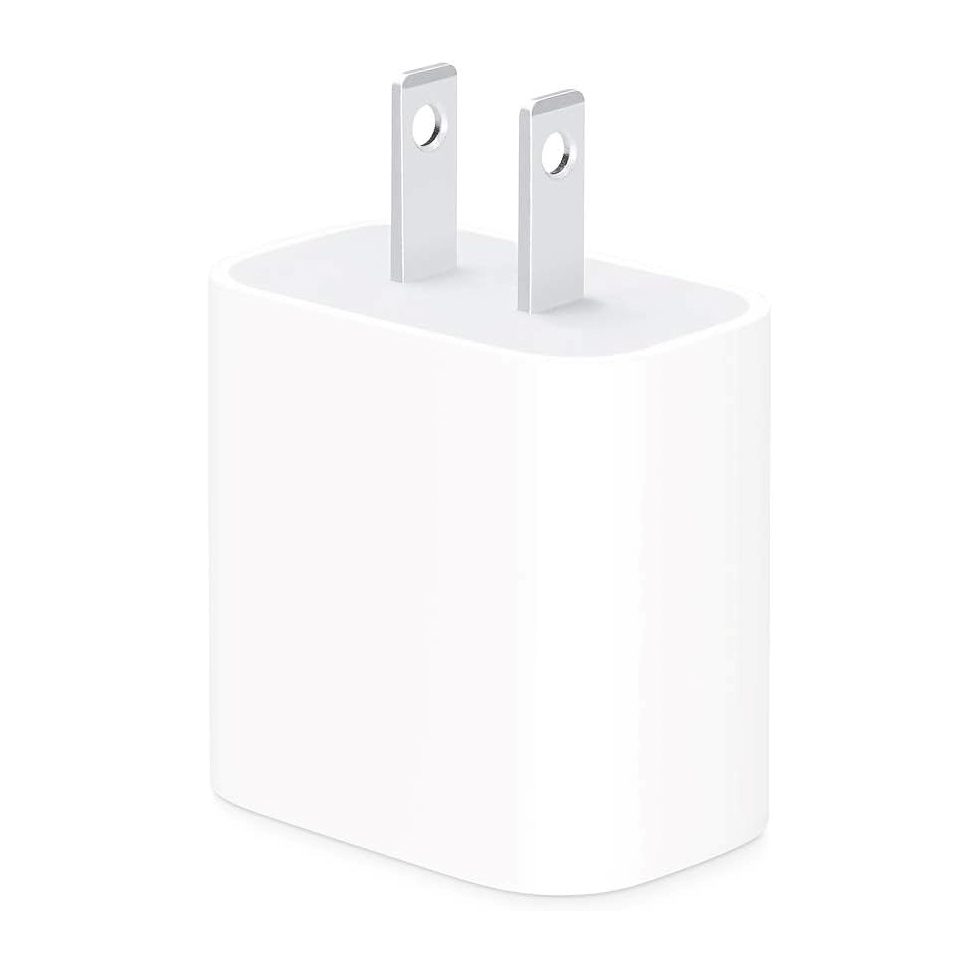


Your MacBook Pro 16″ A2485 won’t boot or sits at 5 V on the charger?
This guide walks you through the A2485 Logic Board Replacement process exactly how our TEKDEP technicians perform it in our repair lab. We’ll show you how to safely remove, install, and validate the new 820-02100 logic board, restoring full power and functionality to your device.
Who’s behind this tutorial: The repair is demonstrated by Nicholas, a TEKDEP technician experienced with Apple Silicon systems and Apple MacBoook Pro A2485 failures. We document the workflow we use daily for customer devices, not a theoretical teardown.
What you’ll learn:
- How to remove, install, and align the A2485 logic board without damaging flex cables
- When and how to transfer the paired Touch ID sensor so the features work after the swap
- The exact tool set and torque-sensitive fasteners to watch
- Post-repair checks that we rely on to confirm a successful boot
Trust & safety: We work on ESD-safe benches, keep screws mapped by position, and verify every cable path before power-on. If your unit has liquid or rail-level faults, we’ll note where DIY stops and mail-in repair or data recovery is the better call.
Repair Time & Skill Level
| Estimated Time | Skill Level | Experience Type |
| 1.5 – 2 hours (average) | Advanced | Board-level repair / Apple Silicon teardown |
Tools & Preparation
You’ll need:
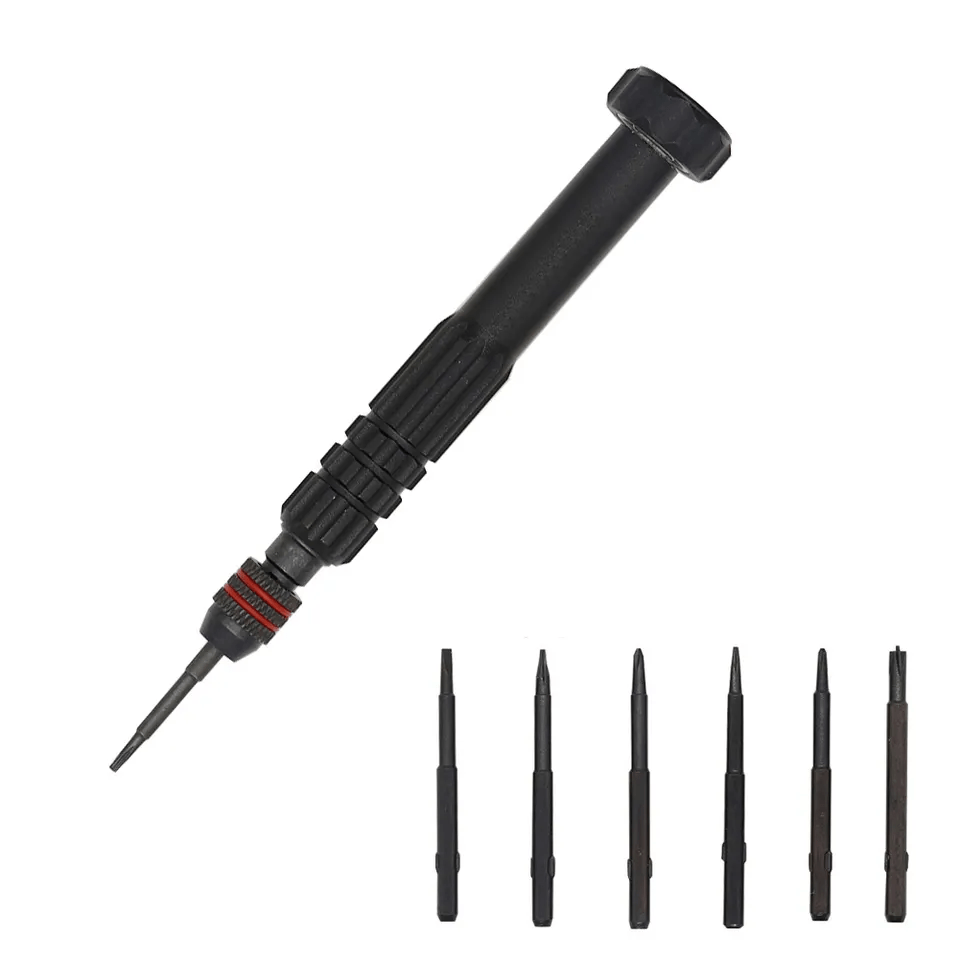
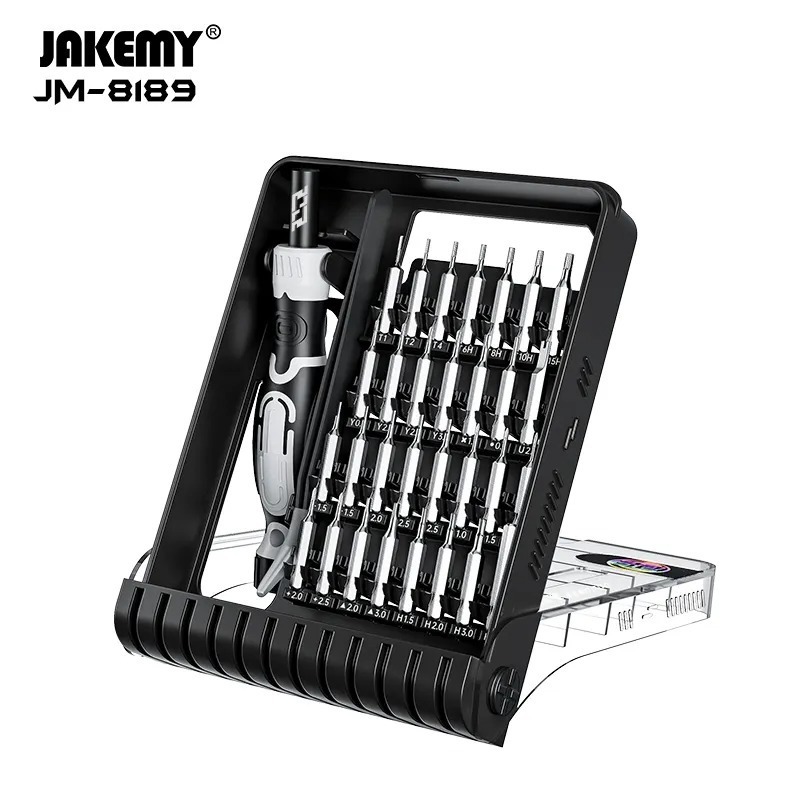
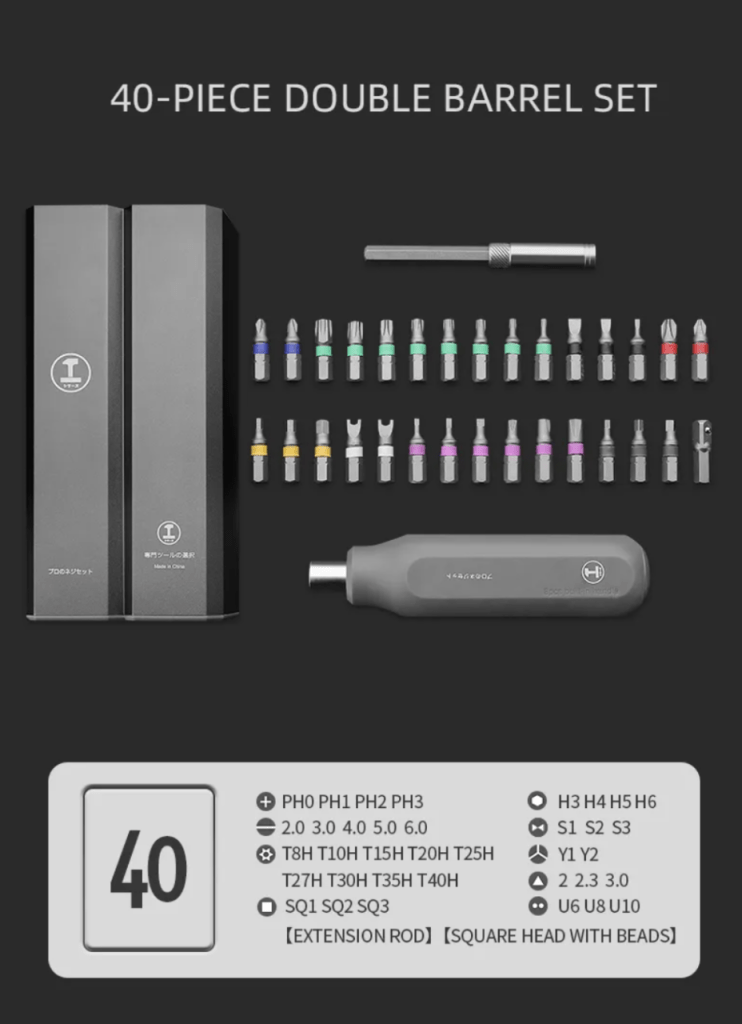
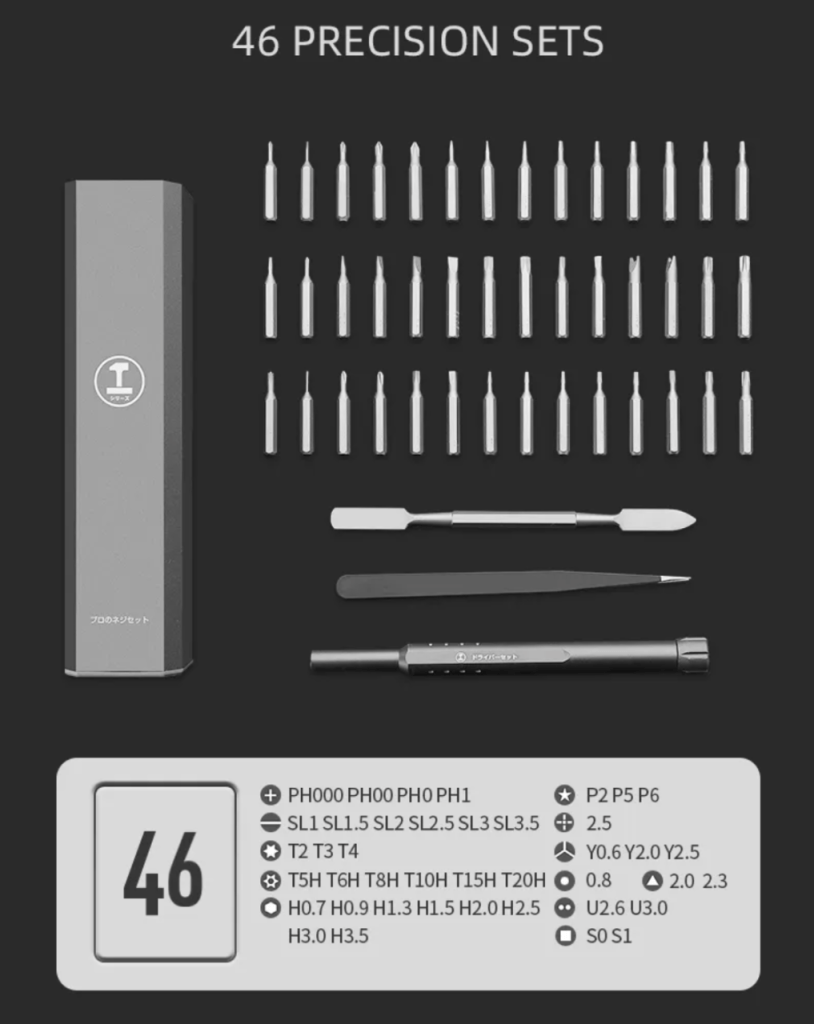
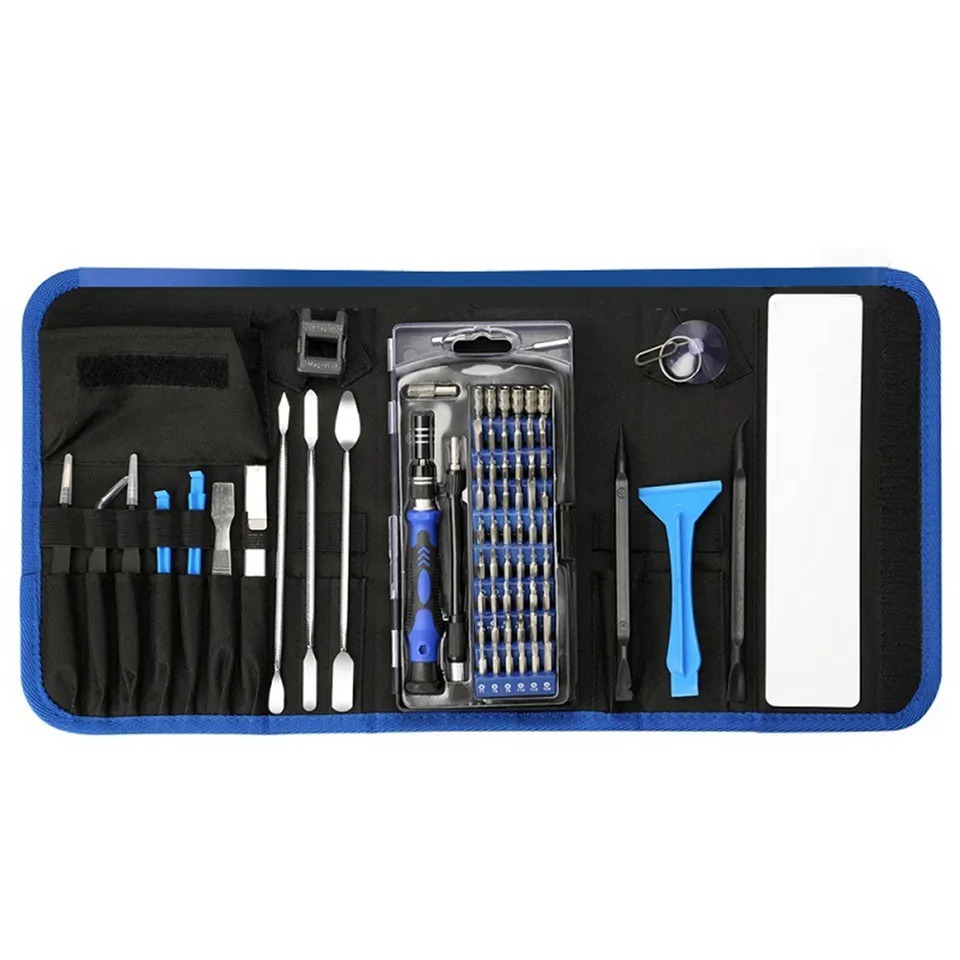
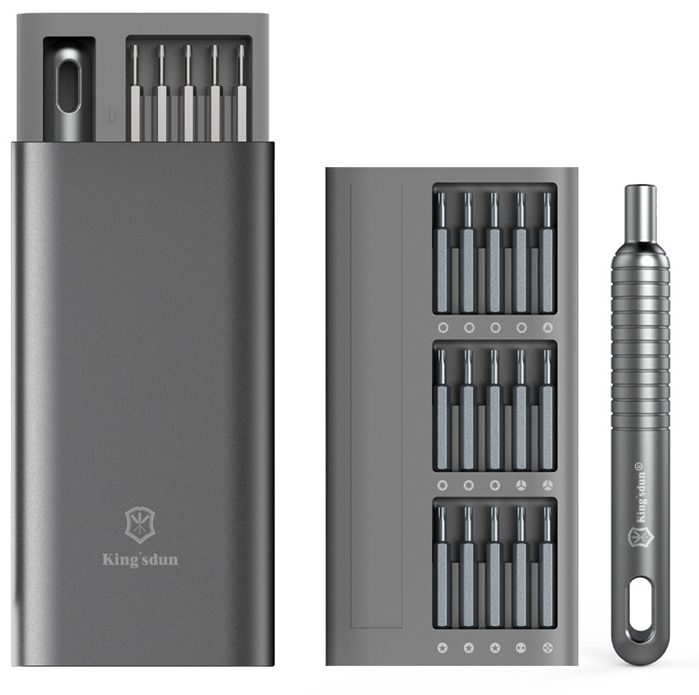
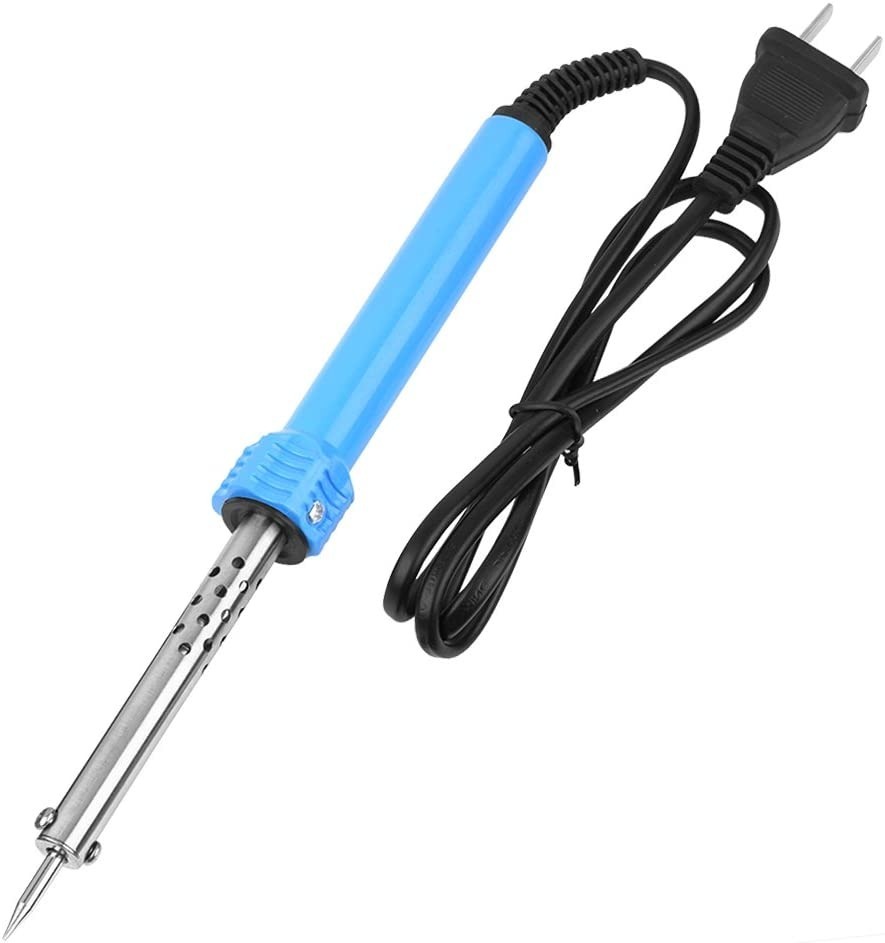
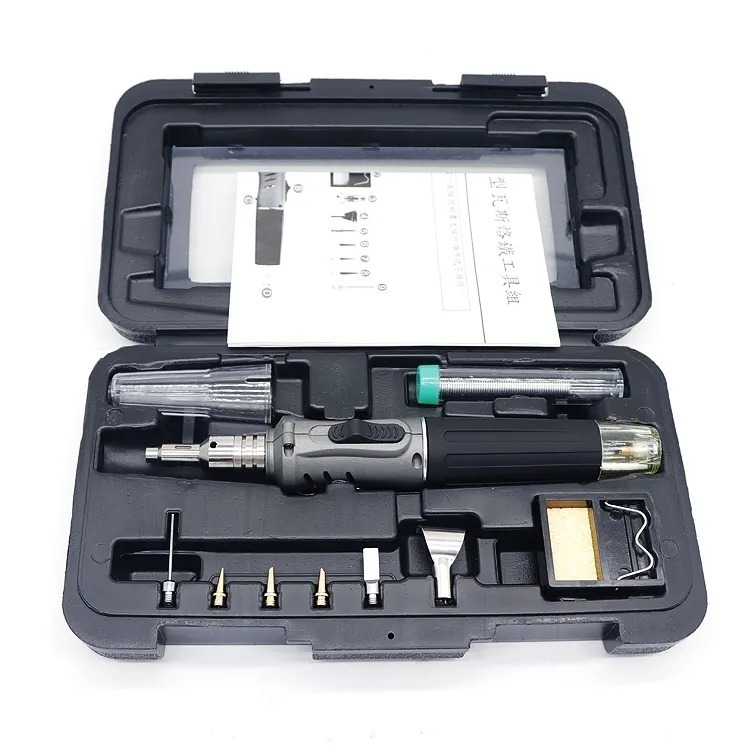
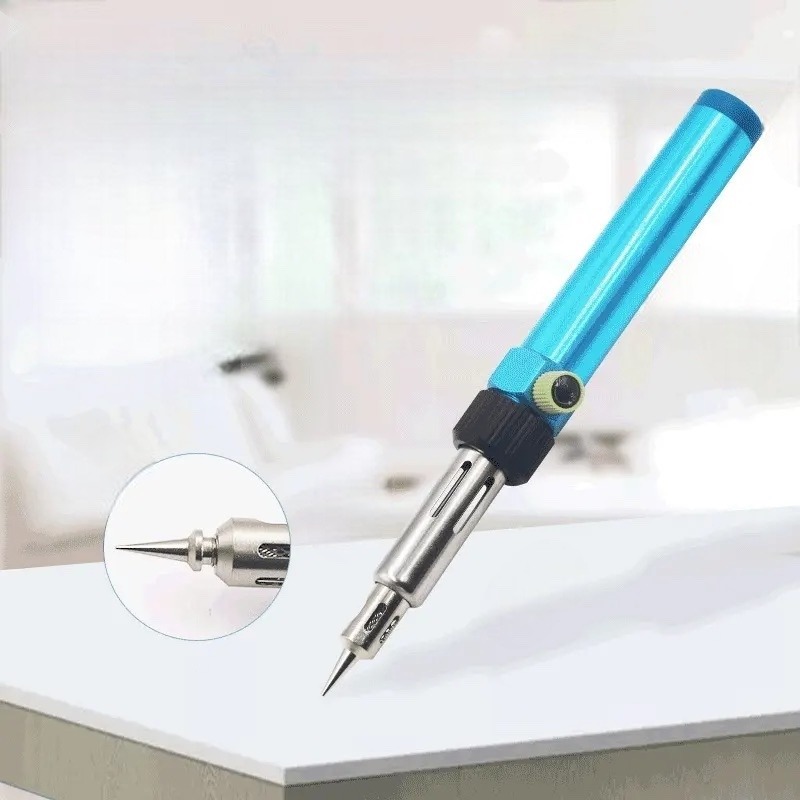
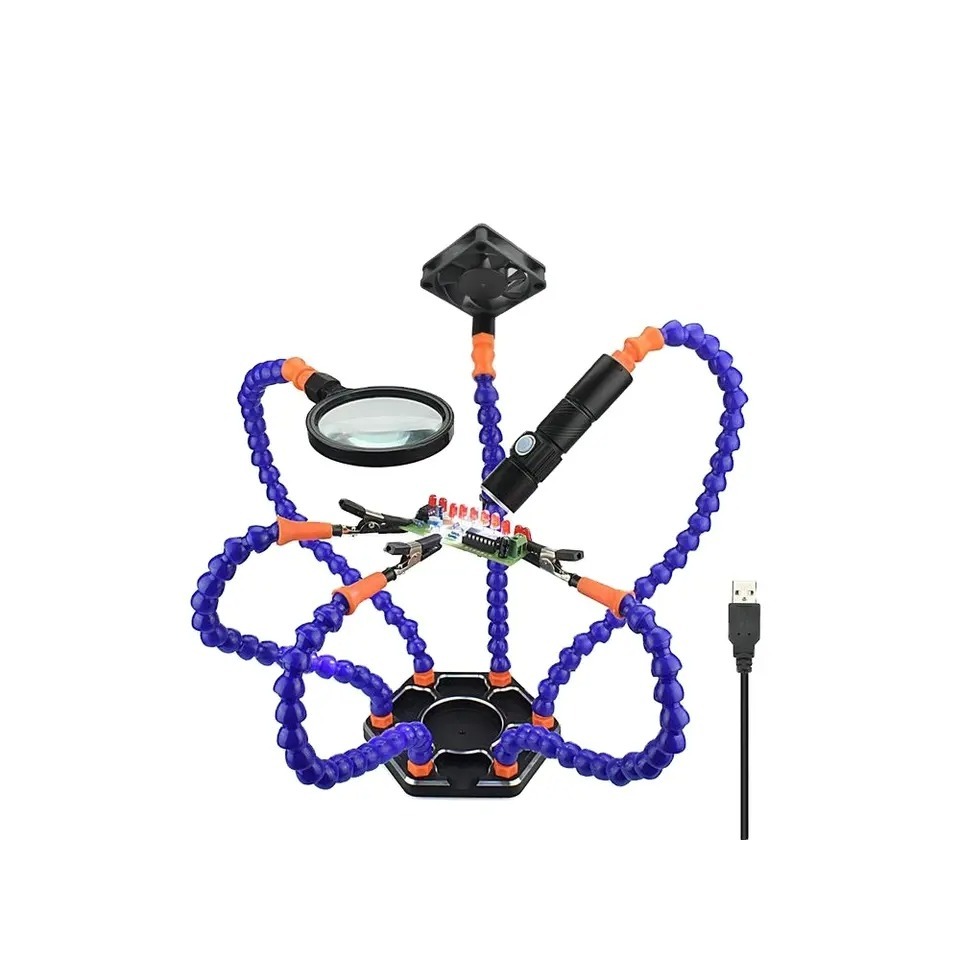
- 130-in-1 Precision Screwdriver Tool Set
- P5 Pentalobe, T5 / T6 Torx, and 4.0 mm hex/standoff bits
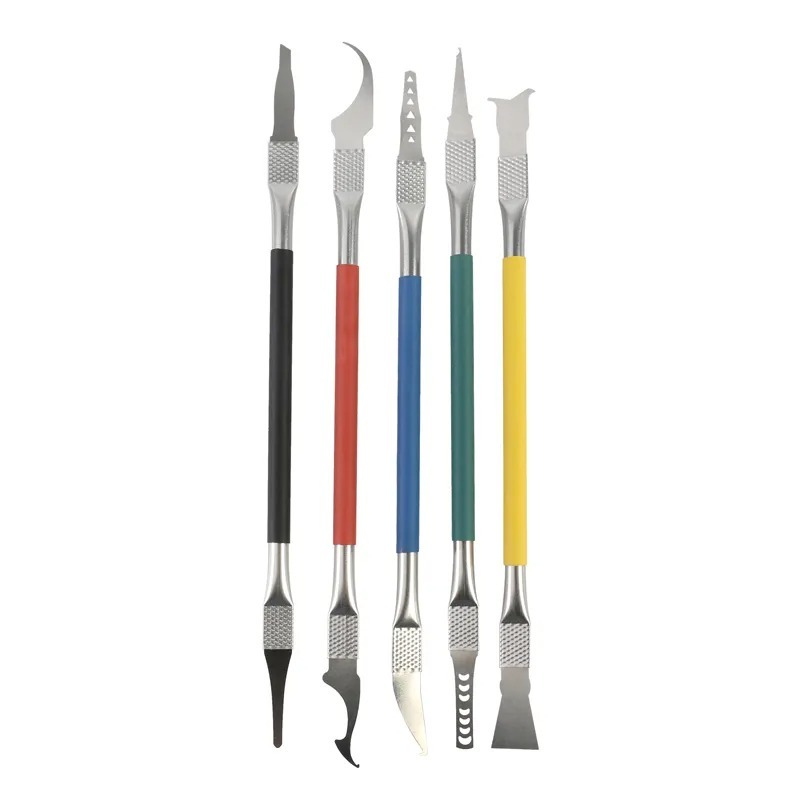
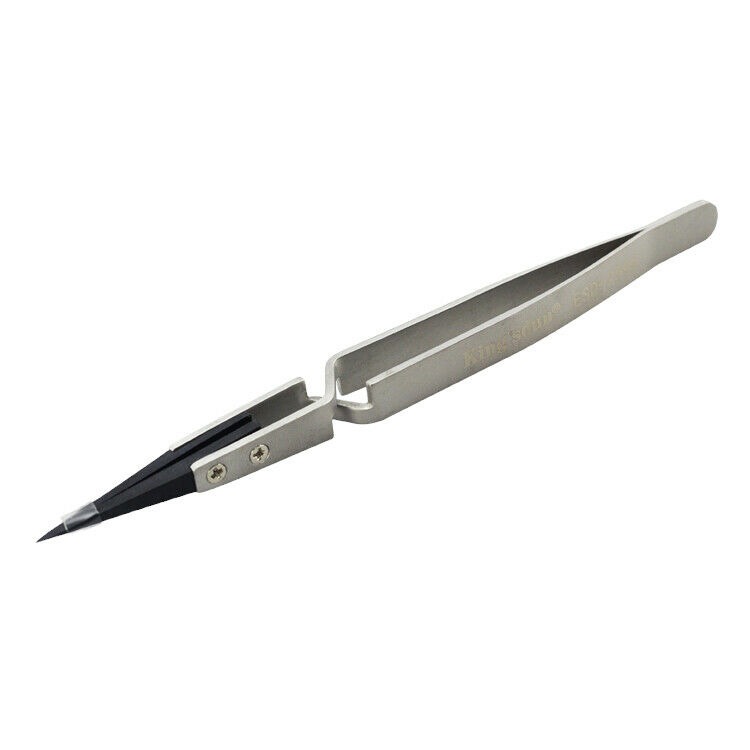
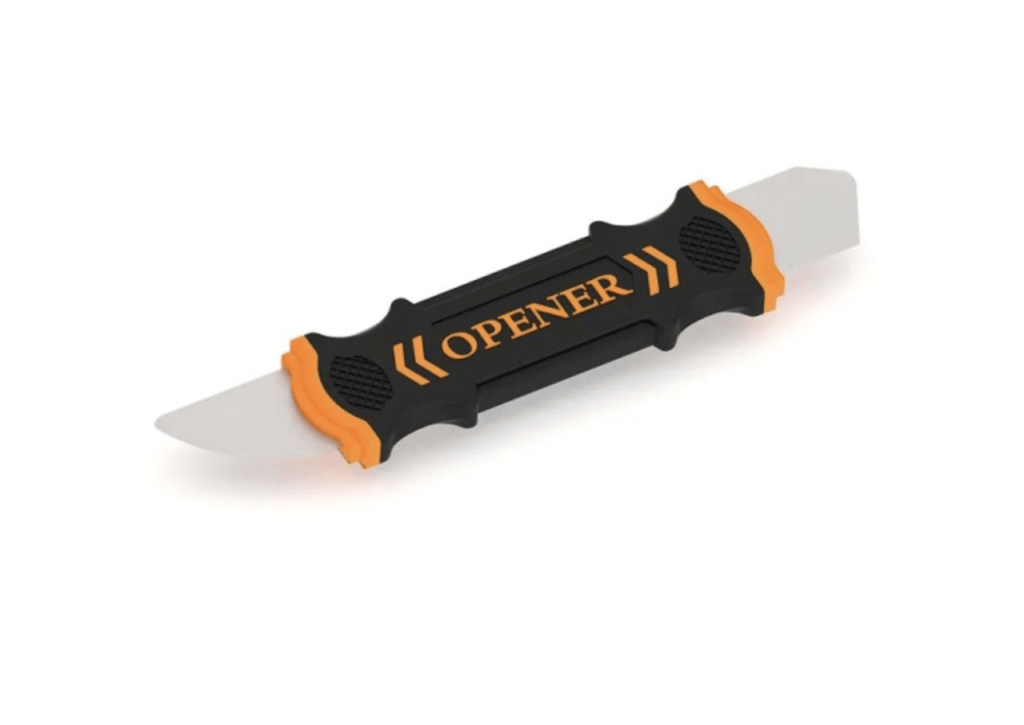
- Plastic spudger and tweezers
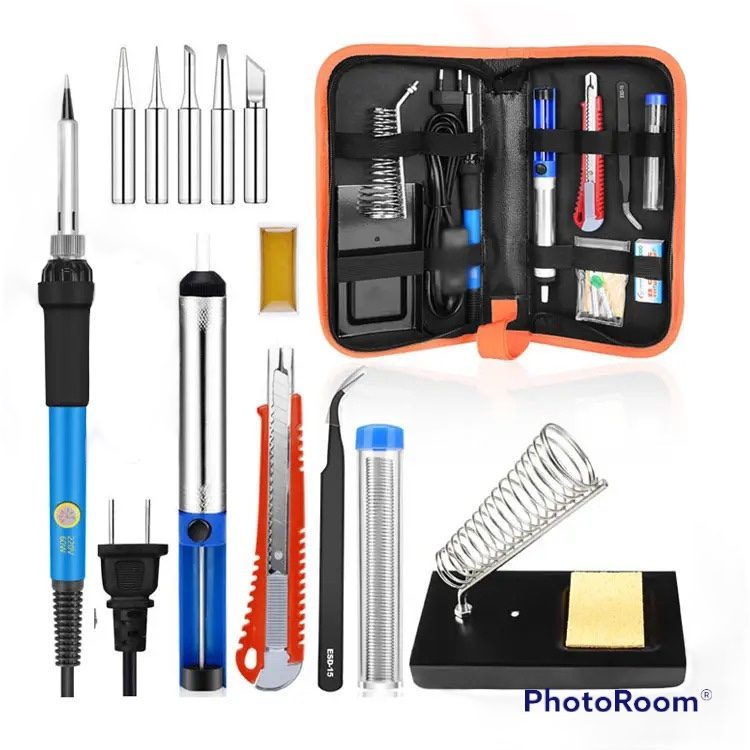
- ESD strap or grounded mat
- A2485 logic board Replacement (820-02100 / 820-02100-11)
- Replacement Touch ID sensor — must be paired with the new board
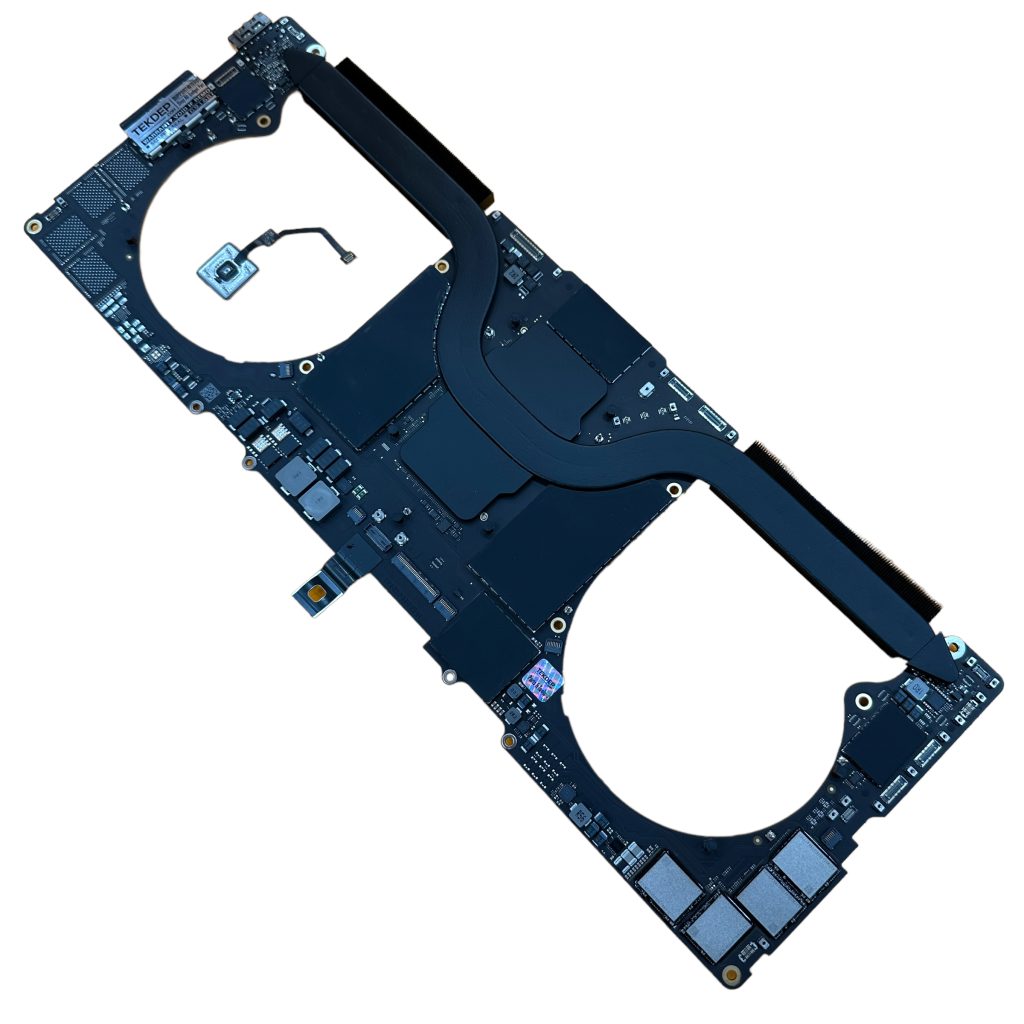
A2485 Logic Board for MacBook Pro 16-inch M1 2021 16GB 512GB with Touch ID 820-02100-11 (Original)
Genuine Apple A2485 motherboard with M1 Pro chip, 16GB RAM, 512GB SSD, and Touch ID for 2021 MacBook Pro 16-inch (EMC 3651). Replaces faulty logic board to restore full performance.
Safety tips:
- Discharge the battery (hold the power button ~10 sec) before touching anything
- Keep screws in order — a photo grid or a magnetic tray helps
- Use light force on flex connectors — they break easily
- Work in a clean, dust-free environment
Step-by-Step Guide: A2485 Logic Board Replacement Process
Step 1: Remove Backplate & Expose Internals


- Use a P5 Pentalobe screwdriver to take out all screws.
- Keep them grouped by position.
- Pry the two side latches gently and slide the back cover upward to remove it.
Step 2: Disconnect & Discharge Power


- Disconnect the trackpad flex cable and remove the pancake screw holding the battery connector.
- Hold the power button for 10 seconds to discharge residual current.
Before touching any internal component, always disconnect and discharge the MacBook A2485 battery completely. This prevents short circuits and protects the power rails on the 820-02100 board. Apple’s M-series devices retain charge even when idle, so holding the power button for roughly 10 seconds ensures full discharge. Following battery disconnect safety practices during an A2485 Logic Board Replacement reduces the chance of damaging the trackpad cable, logic-board fuses, or SMC circuitry.
Step 3: Remove Connectors, Shields & Flex Cables


For a logic board replacement, disconnect all cables — Wi-Fi antenna, display, speakers, fans, USB-C ports, and keyboard.
- Remove protective shields before unplugging the flex connectors.
- Double-check that no cables remain attached before continuing.
When performing an A2485 connector removal, handle every flex with care—especially the thin MacBook logic board flex cables that route Wi-Fi, display, and speaker signals. Always lift from the reinforced tabs using a nylon spudger, not metal tweezers. Label or photograph each cable before detaching it; this habit saves reassembly time and helps avoid misrouting common in the A2485’s dense layout.
Step 4: Remove Logic Board Screws


Work from top to bottom, grouping screws.
- Use a 4.0 mm hex bit to unscrew the corner standoffs.
The 820-02100 logic board screws vary in size and thread pitch. Grouping them by area prevents confusion during installation. The A2485 standoff removal requires a 4 mm hex bit—apply slow, steady torque to prevent stripping the anchors that secure ground planes to the chassis. Using a magnetic tray or screw map keeps each set organized for later reference.
Step 5: Lift Out the Old Logic Board


- Insert a pry tool carefully under the board and lift slowly to avoid flex damage.
Before continuing, remove the left fan to access the fingerprint (Touch ID) sensor.
During Touch ID removal on A2485, disconnect the left-side fan first to reveal the fingerprint sensor. It’s bonded with light adhesive; gently warm the area if needed. Proper logic board removal on MacBook A2485 means prying evenly from the edges—never bending the board. Flex pressure here can fracture traces or pop resistors near the SoC shield.
Step 6: Remove and Replace Touch ID Sensor


- Unscrew the six screws and detach the old sensor.
- Install the new sensor, aligning it perfectly in the slot.
- Tighten outer screws first, then center ones to keep it even.
When pairing the Touch ID module, alignment is everything. Insert the ribbon straight through the chassis slot and secure the outer screws first, then the center ones. This ensures new sensor alignment on A2485 units matches Apple’s calibration points. An off-center sensor can cause cosmetic misalignment or intermittent button response even if Touch ID is disabled.
Touch ID Pairing Notice
Each Touch ID sensor is perfectly matched to its original logic board.
If you install a board without its paired sensor, Touch ID will no longer function.
Step 7: Install the New A2485 Logic Board


- Place the board from the left side, ensuring each cable clears the top.
- Reconnect the HDMI first, then proceed across.
- Check all flexes sit on top of the board.
When you install the logic board in an A2485, slide the new 820-02100 assembly in from the left so every connector clears the top surface. Check that the HDMI and Thunderbolt ports seat squarely in their openings before pressing down. A precise MacBook Pro board swap ensures heat-sink pads, standoffs, and grounding points all align—critical for stable power delivery on M1 Pro and M1 Max models.
Step 8: Reconnect Flex Cables & Tighten Screws


- Connect all cables before tightening screws.
- Secure the large screws at the top and the hex screws at both lower corners.
Careful A2485 cable reconnection prevents bent pins and intermittent faults later. Use a nylon tool to press each connector straight down until you hear or feel a soft click. Once all are seated, reinstall every protective shield over the logic board; these small covers control airflow and EMI shielding. Leaving one out can cause fan noise, higher thermals, or Wi-Fi interference.
Step 9: Refit Shields & Reconnect Power


- Replace protective shields, reconnect the trackpad and battery flex cable, and secure the pancake screw.
When performing a battery reconnection on the MacBook A2485, double-check the flex orientation before tightening the pancake screw. A reversed or twisted cable can short the pack’s sense line. During bottom case reassembly, align latches first, then tighten screws in a cross pattern to distribute pressure evenly—this keeps the aluminum chassis flush and vibration-free.
Step 10: Reassemble & Test

- Reattach the bottom case, tighten evenly, and power up the MacBook.
- You should hear the boot sound and see the screen turn on — confirmation that your replacement was successful.
A successful MacBook Pro boot test is your confirmation that the power rails, logic board, and Touch ID ribbon are all functioning. Plug in a 96 W charger and watch the USB-C meter jump from 5 V to 20 V. That voltage negotiation means the logic board is alive. Complete your A2485 post-replacement check by verifying display output, audio, trackpad response, and both Thunderbolt ports before sealing the final screws.
Pro Tips & Common Mistakes
- Don’t overtighten screws – standoff points are fragile
- Always feed flex cables “above board” to prevent pinching
- Check for missing shields or shield misalignment before closing
- Touch ID pairing failure: If using an unmatched sensor, it won’t function
- Liquid-damaged or shorted boards may require component-level repair beyond a swap
At TEKDEP, every board we supply is pretested and paired as needed. As professionals in repair and data recovery, our approach is based on years of service and consistent successful board swaps.
When to Choose Mail-In Repair
If you’re unsure or your board has liquid or power-rail damage, TEKDEP offers professional mail-in repair and data recovery services.
We handle repairs worldwide — fill out our Mail-In Request Form to get a same-day response.
Final Thoughts
Completing a MacBook Pro 16″ A2485 logic board replacement is rewarding but demands focus. Each connector, shield, and screw plays a role in the machine’s stability. If your board shows corrosion, liquid ingress, or charging-rail shorts, professional help is safer than guessing.
TEKDEP’s Mail-In Repair Service offers full diagnostics, data-preserving board swaps, and warranty-backed replacements for A2485 and other Apple Silicon devices.
Follow the steps above, stay organized, and you’ll bring your MacBook back to life—confidently and safely.
Have Questions?
Ask us anything in the comments on YouTube or reach out through TekDep.com. We love to help with iPhone buying tips, repairs, and general tech advice.
Phone: +1 818-456-4479
Email: [email protected]
Frequently Asked Questions (FAQs)
On average, the full process takes about 1.5 to 2 hours, including disassembly, board installation, and testing. Experienced technicians can complete it faster with organized tools.
No. Each Touch ID sensor is paired to its original logic board. If replaced, Touch ID will stop working unless you install the matched sensor from the same board set.
You’ll need a P5, T5/T6, and 4.0 mm hex bit, a precision screwdriver kit, a plastic spudger, tweezers, and an ESD mat. TEKDEP’s 130-in-1 Tool Set includes all the required bits.
It’s safe if you discharge the battery, stay grounded, and follow ESD precautions. However, if you’re not comfortable with board-level work, use TEKDEP’s Mail-In Repair Service.
A stuck 5 V reading usually indicates the logic board isn’t negotiating power from the charger. This is a common symptom of board failure or shorted power rails that require board replacement.
Yes, if the fault is on the logic board. If damage extends to components like the battery, charger IC, or I/O board, additional diagnosis is required.
Yes. Every TEKDEP-supplied A2485 board (820-02100 / 820-02100-11) is pretested, verified, and includes a limited replacement warranty.
It is excellent for native titles, but not a dedicated gaming rig. The 120Hz XDR display and GPU run macOS-optimized games (like Baldur’s Gate 3 or Resident Evil) beautifully, but the overall library of AAA games is smaller than on Windows.



