






































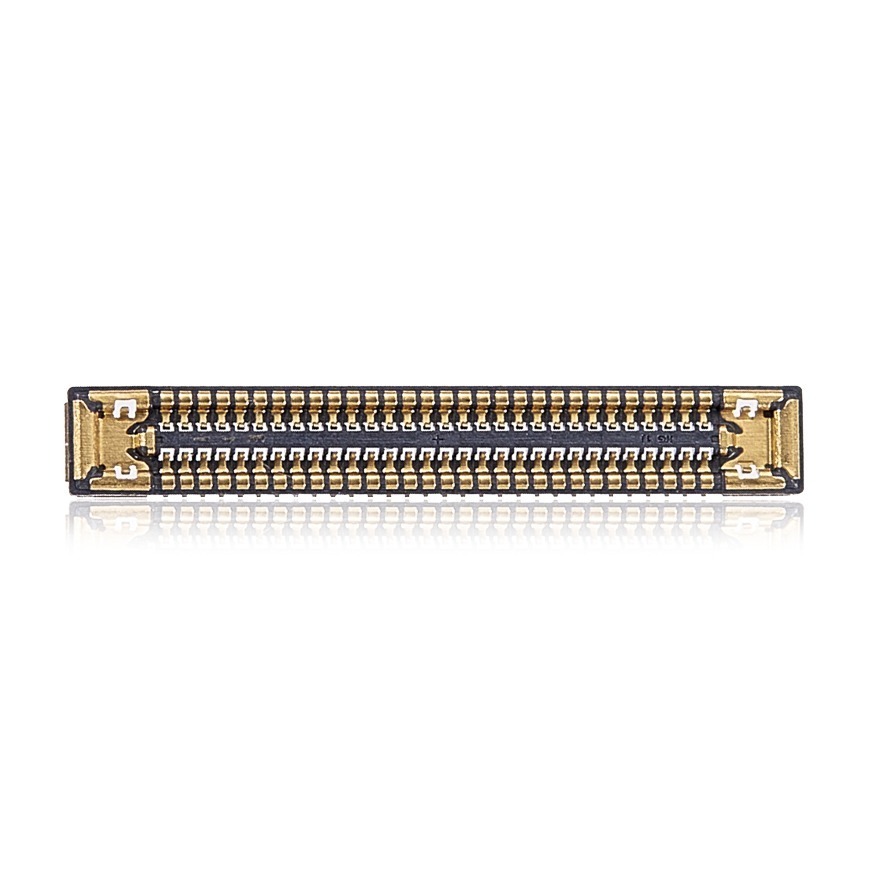


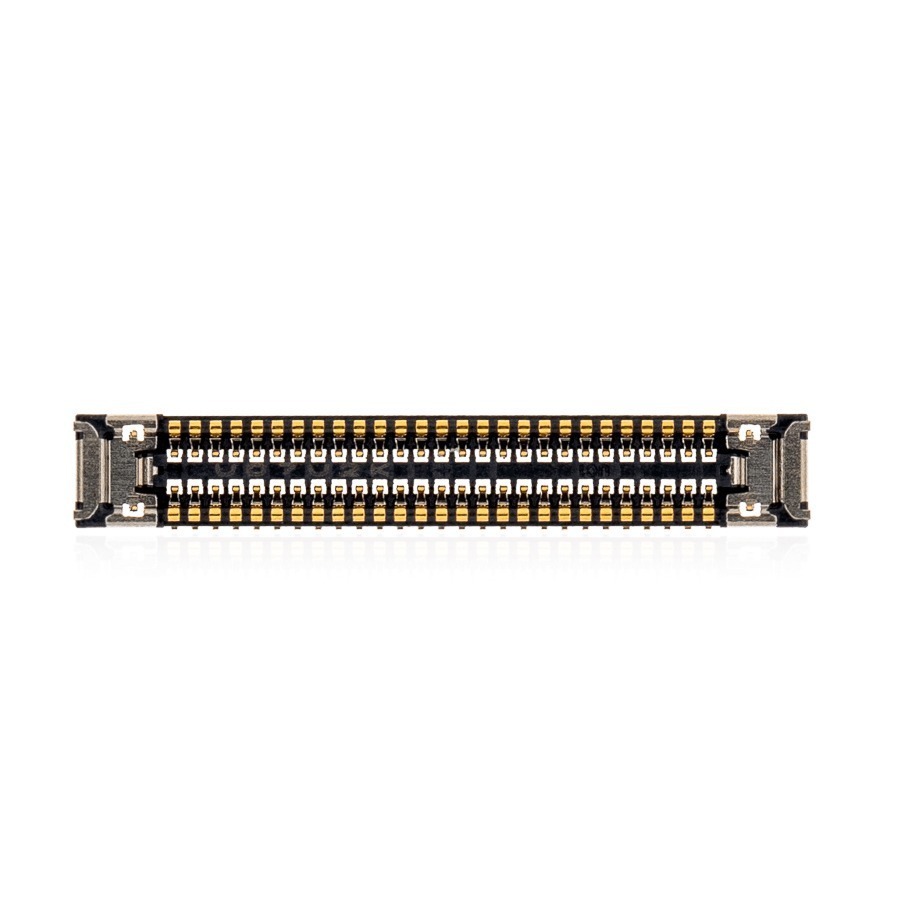
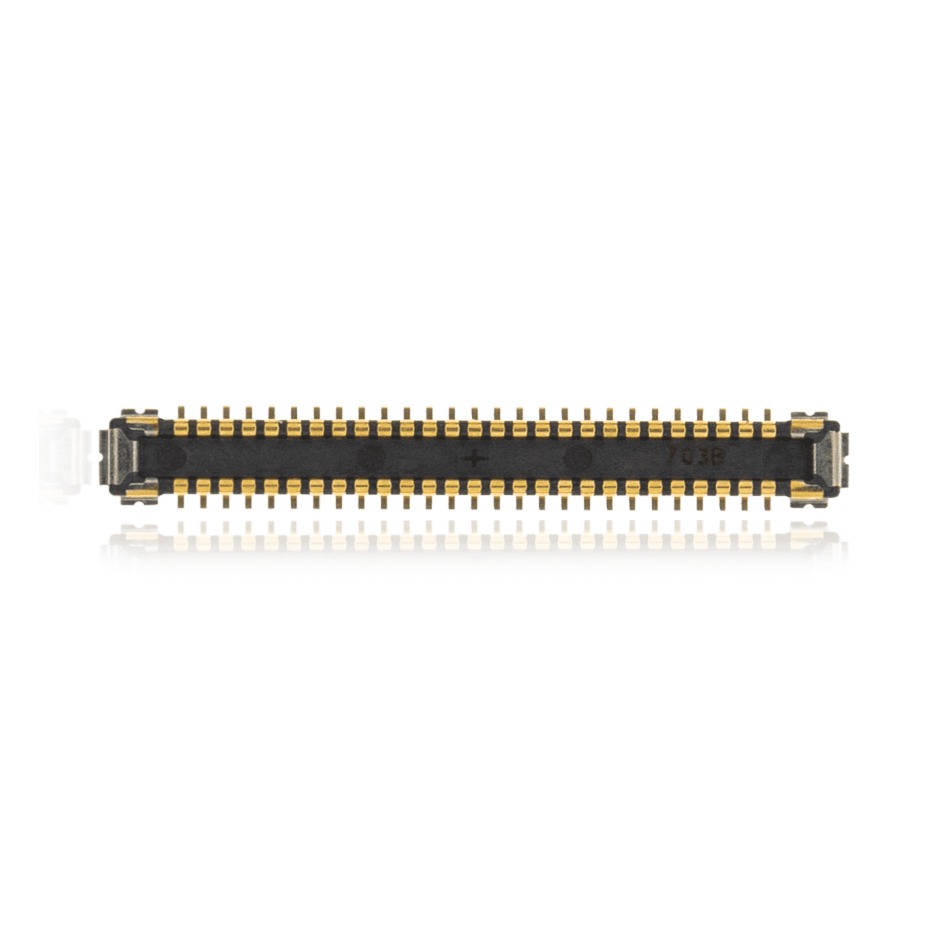


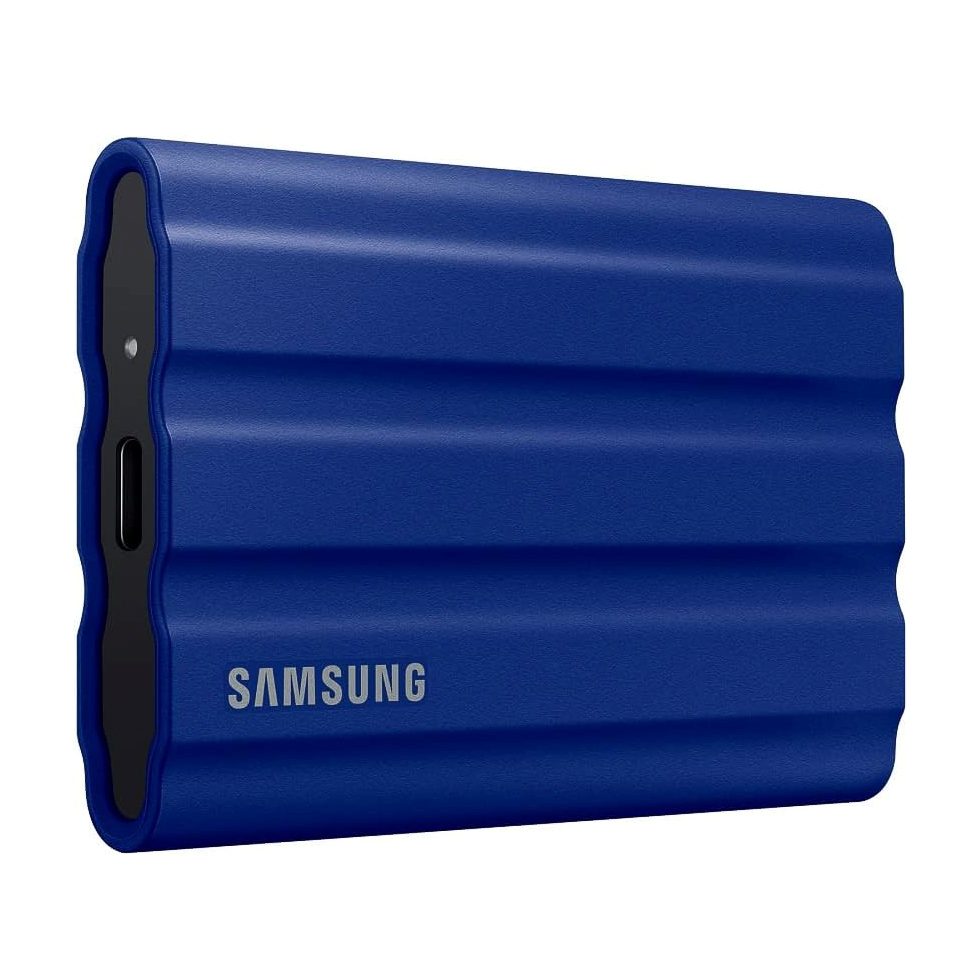


Model: Asus TUF F16 Gaming Laptop | Level: Advanced | Tools: PH0 precision screwdriver, prying tool, ESD-safe tweezers, Kapton tape, hot air rework station, RT809H programmer. This guide will help you unlock or reset a TUF F16 BIOS password if you’ve encountered this issue.
Why Hardware-Level Reprogramming Is Necessary
Specifically, an Asus TUF F16 BIOS password removal requires hardware-level chip reprogramming because modern gaming motherboards store security credentials directly on non-volatile flash ROM rather than in volatile CMOS memory.
If your Asus TUF gaming laptop prompts immediately for an administrator password on boot, blocks access to Windows, and denies entry to the UEFI utility, clearing the flash chip ultimately resolves the lockout permanently. Our lead technician walks you through the entire board-level desoldering and flashing procedure in the video below. Let’s get started.
This tutorial walks you through the entire board-level desoldering and flashing procedure in the video below. Let’s get started.
How to Perform an Asus TUF F16 BIOS Password Removal (Quick Overview)
- Remove the bottom cover and disconnect the main battery pack immediately.
- Remove the RAM stick to read the motherboard model code printed on the PCB.
- Shield nearby plastic connectors with heat-resistant Kapton tape.
- Apply flux and desolder the main BIOS chip with a hot air rework station.
- Mount the chip to the RT809H programmer adapter and create a full backup dump.
- Write the clean, unlocked BIOS file matching your motherboard code.
- Resolder the chip to the motherboard, inspect the joints, and remove the tape.
- Reassemble the laptop and verify that the system boots directly without prompts.
🛠️ Required Tools & Preparation
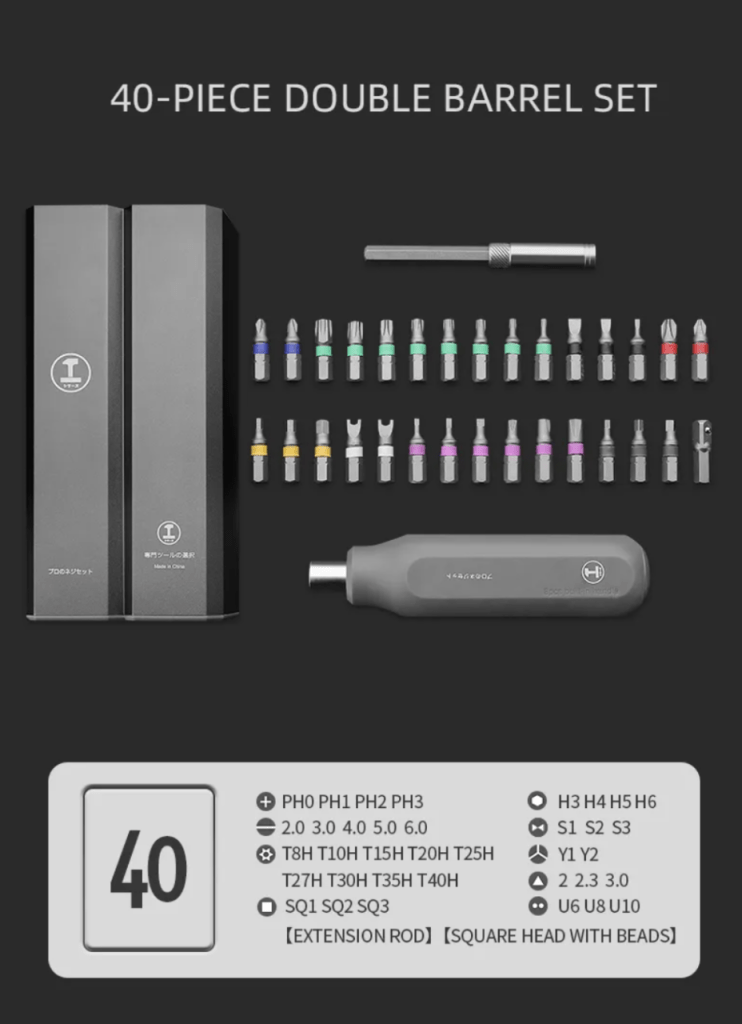
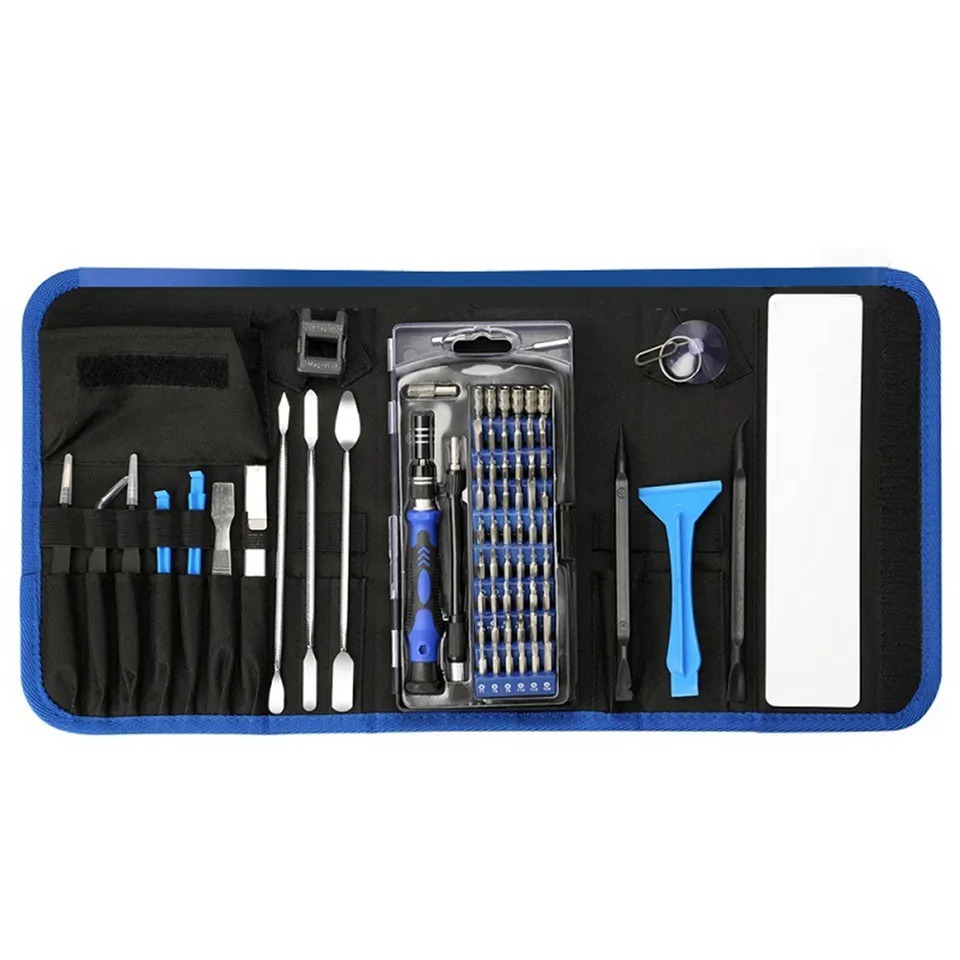
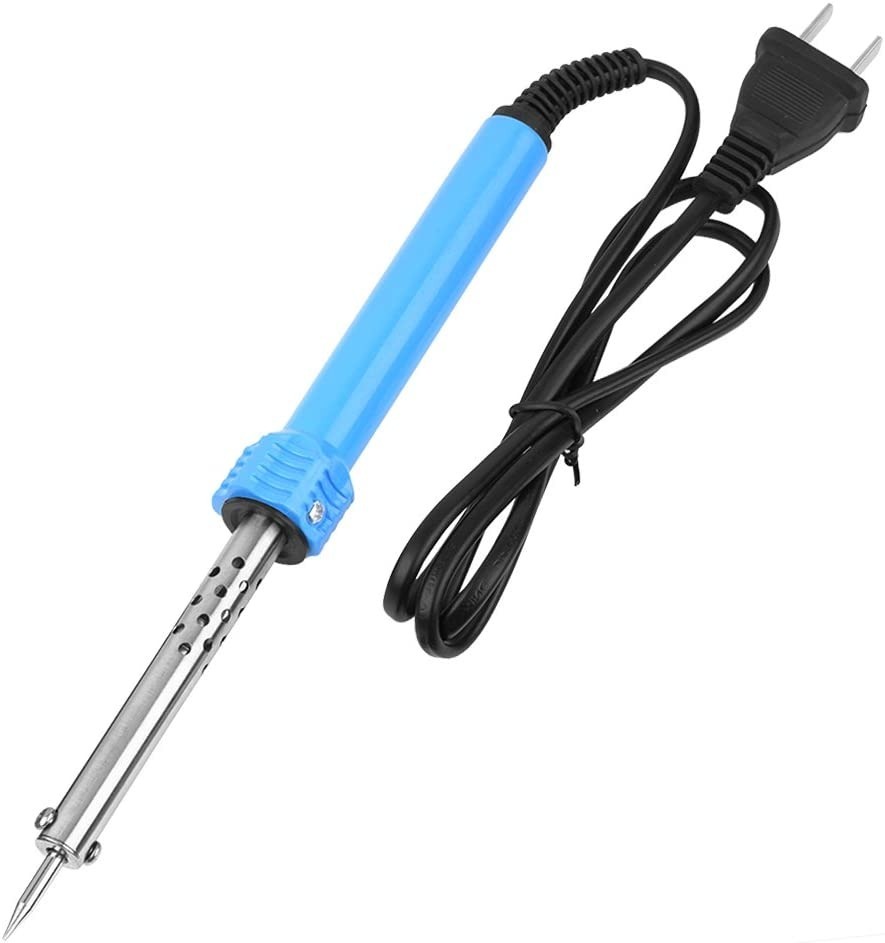
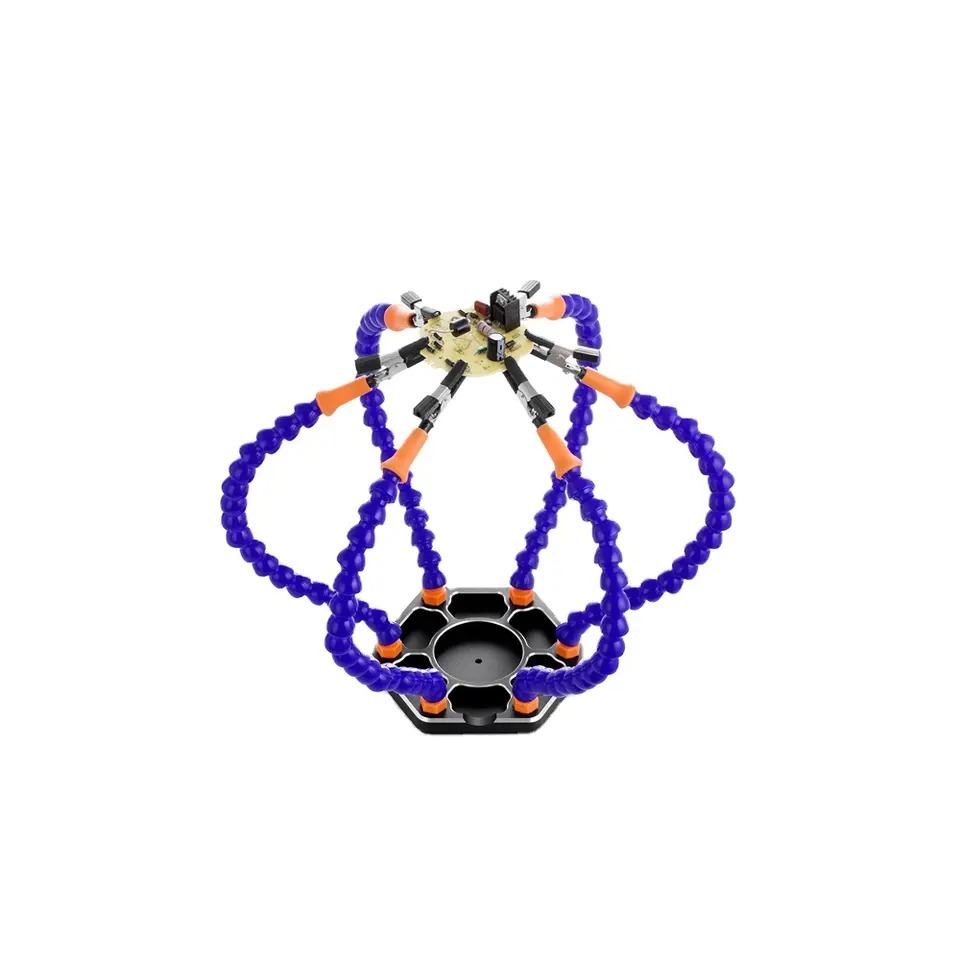
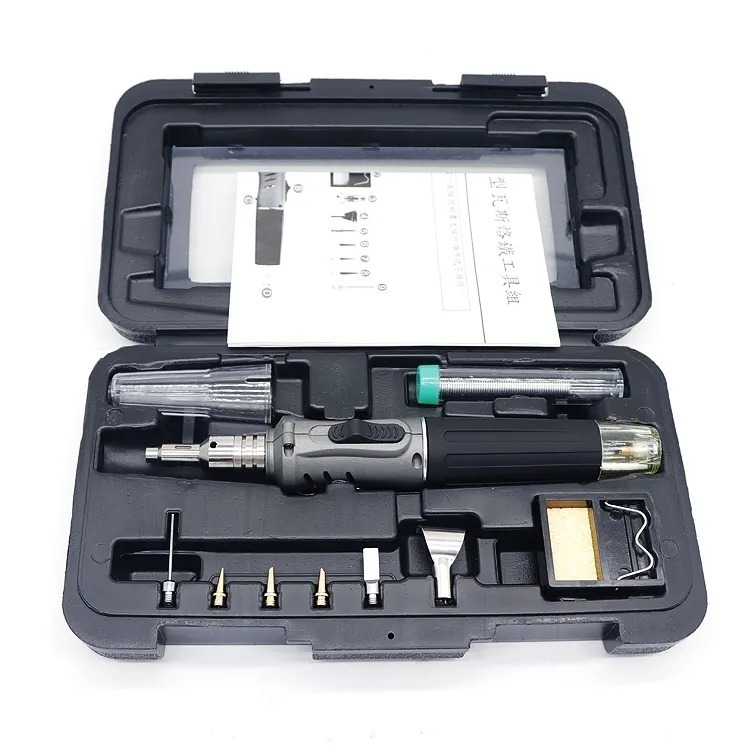
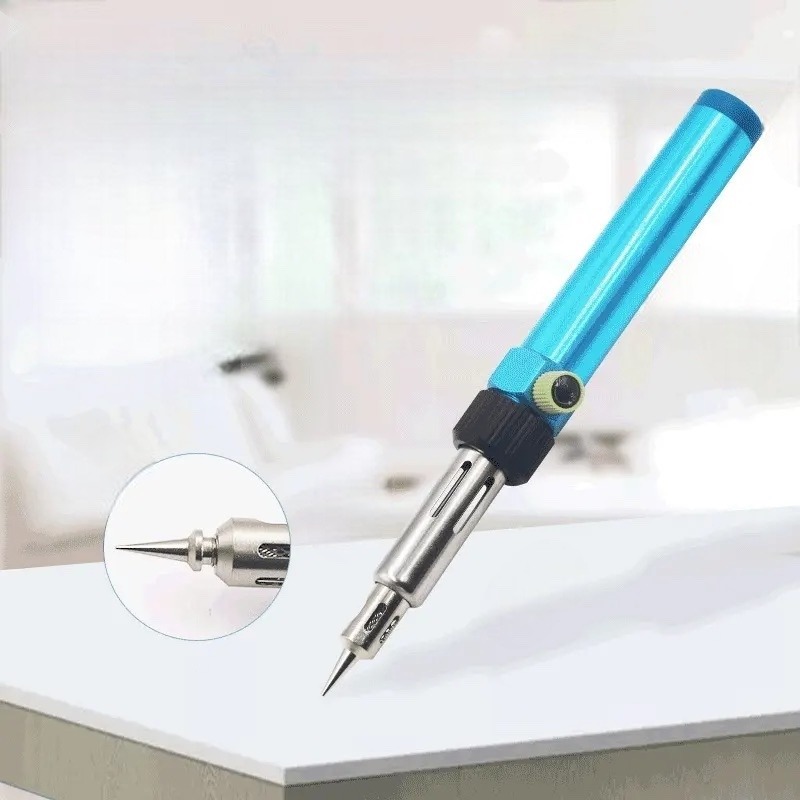
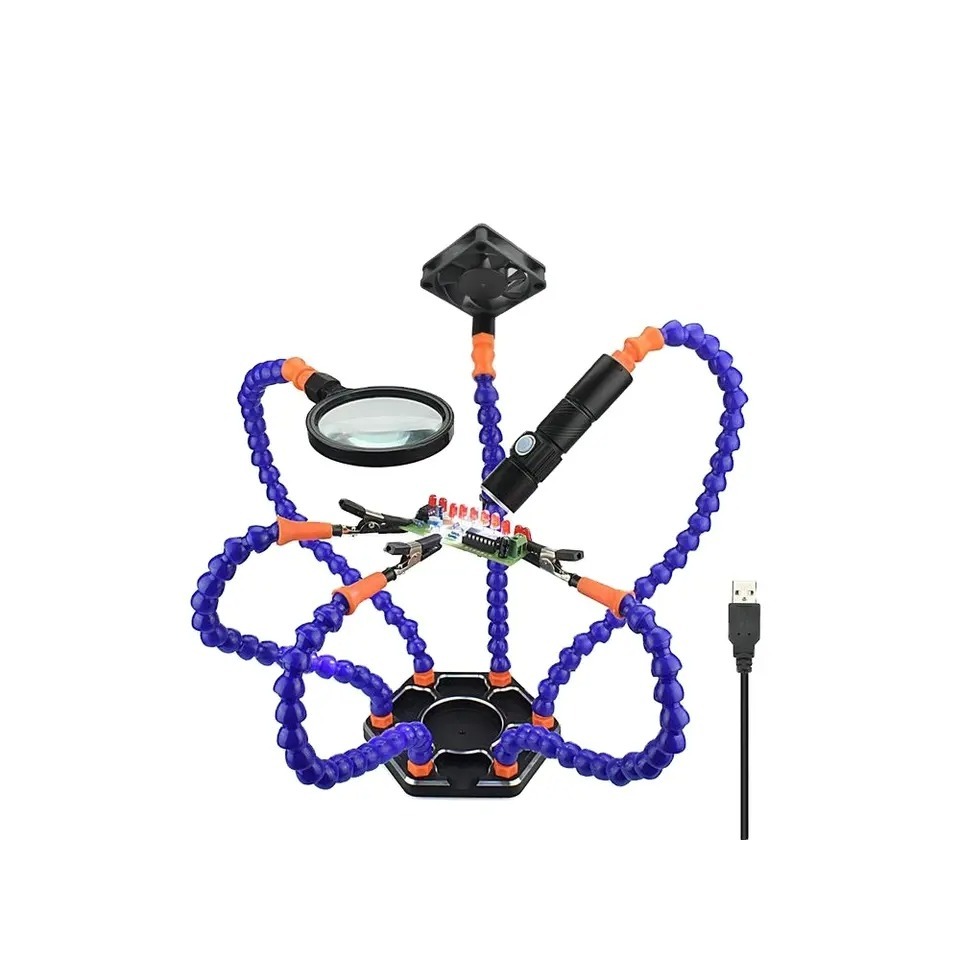
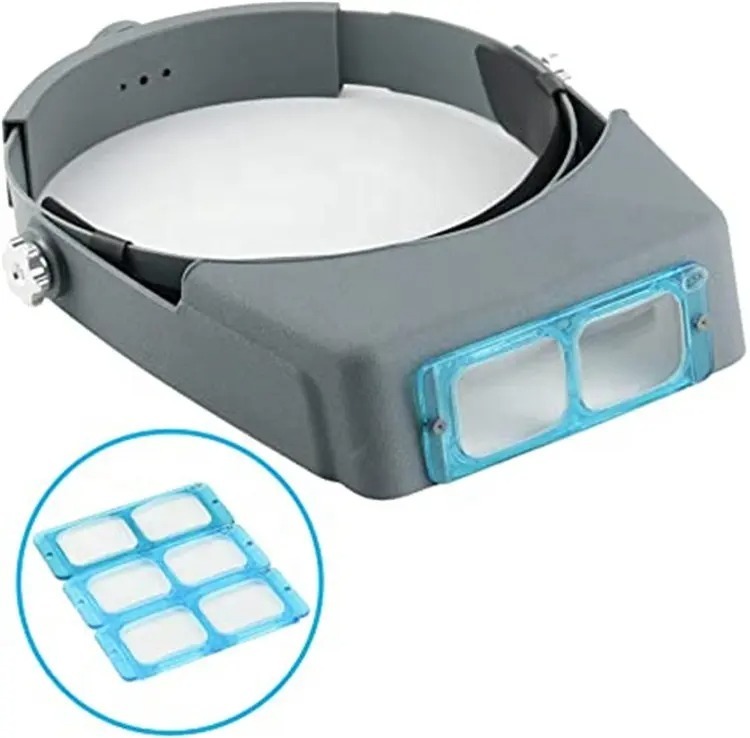
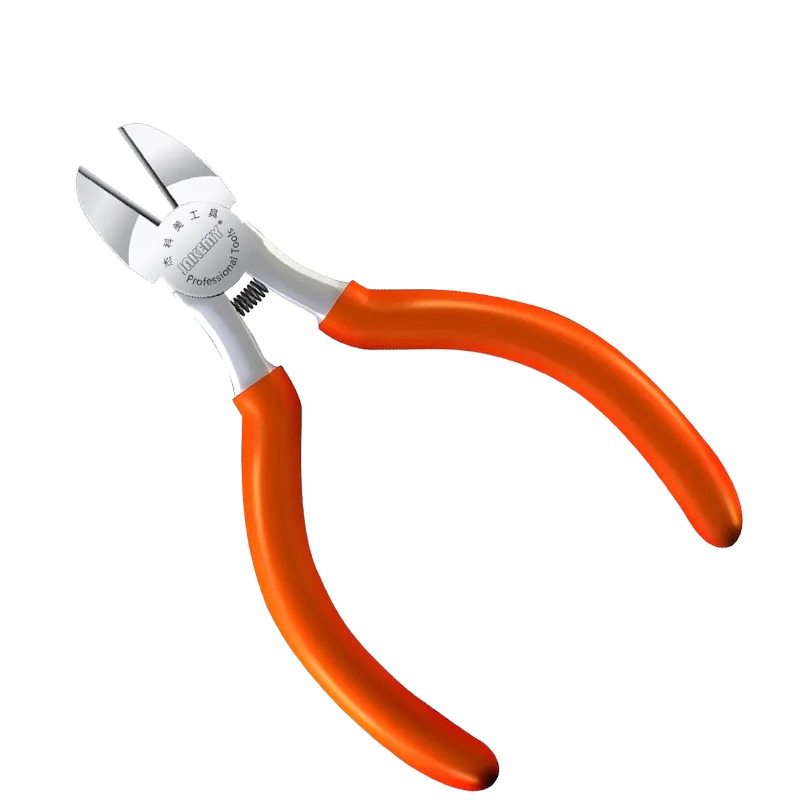
Performing an Asus TUF F16 BIOS password unlock requires hot air micro-soldering tools and a dedicated ROM programmer. Disconnect power before beginning.
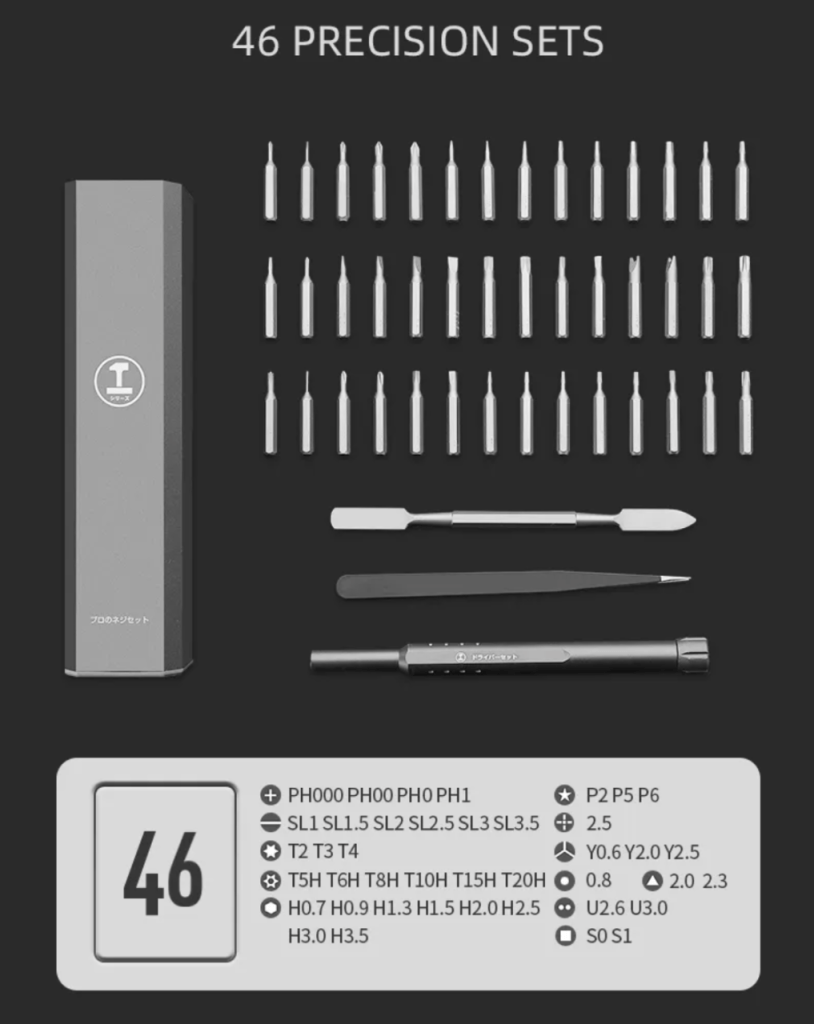
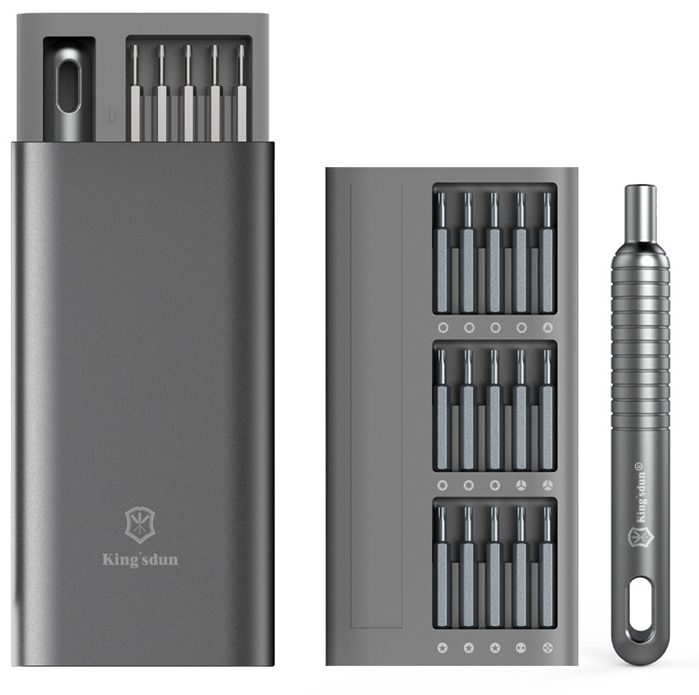
- Precision screwdriver: removes the bottom cover retaining screws.
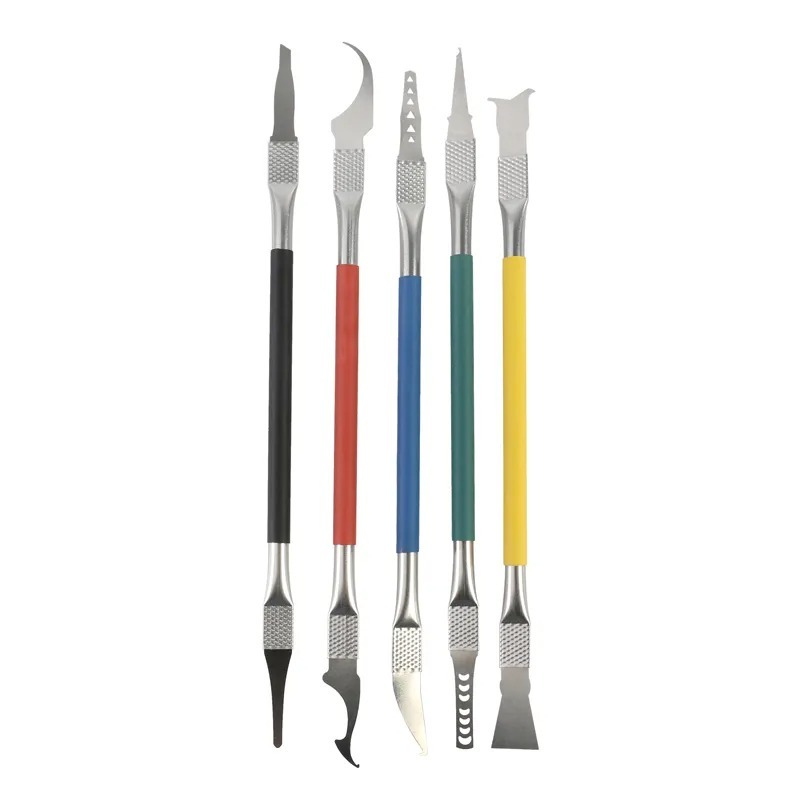
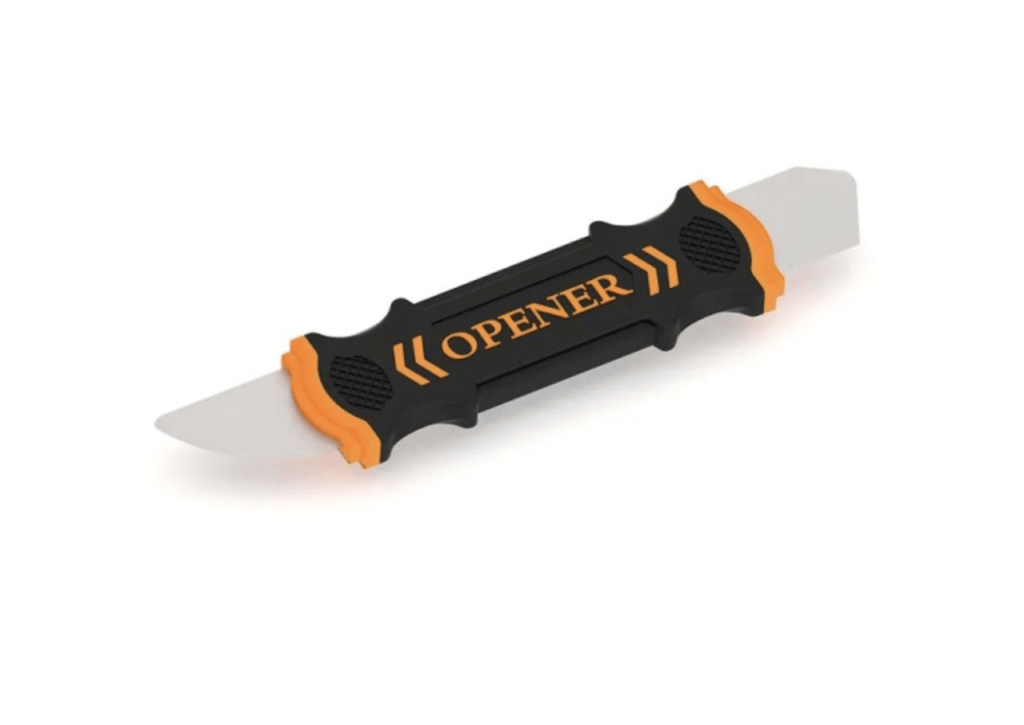
- Prying tool: releases perimeter chassis clips without scratching the casing.
- Heat-resistant Kapton tape: shields fragile plastic connectors from high reflow heat.
- Hot air gun & soldering flux: liquefies solder joints evenly to lift the chip safely.
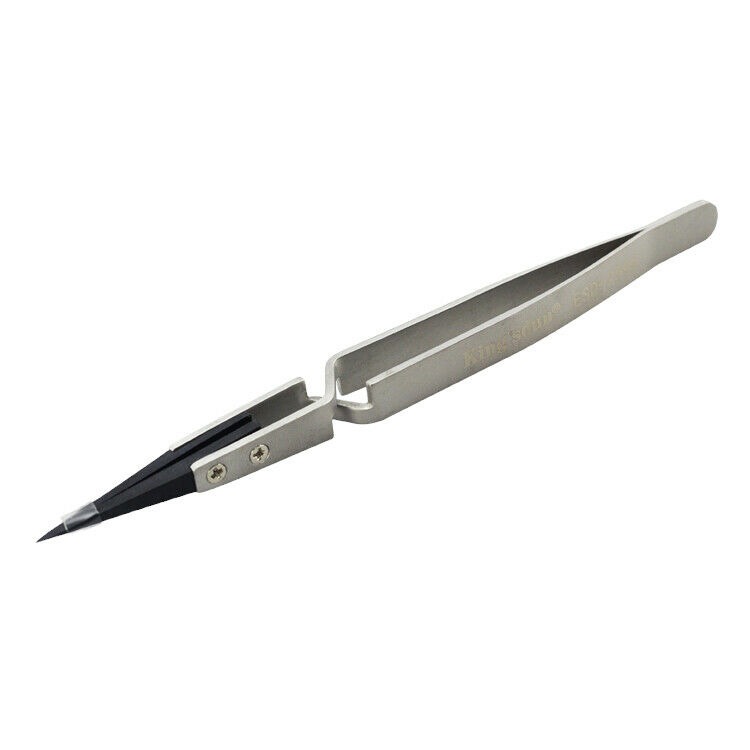
- ESD-safe tweezers: lifts and repositions the miniature eight-pin IC.
- RT809H universal programmer: connects the physical chip to a computer for hex writing.
Get the Exact Tools Used by Our Techs:
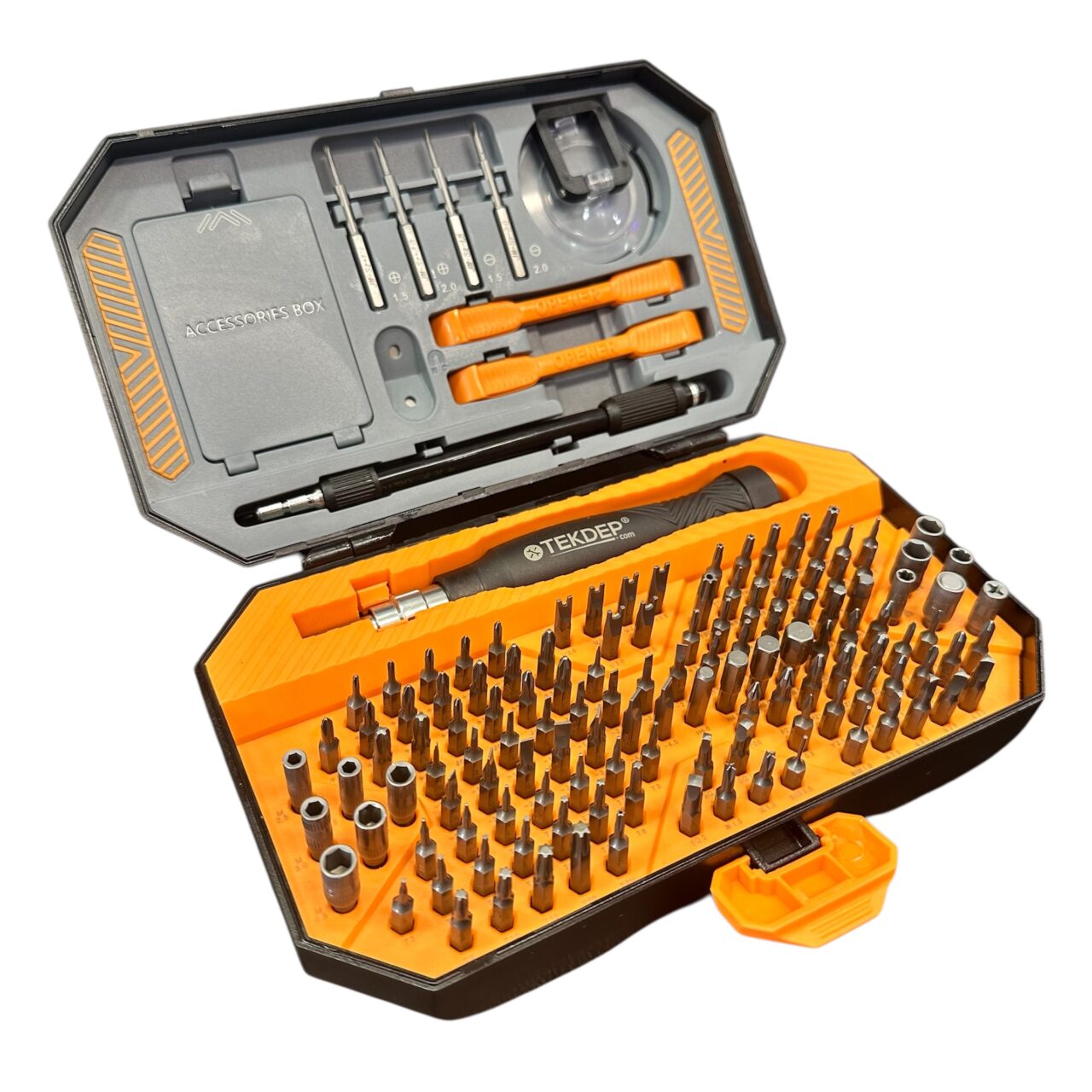
If you need replacement hardware, browse our Asus laptop parts for every part we stock for this model.
⚠️ Before you start, however, check ASUS’s official guide to forgotten BIOS passwords. In addition, it explains that ASUS Product Support or an authorized repair center handles lost passwords, and a service charge may apply.
Phase 1: Getting Inside & Locating the TUF F16 BIOS password Chip
Before you start, check ASUS’s official guide to forgotten BIOS passwords. It explains that ASUS Product Support or an authorized repair center handles lost passwords, and a service charge may apply.
Accessing the motherboard requires opening the base cover and uncovering the board part numbers.
Step 1: Remove the Bottom Cover
Keep your screws organised as you loosen the perimeter fasteners around the lower housing.
- First, remove all exterior PH0 screws securing the bottom panel to the chassis.
- Then, insert your plastic prying tool into the seam between the bottom cover and palmrest.
- Next, release the plastic retaining clips around the edges and lift the cover away.
- Disconnect the main battery connector immediately to prevent accidental electrical shorts.

Step 2: Identify the Motherboard Code and BIOS Chip
Modern Asus boards hide identification markings and circuitry under memory modules or wireless cards.
- Therefore, spread the retention clips on the RAM slot and remove the memory module.
- Next, inspect the PCB surface beneath the memory to locate the printed motherboard revision code.
- Locate the main flash ROM, noting that this model uses two chips: an EC chip and the larger main BIOS chip.

Phase 2: Thermal Masking & Desoldering for the TUF F16 BIOS Password
Directing intense hot air near delicate board connectors requires rigorous thermal shielding.
Step 1: Mask Surrounding Components with Kapton Tape
Polyimide thermal tape deflects direct convective heat away from low-temperature plastics.
- Therefore, cut multiple strips of heat-resistant Kapton tape to cover nearby traces.
- Carefully mask adjacent plastic connectors, especially the trackpad and keyboard ribbon headers.
- Ensure only the eight solder pins and the body of the main BIOS chip remain exposed.
TekDep Expert Warning: Never skip thermal tape when using a hot air rework station. Keyboard and trackpad headers are made of lightweight plastic that melts rapidly under 350°C airflow.
Step 2: Desolder the BIOS Chip
Desoldering the flash memory is the core mechanical step during this Asus TUF F16 BIOS password removal.
- Meanwhile, apply a generous bead of tacky soldering flux across all eight pins of the IC.
- Next, circle the chip with your hot air gun nozzle to heat the copper pads evenly.
- Finally, grasp the package gently with ESD-safe tweezers and lift straight up once the solder turns molten.

Phase 3: Reprogramming the BIOS with RT809H
Reprogramming replaces the encrypted security block on the chip with clean factory firmware.
Step 1: Mount the Chip to the Programmer Adapter
Therefore, a reliable connection to your programmer prevents checksum errors during read and write cycles.
- As a result, orient pin 1 of the chip with the alignment dot on the RT809H programmer adapter.
- Alternatively, solder the eight leads to the breakout board, or secure them firmly inside a locking test socket.
- Insert the adapter into the universal programmer and connect the USB cable to your PC.
Step 2: Back Up and Write Clean Firmware
In addition, always preserve the machine’s factory binary before flashing new hex data onto the chip.
- First, launch the RT809H software and execute an auto-detect routine on the flash chip.
- Read the chip contents and save a full raw backup image to your storage drive.
- Load a verified clean BIOS binary matching your specific Asus TUF F16 board code.
- Write the new binary to the chip and perform a complete verification pass.

Get the hardware programmer used for this Asus TUF F16 BIOS password reset:
👉 RT809H Universal Programmer & Soldering Tools
Phase 4: Resoldering, Reassembly & Final Testing
The reprogrammed IC must now be remounted to the motherboard and tested under power.
Step 1: Resolder the BIOS Chip to the Motherboard
First, carefully align the eight pins with their corresponding PCB pads before applying reflow heat.
- Meanwhile, desolder the chip from the adapter and clean residual solder from each pin.
- Furthermore, apply fresh soldering flux to the motherboard contact pads.
- Position the IC with pin 1 matching the motherboard silk-screen indicator dot.
- Consequently, reflow the joints using your hot air gun until all eight pins settle firmly into place
- Peel away the Kapton tape once the board cools, checking that nearby plastics show zero heat damage.

Step 2: Reassemble the Laptop
Reinstall internal components in reverse order before attaching the bottom housing.
- Insert the RAM module into its slot at an angle, then press down until both side arms click shut.
- Then, securely reconnect the main battery power harness to its motherboard header.
- Next, align the bottom cover with the chassis and press around the perimeter to engage every clip.
- Finally, reinstall all PH0 screws into the bottom panel.
Step 3: Power and BIOS Access Test
Finally, plug in the factory AC power adapter and press the power button to initialize the freshly flashed BIOS.
Ultimately, you have completed the Asus TUF F16 BIOS password removal on your gaming laptop.
🛑 Not Comfortable Handling Micro-Soldering Chip Repairs? If reading about hot air rework stations, desoldering delicate ICs, and binary hex flashing has you second-guessing your DIY skills, don’t worry. The TEKDEP experts are here to help.
We offer clean, professional, and affordable Mail-In repair services for the entire Asus TUF and gaming laptop lineup.
Frequently Asked Questions
Can I perform an Asus TUF F16 BIOS password removal without desoldering the chip?
Generally, no. However, while some technicians attempt in-circuit programming with SOIC-8 test clips, power leakage across the motherboard often causes read and write verification errors. Desoldering the chip ensures a reliable hex read and prevents corrupting the flash memory.
Where is the BIOS chip located on the Asus TUF F16?
Typically, the BIOS chip is located under the RAM modules and adjacent to the Wi-Fi card. This motherboard features two separate flash chips: one smaller IC for the Embedded Controller (EC) and a larger flash ROM that contains the main system BIOS and security password.
Why must I back up the original BIOS dump before flashing?
The original binary contains machine-specific hardware identifiers, such as system serial numbers, Windows product keys, and MAC addresses. Specifically, storing a verified backup guarantees you can restore or rebuild device descriptors if the replacement BIOS requires manual patching.
What happens if heat-resistant tape is omitted during soldering?
Surrounding plastic components like ribbon cable sockets for the keyboard and trackpad will soften and deform. Applying Kapton tape deflects radiant heat away from nearby components and prevents costly secondary damage to the motherboard.
🛑 IMPORTANT: SAFETY & LIABILITY DISCLAIMER: TEKDEP®️ TEKDEP.com assumes no liability for property damage or injury incurred as a result of any information in this blog post or associated videos. Dealing with internal computer components, specifically Lithium-Ion batteries, carries inherent risks including fire, toxic gas exposure, and irreversible device failure. Any injury, damage, or loss from improper use of tools, mishandling of components, or misinterpretation of this information is the sole responsibility of the user.