

















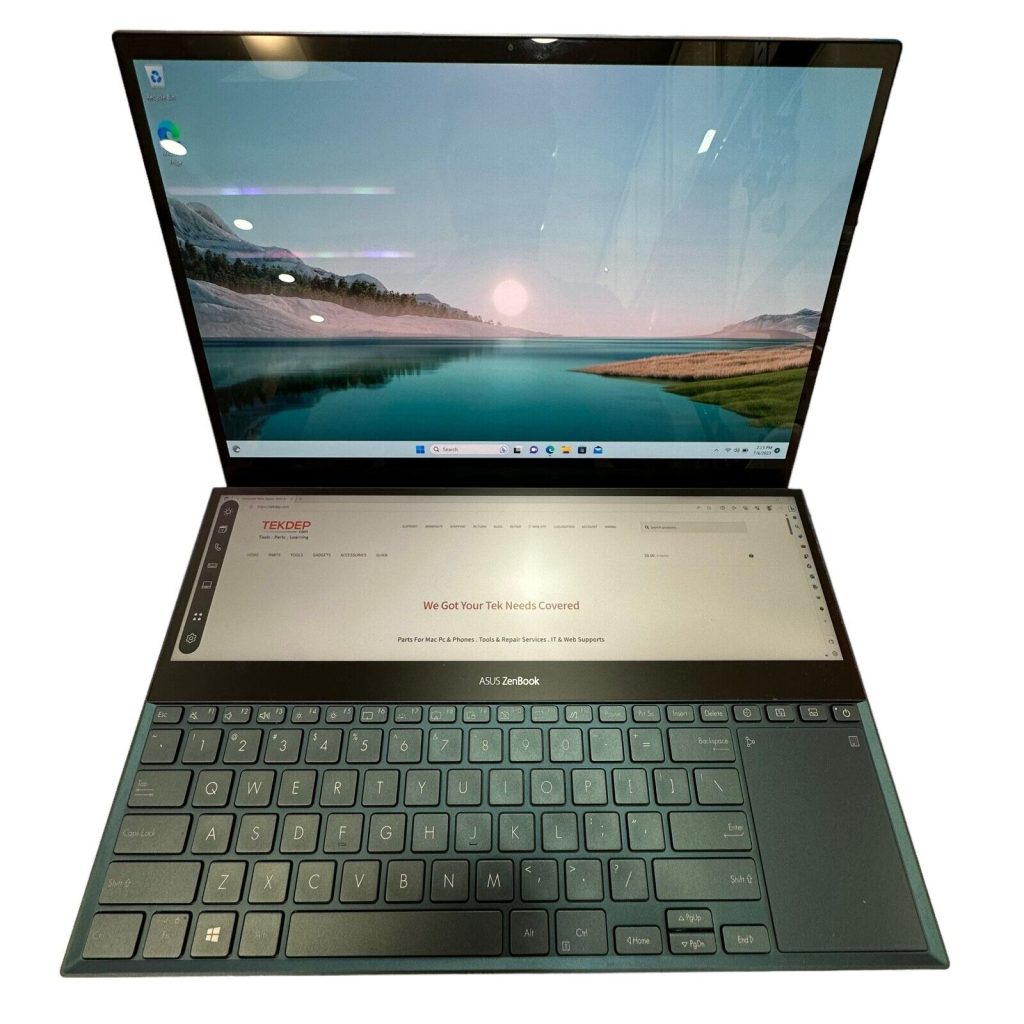




















Model: Asus Zenbook 14 (UX Series) | Level: Advanced | Tools: 145-in-1 tool set, plastic pry tool, USB-C charging meter, micro-soldering kit
An Asus Zenbook 14 charging port repair requires complete motherboard removal and micro-soldering, but it saves you from buying a whole new board just for a loose connector.
If your laptop is losing charge fast, turning off randomly, or only drawing power when you wiggle the cable at a specific angle, cracked solder joints on the USB-C port are the likely culprit.
Our lead technician walks you through diagnosing the power drop and reinforcing the physical connection. Let’s get started.
How to Perform an Asus Zenbook 14 Charging Port Repair (Quick Overview)
- Test the power draw with a USB-C charging meter first.
- Remove the backplate and slide the battery connector down to cut power.
- Disconnect the fragile flex cables to free the logic board.
- Remove the motherboard to access the soldered Type-C joints.
- Apply flux and solder to reinforce the four main anchor pins.
- Clean the fans, reinstall the board, and run a final power test.
🛠️ Required Tools & Preparation
An Asus Zenbook 14 charging port fix requires standard disassembly gear plus precision soldering equipment. Power the laptop off and unplug it before you start.
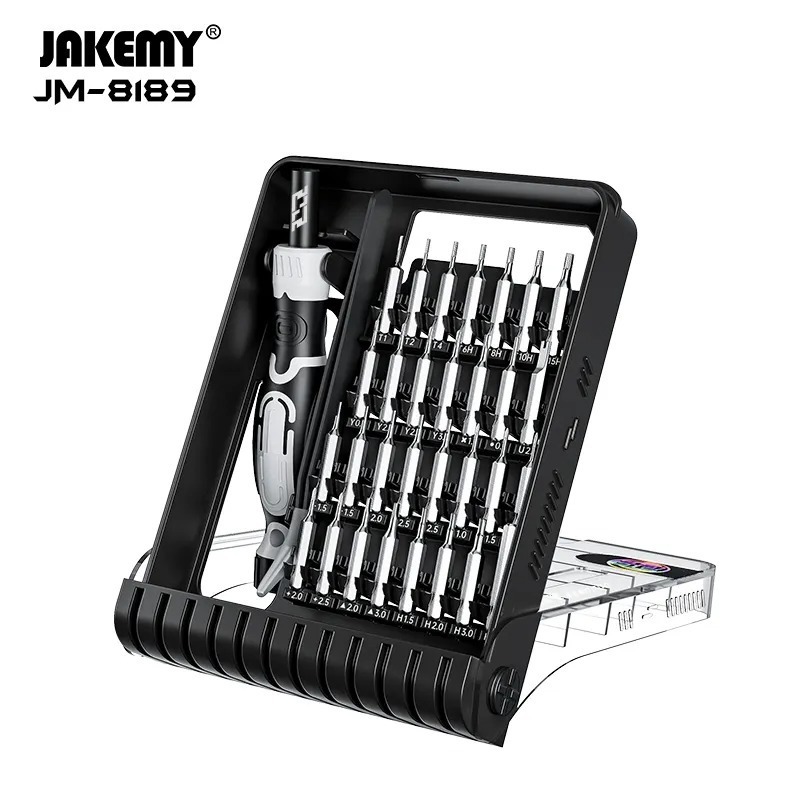
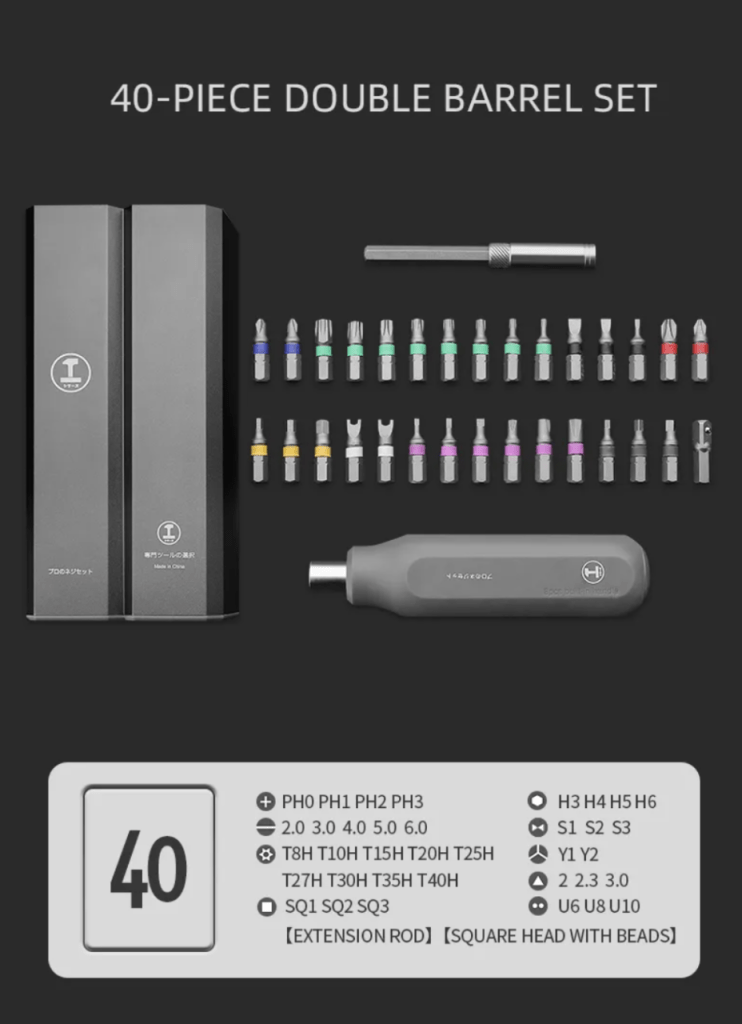
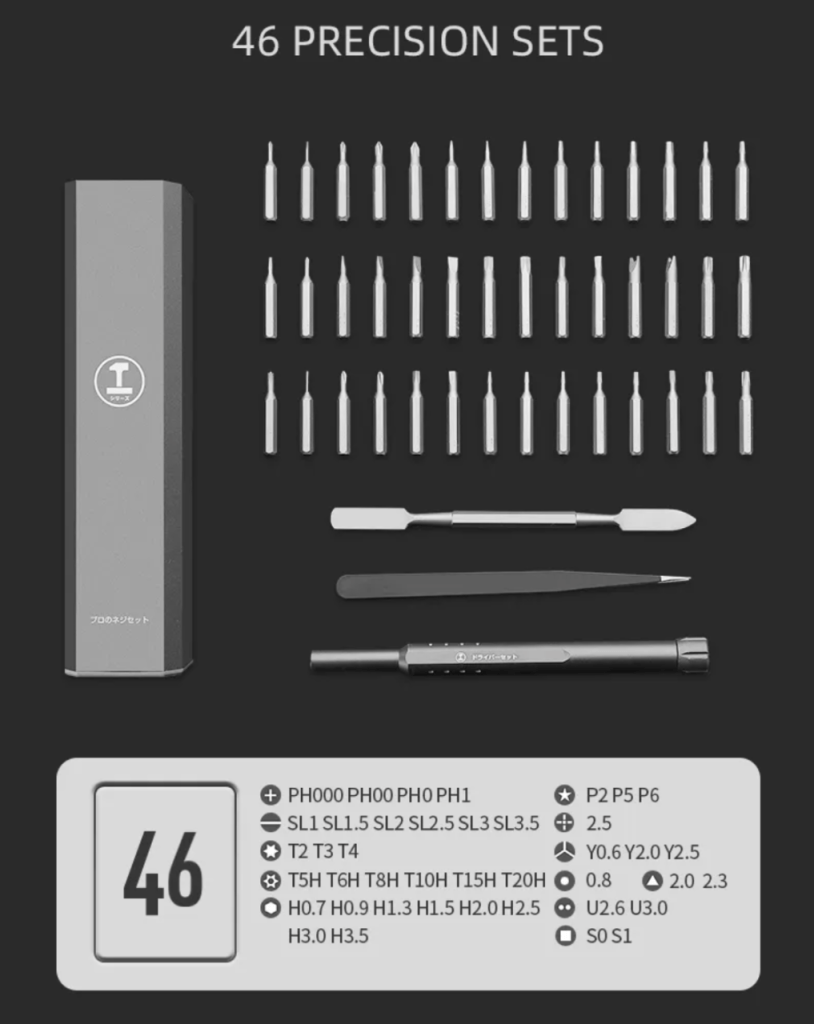
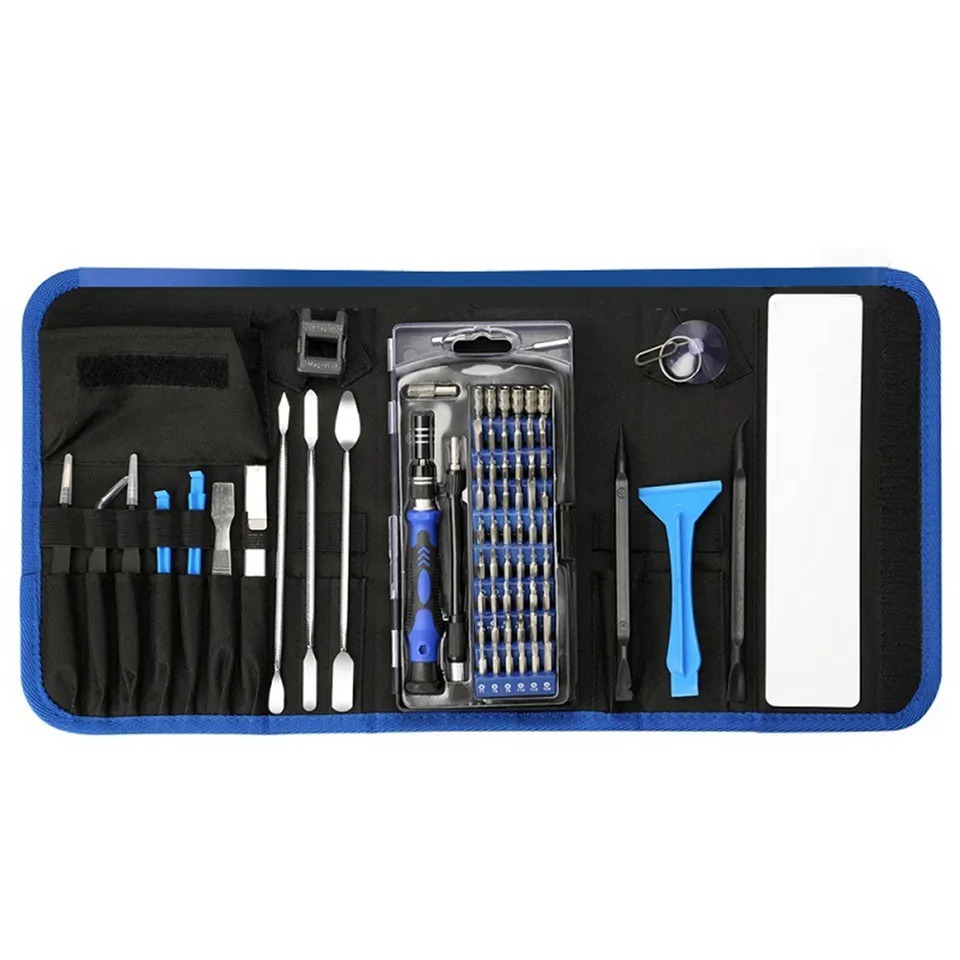
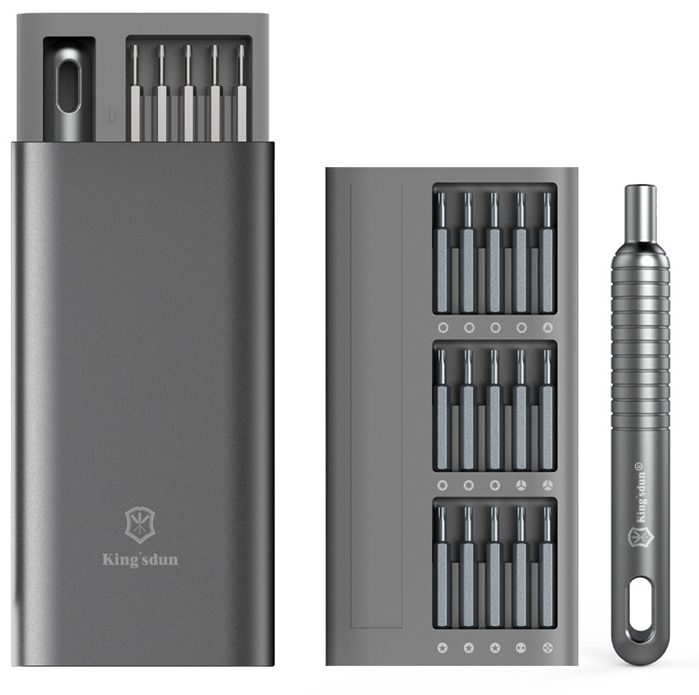
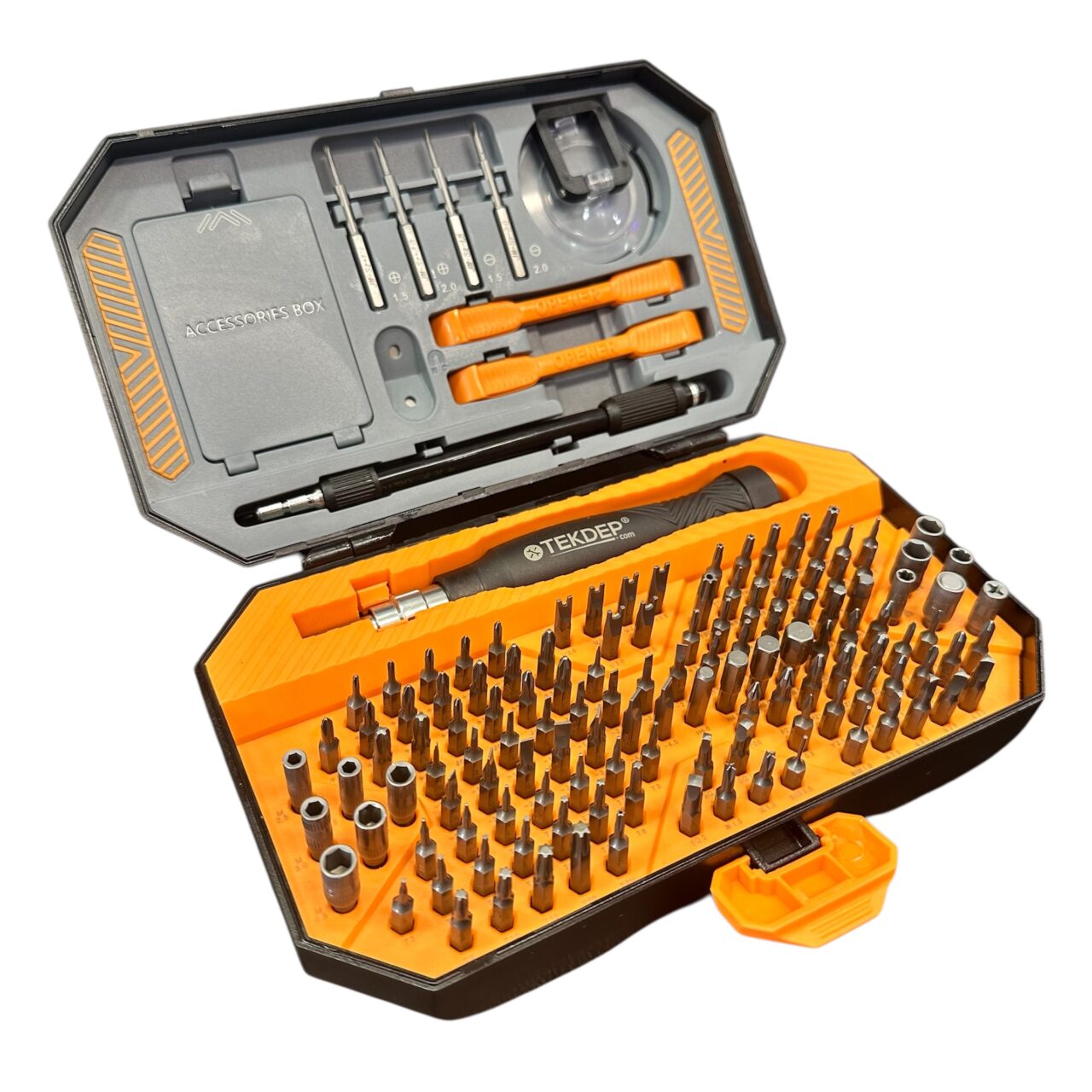
- 145-in-1 precision toolkit: handles the chassis and internal motherboard screws.
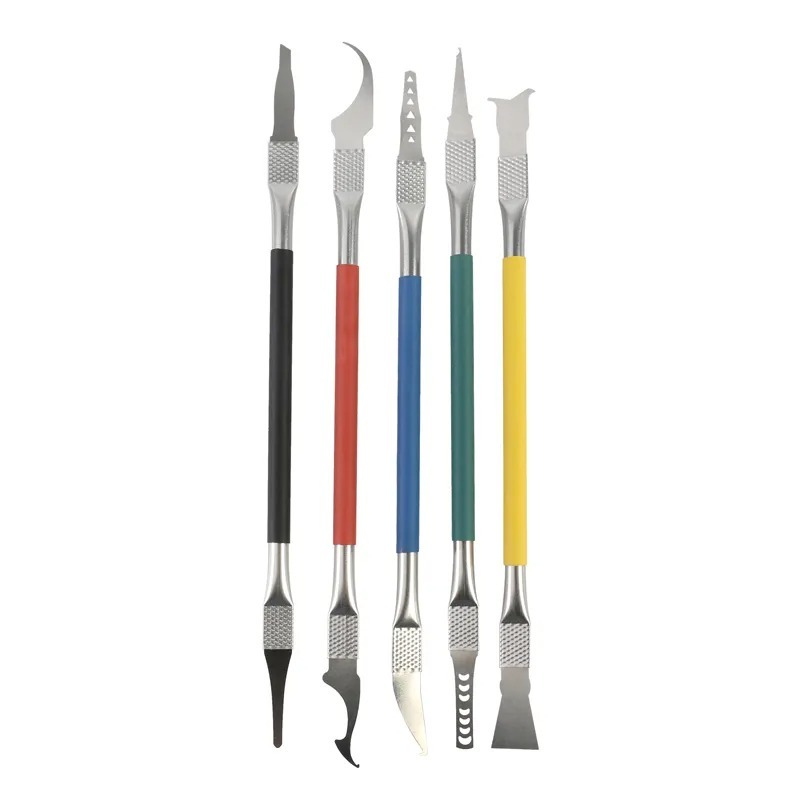
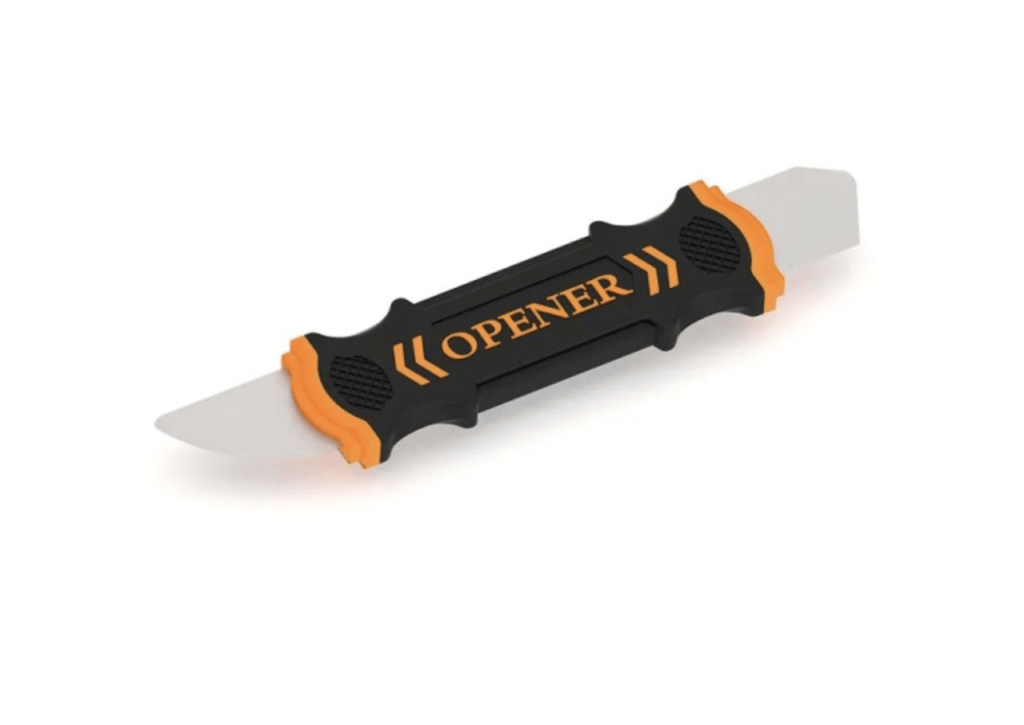
- Plastic pry tool: opens the backplate and lifts delicate ZIF connectors.
- USB-C charging meter: verifies the voltage drop before you open the device.
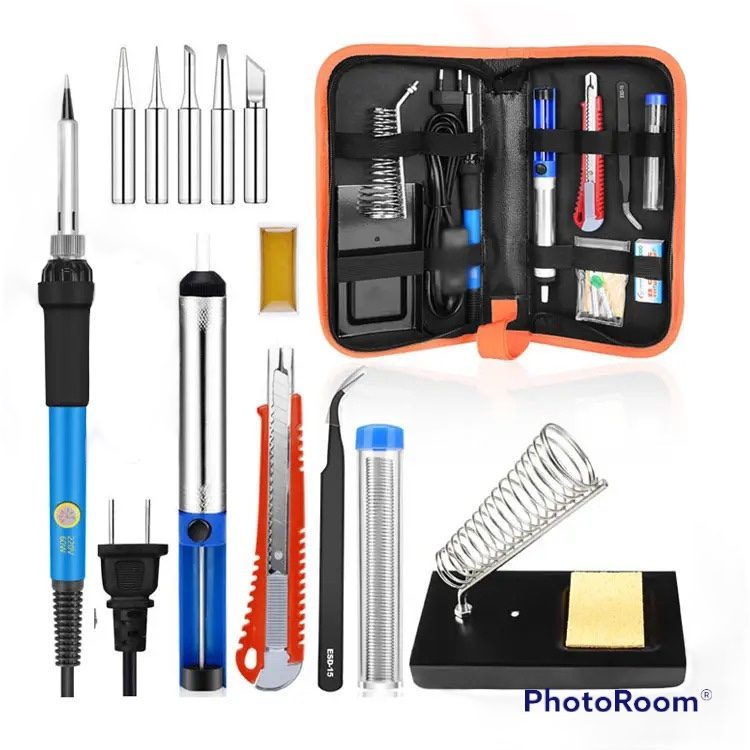
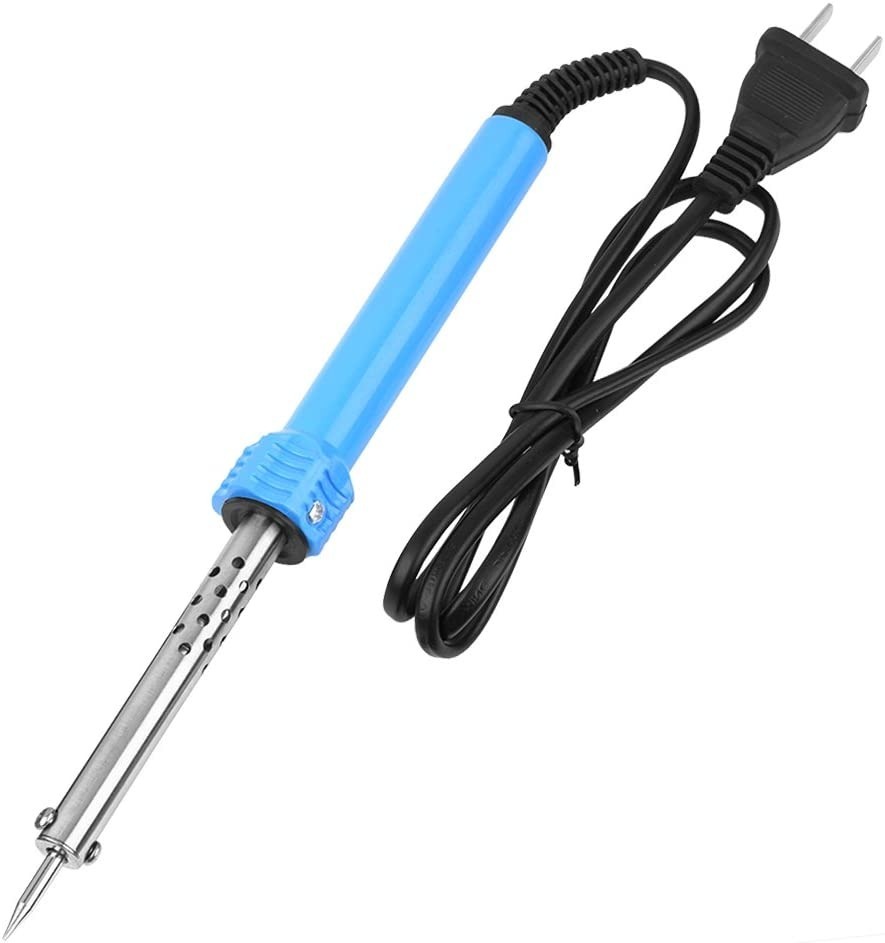
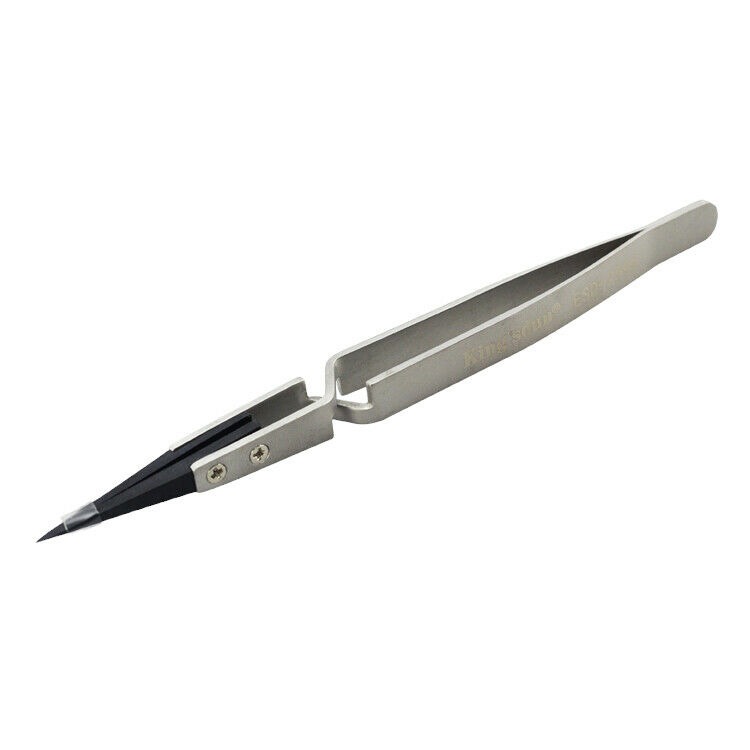
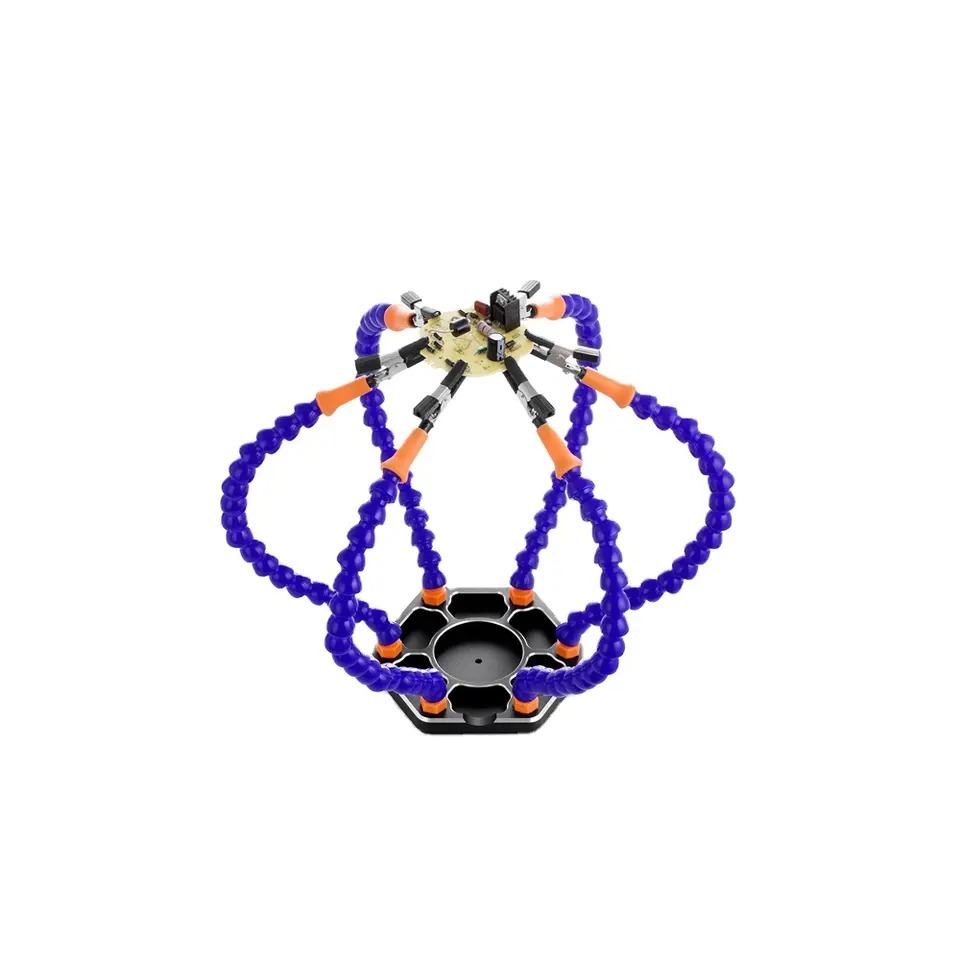
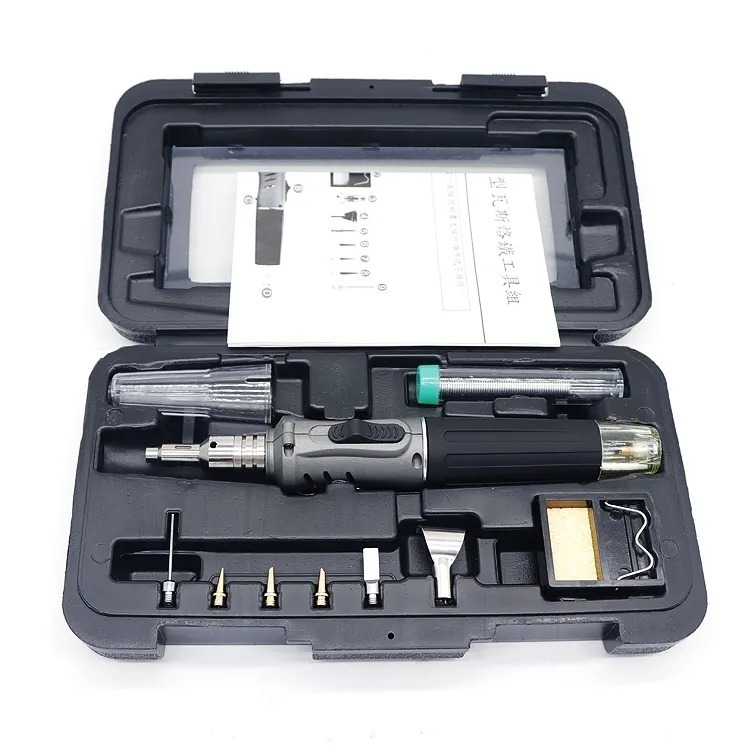
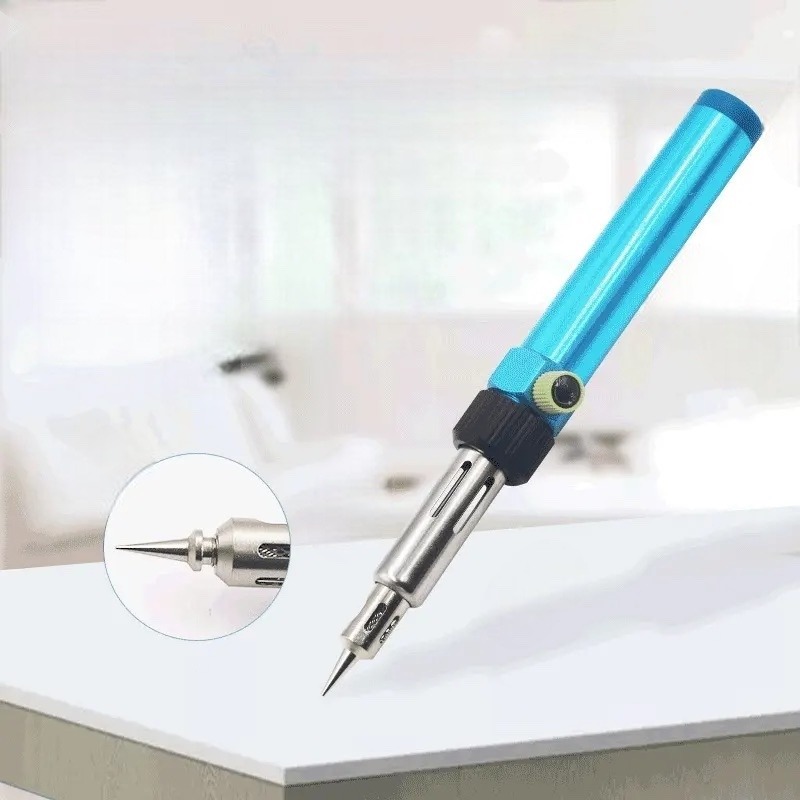
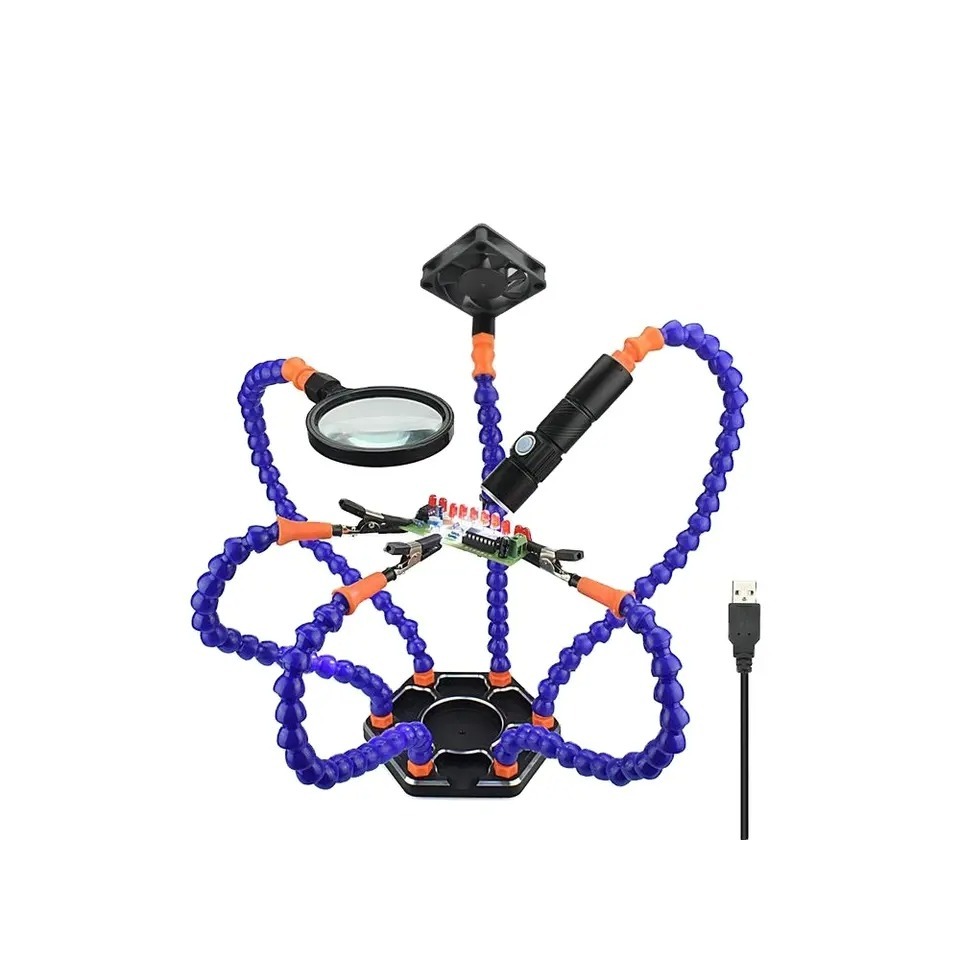
- Micro-soldering kit: soldering iron, flux, lead, and board cleaner.
⚠️ Before you start: Disconnect the battery before you touch any internal connector. Work on a heat-resistant, anti-static mat, and keep your screws organized.
Get the Exact Tools Used by Our Techs:
-
TEKDEP Professional Tool Set 145-in-1 For Electronics, iPhone, Laptop, PC Repairs
-
9 in 1 Disassemble Multi Opening Repair Tools Kit Metal Pry Bar
-
40W Electric Soldering Iron – Temperature Welding Tool for Electronic Repairs
-
13-in-1 DC Voltage Ammeter Power Meter Type-C Cell Phone Charging Tester PD3.1 4.5-50V 0-12A

Phase 1: Diagnostics & Getting Inside
Before tearing the laptop down, confirm that the fault is physical and locate exactly where the connection drops.
Step 1: Test With a Charging Meter
- Plug a USB-C charging meter into your Asus Zenbook charging port to test the connection to your wall charger.
- Monitor the display; if it shows 20 volts but very low amperage and wattage, power is barely flowing.
- Wiggle the cable gently. If the wattage spikes and drops as you move it, the physical solder joints are cracked.
Step 2: Remove the Backplate and Disconnect Power
Remove all the perimeter and central screws securing the bottom cover, then lift the backplate away to expose the internals.
- Locate the main battery flex cable plugged into the motherboard.
- Slide the locking mechanism down to release the plug.
- Pull the connector out completely.
TekDep Expert Warning: Never remove a motherboard without disconnecting the battery first. Even when powered off, standby voltage can short the board if a metal tool slips.

Phase 2: Removing the Motherboard
The USB-C ports are soldered directly to the main board. To perform an Asus Zenbook 14 charging port replacement or repair safely, you must remove the entire board.
Step 1: Disconnect the Flex Cables
You must unplug the keyboard, touchpad, and speaker cables before the board can be moved. Much like we highlighted in our Dell XPS 13 (9345) teardown, these ZIF connectors break easily.
- Use your plastic pry tool to flip up the locking flaps on each connector.
- Gently slide the ribbon cables straight out of their sockets.
Step 2: Remove the Motherboard
- Remove all remaining screws anchoring the motherboard to the chassis.
- Lift the board out at a slight angle to free the side ports from the casing.
- Place the motherboard on a heat-resistant soldering mat.

Phase 3: Re-soldering the USB-C Ports
With the board isolated, you can permanently secure the cracked physical connections that cause intermittent charging.
Step 1: Apply Flux and Solder
The Asus Zenbook charging port uses four main anchor pins securing the USB-C connector to the board.
- Apply a drop of soldering flux liquid to the anchor pins to help the new metal flow.
- Use your hot soldering iron and fresh soldering lead to reinforce each of the four pins.
- Crucial Note: Ensure the solder forms a solid, shiny bond around the entire pin. Cold or cracked solder will fail again quickly.

Step 2: Clean and Verify
- Apply board cleaner liquid to the repaired area and scrub away the leftover flux with a small brush.
- Plug your charger into the bare board and wiggle the cable. Verify that the connection remains completely rigid.
Phase 4: Reassembly & Maintenance
The soldering is done. Now you need to clean the cooling system and put the laptop back together.
Step 1: Clean the Fans
Use an air blower to clear all dust out of the cooling fans and heatsink fins while you have easy access.
Step 2: Reinstall the Motherboard
- Lower the motherboard into the chassis, angling the ports into their cutouts first.
- Secure all the motherboard screws.
- Slide every flex cable back into its socket and lock the latches down. Just as we noted in the Dell Latitude 7440 teardown, plug the battery in last.
Step 3: Power Test
Snap the backplate on, secure its screws, and plug in your charger. Watch the charging meter to confirm the voltage and amps rise steadily as the laptop turns on.
Congratulations! You have successfully completed the charging port repair on your Asus Zenbook 14.
🛑 Not Comfortable Micro-Soldering? If reading about flux, melted lead, and fragile motherboard connectors has you second-guessing your DIY skills, don’t worry. The TEKDEP experts are here to help.
We offer clean, professional, and affordable Mail-In repair services for the entire Asus Zenbook lineup.
Frequently Asked Questions
Can I perform an Asus Zenbook 14 charging port repair without soldering?
No, because the USB-C ports are soldered directly to the main motherboard rather than residing on a separate modular board. If the connection fails, it must be physically re-soldered to restore power.
Why does my Zenbook only charge at a specific angle?
The metal solder joints anchoring the port to the board have cracked from physical stress. Wiggling the cable temporarily bridges that broken gap, but it requires a permanent micro-soldering fix to work reliably again.
What is a USB-C charging meter used for?
It sits between your wall charger and the laptop to display the exact voltage and amperage flowing into the device. This helps you instantly identify if the issue is a dead charger, a broken port, or a failed battery.
🛑 IMPORTANT: SAFETY & LIABILITY DISCLAIMER TEKDEP®️ TEKDEP.com assumes no liability for property damage or injury incurred as a result of any information in this blog post or associated videos. Dealing with internal computer components, specifically Lithium-Ion batteries, carries inherent risks including fire, toxic gas exposure, and irreversible device failure. Any injury, damage, or loss from improper use of tools, mishandling of components, or misinterpretation of this information is the sole responsibility of the user. Perform repairs at your own risk. If you are unsure of your capabilities, please utilize our professional Mail-In Repair Service.