
















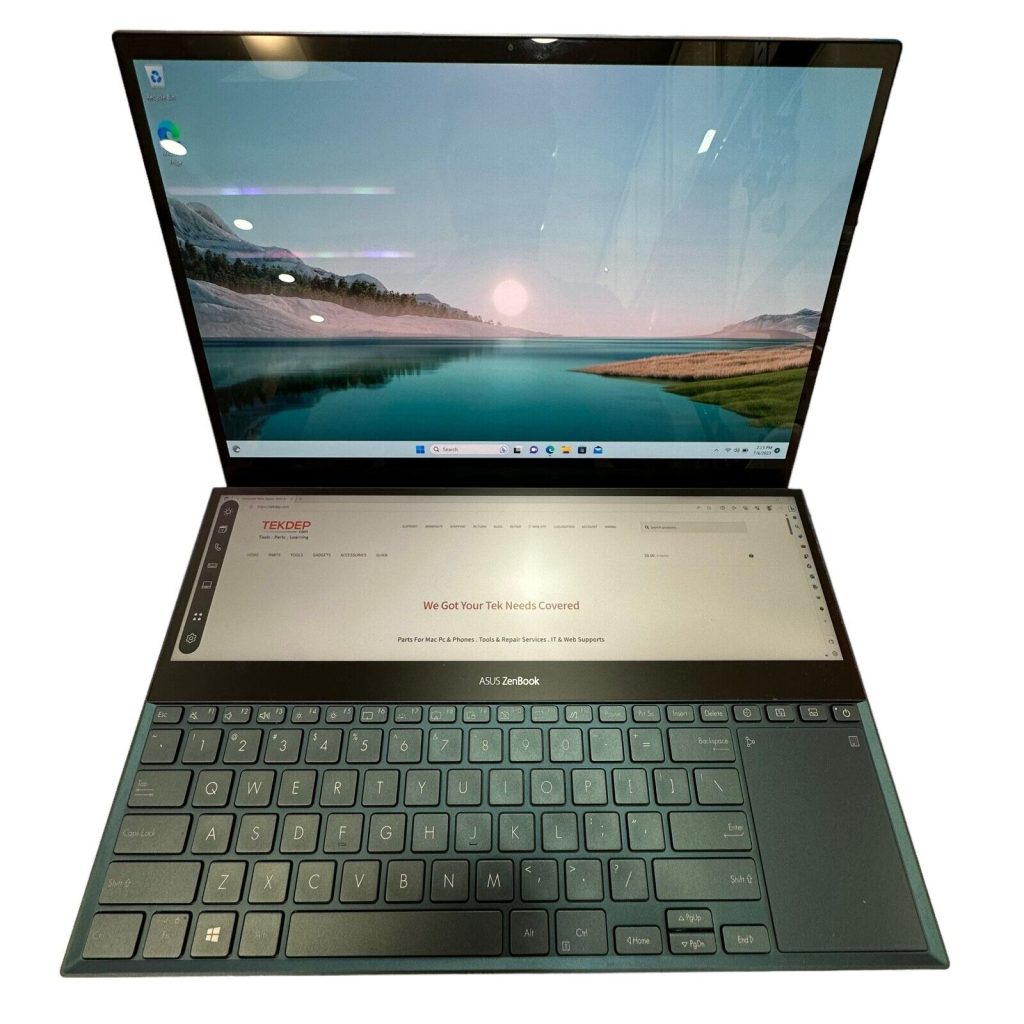








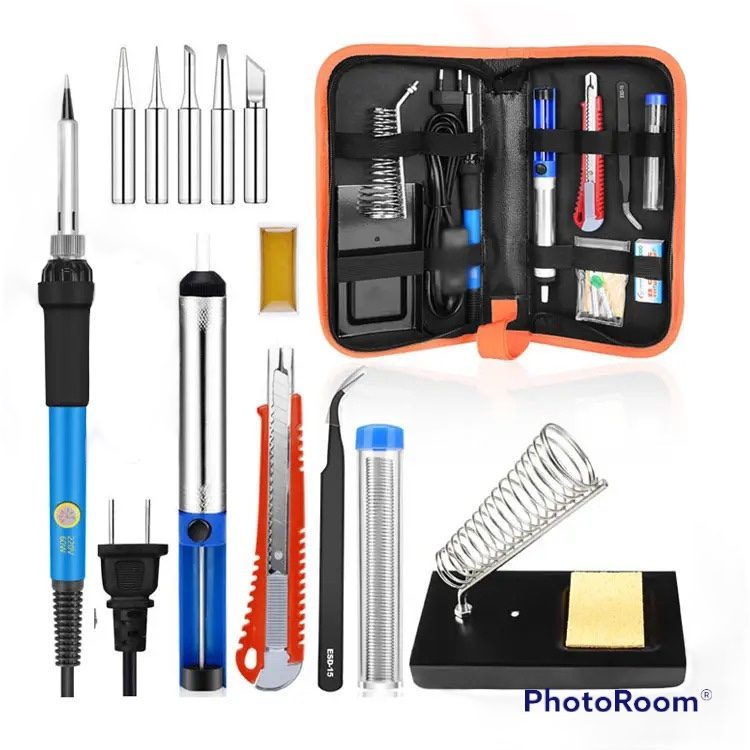

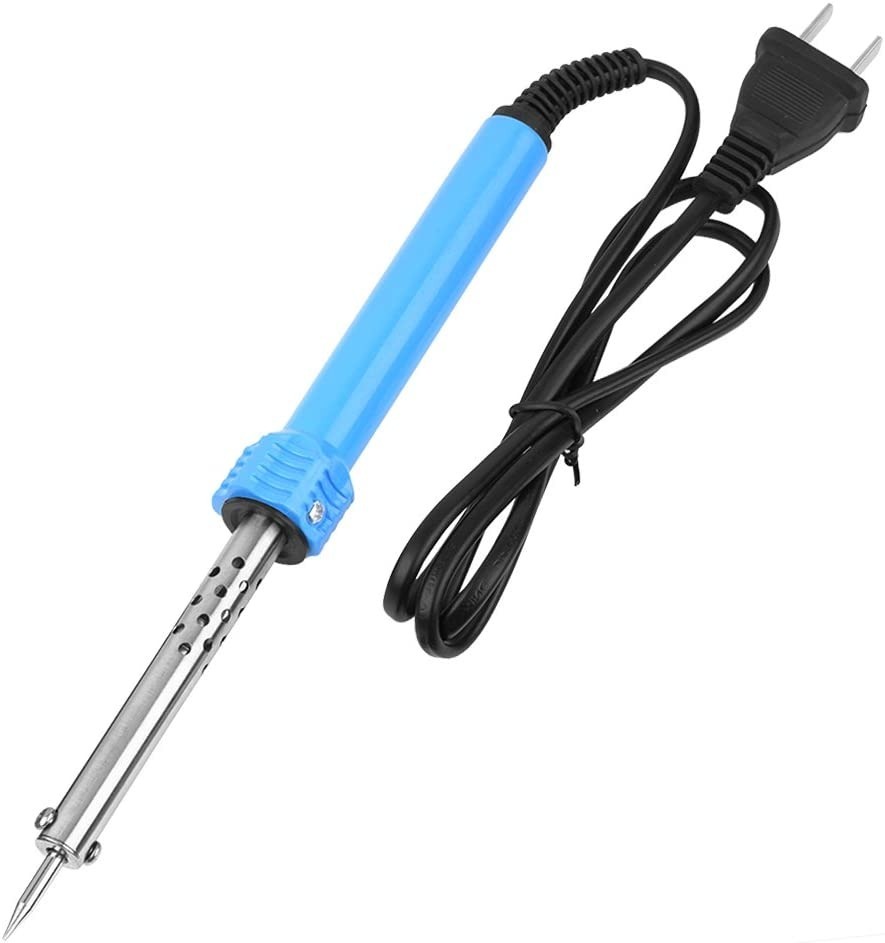
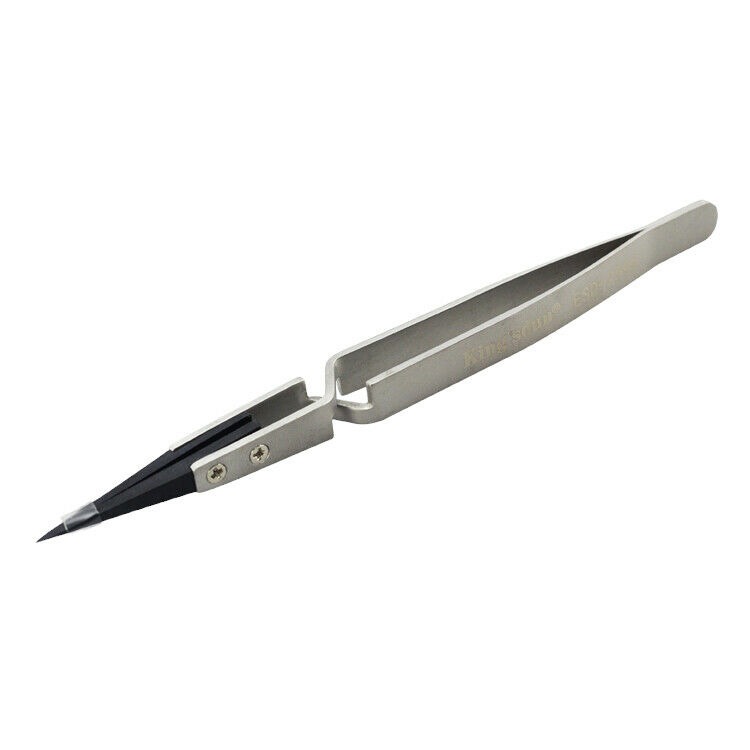











Model: Asus Zenbook Duo 14 (UX8406M) | Level: Advanced | Tools: Precision Torx screwdriver, Phillips screwdriver, plastic pry tool, precision tweezers. In this guide, we’ll walk through an Asus Zenbook Duo teardown step by step.
An Asus Zenbook Duo 14 (UX8406M) teardown reveals an ambitious dual-screen design packed with two 3K OLED panels, heavy aluminum hinges, and tightly routed internal cables. Navigating this hardware requires extreme care to avoid damaging its fragile display layers.
Whether you need to service an overheating cooling fan, swap out a degrading C41N2306 battery, or inspect damaged touchscreen connectors, methodical disassembly is mandatory.
The video below walks you through every flex cable and hinge bracket in the teardown. Let’s get started.
How to Complete an Asus Zenbook Duo Teardown (Quick Overview)
- First, unhook the battery and lower display connectors beneath the shield before removing the backplate.
- Next, unfasten the perimeter screws and ease the lower casing off the main frame.
- Then, unlatch the dual LCD ribbon cables connecting the top display to the logic board.
- Afterward, remove the heavy-duty aluminum hinge screws and lift the primary screen free.
- Subsequently, disconnect and extract both cooling fans along with the stereo speaker assemblies.
- After that, remove the battery retaining screws and lift out the modular C41N2306 power pack.
- Finally, lift the logic board to access the M.2 SSD slot, thermal paste, and soldered core silicon.
🛠️ Required Tools & Preparation
Performing an Asus Zenbook Duo teardown requires specialized electronics bits and careful handling; therefore, disconnect power and work on a grounded static mat before starting.
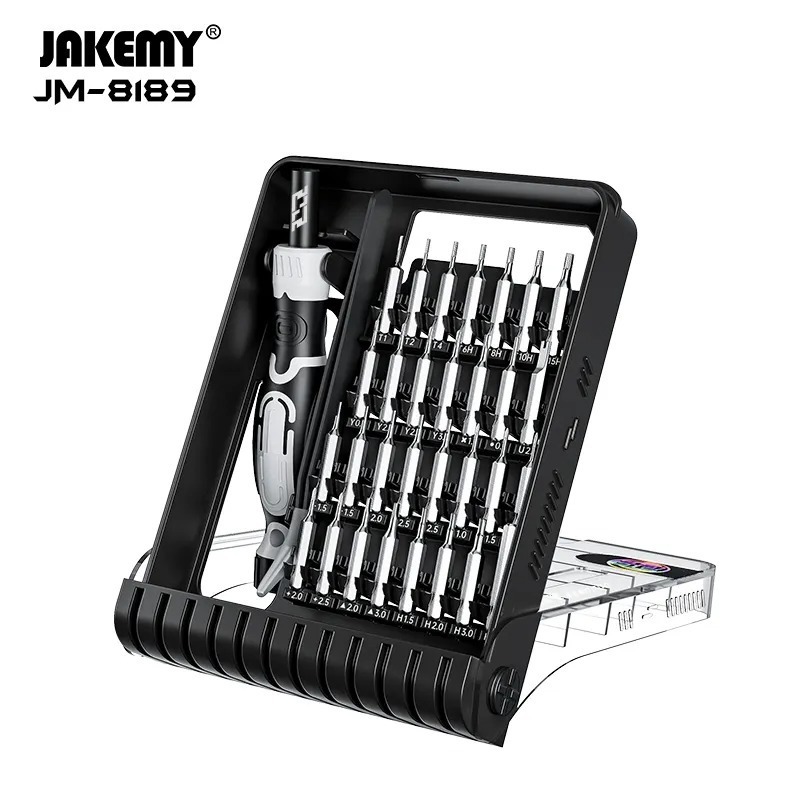
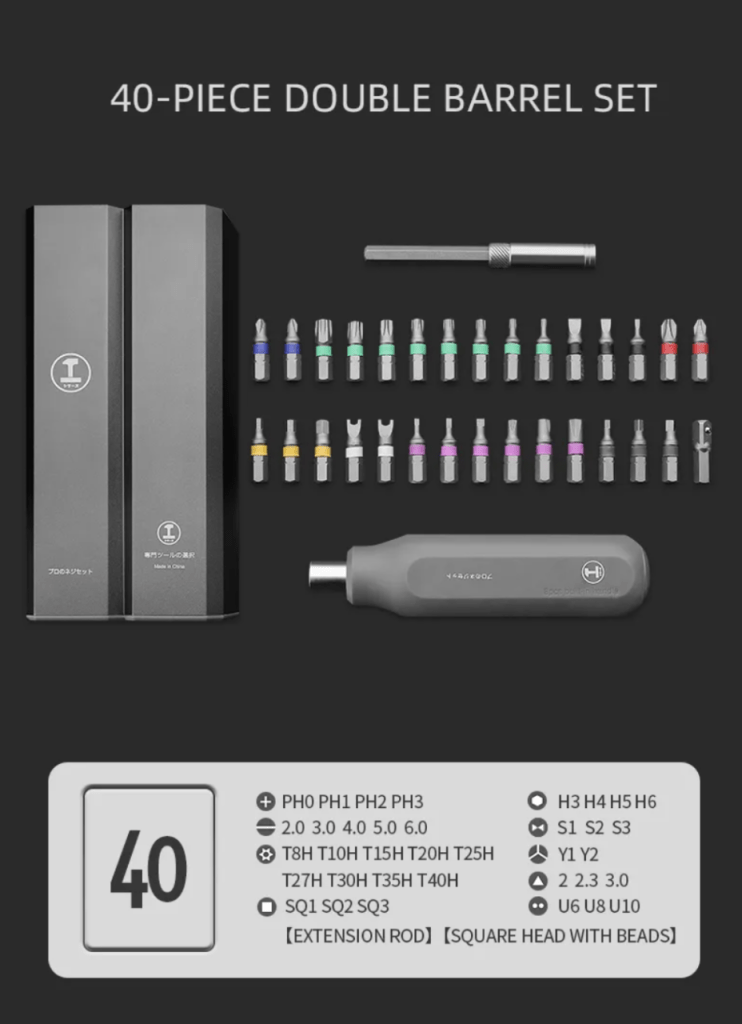
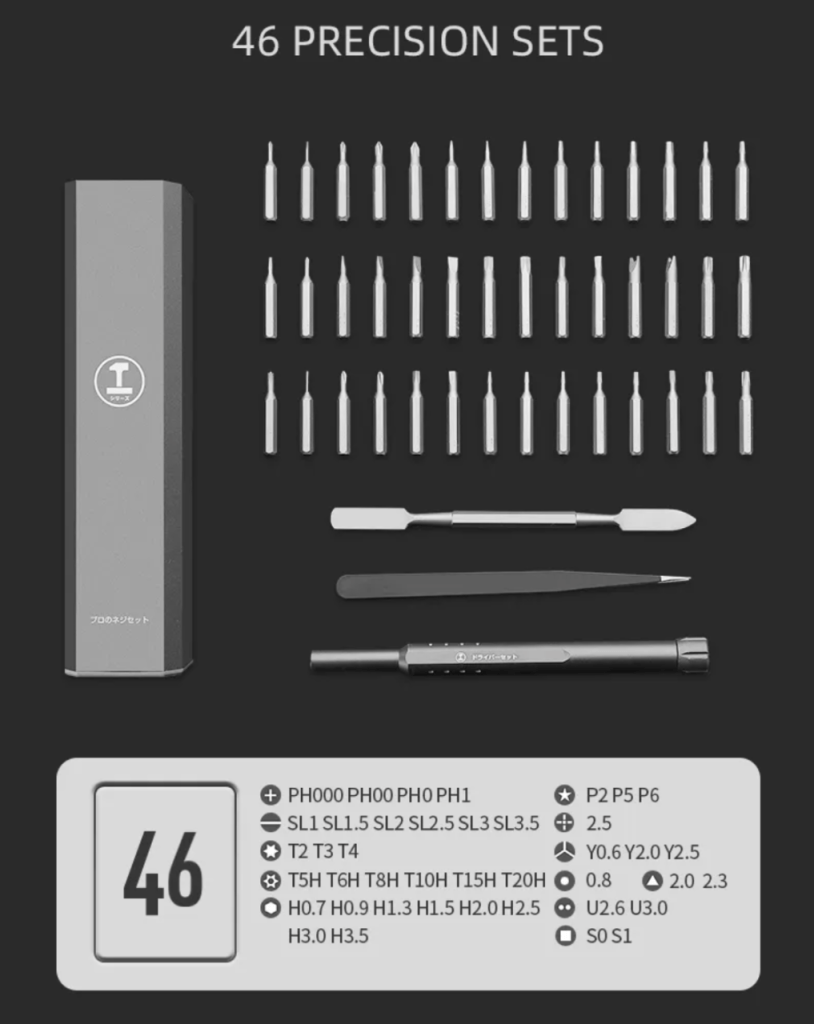
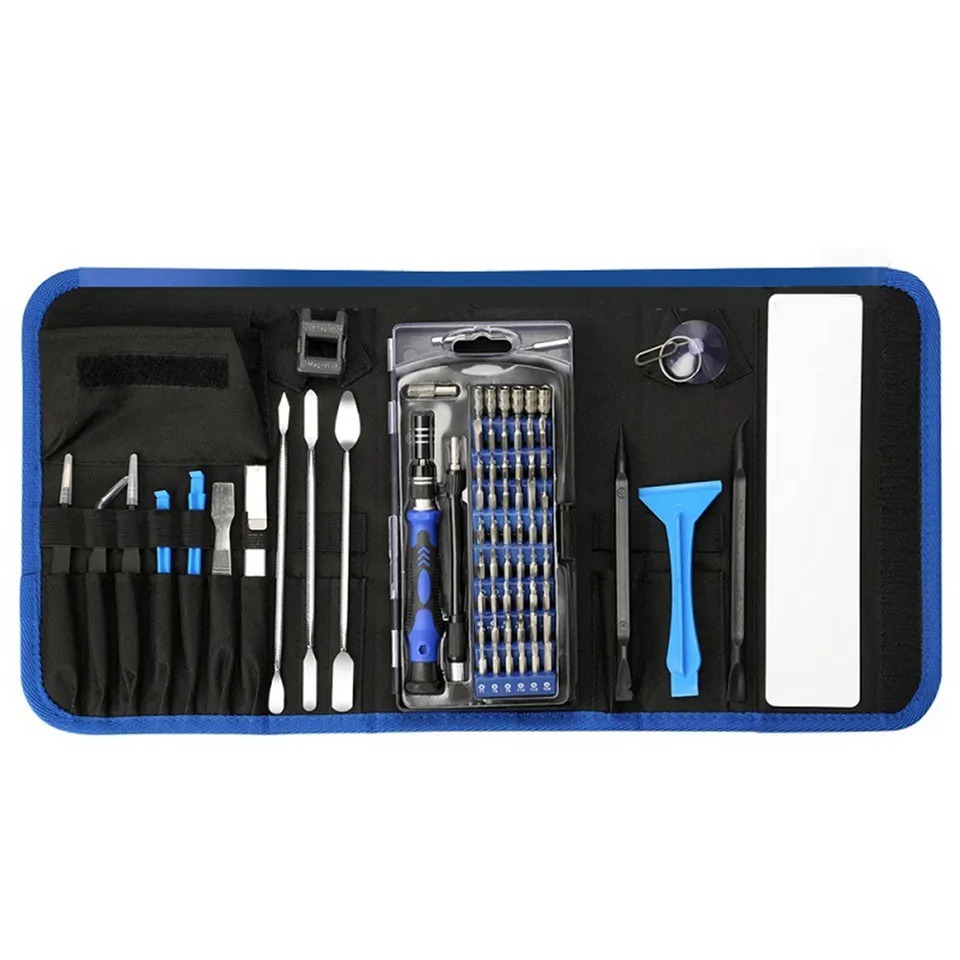
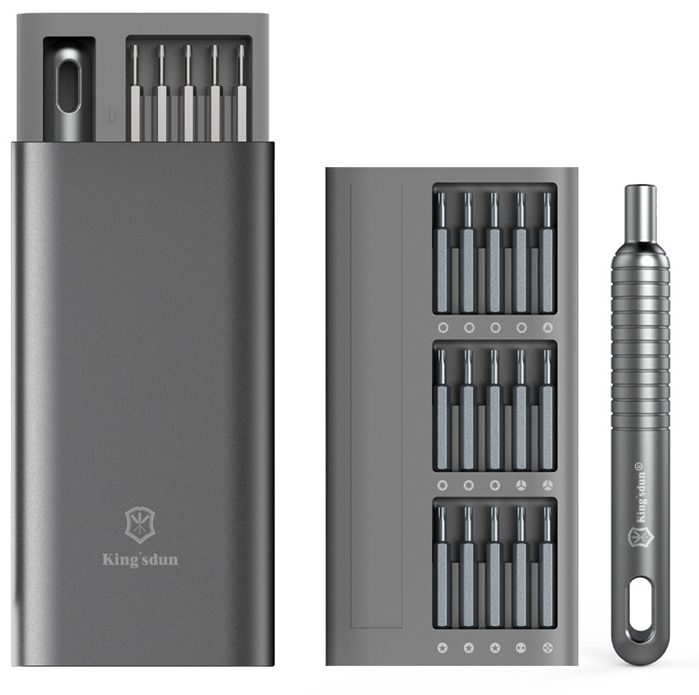
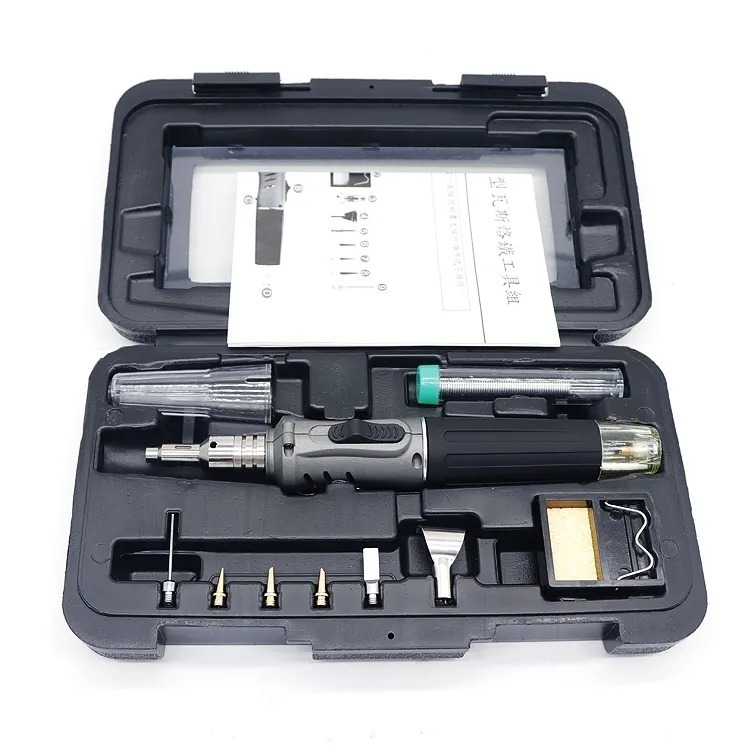
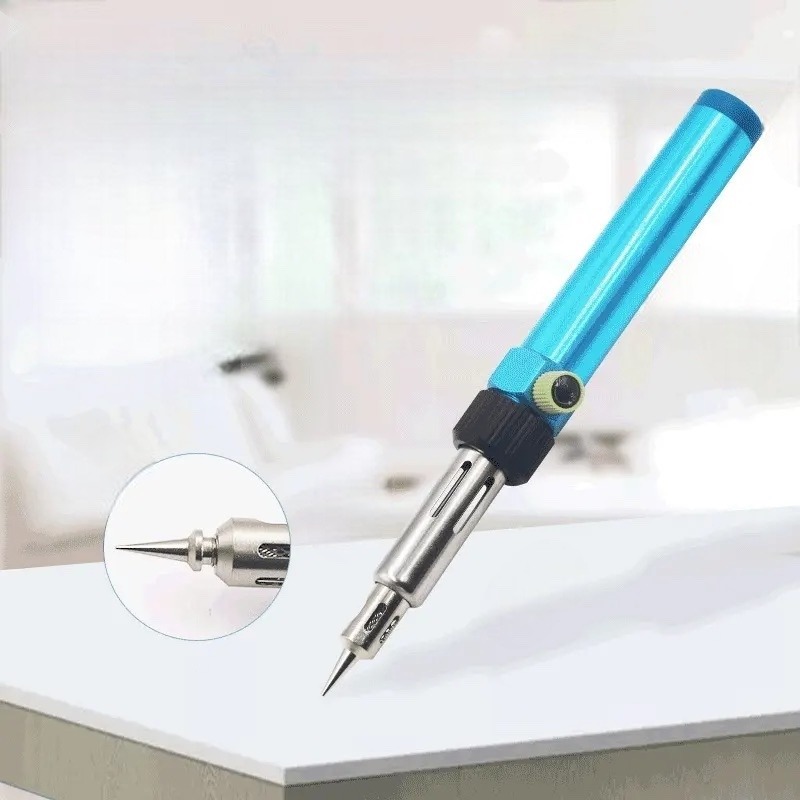
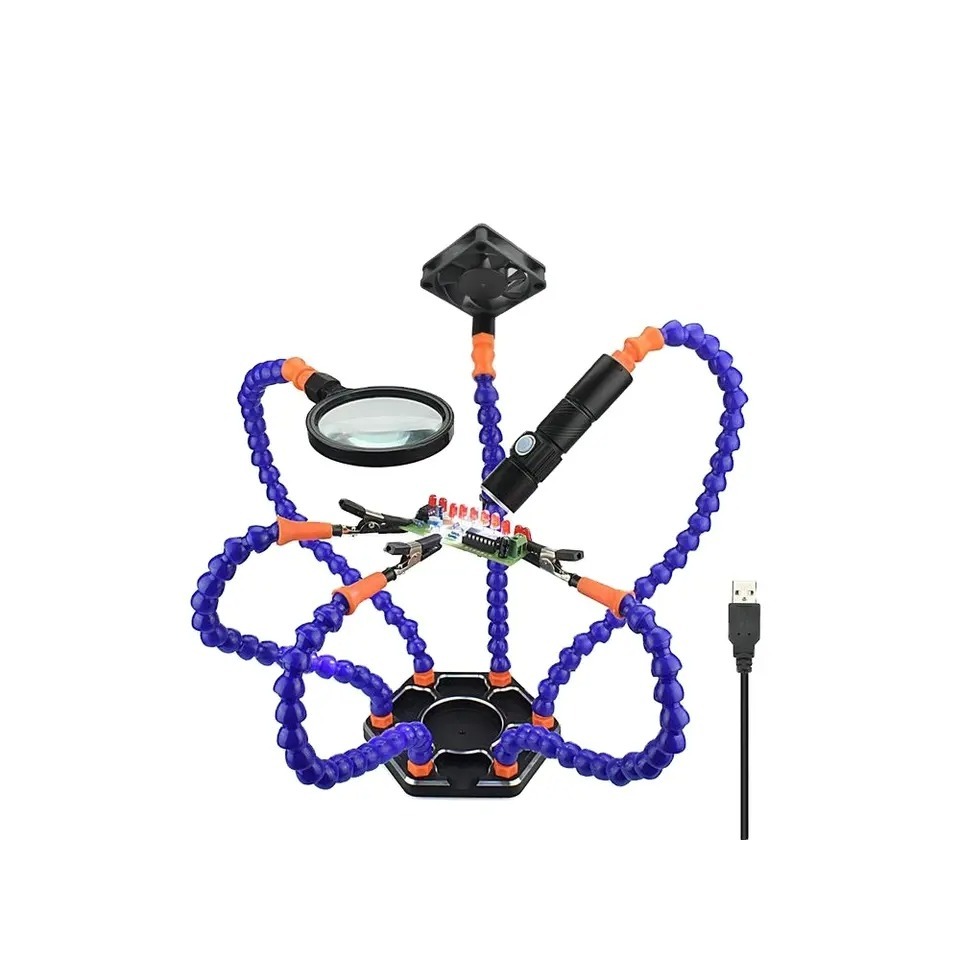
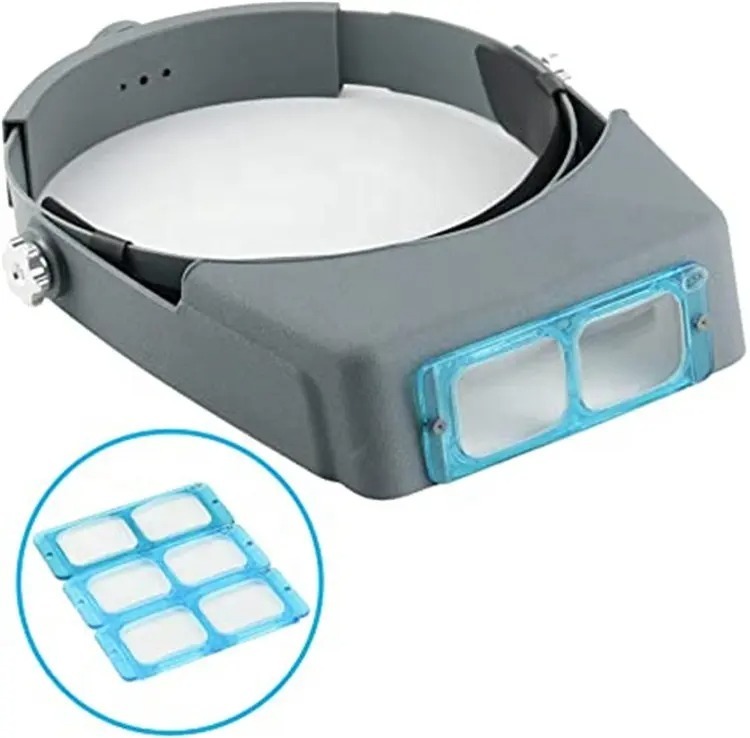
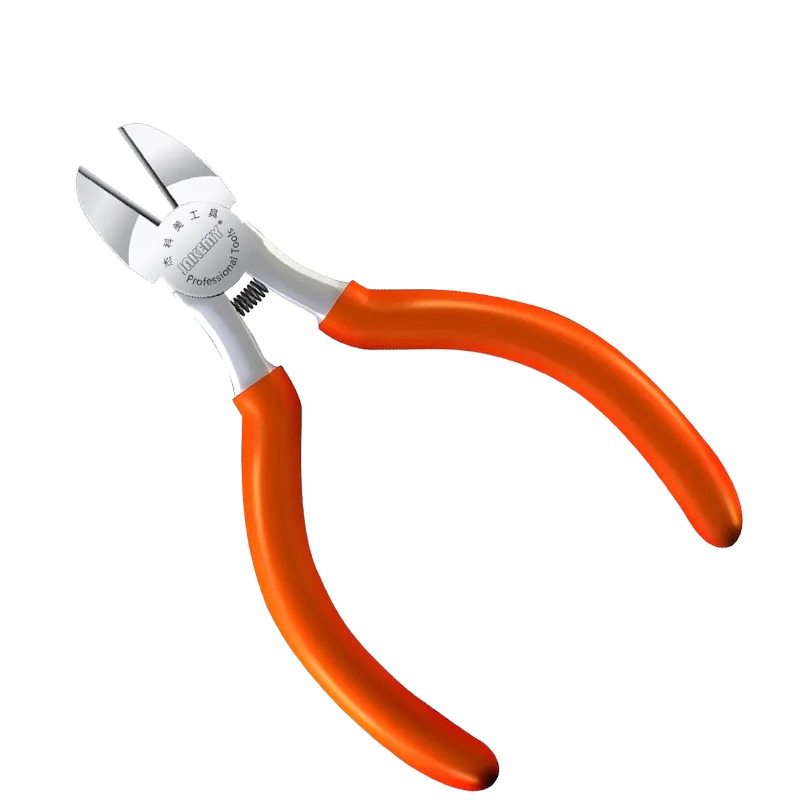
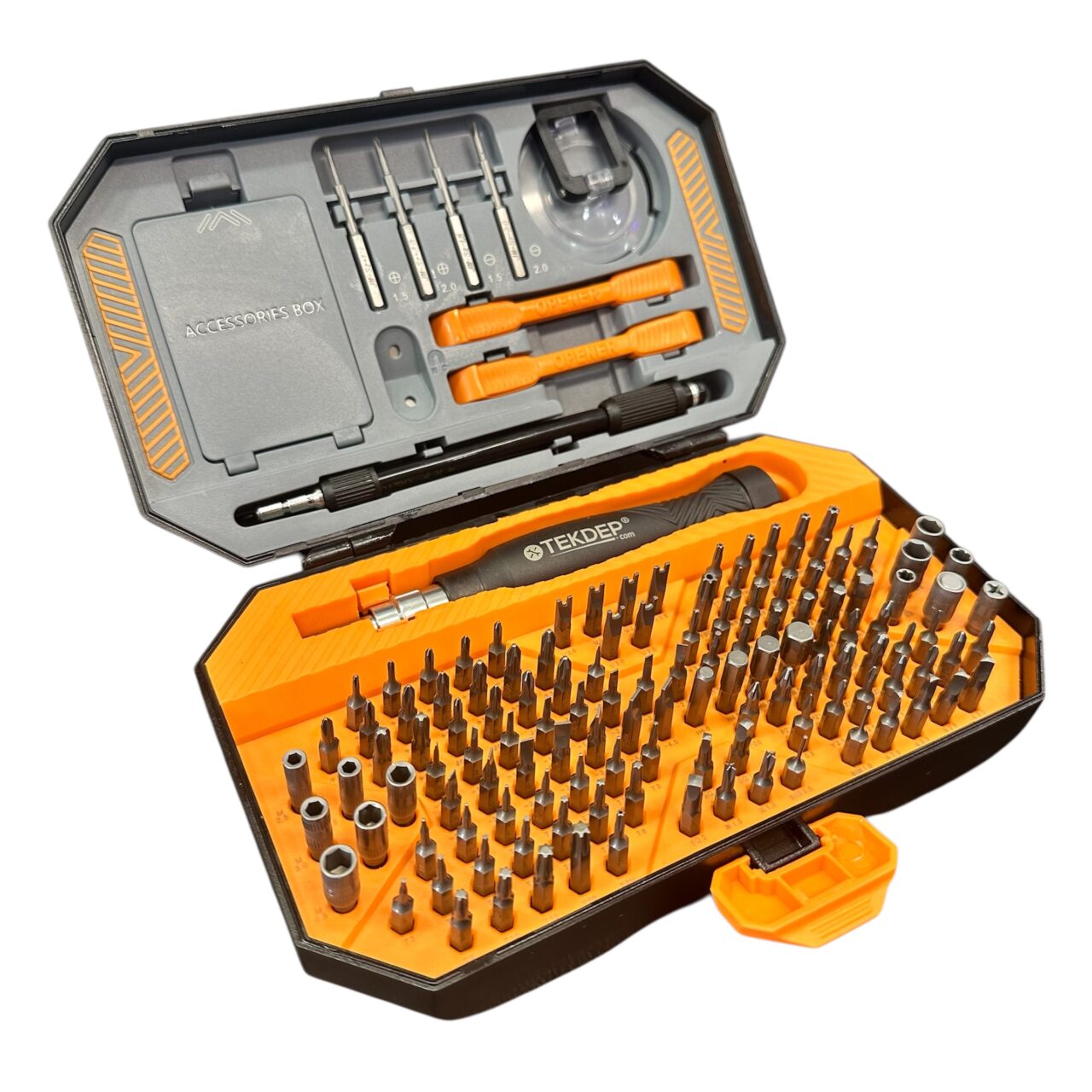
- Precision screwdriver set: Torx and Phillips bits for chassis, hinge, and bracket fasteners.
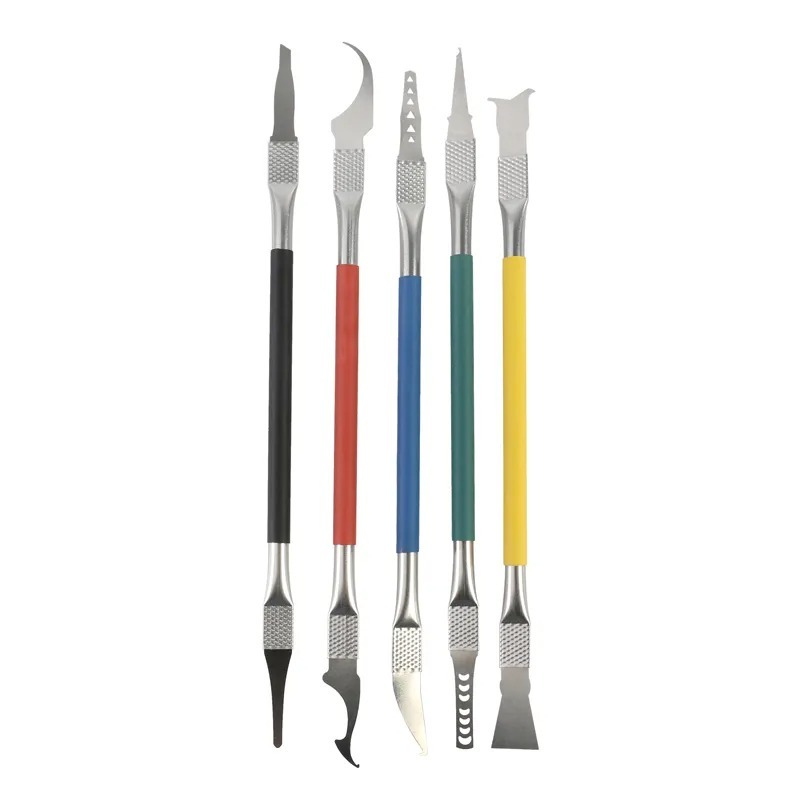
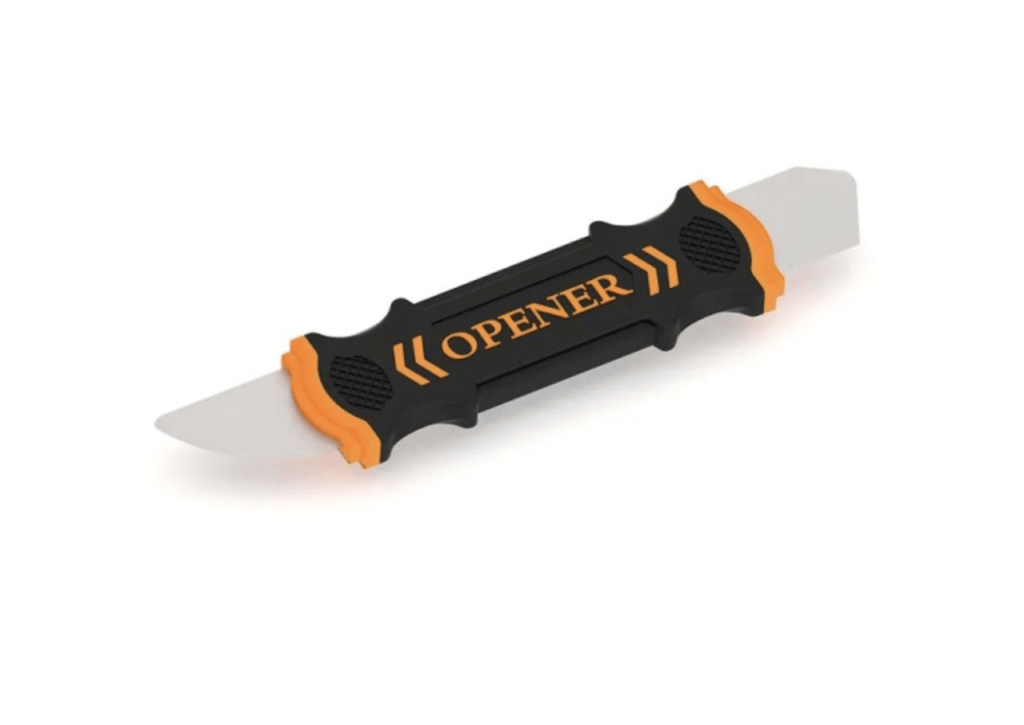
- Plastic pry tool: safely separates tight chassis seams without marring exterior metal.
- Precision tweezers: unlatches zero-insertion-force (ZIF) connectors and guides delicate flex cables.
Find every part we stock for this model in our Asus Zenbook Duo parts catalog.
Get the Exact Tools Used by Our Techs:
⚠️ Before you start: Disconnect the battery connector before touching any internal flex cables or logic board screws. Both OLED panels are extremely fragile and expensive; avoid applying localized pressure to the glass edges.
Phase 1: Asus Zenbook Duo Teardown & Battery Isolation
Accessing the Zenbook Duo requires disconnecting the lower touchscreen flex and cutting power before separating the chassis.
Step 1: Disconnect Battery and Lower LCD Flex Cables
Disconnecting the primary power harness underneath before taking off the backplate is essential to prevent short circuits.
- First, locate the primary battery connector accessible through the initial service opening underneath the lower plate.
- Next, lift the locking latch and pull the battery connector straight back to isolate all electrical current.
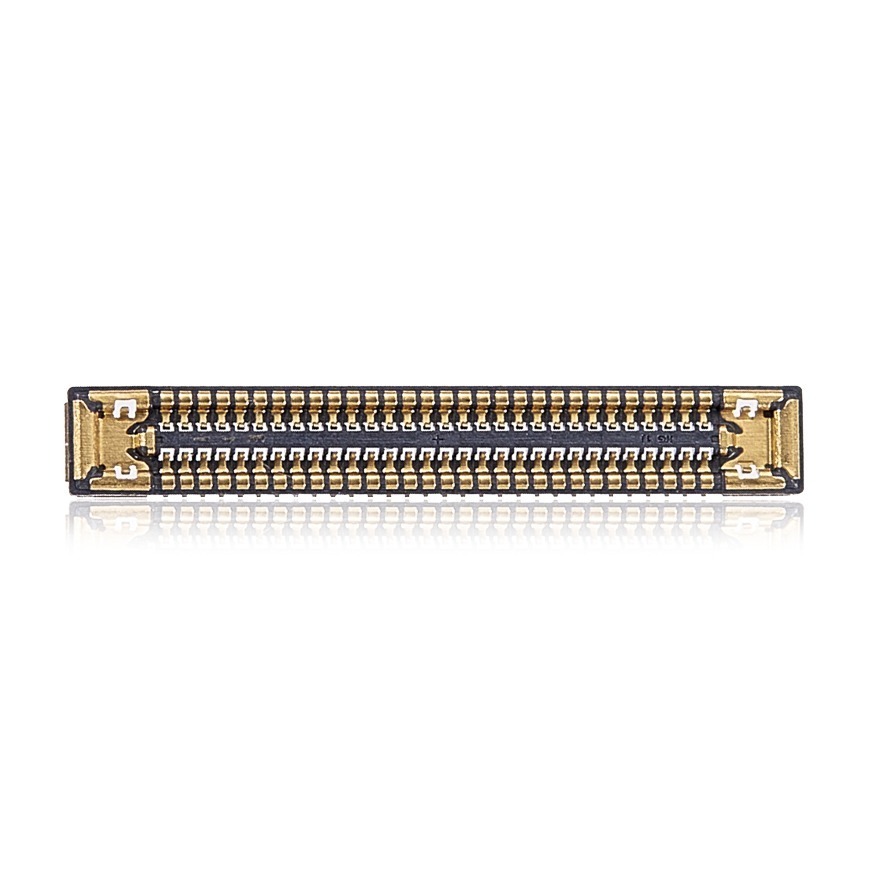
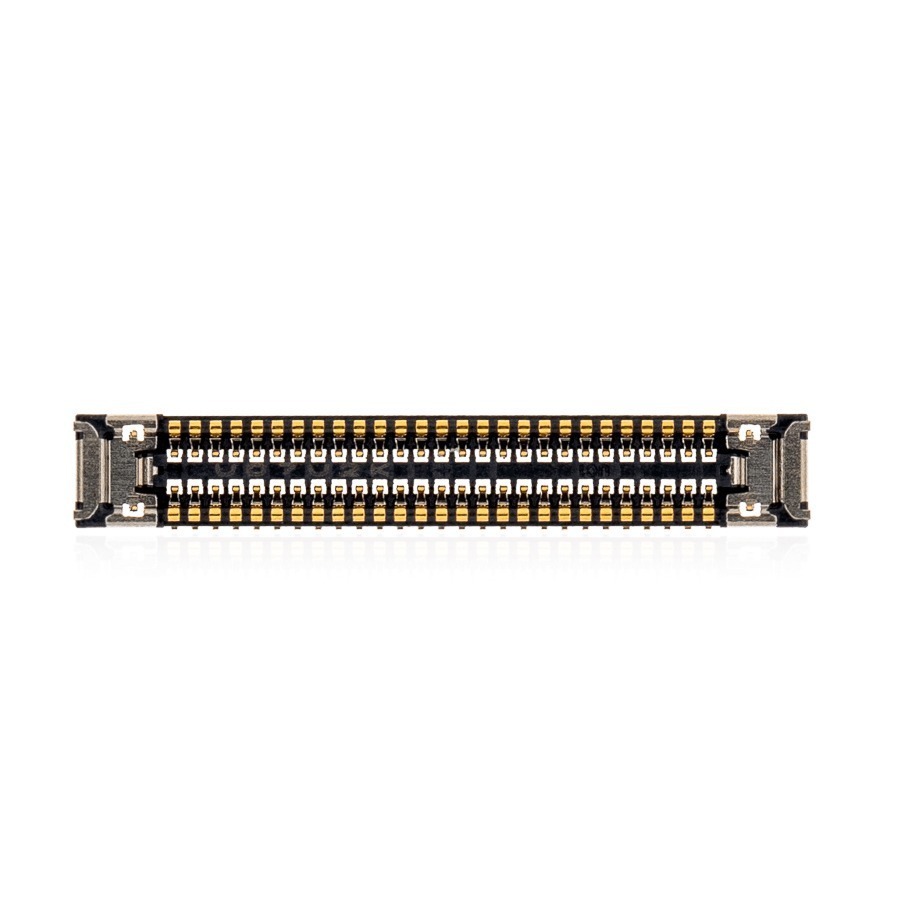
- Then, release the ZIF connector holding the lower LCD ribbon cable connecting the bottom display to the logic board.
- Finally, disengage the keyboard charger connector harness that routes direct power to the detachable Bluetooth keyboard.

TekDep Expert Warning: Never attempt to remove the backplate before disconnecting the battery. Otherwise, the tight tolerances and live standby power can easily short motherboard components if metal tools slip.
Step 2: Unfasten and Remove the Bottom Chassis
Remove the perimeter fasteners to decouple the bottom case from the primary internal frame.
- First, remove all perimeter Torx screws from the bottom casing and organize them by length.
- Next, insert your plastic pry tool into the thin seam between the lower casing and inner frame.
- Then, slide the tool around the perimeter to pop the plastic retaining tabs free without bending the metal.
- Finally, lift the bottom casing clear of the internal assembly and set it aside.


Phase 2: Removing the Displays & Hinge Assemblies
Both 3K 120Hz OLED touchscreens are delicate, requiring careful cable extraction before releasing the heavy-duty hinges.
Step 1: Disconnect Top LCD Screen Cables
Before continuing your Asus Zenbook Duo teardown, unlatch the two main display data cables linking the motherboard to the upper OLED lid.
- Step 1: Disconnect Top LCD Screen Cables
- Before continuing your Asus Zenbook Duo teardown, unlatch the two main display data cables linking the motherboard to the upper OLED lid.
- First, flip up the locking retention brackets on both upper LCD ribbon connectors using precision tweezers.
- Next, slide both wide flex cables straight out of their board sockets without pulling at an angle.
- Then, unroute the display harness and Wi-Fi antenna wiring from the internal chassis cable channels.
Step 2: Unbolt the Heavy-Duty Aluminum Hinges
Unfasten the heavy structural hinge screws to separate the primary display panel from the lower chassis.
- First, remove the hinge screws securing the reinforced left aluminum hinge bracket.
- Next, remove the matching hinge screws anchoring the right aluminum hinge bracket.
- Finally, open the display assembly slightly to relieve spring tension, then lift the top LCD panel away from the frame.


TekDep Tip: We recommend replacing cracked screens as complete pre-assembled display units rather than separating the bare OLED glass, preventing costly installation cracks.

Phase 3: Servicing Fans, Speakers & Battery
With the displays set aside, the internal modular cooling, audio, and power components are directly serviceable.
Step 1: Extract Cooling Fans and Speakers
Clear the dual cooling fans and audio modules to reveal motherboard anchoring points.
- First, unplug the left and right fan wiring connectors from the motherboard using your tweezers.
- Next, remove the mounting screws securing the dual blower cooling fans and lift them out.
- Then, disconnect the speaker wiring harness from the logic board.
- Finally, lift the left and right speaker units off their rubber vibration grommets.
Step 2: Remove the C41N2306 Battery Pack
Unfasten the modular 75Wh battery pack from the lower chassis frame.
- First, verify that the primary battery connector cable is completely free from the socket.
- Next, remove the battery-retaining screws securing the pack’s metal perimeter tabs.
- Finally, lift the elongated 4,825 mAh battery straight upward out of the frame without flexing the lithium cells.
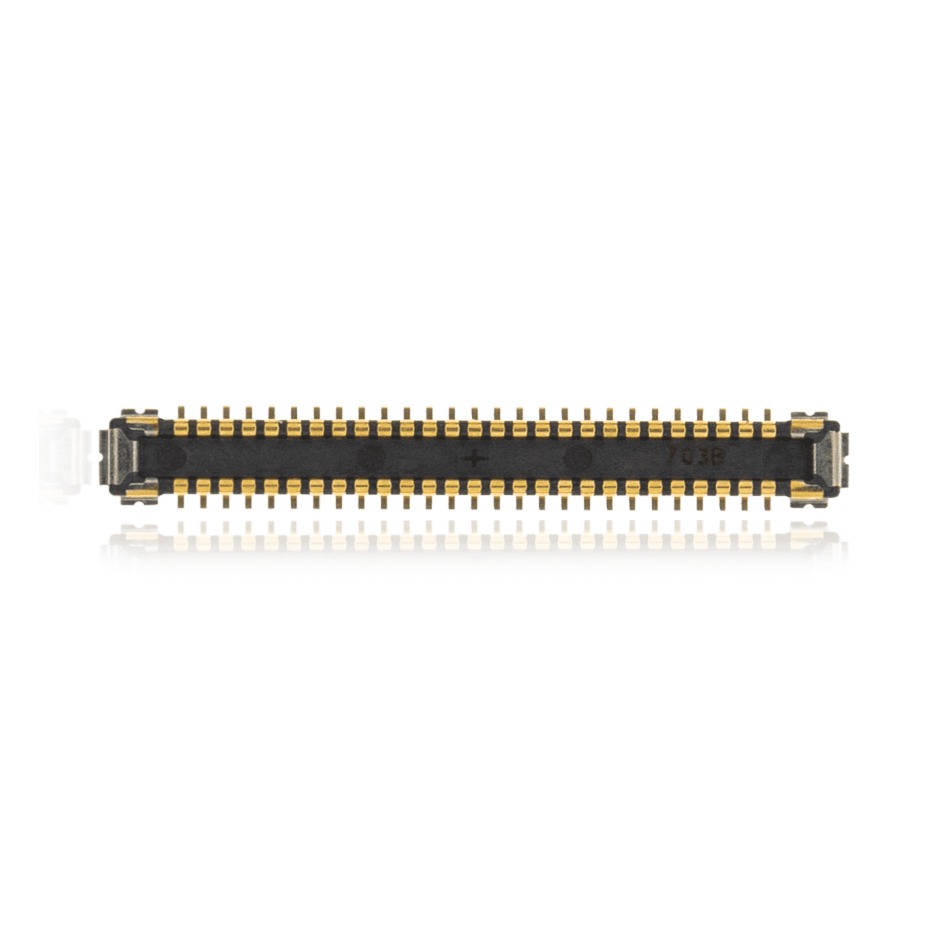
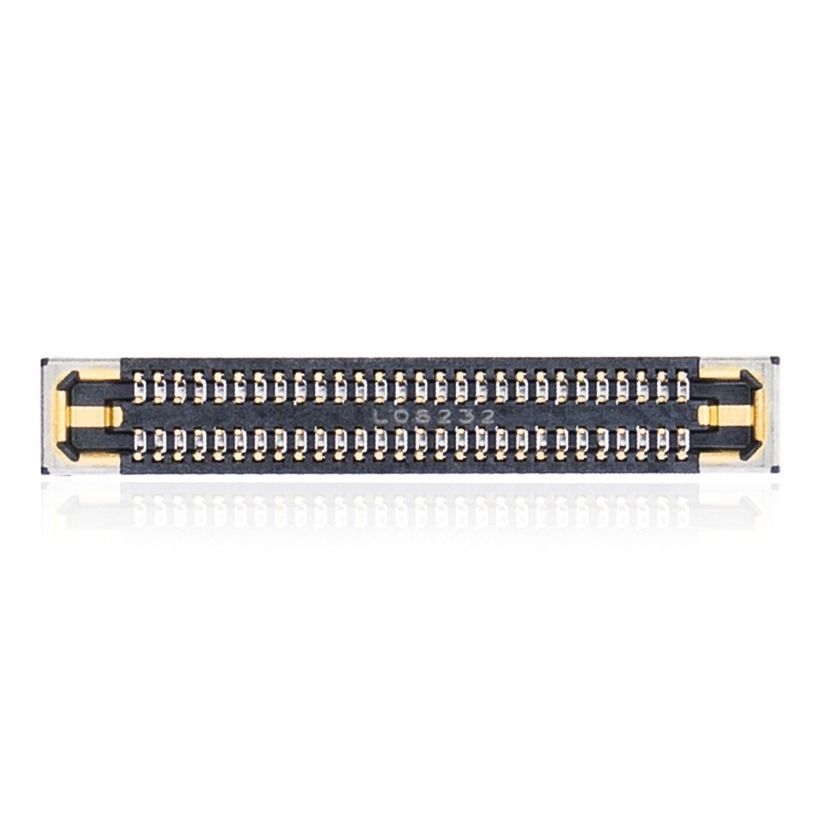
Asus Zenbook Duo parts removed during this teardown:


Phase 4: Extracting the Logic Board in the Asus Zenbook Duo Teardown
Inspecting the compact logic board reveals soldered core silicon alongside the upgradeable M.2 storage slot.
Step 1: Extract the Logic Board
Lift the main circuit board to access thermal compound and the M.2 SSD slot located on the underside.
- First, disconnect any remaining peripheral cables, including the trackpad, sensor, and I/O daughterboard ribbons.
- Next, remove all motherboard screws securing the main board to the aluminum chassis frame.
- Then, gently ease the logic board out of its recess, sliding external ports clear of chassis cutouts.
- Finally, carefully flip the board to inspect the M.2 NVMe SSD and reapply fresh thermal paste.

TekDep Expert Warning: The Intel Ultra 9 processor and system RAM are permanently soldered to this board. Therefore, if you experience hardware failure on these chips, board-level micro-soldering is required.

Phase 5: Reassembly & Function Test
Reverse the disassembly sequence carefully to restore the dual displays and chassis integrity.
Step 1: Reassemble the Laptop
- First, reinstall the logic board and reconnect all peripheral ribbons before tightening screws evenly.
- Next, mount the C41N2306 battery, followed by the cooling fans and internal stereo speakers.
- Then, reattach both aluminum hinge brackets, route display wiring through guides, and latch the connectors.
- Finally, reconnect the lower display flex and battery power harness just before snapping the bottom cover into place.
Step 2: Run the Function Test
Lastly, connect the AC charger and boot the system to confirm both 3K OLED touchscreens illuminate, the Bluetooth keyboard docks properly, and Windows detects normal battery charging.
Congratulations! You have completed an Asus Zenbook Duo teardown.
🛑 Not Comfortable Navigating Dual-Screen Ribbon Cables? If reading about fragile OLED panels and complex flex routing has you second-guessing your DIY skills, don’t worry. The TEKDEP experts are here to help.
We offer clean, professional, and affordable Mail-In repair services for the entire Asus laptop lineup.
Frequently Asked Questions
Is the Asus Zenbook Duo teardown difficult for beginners?
Yes, it is rated advanced. Because the laptop houses two delicate 3K OLED touchscreens, fragile ribbon cables, and tightly packed internal components, one slip can cause expensive display damage.
Can you upgrade the RAM or SSD on the Asus Zenbook Duo UX8406?
The RAM is soldered directly onto the logic board and cannot be upgraded, but the M.2 NVMe SSD is removable once the board is lifted.
Should you replace just the bare OLED glass or the full screen assembly?
We strongly recommend replacing the entire screen assembly with the pre-attached frame. Separating bare glass from the chassis creates a high risk of cracking the replacement panel during installation.
🛑 IMPORTANT: SAFETY & LIABILITY DISCLAIMER TEKDEP®️ TEKDEP.com assumes no liability for property damage or injury incurred as a result of any information in this blog post or associated videos. Dealing with internal computer components, specifically Lithium-Ion batteries, carries inherent risks including fire, toxic gas exposure, and irreversible device failure. Any injury, damage, or loss from improper use of tools, mishandling of components, or misinterpretation of this information is the sole responsibility of the user.