











































Model: Lenovo Legion 5 Pro (16ITH6) | Level: Intermediate | Tools: Phillips 1.5 screwdriver, larger Phillips screwdriver, plastic pry tool
A Lenovo Legion 5 Pro teardown reveals an impressively modular gaming laptop, but accessing internal components requires navigating tight chassis clips and grounded metal shielding. Lenovo built this chassis with dual upgradeable storage and memory slots, yet buried critical screws beneath thermal hardware.
Whether you are fixing loud cooling fans, clearing thermal throttling, or replacing an SSD that failed after a bad Windows update, opening the chassis is the necessary first step. Much like our disassembly on the Dell XPS 13 (9345), knowing where the hidden retainers are prevents expensive cosmetic damage.
Ready to dive in? Let our lead TEKDEP technician walk you through the complete disassembly in the video below.
How to Perform a Lenovo Legion 5 Pro Teardown (Quick Overview)
- Remove the perimeter screws and unclip the lower cover to reach the battery connector.
- Disconnect the battery and discharge power by pressing the power button.
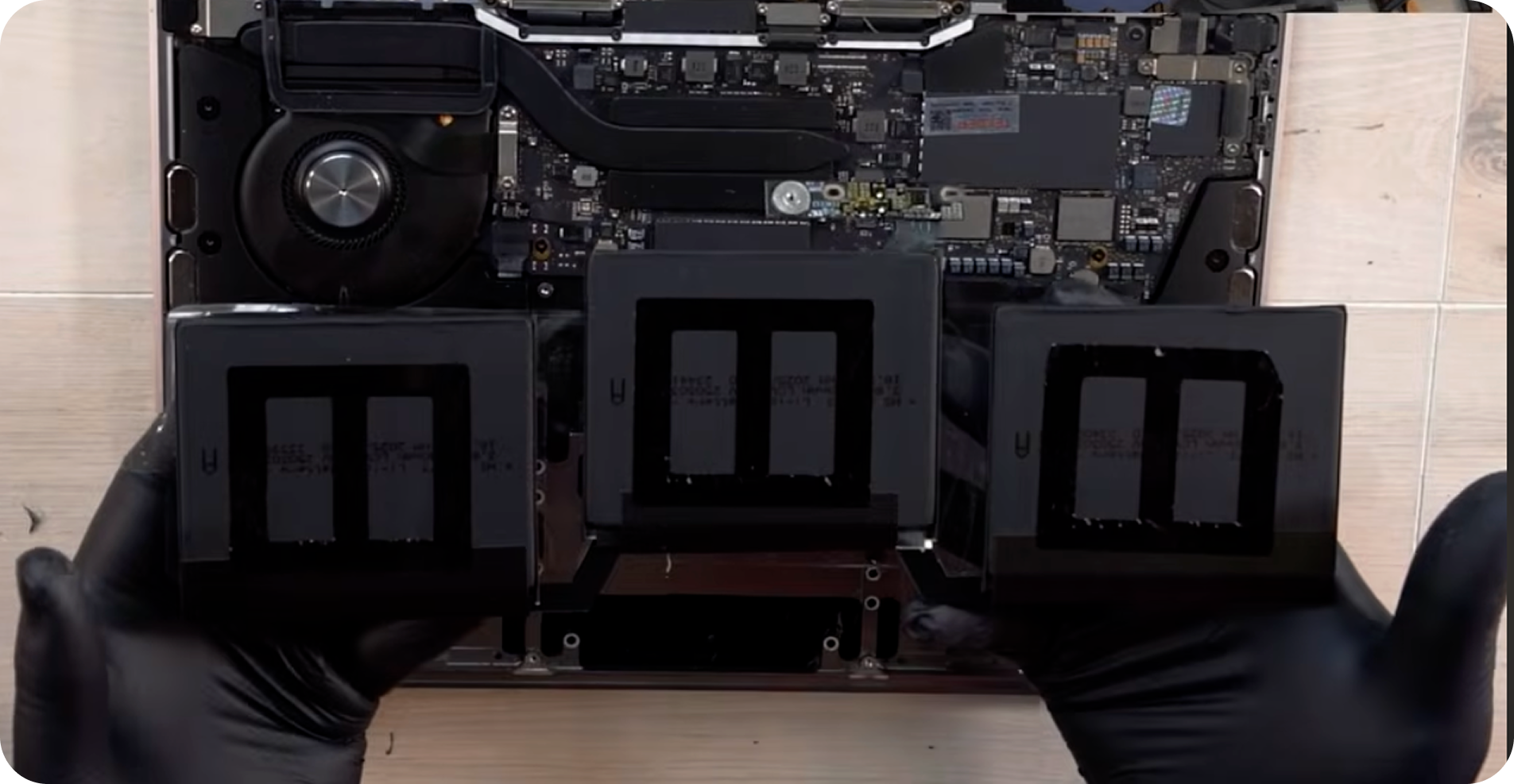
- Unscrew the SSD heatsink to reveal the hidden battery fastener and pull the pack.
- Pop the Wi-Fi card antenna leads and unthread the secondary SSD heat shield.
- Pry the conductive metal RAM shield straight up without bending the grounding tabs.
- Unhook the keyboard flex latch to unplug and unroute the speaker assembly wire.
- Loosen the numbered heatsink screws in sequence and lift the cooling module.
- Unthread the hinge brackets and route the display cable free to detach the screen.
🛠️ Required Tools & Preparation
A Lenovo Legion 5 Pro teardown requires only basic precision hand tools; disconnect external power before loosening any screws.
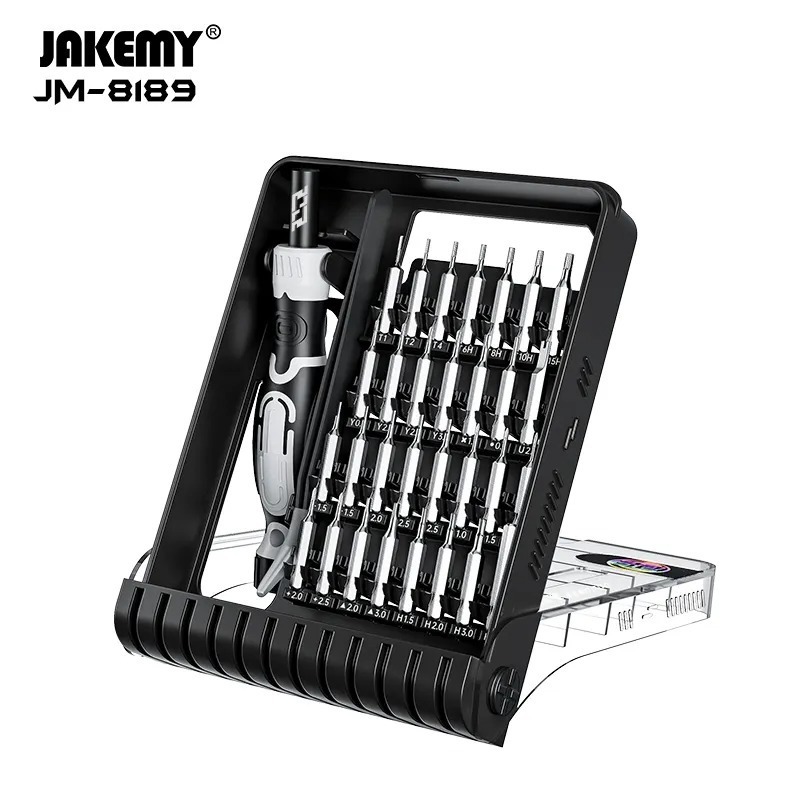
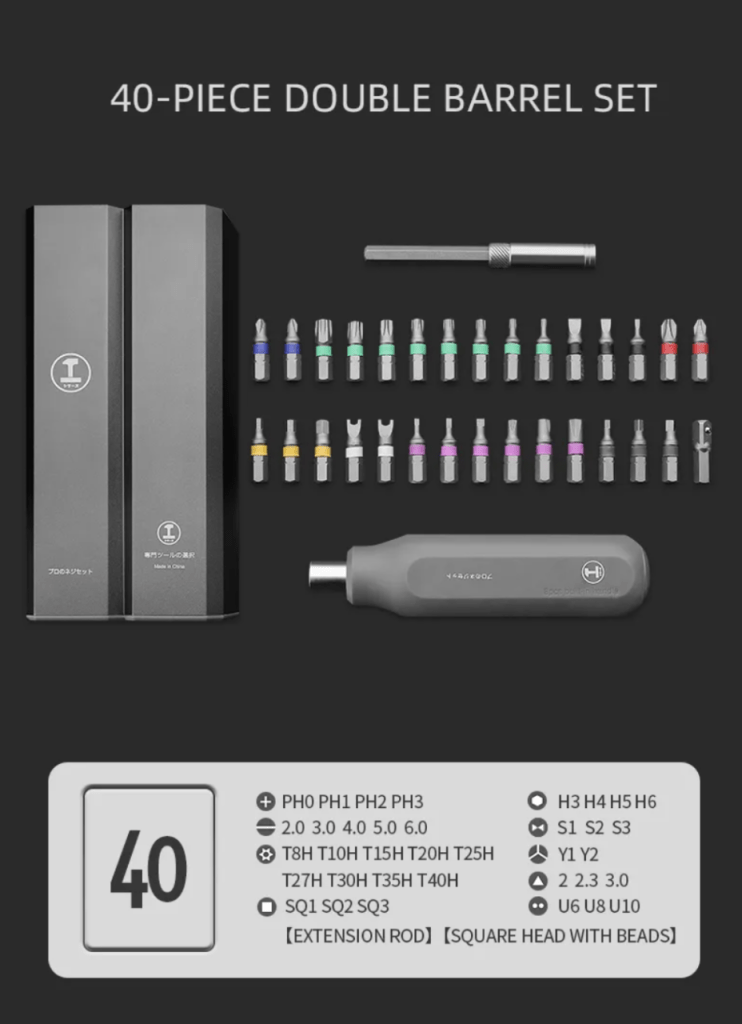
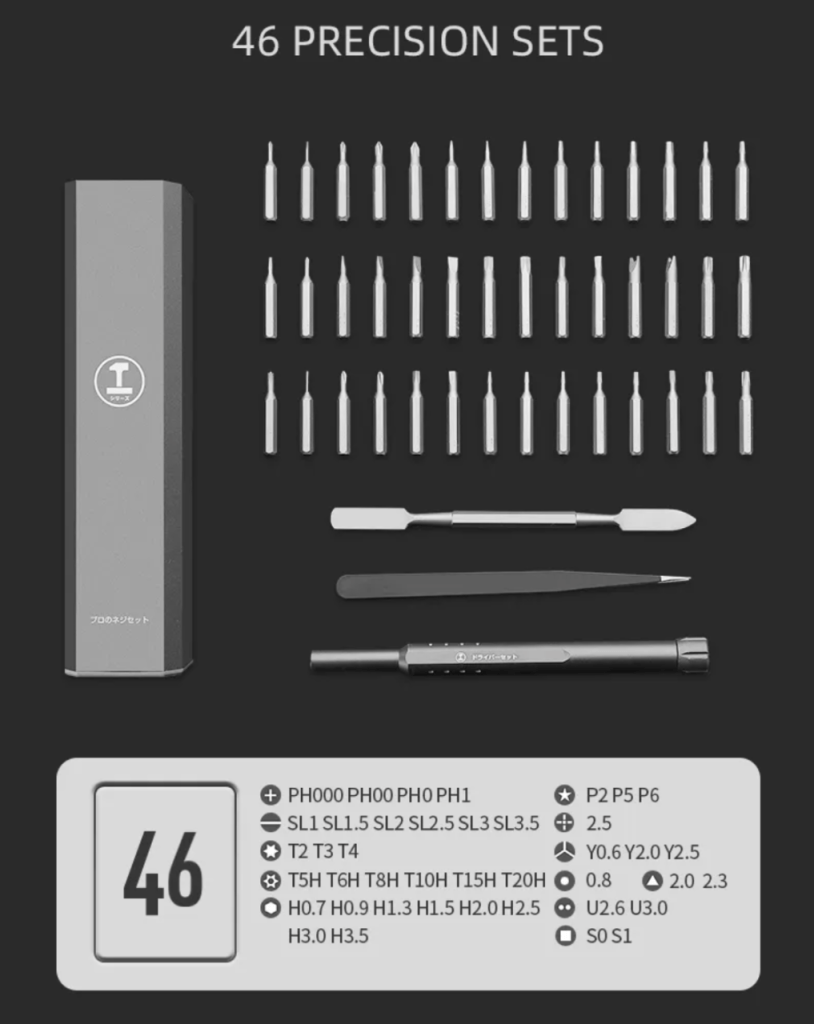
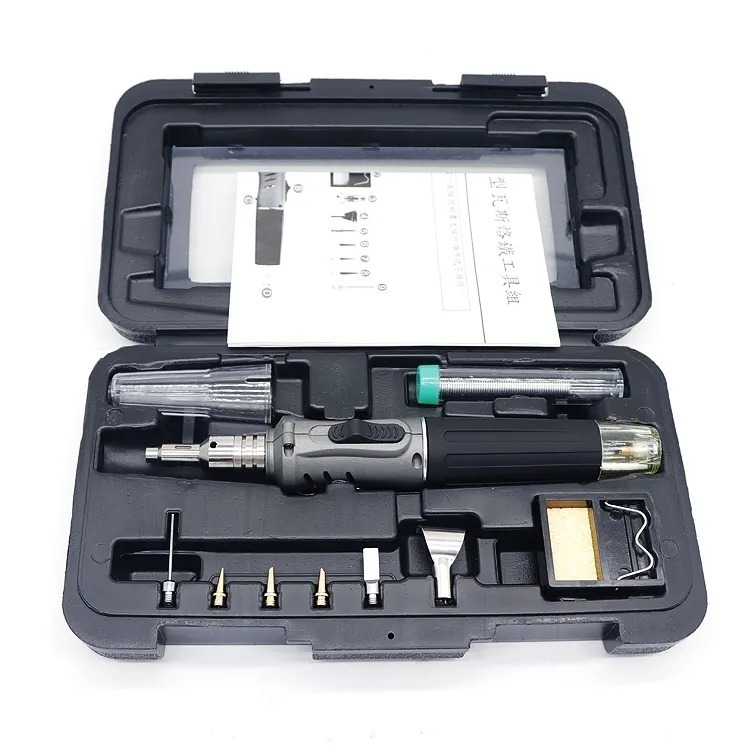
- Phillips 1.5 screwdriver: unthreads lower cover fasteners, SSD brackets, battery mounts, and motherboard screws.
- Larger Phillips screwdriver: prevents stripping the six numbered spring-tensioned screws on the central heatsink.
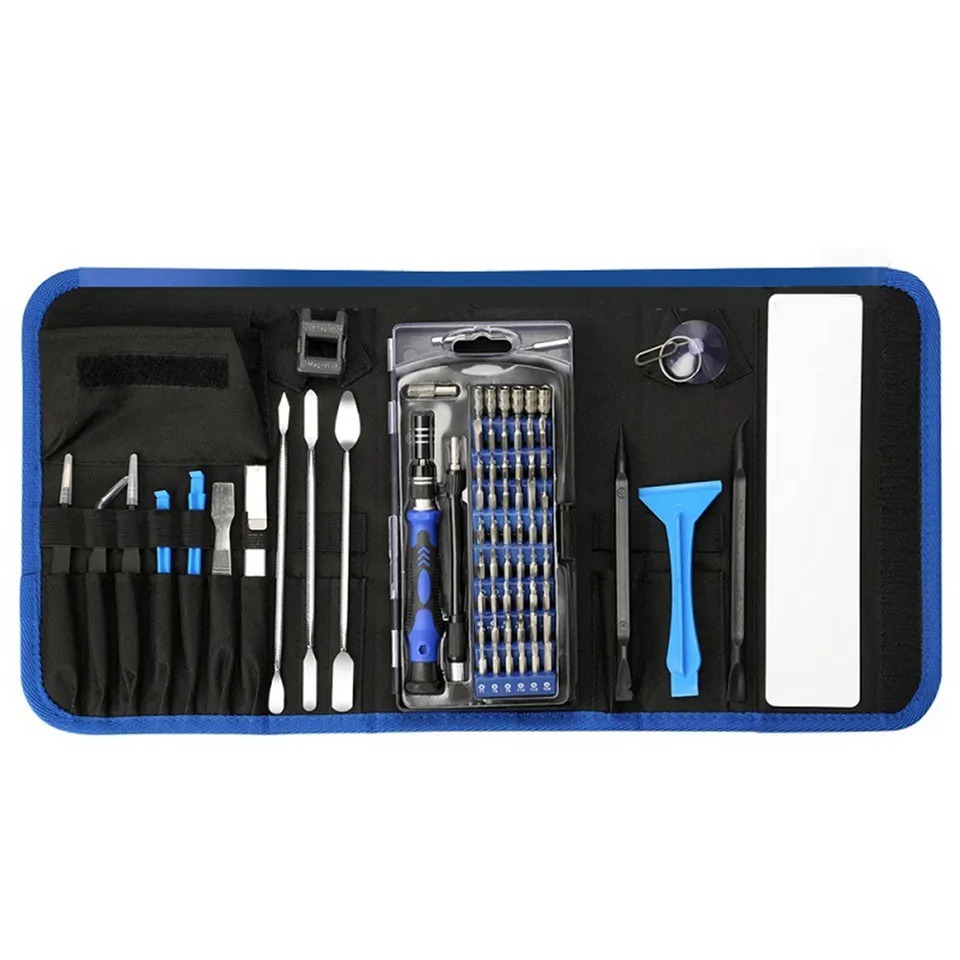
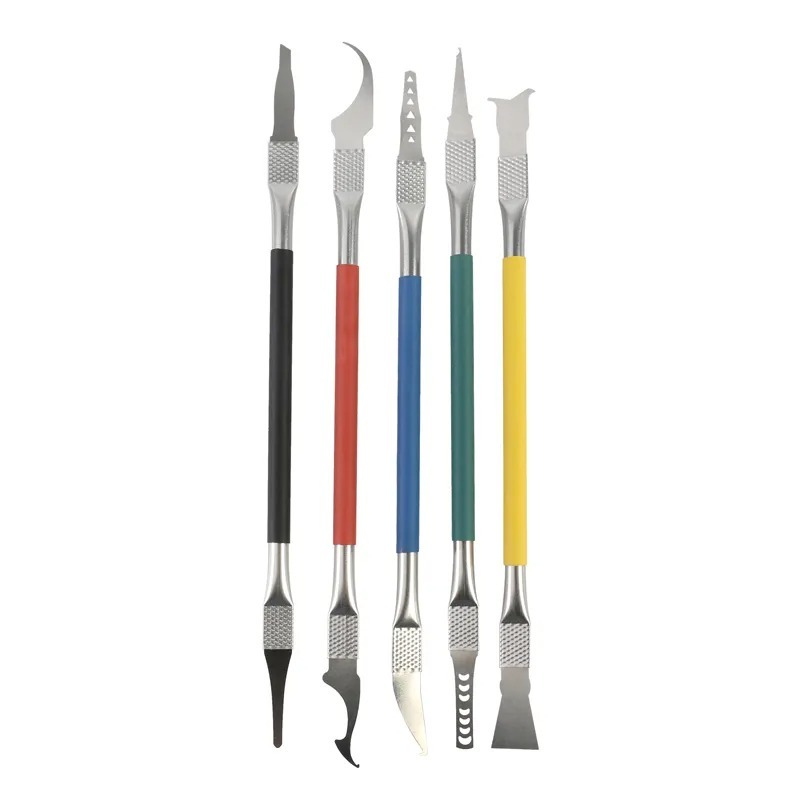
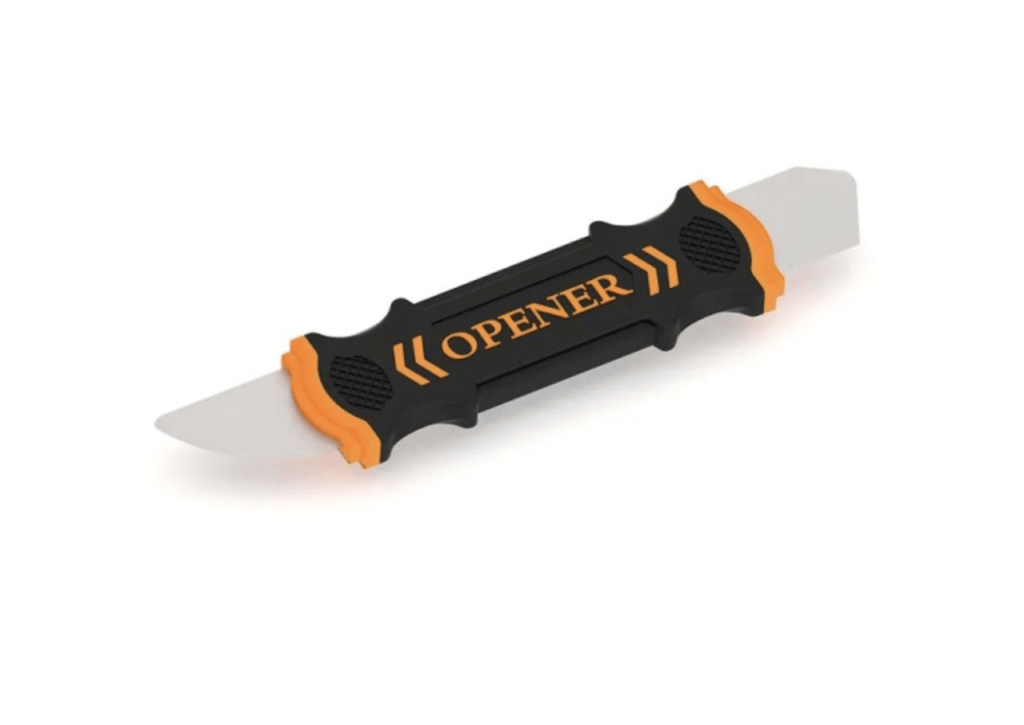
- Plastic pry tool (Spudger): unclips stubborn chassis perimeter seams, unseats antenna snaps, and lifts delicate ribbon latches safely.
Get the Exact Tools Used by Our Techs:

⚠️ Before you start: Disconnect the battery connector before touching any internal board components. Press and hold the power button for 10 seconds to drain remaining power, and ground yourself before handling the conductive RAM cover.
Phase 1: Lower Chassis & Battery Isolation
Opening the outer casing gives you direct access to the main battery connector, which must be disconnected before touching any internal circuit.
Step 1: Remove the Bottom Backplate
Lenovo secures the lower backplate with two distinct screw lengths that must be separated during removal.
- Remove the longer Phillips screws located along the top and side edges of the backplate.
- Remove the shorter Phillips screws running across the bottom front edge.
- Insert a plastic pry tool into the top seam near the rear exhaust vent to pop the initial plastic clips.
- Work the tool around the left and right perimeter until the bottom panel pulls away freely.
TekDep Tip: Work your pry tool gently around the plastic clips along the rear exhaust vents. Forcing the bottom panel can snap the internal retention tabs.
Step 2: Disconnect the Battery Connector
Cutting system power prevents accidental electrical shorts while handling metal tools near the motherboard.
- Grasp both sides of the white battery harness and pull it straight back out of its motherboard socket.
- Open the laptop display lid slightly and press the power button for 10 seconds to discharge residual board electricity.

Lenovo Legion 5 Pro (16ITH6) parts removed in Phase:


Phase 2: Modular Storage, Wi-Fi & Battery Removal
The internal battery cannot be pulled immediately because Lenovo concealed its final mounting screw beneath the right primary SSD thermal cover.
Step 1: Remove the Primary SSD and Battery
Exposing the final battery fastener requires disconnecting the primary M.2 drive and its metal thermal shield.
- Remove the two Phillips screws securing the right SSD metal heatsink and lift the shield off.
- Slide the primary M.2 SSD horizontally out of its socket and set it aside safely.
- Remove the visible Phillips screws along the lower edge of the battery pack.
- Remove the hidden Phillips screw previously covered by the SSD heatsink, then lift the battery out.
Step 2: Remove the Wi-Fi Card and Secondary SSD Shield
Modular expansion slots sit on the left chassis edge beneath an additional metal heat shield.
- Pry gently upward beneath the two antenna connectors on the Wi-Fi card to unsnap them.
- Remove the single Phillips screw holding the wireless card and slide the module out on its angle.
- Remove the four Phillips screws anchoring the secondary SSD shield cover to access the spare expansion slot.

Lenovo Legion 5 Pro (16ITH6) parts removed in this phase:


Phase 3: Memory Shielding & Speaker Assembly
The central memory bank sits under a grounded metallic shroud that shields DDR4 SODIMM slots from external interference.
Step 1: Detach the RAM Protective Cover
Lifting the RAM shield requires gentle pressure along the edge clips to avoid deforming the conductive contact points.
- Slide the edge of a plastic pry tool under the side notch of the metal RAM cover.
- Pry straight upward to release the retention clips without bending the outer perimeter frame.
- Spread the metal retention clips on each DDR4 module outward until the memory stick springs up for removal.
TekDep Expert Warning: The RAM shield is conductive metal. If the edges touch bare motherboard traces while the laptop holds residual power, it can permanently short the board.
Step 2: Unroute the Speaker Assembly
The stereo speakers connect to a single motherboard socket concealed directly beneath the wide keyboard ribbon cable.
- Flip up the locking flap on the keyboard flex cable connector using your plastic pry tool and pull the ribbon out.
- Grip both edges of the speaker harness plug directly underneath and pull it toward the bottom chassis.
- Unthread the long bridge wire from the molded retention channels along the front edge and lift both speaker modules out.

Phase 4: Thermal Module & Motherboard Extraction
Replacing the cooling fans, swapping the logic board, or reaching the display assembly requires removing the main thermal heatsink module.
Step 1: Remove the Heatsink and Cooling Fans
During a full Lenovo Legion 5 Pro teardown, loosening thermal screws out of order can crack the CPU and GPU chips underneath.
- Remove the perimeter heatsink screws from left to right across the rear exhaust brackets.
- Loosen the six numbered Phillips screws over the CPU and GPU in reverse numerical order using a larger bit.
- Unplug the dual cooling fan connectors from their sockets using your plastic pry tool.
- Lift the entire heatsink and fan assembly straight up while applying gentle stabilizing pressure to the motherboard.
Step 2: Remove the Logic Board and Daughter Board
The main logic board is held down by multiple perimeter screws and several easily overlooked ribbon cables.
- Remove all mounting Phillips screws securing the logic board, checking twice for hidden screws near the center.
- Disconnect the USB I/O ribbon cable, CMOS battery lead, trackpad flex cable, and the top display connector.
- Lift the motherboard slightly with both hands and unclip the final ribbon connector tucked along the underside.
- Lift the logic board clear, then unthread the single Phillips screw holding the standalone USB I/O daughter board.
TekDep Expert Warning: Never bend the logic board while lifting it out. Support the board with both hands to prevent tiny cracks in the circuit board.

Lenovo Legion 5 Pro (16ITH6) parts removed in this phase:


Phase 5: Display Assembly Separation & Testing
Separating the screen from the top case assembly requires unrouting the main display cable and releasing both heavy hinge anchors.
Step 1: Separate the Display Assembly
Handling delicate display hinges requires steady pressure, similar to our guide on the HP Victus 15 screen replacement.
- Peel back the adhesive tape securing the LCD cable along the top edge of the chassis.
- Remove the three Phillips screws anchoring the internal display bracket on each hinge side.
- Pull the plastic rear vent trim straight up and back to clear the rear chassis edge.
- Remove the remaining two hinge screws beside the upper brackets and route the LCD cable through the chassis opening.
Step 2: Reassembly Notes & Function Test
Thoroughly clean old thermal compound from the CPU and GPU dies with isopropyl alcohol and spread fresh thermal paste before seating the heatsink. Reconnect every internal ribbon cable, seat the battery harness last, and boot the machine into Windows to verify display output and fan operation.
Congratulations! You have completed the teardown on your Lenovo Legion 5 Pro.

🛑 Not Comfortable Disassembling Your Gaming Laptop? If delicate ribbon cables, thermal paste reapplication, and fragile motherboard clips feel overwhelming, let our repair specialists handle it.
We offer clean, professional, and affordable Mail-In repair services for the entire Lenovo Legion lineup.
Frequently Asked Questions
Is the Lenovo Legion 5 Pro teardown difficult for beginners?
Basic upgrades like adding RAM or installing an SSD are straightforward, but a complete teardown requires intermediate skill. Removing the cooling heatsink requires reapplying thermal paste, and separating the display demands removing the entire motherboard first.
Can you upgrade both RAM and SSD on the Lenovo Legion 5 Pro (16ITH6)?
Yes. The laptop features two standard DDR4 SODIMM slots under a protective metal shield and dual M.2 NVMe SSD slots. Both slots support PCIe storage drives once their respective thermal heatsink covers are removed.
Why do you have to remove the SSD heatsink to take out the battery?
Lenovo routed the right battery retention mount beneath the primary M.2 SSD heatsink. You must unthread the two heatsink screws and lift the thermal plate before the final battery screw becomes accessible.
Do I need to replace the thermal pads when servicing the heatsink?
No, original thermal pads can be safely reused as long as they stay clean, soft, and tear-free. However, dried thermal paste on the CPU and GPU dies must always be wiped away and replaced with fresh compound.
🛑 IMPORTANT: SAFETY & LIABILITY DISCLAIMER: TEKDEP®️ TEKDEP.com assumes no liability for property damage or injury incurred as a result of any information in this blog post or associated videos. Dealing with internal computer components, specifically Lithium-Ion batteries, carries inherent risks including fire, toxic gas exposure, and irreversible device failure. Any injury, damage, or loss from improper use of tools, mishandling of components, or misinterpretation of this information is the sole responsibility of the user. Perform repairs at your own risk. If you are unsure of your capabilities, please utilize our professional Mail-In Repair Service.