











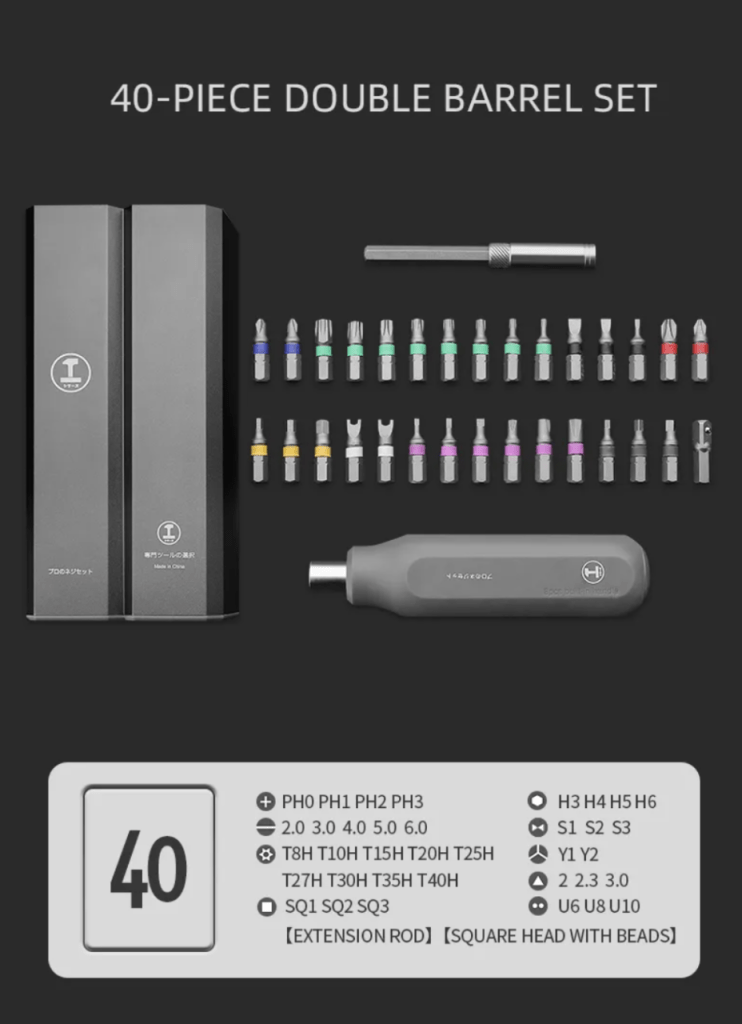
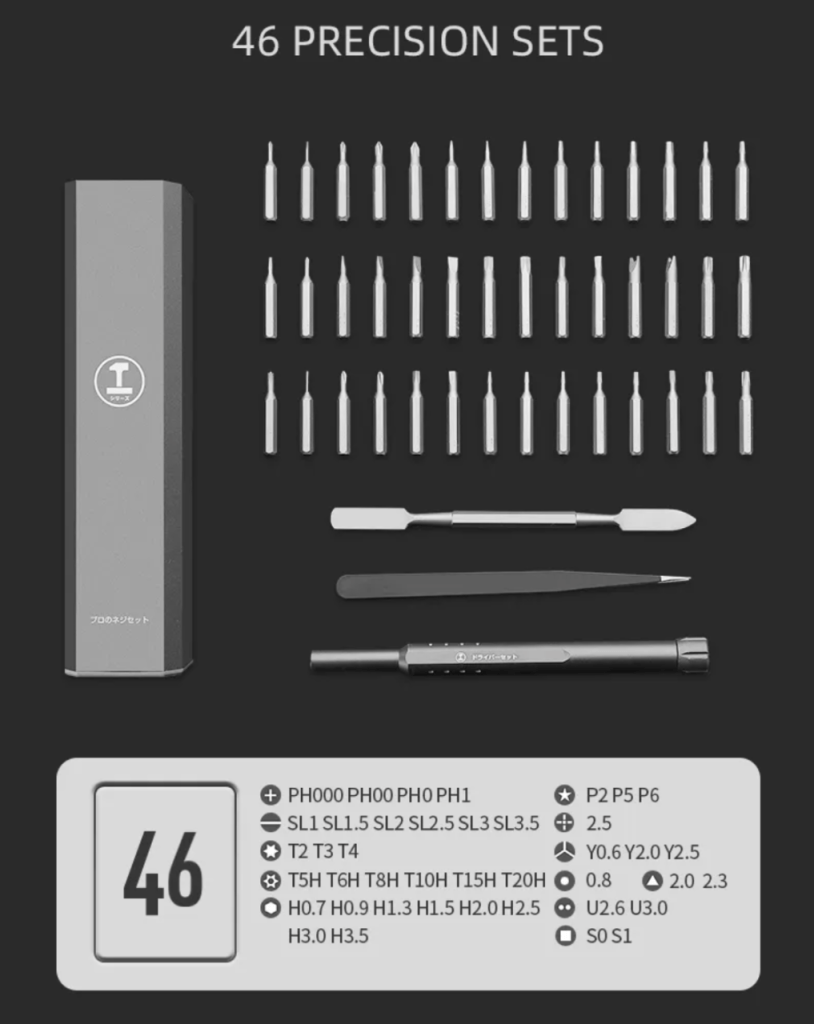
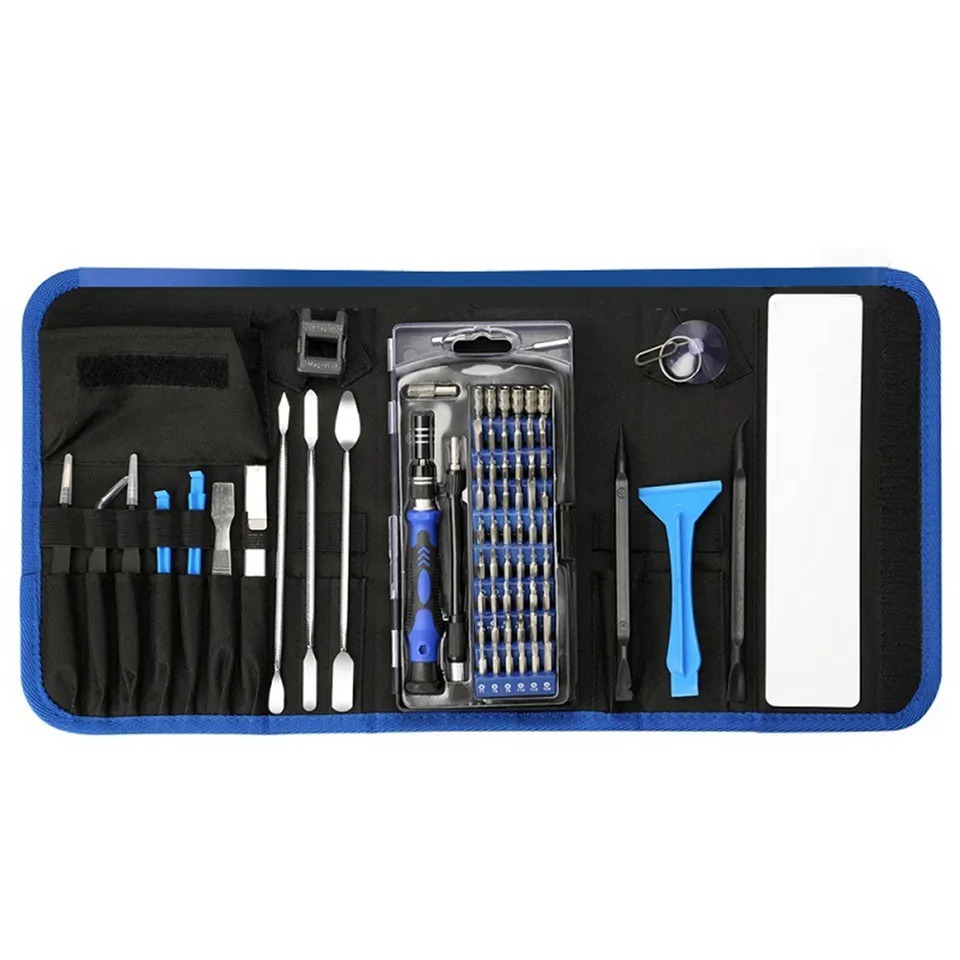


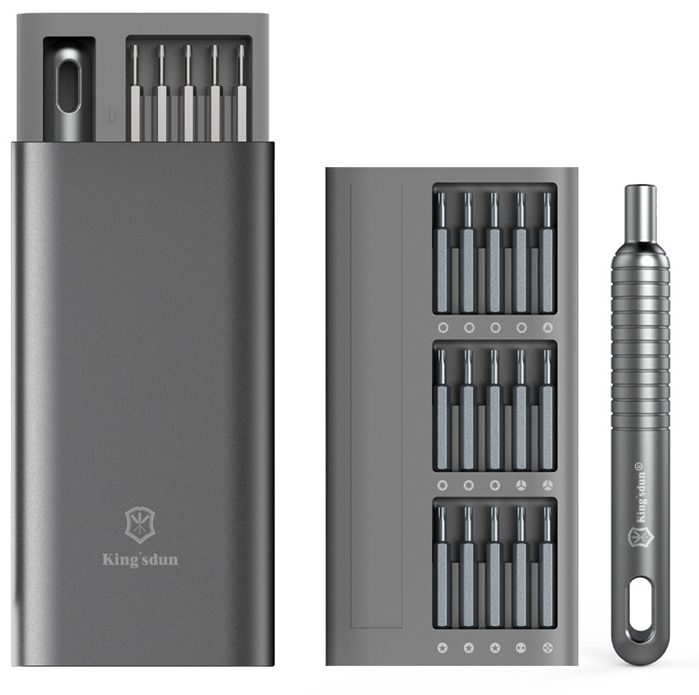














Model: Apple MacBook Pro 14″ A2992 M3| Level: Advanced | Tools: Pentalobe 1.2, Pentalobe 0.8, T3, T5, T6, T8, pry tool, tweezers
An exact A2992 teardown reveals a highly integrated internal layout that requires extreme patience and the right bits. Apple implemented specific changes as they moved toward their newer M-series chips, meaning every flex cable and fastener must be handled with precision.
Whether you are replacing a faulty logic board, swapping out a damaged Retina display, or cleaning out a fan that is loud and rattling, this guide acts as your complete visual guide for getting inside safely.
Our lead technician walks you through stripping the laptop down to its bare enclosure. Let’s get started.
How to Perform a MacBook Pro 14″ A2992 Teardown (Quick Overview)
- Unscrew the backplate and pop the side clips to open the laptop.
- Disconnect the hidden battery flex cable and discharge all remaining static electricity.
- Unscrew and extract the trackpad assembly along with the cooling fans and ports.
- Pop up every flex cable before removing the main logic board screws.
- Lift the logic board from the right side to clear the HDMI port lip.
- Remove the Wi-Fi antenna and hinge covers to free the display cables.
- Unscrew the display hinges and slide the top case away from the LCD panel.
🛠️ Required Tools & Preparation
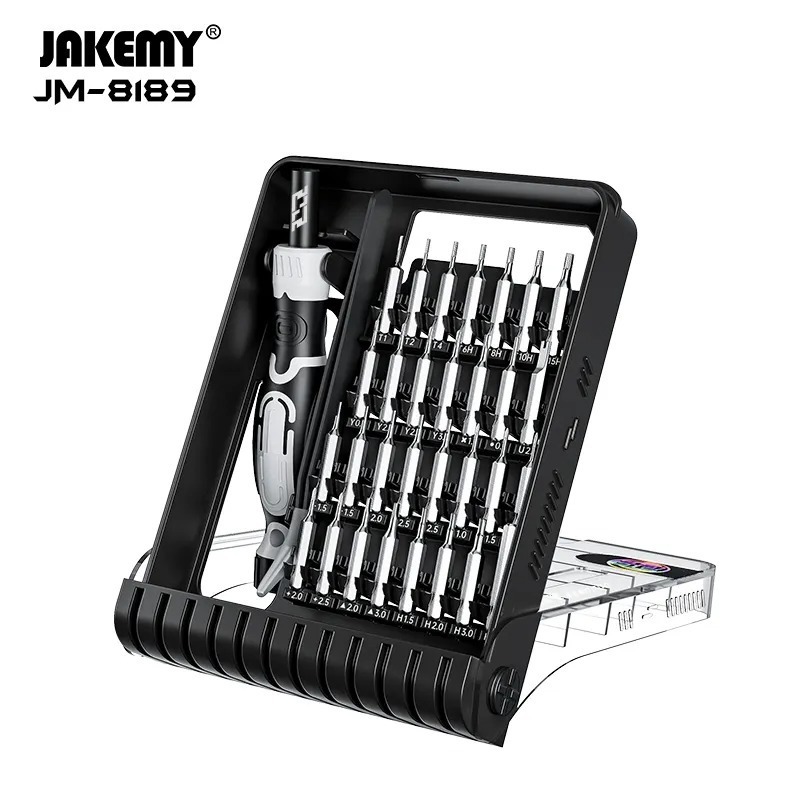
A full A2992 teardown requires an extensive set of precision bits and pry tools. Power the laptop off and unplug the charger before you start.
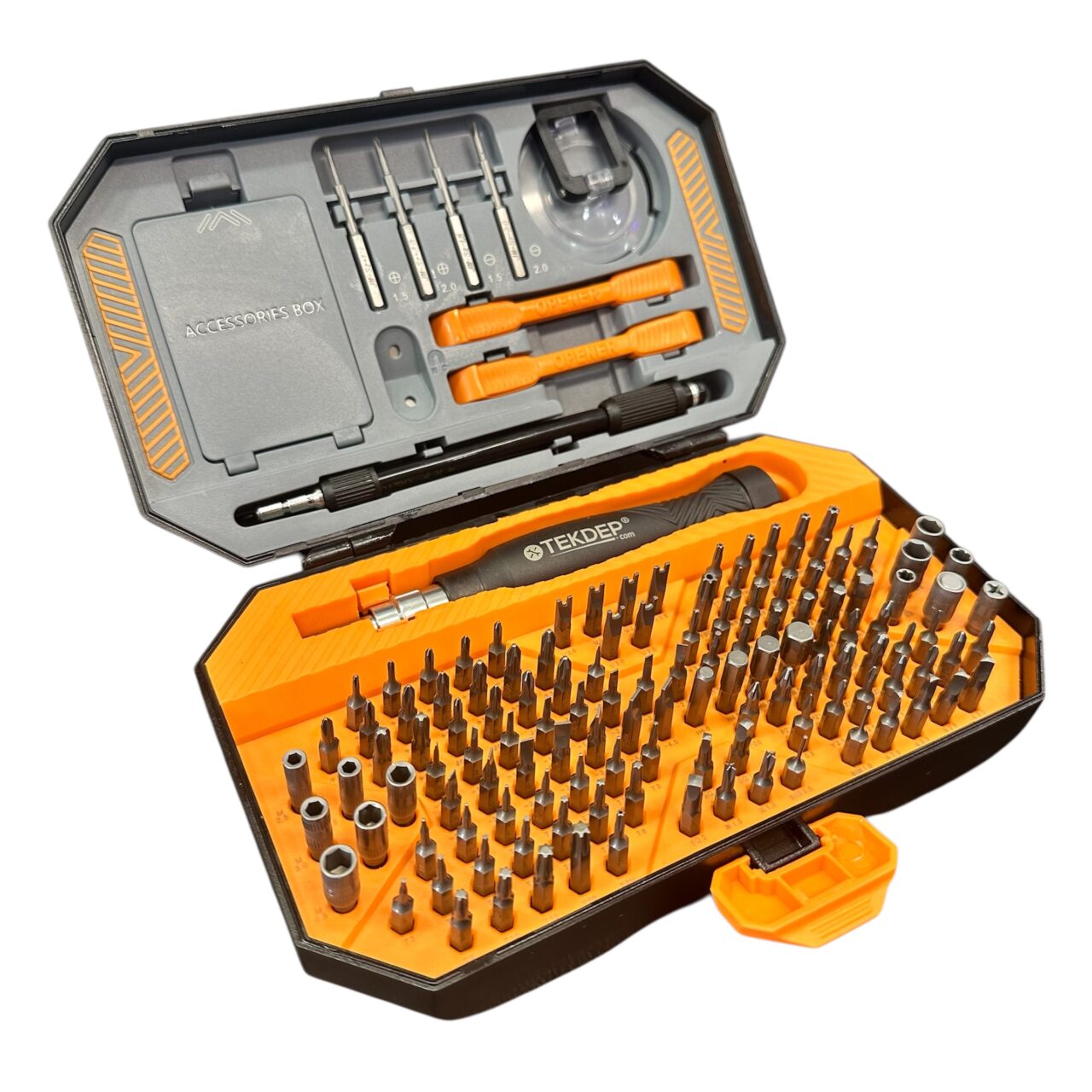
- Pentalobe 1.2 & 0.8: required for the exterior backplate and internal antenna screws.
- Torx T3, T5, T6, T8: covering everything from tiny flex brackets to the heavy display hinges.
- Plastic pry tool: essential for safely popping off fragile logic board connectors.
- Precision tweezers: handle tiny cables and delicate screw covers.
⚠️ Before you start: Disconnect the battery before you touch any connector. Work on an anti-static mat and keep each group of screws strictly together, as Apple mixes lengths and thread types heavily.
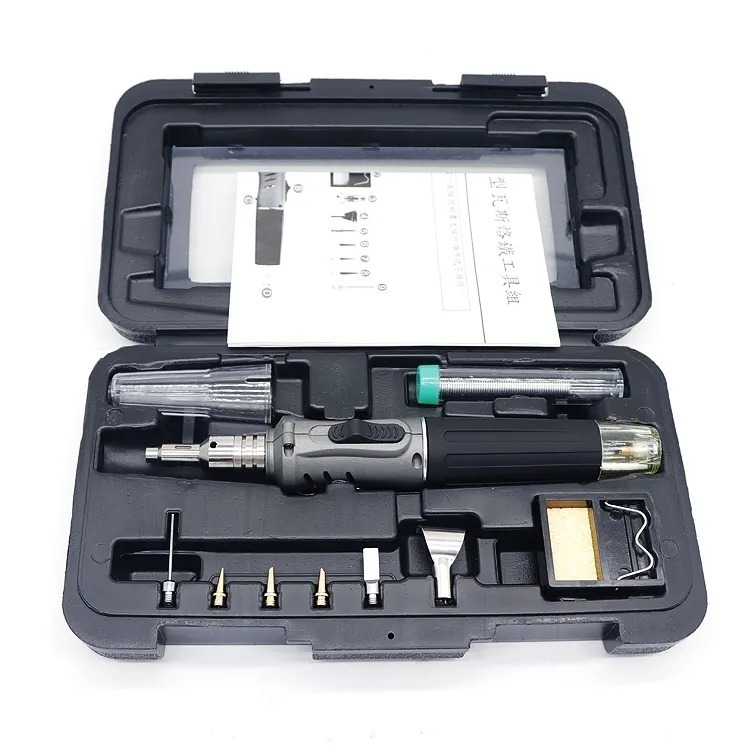
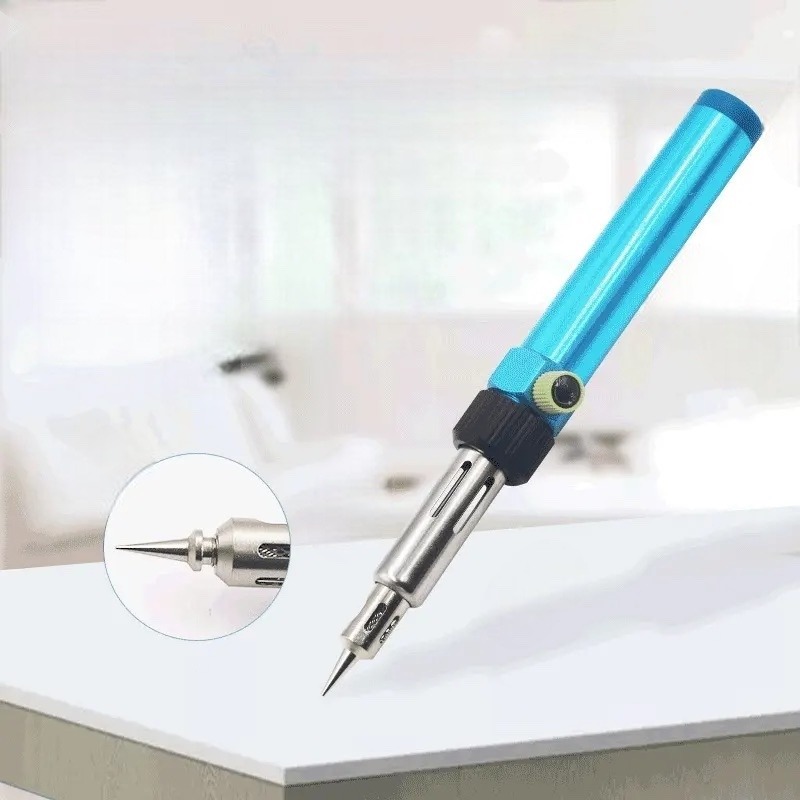
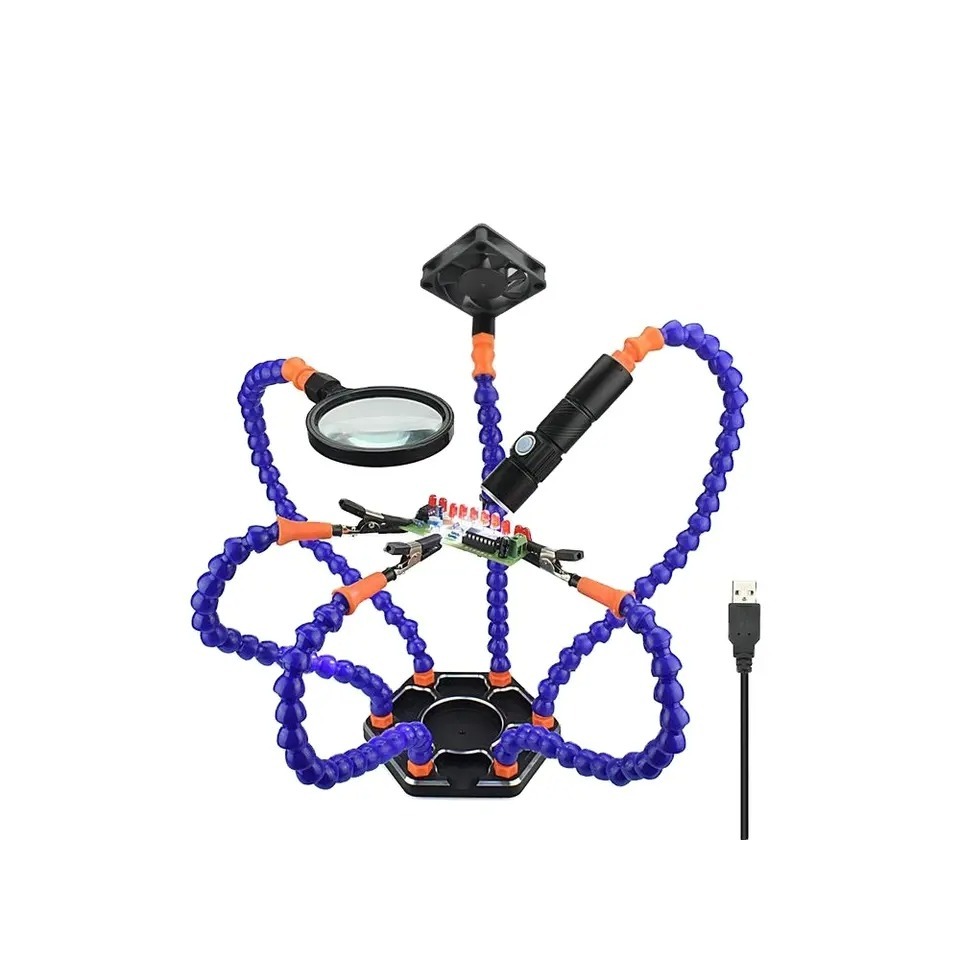
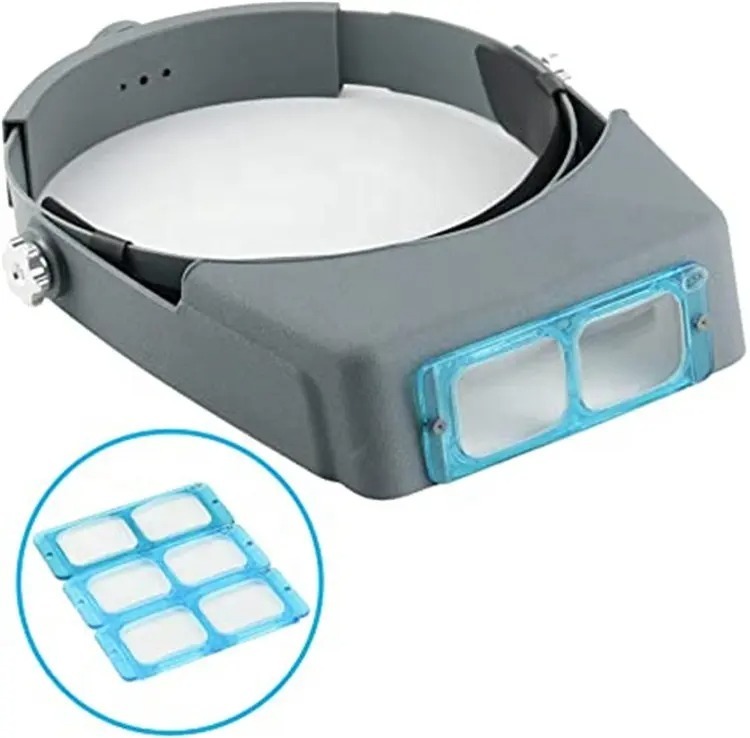
Get the Exact Tools Used by Our Techs:
-
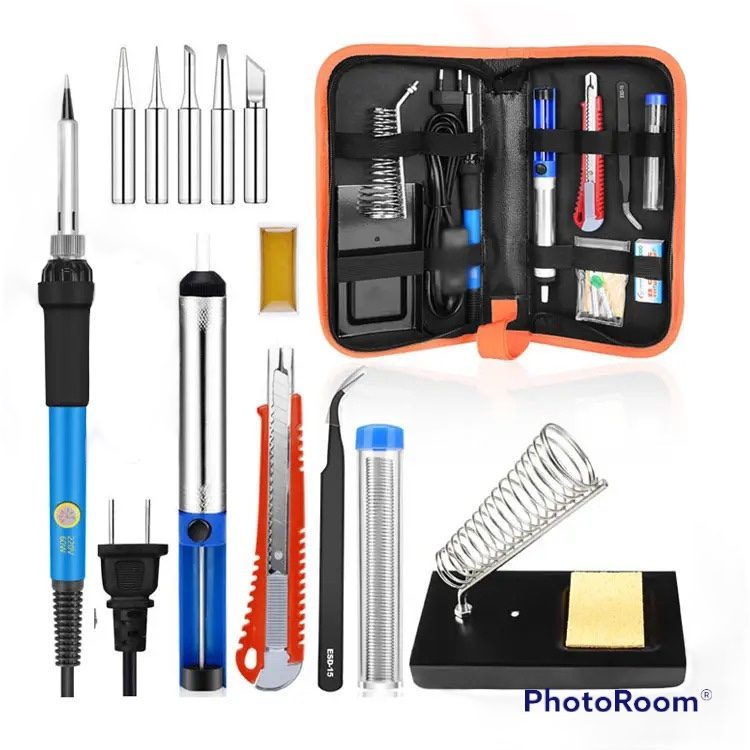
TEKDEP Professional Tool Set 145-in-1 For Electronics, iPhone, Laptop, PC Repairs
-
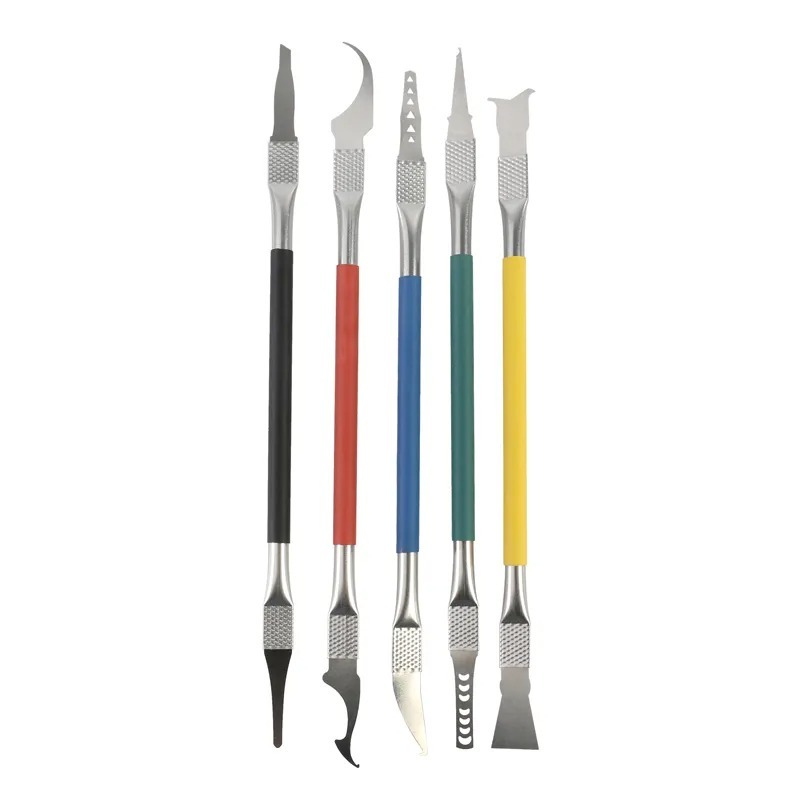
9 in 1 Disassemble Multi Opening Repair Tools Kit Metal Pry Bar
-
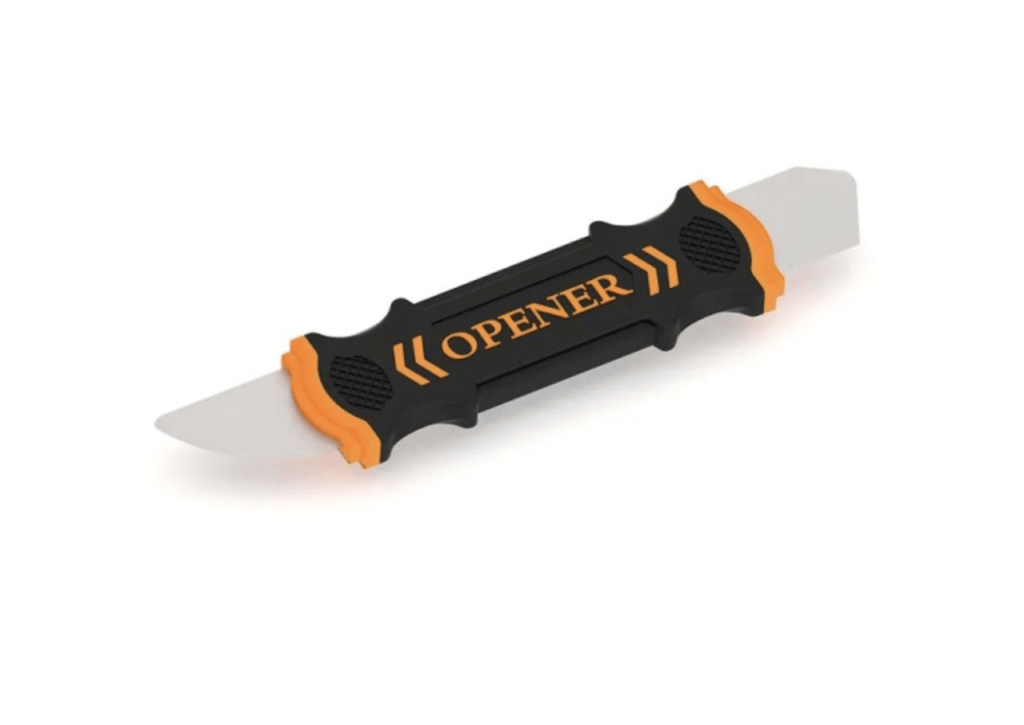
Flexible Pry Tool, Metal 2 Sided Screen Separator Electronics Repair Tool
-
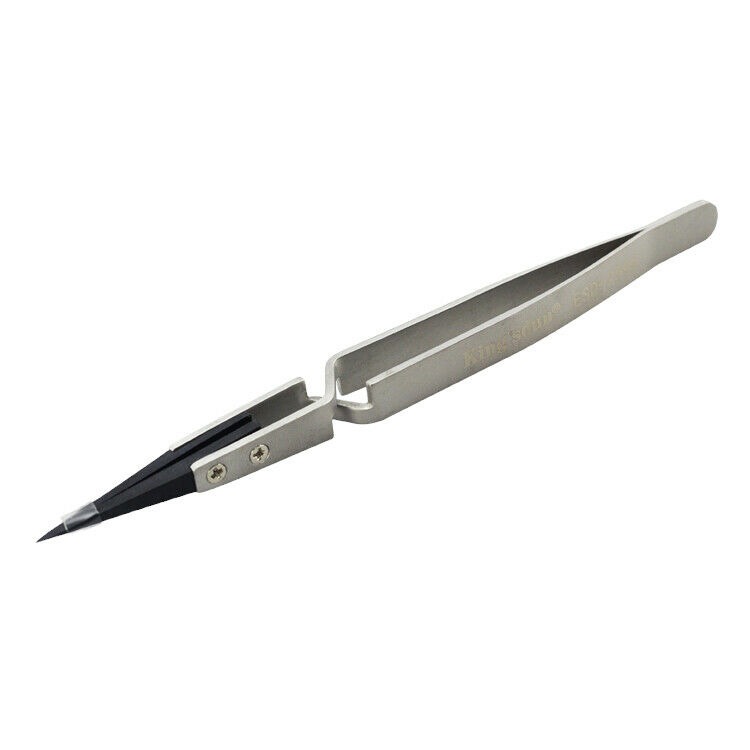
Kingsdun ESD-259X Stainless Steel Ceramic Tweezers With Heat Resistant Anti Dissipative Static Tip
Phase 1: Getting Inside & Disconnecting Power
Opening the MacBook Pro 14″ A2992 is straightforward, but the battery connector is hidden under a flex cable that must be handled delicately.
Step 1: Remove the Backplate
Apple uses its proprietary security screws on the outside, and tight mechanical clips on the inside.
- Remove all the exterior screws holding down the backplate using your Pentalobe 1.2 driver.
- Slide your plastic pry tool under the right and left side of the computer to pop up the two internal latches.
- With one hand pushing against the chassis, hold the backplate and pull it straight down toward you to slide it out of its top hooks.

Step 2: Disconnect the Battery Cable
The battery flex is trapped under the trackpad cable cover. Never poke around the motherboard while the battery is live.
- Undo the T3 screws securing the trackpad flex cable cover and peel it back gently.
- Get your pry tool under the metal clip holding the battery flex cable and flip it up, then gently pull the cable out.
- Take a T5 bit, undo the large pancake screw on the battery board, and lift the main connector up.
- Crucial Note: Hold down the laptop’s power button for 10 seconds to discharge any leftover static electricity in the capacitors.

Phase 2: Removing Peripherals (Trackpad, Fans & USB-C)
With the system fully discharged, you can safely extract the modular peripherals along the edges.
Step 1: Extract the Trackpad Assembly
- Undo the T5 screws all along the bottom edges of the trackpad.
- Open up the computer lid slightly, lift the trackpad, and pull its flex cable safely through the gap.
- Transfer the tiny plastic stoppers on the screw holes to your new trackpad, as they provide essential haptic feedback.

Step 2: Remove the Internal Cooling Fans
If a fan motor stops working, accessing them requires removing specific mixed fasteners.
- Undo the single T5 screw on the corners of both fans.
- Swap to your T3 driver and remove the remaining six screws holding the fans down.
- Lift both cooling fans straight up and out.

Step 3: Detach the USB-C and Headphone Ports
The MacBook Pro 14″ A2992 I/O boards are highly modular and easy to replace if a port goes bad.
- Undo the T5 screws holding down the left and right USB-C ports.
- Pull the USB-C assemblies out very gently from the chassis.
- Unscrew and extract the headphone jack board directly below the right-side ports.

Phase 3: Extracting the Logic Board & Touch ID
The logic board sits beneath a web of flex cables and protective shields. Take your time, as ripping a single connector will cause irreversible damage.
Step 1: Unplug All Flex Cables
- Remove all the protective metal casings covering the connectors using a T3 driver.
- Use your plastic pry tool to gently pop up the connectors for the left speaker, keyboard, right speaker, audio jack, and MagSafe 3 port.
- Pop up the lid sleep sensors, camera cable, and the main LCD flex cable. Peel back any light adhesive securing them to the board.
Step 2: Remove the Logic Board Screws
Keep these screws strictly in the order you remove them, as they have different lengths and thread profiles.
- Remove the large T6 screws holding down the main heatsink and logic board perimeter.
- Remove the remaining T5 screws concentrated in the middle and bottom sections of the board.
Step 3: Extract the Logic Board
Double-check that every connection is undone before you lift. The right side of the board tucks into a specific lip near the HDMI port.
- Bend all the freed flex cables gently backwards so they do not snag on the board.
- Lift the logic board slowly from the right side to clear the lip of the enclosure.
- Pull the entire board forward and to the left to extract it completely.

Step 4: Remove the Touch ID Sensor
The MacBook Pro 14″ A2992 Touch ID sensor is securely linked to your logic board. If you upgrade your board, you must transfer this original button.
- Undo the T3 screw securing the protective cover over the Touch ID sensor.
- Remove the remaining T3 screws securing the button bracket.
- Slide your pry tool under the button flex to separate the mild adhesive, open the unit lid slightly, and let the sensor drop right out.
TekDep Expert Warning: Keep this specific Touch ID sensor with its original logic board. If you break it, you will permanently lose touch ID login on this machine.

Phase 4: Detaching the LCD Retina Display
The display panel is mounted with heavy hinges and a delicate antenna bar that must come out first.
1st step: Remove the Wi-Fi and Bluetooth Antenna
- Use a T5 driver to undo the outer screws holding down the right and left hinges, and the four T5 screws in the middle.
- Switch to a Pentalobe 0.8 driver and remove the nine small screws scattered along the antenna bar.
- Lift the antenna bar straight up and set it aside.

2nd step: Remove Hinge Covers and LCD Cables
- Lift the plastic hinge covers off both sides.
- Gently pull back the thick LCD display cables.
- Remove the small anti-crease pads tucked underneath the cables.

3rd step: Extract the Display Assembly
The display drops away from the chassis when the hinges clear their mounting posts.
- Take your T8 driver and remove the six hinge screws, three on each side.
- Apply a little bit of pressure on the hinges to open them up to about 90 degrees.
- Once they are high enough, pull the top case housing away from the LCD panel.

4th step: Reassembly Notes & Testing
To rebuild the laptop, simply follow these steps in exact reverse order. Pay special attention to seating the logic board into the right-side lip before tightening any T6 screws. Once everything is secured and the battery is reconnected, plug in the charger before pressing the power button to wake the system.
Grab the premium repair parts featured in this guide:
-
A2992 Aftermarket Battery Daughter Flex Cable for 2023 MacBook Pro 14″ M3 Pro/Max
-
A2992 Aftermarket Battery Model A2977 for 2023 MacBook Pro 14″ M3 Pro/Max
-
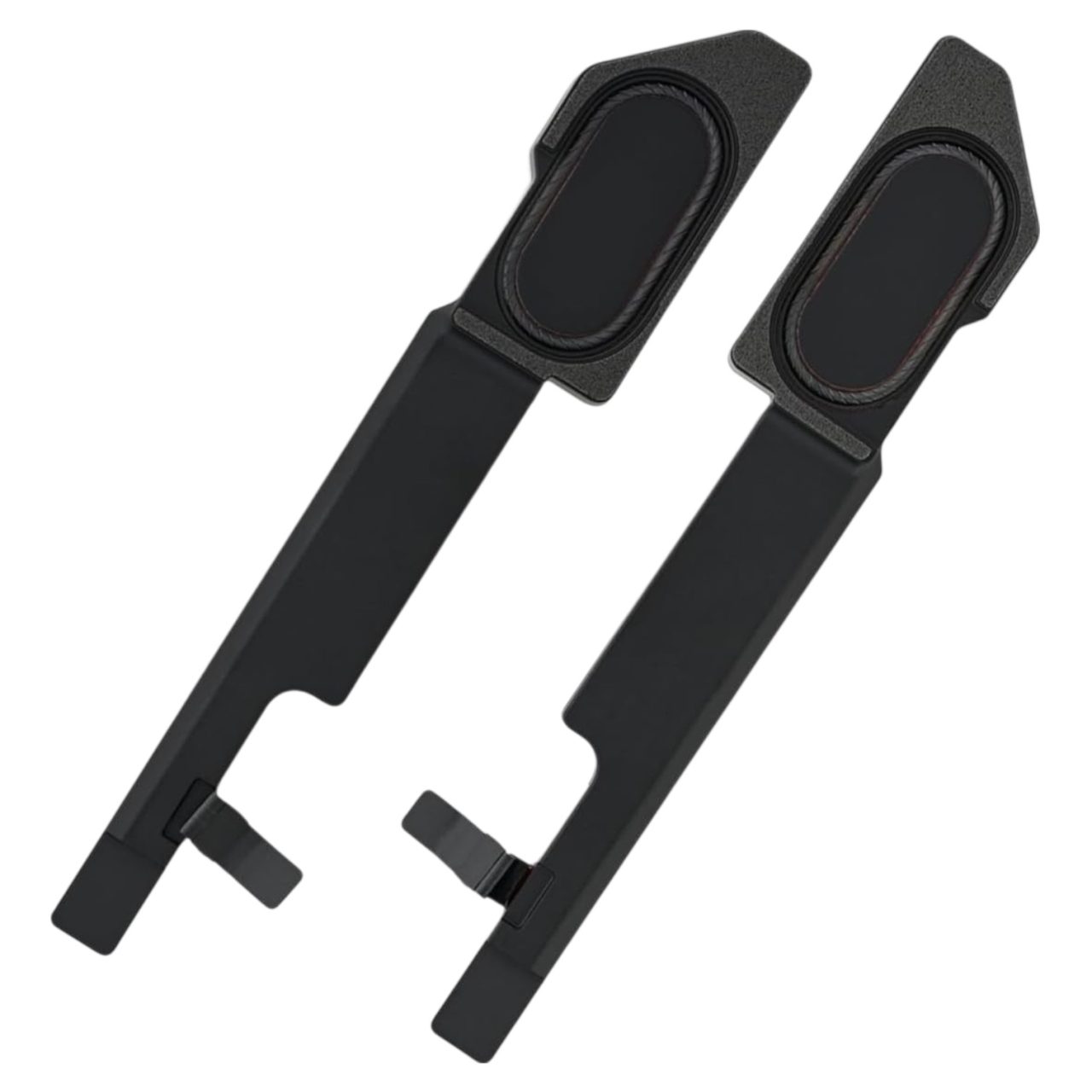
A2992 Aftermarket Speaker Set Left & Right for 2023 MacBook Pro 14″ M3 Pro/Max
-

A2992 Aftermarket Trackpad with Flex Cable for 2023 MacBook Pro 14″ M3 Pro/Max
-
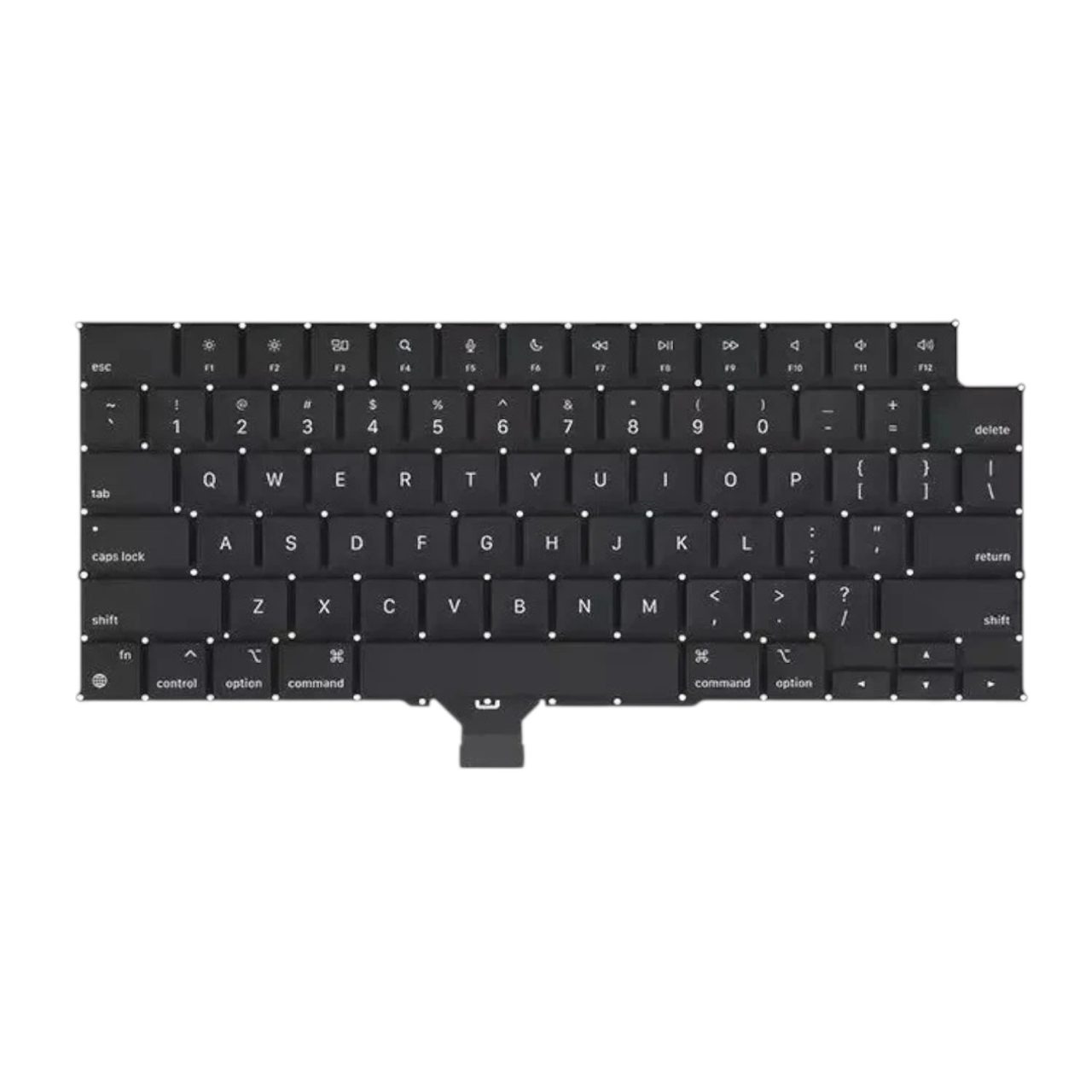
A2992 Aftermarket US Keyboard for 2023 MacBook Pro 14″ M3 Pro/Max
-
A2992 Refurbished LCD Display Assembly for 2023 MacBook Pro 14″ M3 Pro/Max
-
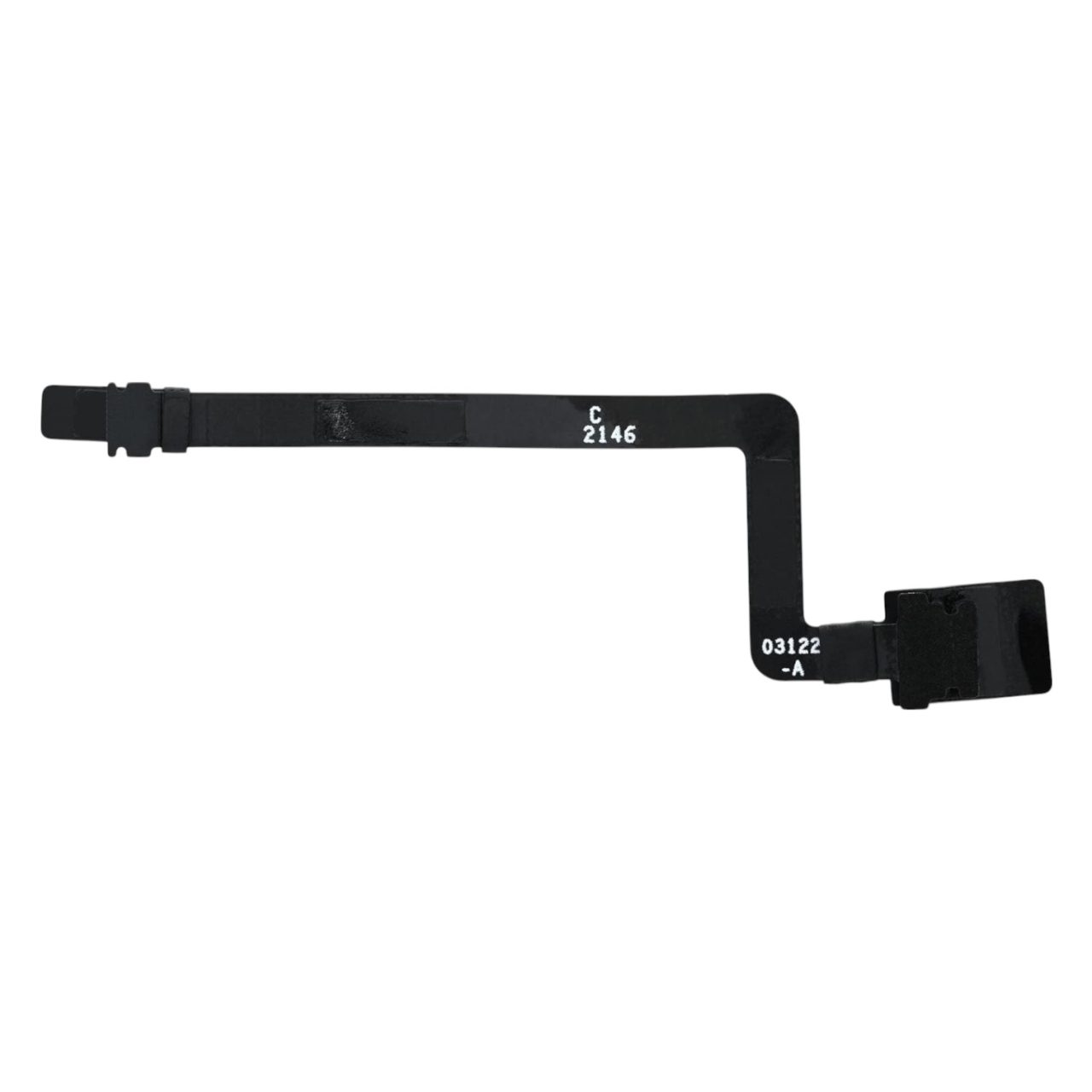
A2992 Aftermarket Lid Angle Sensor (LAS) Flex Cable for 2023 MacBook Pro 14″ M3 Pro/Max
-
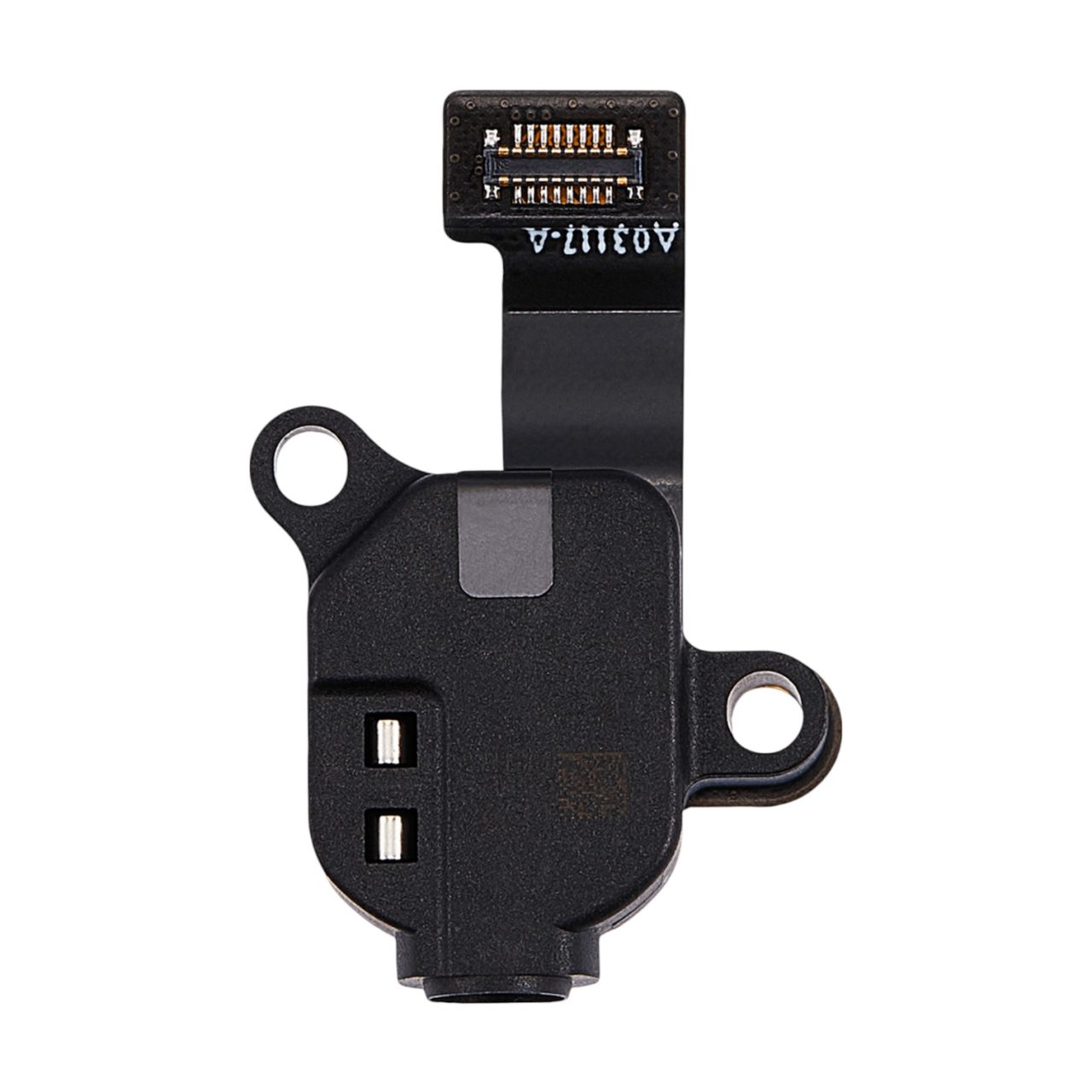
A2992 Aftermarket Headphone Jack for 2023 MacBook Pro 14″ M3 Pro/Max



Congratulations! You have successfully completed an A2992 teardown on your Apple MacBook Pro.
🛑 Not Comfortable Managing Tiny Flex Cables? If reading about fragile hidden logic board screws has you second-guessing your DIY skills, don’t worry. The TEKDEP experts are here to help.
We offer clean, professional, and affordable Mail-In repair services for the entire Apple MacBook Pro lineup.
Frequently Asked Questions
Is a MacBook Pro 14″ A2992 teardown safe for beginners?
No, this is an advanced procedure. Apple packs the chassis with incredibly fragile flex cables, hidden battery discharge procedures, and a mix of Torx and Pentalobe screws. You need extreme patience and the right anti-static precautions to avoid damaging the logic board.
Can I upgrade the RAM or storage on the MacBook Pro 14″ A2992?
Unfortunately, no. The memory and storage are soldered directly to the main logic board on M3-series Macs. The only way to upgrade storage or RAM is to replace the entire logic board assembly and pair a matching Touch ID sensor.
Why do I need to hold the power button after disconnecting the battery?
Holding the power button for 10 seconds drains the leftover static electricity stored in the logic board capacitors. Skipping this step leaves the board powered, meaning you could instantly short-circuit a crucial component when unplugging the screen or speakers.
Does opening my MacBook Pro 14″ A2992 void the warranty?
Not automatically, provided you don’t cause damage. However, any hardware failure resulting from your teardown or third-party modifications won’t be covered by Apple’s standard warranty.
🛑 IMPORTANT: SAFETY & LIABILITY DISCLAIMER TEKDEP®️ TEKDEP.com assumes no liability for property damage or injury incurred as a result of any information in this blog post or associated videos. Dealing with internal computer components, specifically Lithium-Ion batteries, carries natural risks including fire, toxic gas exposure, and irreversible device failure. Any injury, damage, or loss from improper use of tools, mishandling of components, or misinterpretation of this information is the sole responsibility of the user. Perform repairs at your own risk. If you are unsure of your capabilities, please utilize our professional Mail-In Repair Service.