




































LCD Replacement Repair Tips & Tricks for 2020 MacBook Pro 13″ A2289
OVERVIEW:
In this guide, we’ll walk you through the complete replacement of the LCD assembly on a 2020 MacBook Pro model A2289. This is one of the last Intel-based MacBooks, and the process is essential if your display is cracked or damaged. We’ll be detailing the exact disassembly and reassembly steps using only tools and methods shown in the video. With the right tools and a methodical approach, you’ll be able to follow along and restore your MacBook’s display functionality. Let’s dive into this repair step-by-step.
See official Apple specs for this model
REPAIR TIME & SKILL LEVEL:
This repair is estimated to take about 1.5 TO 2 HOURS to complete and is of ADVANCED difficulty, requiring expert handling of fragile internal components and precise reassembly of multiple modules.

STEPS:
Tools You Need
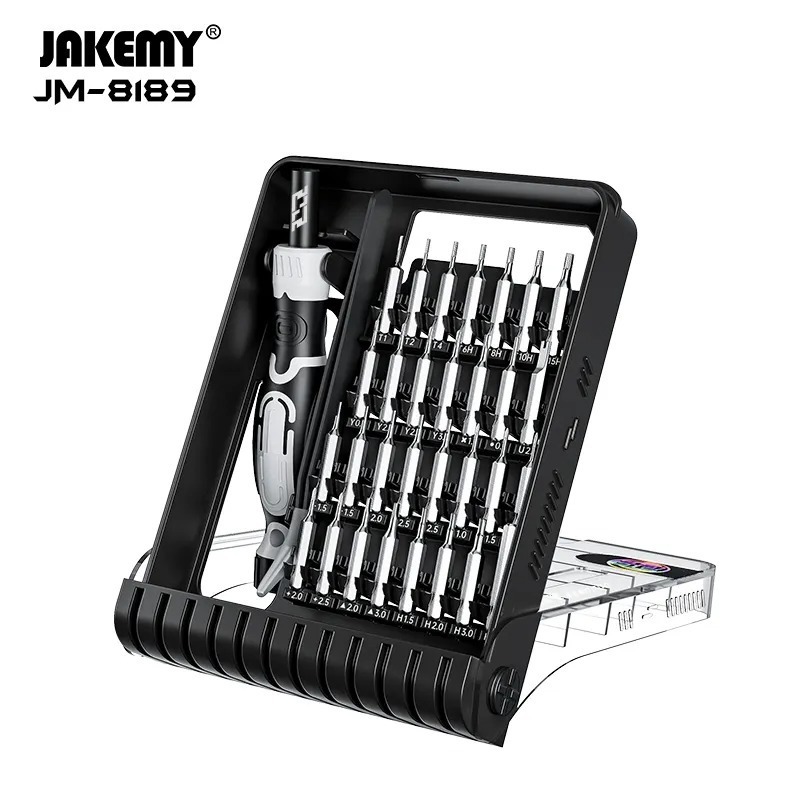
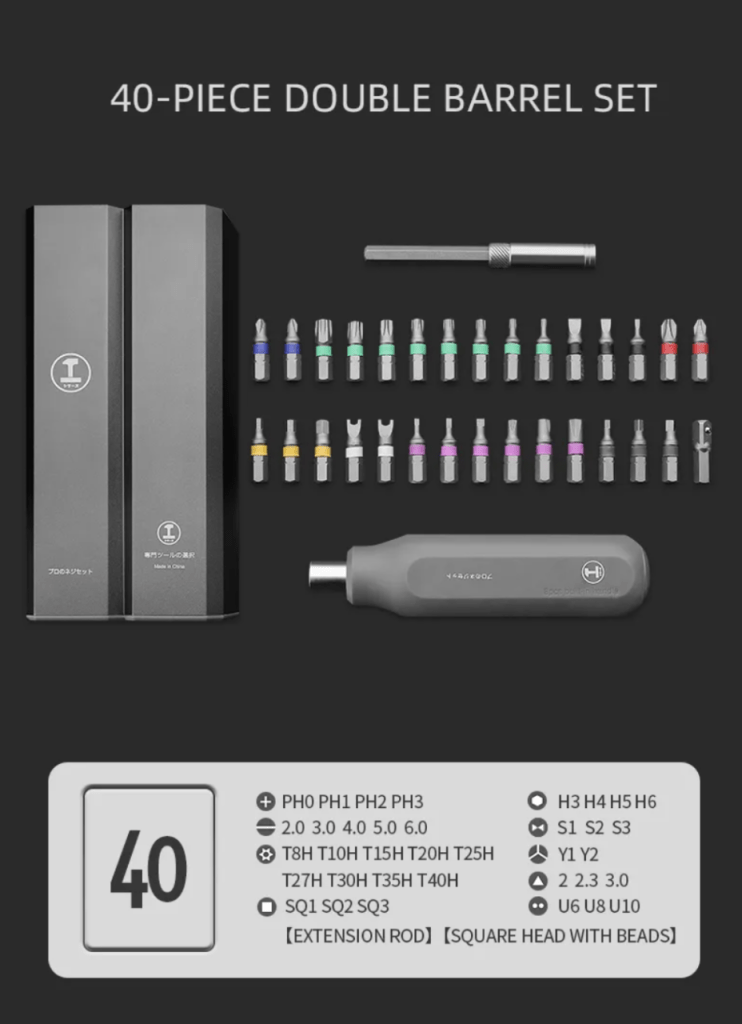
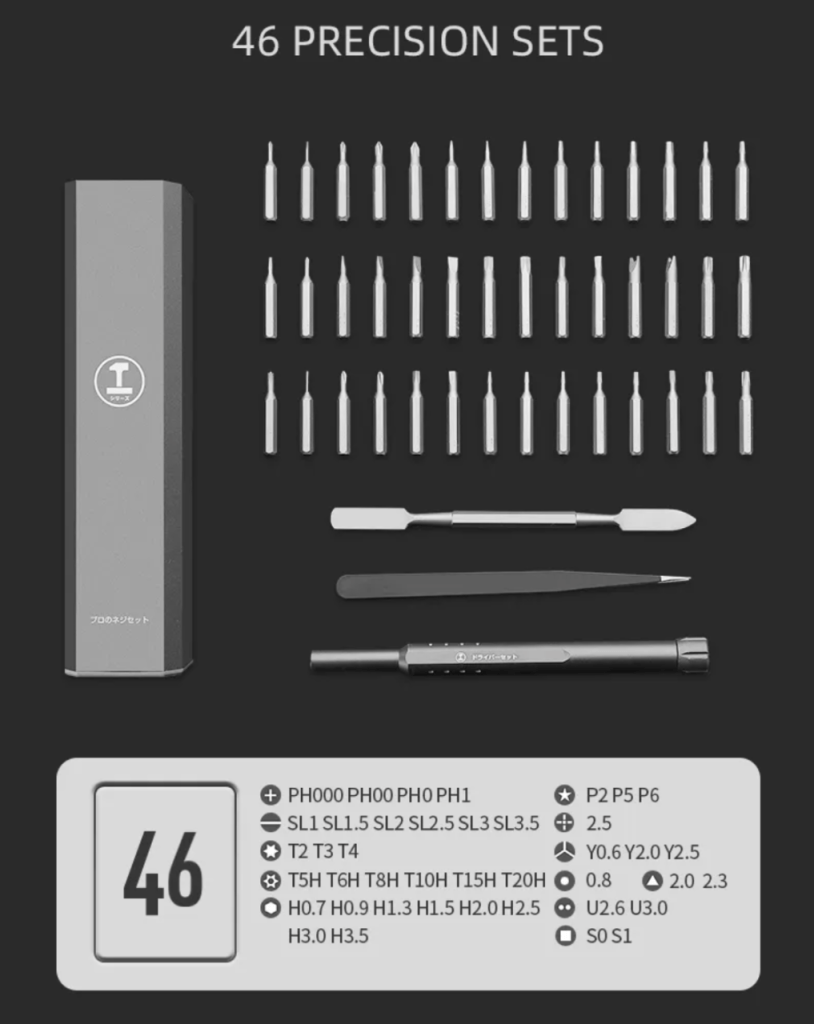
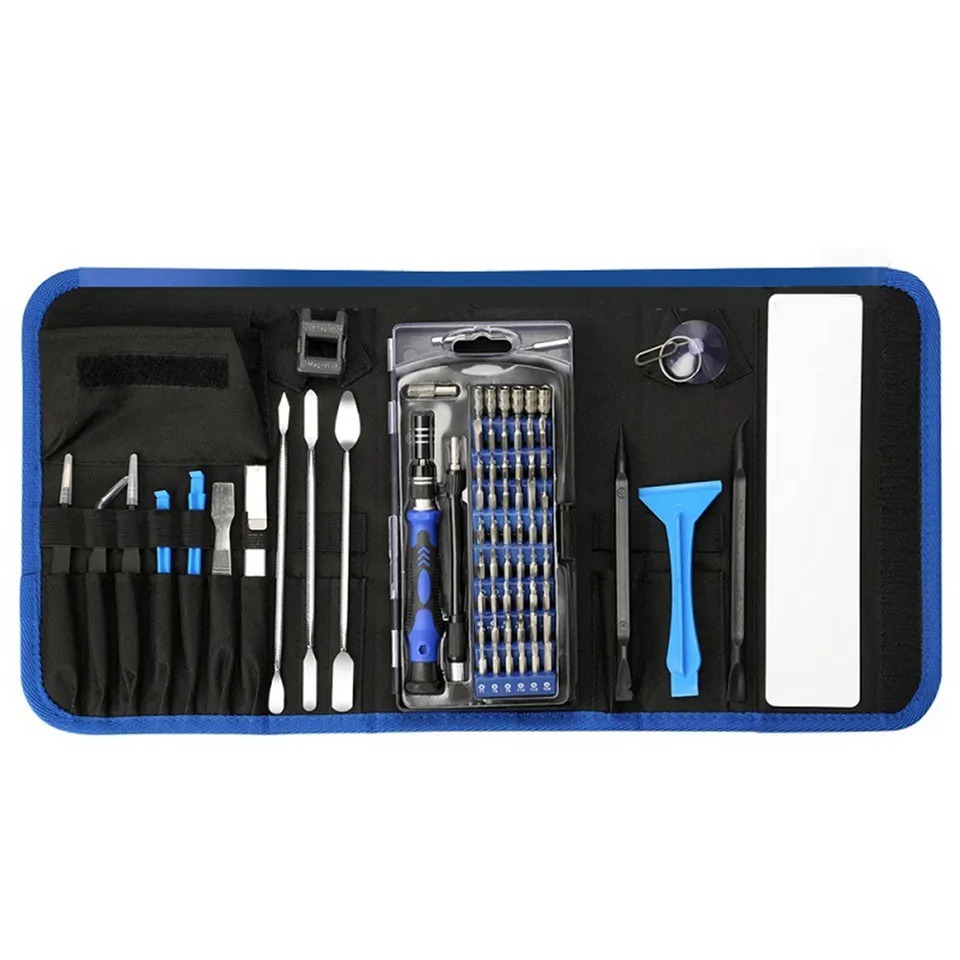
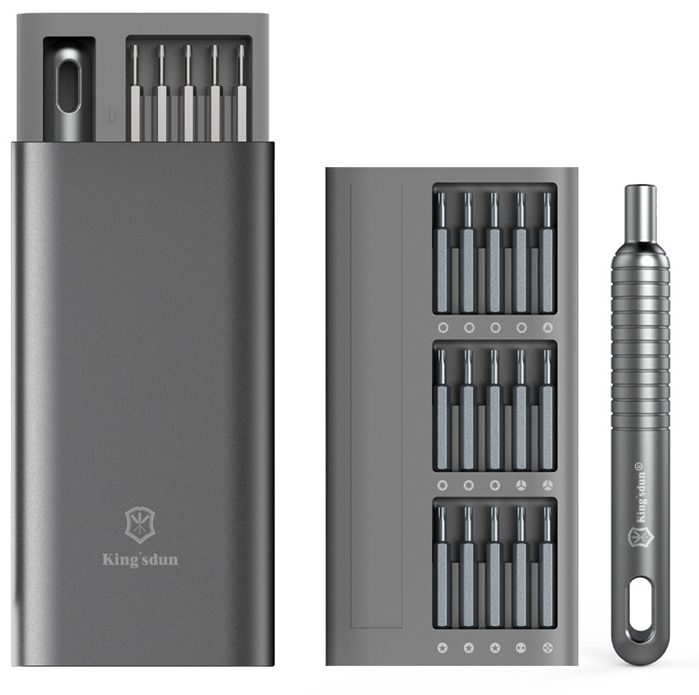
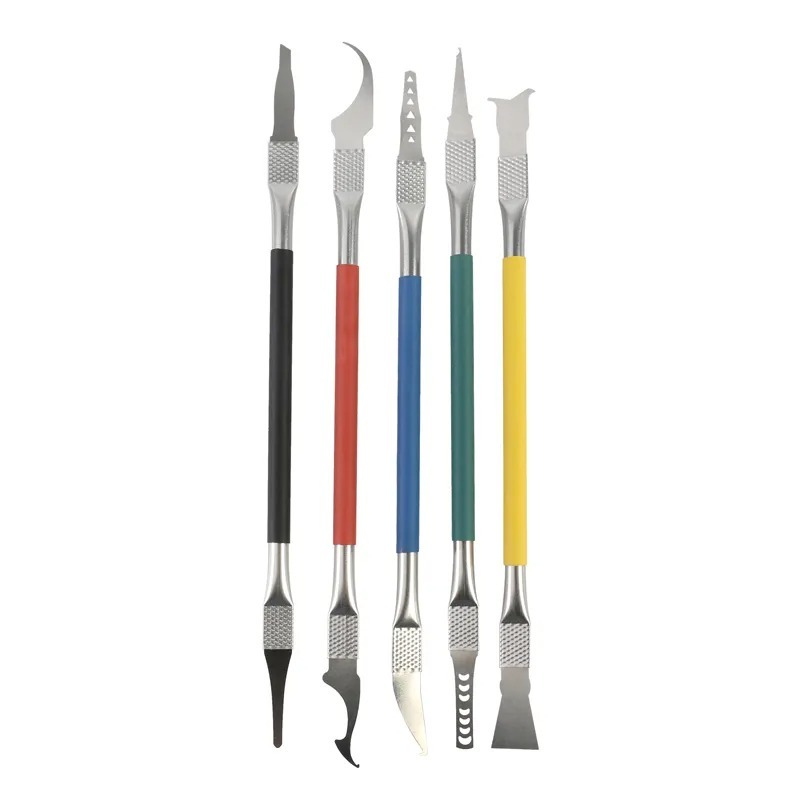
For this repair, you will need a suction cup for removing the bottom case, a T5 screwdriver for internal screws, a T3 screwdriver for hinge covers and connectors, a P3 screwdriver for LCD hinge screws, a PL1 screwdriver for Wi-Fi vent module screws, a T8 screwdriver for hinge screws, and a plastic spudger to safely disconnect and remove components.
-
130 in 1 Professional Multi Bit Screwdriver Precision Tools Set For All Gadgets
-31% $29.00Was:$42.00 -

6 in 1 Steel Bit Precision Magnetic Screwdriver Tool Set with Case for Phone PC Electronics
$8.00 -

9 in 1 Disassemble Multi Opening Repair Tools Kit Metal Pry Bar
$9.00 -

2X Suction Cup Repair Opening Tool For Phone Computer Tablet Heavy Duty Screen
$8.00 -

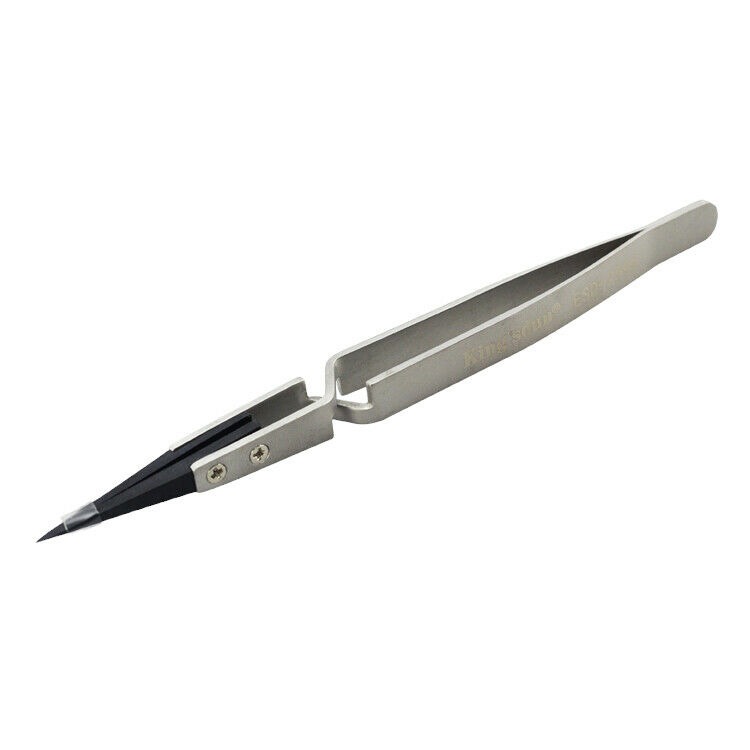
Professional Stainless Steel Curved Straight Tip Precision Tweezers
$7.00
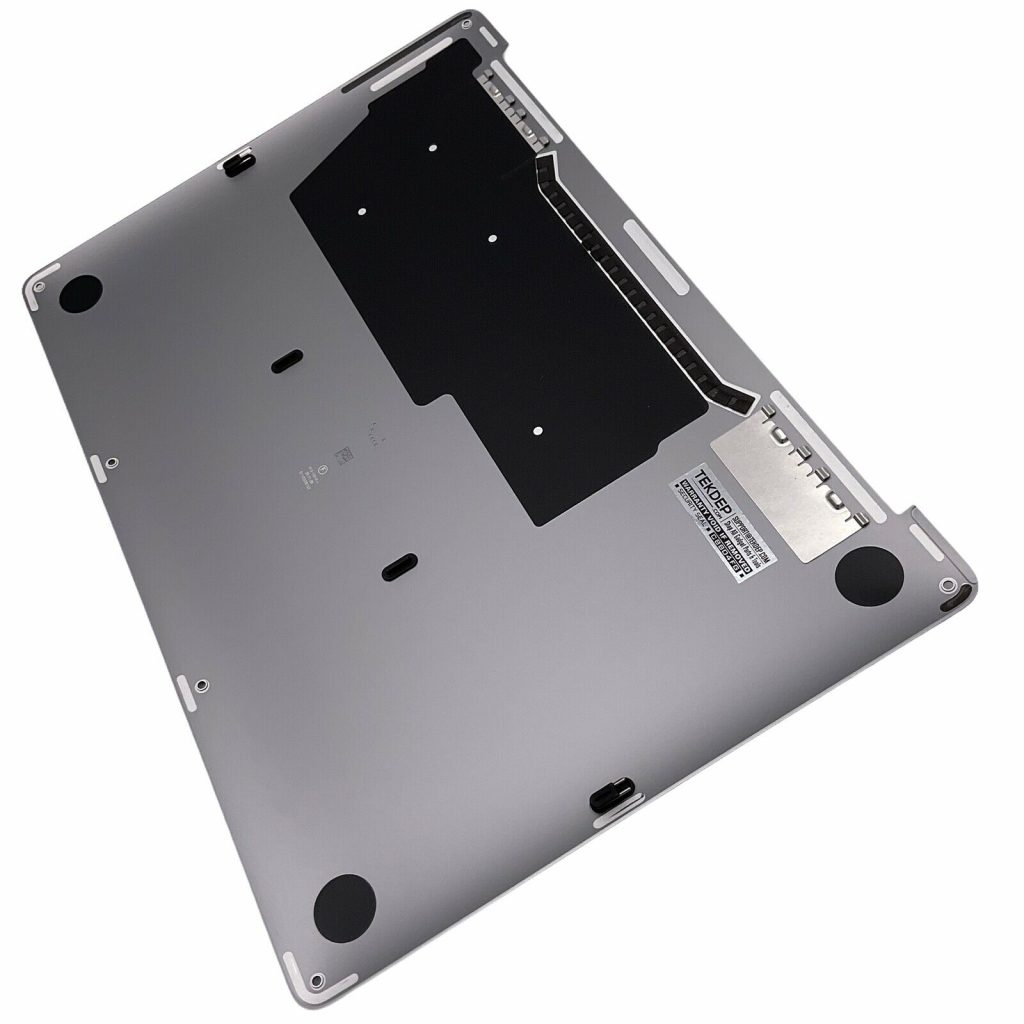
Remove Bottom Case
- Use a pentalobe screwdriver to remove the bottom six screws—note the top two are longer than the bottom four.
- Apply a suction cup to lift and remove the bottom case carefully.
- Set the screws aside, keeping the long and short ones organized for reassembly.

Disconnect Battery
- Peel back the tape cover over the battery daughterboard cable.
- Remove the T5 screw under the tape and unplug the jumper bar.
- This step ensures the MacBook is safe to work on without power.
-
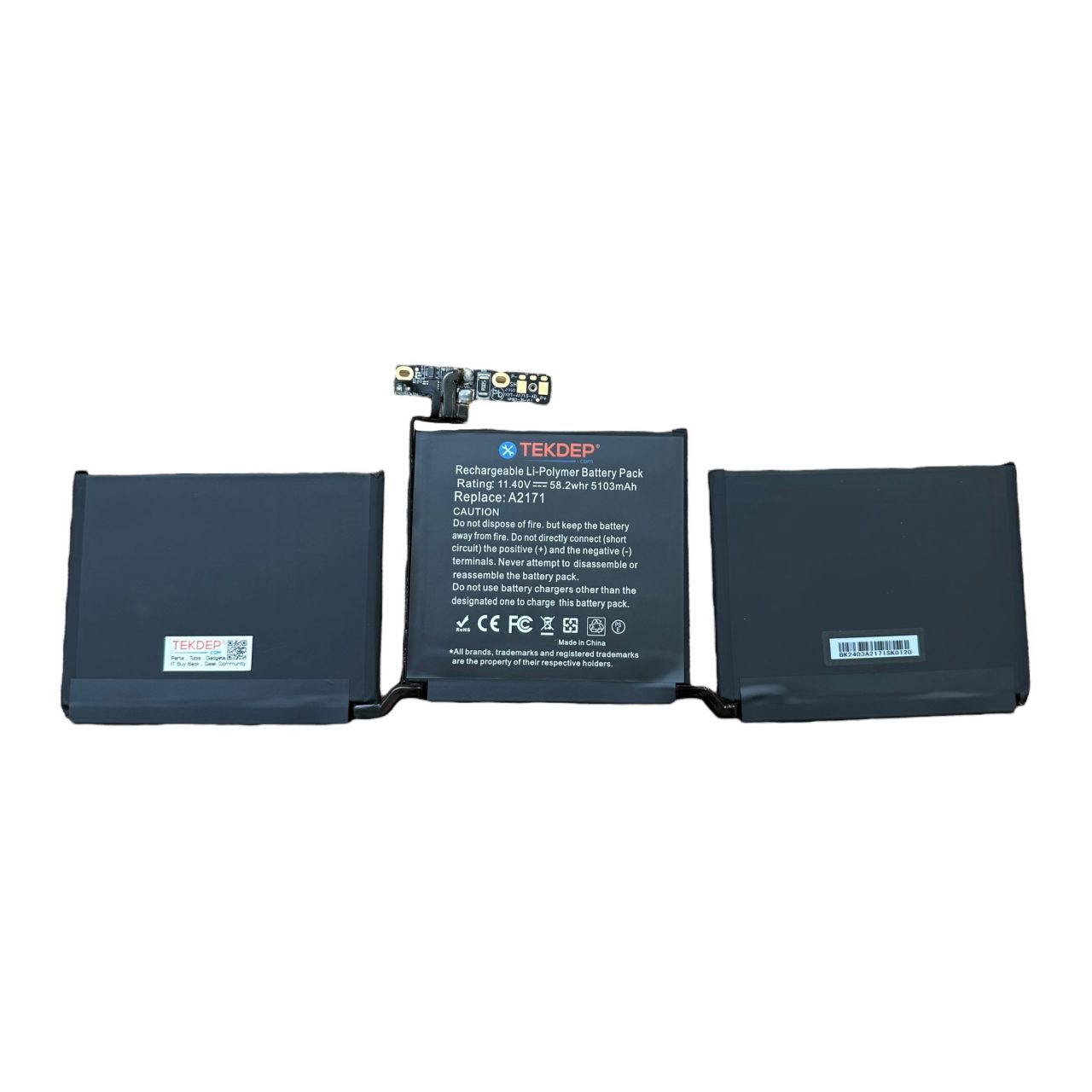
Aftermarket A2171 Battery Replacement For A2289 Apple MacBook Pro 13″ 2020
-46% $58.99Was:$109.00
Disconnect Wi-Fi Antennas
- Peel back the second tape cover near the top section.
- Unplug the Wi-Fi antenna cables and remove the T5 screw securing them.
- This exposes the next layer of components near the LCD.
Remove LCD Support Screws
- Remove the four black T5 screws that secure the LCD assembly and Wi-Fi vent module.
- These are located above the Wi-Fi cable connections.
- Keep track of each screw’s location for reassembly.


Remove Hinge Covers
- Use a T3 screwdriver to remove two hinge cover screws on each side (four total).
- Take off the hinge covers to reveal the main LCD hinge mounting screws underneath.
- Set the covers aside carefully to avoid damage.
Remove LCD Hinge Screws
- Use a P3 screwdriver to remove four screws (two on each hinge).
- These screws secure the LCD assembly to the top case.
- Support the LCD as you loosen the final hinge screw to prevent it from falling.

Disconnect LCD Connector
- Remove four T3 screws securing the LCD connector bracket.
- Unplug the LCD display connector.
- Use caution when handling the connector to avoid bending pins.
Remove Wi-Fi Vent Screws
- Switch to a PL1 screwdriver and remove screws securing the Wi-Fi vent module on both sides.
- These screws anchor the vent module to the top case and need to be removed before lifting the display.
- Set these aside with other Wi-Fi-related screws.

Remove Hinge Screws
- Use a T8 screwdriver to remove three screws from each hinge (six total).
- Carefully hold the display to prevent it from detaching abruptly.
- These are the final screws holding the LCD assembly.
Separate Top and Bottom Case
- Use a plastic spudger to lift and remove the Wi-Fi vent module.
- Gently open the MacBook to separate the top case from the bottom chassis.
- Take care not to damage any remaining connections.
-
A2289 Aftermarket Top Case Keyboard Space Gray For 2020 Apple MacBook Pro 13″
-15% $247.00Was:$289.00

Install New LCD Assembly
- Slide the new LCD assembly into place, aligning the hinges and cables.
- Ensure all cables pass through the correct openings before closing the unit.
- Start by loosely positioning the screen before securing it.
-
A2289 Refurbished LCD Display Assembly Silver For 2020 Apple MacBook Pro 13″
-25% $216.99Was:$289.00

Secure Hinge Screws
- Reinstall all six T8 screws at the hinges.
- Tighten each side evenly to ensure proper alignment.
- Confirm the LCD is firmly seated before continuing.

Reinstall LCD Bungee Screws
- Use a T3 screwdriver to reinstall the four long screws for the LCD bungees.
- These can be tricky—secure them before installing anything that could block access.
- Handle these carefully to avoid losing tension on the bungees.

Reinstall Wi-Fi Vent Module
- Slide the Wi-Fi vent module back into place.
- Use a T5 screwdriver to fasten it along with the LCD assembly to the top case.
- Confirm a secure and flush fit.
-
A2289 A2338 Original WiFi Antenna Bar for 2020 MacBook Pro 13”
-60% $10.77Was:$27.00

Reconnect Antennas and LCD
- Use a spudger to carefully plug in the Wi-Fi antenna cables.
- Plug in the LCD connector and use a T3 screwdriver to secure the bracket.
- Make sure connections are firm and flush.

Reattach Hinge Covers
- Slot in and screw down the hinge covers with the T3 screwdriver.
- Confirm both covers sit evenly and cover the hinges properly.

Secure Wi-Fi Bracket
- Use the T5 screwdriver to reinstall the small bracket over the antenna wires.
- This helps route the antenna cables neatly.
- Tighten the screw without over-torquing.

Refasten Wi-Fi Vent Screws
- Use the PL1 screwdriver to reinstall all screws across the top of the vent module.
- Secure both left and right sections to complete this part of the reassembly.
- Ensure no cables are pinched.
Reconnect Battery
- Use the T5 screwdriver to reinstall the screw for the battery jumper bar.
- Plug in the daughterboard flex cable.
- Reapply the tape cover to protect the connector.

Test the Repair
- Plug in the unit and turn it on before sealing the case.
- Confirm the display powers up correctly and the OS loads.
- Check for full screen functionality and brightness.

Reinstall Bottom Case
- Reattach the bottom case by pressing it down to click it into place.
- Use the pentalobe screwdriver to reinstall all six screws—long ones in the top corners.
- Confirm the bottom case is flush and secure.
CONCLUSION:
Replacing the LCD assembly on the 2020 MacBook Pro A2289 takes precision and patience. From disassembly to final testing, every screw and connector plays a critical role. Following these steps closely will help you safely remove a damaged display and install a new one. Be sure to test the device before closing it up to avoid rework. With care and the right tools, this advanced repair is entirely doable. If you’re uncertain at any point, consider our professional service options.


VIDEO TUTORIAL:
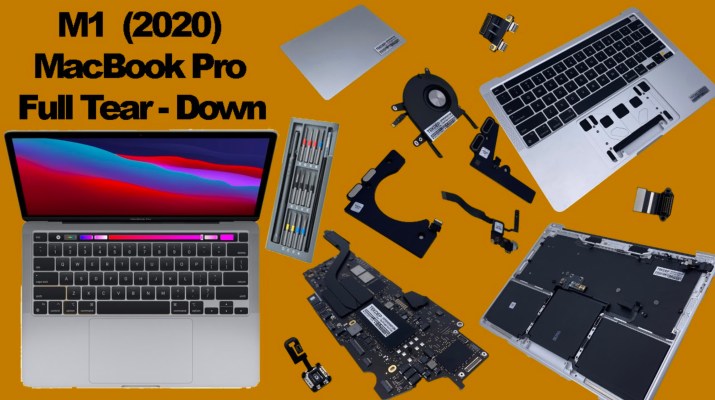
Looking for a more in-depth tutorial? Check out our complete teardown video for a detailed step-by-step walkthrough.
MAIL-IN REPAIR SERVICE:
We offer professional screen replacement services. If you’re unsure about doing this repair yourself, send your device to our expert technicians for fast and reliable repair.
SHOP PARTS:

2020 Intel MacBook Pro A2289
Find & Shop Parts For 13 inchÂ
2020 MacBook Pro 13inch Intel
TEKDEP Ships Globally & Free Shipping Within USA , Logic Board, LCD Display , I/O Board, KeyBoard, SSD Storage, Speakers, Flex Cables, TrackPad, Top Case, Bottom Case, Battery, Charger, Heatsink, CPU Fan, Wifi Bluetooth Card,
If you have a question Contact us using support page!Â
Watch Video On How To Disassemble
2020 13inch MacBook Pro Model.
<
p style=”text-align: center”>
SHOP TOOLS:
Using precision tools ensures a safe and efficient repair. Always use the right tools to prevent damage to delicate components. Investing in the right equipment makes the process smoother and safer.

REPAIR TOOLS
Discover an extensive range of tools, including screwdrivers, tweezers, pry tools, and more, essential for all your repair and maintenance needs.
HAVE QUESTIONS?
We’re here to help! Contact us:
- Phone: 818-456-4479
- Email: [email protected]



