































If your A2779 holds data you cannot lose, the smartest move is to protect the logic board first and repair second.
14-inch MacBook Pro M2 (Model A2779) is a masterpiece of engineering, but it needs more than a simple MacBook battery replacement or quick fix. Whether you are troubleshooting a liquid spill, planning a MacBook Pro screen replacement, or simply want to see exactly what is inside before you touch a screw, this guide is for you.
This article provides a complete, technician-level teardown of the A2779 MacBook Pro, covering everything from the backplate and M2 battery to the complex logic board, Touch ID, active cooling fans, I/O ports, and the top case assembly.
Unlike the fanless MacBook Air M2, the MacBook Pro M2 utilizes a dense, active cooling architecture to manage the heat from the M2 Pro and M2 Max chips. This is not a quick unboxing or a highlight reel. It is a deep dive based on real work in the TEKDEP lab and the full video guide hosted by Nicholas on YouTube. Use it to understand how the A2779 is built, which MacBook parts are safe to remove, and where you must slow down to avoid damage or critical data loss.
Warning: If at any point you feel this is beyond your comfort level, it is better to stop and hand the repair to a professional. Opening an Apple MacBook Pro is absolutely doable, but mistakes around the battery, flex cables, or the main MacBook logic board can be expensive.
About This A2779 Teardown Guide
This teardown is filmed and documented in TEKDEP’s professional repair lab in Los Angeles, California. TEKDEP is a physical business that focuses on:
- Component-level MacBook logic board repair (solving issues where the MacBook won’t turn on).
- Professional Mac data recovery from liquid damage, no power, and other board faults.
- Supplying tested MacBook Pro parts and tools for technicians and advanced DIY users worldwide.

Your host in the video is Nicholas, one of TEKDEP’s ValetTek Master Technicians. He performs these procedures daily on non working MacBook Pro A2779 machines that come in for repair, data recovery, or refurbishment.
Why This Guide is Different
Real Failure Points: The warnings are based on real failures we see: ripped trackpad flex cables, lost PL1 screws that short Retina displays, Touch ID buttons separated from their paired boards, and more.
Real Workflow: The steps you see here are not theory. They reflect our actual MacBook Pro teardown workflow, whether stripping for parts or preparing a top case assembly for sale.
Genuine Parts: The parts referenced in this guide are the same components we list on tekdep.com. Whether you are looking for an original MacBook battery or a replacement screen, we use what we sell.
This is an advanced teardown. It is written for technicians, repair shop owners, and experienced DIY users who want a clear map of the A2779 internals. If your goal is only to perform a basic MacBook battery swap or a display replacement, you may prefer our dedicated single-repair guides.
A2779 MacBook Pro Teardown Difficulty and Time
- Device: 2023 MacBook Pro 14 inch M2 – Model A2779
- Scope: Full teardown for future repairs (display, logic board, keyboard, battery, fans, I/O, speakers)
- Skill level: Advanced
- Estimated time: 1.5 to 3 hours depending on experience
You should be comfortable with:
- Working on live electronics with ESD protection
- Organizing and tracking multiple screw types
- Opening modern Apple portable devices
- Handling a populated logic board without flexing it
If any of that sounds unfamiliar, consider using this article simply as a reference to understand the construction, or sending your device to TEKDEP’s worldwide mail-in repair or Mac data recovery service instead of attempting your own teardown.
Tools and Parts Used in This Teardown
You do not need a full workshop, but you do need the correct tools. Using the wrong driver is one of the fastest ways to strip screws or tear delicate flex cables, turning a cheap repair into a costly disaster.
Essential Tools
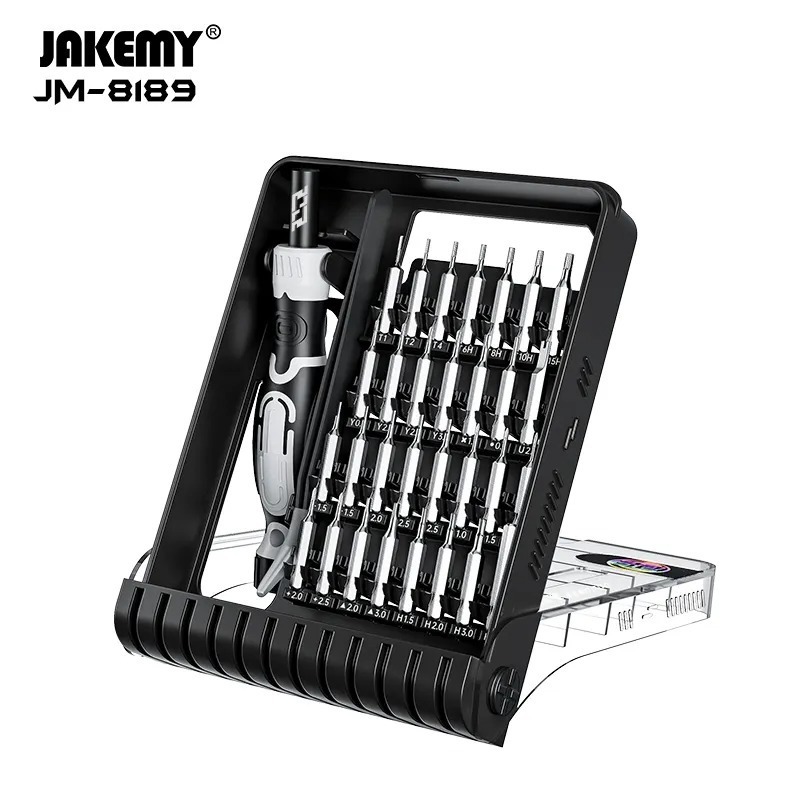
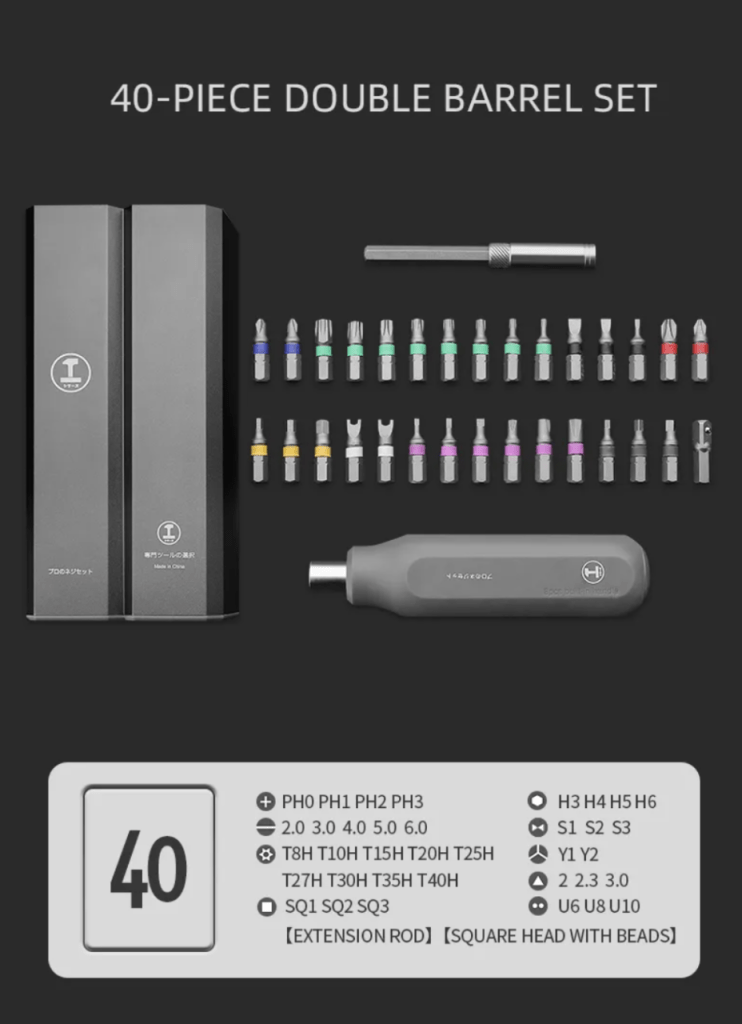
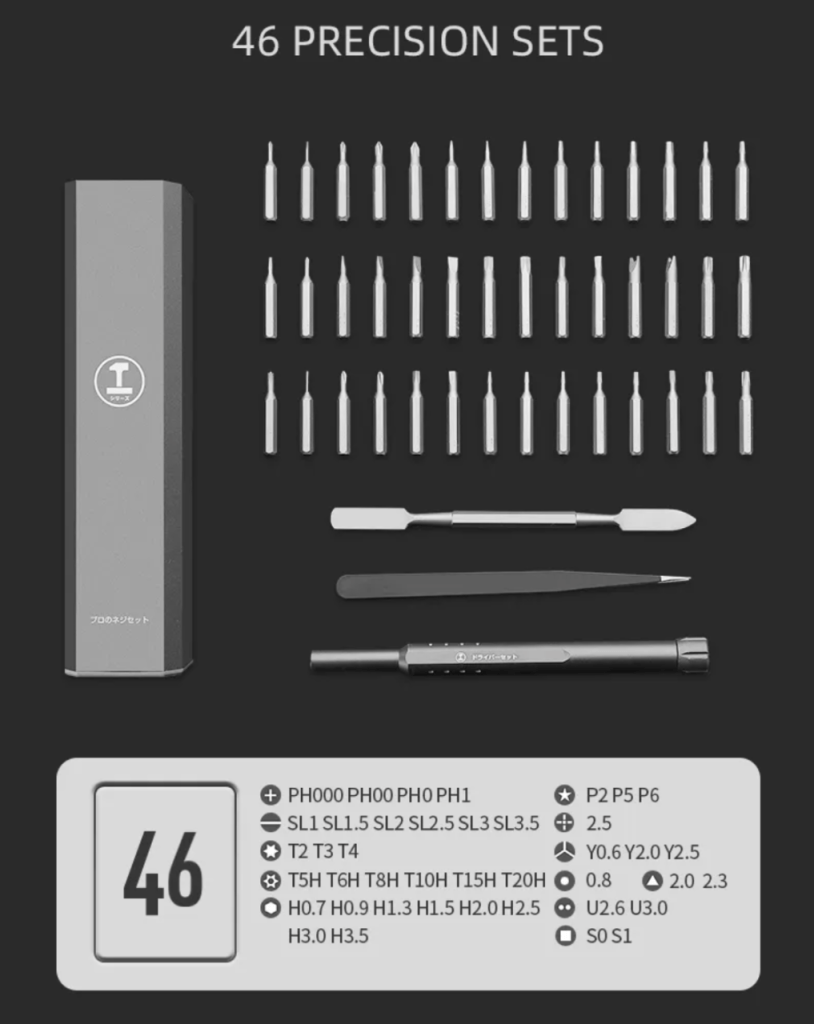
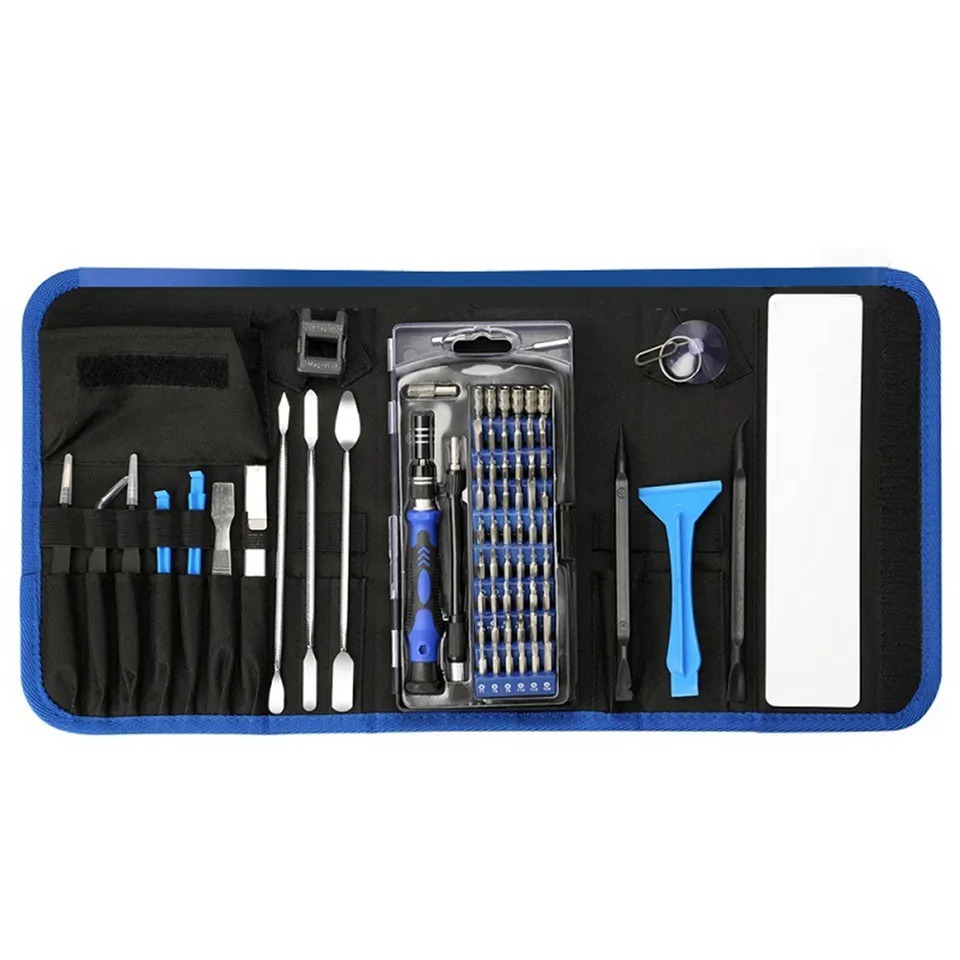
These kits cover every screw and connector in the A2779 MacBook Pro teardown:
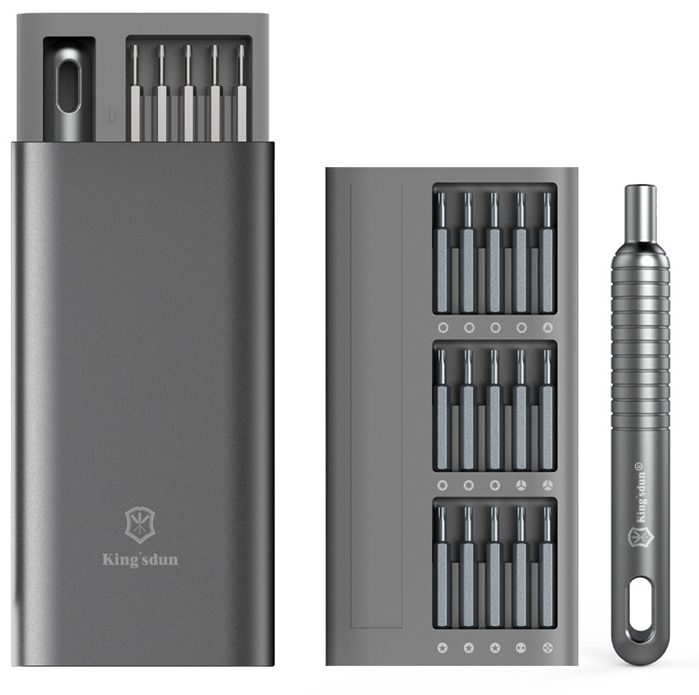
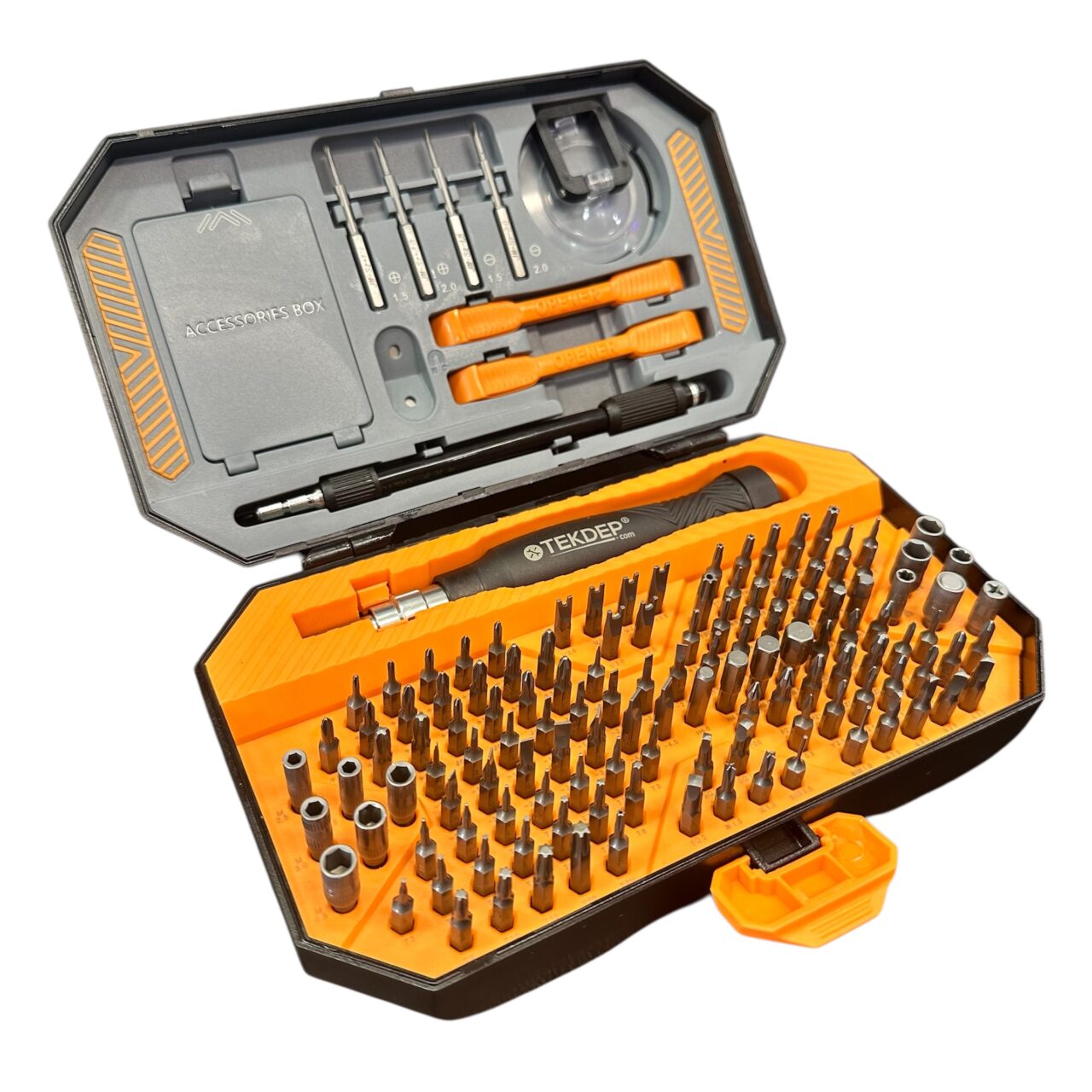
- 145 in 1 Steel Bit Precision Magnetic Screwdriver Tool Set
This kit includes the required bits for this MacBook:- PL5 Pentalobe – backplate screws
- PL1 Pentalobe – antenna bar screws
- T3 Torx – many flex cable shields and small brackets
- T5 Torx – trackpad, antenna, and other internal fasteners
- T6 Torx – some logic board mounting screws
- 6 in 1 Steel Bit Precision Magnetic Screwdriver Tool Set
Ideal as a compact kit for smaller follow up repairs or shop use.
You will also need:
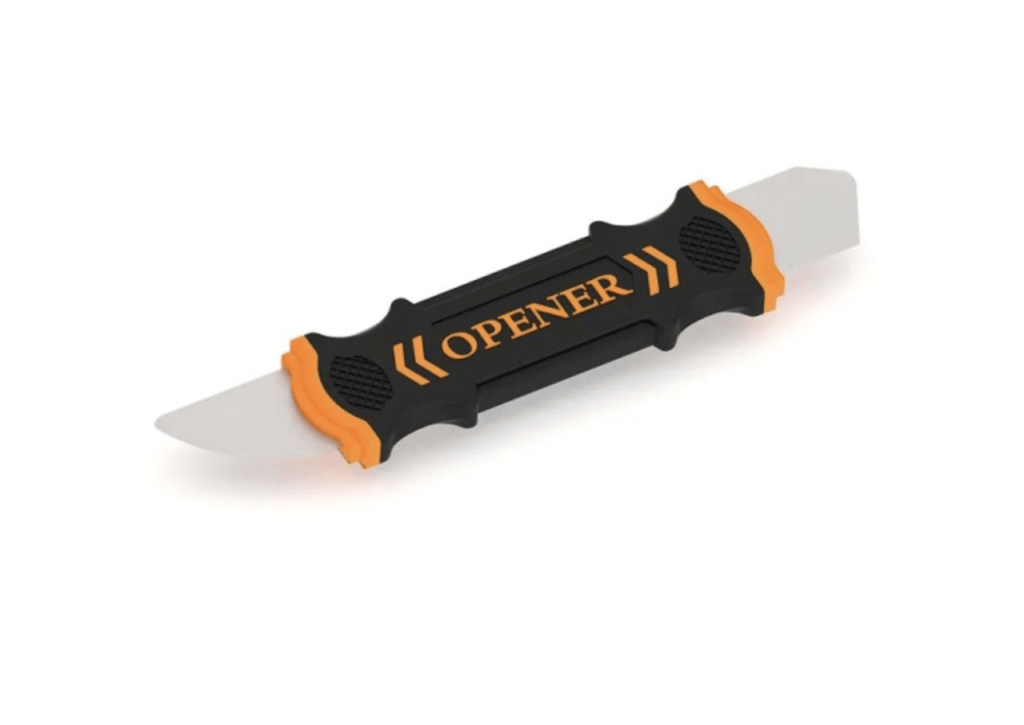
- A plastic spudger or pry tool
- ESD wrist strap and grounded mat
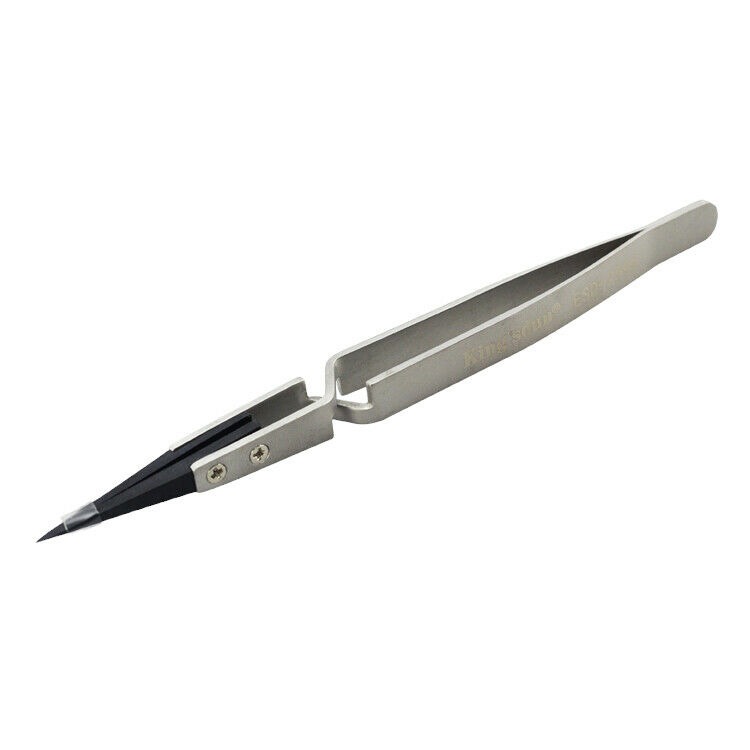
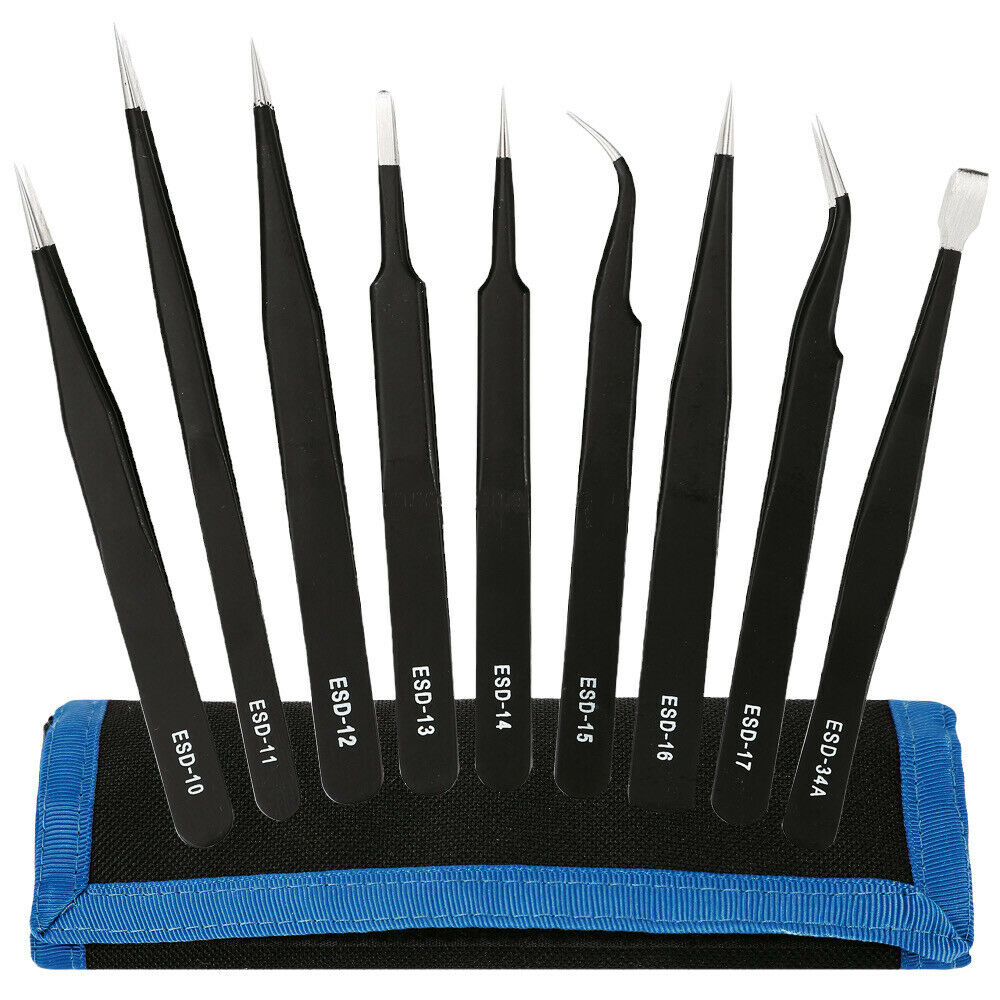
- Tweezers for small screws and magnet trapped fasteners
- Screw tray or magnetic mat to group each screw type
-

11″ ESD Anti Static Adjustable Grounding Wrist Strap Bracelet with Alligator Clip for Electronics Repair
$6.00 -
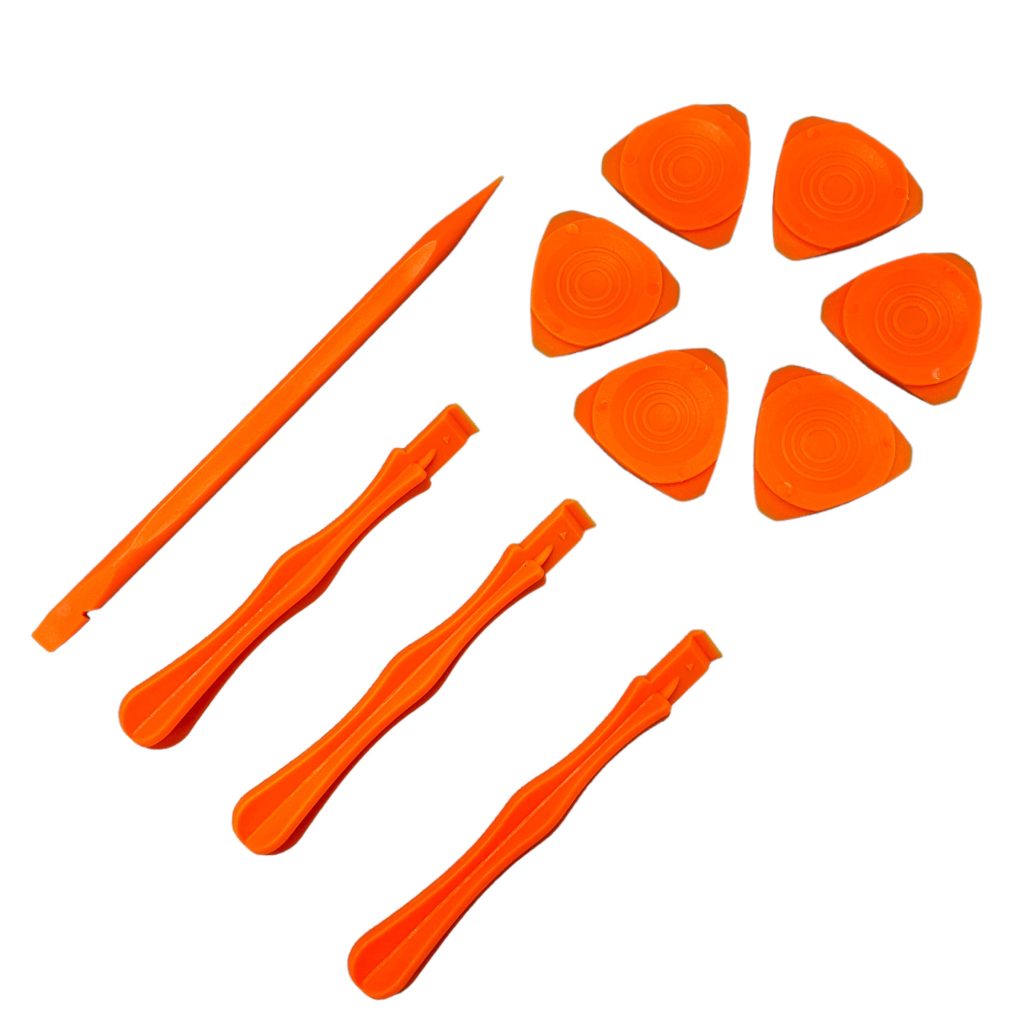
Professional Spudger Kit, 10 in 1, Anti Static Pry Tools For Electronics and Display Repair
$7.00 -
Kingsdun ESD-9 9pcs Anti-static Stainless Steel Tweezers Set for Electronic Phone Repair Tools
-26% $14.00Was:$19.00
A2779 Replacement Parts Highlighted
Throughout the teardown, you may decide to replace one or more components. TEKDEP supplies A2779 specific parts, including:
- A2779 bottom case
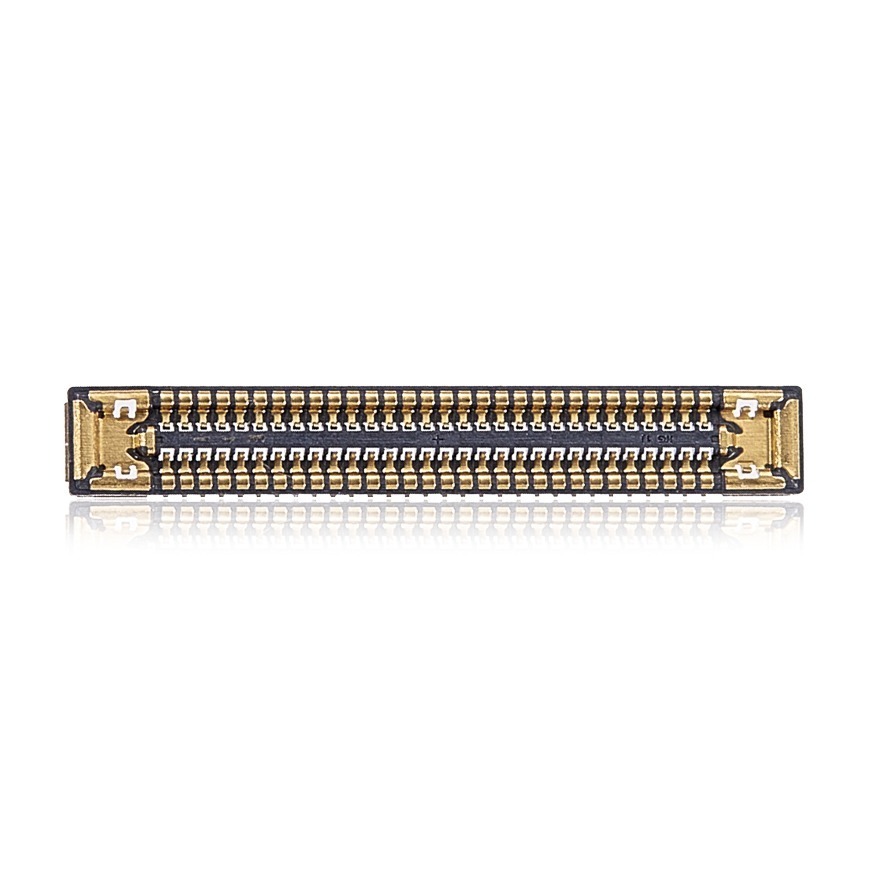
- A2779 battery board to logic board flex cable
- A2779 trackpad and A2779 trackpad flex cable (821 03214 A)
- A2779 WiFi antenna module
- A2779 complete internal screw set with brackets and LCD hinge hardware
- A2779 refurbished LCD display assembly
- A2779 logic board (M2 Pro, 16 GB RAM, 512 GB SSD configuration)
- A2779 aftermarket speaker set
- A2779 left and right CPU cooling fans
- A2779 aftermarket battery (Model A2519)
- A2779 top case assembly including keyboard, battery, and microphones
- A2779 aftermarket keyboard replacement
If you are planning multiple repairs, a full top case assembly is often the most efficient way to restore a heavily damaged A2779 that has keyboard, battery, and speaker issues at the same time.
Safety Before You Start
Before the first PL5 screw comes out, take a moment to plan for safety. The A2779 combines high-capacity lithium-ion cells, delicate flex cables, and ESD-sensitive components like the Apple Silicon M2 Pro.
Battery Safety
- Power the MacBook off completely and disconnect any Mac charger.
- Once the bottom case is off, disconnect the battery flex cable and pancake screw connection before touching any other components.
- Fully discharging the machine by holding the power button for about 10 seconds after disconnecting the battery helps lower the risk of a thermal event.
- Never puncture or fold the battery pack. If the pack looks swollen (a common issue known as “spicy pillow” in the repair community), stop and consider a professional MacBook battery replacement.
ESD Protection
- Work on a grounded anti static mat with an ESD wrist strap clipped correctly.
- Handle the logic board and flex cables by their edges. Avoid touching exposed pads, pins, or chips.
- Stray screws left in the chassis can cause shorts when you close the MacBook. Always account for every screw you remove.
Data Risk , Soldered SSD and Logic Board Removal
The SSD in the A2779 is soldered directly to the logic board. There is no removable drive. If your primary concern is data, any damage to the logic board can make professional recovery more complex and expensive.
“Modern MacBooks turn the logic board into both the brain and the hard drive. Treat it like it holds everything, because it does.”
If your A2779 has important business documents, study materials, or family photos that are not backed up, seriously consider sending it directly to a MacBook data recovery service rather than experimenting on your only copy of that data.
Step 1 – Opening the Backplate and Organizing Screws
The teardown begins with the back case. Unlike older models, the tolerances on the MacBook Pro M2 are incredibly tight.


- Flip the MacBook Pro A2779 upside down on your ESD mat.
- Use a PL5 Pentalobe driver to remove the eight bottom case screws.
- Note that there are two screw lengths:
- The four screws along the top edge are longer.
- The four screws along the bottom edge are shorter.
- Group them on your mat in a top to bottom pattern that matches their original positions. This makes reassembly more intuitive.
Once the screws are out:

- Use a plastic pry tool on the right side to release the internal clips. You should feel and hear a small click when the hatch releases.
- Repeat on the left side.
- Slide your fingers under the bottom edge and lift gently to release the remaining clips.
- Push and pull the top and bottom edges slightly to slide the backplate off.
Take a moment to inspect the inside. This is a good time to visually check for liquid damage around the battery edges, logic board, or ports. If you see obvious corrosion, consider stopping and using professional repair and data recovery instead of continuing the teardown.
Step 2 – Trackpad Connector and Battery Flex Cable
Before you touch any other component or attempt a MacBook battery replacement, you must isolate power. The A2779 maintains power on the board even when off.

- Identify the trackpad connector shield near the center bottom of the board.
- Use a T3 driver to remove the trackpad connector screws and lift the shield.
- Gently slide a plastic pry tool under the trackpad connector and lift it away from the board.
Under this area sits the main battery board to logic board flex cable.

Disconnecting the Battery: Under this area sits the main battery board to logic board flex cable.
- This cable has two locking latches and is a common failure point if rushed.
- Use your fingernail or a plastic tool to flip each latch up from the back.
- Slide the flex cable free with a slow, straight motion. Do not twist or bend it sharply.
Next, locate the pancake screw that secures the battery power connection:
- Switch to a T5 driver.
- Remove the pancake screw that locks the battery board connection.
- Flip the small metal tab up.
At this point, the battery is electrically disconnected from the rest of the system.
At this point, the battery is electrically disconnected from the system. To fully discharge residual power, open the lid slightly and press and hold the power button for about 10 seconds. This helps drain any remaining charge on the logic board capacitors and lowers the risk of accidental shorts.
Step 3 – Removing the Trackpad and Trackpad Flex Cable
The trackpad is mounted between the battery and the bottom case. It must be removed for safe MacBook battery replacement and to prevent flex cable damage when prying adhesive.

- With the battery flex and trackpad connector already disconnected, grab your T5 driver again.
- Remove all trackpad mounting screws. There are two types, so keep them grouped:
- The majority are standard T5 trackpad screws.
- A few have different heads that act like washers or isolators to help with haptic feedback.
Extracting the Trackpad:

- Slightly open the MacBook and let the trackpad drop down from the chassis.
- Gently route the trackpad flex cable through the opening.
- Lift the trackpad out of the device.
Important: On the trackpad assembly, you will see small circular spacers that act like washers. They are critical for even click feel and haptic performance. Avoid losing them.

Removing the Flex Cable:
- Locate the small latch on the trackpad side connector.
- Flip the latch up with a fingernail or plastic pry tool.
- Gently peel away the adhesive and slide the flex cable out.
Pro Tip: Trackpad flex cables are a frequent failure after DIY repairs because they are thin and often creased. If you see any visible damage, plan to replace the flex cable with an A2779 trackpad flex cable (821-03214-A) during reassembly.
Step 4 – WiFi Antenna Array and Display Assembly Removal
To remove the MacBook Pro screen or replace the WiFi antenna, you will work across the center hinge area. This is a distinct difference from the MacBook Air M2, which uses a simpler hinge mechanism.

Antenna and Display Screws:


- Use a T5 driver to remove the screws that hold the WiFi / Bluetooth antenna block in the center and on both sides.
- Switch to the T3 driver and remove:
- The small brackets that protect the display flex cables on top of the logic board
- The screws around the WiFi antenna cables
- The two T3 screws near the sleep / proximity sensor that tells the MacBook when the lid is closed
Hinge Protectors:

- Use the appropriate Torx driver to remove the small hinge guards on the right and left. These keep the hinge and top case aligned.
The PL1 Screws (Danger Zone):

- There are nine very small PL1 Pentalobe screws that secure the antenna bar to the top case.
- Carefully remove all nine and keep them away from magnets.
- Warning: These screws are often lost and can become trapped in the display magnets. If left there, they will crack your Retina display when the lid is closed.
Removing the Antenna Bar:

- Use a plastic pry tool to separate the display flex cables from their connectors.
- Gently lift the WiFi antenna bar and Bluetooth antenna assembly away from the top case.
Detaching the Display:

- Use a T8 driver to remove the six hinge screws, three on each side. They are larger and can be tight, so apply firm downward pressure and keep the bit straight to avoid stripping.
With the hinges free:


- Lift the display carefully while supporting the flex cables.
- Peel back any protective padding or foam that sits under the hinge area.
- Open the display slowly while applying pressure to the hinges until the display separates cleanly from the top case.
You now have a standalone A2779 display assembly that can be replaced with a refurbished A2779 LCD display or reinstalled after you complete other internal repairs.
Step 5 – Logic Board Preparation and Removal
Many deeper repairs, such as fan replacement, USB-C port repair, or full top case swaps, require complete logic board removal. This is the brain of the MacBook Pro M2.
Disconnecting Flex Cables & Removing Shields
Using your T3 driver, work systematically to remove shields over:

- Left side USB-C port flex.
- Power button and Touch ID flex.
- MagSafe 3 charging port.
- Right side USB-C ports and headphone jack.
- Speaker, keyboard, and backlight connectors.
- Fan flex cables.
Most shields are T3 and can be grouped together on the mat.
Disconnecting Flex Cables

With a plastic pry tool, disconnect:
- The left USB-C flex and small Touch ID / power button flex.
- The sleep sensor flex.
- MagSafe 3 cable and auxiliary headphone jack flex.
- The pull-tab style top case connector near the right side.
- Both speaker flex cables and fan flex cables.
- The large keyboard connector and the smaller backlight flex.
Take your time here. Many of these flex cables can be reused if you avoid bending or tearing them.
Logic Board Screw Map

The A2779 logic board is held by different sizes of Torx screws.
- T6 screws are found in several corners and near the center, often under plastic covers.
- Additional T5 screws secure the heatsink area and other parts of the board.
- Along the bottom of the logic board, there are:
- Two larger T5 screws at the corners
- Two smaller T5 screws in the center
Work from top to bottom:
- Remove all visible T6 screws that secure the board and its small metal plates.
- Remove plastic covers that hide four additional T6 screws and then remove those as well.
- Remove the heatsink related T5 screws.
- Remove the remaining T5 screws along the bottom edge of the board.
Never force a screw. If a screw feels wrong, double check that you are using the correct bit size.
Lifting the Logic Board

Before lifting:
- Push all flex cables gently away from the logic board so they will not snag or catch.
- Peel back any tape or tabs along the fan edges that overlap the board.
To remove the board:

- Slide your pry tool carefully under the right edge of the logic board.
- Lift slowly to create an angle while checking that no cables remain attached.
- Lift the board to roughly a 40 to 45 degree angle so that the HDMI port side can clear its recess in the top case without bending.
- As you lift, watch the small Touch ID flex channel near the top. Do not catch it or put pressure on it.
Once the HDMI port is clear, you can lift the logic board out completely.

At this point, your A2779 logic board is bare and accessible for board level diagnostics, replacement with a compatible A2779 logic board, or preparation for data recovery work.
Step 6 – Touch ID / Power Button Assembly
The Touch ID button on the A2779 is cryptographically paired to its original logic board at the factory. They are a matched set. If you replace only the button, Touch ID will not work.


To remove the Touch ID assembly:
- With the logic board and display already removed, locate the Touch ID flex cable on the top case.
- Use a plastic tool to gently peel the flex away from the top case, working slowly along the adhesive.
- Use a T3 driver to remove the small T shaped protective bracket over the Touch ID area.
- Remove the six T3 screws:
- The two center screws connect the metal plate to the top case.
- The four outer screws connect the plate to the Touch ID button itself.
When reassembling, you mount the plate to the Touch ID button first, then center the assembly and secure it to the top case. This ensures a clean, centered button feel and proper haptic response.
Feed the Touch ID button and flex through the opening in the top case and keep it together with its logic board so you do not accidentally mix matched components.
Crucial: Keep this button together with its logic board so you do not accidentally mix matched components.
Step 7 – Fans, Speakers, and I/O Ports
With the logic board removed, the remaining components are easier to access.
Cooling Fans


Unlike the MacBook Air M2, the Pro models rely on these fans for sustained performance.
- Three T3 screws
- One larger T5 screw on each side
Remove the T3 screws first, then the T5. Lift the fans out cleanly, noting their orientation and cable paths.
You can install A2779 left and right CPU cooling fans during reassembly if your original units are noisy or have bearing issues.
Speakers

The speakers sit deep in the top case and require logic board removal, but they are otherwise simple.
- Each speaker uses four screws, with a similar T3 + T5 pattern.
- Remove the screws, disconnect the speaker flex (if still present), and lift the speaker modules out.
If your A2779 has rattling or distortion at moderate volume, replacing the speakers with an A2779 aftermarket speaker set is often the cleanest fix.
USB C and Audio Ports

On the A2779, Apple moved away from permanently soldered I/O ports. The USB-C ports and headphone jack sit on small daughterboards, making them replaceable—a huge win for repairability.
To remove a USB C port module:
- Use a T5 driver to remove the two screws holding the port board.
- Gently slide the board out of the chassis.
- Watch for any tension from the audio jack assembly on the right side and adjust if needed.
The headphone jack module is also held by a couple of T5 screws and can be removed in a similar way.
Be aware that screws around the charging area can be drawn towards the MagSafe magnet. Keep tweezers ready to pull screws away from the magnet if they jump during removal.
Step 8 – Full Top Case Assembly and When to Replace It
At this stage of the teardown, the A2779 top case is essentially bare, containing only the keyboard, backlight layer, and battery adhesive.

- Keyboard still mounted
- Backlight layer under the keyboard
- Adhesive pads where the battery used to sit
- Mounts for speakers, trackpad, and other hardware
You can proceed to:
- Strip the keyboard and backlight for a dedicated keyboard replacement
- Install a fresh aftermarket A2519 battery
- Replace worn or damaged speakers and trackpad
- Or retire the chassis and install a complete A2779 top case assembly that already includes the keyboard, battery, microphones, and related hardware
In many shop scenarios, a complete top case assembly is the most cost effective and time efficient way to restore an A2779 that has liquid damage across the keyboard, palm rest, and trackpad area. Instead of spending hours on rivets and individual components, you transfer your known good logic board, display, and small modules into a pre populated top case.
A2779 Teardown Quick Reference – Screw Types And Drivers
This section is designed as a bookmarkable reference. Technicians, bloggers, and forum users can link here when explaining A2779 disassembly.
| Area | Screw Type | Driver | Notes |
| Bottom case | PL5 Pentalobe, long/short | PL5 | 4 long at top, 4 short at bottom |
| Antenna bar | PL1 Pentalobe | PL1 | 9 very small screws, magnets attract them easily |
| Antenna block, some shields | Torx T5 | T5 | Connector block and side mounts |
| Flex cable shields (most) | Torx T3 | T3 | Trackpad, display, sleep sensor, Touch ID shields |
| Hinge protectors | Torx (model specific) | T5 | Small guards above hinges |
| Display hinges | Torx T8 | T8 | 6 large screws total |
| Trackpad screws | Torx T5 | T5 | Two slightly different types, keep grouped |
| Logic board corner and plate screws | Torx T6 | T6 | Under small plastic “security” caps |
| Logic board central and lower screws | Torx T5 | T5 | 4 lower screws, 2 larger and 2 smaller |
| Fan screws | 3 x T3 + 1 x T5 per fan | T3, T5 | T5 screw is largest on each fan |
| Speaker screws | 3 x T3 + 1 x T5 per speaker | T3, T5 | Similar pattern to the fans |
| USB C and audio port boards | Torx T5 | T5 | 2 screws each, near MagSafe magnet |
| Touch ID and power button plate | Torx T3 | T3 | 6 screws plus 1 small T shaped bracket |
Feel free to screenshot or print this table as your A2779 teardown cheat sheet.
Pro Tips and Common Mistakes With A2779 Teardowns
From actual TEKDEP repairs, here are some patterns we see:
- Lost PL1 antenna screws: They often fall into the display magnets and later crack the LCD when the lid closes. Always verify all nine are removed and none are left loose.
- Ripped battery or trackpad flex cables: Flex cables are thin, adhesive backed, and easy to crease. Always release the latch first and break adhesive gently before pulling.
- Using the wrong Torx size: Forcing a T5 where a T6 is needed can strip the screw head and delay the repair. If a screw feels wrong, stop and check the bit.
- Forgetting paired Touch ID and logic board: Mixing parts can leave you with a working MacBook but non functional Touch ID. Keep each Touch ID sensor with its original logic board.
- Ignoring ESD precautions: Mac logic boards are ESD sensitive. Static damage is often invisible but can cause intermittent faults later. Work grounded from the start.
- Over flexing the logic board: Lifting the board without clearing all cables or without respecting the HDMI side recess can crack traces and BGA joints.
If you are unsure at any step, refer back to the video chapters or use the timestamps in the description to watch that portion again in real time.
Extra Knowledge – Failure Patterns We See On A2779 Boards
From TEKDEP’s MacBook repair and data recovery queue, some common A2779 issues include:
- No power after liquid spill near the left palm rest and USB C ports
- MacBook boots but shows no image after a DIY display swap with lost PL1 screw damage
- Trackpad and keyboard failures after aggressive battery removal
- Random shutdowns tied to damaged battery flex or corroded fan connectors
- Intermittent USB C charging due to worn or broken port boards
These are exactly the cases where:
- Having a complete teardown map avoids further damage.
- Using correct replacement parts from the A2779 parts category ensures a smooth MacBook Pro teardown without mismatched connectors or poor fit.
For more case studies and guides, check our Blog where we publish repair stories, diagnosis tips, and parts comparisons.
When To Use TEKDEP Mail In Repair or Data Recovery
You do not need to prove anything by finishing a risky teardown on a machine that holds important data.
Consider TEKDEP’s worldwide mail in repair service if:
- The MacBook does not power on or has obvious board level damage.
- You see corrosion or burn marks near power rails.
- The battery is swollen or physically damaged.
- You have already attempted a partial repair and are not comfortable going deeper.
Use TEKDEP’s MacBook data recovery service if:
- The logic board is dead and the MacBook holds data you cannot lose.
- Liquid damage occurred and the machine is unstable.
- You are thinking about board swaps but still need the original data.
For many users, the right path is a combination: send the A2779 to TEKDEP for diagnostics, data recovery, and repair, then use guides like this one for lighter future work when the risk is lower.
Frequently Asked Questions About A2779 MacBook Pro Teardown
How do I open the A2779 backplate?
Use a PL5 Pentalobe driver. Remember the top four screws are longer. Release the internal clips with a pry tool before sliding the plate off.
How do I safely disconnect the A2779 MacBook Pro battery?
Remove the trackpad connector shield, disconnect the trackpad, flip up the latches on the battery flex, and remove the T5 pancake screw. Always hold the power button for 10 seconds to discharge the board.
Can I replace the SSD on the A2779?
No. Unlike older models or the Mac Pro, the storage on the MacBook Pro M2 is soldered to the logic board. Data recovery requires professional board-level work.
What is the difference between MacBook Air M2 and MacBook Pro M2 disassembly?
The MacBook Air M2 lacks cooling fans and has a simpler hinge mechanism. The MacBook Pro M2 (A2779) is denser, has active cooling fans, and requires more steps to remove the logic board and display.
Is it worth repairing a MacBook Pro A2779?
Given the high cost of a new MacBook Pro M3 or M2, repairing the A2779 is almost always cost-effective, especially for screen replacements and battery swaps.
Final Thoughts – Using This A2779 Teardown The Smart Way
A full teardown of the 14 inch MacBook Pro M2 A2779 is a serious project, but with the right mindset it becomes a powerful tool:
- You understand exactly how Apple built the A2779.
- You know where the critical flex cables, sensors, and screws live.
- You can plan clean repairs for the display, battery, keyboard, fans, or ports.
Use this guide together with:
- The full teardown video on YouTube
- TEKDEP’s dedicated repair and data recovery services
- The parts catalog in the A2779 category
- Other step by step guides on the Tech Blog
Whether you are a shop owner building out your MacBook workflow or a serious DIY user tackling your first A2779, treat this page as your reference hub. Bookmark it, share it with your team, and link back to it whenever you need a verified teardown map of the MacBook Pro A2779.
If you decide the risk is not worth it for your own machine, that is also a smart decision.



